Higgsfield
  • Explore
  • Image
  • Video
  • Audio
  • SupercomputerNew
  • MCP & CLINew
  • Cinema Studio
  • Marketing Studio
  • Shorts StudioNew
  • ExplainerNew
  • Originals
  • Canvas
  • AI Influencer
  • Apps

THE ULTIMATE AI-POWERED CAMERA CONTROL FOR FILMMAKERS & CREATORS

Higgsfield AI

  • About
  • Trust
  • Careers
  • Contact
  • Pricing
  • Apps
  • Supercomputer
  • Cinema Studio
  • Marketing Studio
  • Higgsfield Canvas
  • Higgsfield Collab
  • Higgsfield MCP
  • Higgsfield Games
  • AI Influencer
  • Community
  • Enterprise
  • Team
  • Copilot
  • Reference Extension
  • Blog
  • Contests
  • Discord

Image

  • AI Image
  • Soul ID Character
  • Draw to Edit
  • Fashion Factory
  • Edit Image
  • Image Upscale
  • Photodump Studio
  • Higgsfield Popcorn
  • Nano Banana
  • Prompt Guide
  • Flux 2
  • Seedream 5
  • GPT Image 2
  • Inpaint
  • Soul 2.0
  • Soul Cinema
  • Soul Cast

Video

  • AI Video
  • Mixed media
  • Sora 2 Introduction
  • Veo 3.1 Introduction
  • Create Video
  • Lipsync Studio
  • Talking Avatar
  • Draw to Video
  • UGC Factory
  • Video Upscale
  • Kling 3.0
  • WAN 2.6
  • Seedance 2.0
  • Grok Imagine 1.5
  • Gemini Omni Flash

Edit

  • Banana Placement
  • Product Placement
  • Edit Image
  • Multi Reference
  • Upscale
  • Sora 2 Upscale
  • About
  • Trust
  • Careers
  • Contact
  • Pricing
  • Apps
  • Supercomputer
  • Cinema Studio
  • Marketing Studio
  • Higgsfield Canvas
  • Higgsfield Collab
  • Higgsfield MCP
  • Higgsfield Games
  • AI Influencer
  • Community
  • Enterprise
  • Team
  • Copilot
  • Reference Extension
  • Blog
  • Contests
  • Discord
  • X / Twitter
  • Youtube
  • Instagram
  • LinkedIn
  • Tiktok

535 Mission St, 14th floor, San Francisco, CA, 94105

  • X / Twitter
  • Youtube
  • Instagram
  • LinkedIn
  • Tiktok

© 2026 Higgsfield AI™. All rights reserved.

  • Press
  • Privacy
  • Terms
  • Cookie Notice
  1. Blog
  2. /
  3. Fresh Release
  4. /
  5. Create-Selling-Content-Using-Higgsfield

Ads of the Future: Create Selling Content Using Higgsfield

Mariam Barova

Mariam Barova

·

Aug 18, 2025

·

6 minutes

Ads of the Future: Create Selling Content Using Higgsfield

Part 1. How to Ace Ads with Product-to-Video

Forget About Prompting - Just Drop an Image

For years, GenAI revolved around carefully crafted prompts. Today, Higgsfield ended them. Welcome to a world without prompts — where you direct your AI like a real film set, not a text box.

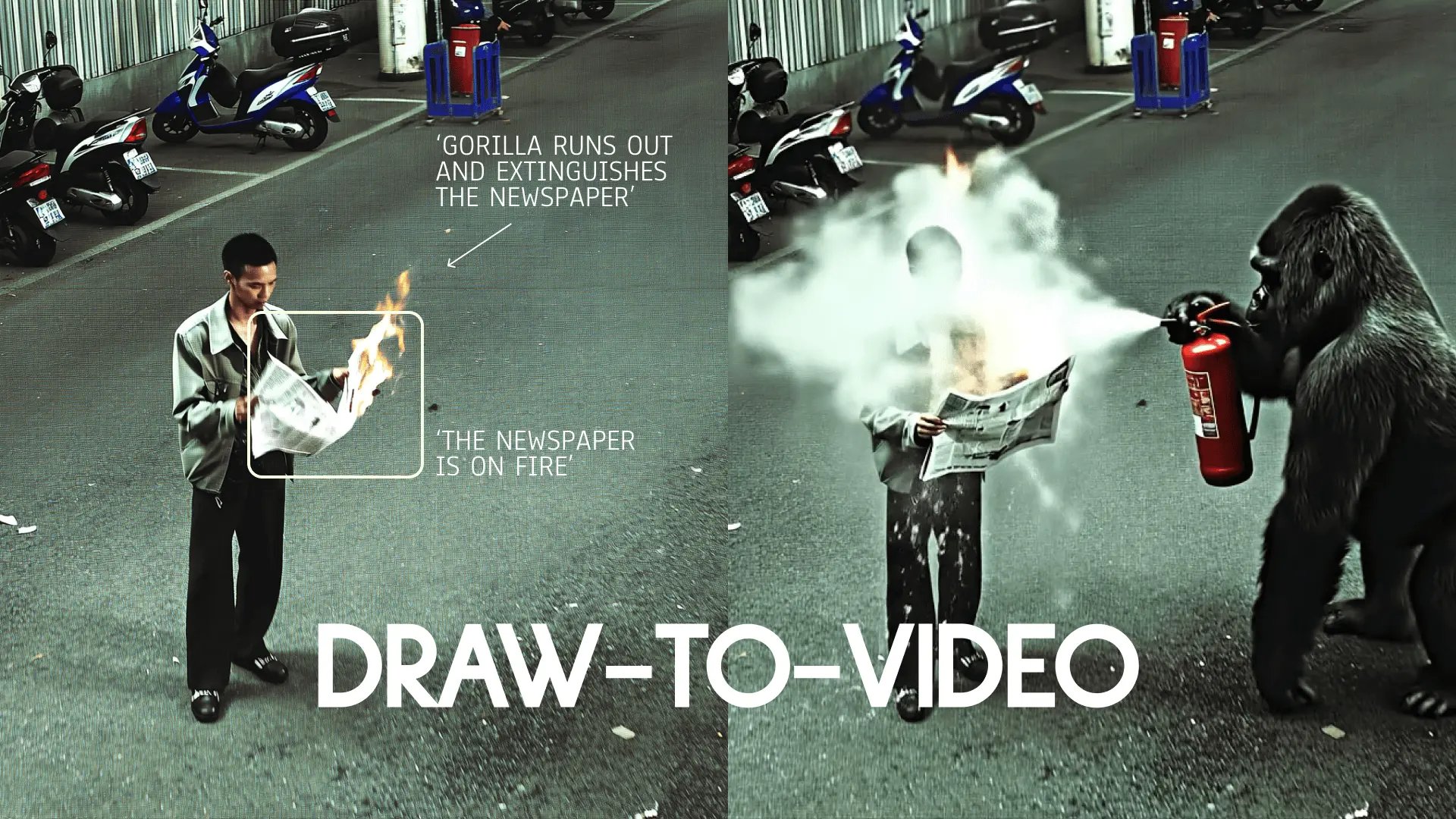
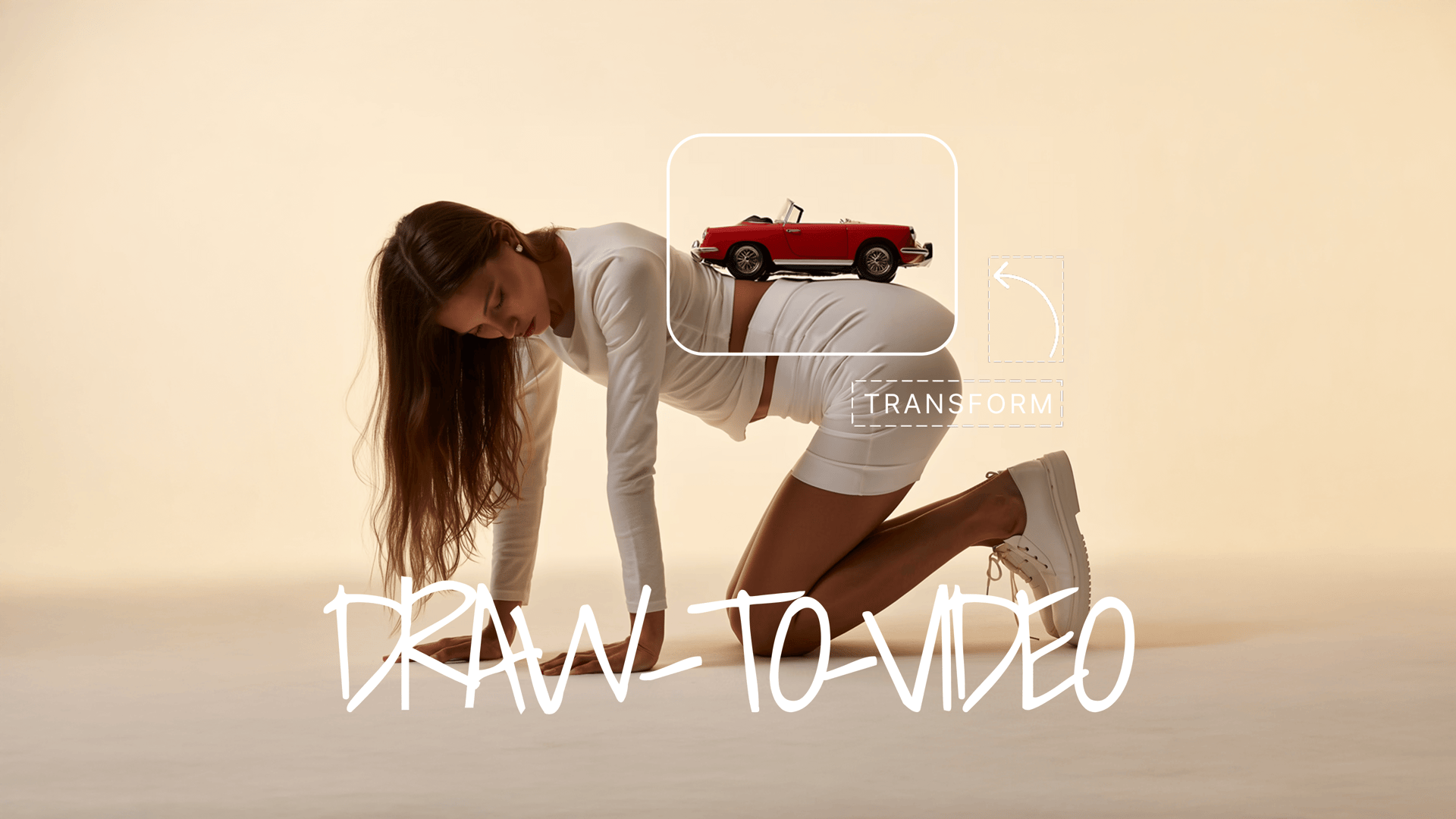
With the updated Draw-to-Video inside Higgsfield, you can now go beyond guiding motion — you can visually insert products, outfits, or extra objects right into the frame. Whether it’s a drink in your character’s hand, a wardrobe change, or combining multiple images into one scene, you now have full creative control without a single prompt.

This is a historic moment for creators: AI no longer needs instructions, it needs your direction.


Step-by-Step: How to Nail Your Draw-to-Video Creations

1. Go to: https://higgsfield.ai/create/draw-to-video

2. Upload or Generate Your Starting Image

  • Upload an image or generate one with Higgsfield Soul.

  • You can also use Soul ID to generate an image with your personal character.

  • Example image:

Dicaprio
Dicaprio

3. Insert Images Directly Into Your Frame (NEW):

  • Press the "Add Image" Icon

  • Choose an Image. Example:

coke
coke
  • Place an image of the product in the area it should be in (e.g., near the hand)

  • Resize the product so it matches how it would look in real life.

  • Use arrows and short text to show what happens (e.g., “Man pulls out a bottle with Coca Cola logo on it and smiles. Liquid in the bottle is dark.”).

  • Use high-quality images for high-quality output

  • Keep the style of an image consistent with the main frame (e.g., mixing cartoon style with realistic style is not recommended)

  • You can add up to 3–4 images in the frame, but 1-2 is recommended.

  • Works only with Veo 3 and MiniMax Hailuo 02.

  • Example instructions:

Your browser does not support the video.
Dicaprio Output

4. You Can Go Promptless

  • No typing walls of text. Your image and drawings are your creative brief.

5. Choose the Model

  • Veo 3

    → Best for built-in audio and lip-sync on your videos.

  • Hailuo 02

    → Best for high-energy, dynamic shots.

  • Seedance

    → Best for high-resolution, crisp videos (does not support image insertion yet).

6. Generate

  • Hit generate and watch your directed scene unfold exactly how you envisioned.


7. More examples:

McCafé

Your browser does not support the video.
McCafe

Nesquick

Your browser does not support the video.
Nesquick

Spider-Man

Your browser does not support the video.
Spider-Man

Hershey’s

Your browser does not support the video.
Hershey's

IKEA

Your browser does not support the video.
IKEA

Now, anyone can advertise anything, anywhere.


Part 2. Step-by-Step Guide: How to Ace Ads with UGC Builder

  1. Go To: https://higgsfield.ai/create/speech?ugc-studio=true

  2. Select Template

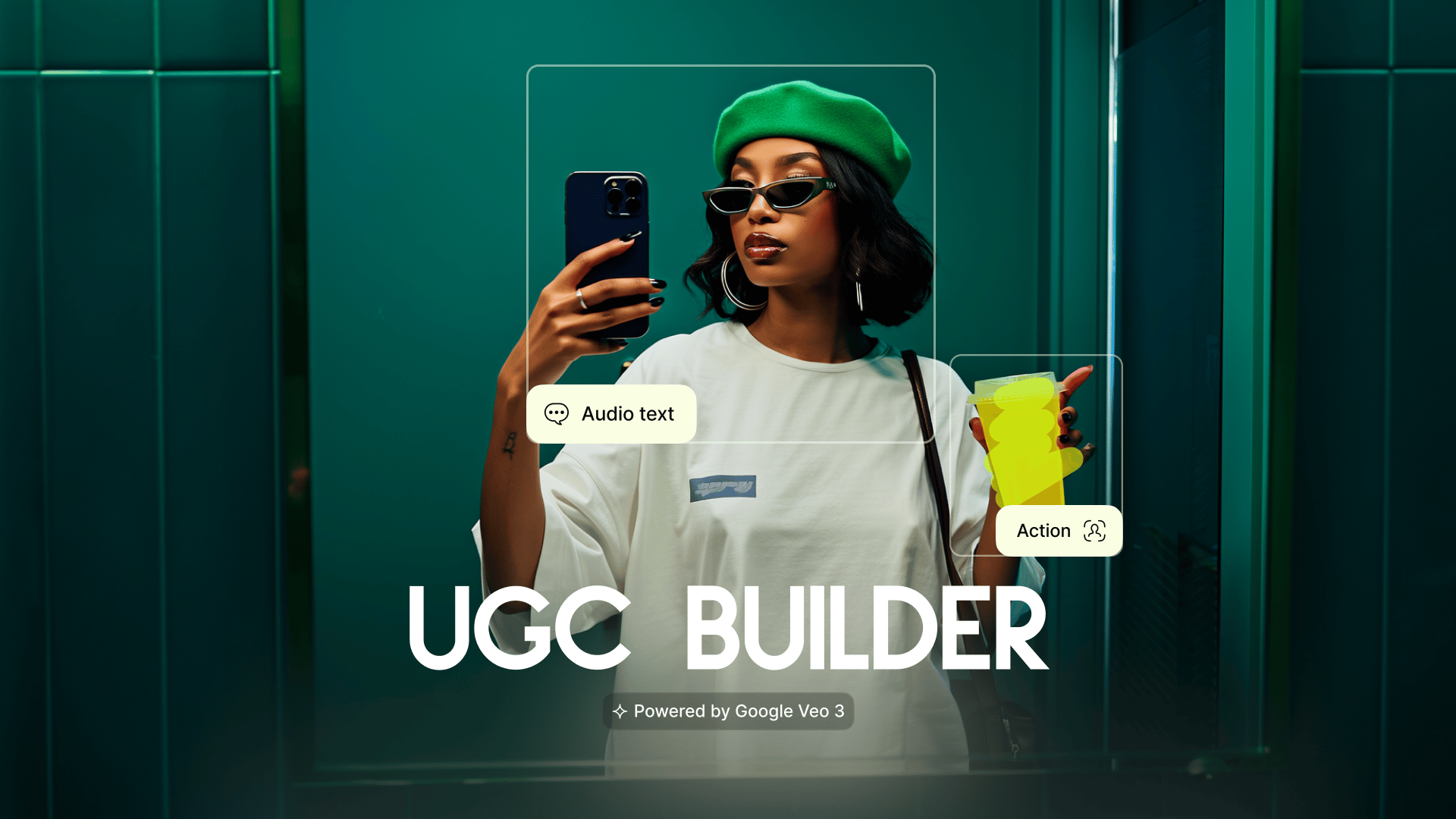
    Open UGC Builder and choose one of 40+ ready-made templates. Each template already has camera motion and setting set up.

  3. Upload an Image

    Drop in a high-resolution PNG or JPG. The higher the input image’s quality - the higher the result. Make sure the image you are uploading is consistent with the template you have chosen. For example, a selfie image with a “0.5 Selfie” template would work great, while a selfie image with a “Scene Reporter” template might be inconsistent. If you are not sure, choose “General”.

  4. Describe the Action

    Example: a man slowly walks on the street.

  5. Type Audio Text

    This is exactly what your character is going to say in the video.

  6. Choose Audio Settings

    Choose the voice type, emotion, language, and accent that you want your character to have.

    Note: the accent dropdown list will automatically adjust to the image you have uploaded.

  7. Add Background Sound

    Describe the sound you want to have in the background. Example: city noise, birds chirping, a plane arriving, ocean breeze, etc.

  8. Wait for the result

    Your generation now is in the queue and will be ready in a few moments.

Killer Prompt Structure

Prompts are all it takes to create outstanding results. Here is a structure that lets our model get the best idea of what you want.

  1. Template section

    • For this release, we have updated templates with 17 new Motion Templates. Test them to see the difference.

    • Decide what should be the visual focus: should the scene start with the character’s action, or should the camera or VFX take the lead? For example:

      • “Camera zooms out as sparks fly around the character”

      • “Slow-motion bullet time as subject jumps mid-air”

  2. Action section

    • Start by clearly describing who or what the main subject is. This could be "a woman in a red dress," "a robot samurai," or "a surfer with long hair." The more specific, the better the model can ground the image.

    • Detail what the subject is doing. This gives the scene motion and intent. e.g., “running through rain,” “looking over a cityscape,” or “raising a glowing sword.”

    • Set the stage - where is this all happening? A neon-lit alley, frozen tundra, abandoned warehouse, or sci-fi spaceship corridor? This anchors the scene in a visual context.

    • Mention the light source and style - “golden hour backlight,” “flashing strobe,” “harsh flashlight from below,” or “soft cinematic fill.” Lighting defines the tone and realism of the render.

    • Inject the emotional tone - is the scene intense, serene, chaotic, mysterious, or playful? Mood influences composition, color grading, and even animation pacing.

Your browser does not support the video.
ugc

Where Higgsfield UGC Builder shines

  • UGC content, at scale - now you can reach the output volume that took you a month to shoot - in 1 evening.

  • Ad creatives for performance teams - drop 3 talking-head variants of your script in an afternoon, A/B test overnight, scale the best performer by morning.

  • Localized content at scale - one avatar with multiple languages and tones.

  • Explainers for SaaS & apps - plug a talking avatar next to your UI and instantly upgrade your "how it works" section without hiring talent or setting up a shoot.

  • Brand ambassador content - launch a digital face of your product who can speak, sell, and stay on-brand 24/7.

  • Support videos that don’t suck - answer common questions with avatars that feel human, not robotic or buried in a help doc.

Before UGC Builder

To get the best out of UGC Builder, you need a great starting keyframe. In case you don’t have a great keyframe with the vibe, setting, and style you need - Higgsfield Soul ID is what you need:

  1. Go to higgsfield.ai/character

  2. Upload 20+ images with yourself

  3. Click “Generate”

  4. Wait for your character to get trained

  5. After your character is ready, it’s now all yours to create an unlimited number of consistent hyperrealistic keyframes with yourself

  6. Use Higgsfield Reference - our image reference feature that lets you take any image from IG or Pinterest and generate your own image with your character.

  7. Use the best ones as a keyframe for UGC Builder

Wrapping up…

Explore the future of ads with Higgsfield. Experiment, remix, and bring your ideas to life. Some of the most impressive results have come from creators just having fun and pushing the limits.

🎬 Start here: https://higgsfield.ai/create/draw-to-video


Tag us when you post. We love featuring your work 💚

@higgsfield.ai (IG) | @higgsfield_ai (TT) | @higgsfield_ai (X)


Need help or want to share thoughts? DM us anytime, anywhere.

Create ads. Anytime, anywhere.

Try now
Mariam Barova

by Mariam Barova

Share article

Discover more

post preview

The Future of Product Placement. Turn Your Sketch Into a Cinema with Higgsfield Product-to-Video

post preview

Become The Director of AI-Cinema with #1 Video Model

post preview

Higgsfield UGC Builder Gives You the Director’s Chair for Every Scene