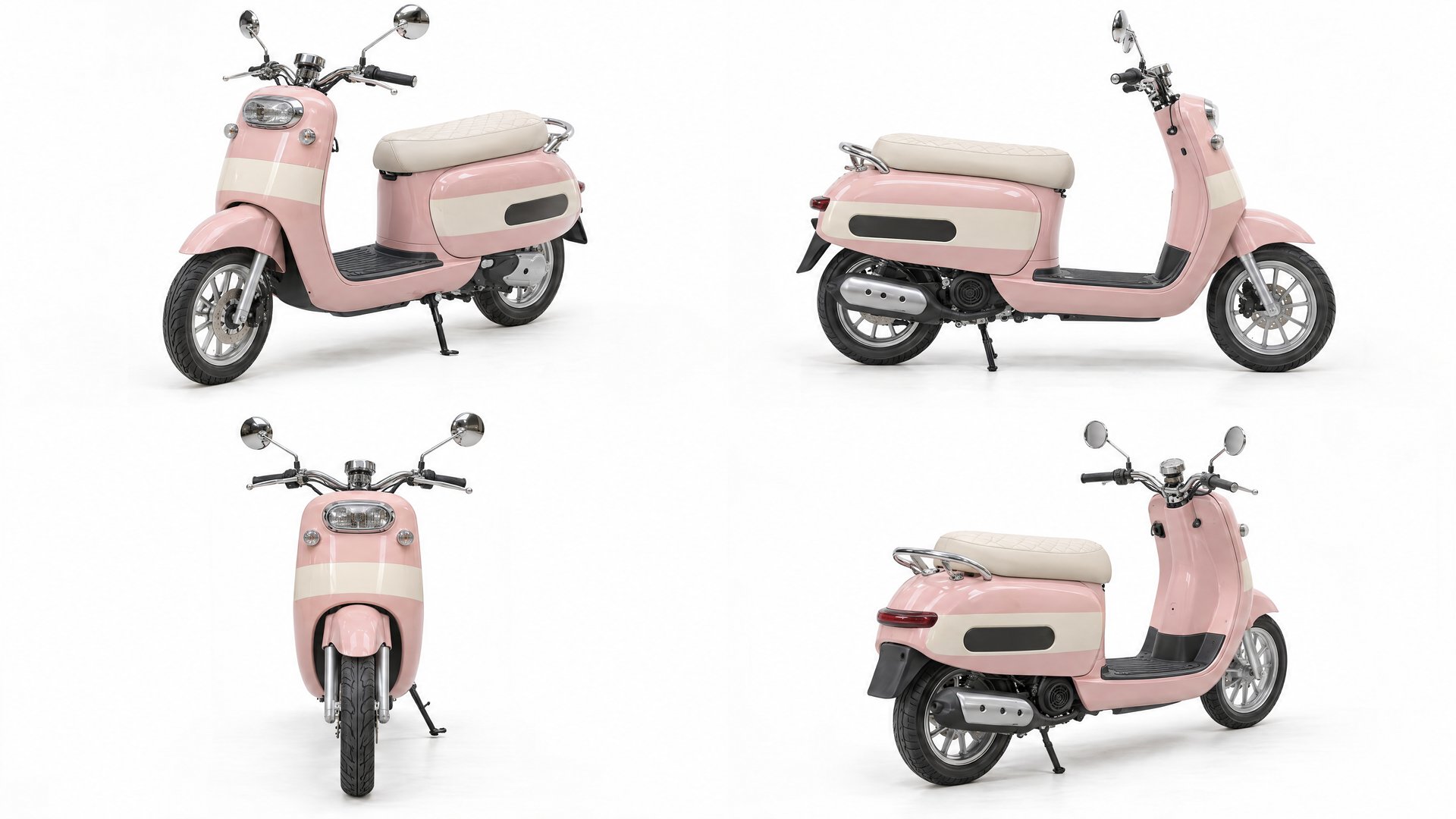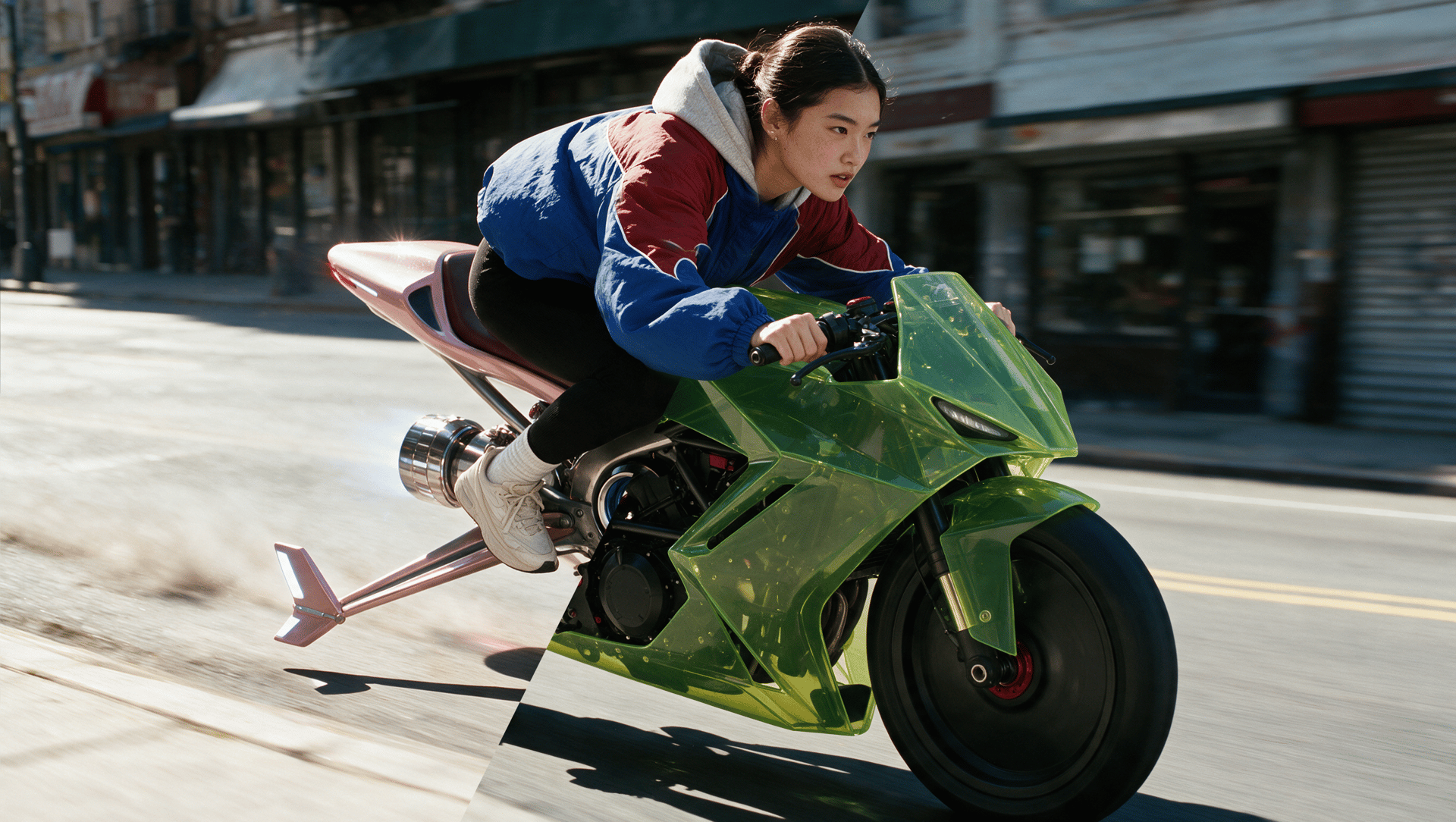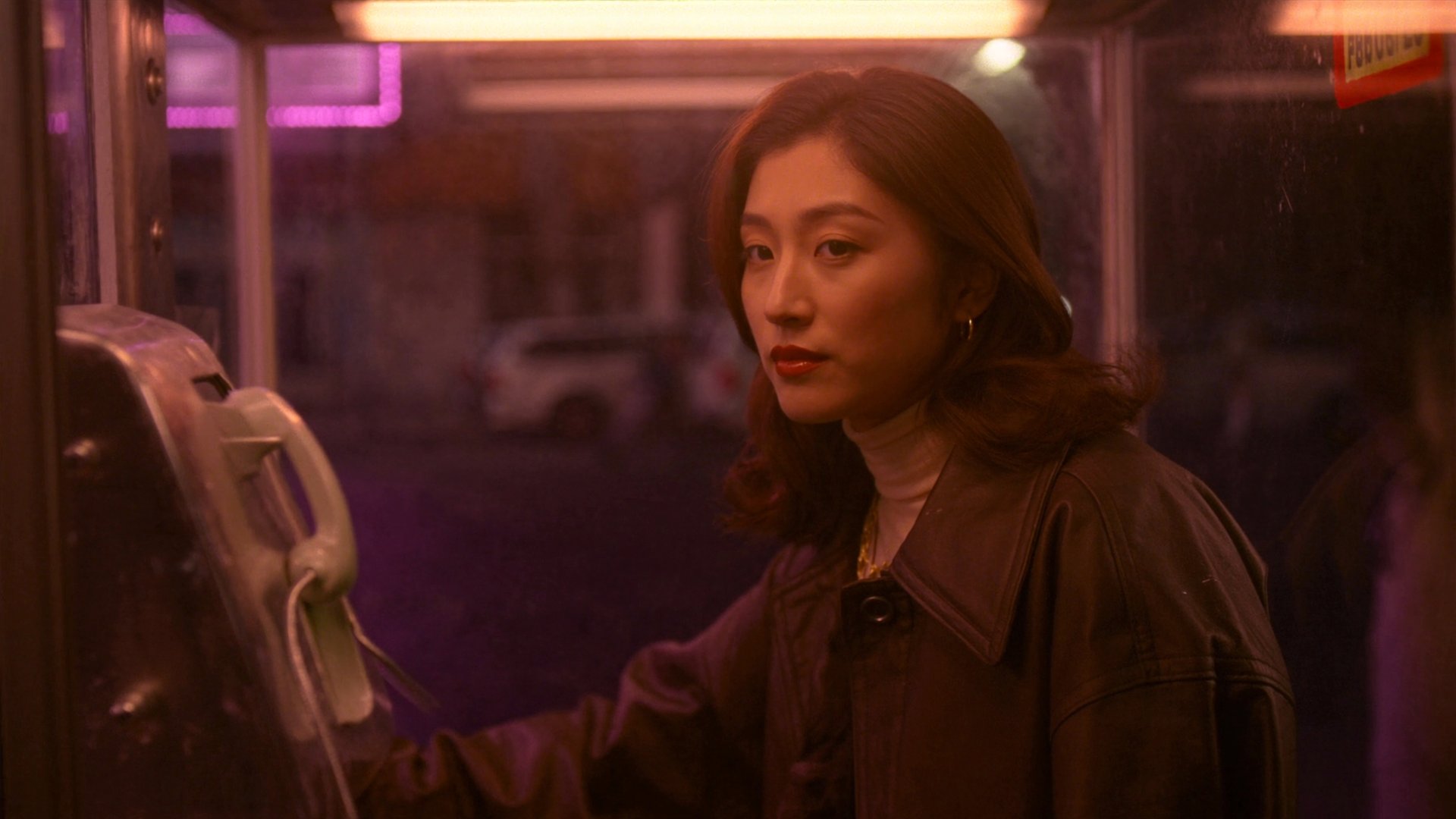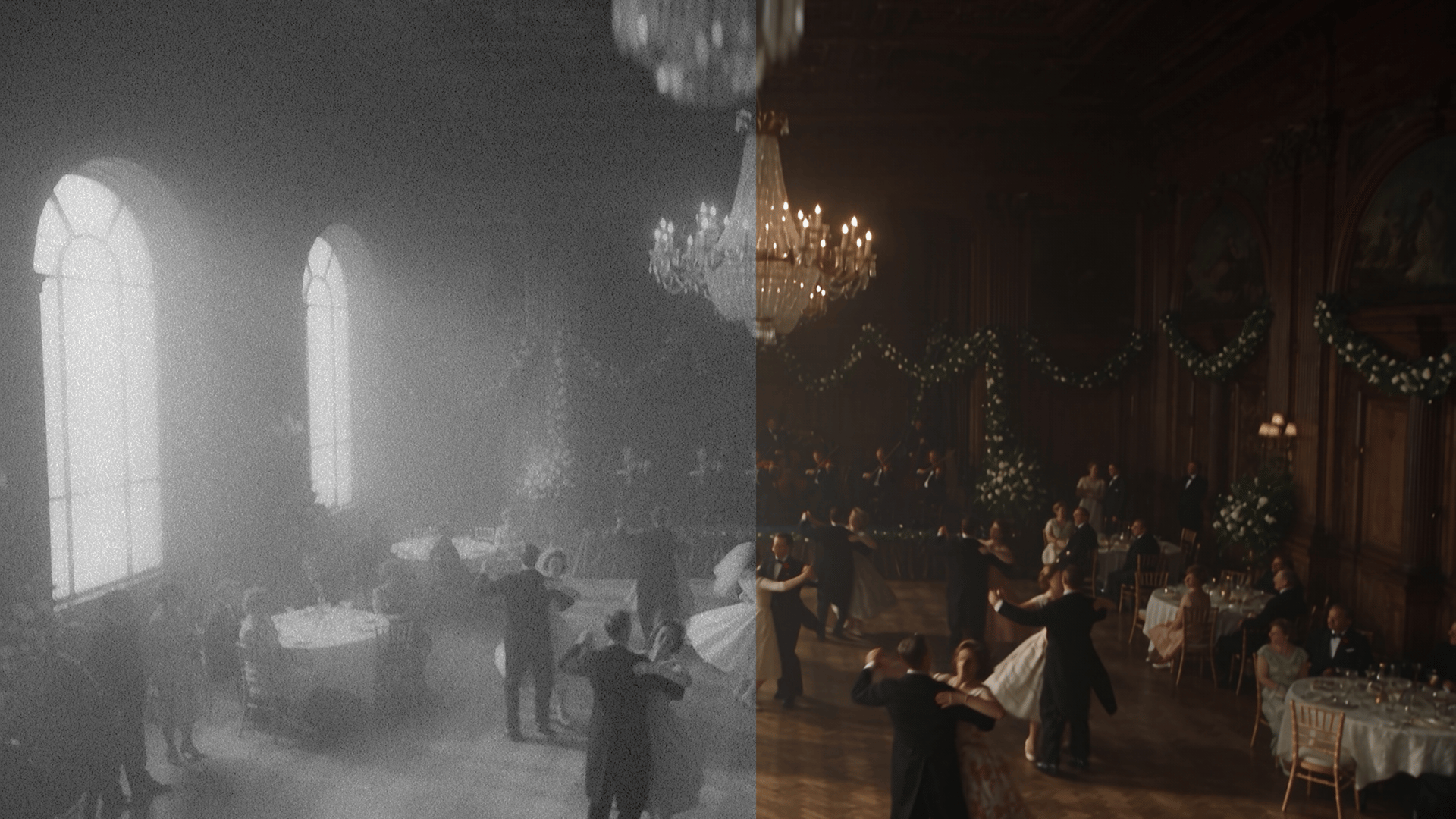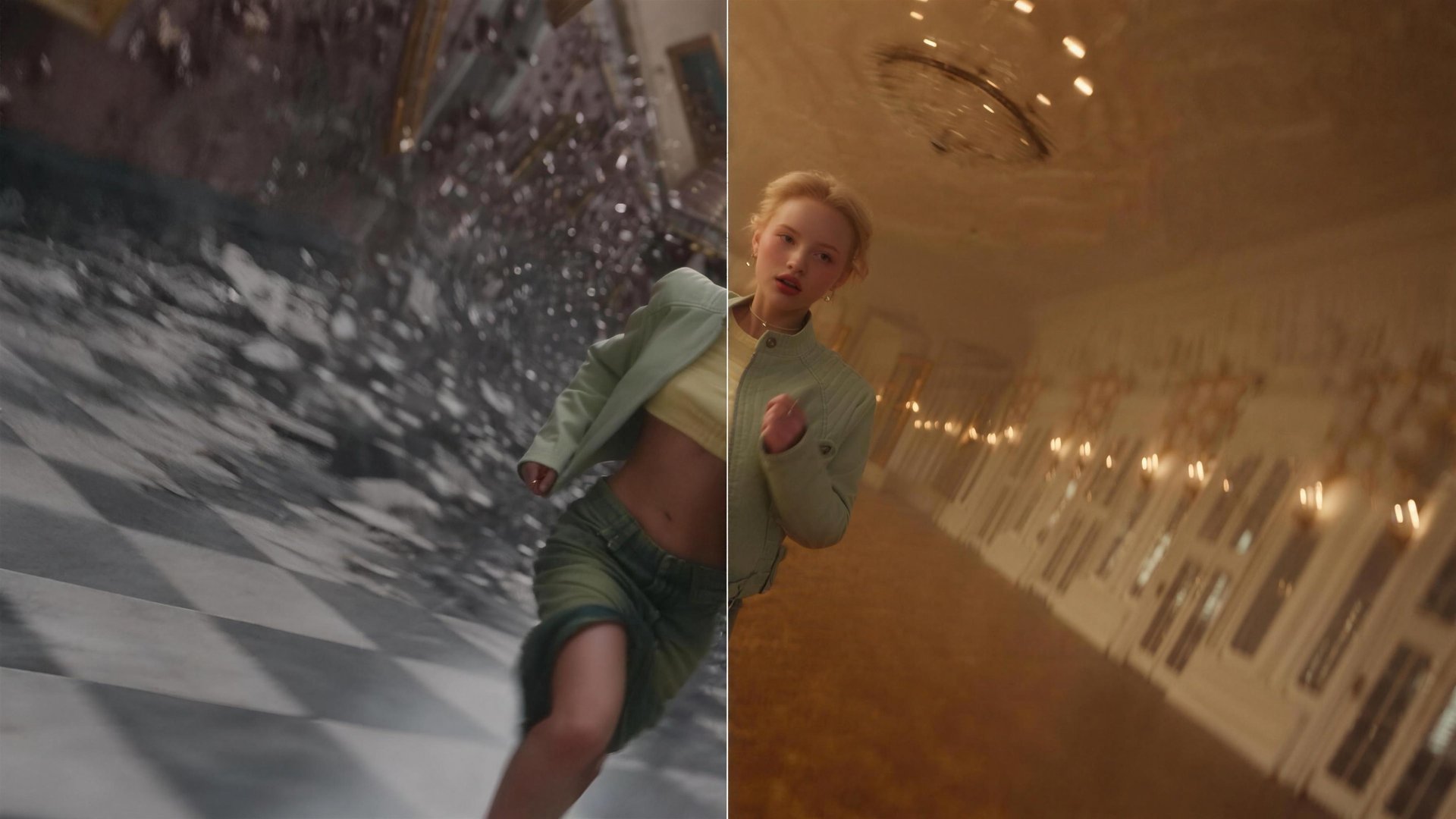
To edit a video with AI, upload your footage, choose a tool, and guide the changes with a prompt, reference, or settings. On Higgsfield, you can transfer motion, change lighting and backgrounds, adjust framing, and increase resolution in your own footage or AI-generated clips. This guide explains which tool fits which task. It also walks through a complete workflow with the cost of each step.
TL;DR
- Change an element, character, or product: Genjutsu or Seedance 2.5 Edit.
- Transfer motion from one video to another: Genjutsu (Motion Transfer).
- Change the light: Relight.
- Remove a background: Remove Background.
- Extend a clip: Extend Video in Cinema Studio 4.0.
- Change the format for another channel: Reframe.
- Raise the resolution or smooth the motion: FLUX.3 Upscale and FPS Boost.
What Can Be Changed in a Video with AI?
AI can edit a finished clip by swapping a character, product, or outfit, changing the lighting, or replacing or removing the background. It can also transfer motion from another video or extend a scene. Other tools adjust the aspect ratio, increase resolution, or boost the frame rate. Each of these is a separate operation, so one clip can go through several of them in sequence.
One operation is often enough when the problem is a single flaw, such as a distracting background or a clip that ends too early. Several operations are applied in order when a finished piece is being built, for example transferring motion, reframing the result, and upscaling it at the end. Upscaling comes last, once the content of the clip is settled, so credits aren't spent on enhancing a version that will change.
How Do You Edit a Video on Higgsfield?
Higgsfield is an AI-native creative suite with 35+ models and tools. Three options cover video transformation, targeted edits, and upscaling:
- Higgsfield Genjutsu is a video-to-video tool for changing a clip that already exists, whether it is real footage or generated video. Motion Transfer uses a reference video between 4 and 30 seconds long to guide movement in a new scene. Objects swap replaces selected elements, such as a character, outfit, or product, while aiming to preserve the rest of the shot.
- Seedance 2.5 Edit lets you modify an existing clip with a text prompt or mark the area you want to change using Draw to Edit.
- FLUX.3 Upscale raises a video to 1080p, 2K, or 4K designed to keep motion and audio in sync. A precise mode stays close to the source, and a creative mode adds detail and accepts an optional prompt to steer it.
Higgsfield also offers focused tools for the rest of the workflow:
Tool | What It Does | When It Fits |
|---|---|---|
Extend Video | Continues a clip forward or backward in Cinema Studio 4.0, building a scene of up to 30 seconds | A take ends too early, or a lead-in or a longer shot is needed |
Reframe | Changes the aspect ratio of a video, such as 9:16, 1:1, or 16:9 | The same clip is needed for another channel |
Remove Background | Separates the subject from the background in an MP4 or MOV clip | A clean cutout is needed for compositing |
Relight | Changes the lighting with presets (Auto, Silhouette, Practicals, Window, Overhead fall, Contre jour, Soft cross.) or a custom mode | The light in a shot doesn't match the intended mood |
SDR to HDR | Converts a standard dynamic range video to HDR | The footage needs HDR output for an HDR workflow or display |
FPS Boost | Raises the frame rate with frame interpolation, so motion looks smoother | A clip looks choppy |
Depth Map | Creates a depth map from a video | Depth information is needed to isolate parts of a scene or apply effects based on distance |
Extending adds time and doesn't change the frame area, so Reframe is the tool for a different frame shape.
Full Workflow: Step-by-Step Guide
This example uses Higgsfield Genjutsu, the video-to-video tool for changing a clip that already exists.
Step 1: Upload your video. Open Higgsfield Genjutsu and select Motion Transfer to apply your video’s movement to a new character or scene, or Object Swap to replace a specific character, product, or outfit. Then upload your source video.