**How to Make AI Videos as a Beginner: A Complete Guide for 2026**
Making an AI video is pick a model, write a prompt, hit generate. The quality is all in the prompt. A beginner's walkthrough of the 5 models that cover almost every use case.
To make an AI video, you pick a model, write a prompt describing what you want, and hit generate. That's the whole workflow. The output quality depends almost entirely on how clearly you describe the shot: subject, action, setting, camera angle. Five models cover nearly every beginner use case in 2026: Veo 3.1 for cinematic output with audio, Kling 3.0 for realistic people and talking characters, Runway Gen-4.5 for multi-shot narrative, Wan 2.6 for frame-level control, and Minimax Hailuo 2.3 for fast iteration. None require technical skills. All reward a well-written prompt.
Which AI Video Tool Should You Start With?
Your goal
Start here
Why
Most realistic output, audio included
Veo 3.1
Generates video and audio together in one pass; best overall quality for beginners
Realistic people and talking characters
Kling 3.0
Strongest human-subject rendering; native lip sync in 8+ languages
Multi-shot narrative with camera control
Runway Gen-4.5
Director Mode for shot sequences; 10-second clips; no training required
Fastest generation speed; best for food, liquid, fabric, product demos
What Is AI Video Generation and How Does It Work?
AI video generation takes a text prompt, an image, or both, and produces a short video clip. You describe what you want, the subject, action, setting, lighting, and camera angle, and the model generates it frame by frame.
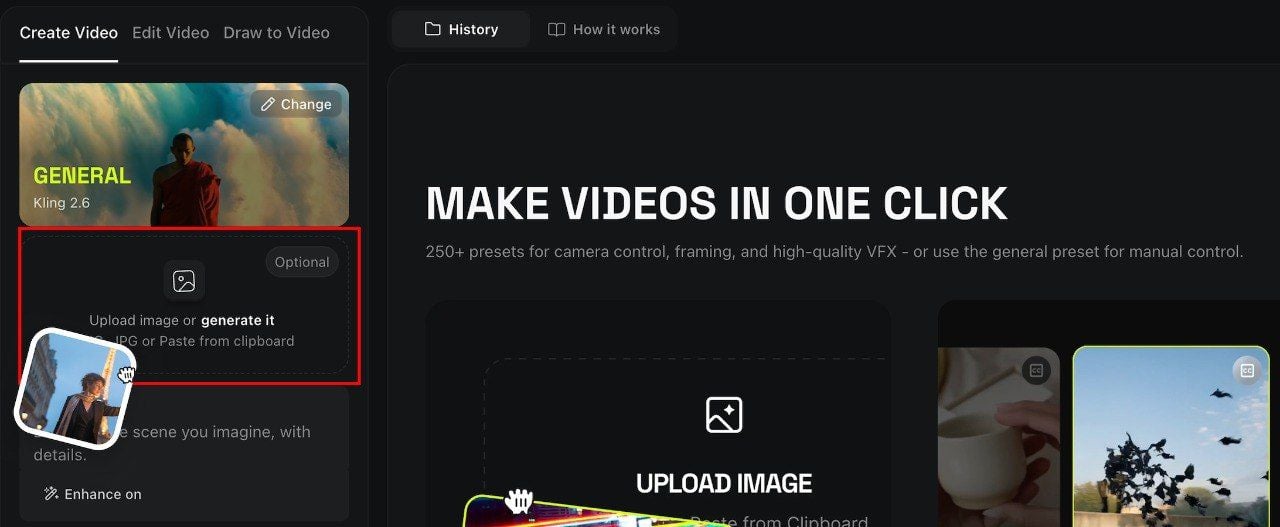
There are two workflows. Text-to-video means you write a prompt and get a video. Image-to-video means you upload a photo and the model animates it. Most beginners start with image-to-video because the output is more predictable: the model has a visual anchor to work from instead of interpreting everything from text alone.
The model generates all frames in one continuous pass. That's why a single 10-second clip looks coherent: the model holds everything consistent because it never loses track mid-generation. The challenge starts when you need a second clip. Each new generation starts cold with no memory of the previous one. That's the main thing every beginner runs into after their first few clips.
What Do You Need to Get Started?
You need three things: a clear idea of the shot you want, a text prompt that describes it specifically, and a source image if you are doing image-to-video.
A good prompt has four parts:
Subject: who or what is in the frame
Action: what they are doing
Setting: where it is happening
Camera: how the shot is framed
Weak: "A woman walking." Stronger: "A woman in a red coat walks through a rainy Tokyo street at night, close-up, slow motion, neon reflections on wet pavement." The more specific you are, the less the model guesses. That's where quality drops.
A good source image for image-to-video:
Sharp focus, even lighting
Front-facing subject with visible features
No heavy clutter obscuring what matters
At least 1024x1024 resolution
Side angles, dark lighting, and busy backgrounds all reduce output quality across every model.
How to Generate Your First AI Video: Step by Step
Step 1. Pick the right workflow. Image-to-video for realistic people, product demos, or any shot where you want a specific face or object. Text-to-video for abstract scenes, landscapes, motion experiments, or anything where you do not have a reference image.
Step 2. Write your prompt like a director. Describe the subject, action, setting, lighting, and camera in one or two sentences. Add a mood or style if it matters: cinematic, documentary, dreamlike. Avoid vague adjectives like "beautiful" or "amazing", they give the model nothing to work with.
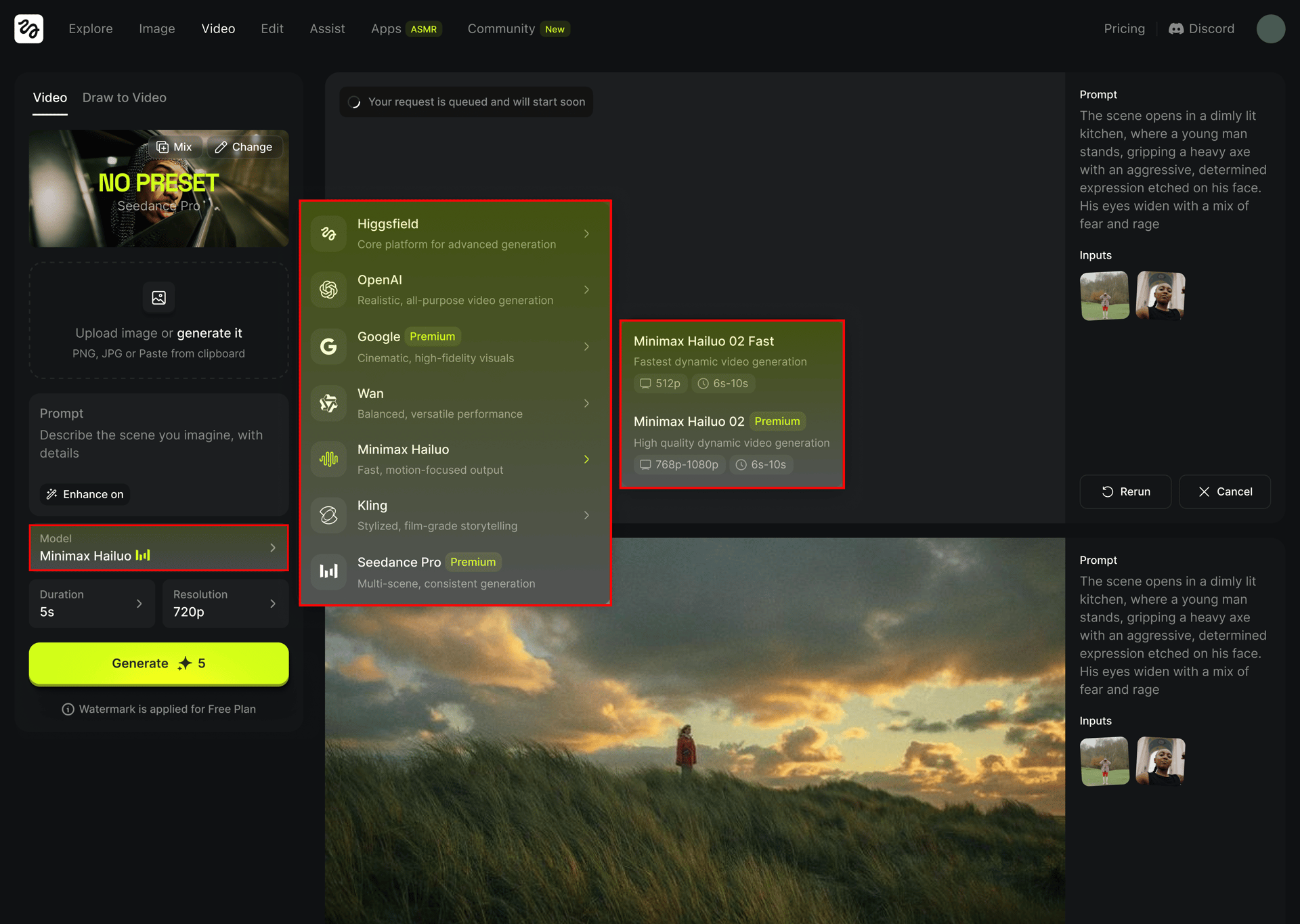
Step 3. Choose a model matched to your shot. Realistic person speaking: Kling 3.0. Cinematic scene with audio: Veo 3.1. Product or food in motion: Minimax Hailuo 2.3. Controlled narrative sequence: Runway Gen-4.5. Precise first-to-last-frame transition: Wan 2.6.
Step 4. Start at lower resolution. Every model lets you choose resolution. Start at 720p for your first few generations. It costs fewer credits, generates faster, and tells you whether your prompt is working before you commit to a full-quality run.
Step 5. Review the full clip, not just the first second. Check whether the motion holds throughout. Check whether expressions or movements feel natural at the 5 to 8 second mark, not just at the start. Most quality problems appear mid-clip, not at the opening frame.
Step 6. Change one thing per iteration. If something is off, change the prompt, the source image, or the model, one at a time. Changing all three at once makes it impossible to know what fixed it.
What Are the Most Common Beginner Mistakes?
Mistake
What happens
Fix
Vague prompts
Model guesses; inconsistent output
Add subject, action, setting, camera in every prompt
Wrong workflow for the goal
Text-to-video for a specific person produces wrong face
Use image-to-video when you have a reference
Generating at 1080p immediately
Burns credits on tests
Start at 720p, upgrade once the prompt works
Changing multiple variables at once
Can't identify what improved
One change per generation
Evaluating only the first frame
Missing mid-clip drift or freezing
Watch the full clip every time
Too-short prompts
Generic, undirected output
Describe at least subject + action + setting + camera
If you're struggling to write a detailed prompt, describe your idea in plain language to an AI assistant like Claude or ChatGPT and ask it to turn it into a video generation prompt. Takes 30 seconds and usually produces better output than writing from scratch.
How Does Each Model Work for Beginners?
Get Video and Audio in One Pass
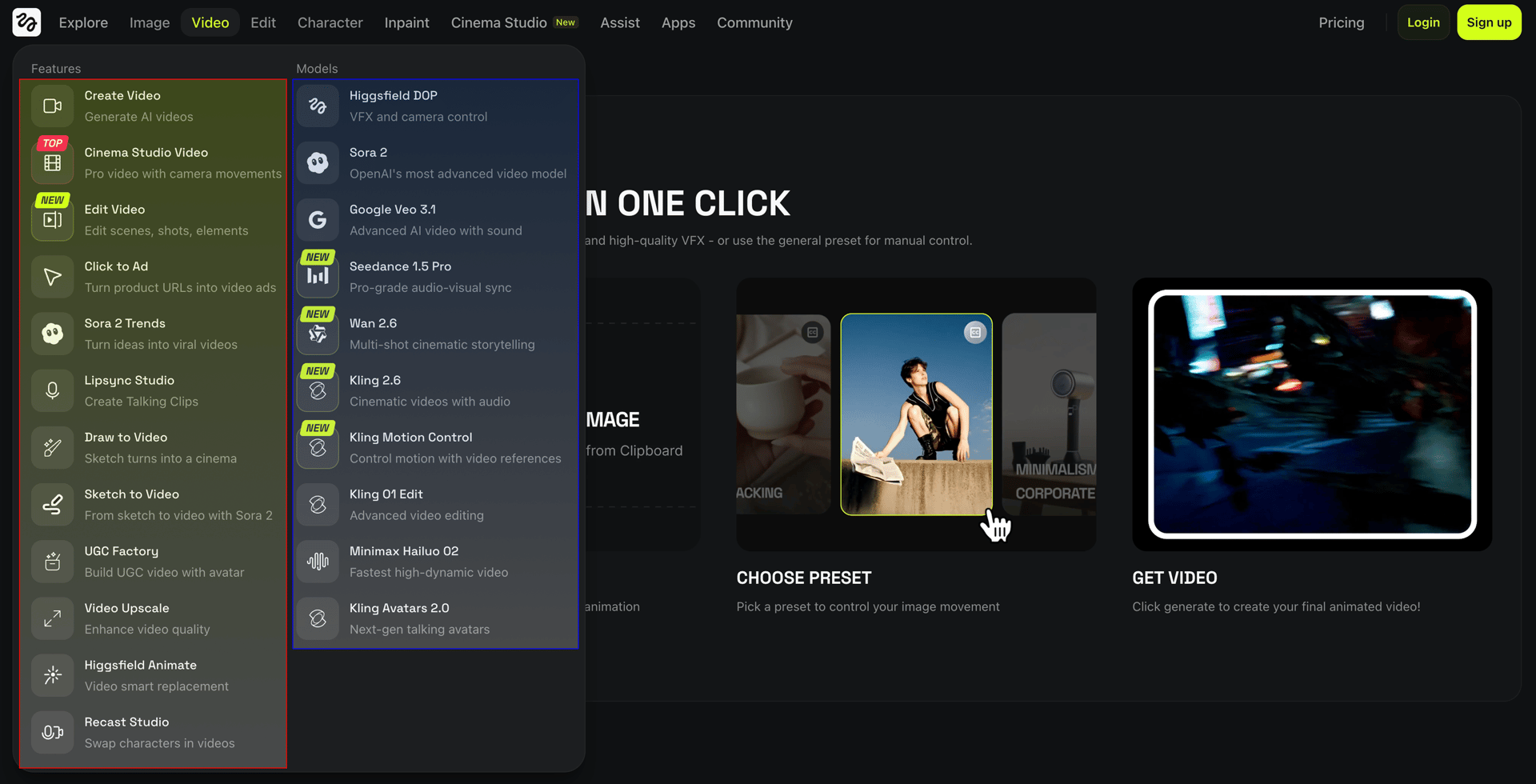
Veo 3.1 is Google's video generation model, available through Higgsfield and other platforms. It generates video and audio in the same pass, which means sound, ambient noise, and speech are part of the generation rather than added afterward. For beginners, that cuts out a step: you get a complete clip with audio without a separate workflow.
The output quality is among the best available in 2026. Facial expressions, lighting transitions, and cinematic motion all render with more detail than most competing models. Go with Veo 3.1 when quality matters most and you have a clear, well-written prompt to work from.
Where Veo 3.1 falls short:
Higher credit cost per clip than most alternatives
Requires a well-structured prompt to perform at its best; vague prompts waste credits
Getting Realistic People Right
Kling 3.0 is built for human-subject video. It renders faces, skin tones, and body movement with more consistency than most models, and includes native lip sync across 8+ languages. For beginners making talking-head content, product spokesperson videos, or any clip where a real person needs to look natural, Kling 3.0 is the most reliable starting point.
The model also handles multi-shot sequences with consistent character identity across cuts. Upload a reference image once and the face holds across multiple generated clips without re-uploading per shot.
Where Kling 3.0 falls short:
Less expressive on non-human subjects compared to Veo 3.1
Longer scripts need to be broken into shorter clips
Can You Tell a Story Across Multiple Shots Without Any Setup?
Runway Gen-4.5 handles multi-shot narrative sequences through Director Mode. You describe a script, set a character reference from a single portrait, and Runway generates a sequence with consistent identity across cuts. No training needed.
For beginners who want to tell a story across 3 to 5 shots without building a full identity model, it's the most direct path. Clips go up to 10 seconds. The output is cinematic and editable, so it's easy to bring into post.
Where Runway Gen-4.5 falls short:
Native clip length is 10 seconds; longer sequences require Extend, which can reduce consistency
No native audio; every project needs a separate audio step
References must be re-supplied per session; no persistent character library
When You Need to Control Every Frame
Wan 2.6 from Alibaba gives beginners more control over what happens inside a clip than any other model in this list. The core feature is first-and-last-frame control: specify the opening image and the closing image, and Wan 2.6 generates everything in between. You know where the clip starts and where it ends.
It also supports instruction-based editing: describe a change in plain language and the model applies it to existing footage. Open-source under Apache 2.0, so it can be run locally or self-hosted for teams that want full control.
Where Wan 2.6 falls short:
Raw visual quality is below Veo 3.1 and Kling 3.0 on single-clip benchmarks
Thinking Mode adds reasoning time; not the fastest option for rapid iteration
Generate Fast, Iterate Faster
Minimax Hailuo 2.3 generates videos faster than any other model in this list: most clips return in 30 to 90 seconds. For beginners who need to test many prompts quickly, that speed compounds across a session. It also renders physics-based motion more accurately than competitors: food, liquid, fabric, and product movement look grounded and natural.
The latest model handles character animation and facial expressions well for social and short-form content. It's not the top choice for cinematic work, but for fast social clips, product demos, and iteration-heavy workflows, it delivers more output per dollar than the premium options.
Where Minimax Hailuo 2.3 falls short:
Clip length capped at 6 to 10 seconds depending on plan
Lower overall quality than Veo 3.1 or Kling 3.0 for cinematic output
How Do These Tools Compare?
Tool
Best for
Clip length
Veo 3.1
Cinematic quality, audio-included output
Up to 8s
Kling 3.0
Realistic people, lip sync, talking characters
Up to 15s
Runway Gen-4.5
Multi-shot narrative, creative editing
Up to 10s
Wan 2.6
Frame control, open-source, instruction editing
Up to 15s
Minimax Hailuo 2.3
Fast iteration, physics, social clips
Up to 10s
What Does AI Video Generation Actually Cost?
The easiest way to compare models is by cost per clip. Here's what a single 8-second 720p clip runs on each tool:
Model
Cost per 8-sec 720p clip
Google Veo 3.1
~$2.50
Runway Gen-4.5
~$2.00
Kling 3.0
~$0.80
Wan 2.6
~$0.75
Minimax Hailuo 2.3
~$0.70
Veo 3.1, Kling 3.0, Wan 2.6 and Minimax Hailuo 2.3 are all available through Higgsfield under one subscription. Starter at $15 per month (200 credits); Plus at $49 per month (1,000 credits). That's one plan for all four models, no switching between platforms.
Runway runs on its own subscription: Standard at $12 per month (625 credits), Pro at $28 per month (2,250 credits).
Prices verified June 2026 and subject to change. Check each platform before committing.
What Are the Limits of AI Video in 2026?
Clip length. Most models cap at 6 to 10 seconds per generation. Longer content requires chaining clips together and cutting between them in post.
Character consistency across clips. Each new generation starts cold. The same face in clip 1 will look slightly different in clip 2 unless you use an identity tool like Soul ID or a reference-based approach like Runway's portrait anchor.
Precise motion control. Describing complex movement in text is still imprecise. "She reaches slowly toward the camera" will get interpreted differently each time. Wan 2.6's first-and-last-frame control is the most direct solution, but it requires planning both endpoints upfront.
Multi-person scenes. Two people interacting in the same shot, especially in close-up, produces visible inconsistencies on every model. Generate each person separately and composite in post if precision matters.
Audio sync on non-native-audio models. Runway and Minimax Hailuo 2.3 do not generate native audio. For lip sync or ambient sound, you need Veo 3.1, Kling 3.0, or Wan 2.6, or a separate audio workflow.
The Work Happens Before You Generate
Most weak outputs trace back to a decision made before hitting generate: a vague prompt, a blurry source image, the wrong model for the job, or generating at full resolution before confirming the prompt works. The model works with what you give it.
The pattern that works consistently: write the prompt like a shot description. Pick the model based on what the shot requires, not the most impressive demo you saw. Test at 720p first. Watch the full clip. Change one thing per iteration. Better inputs beat switching models every time.
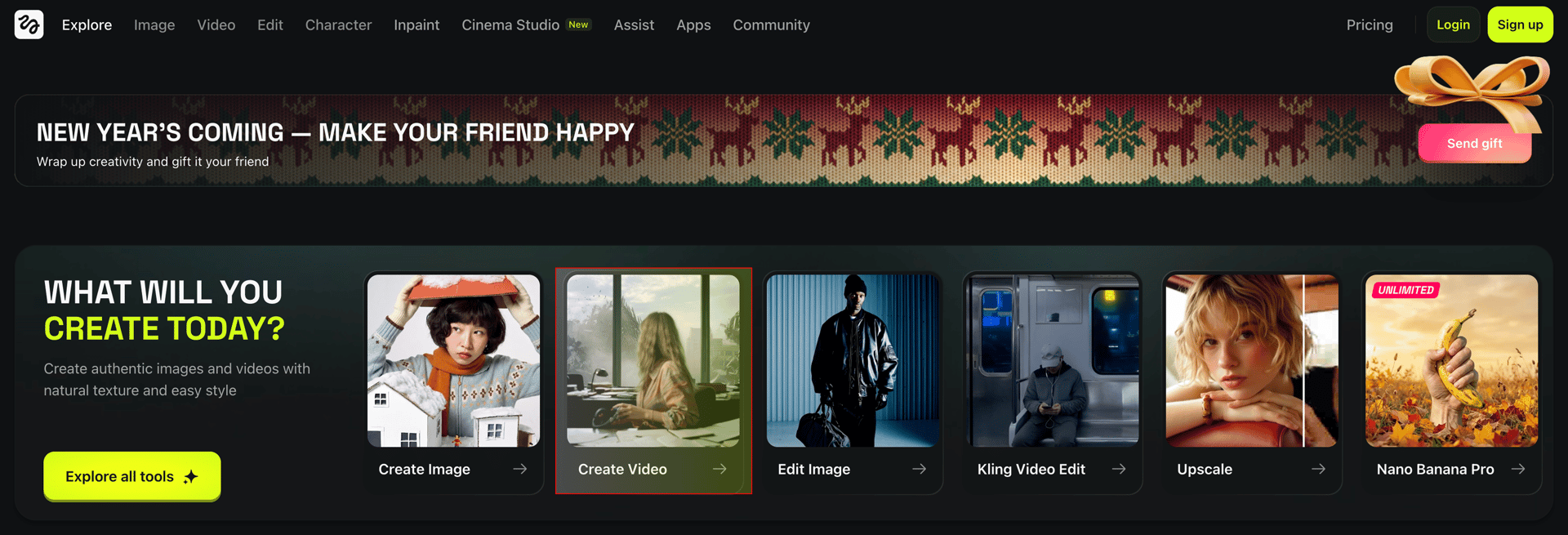
Start AI video generation on HiggsfieldAI.
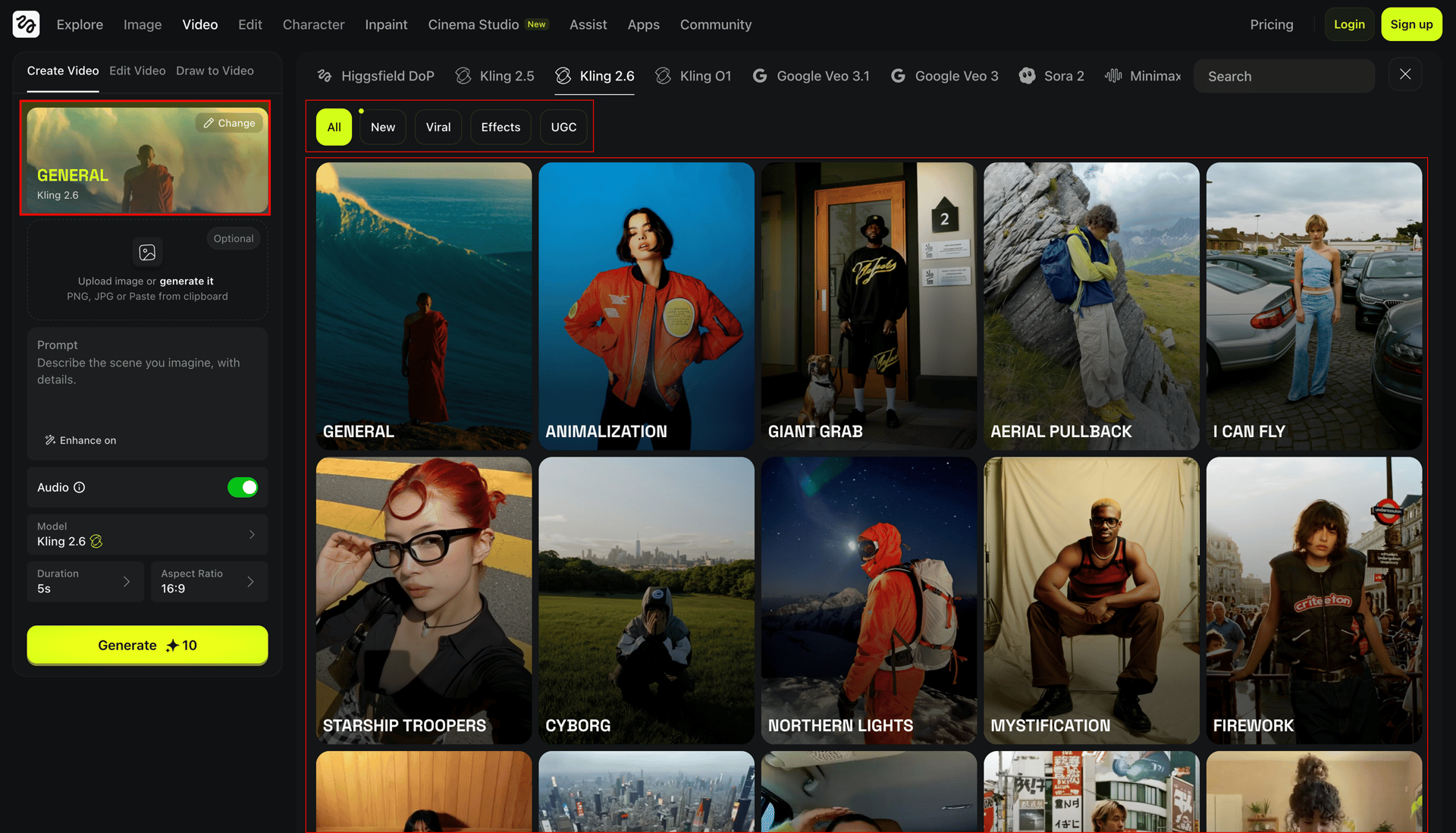
Upload an image, choose your model, and generate a cinematic video with presets and simple controls.
Do I need any technical skills to use AI video tools?
No. All five tools in this guide have web interfaces where you type a prompt, upload an image if needed, and click generate. Wan 2.6 can be run locally for more control, but the cloud version requires no setup.
What is the difference between text-to-video and image-to-video?
Text-to-video generates a clip from a written description alone. Image-to-video animates a photo you provide. Image-to-video is more predictable for specific subjects; text-to-video gives the model more creative latitude.
How long should my prompt be?
Long enough to cover subject, action, setting, and camera angle, usually 1 to 3 sentences. Longer is not always better. A focused 2-sentence prompt beats a vague paragraph.
Why does my clip look different from what I described?
The model interprets ambiguous instructions differently each time. Add more specifics: what is the subject doing exactly, what does the setting look like, how is the camera framed. Remove any vague adjectives and replace them with concrete details.
Can I generate videos with real people's faces?
You can generate videos using uploaded photos of real people on most platforms. Some models have content policies that restrict certain uses. Check the platform's acceptable use policy before generating.
Which model should a complete beginner start with?
Kling 3.0 for realistic people and talking characters. Minimax Hailuo 2.3 for fast iteration and testing prompts. Veo 3.1 when you want the best output quality and audio included. Start with whatever matches your first project. All three are available on Higgsfield under one subscription.