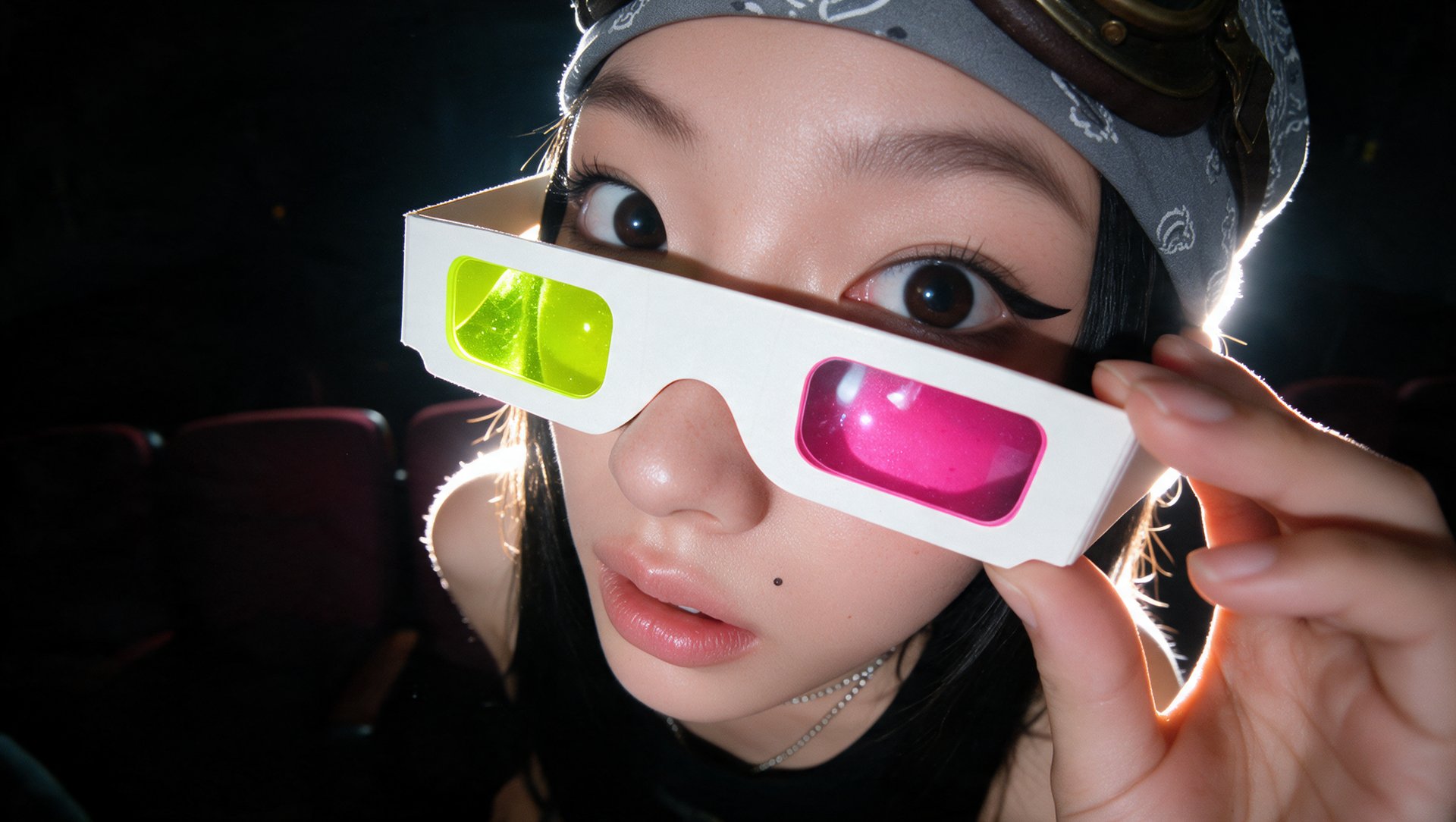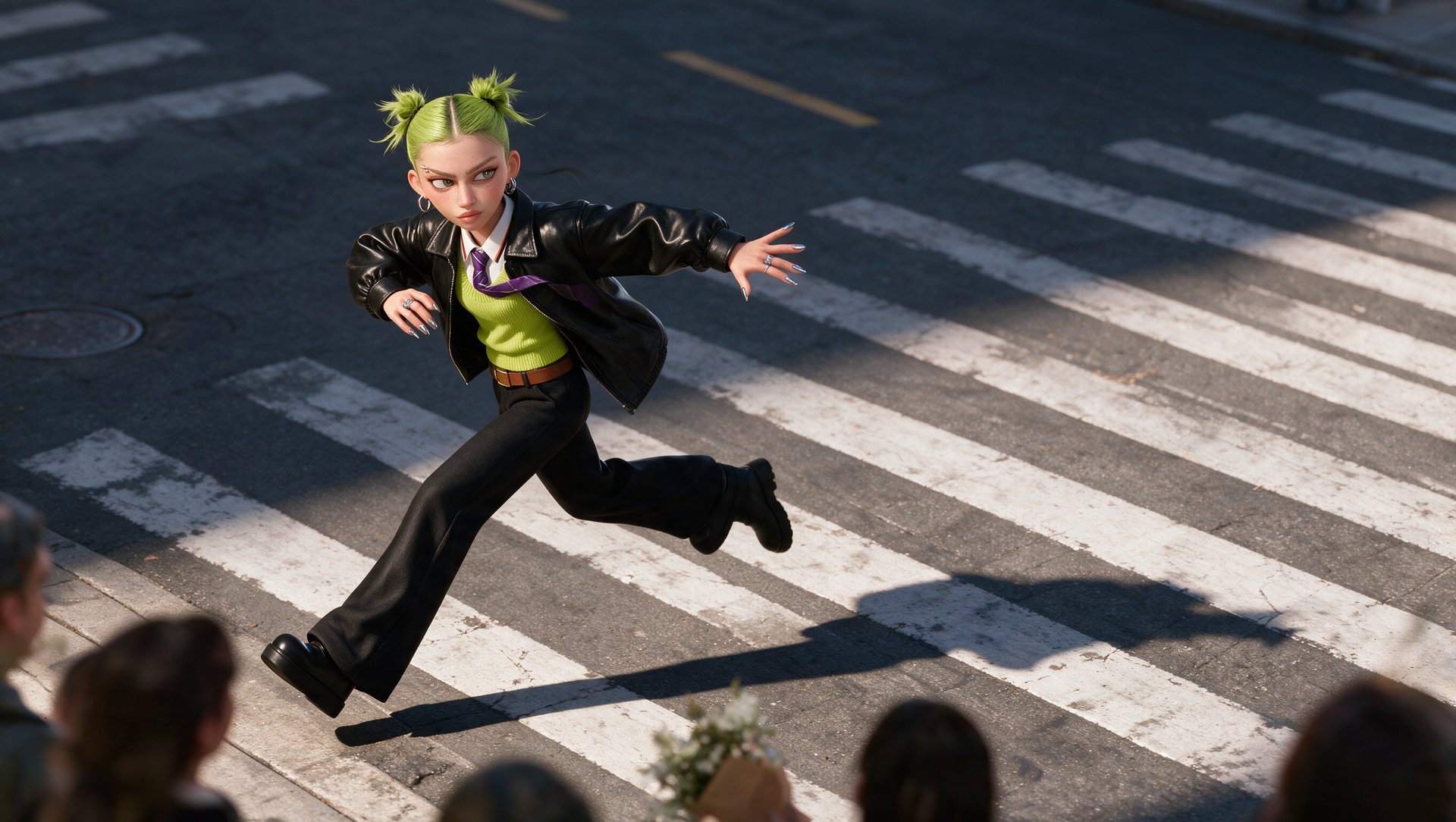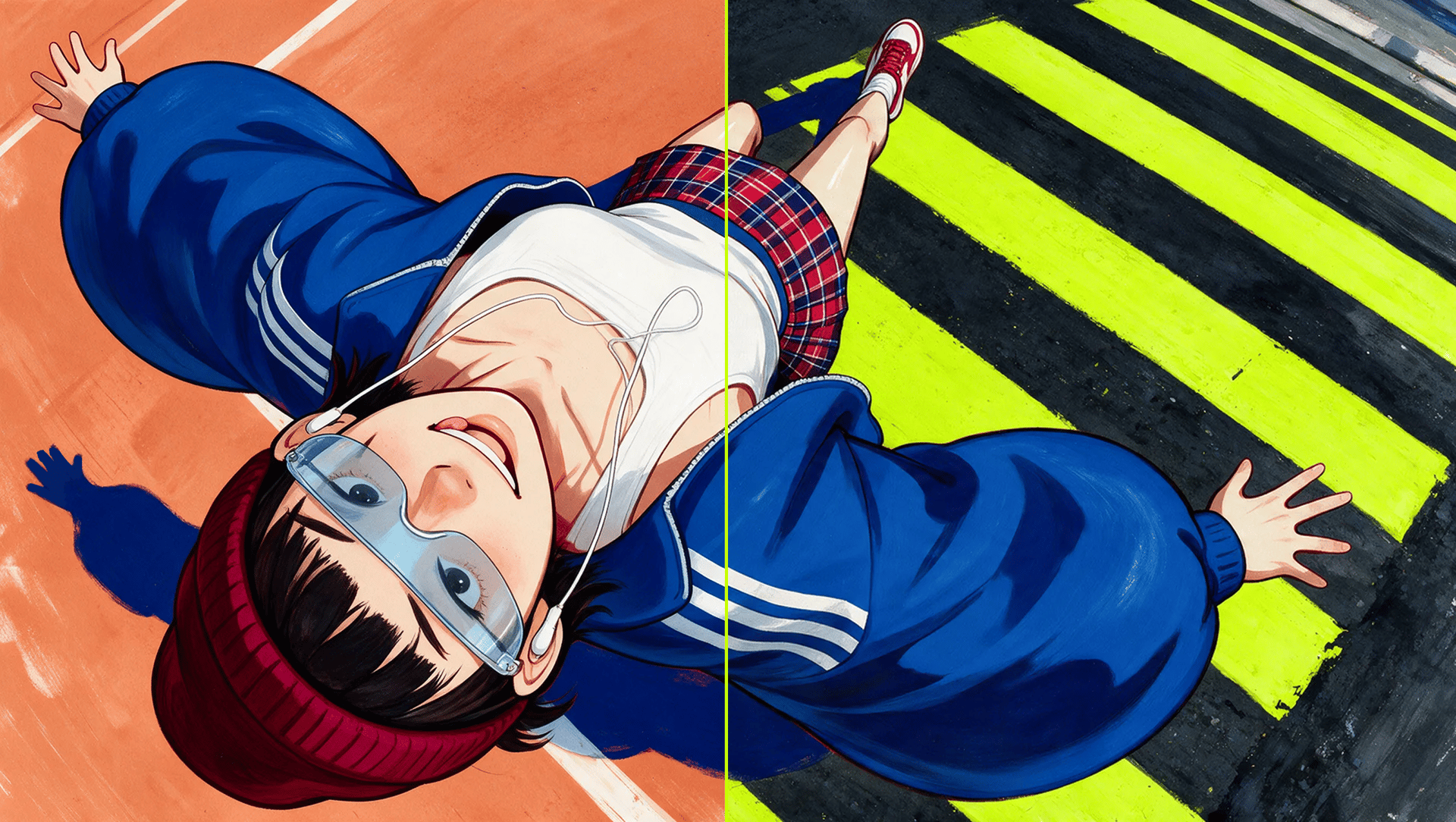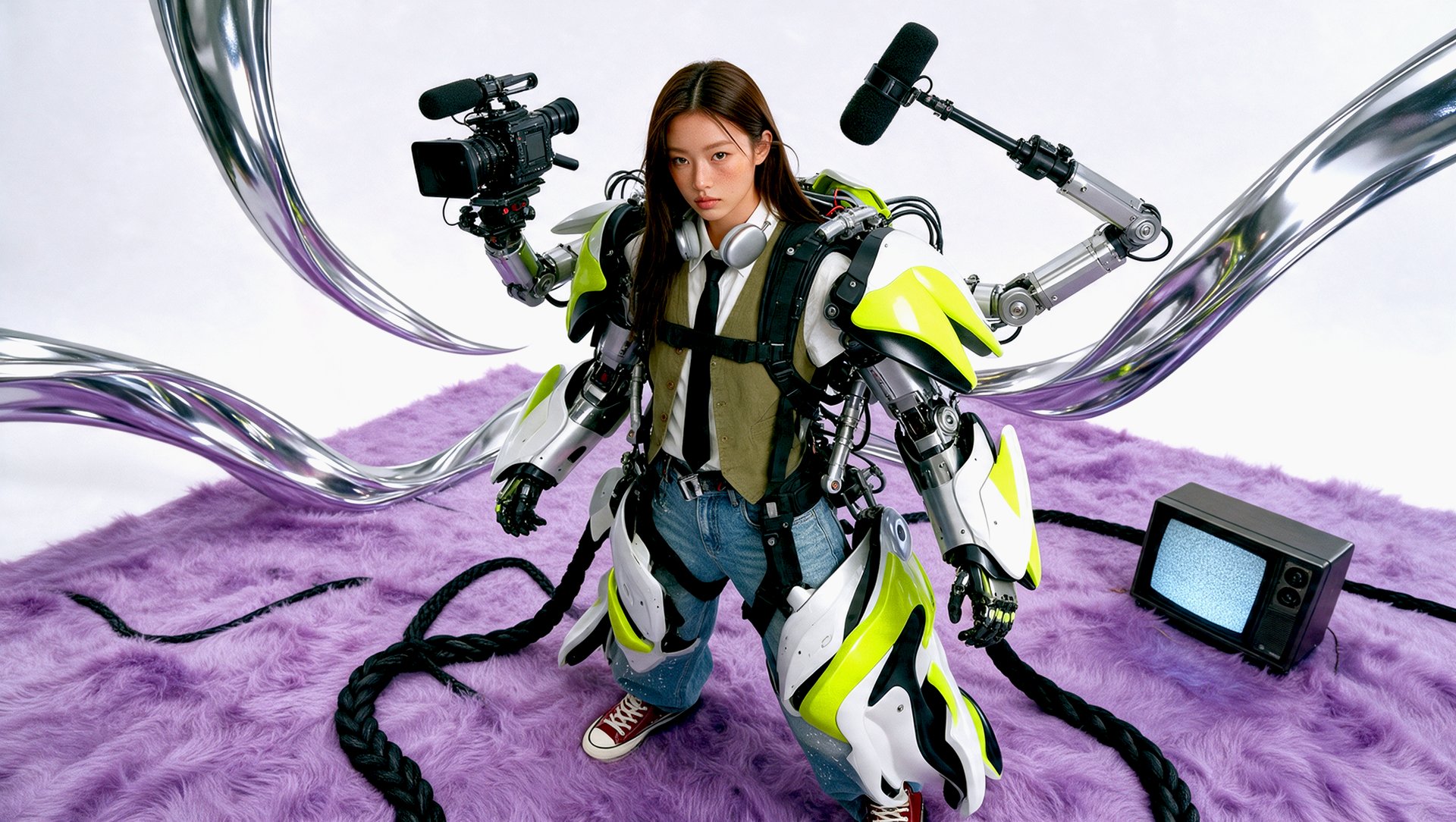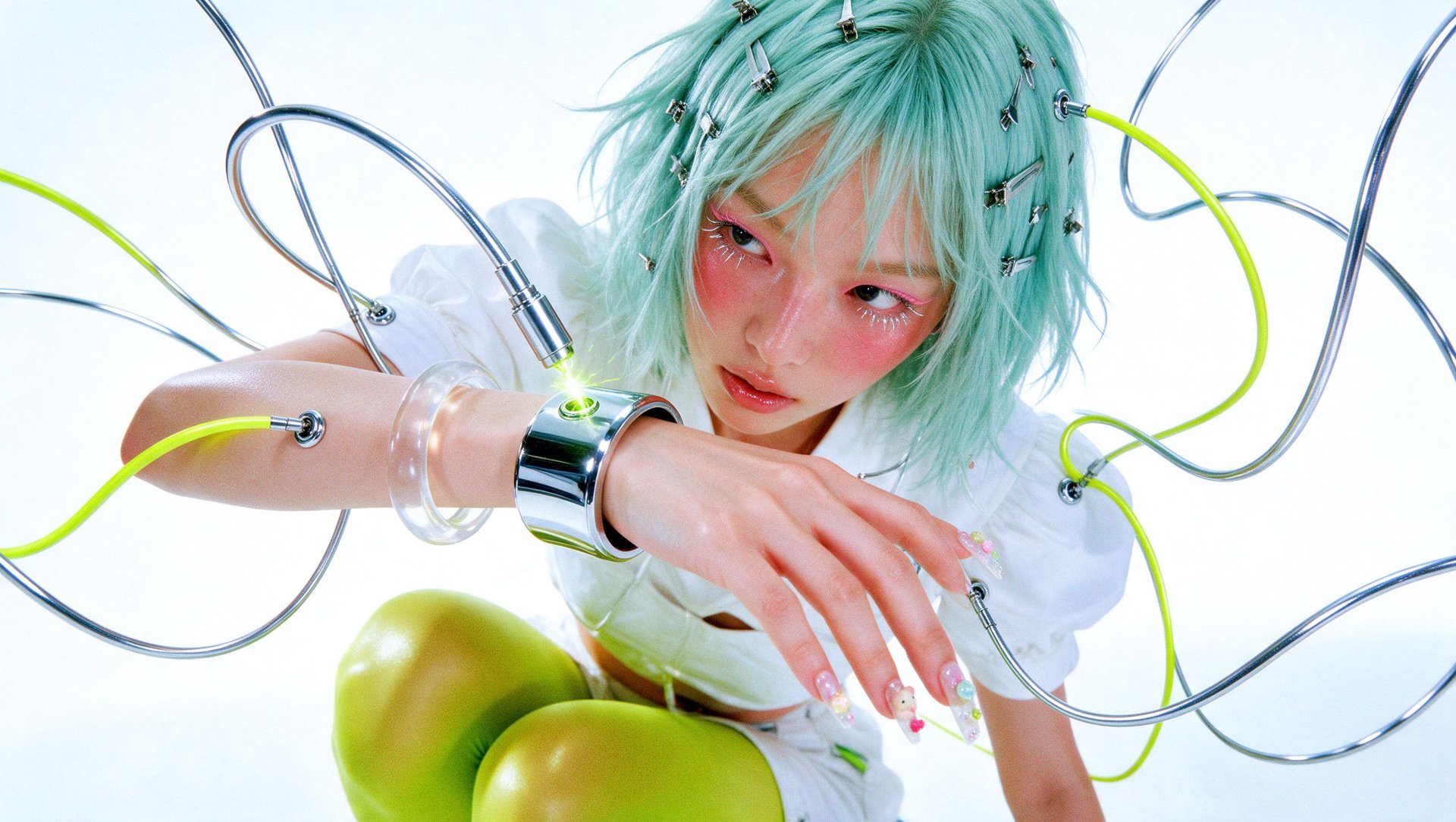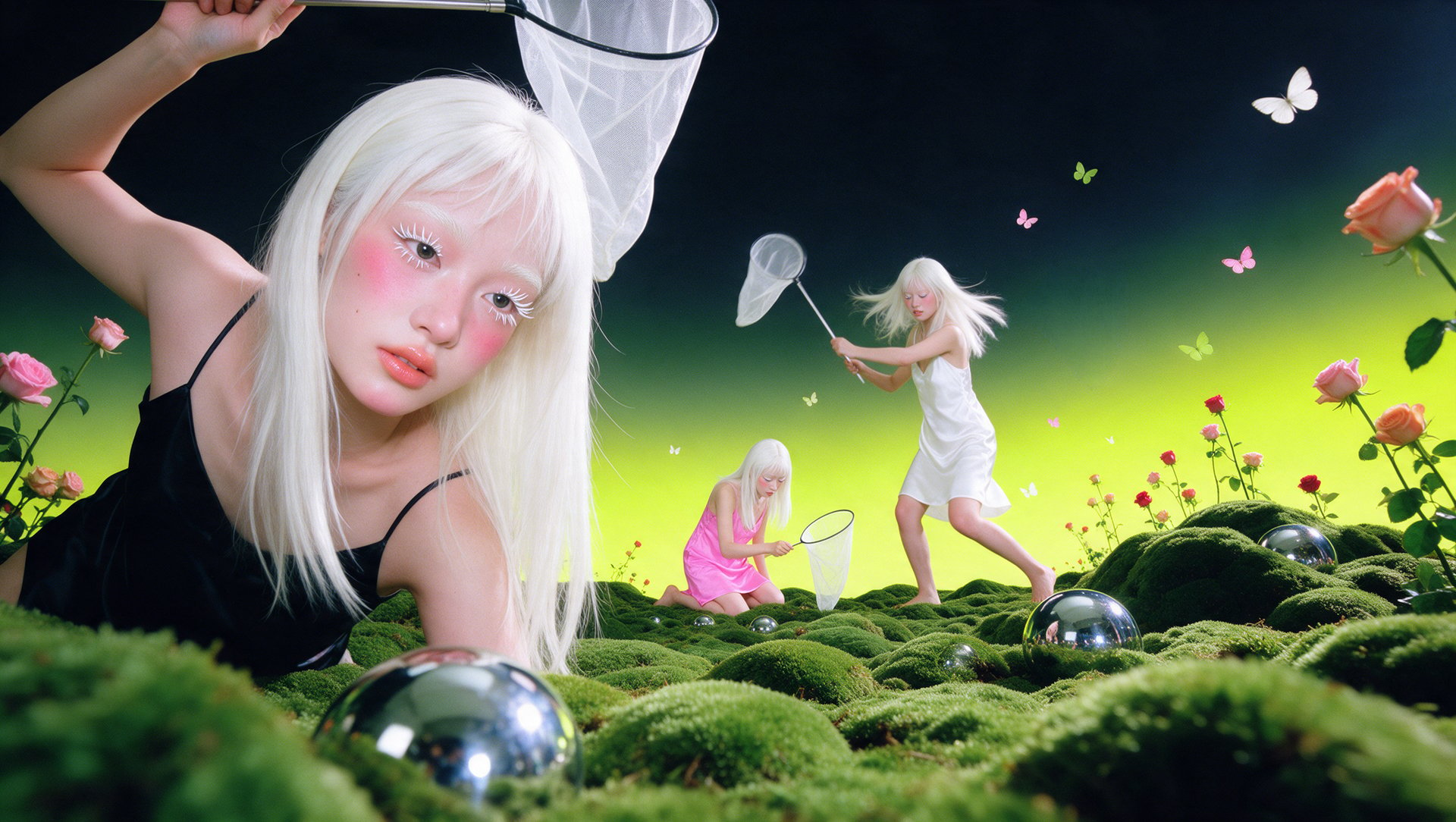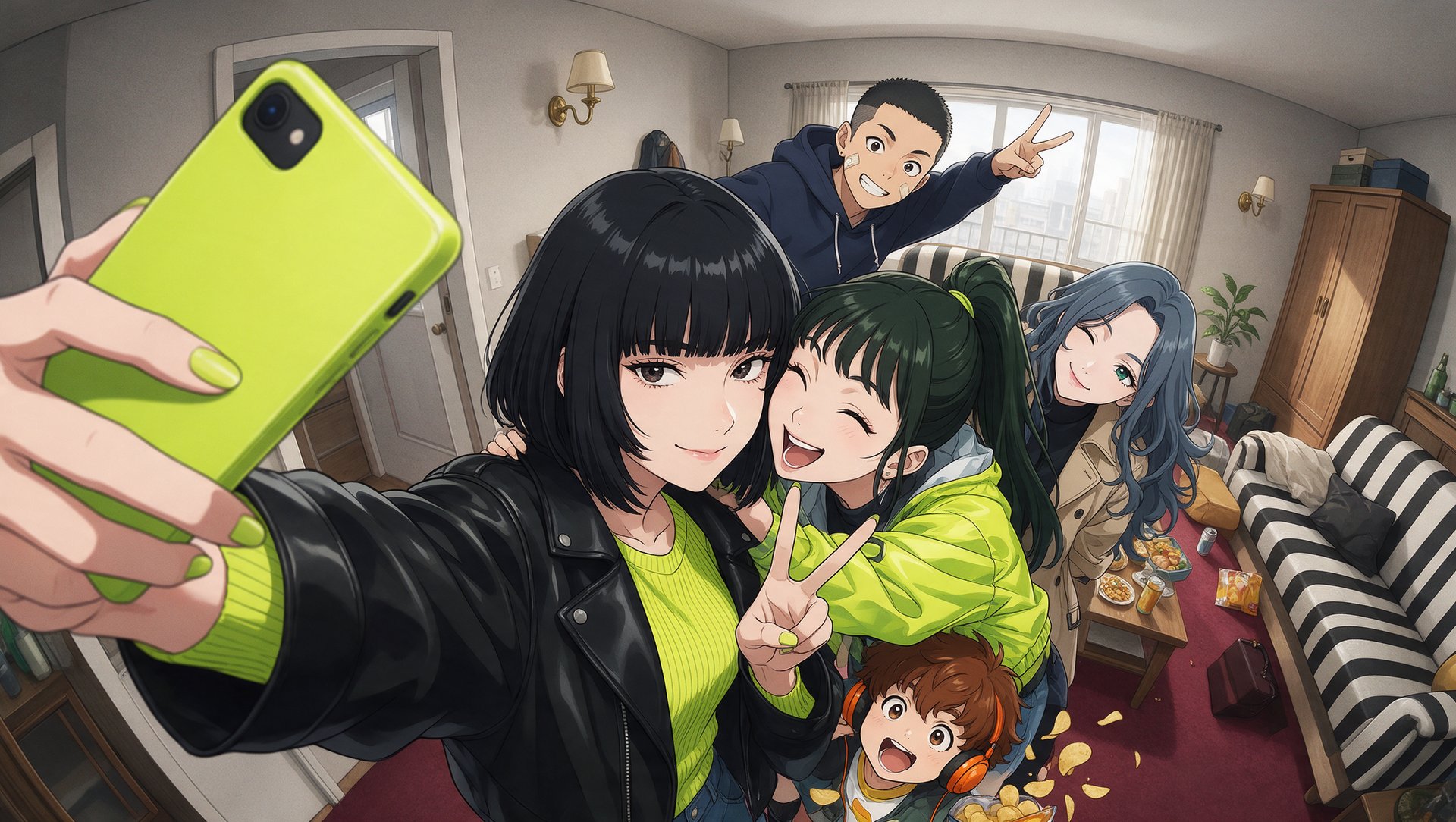
To make an anime series with AI on Higgsfield, create anime reference images with Soul 2.0 and animate them in Cinema Studio 4.0, or restyle existing footage into anime with Genjutsu. An AI anime series combines a story, recurring characters, a recognizable visual style, and an edit that connects individual shots. The script establishes what happens in each scene, while character and location references guide its appearance. Dialogue, music, and sound effects complete the episode.
What Goes into Making an Anime Series with AI?
An AI anime series rests on six things that have to stay aligned from the first episode to the last: story, characters, visual style, shots, sound, and edit. The story has a beginning, a turn, and an ending, split into scenes. Recurring characters keep recognizable faces and proportions. One visual style sets the line work, color, and lighting. Short shots each hold one action. Sound means dialogue, music, and effects. The edit sets the order, the cuts, and the pacing.
Plan the Story, Characters, and Visual Style
- Story: Outline the pilot’s main character, conflict, and ending. Break each scene into shots with a location, action, and approximate duration.
- Characters: Define consistent facial features, proportions, outfits, and distinguishing details.
- Locations: Establish a small set of recurring settings with reusable descriptions and references.
- Visual style: Fix the line work, palette, and level of detail. Reuse a style description such as “soft cel shading, clean outlines, pastel colors.”
- Runtime: Estimate the shot count from the episode length. Five minutes requires roughly 30 finished shots averaging 10 seconds each.
How to Create Anime Scenes on Higgsfield: Two Workflows
The workflows below use three Higgsfield tools. Soul 2.0 creates anime reference images, Cinema Studio 4.0 develops those images into moving shots, and Genjutsu applies a new visual treatment to existing footage.
What Are Soul 2.0, Cinema Studio 4.0, and Genjutsu?
Soul 2.0 is Higgsfield's image model for character images. It is the starting point of the first workflow, where it produces the anime reference for each shot, and the characters it creates can be saved for reuse across a series.
Cinema Studio 4.0 is the filmmaking workspace used to turn the selected reference image into a moving shot. The image establishes the character, setting, and composition; the motion prompt describes the action. Camera and generation settings then shape how the scene develops on screen.
Setting | What It Controls | Use for Anime |
|---|---|---|
Genre | Light, blocking, and pacing: General, Action, Epic, Drama, Comedy, Horror, Noir | Action for fights, Drama for quiet scenes |
Tempo | How fast the edit cuts: Auto, Chaotic, Dynamic, Calm, Single Shot | Dynamic for chases, Calm for dialogue |
Camera movement | 30+ presets, including POV, Robot Arm, Pan Left, Dolly In, and Helicopter Shot | One simple movement per shot |
Color Palette | 50+ templates | A palette that matches the series style |
Lighting | Presets such as Window, Contre-jour, and Soft Cross, or manual control | Warm or backlit light for sunset scenes |
Emotion Wheel | Eight emotions tagged to a character | Facial expression and body language |
References | Up to 50 per generation | The approved Soul 2.0 image of each character |
Higgsfield Genjutsu is a video-to-video tool for changing a clip that already exists, whether it is real footage or generated video. It accepts a source video of 4 to 30 seconds and up to 30 reference images, and it outputs 480p, 720p, or 1080p.
Mode | What It Does |
|---|---|
Motion transfer | Takes the movement from the source video and builds a new scene around it. Its Style block redraws the whole clip in a chosen look, such as an anime style. |
Object swap | Replaces a chosen person, product, outfit, or text while the rest of the shot stays as filmed |
Genjutsu Lite is a faster, lower-cost version that works without a mode choice and accepts up to 10 reference images.
Workflow 1: Create Anime References and Animate Them
This workflow starts with an original image. Soul 2.0 establishes the character, setting, and anime style, while Cinema Studio develops the selected reference into a moving shot. Each scene is built from individual shots that can later be assembled into an episode.
Step 1: Generate an Anime Reference in Soul 2.0. Create an image that clearly establishes the character and the scene. The prompt should describe the character’s appearance, the environment, the composition, and the intended anime style.
Step 2: Select the Reference Image. Compare the generated images for composition, facial features, proportions, and clothing details. The selected frame should match the planned shot and make the character easy to recognize. Save the approved image as the reference for this shot. For later scenes, keep a consistent description of the character’s appearance and compare new images with the approved design.
Step 3: Upload the Reference to Cinema Studio. Open Cinema Studio and upload the selected image as the visual starting point for the video. The reference establishes the scene’s appearance, while the motion prompt describes what happens next.
Check that the composition leaves enough space for the intended action. A character turning toward the camera needs different framing from one walking across the rooftop.
Step 4: Configure the Shot. Open Camera → Movement and choose a camera move. The rooftop example uses Dolly in, a slow forward move that gradually brings attention to the character’s face.
Set the duration (4 to 30 seconds), the resolution (480p, 720p, or 1080p), and the aspect ratio for the intended output. A short test clip makes it easier to assess the movement before developing the rest of the scene.
Step 5: Describe the Movement and Generate. The video prompt should focus on the action and camera movement, while remaining consistent with the uploaded image.
Generate the clip, then review the face, clothing, motion, and background. If the result changes important character details or introduces distracting movement, refine the prompt or reference before generating another version.
Step 6: Prepare the Next Shot. Create or select a reference for the next composition using the approved character design and visual style. The next shot might show a closer expression, a wider view of the rooftop, or another character’s reaction.
Framing and camera movement can change with the story. Character features, clothing continuity, and the overall visual treatment should remain consistent across the sequence.
Workflow 2: Restyle Existing Footage into Anime with Genjutsu
This workflow starts with footage that already contains the action. Genjutsu uses the source video as a motion reference, while the selected style and optional image references guide its new appearance. It suits scenes where a performance or camera movement has already been filmed or generated.
Step 1: Upload the Source Video. Open Genjutsu, select Motion transfer, and upload a source video between 4 and 30 seconds long. The source can be filmed footage or a previously generated clip. If the footage shows real people, use only footage you own or have permission to use. Choose footage with a clear subject and readable movement. Longer scenes should be divided into shorter clips before processing.