Creator Hub
Back

GPT Image 2.6 on Higgsfield: Animated GIFs, SVG Vectors, and Transparent Images

Higgsfield
10 min

GPT Image 2.6 is now available on Higgsfield in two versions: Flare for faster generation and Sunburst for more precise results. Generate PNG images, animated GIFs, and vector SVGs, with controls for backgrounds and variation between outputs. To edit an image, mark an area and describe the change. This guide covers model selection, output settings, GIF creation, and Unlimited eligibility.

What Is GPT Image 2.6?

GPT Image 2.6 is an image generation and editing model available in Higgsfield’s Image tool. It supports three output formats: PNG for still images, GIF for animations, and SVG for vector graphics, with SVG currently available in preview.

Alongside format selection, the model offers background controls, adjustable reasoning effort, and Temperature to control variation between outputs. For targeted edits, mark the area you want to change and describe the result.
Flare or Sunburst?

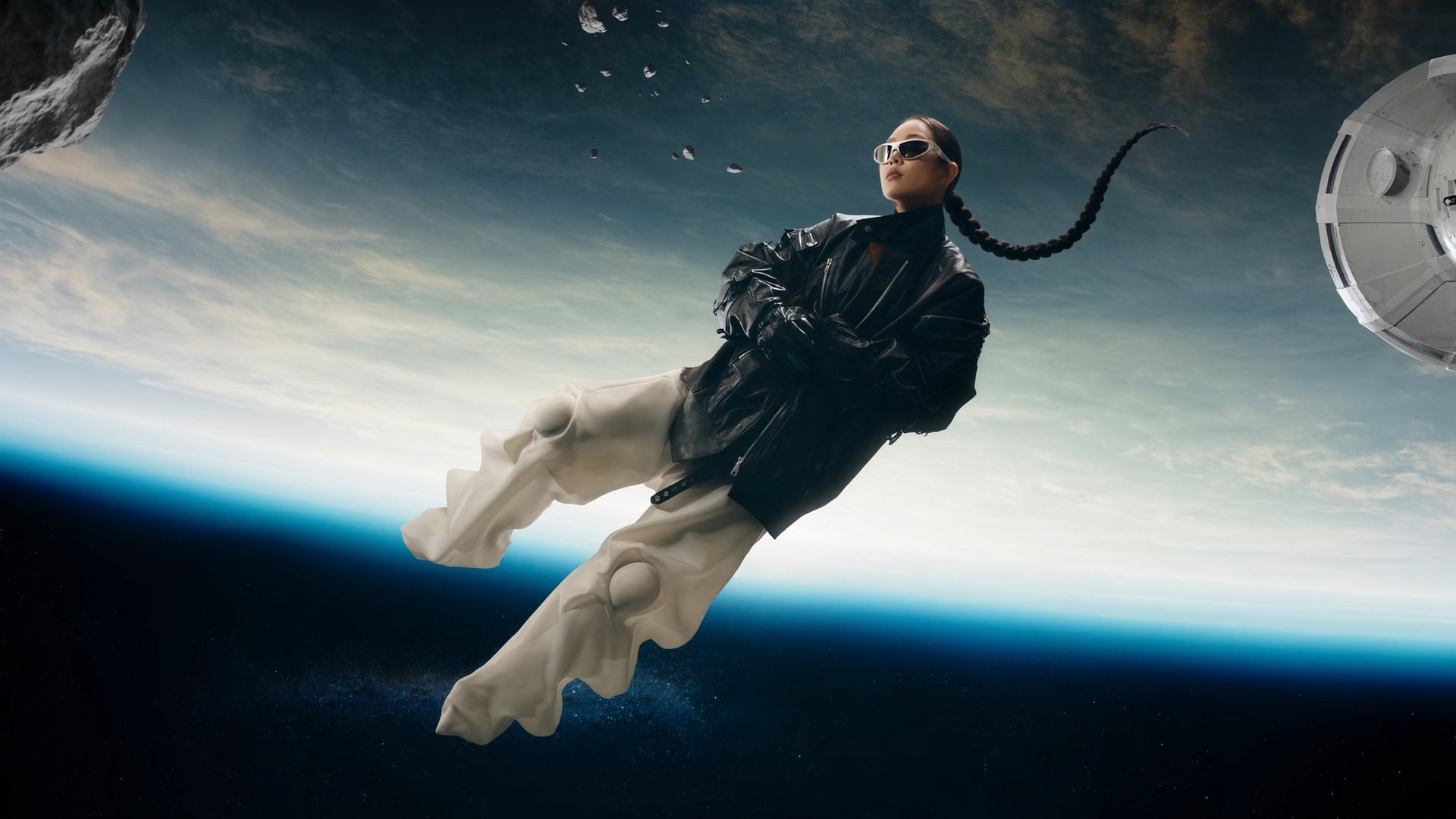
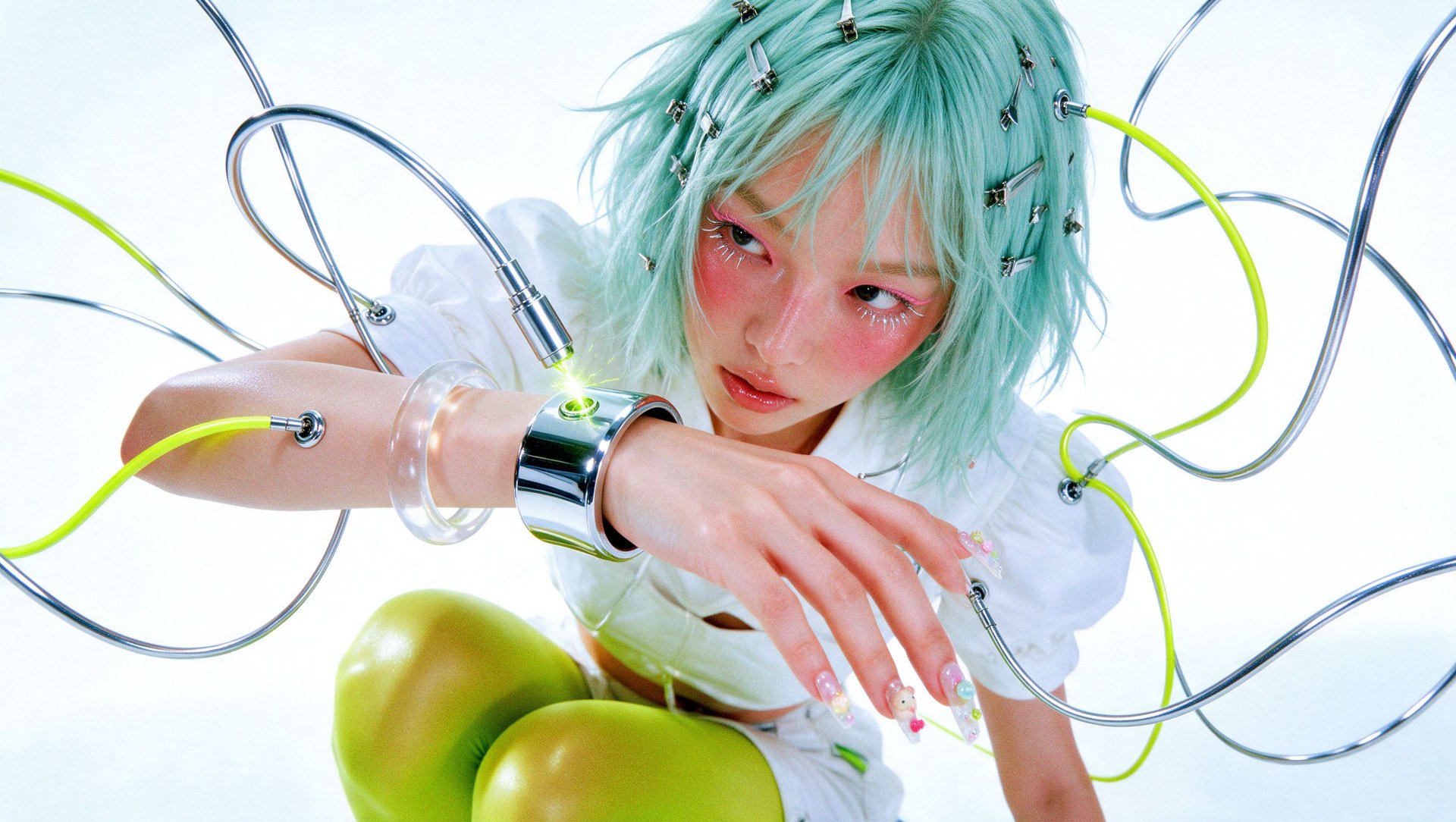
GPT Image 2.6 comes in two versions, and both are available in the model selector.

Flare or Sunburst?

Version

Strengths

Best For

Flare

Faster, works well for most tasks

Content, drafts, exploring ideas, series of images

Sunburst

Slower and more precise, better at preserving faces, products, and text

Detailed edits, complex compositions, final layouts

Use Flare to explore ideas, test prompts, and generate drafts quickly. Choose Sunburst for detailed edits or compositions where faces, product details, and text need closer attention. If a Flare result changes details you wanted to preserve, try the same prompt and references in Sunburst.

What Changed From GPT Image 2.5?

GPT Image 2.6 retains the Flare and Sunburst versions and the existing 1K, 2K, and 4K resolution options. The update expands output formats and adds controls for reasoning effort, variation, and markup-guided editing.

What Changed From GPT Image 2.5?

Setting

GPT Image 2.5

GPT Image 2.6

Output formats

Still images

PNG images, animated GIFs, and SVG vectors in preview

Quality options

Low, Medium, High, Extra High, Max

Auto, Low, Medium, High, Extra High, Max

Output size

1K, 2K, 4K

1K, 2K, and 4K for PNG and SVG; frame size controls for GIF

Both versions support up to 16 reference images.

What Settings Does GPT Image 2.6 Offer?

Available settings depend on the selected output format.

What Settings Does GPT Image 2.6 Offer?

Setting

Options or function

Quality

Auto, Low, Medium, High, Extra High, Max. Higher settings increase generation time and cost.

Resolution

1K, 2K, or 4K for PNG and SVG. GIF uses Frame size instead.

Background

Auto, Opaque, or Transparent

Format

PNG for still images, GIF for animations, or SVG for vector graphics in preview

Reasoning effort

Controls how much reasoning the model applies before generating

Temperature

Controls variation between outputs generated from the same prompt

For markup-guided editing, mark an area on the image and describe what should change.

How Does GIF Generation Work?

GIF generation turns a prompt into a sequence of frames played as a looping animation. For a clear result, describe one action, such as a wave or a blink, and keep the camera fixed.

Three settings control the animation:

  • Frame size sets the dimensions of each frame and determines the available frame count. Larger frames allow fewer frames.
  • Frames sets how many frames the animation contains.
  • Frame duration sets how long each frame appears, from 20 to 2000 ms. Lower values produce faster playback.

Loop length shows the total playback time. For example, 9 frames at 200 ms per frame produce a 1.8-second loop.

How Do You Create Your First GIF?

Step 1: Open Image and choose the model. Go to Image, switch to Manual mode, and select GPT Image 2.6 Flare (or Sunburst for a more precise result).

Step 2: Set the format. Switch Format to GIF. Then click the frames button next to Format (it shows the frame count, for example 9 frames) to open Frame size, Frames, and Frame duration.

Step 3: Describe one simple movement. For example: "A cartoon orange cat sits on a white background and waves one paw. Fixed camera, flat colors, simple outline."

Step 4: Choose the frame size and count. At 512 × 512, you can select 3 to 30 frames. For this example, start with 9 frames, then review whether the wave plays smoothly.

Step 5: Set the frame duration. 200 ms per frame gives a loop of 1.8 seconds. A shorter duration makes the wave faster.

Step 6: Pick the quality and generate. Check the cost, then click Generate.

How Do SVG and Transparent Backgrounds Work?

Choose SVG for vector graphics such as icons, simple illustrations, and mascots that need to scale without losing sharpness. SVG output has a transparent background and can be edited in compatible vector software. The feature is currently in preview, and complex images may produce less consistent results.

For a PNG without a backdrop, set Background to Transparent. This is useful for product cutouts, stickers, and images you want to place in another design.

Elements added with @ are supported in PNG and GIF. To use a saved character, location, or prop, select one of those formats; SVG does not support Elements.

How Much Does GPT Image 2.6 Cost?

How Much Does GPT Image 2.6 Cost?

Version

Quality

Resolution

Credits per generation

Estimated cost (USD)

Flare

High

2K

2.75

$0.13

Flare

High

4K

4.25

$0.21

Sunburst

High

2K

2.75

$0.13

Sunburst

High

4K

4.25

$0.21

Prices verified in November 2026. Calculations are based on the Plus monthly plan: $49 for 1,000 credits ($0.049 per credit).

How Does Unlimited Work With GPT Image 2.6?

As of November 5, 2026, for new purchases and upgrades on eligible plans, GPT Image 2.6 replaces GPT Image 2.5 in the 7-day Unlimited bonus. Both Flare and Sunburst are included. The Starter plan is excluded.

Unlimited covers PNG generation at Low or Medium quality, at resolutions up to 2K. GIF, SVG, 4K, and other quality settings use credits.

You can run two Unlimited image generations at once across all included image models. Additional requests wait in the queue. The models included in the 365-day Unlimited offer remain unchanged.

Earlier purchases retain their existing GPT Image 2.5 Unlimited access. GPT Image 2.6 is available to those users through credits.

What Are 5 Tips for Better GPT Image 2.6 Results?

1. Keep each GIF focused on one action. Start with a wave, blink, or another simple movement and keep the camera fixed. If the animation looks uneven, simplify the action before adjusting the frame count and timing.

2. Choose the version for the task. Use Flare for quick drafts and prompt testing. Try Sunburst when a result needs more precise faces, product details, or text.

3. Pick a frame size that fits the frames. Larger frames allow fewer frames, so pick the size first and the frame count second.

4. Use a transparent background for layouts. Set Background to Transparent when the image goes into a design, and use SVG for icons and mascots that need to scale.

5. Make edits that match the problem. Mark the specific area you want to edit and describe the change clearly. Check the result for unintended changes to nearby details, especially faces, text, and product features.

GPT Image 2.6 on Higgsfield: Animated GIFs, SVG Vectors, and Transparent Images

Try GPT Image 2.6

Got any questions left?

by Higgsfield