Creator Hub

Higgsfield Introduces Shorts Studio: Create Shorts With an AI Presenter

Higgsfield8 min

Higgsfield has launched Shorts Studio, a tool for creating vertical videos featuring an AI presenter. Add characters, products, or clothing using up to 38 images or videos, write your script, and optionally upload a motion reference. Shorts range from 15 seconds to two minutes, with Basic and High quality options. This guide explains how the tool works, its available settings, and how pricing is determined.

What Is Higgsfield Shorts Studio?

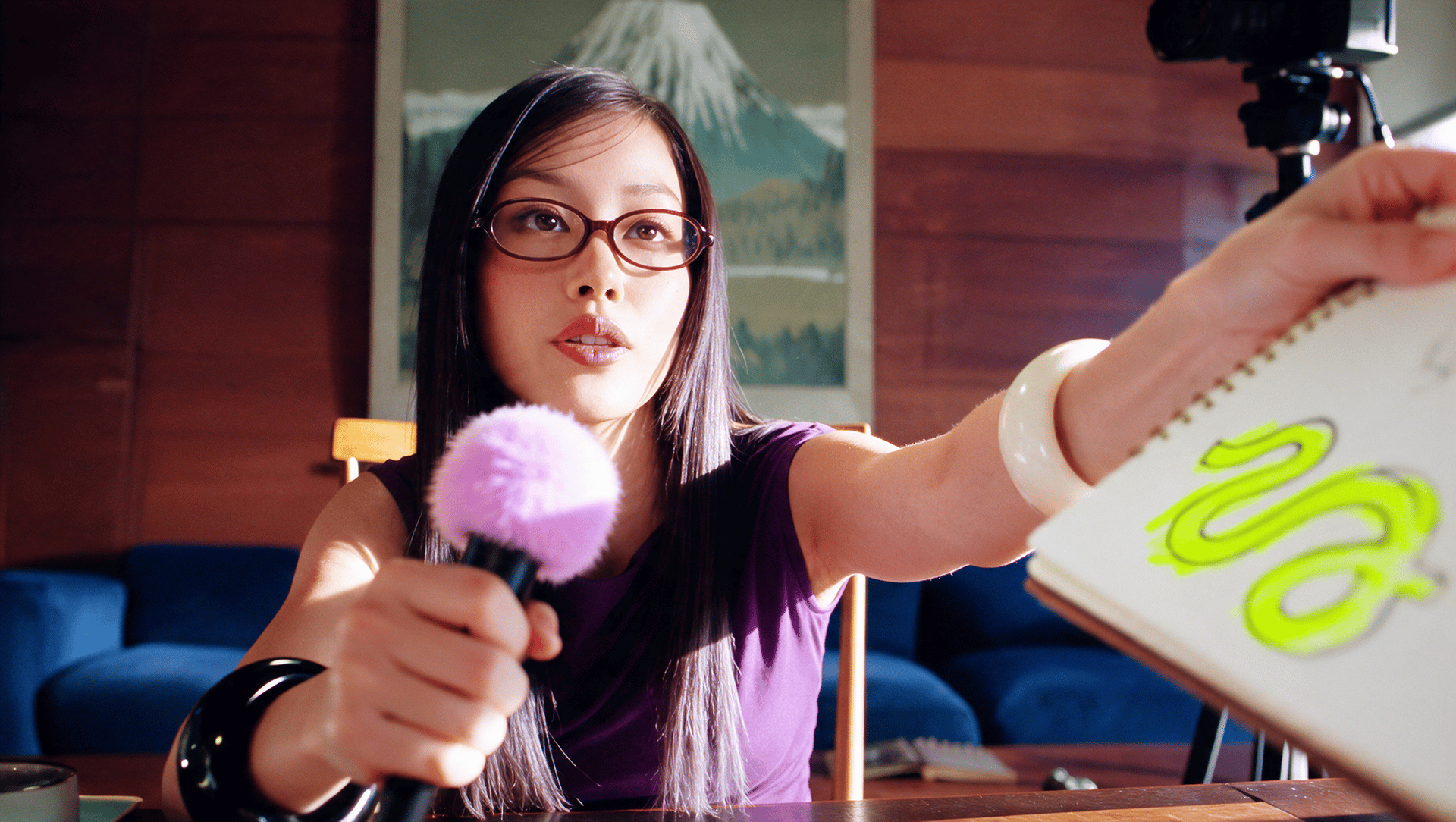
Higgsfield Shorts Studio makes vertical 9:16 shorts hosted by an AI presenter. A short can present a product, show a piece of clothing, or follow a trend, with the presenter speaking a script written for it. For a bag brand, one short might walk through the pockets and the materials, while another shows the bag on the way to a weekend trip. The same presenter can return in every short, so a series keeps one face and one voice of the brand.

Shorts Studio Inputs and Settings

Shorts Studio uses three inputs. The first is the characters, products, or clothing in the short. The second is the script the presenter says. The third is an optional reference video whose motion is copied. Materials can be picked from Uploads, AI Influencer, Generations, and Liked, so a presenter or product photo already in the account doesn't need to be uploaded again.

Shorts Studio Inputs and Settings

Input

What It Captures

Characters, products, and clothing

Up to 38 images or videos, chosen from Uploads, AI Influencer, Generations, and Liked

Script

The text the presenter says in the short

Reference video

Optional, 10 to 120 seconds, used to extract and transfer motion

Video length

15 seconds, 30 seconds, 1 minute, or 2 minutes

Quality

Basic and High

Presets

25+

How to Make a Short in Shorts Studio

Step 1: Open Shorts Studio and click Start generate.

Step 2: Set the reference. In the Reference step, choose the reference for your short, then click Continue.

Step 3: Add your character. In the Character step, add the presenter you want to appear in the video. Click Continue to move to voice selection.

Step 4: Choose a voice. Browse the Male or Female voice options, or select Custom. The Auto generate option creates a voice matched to the character you upload. Select your preferred option and click Continue.

Step 5: Enter your topic. In the Script step, describe what the short should cover. Click Continue to have Shorts Studio write the script.

Step 6: Set the duration and quality. Use the duration control to choose the video length. Then select Basic for a faster, cheaper generation with medium quality, or High for better quality at a higher cost and longer generation time.

Step 7: Choose where to generate. Select in Higgsfield to generate on the website, or in Claude to continue in Claude with Higgsfield MCP.

Step 8: Generate your short. Continue with your selected generation option.

Pricing

Shorts Studio uses Higgsfield credits. The generation cost depends on video length and quality and appears on the Generate button before generation.

Pricing

Video Length

Quality

Credits

Estimated Cost

15 seconds

Basic

90

$4.41

15 seconds

High

240

$11.76

30 seconds

Basic

180

$8.82

30 seconds

High

480

$23.52

1 minute

Basic

360

$17.64

1 minute

High

960

$47.04

2 minutes

Basic

720

$35.28

2 minutes

High

1,920

$94.08

Calculations are based on the mid-tier Plus plan at $49 for 1,000 credits. Prices verified in November 2026.

Use Cases

  1. Product reviews. An AI presenter talks through a product, its features, and its uses.
  2. Series of shorts. One presenter hosts many episodes, with the same character reused each time.
  3. Trend shorts. The motion or the style of a popular short is repeated with a different presets.
  4. Clothing and accessory showcases. Items are added as materials, and the presenter introduces them on camera.

Before Posting: What to Check in a Finished Short

Before posting, watch the whole short and check five things. The presenter's face stays the same from start to finish. The product keeps its shape, color, and label as it moves. The spoken text matches the script and fits the chosen length. Motion copied from a reference video looks natural on the new character. The product and the presenter's face stay away from the edges of the 9:16 frame, where captions and platform buttons appear.

Every character, photo, and clip in the short should have cleared rights, including the reference clip used for motion. Any real person's likeness needs their permission.

Higgsfield Introduces Shorts Studio: Create Shorts With an AI Presenter

Try Shorts Studio

Got any questions left?

by Higgsfield