Higgsfield's MCP connector turns Claude into a full video production environment. Once the two are connected, Claude can reach every model and feature on the Higgsfield platform from inside any conversation, which means you describe the shot you want and Claude takes care of choosing the right model, configuring the parameters, firing the generation, and bringing the finished clip back to chat. The platform exposes more than 30 video and image models through that single connection, with output running up to 4K and clips up to 15 seconds in any aspect ratio your distribution needs, none of which requires API keys or a separate editor on your side.
This guide covers what the connector is, how the workflow runs, how to set it up in a minute, and what becomes possible once it is live.
What Is Higgsfield MCP
MCP, short for Model Context Protocol, is an open standard that gives AI agents secure access to external tools. Claude supports it natively, and Higgsfield runs an MCP server at https://mcp.higgsfield.ai. Connecting the two gives Claude direct access to the entire Higgsfield platform from any chat, so your conversation thread effectively becomes your production environment.
The connector is not Claude-exclusive either. Cowork, OpenClaw, Hermes Agent, and NemoClaw all connect to the same server, alongside Claude on web, desktop, mobile, and Claude Code, which means a team running a mix of agents can still operate against one shared library and credit pool.
What Claude Can Do Through the Connector
One Connection, 30+ Models
Through the connector, Claude can call every video model on the platform: Veo 3.1, Sora 2, Kling 3.0, Seedance 2.0, Wan 2.6, and MiniMax Hailuo, alongside Higgsfield's in-house Soul, Soul Cinema, and Cinema Studio. Image generation runs through the same pipe, with access to Soul 2.0, Nano Banana Pro, Flux 2.0, Seedream 4.5, and others. By default Claude picks the model that fits the shot, but you can also specify one in the prompt or send the same brief to several models in parallel and compare results before committing to a winner.
Generate Video From Any Input
Anything you can describe or upload becomes valid input. Plain text, an image, a sketch, a pose reference, an audio clip, or existing footage all flow through the same chat interface, and Claude routes each one into the right generation pipeline. Multi-image reference is what keeps character identity steady across shots; first-and-last-frame interpolation handles the in-between when you want to bridge two stills; video-to-video restyles footage you already have. Instead of bouncing between five different tool surfaces depending on what you happen to be feeding in, the entire range of input modalities lives behind one conversation.
Cast Characters, Avatars, and Voices
You train a Soul Character once from a handful of reference photos and then reuse it across every scene, week after week, with identity holding stable through every render. Voices clone the same way, complete with multilingual lip sync, and you direct emotion, gesture, and wardrobe per take in plain language. The character system also covers face swap, de-aging, crowd shots, and shot-to-shot consistency, which are the failure modes that usually break AI video the moment you try to build a recurring cast.
Direct Cinematography, Motion, and Style
Direction translates from plain language into the actual cinematographic parameters: camera moves, lens choice, depth of field, aspect ratio, and frame rate. Motion brushes and physics-aware simulation handle action sequences, and time remapping covers slow motion when you want it. The aesthetic range itself runs from photoreal to anime and covers era looks, color grades, and brand kits, all of it directable through the same chat interface as everything else.
Edit Scenes and Audio in Post
Post-production lives in the same conversation. You can swap backgrounds, extend scenes, change lighting and weather, and add or remove objects through inpainting, alongside operations like auto-cut, reframe, upscale, restore, and stabilize for older footage. Audio is generated in line with the video, so voiceover, music, SFX, and dubbing arrive already synced to the timeline rather than waiting on a separate audio pipeline downstream.
Ship Campaigns at Agency Scale
For campaigns, the connector handles batch generation and parallel runs through presets like UGC, TV spot, and Wild Card, with brand kits and templates locking consistency across renders. A single conversation can fan one prompt out into hundreds of campaign-ready videos sized for every platform you publish on, which is what makes the workflow viable for teams shipping creative continuously rather than on a project basis.
How to Connect Higgsfield MCP to Claude
The setup takes about a minute. You add Higgsfield as a custom connector inside Claude, sign in to your Higgsfield account, and start prompting.
Step 1: Open Claude Settings
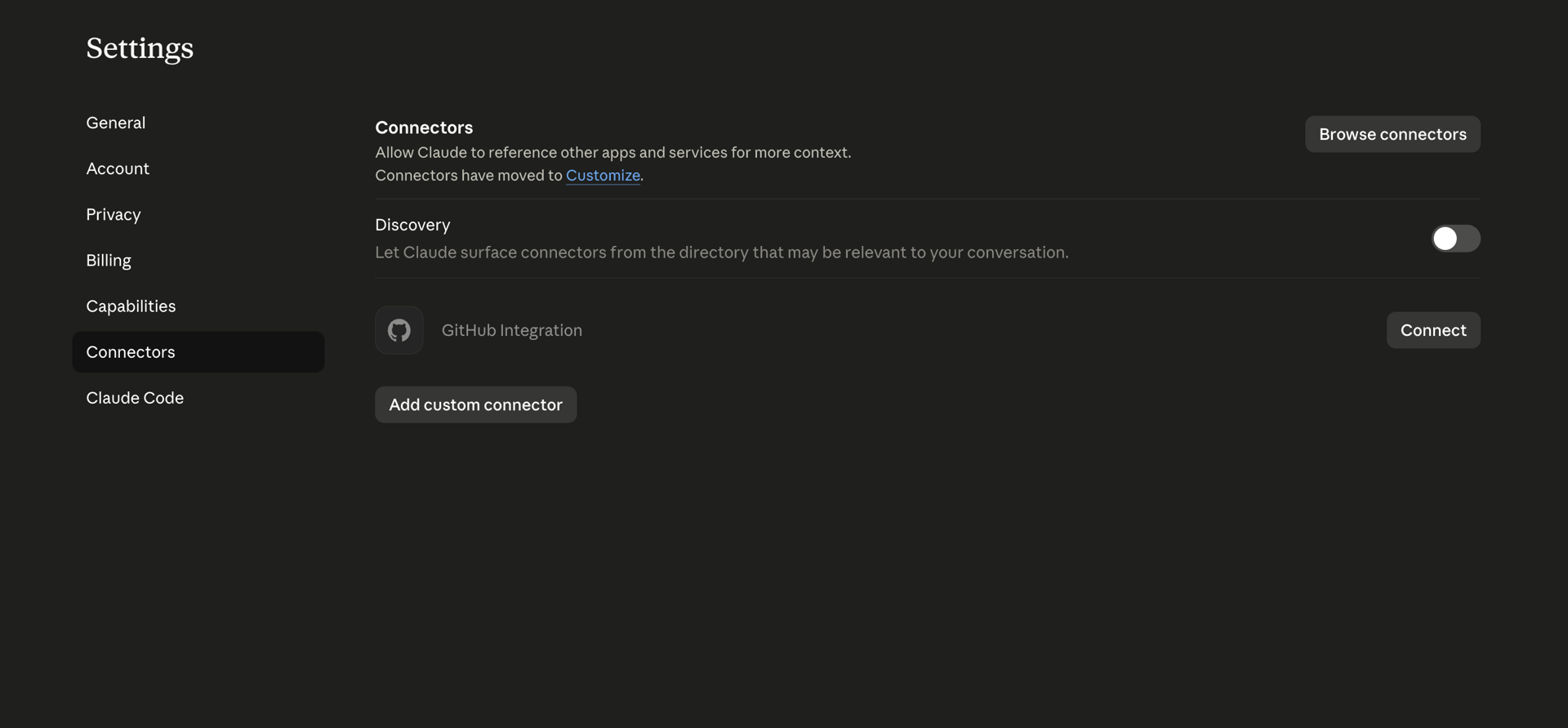
Launch the Claude desktop app or open claude.ai in a browser, then go to Settings → Connectors.
Step 2: Add a Custom Connector
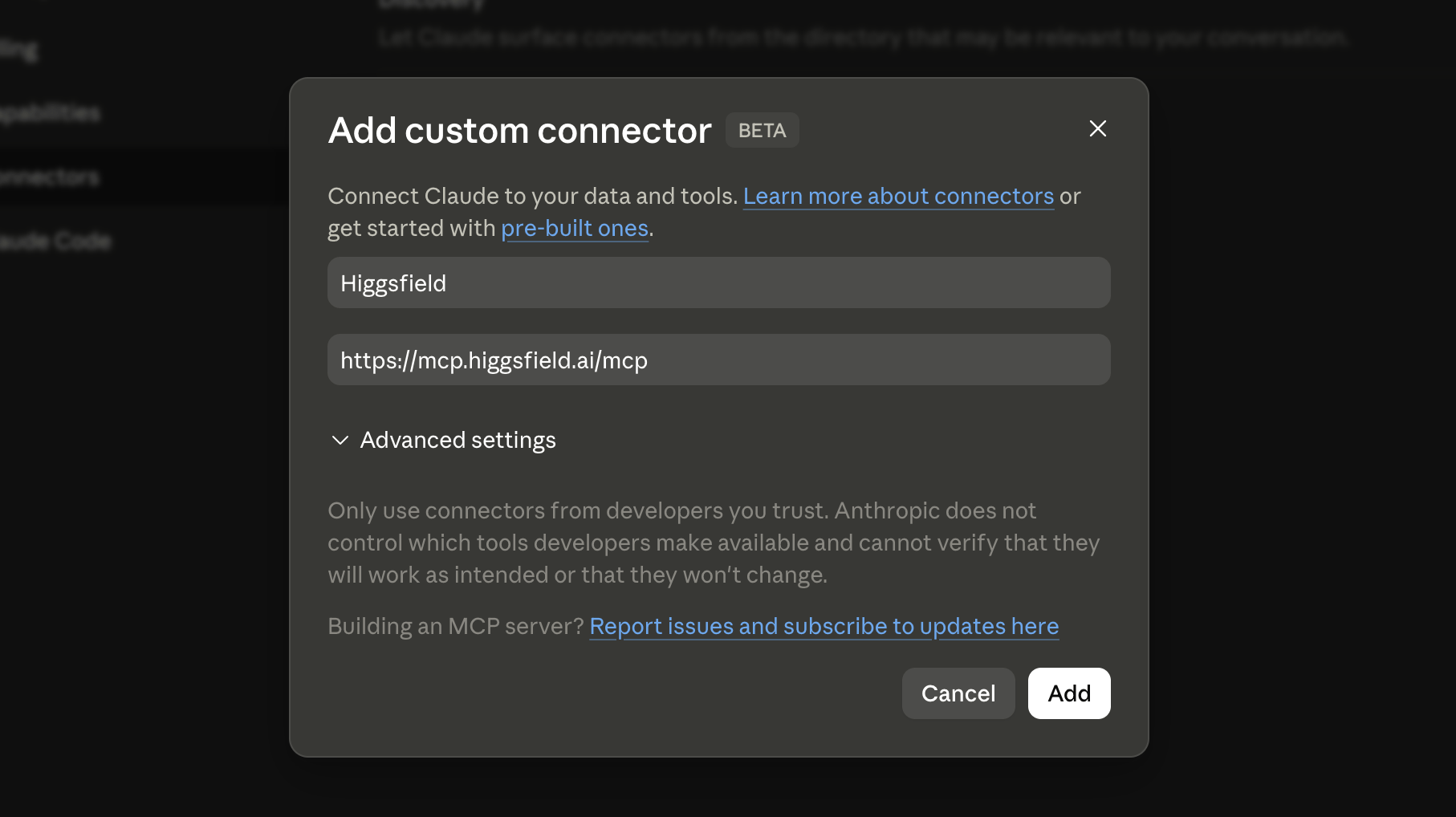
Click Add custom connector, name it Higgsfield, and paste the MCP server URL into the URL field:
https://mcp.higgsfield.ai
Save the connector.
Step 3: Connect and Sign In
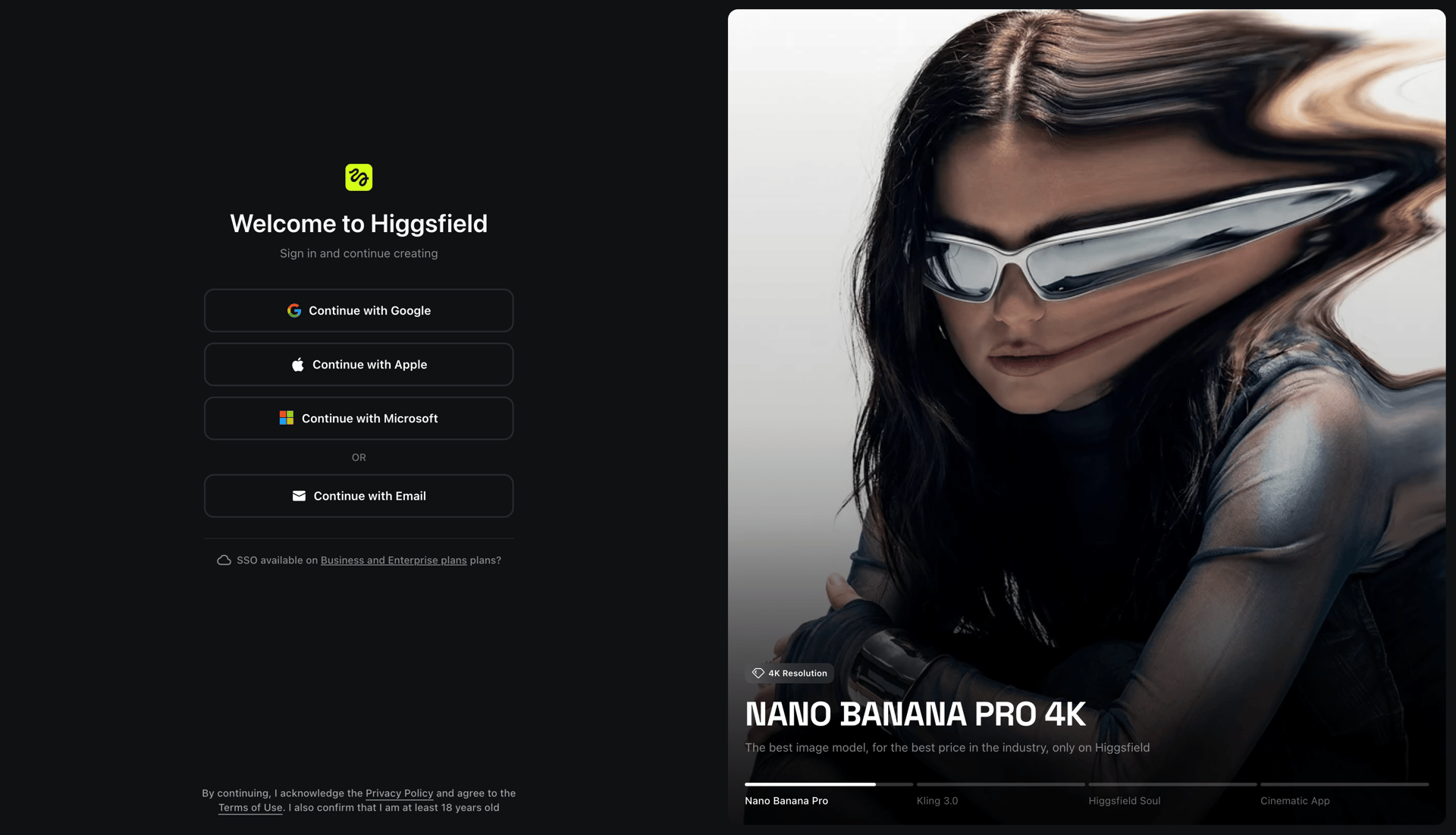
Click Connect and Claude will redirect you to sign in to your Higgsfield account. Once you approve access, the connector activates and stays connected, so this is a one-time setup. New Higgsfield accounts ship with free credits, so you can run your first generations without committing to a paid plan first.
Step 4: Set Permissions to Always Allow
This is an optional but recommended tweak. Setting read and write permissions to Always Allow lets Claude act on requests without prompting you for approval each time, which makes the workflow feel continuous rather than gated. The same settings panel lets you tighten or revoke those permissions whenever you want to.
Step 5: Send Your First Prompt
Open a new chat and write a brief. For example:
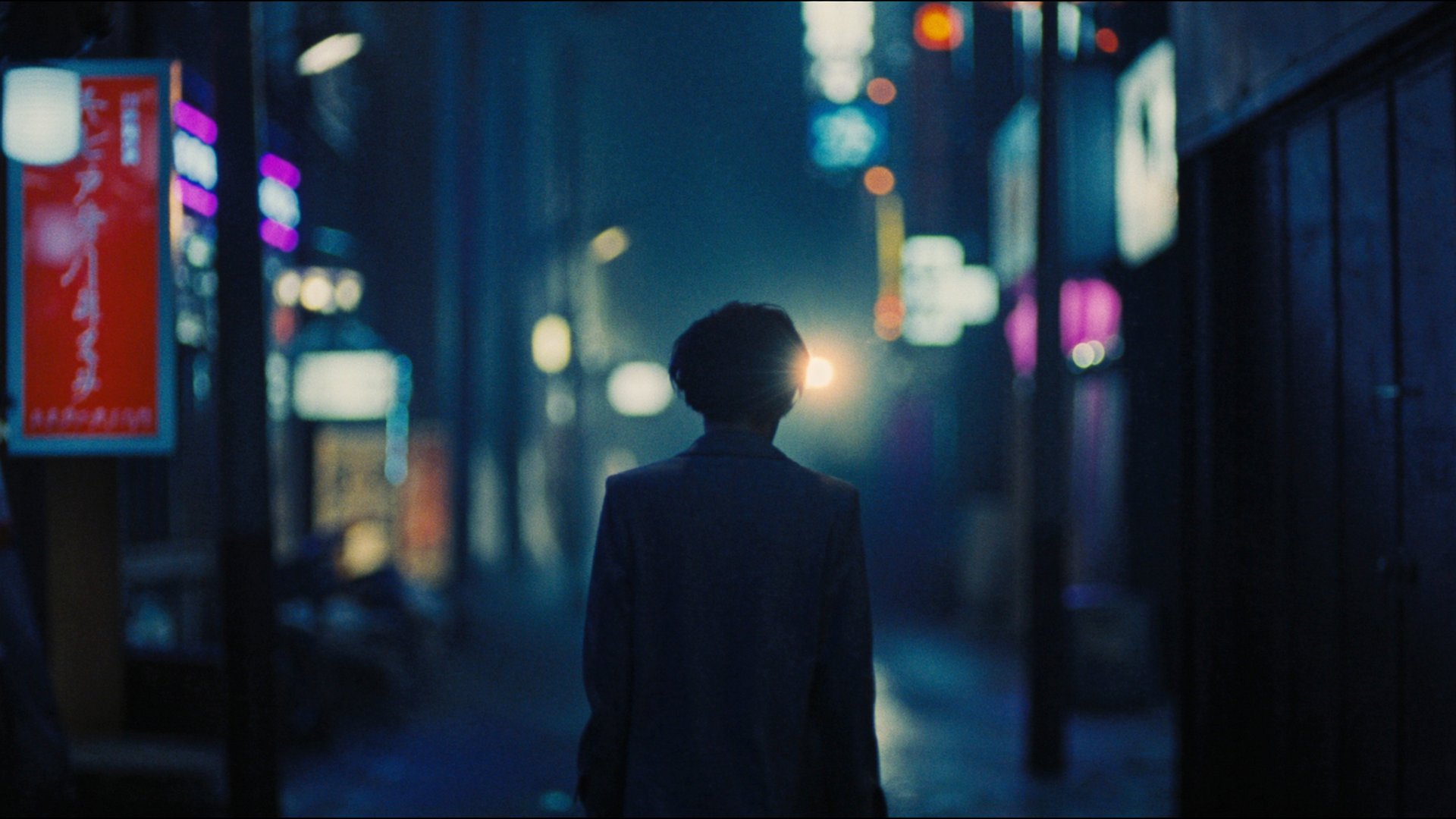
Generate a cinematic 5-second wide shot of a neon-lit Tokyo alley at night, rain on the pavement, one figure walking away from camera. Use Seedance 2.0.
Claude will pick the model (or honor your choice if you named one), set duration and aspect ratio, fire the generation, and return the finished clip in your chat. From there you can iterate by changing models, adjusting the angle, pushing variants, or queuing a full batch off the same brief.
How It Works Under the Hood
Three pieces are doing the work behind the scenes. Claude interprets your intent and turns natural language into structured generation parameters, reading context across the conversation, referencing your past renders, and writing prompts in the specific format each model expects. MCP is the secure bridge that lets Claude call Higgsfield's tools, with your credentials staying on Higgsfield's side and Claude only ever seeing the tool results. Higgsfield itself runs the actual generation, rendering models, synchronizing audio, holding character consistency, and returning the finished output back to your chat with a link to your workspace.
From your side it looks like one prompt, but underneath there is a small choreography of automation that quietly replaces what used to be three or four separate sessions across as many platforms.
Three Ways to Use It
Asset Creation: One Render in Seconds
When you need a single asset quickly, this is the simplest path. You describe the shot, Claude picks the model and parameters, and the finished clip comes back in seconds.
Generate a cinematic 5-second wide shot of a neon-lit Tokyo alley at night.
Model Comparison: Multi-Model Showdown
If you want to test which model handles a particular shot best before committing budget to it, you can send the same brief to several models in parallel, compare the outputs side by side, and keep iterating on whichever one wins.
Run this scene on Veo, Kling, and Seedance and show me the best result.
Full Production: Build a Visual System
For campaigns, episodic content, or anything that needs character continuity across multiple shots, the workflow gets bigger. You train a Soul Character, generate scenes across different locations and styles, and reuse the same cast and brand kit weeks later, with Claude holding the full project state across sessions so you can pick up exactly where you left off.
Train a character from these photos, then generate a 6-shot product reel for TikTok using the UGC preset.
What You Can Create
AI Video Ads and UGC. Performance marketers, dropshippers, and affiliates use the connector to ship hook-tested ad variants for Meta, TikTok, and YouTube on a weekly cadence, often replacing a five-figure agency retainer with a single ongoing brief.
Ecommerce and Product Video. Amazon and Shopify sellers turn new SKUs into hero videos, lifestyle shots, and variant reels the same day inventory arrives, compressing the lag between launching a product and having a complete content set ready to push.
Social and Short-Form Content. Solo creators and faceless operators run entire TikTok, Reels, Shorts, and YouTube channels from one rolling brief, generating a week of content in a single chat session sized for each platform automatically.
Sales Outreach and Localized Campaigns. Sales teams personalize video per prospect, while global brands ship localized variants of the same campaign for every market on launch day, all driven by a single source brief.
Cinematic and Creative Work. Filmmakers use the workflow to storyboard scenes, generate concept art, previsualize shots, and produce final cinematic clips, with Soul Characters locking cast consistency from one scene to the next across the project.
Where Your Videos Live
Generated videos do not disappear into the chat thread. Every clip lands in your Higgsfield workspace, where you can edit, download, or share it the same way as any other project on the platform, and Claude keeps a memory of past renders inside the conversation, which means you can reference a clip from week one when you are building week three. This matters most for teams, since marketing, creative, and product can all draw from the same Higgsfield library while briefing through their own separate Claude sessions without duplicating assets.
Requirements
A Claude account that supports custom connectors (web, desktop, mobile, or Claude Code).
A Higgsfield account, with free credits available at signup. Paid plans unlock higher volume, longer durations, and the full model library.
Permission to add custom connectors inside Claude. On managed Anthropic plans, your admin may need to allowlist the Higgsfield MCP URL before the connector becomes available.
That is the full setup. The connector runs against your existing Higgsfield credits, so there is nothing to install on your side and no separate billing arrangement to negotiate per model.
Why MCP Changes How Content Gets Made
Creative production has looked like an assembly line for years, with one tool for writing, another for design, a third for video, and yet another for distribution. Every handoff between those tools cost time and lost context along the way, which is why most production timelines are dominated by integration work rather than the creative itself.
MCP collapses the line into a single thread. Claude writes the brief, picks the model, generates the asset, iterates on variants, and delivers the campaign without ever leaving the conversation, while Higgsfield supplies the rendering infrastructure underneath. Work that used to take a team and a week can now finish in a chat and an afternoon, and the compounding benefit is what most operators end up valuing more than raw speed: the cycle gets short enough that you can actually iterate, and iteration is where the creative gets good.
Connect Higgsfield to Claude
Set up the Higgsfield MCP connector in under a minute to start generating high-fidelity AI video and consistent characters directly inside your Claude chat.