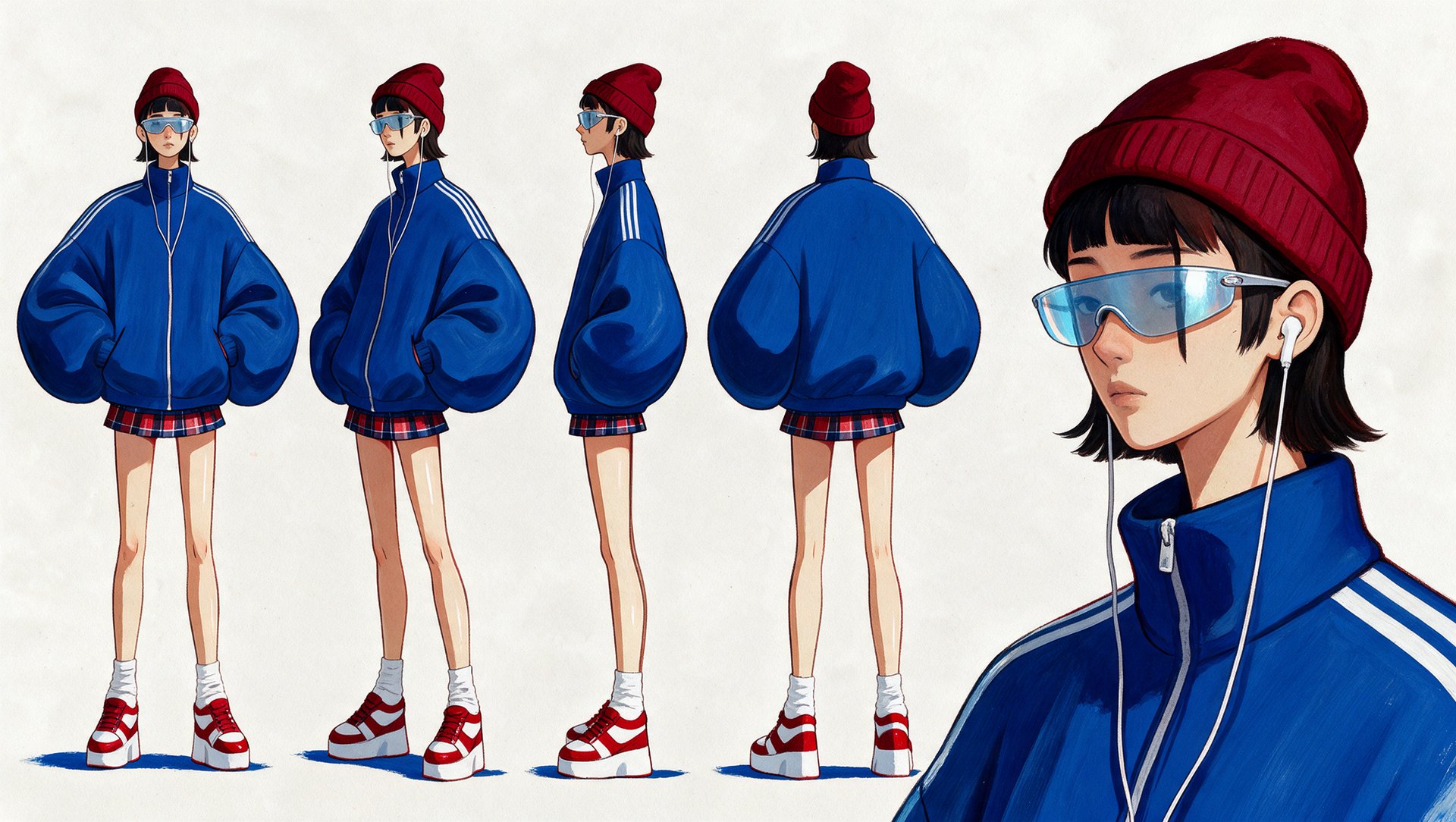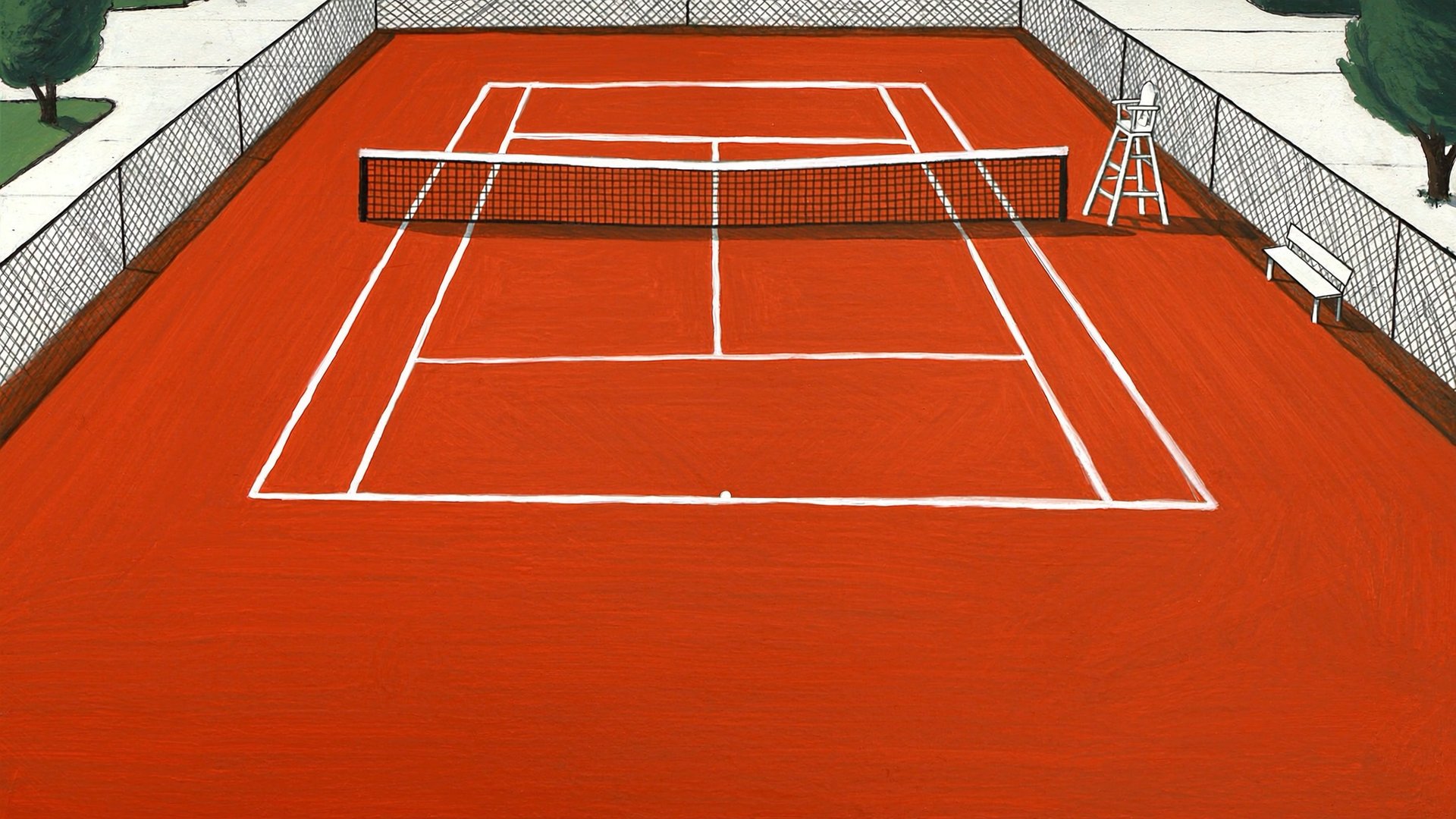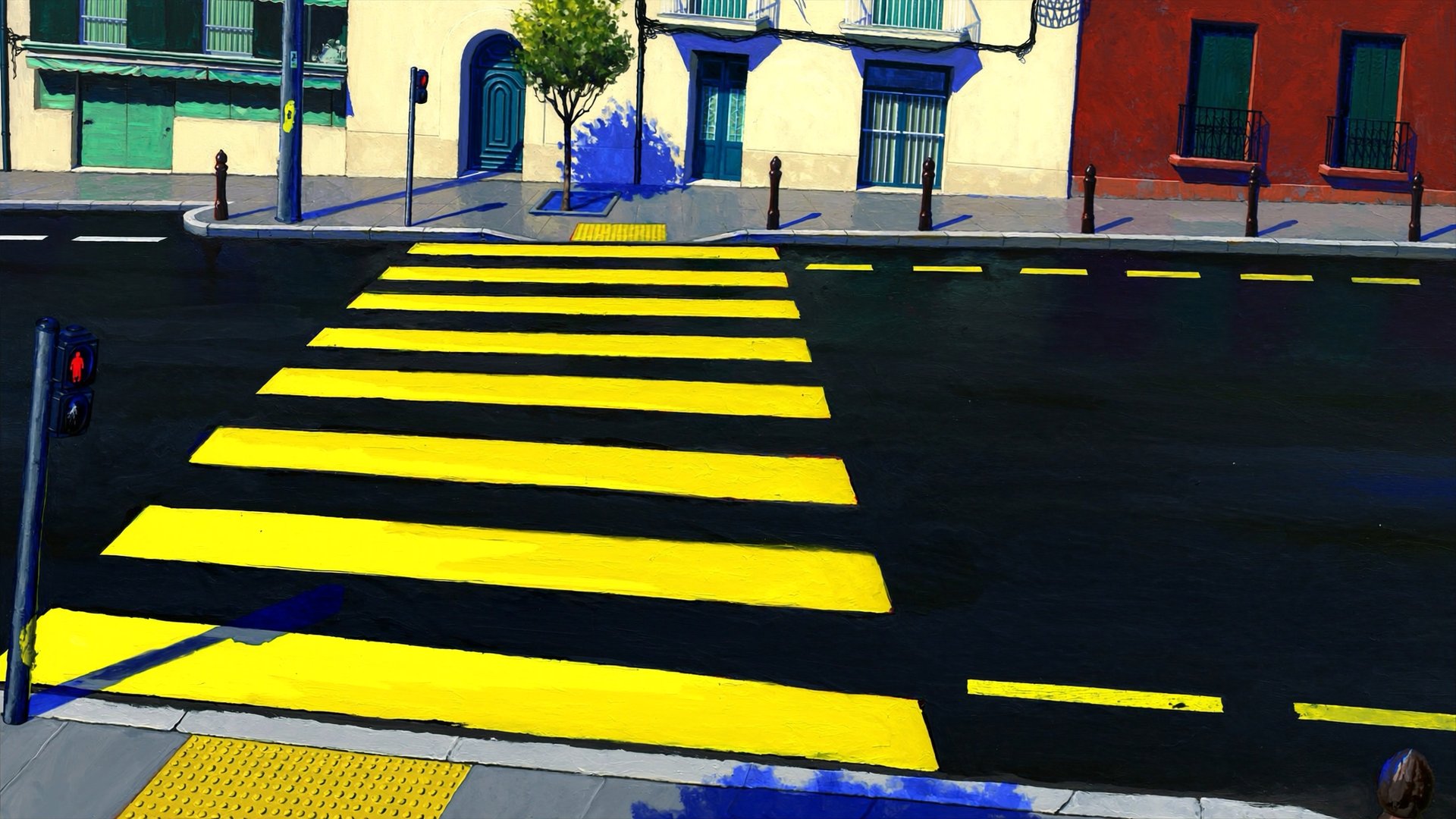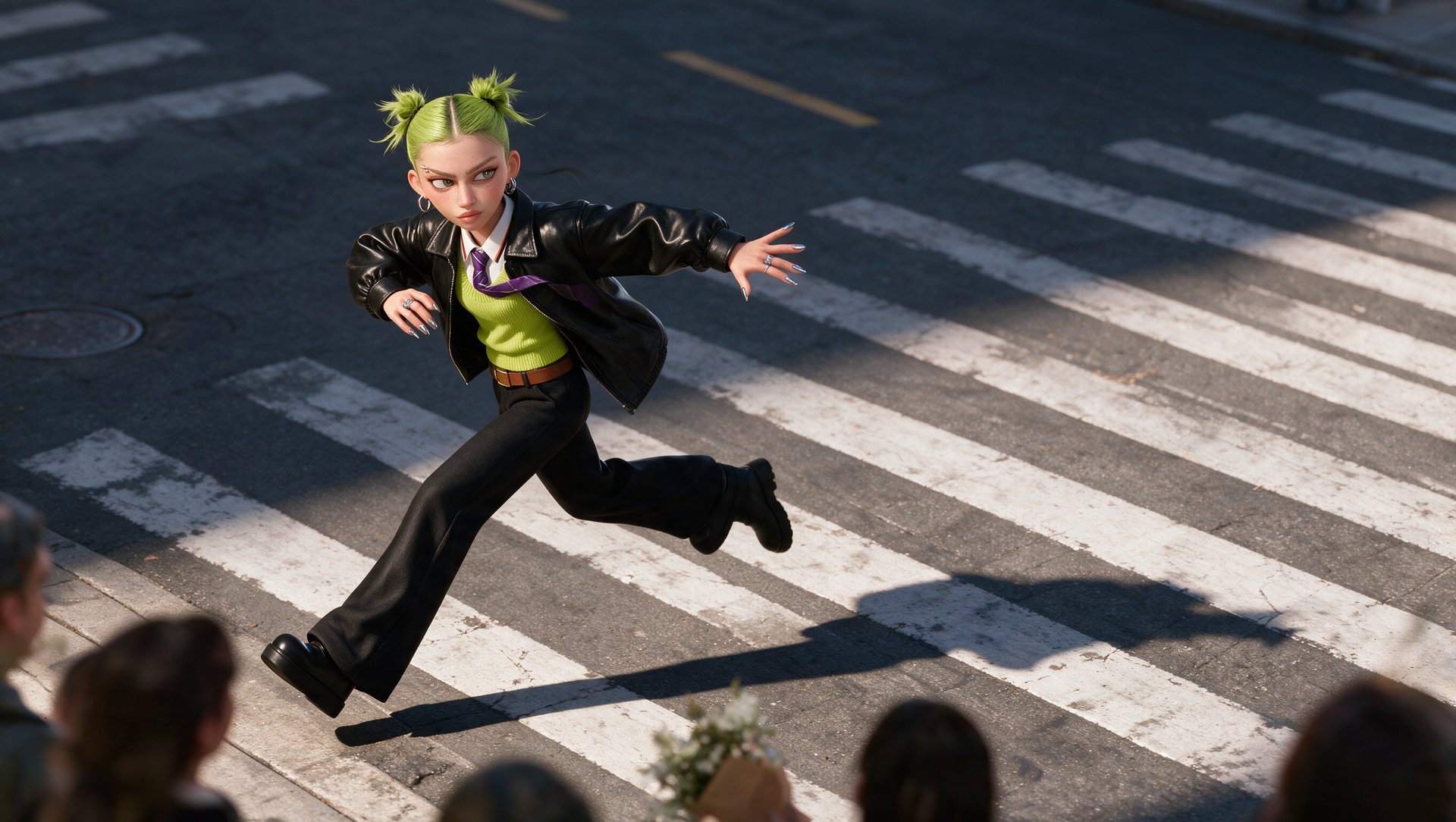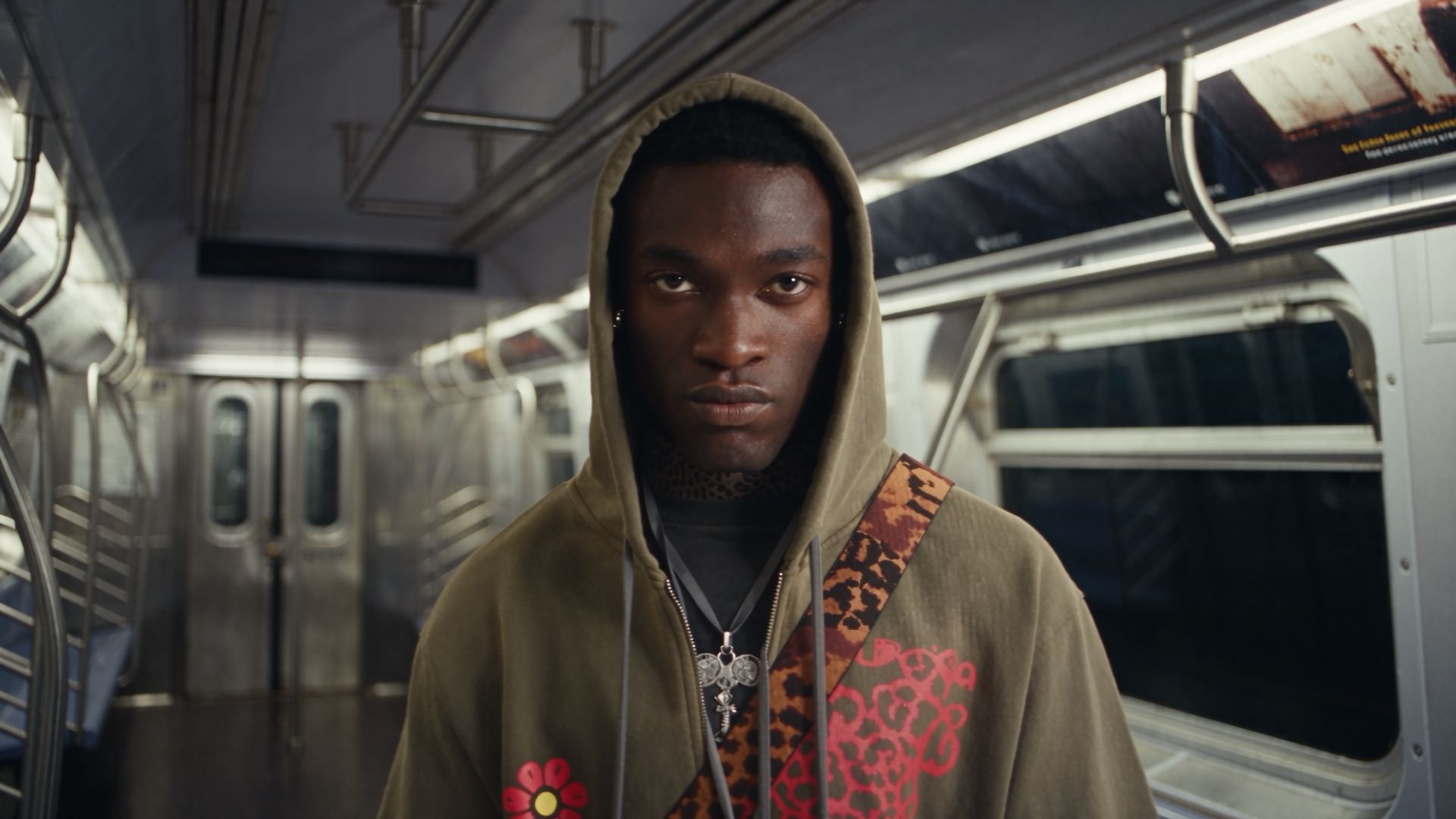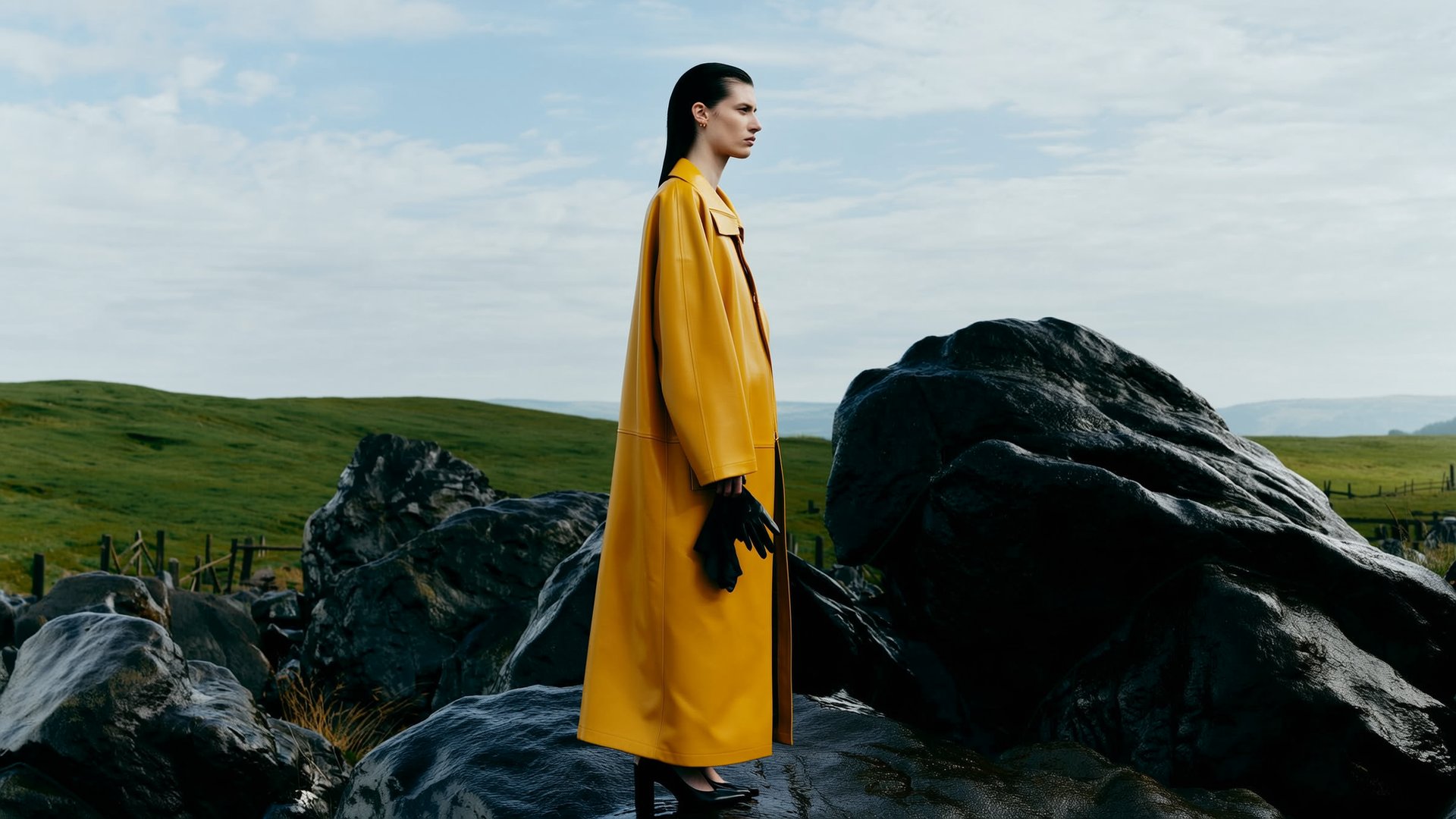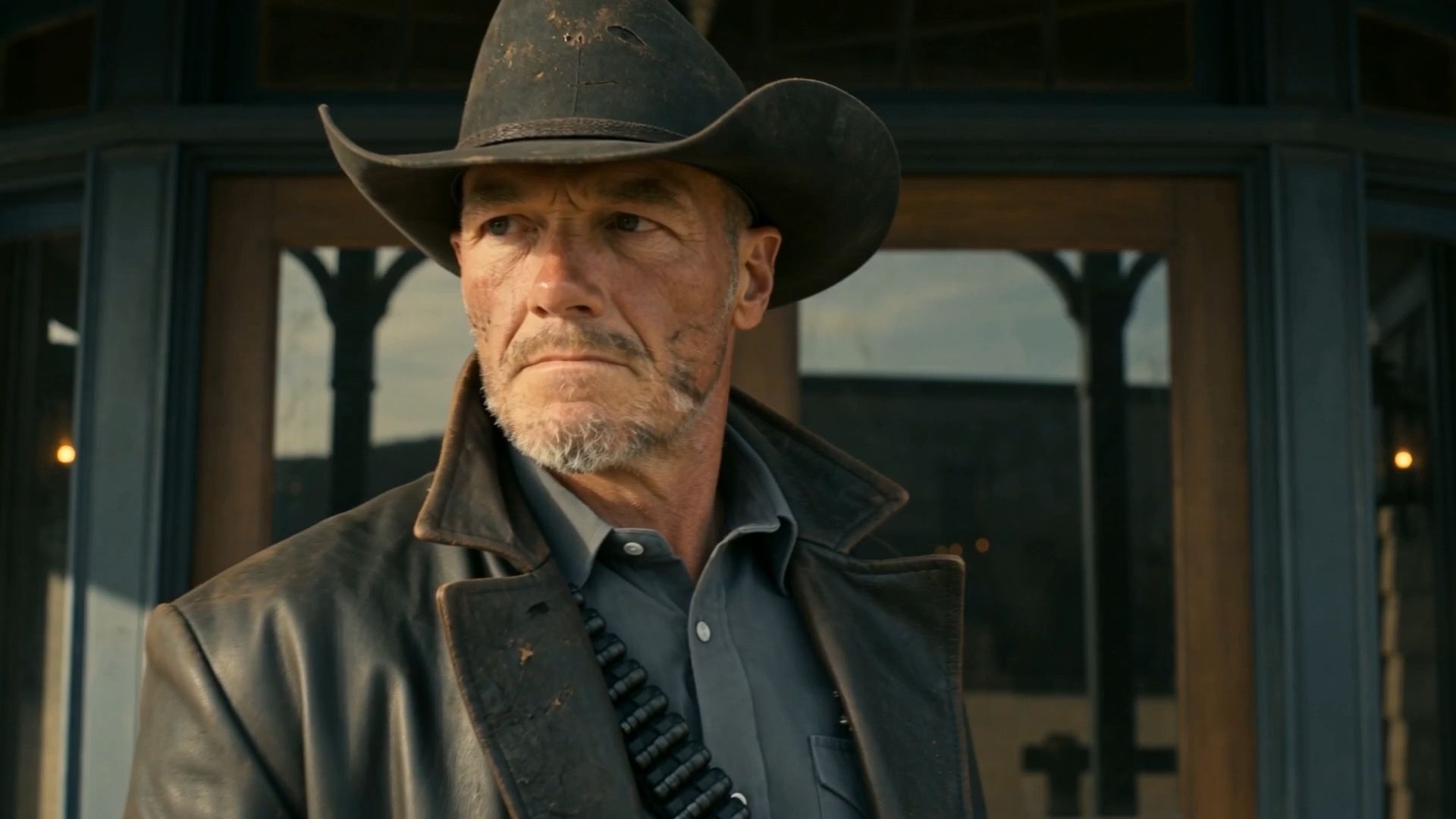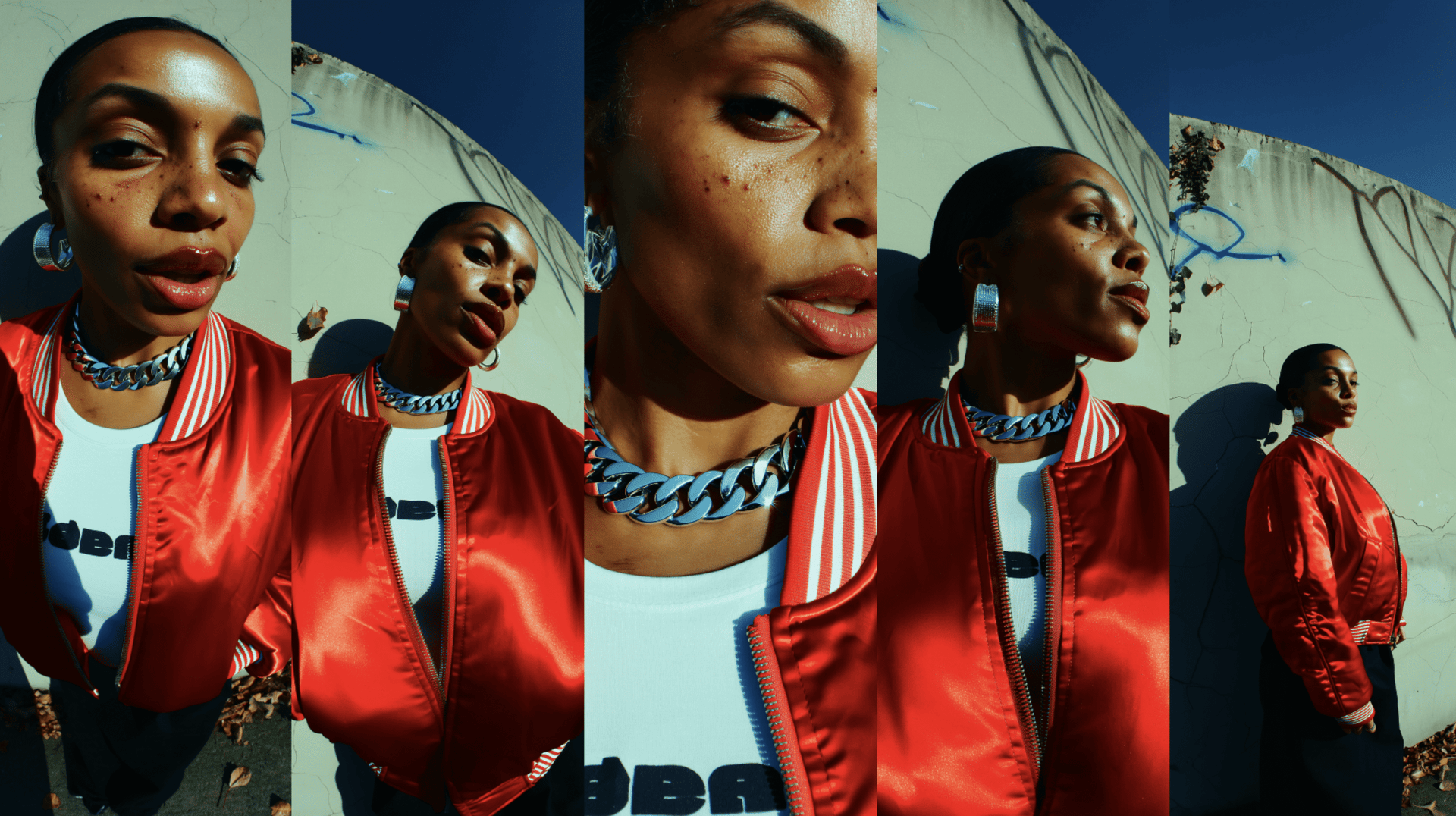
To keep characters and style consistent across an AI series, use reference sheets and dedicated asset-locking tools. Characters, locations, and visual style each need to be settled before a shot gets generated. Skipping that setup makes visual drift much more likely as the series grows. This guide covers how to set it up and fix it when it slips.
Why Characters and Art Styles Drift Between AI-Generated Scenes
Separate AI generations can reinterpret a character, location, or visual style unless you carry the same identity and references forward. The most reliable workflow is to create reusable character, style, location, and prop references before generating the final shots.
What Happens | How to Fix It |
|---|---|
A character's face or proportions shift between episodes | Train a dedicated identity once from reference photos, reuse it in every generation |
The art style drifts toward a generic, default look | Anchor the style reference and reuse it for every asset, the character included |
Clothing or props change between scenes with no story reason | Generate wardrobe and object references upfront, alongside the character |
Locations look inconsistent between episodes set in the same place | Build a location reference once, and generate every later scene from that same reference |
Color grading or lighting shifts scene to scene | Set color and lighting controls explicitly, don't leave them to the prompt |
Five Tips to Avoid Drift
1. Prepare references for the character, style, locations, and key props. Maintain the visual direction before generating video. If the character lives in a 2D watercolor world, the locations, objects, wardrobe, and backgrounds should follow that same style too. It is much easier to correct a still reference early than fix visual drift after a video has been generated.
2. Decide the style once, and don't redescribe it in every prompt. Pick a specific style reference early and point every later generation back at it. Typing out a style description fresh each time just means hoping the model interprets it the same way twice.
3. Keep a running reference library that grows with the series. As new locations, outfits, or props get approved, save them alongside the original character and style references. A series accumulates assets over time, and the later episodes need access to everything the earlier ones established.
4. Check continuity across episodes, not just within one. A character's design can hold steady within a single episode and still quietly drift from season one to season three if nothing gets compared directly. Pull an early reference back up before generating a new batch of episodes and check it against the current look.
5. Write detailed, specific prompts for every asset, the final video included. A vague prompt generating a location or an outfit introduces the same kind of drift a vague video prompt does. Describe materials, colors, and specific details whether the generation is a location, a character's clothing, or the final video shot itself.
This guide covers how to structure a strong prompt in more detail.
Which Tools on Higgsfield
Higgsfield is an AI-native creative suite with 35+ models and tools spanning image, video, and audio generation in one workspace. For a consistent animated series, four of those tools do most of the work.
Tool | What It's For | Key Settings |
|---|---|---|
Soul ID | Maintain the character | Trains from 20+ reference photos in a few minutes |
Soul 2.0 | Moodboard to maintain the visual style, and Soul HEX when the series also needs a consistent color palette. | 20+ curated presets, Soul HEX, Moodboard. |
Cinema Studio 4.0 | Generating the actual shots | Genre, Camera, Lens, Tempo, Emotion Wheel, Colour Palette, Era |
Higgsfield Popcorn | Planning the shot sequence before generating | Turns a script or scene list into a shot-by-shot storyboard |
Soul 2.0 is Higgsfield's own foundation image model, built in-house for fashion-aware, culture-native image generation, tuned for how fashion, editorial, and internet-native aesthetics actually look rather than approximated from general knowledge. It generates images up to 2K and ships with 20+ curated presets, each tuned to a specific aesthetic register.
Soul HEX pulls and applies color palettes directly, and Moodboard establishes in a visual direction, the feature that does the actual work of keeping one art style consistent across locations and objects generated through it.
Higgsfield Popcorn turns scene descriptions and references into a connected storyboard sequence before video generation. Auto mode can expand one prompt into up to eight frames, while Manual mode lets you direct each frame individually.
Cinema Studio 4.0 generates the actual shots with up to 30 seconds per clip and up to 50 references per generation. Genre, camera, lens, tempo, emotion, colour palette, and era are all set as direct controls. These controls let you reuse the same cinematography choices across shots instead of describing them from scratch in every prompt..
Full Workflow: Step-by-Step Guide
Step 1: Lock the character's identity in Soul ID. Train Soul ID on 20+ consistent reference portraits of the character. For an invented or stylized character, create the portrait set first, then train Soul ID on those references.