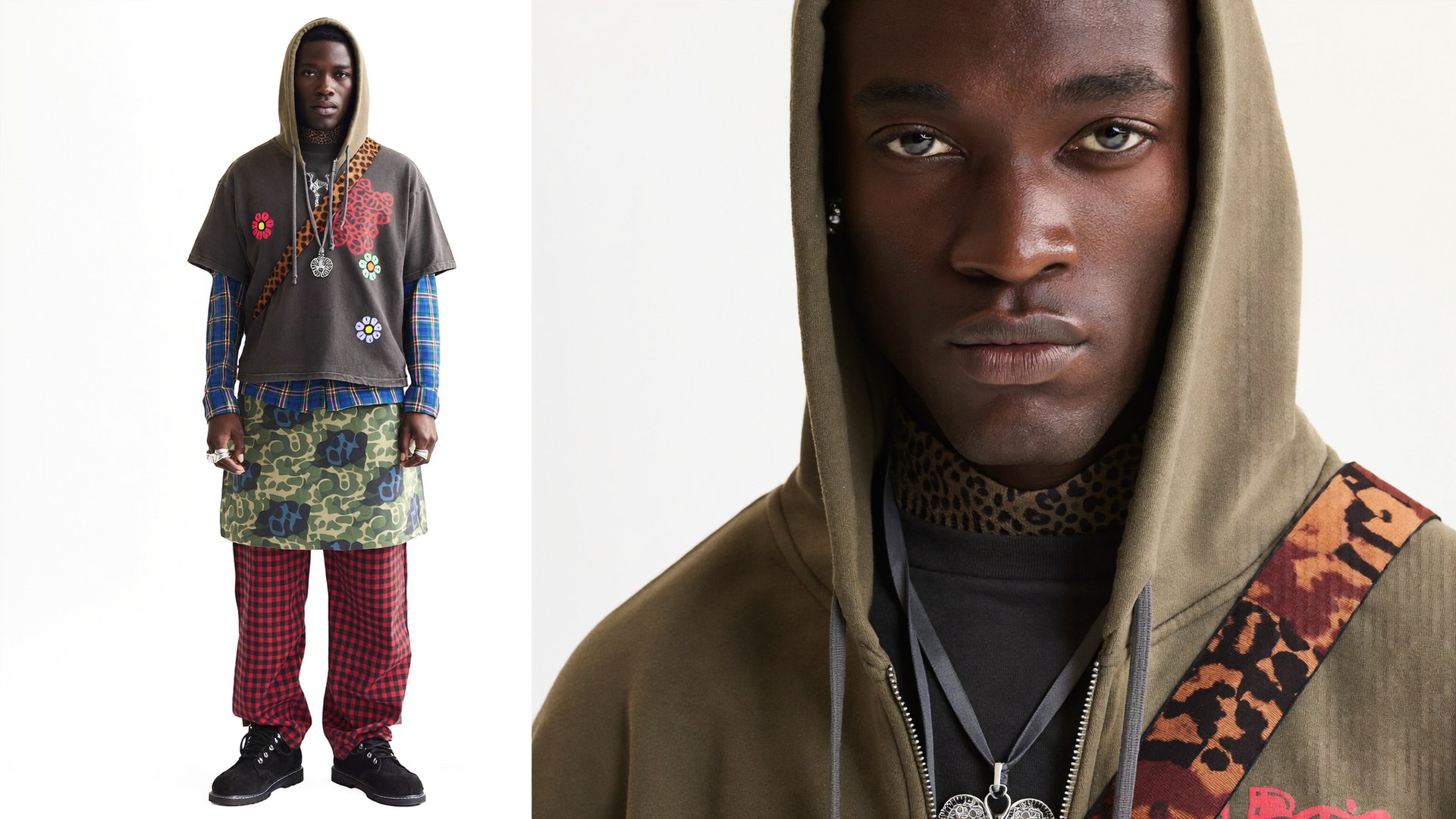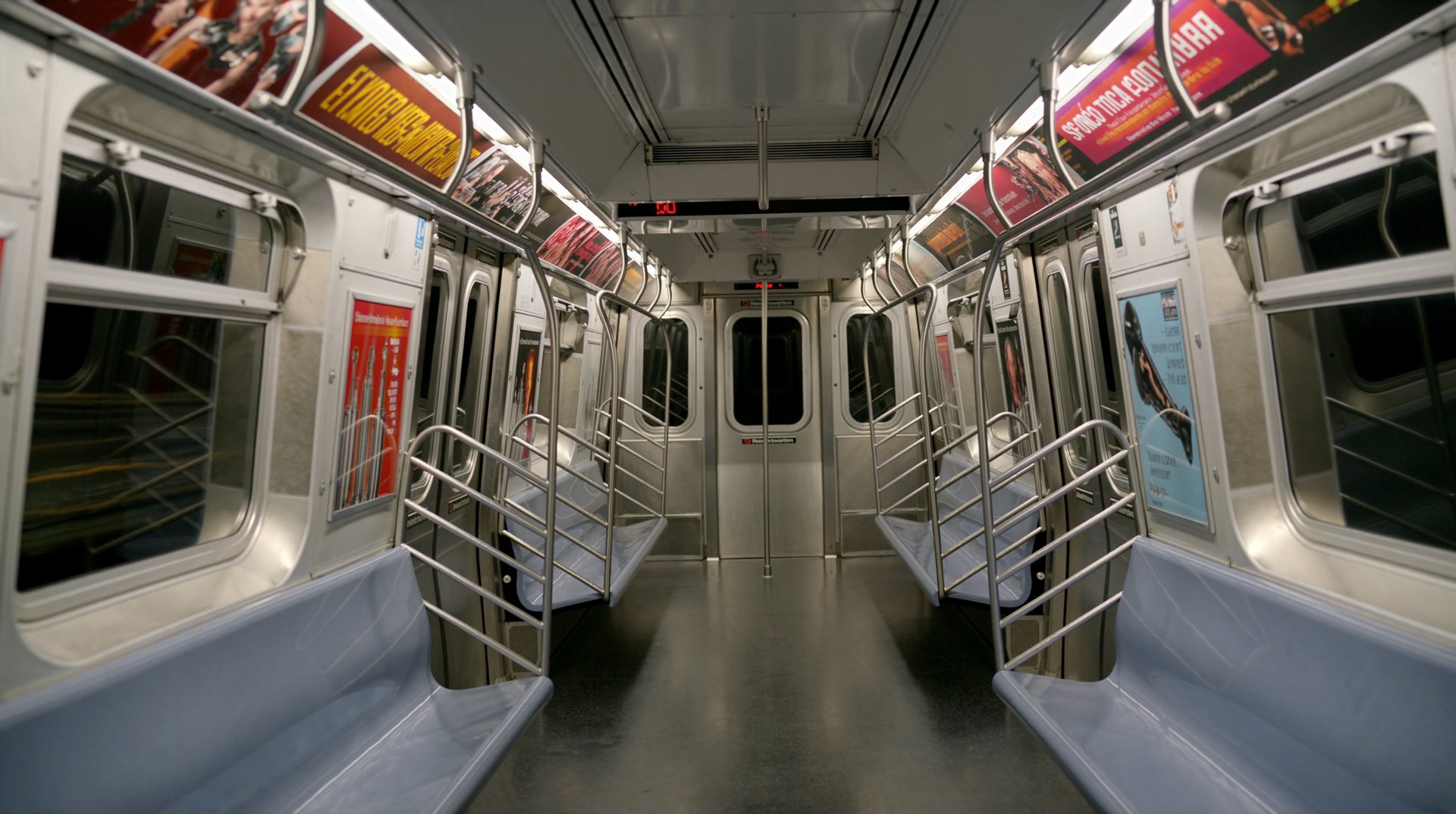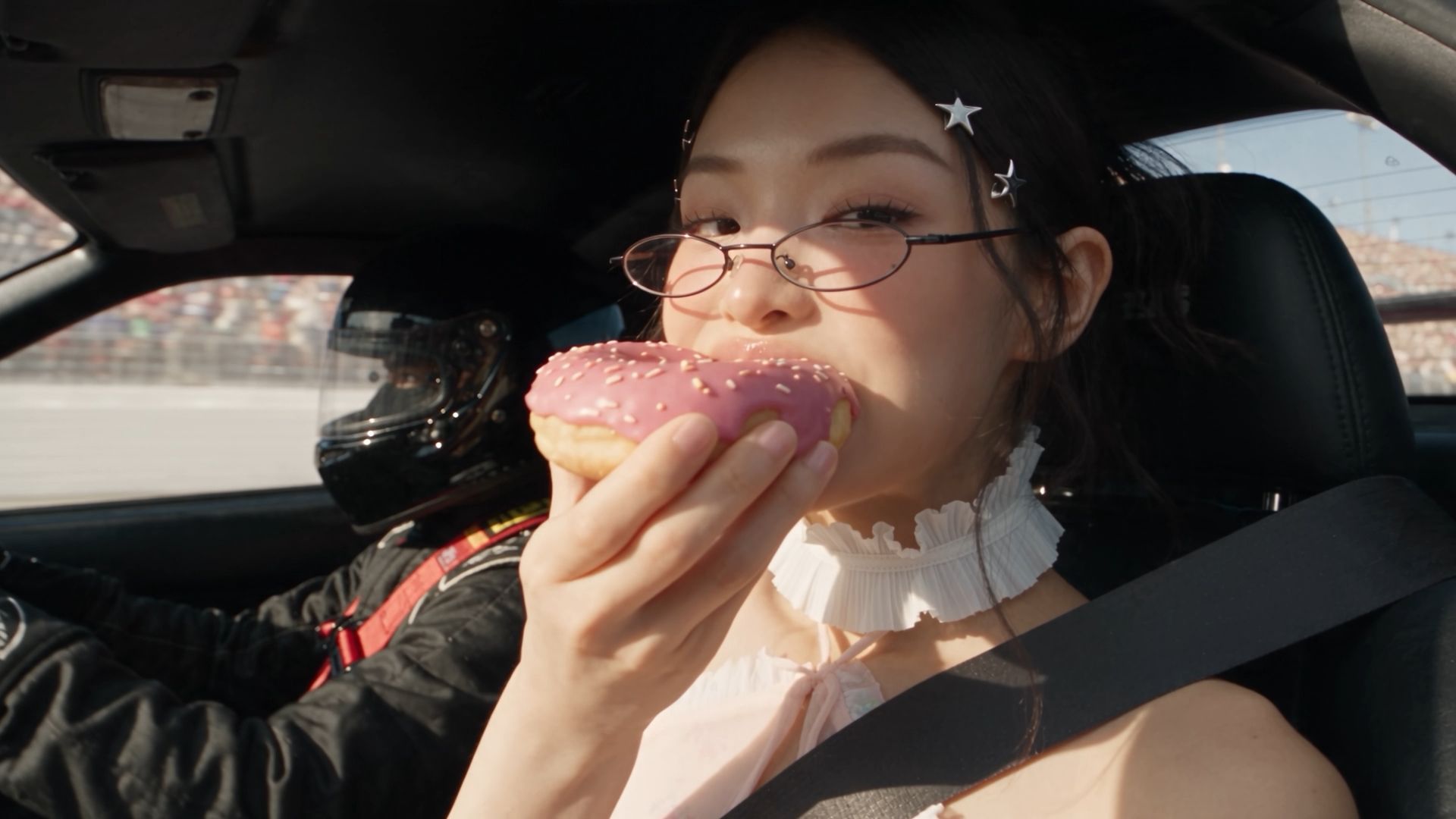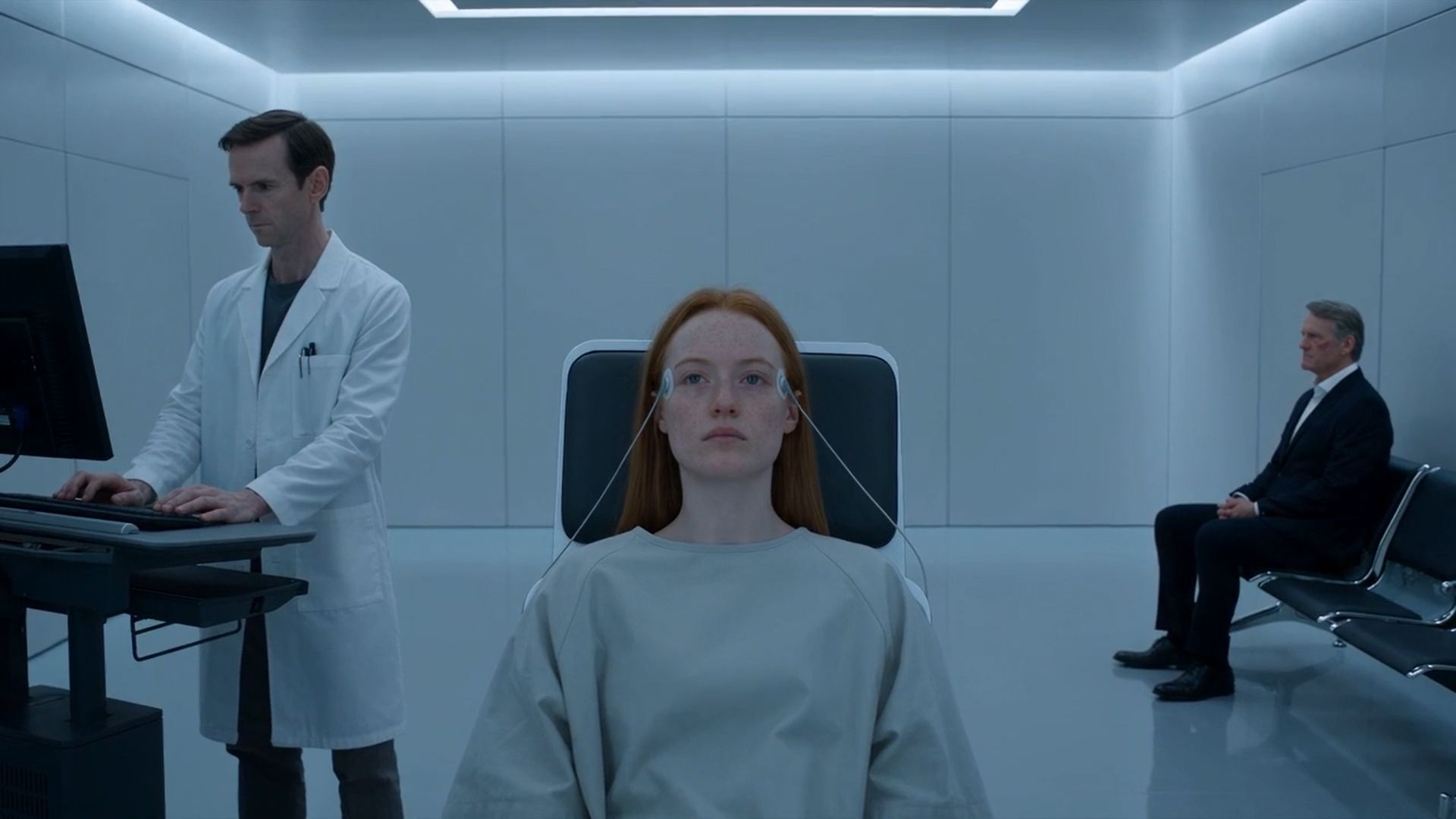
3D Jutsu is Higgsfield's AI-native 3D workspace. It turns a prompt or a reference into an editable 3D scene with objects, layout, lighting, cameras, and animation, and then into video. An AI agent running on Supercomputer assembles the scene, you refine real scene objects without regenerating everything, and the finished shot renders from the same chat.
What is 3D Jutsu?
Blocking is the stage where a scene takes shape before any final rendering: objects get placed, characters get positioned, cameras get framed. Previz turns that rough scene into a moving reference for the final shot. In classic 3D pipelines both stages are done in desktop 3D software; 3D Jutsu moves them into the browser.
3D Jutsu is how Higgsfield handles scene blocking and previz. It is a standalone workspace within Higgsfield's AI-native creative suite, connecting early scene planning with final video generation. Scenes live in your Higgsfield account under My Scenes.
How do you start a scene?
A scene starts from a text prompt. You describe what you want to build, attach references if you have them (your uploads or past Higgsfield generations), and set the parameters:
- Model: the LLM that drives the agent, with Auto as the free default.
- Duration: from 1 to 60 seconds of scene time, 15 seconds by default.
- Aspect ratio: 16:9, 9:16, 1:1, 4:3, 3:4, or 21:9.
Press Generate and the agent assembles a draft of the scene in an interactive 3D viewport: drag to orbit, scroll to zoom, right-drag to pan.
What can you build and edit?
Everything the agent generates lands in the viewport as editable scene data, so you refine real scene objects instead of regenerating the whole scene. The editor covers the same ground a 3D artist expects from a blocking pass:
Tool | What it does |
|---|---|
Scene generation | A prompt or a reference becomes a full scene: objects, layout, and light placed as editable geometry |
Add object | Primitives (sphere, cube, pyramid), three light types (sun, point, spot), and cameras added manually |
Asset library | Curated GLB assets and Mixamo characters drop directly into the active scene |
Scene properties | Background color, scene resolution, and light intensity controlled from a side panel, with the full object hierarchy visible |
Animation | A timeline with a playhead; motion comes from a camera trajectory, an animated character, or a GLB file imported with its animation |
Camera work | Camera presets and trajectory editing frame the shot; Esc leaves a camera view back to the free viewport |
Revision history | Every editing session saves as a revision; preview a checkpoint or restore it as a new head |
Export | A finished scene renders as an animated MP4, a static frame, or a GLB file with dimensions and file size set before render |
After generation, the scene stays editable by hand: objects move, rotate, scale, and duplicate, lights swap, cameras reframe. Undo, redo, and revision history apply to every change.
How does the AI agent work?
The chat panel inside the workspace takes instructions in plain language, for example "move the car closer to the streetlamp, add a second character across the street". Two behavior modes control how much autonomy it gets: in "generate without asking" the agent runs without confirmation, in "ask before generating" it checks with you before each generation. A separate ask mode answers questions without touching the scene.
The agent runs on Supercomputer, so you choose which LLM drives it. Auto is the default and free. The selector also carries specific models, including GPT 6 Astra, Claude Fable 5.1, Claude Opus 5, GPT 5.6 Sol, and GLM-5.3 Flash, switchable per chat.
The same chat sends the result to video generation: when the scene is ready, you request the render directly from the conversation.
Scenes are built for teamwork. Share invites people by email as an admin, a collaborator, or a viewer, and team access ranges from invited people only to anyone with the link.
How does the full workflow look?
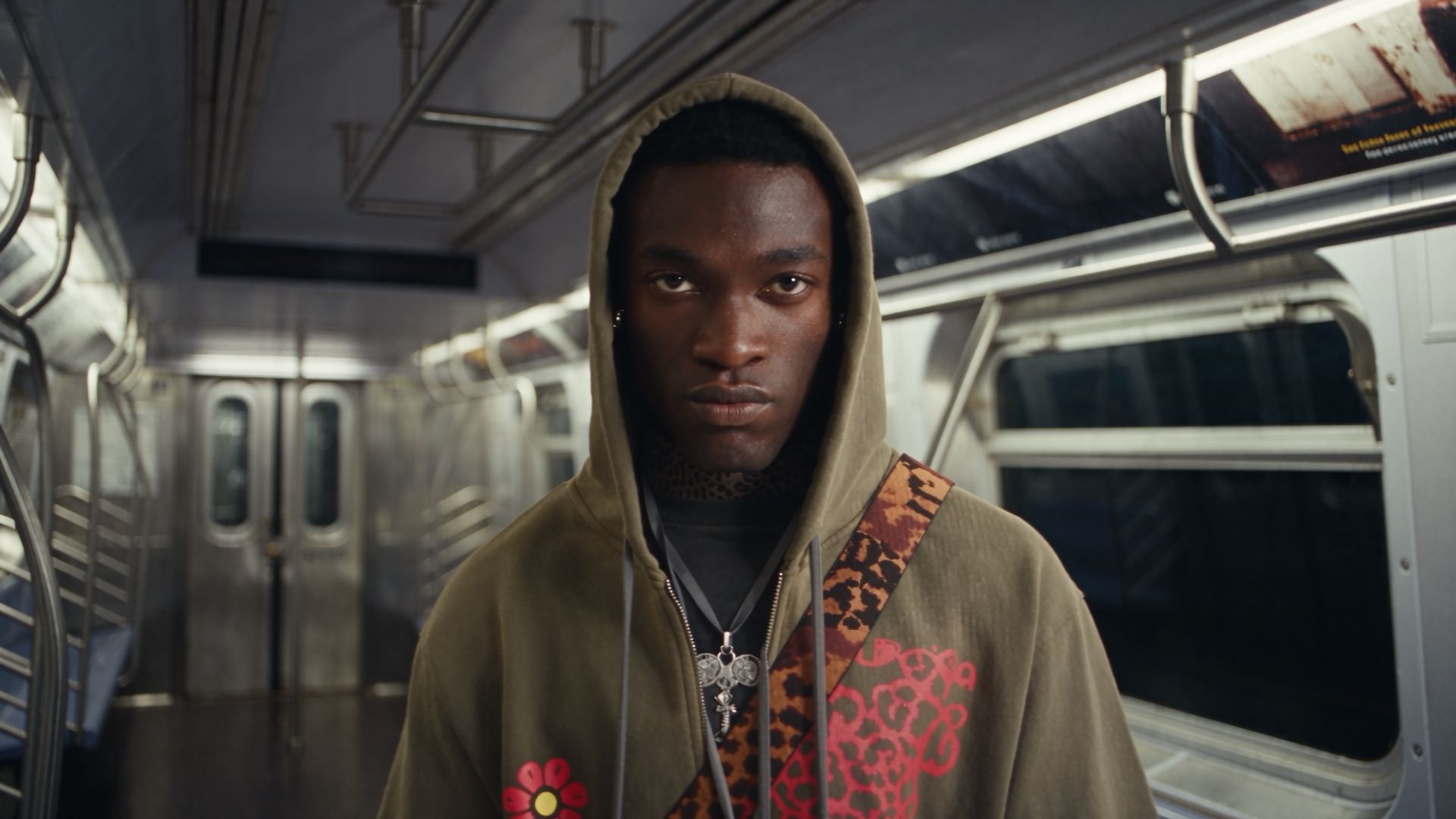
Here's how a finished shot comes together. The example: a rapper in a moving subway car, filmed by a robotic-arm camera move.
Step 1: Block the previz. A prompt to the agent builds the scene in grey proxies: the subway car, the character, and the camera path with its framing and timing.