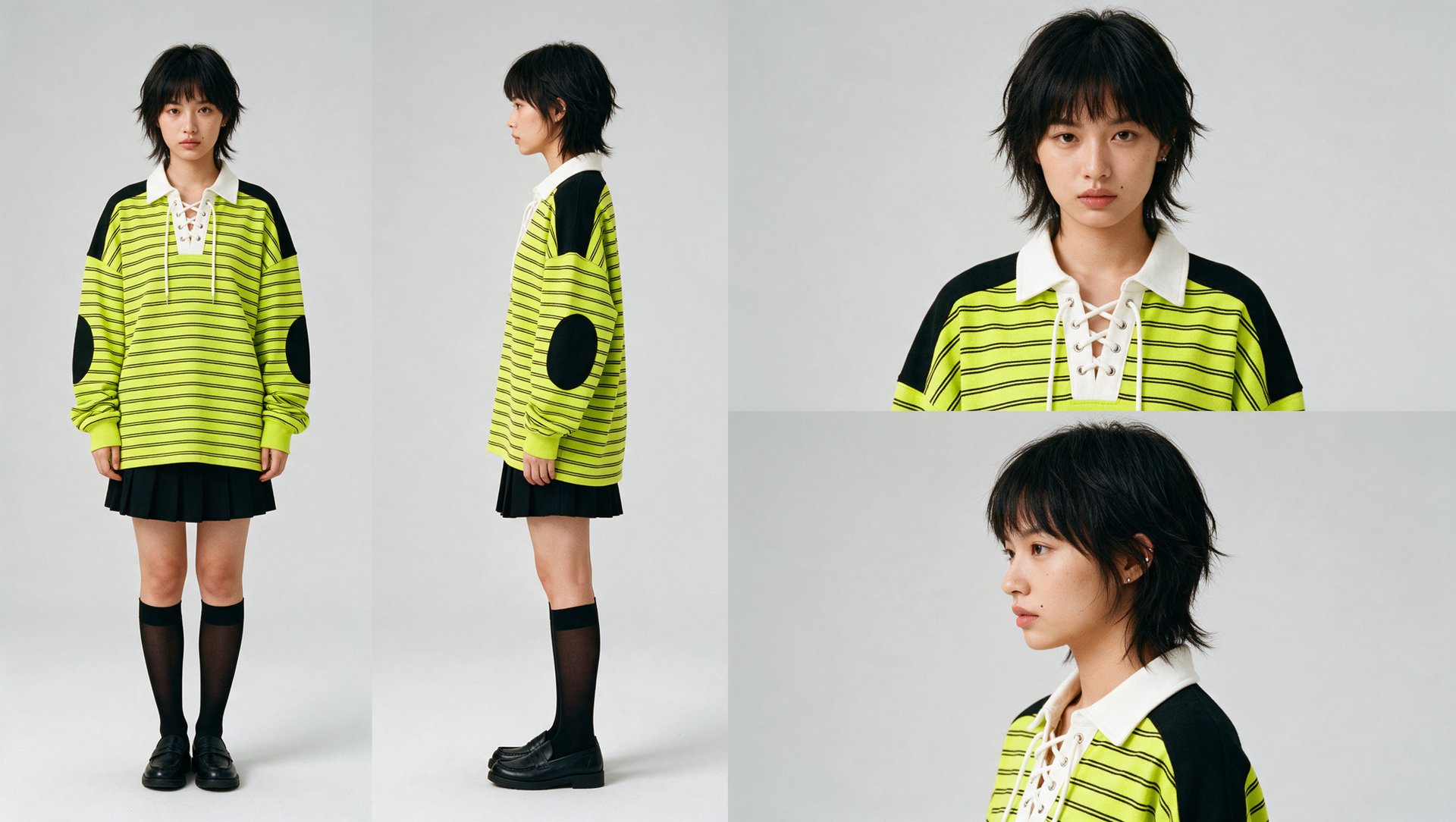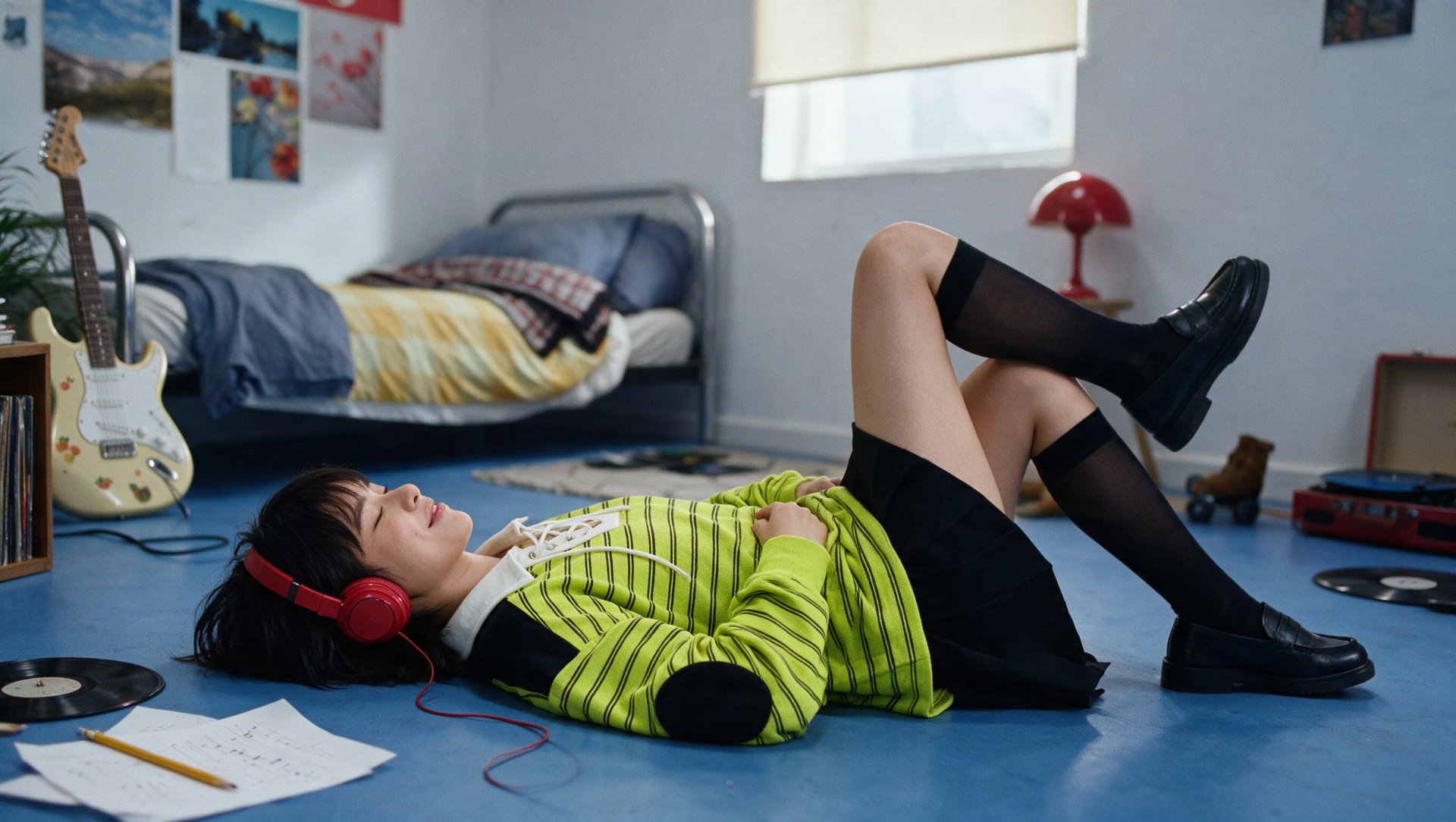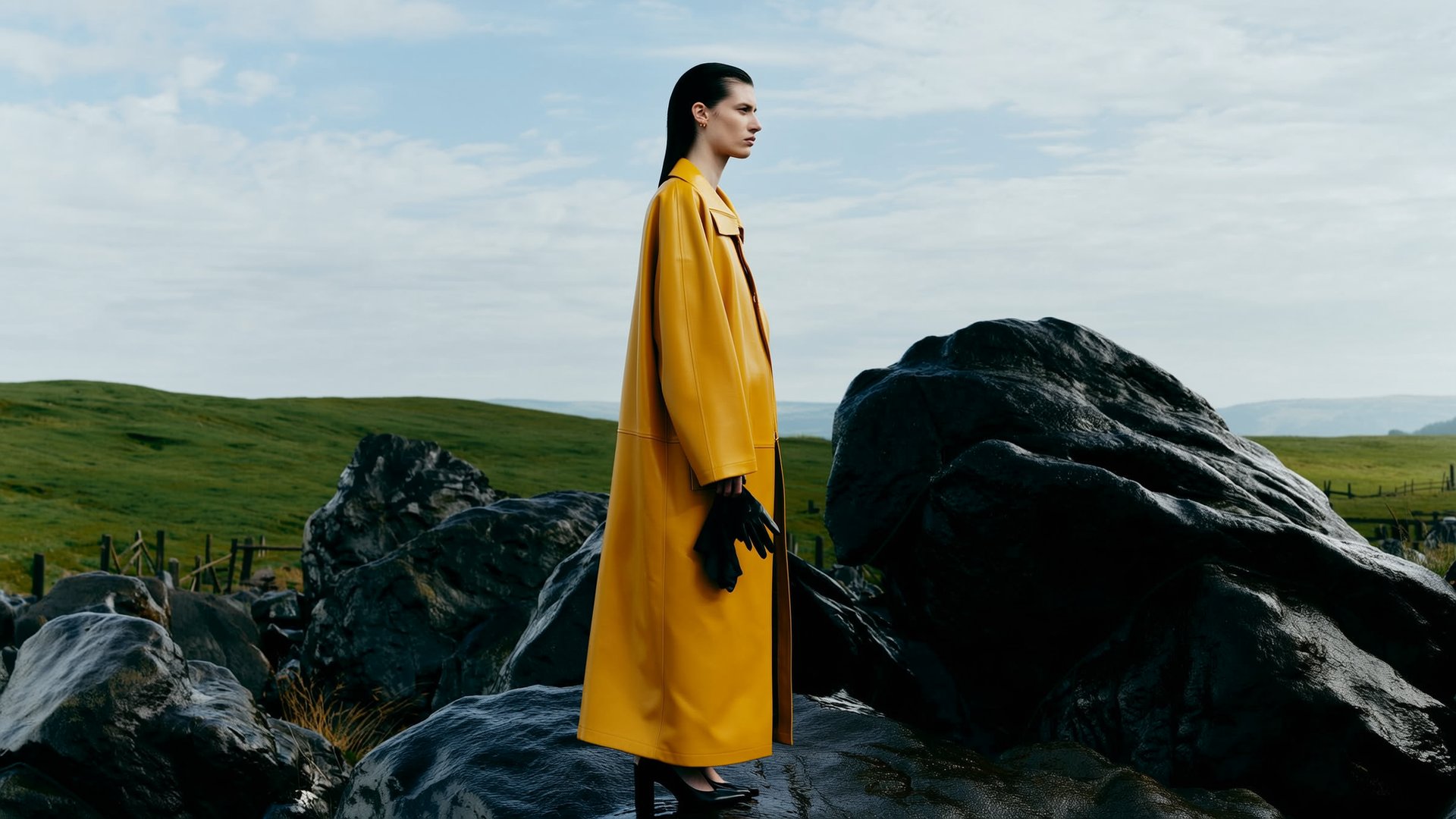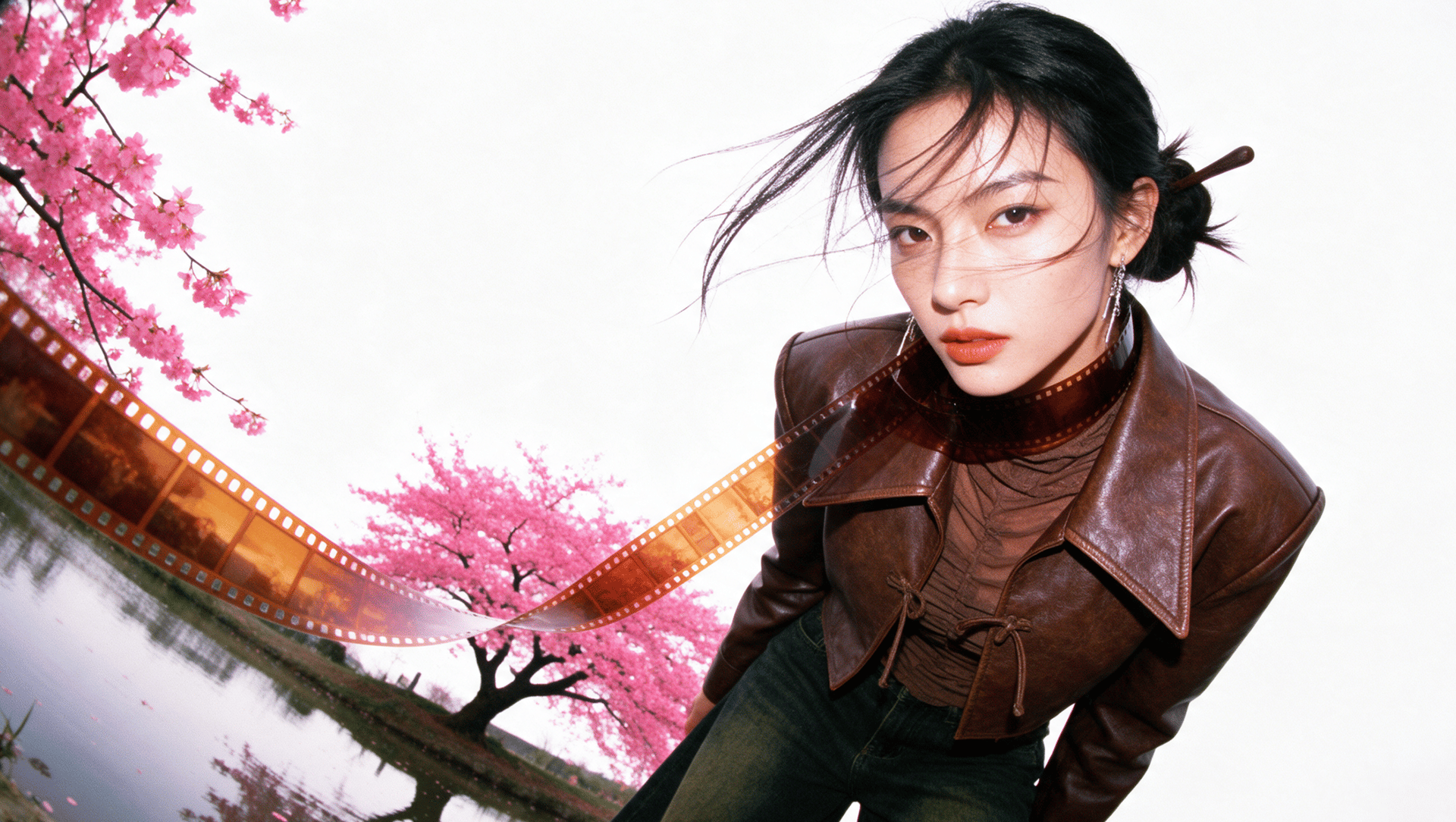
You can put yourself in an AI video on Higgsfield in three ways. Animate one photo with Create Video, reuse your likeness across videos with Soul ID, or swap your face into an existing clip with Video Face Swap. Each method gives the model a different amount of information about your face, which is why results and costs differ. This guide covers all three, how to fix a face that changes, and how to add your own voice in Lipsync Studio.
Which Method Should You Use to Put Yourself in an AI Video?
Use Create Video for a one-off clip from one photo, Soul ID when you need the same face across many videos, and Video Face Swap when the video already exists.
Each method solves a different job. Create Video turns one photo into a new clip. It’s the simplest route, but the model has to guess the angles your photo doesn’t show. Soul ID learns your face from 20 to 80 photos in about 3 to 5 minutes and saves it as a reusable character. Video Face Swap starts from a video that already exists and replaces only the face, using one clear photo of you.
Method | You start with | Best for | Cost | Main limitation |
|---|---|---|---|---|
Create Video | 1 photo | A single clip for social, a quick test of a scene or idea, or animating a favorite photo of yourself | Varies by model and settings. Our 10-second Seedance 2.5 clip cost 160 credits (≈$7.84) | Works best with front-facing photos and calm motion. Side angles and fast movement can shift your features |
Soul ID | 20 to 80 photos | Video series, recurring ads, or a persona whose face should stay the same across scenes and styles | 25 credits to train the character once. Image and video generations are charged separately based on the model and settings | Needs about 3 to 5 minutes of setup, and results depend on a varied, good-quality photo set |
Video Face Swap | Existing video + 1 face photo | Putting yourself into a trend, template or ready-made scene, or updating a clip without reshooting it | Video swaps require a paid plan. The 5 free daily swaps cover images only | One face per swap. Keeps the original action, so it can’t create a new scene |
Approximate dollar values use the Plus plan rate ($49 for 1,000 credits, ≈$0.049 per credit); the effective dollar cost depends on your plan or credit package.
Which Photo Should You Use So Your Face Stays Recognizable?
Use a recent, sharp, front-facing photo with even light and nothing covering your face. For Soul ID, we recommend 960px or higher per image. Sunglasses, hats, filters and group shots hide the features the model needs to keep your face recognizable.
What to check | Do | Avoid |
|---|---|---|
Quality | For a single-photo Create Video or Video Face Swap workflow, use a sharp, well-lit photo where your face is clearly visible. For Soul ID, use 20 to 80 recent photos; | Blurry, low-resolution or heavily zoomed-in crops |
Face visibility | Your whole face is visible, with eyes open and uncovered | Sunglasses, masks, hats that shade your eyes, cropped faces |
Lighting | Even, soft light across your face | Heavy shadows or strong light from behind you |
Expression | A natural, relaxed expression | Extreme expressions such as a wide-open mouth or a tight squint |
Editing | The original, unedited photo | Beauty filters, skin smoothing, face-altering apps |
Recency | Recent photos (from the last few months) | Older photos, which can make the result look like an earlier version of you |
Who’s in the shot | Only you, or you as the clear main subject | Group photos where you aren’t the clear subject |
Single photo (Create Video, Video Face Swap) | One front-facing photo | A side profile or a strongly tilted head |
Photo set (Soul ID) | 20 to 80 photos that mix front, three-quarter and profile angles, slightly different expressions and consistent lighting, plus at least one full-body shot | Twenty near-identical selfies taken from the same angle |
- | - | - |
How Do You Turn a Photo of Yourself Into an AI Video?
In Higgsfield Create Video, you upload one photo, describe the scene and motion, choose a video model and click Generate. The 10-second example clip below, made with Seedance 2.5 from ByteDance, cost 160 credits (≈$7.84).
Step 1: Open Create Video. Sign in to Higgsfield, open Video and select Create Video. The upload area, prompt field and generation settings are all on one screen.
Step 2: Upload your photo. Upload one photo of yourself in the image upload area. Choose a sharp, front-facing shot with your whole face visible (see the checklist above). Your pose, outfit and background in the photo shape the whole clip.
Step 3: Describe the scene. Name four things: what you do, where it happens, the light and how the camera moves.
Start with simple movements and keep your face toward the camera. Avoid fast spins, full profile turns and words such as “younger” or “slimmer” unless you want to change your appearance.
Step 4: Choose the settings and generate. Pick a video model, duration and resolution. We used Seedance 2.5 for the example below. The credit cost appears on the Generate button and updates as you change the settings. Check it, then click Generate.
Step 5: Review and regenerate if needed. Watch the clip and check whether your face stays recognizable throughout, especially at its most turned angle. If it doesn’t, try a different photo or simpler motion before you switch models.
Example result