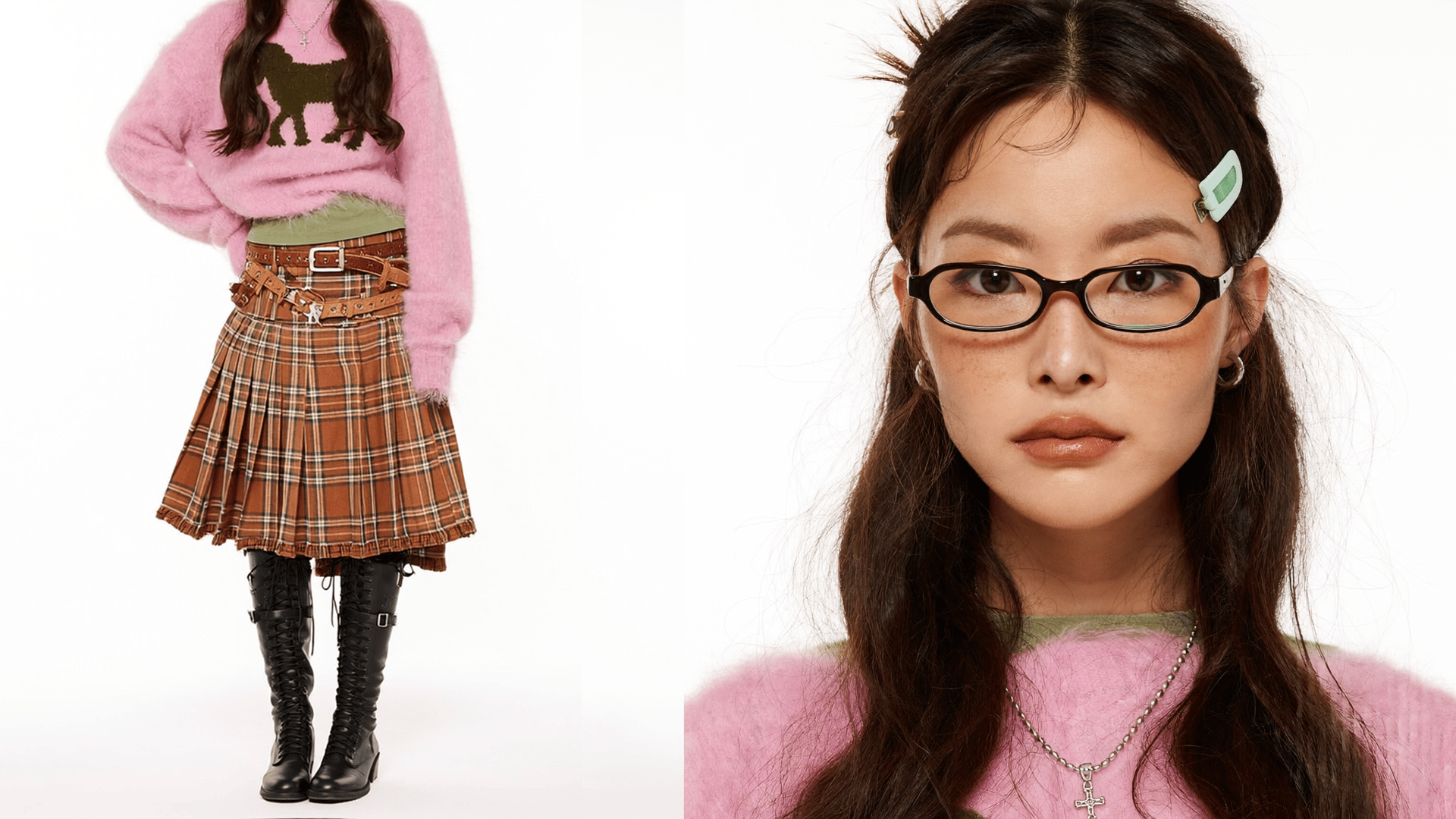
To make an AI avatar, create a character image from a photo or a text prompt, give it a voice, and animate it into a talking video. Higgsfield is an AI-native creative suite where all three steps happen in one workspace: Soul 2.0 creates the look, Higgsfield Audio makes the voice track, and Seedance 2.5 turns the image and the voice into a talking video. You don’t need Soul ID for a first video: one good image and the same voice are enough until you need new scenes or angles. This guide takes one character from prompt to two talking videos, with the prompts, settings and credits we used.
Here is the full workflow at a glance:
Step | Higgsfield tool | What you get | How to pass it on |
|---|---|---|---|
1. Create the look | Image → Soul 2.0 | A character reference image | Download it or keep it in Assets |
2. Make the voice | Audio → Text to Speech → Seed Audio 1.0 | A voice track | Download it from History |
3. Make it talk | Video → Create Video → Seedance 2.5, with the image and the voice track as references | A talking video | Download it, or reuse the same image and voice for the next clip |
4. Make the next video | Seedance 2.5 with the same image and voice, and a new scene in the prompt | The same character in a new setting | Download it |
What Kind of AI Avatar Do You Need?
An AI avatar is a digital character created from a photo or text description. It can be a still profile image or a talking avatar whose face and lip movements follow a voice track. You can base it on your own face or an invented character, and Marketing Studio also offers ready-made avatars for ad creatives.
Option | You start with | Best for | Watch out for |
|---|---|---|---|
Your own likeness | 1 photo of you, or 20–80 photos for Soul ID | Personal brand, explainer videos, founder videos | Use only your own face or one you have permission to use |
Invented character | A text prompt | Brand mascots, faceless channels, ads | Save the image you like and reuse it. Without a saved reference or identity anchor, the face can drift between generations |
Ready-made Marketing Studio avatar | A presenter from Higgsfield’s avatar library | UGC ads, tutorials, product reviews and other Marketing Studio video creatives | Designed for the Marketing Studio workflow |
This guide starts from an invented character, as in the example below.
How Do You Create Your Avatar’s Look?
Create the look by generating a new character from a text prompt or by uploading a clear photo of yourself. Check the image before you animate it, because flaws in the image carry into the video.
From a text prompt
A good avatar prompt describes six things: who the character is, how they are framed, their expression, what they wear, where they are and the light. Give the character one or two distinctive details, such as a hairstyle or an accessory. They make the face easier to recognize from one video to the next.
For Maya, the character we follow through this guide, we generated a character reference sheet: a full-body view for the outfit and a sharp waist-up portrait for the face, on a plain white background. Open Image, choose Soul 2.0, Higgsfield’s photorealistic image model, paste the prompt and generate: