Creator Hub

How to Master AI Filmmaking (Full Guide)

Higgsfield7 min

To master AI filmmaking, plan the story and the shots first, create references for your character and location, and generate every shot with those references so the look stays as consistent as possible. In Higgsfield, an AI-native creative suite, one way to do this is with Seedream 5.0 Pro, Soul Cinema, Supercomputer and Cinema Studio 4.0. This guide is for creators who already generate single clips, and it goes through the whole process on one 10-second scene: a girl waiting for the last train at a seaside station at blue hour.

TL;DR

  • AI filmmaking is making a film where AI generates the images, the shots and the sound, while you plan the story, the look and the order of shots.
  • Use references for your character and location in every shot, and generate the scene as one multishot clip. This helps keep the face and the location the same.
  • Each generation costs credits, and additional generations or alternatives may increase the cost, so plan before you generate.

What Tools Do You Need for AI Filmmaking?

You need tools for four stages: images, prompt, video with sound, and final edits. In Higgsfield, all of them work under one account and one credit balance.

What Tools Do You Need for AI Filmmaking?

Stage

What AI does

What we used

Characters and locations

Creates the look of your hero and the place

Create Image → Seedream 5.0 Pro for the character, Create Image → Soul Cinema for the location

Prompt

Turns your idea into a detailed, shot-by-shot prompt

Supercomputer

Video and sound

Generates the scene with several shots and sound in one clip

Cinema Studio 4.0, multishot

Fixes and finishing

Changes light, color, length and resolution of the finished clip

Cinema Studio tools: Relight, Edit Color Palette, Trim, Extend, Reframe, Upscale

Pick tools by what has to stay the same. If one character appears in several shots, start with images: they become references for every shot. If you only test an idea, a text prompt in Cinema Studio is enough.

How Do You Prepare Before You Generate?

Prepare four things before you generate: a one-sentence idea, a list of shots, an image of your character and an image of your location.

The idea. Write what happens in one sentence. Ours: at blue hour, a girl waits for the last train at a seaside station, the train arrives, she turns toward it, steps into the car and the train leaves.

The shots. Split the idea into shots, the way a storyboard would:

How Do You Prepare Before You Generate?

Shot

What we see

Wide

An empty platform by the sea, cold light. The girl stands alone, and the camera slowly moves closer.

Close-up

The light of the train moves across her face, and she turns toward it.

Wide

The doors are open, warm light comes from inside. She steps in, sits by a window, and the train leaves.

The character and the location. Create the character in **Create Image → Seedream 5.0 Pro and the location in Create Image → Soul Cinema. For the character, make a character sheet: one image that shows the same person from several angles. For the location, make one image of the empty place.
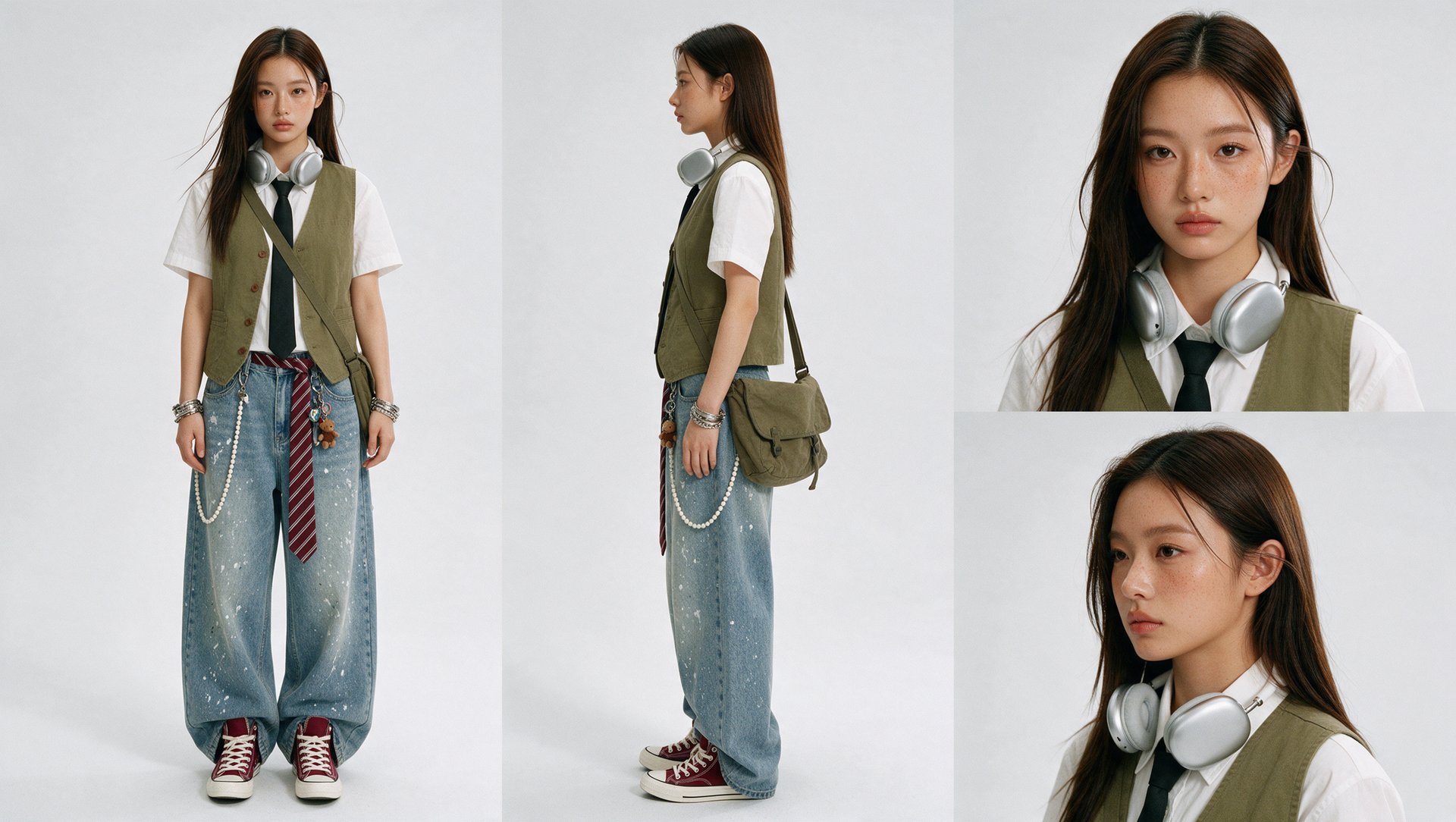
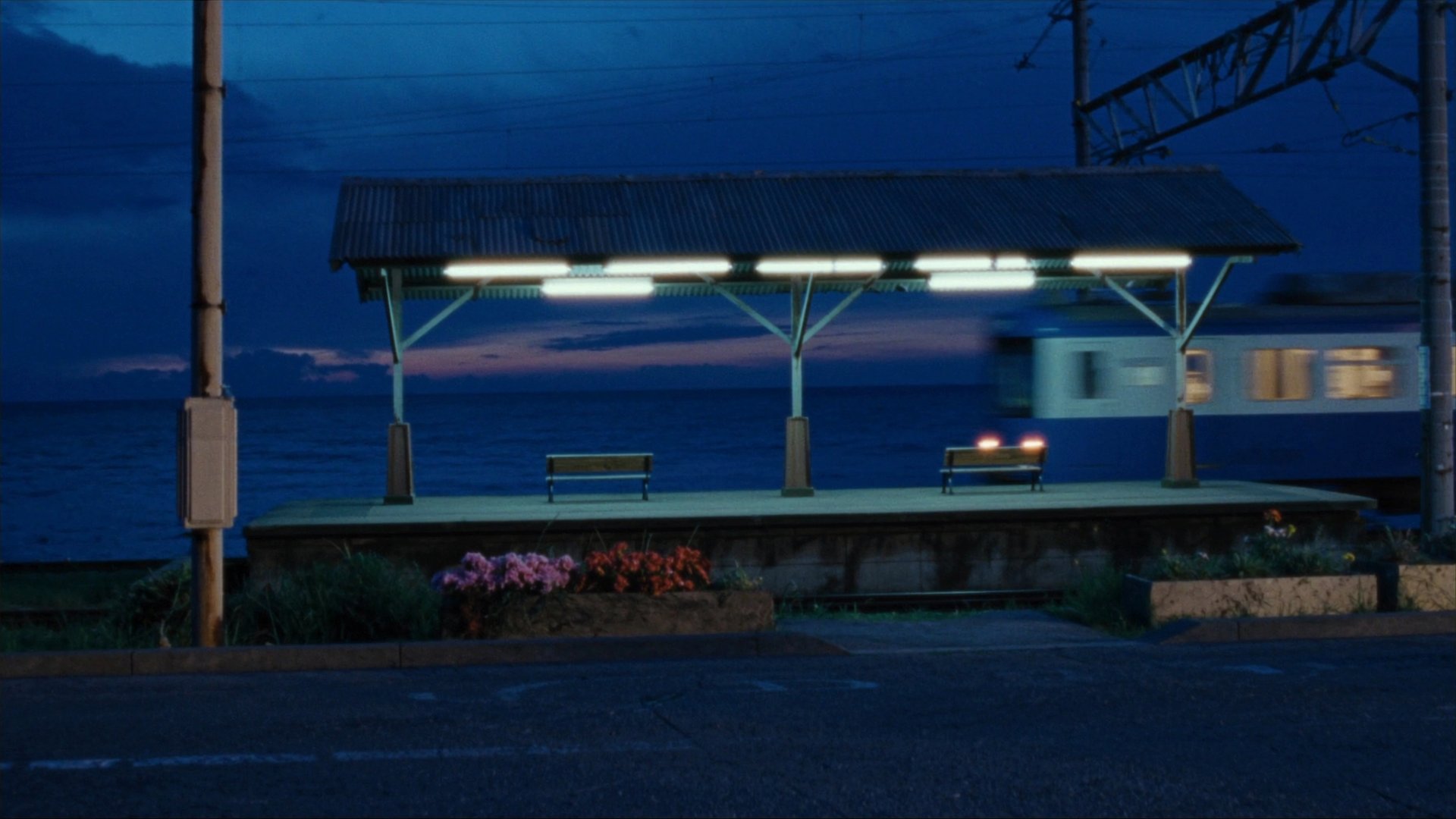
These two images are your references. You will add them to every shot. This helps keep the face, the outfit and the station the same from start to finish.

How Do You Generate the Scene?

Write a short idea, improve it with Supercomputer, then generate the scene in Cinema Studio 4.0 as a multishot with your references tagged in the prompt.

Step 1: Improve the prompt. Give Supercomputer your idea and the list of shots, and ask it to improve the prompt. It turns a short description into a detailed prompt for each shot. In Ask before generating mode, Supercomputer shows the credit cost and asks you to confirm before each generation.

Our starting idea:

The improved prompt from Supercomputer:

The last train at a small seaside station at blue hour. A young woman waits alone on the platform, the train arrives and stops, she boards, walks along the carriage and sits down in the middle of it, the doors close and the train leaves. No drama, no dialogue: a quiet, accidentally observed moment from someone else's life. ACTIVE REFERENCES <<<image_1>>>: the young woman, about 20, slim, calm. Long straight dark-brown hair, light freckles. Olive canvas vest over a short-sleeve white shirt, black tie, silver over-ear headphones resting around her neck, wide light-wash paint-splattered jeans, olive canvas messenger bag worn crossbody, burgundy high-top canvas sneakers. She 100% matches <<<image_1>>>. <<<image_2>>>: seaside platform location. <<<image_2>>> controls the geography, the corrugated canopy roof, the fluorescent tubes, the posts, the benches, the flower beds, the sea horizon and the light. Only the woman from <<<image_1>>> is on the station and in the train; no other people. FORMAT MODE Controlled multi-shot sequence, three shots, two HARD CUTs at 2.5s and 5.0s. Real-time motion. The outfit, hair, bag, headphones, light direction and blue-hour colour stay identical in every shot. TRAIN One short commuter train: cream-coloured carriages with a single bright lime-green stripe along the windows, warm interior light. Inside each carriage: a central aisle, long red bench seats along both walls under the windows, two sets of sliding doors per carriage. The lime stripe is the only saturated colour in the film. SHOT 1 — 0.0s to 2.5s — WIDE, WAITING LENS LOCK SHOT 1 = 29° diagonal field of view, short telephoto, camera about 20 meters away on the far side of the road. Background compressed, the sea flattened into a dark blue plane. First frame: symmetrical composition matching <<<image_2>>>. Canopy roof across the upper part of the frame, the benches beneath it, the sea and the horizon behind. The woman from <<<image_1>>> already stands at the far edge of the platform, centre, x 50%, y 58%, back to the camera, facing the sea, looking at the horizon. She is small in frame, about one fifth of frame height. Camera: on a dolly, creeping forward very slowly. 0.0s to 1.5s: wind moves her hair and the bag strap. One fluorescent tube under the canopy flickers briefly and steadies. 1.5s to 2.0s: far off at screen-right, the warm headlights of the train appear along the track; a low rumble grows. 2.0s to 2.5s: she turns her head slightly toward screen-right, toward the sound. 2.5s HARD CUT SHOT 2 — 2.5s to 5.0s — CLOSE-UP, THE TRAIN ARRIVES LENS LOCK SHOT 2 = 29° diagonal field of view, short telephoto portrait, camera about 3 meters from her on the platform. Shallow depth of field, background dissolved into soft bokeh. First frame: tight close-up of her face in three-quarter view, head turned toward screen-right, headphones visible around her neck. Her face matches <<<image_1>>> and is lit by the cold blue-white fluorescent light. Camera: handheld, gentle breathing of a human operator. 2.5s to 3.3s: warm headlight glow sweeps across her face from right to left; the air wave of the train lifts loose strands of her hair. 3.3s to 4.2s: blurred lit windows of the train stream past behind her, getting slower; warm reflections run across her cheek, a lime flash from the stripe flickers over her skin; the silver headphones catch the light. 4.2s to 5.0s: the train brakes to a complete stop; the light on her face stops moving and holds steady. She gives a short quiet exhale. 5.0s HARD CUT SHOT 3 — 5.0s to 10.0s — BOARDING, ENDING LENS LOCK SHOT 3 = 29° diagonal field of view, short telephoto, camera about 20 meters away on the far side of the road, same symmetrical view as shot 1. Camera: static, locked off. First frame: the train is already fully stopped at the platform of <<<image_2>>>. A cream carriage with the lime stripe stands behind the platform under the canopy. Its doors at screen-right, about x 70%, are already open and warm light spills onto the platform. The woman from <<<image_1>>> stands on the platform right in front of these open doors. TRAIN STOPPED LOCK: from 5.0s to 8.3s the train is completely stationary: wheels still, carriage motionless, the windows and the stripe do not slide. 5.0s to 5.8s: she adjusts the bag strap on her shoulder and steps through the open doors into the carriage. 5.8s to 7.2s: inside, she turns left and walks along the aisle toward the middle of the carriage; through the lit side windows we see her pass behind one window, then the next. 7.2s to 7.8s: in the middle of the carriage, halfway between the two sets of doors, around x 45%, she sits down on the bench seat on the far side of the carriage, facing the platform and the camera, bag on her lap. She is framed by a side window, not by a doorway. 7.8s to 8.3s: after she has sat down, the doors at x 70% slide fully shut; the doorway becomes a closed door. She is now visible only through the side window where she sits. 8.3s to 9.4s: only after the doors are closed, the train slowly starts moving to screen-left with real mass, gently accelerating; her lit window slides away with the carriage and leaves the frame. 9.4s to 10.0s: the empty platform remains: the fluorescent tubes, the benches and the sea. The image fades to black. PHYSICS The train has real weight: braking to a full stop, complete stillness while she boards, walks and sits, then a slow smooth departure. Hair and the bag strap react to wind and the train's air wave with a short delay. Her steps inside the carriage carry real weight; she sits down with natural body weight. LIGHTING Blue hour just after sunset: deep cobalt sky, a thin peach band of last light above the sea. The cold white fluorescent tubes under the canopy are the only artificial light on the station until the train arrives; then the warm light from the train windows and doors takes over. Palette: blue, cold white, warm peach, one lime accent. Exposure is set for the lit platform; the sky stays deep blue, the shadows stay soft and readable. AUDIO Waves, wind and the hum of the fluorescent tubes. Then the clatter of wheels, the long hiss of the brakes, quiet steps inside the carriage, the door chime as the doors close, the soft hum of the departing train. At the end, silence again and the sea. No dialogue, no voice. STYLE 35mm film, Kodak Vision3 500T, visible fine grain, soft halation around the lamps, gentle motion blur, quiet Japanese-indie cinema mood. Still, lonely, lightly melancholic, warm rather than heavy.

When you paste this prompt into Cinema Studio, <<<image_1>>> and <<<image_2>>> turn into @ tags for your references.

Step 2: Add references. Open Cinema Studio, choose Cinema Studio 4.0 and add the character sheet and the location in References. In the prompt, tag them with @.

Step 3: Set the look. Set Film setup (Genre, Era, Tempo), Lighting, Camera and Color palette in the panel. Lens and Aperture are inside Camera. Camera moves go in Camera → Movement or with # in the prompt.

Step 4: Generate. Paste the improved prompt, describe the sound of the station, turn sound On and generate. One generation can be up to 30 seconds long and up to 1080p. You can generate up to 4 versions at once and compare them in one window.

The result:

The improved prompt made the difference: each shot got its own action, light and camera move.

How Do You Add Sound and Finish the Film?

Turn on sound when you generate, then fix the finished clip with the Cinema Studio tools instead of generating it again.

Sound. With sound On, Cinema Studio generates it together with the picture. Describe what we should hear in the prompt: the waves, the hum of the lamps, the train coming closer, the doors closing. If you need voices or background sound as a separate track, you can make them in Audio with Seed Audio 1.0. See Higgsfield Audio.

Fixes in the finished clip:

How Do You Add Sound and Finish the Film?

Problem

Tool

Light doesn’t match between scenes

Relight, with the same presets as in Lighting

Colors don’t match

Edit Color Palette

One object or face is wrong

Edit video, without regenerating the clip

Extra frames at the start or end

Trim

The scene is too short

Extend: Sequel continues it, Prequel adds a lead-in

Wrong format for the platform

Reframe, up to 4K

Resolution is too low

Upscale, up to 4K

To swap a character, product or piece of clothing in a finished clip, or to reuse its motion with new characters, use Higgsfield Genjutsu Lite. Add your clip as the reference video (4 to 15 seconds) and up to 10 images of your characters, products or clothes. A 15-second clip at 720p costs 32 credits (≈$1.57 at the Plus plan rate). Use only characters and products you have the right to use.

Longer films. For a film with many scenes, generate each scene separately and put them together in any video editor. For a full pipeline from script to final cut, see How to Make a Short Film With AI.

Our scene has no dialogue. If yours does, see How to Put Yourself in an AI Video for voice and lipsync.

How Much Does an AI Film Cost?

The cost depends on the model, the length, the resolution and the number of versions. Additional generations or alternatives may increase the cost. In Cinema Studio 4.0, a 5-second clip at 1080p costs 80 credits, ≈$3.92 at the Plus plan rate ($49 for 1,000 credits).

What adds to the budget:

  • Versions. Every completed version is charged, so 4 versions at once cost 4 times as much.
  • Retries. If the result doesn’t work, the next generation uses credits again. Failed generations are usually refunded automatically.
  • Supercomputer. Text requests also use credits, and Unlimited doesn’t apply in Supercomputer.

Most problems that cause retries come from the same few causes:

How Much Does an AI Film Cost?

Problem

Cause

What to do

The character’s face changes between shots

No character reference, or different references per shot

Add the same character sheet to every shot and tag it with @

The location changes

No location reference

Add the location image to References

The camera jerks or drifts

Too many camera moves in one shot

Use one move per shot from Camera → Movement, then Recreate

The action looks wrong

The action is too complex

Simplify the action in the prompt and Recreate

Scenes don’t connect

Different light and color settings

Save your light and palette as presets and reuse them, or continue with Sequel

Prices verified October 2026. For more on how plans and credits work, see Higgsfield Pricing Explained.

How to Master AI Filmmaking (Full Guide)

Try Cinema Studio

Got any questions left?

by Higgsfield