Creator Hub
Back

Meet Higgsfield Short Drama Studio: From Script to a Full Microdrama Series

Higgsfield
8 min

Higgsfield has launched Short Drama Studio, a tool that turns scripts into short video series. It splits a script into episodes, creates a consistent cast, and generates the videos. The process follows three stages: Script, Cast & World, and Episodes. Each stage can be completed manually, or the entire project can be generated automatically. This guide covers the available settings, visual styles, and how to create a first series.

What Is Short Drama Studio?

Short Drama Studio turns a script into a short series. The text is uploaded, and the studio breaks it into episodes, defines the appearance of characters, locations, and props, and generates the episodes. The main feature is one cast for the whole series. Characters are created once and reused to maintain visual consistency across episodes.

The studio lives at higgsfield.ai/short-drama, where the My projects section holds all projects. Short Drama Studio isn't available on mobile yet, so it works on desktop only.
Short Drama Studio is designed for multi-episode storytelling from a script. It differs from Shorts Studio, which creates short videos with an AI presenter, and Ads Studio's Micro Drama feature, which creates story-driven product advertisements.

How Does Short Drama Studio Work?

A series is built in three steps, shown in the project header. The header also shows Usage, which counts the credits already spent in the project, and Export, which downloads the result.

How Does Short Drama Studio Work?

Step

What happens

Script

The script is uploaded, a format and a style are chosen, and the studio analyzes the text

Cast & World

The studio creates the characters, locations, and props, which are then reviewed and edited

Episodes

The studio plans the scenes of each episode and generates the video

Short Drama Studio supports two ways to build a series:

Manual workflow. Each stage is started and reviewed before the project moves on. This gives the most control over the script analysis, the cast, and the episodes.

Automatic workflow. With Auto-generate all, the studio processes the project from the chosen settings with fewer manual steps and no checks between stages. It is faster, but it costs more.

Other Ways to Direct a Project

Two more interfaces work alongside either workflow:

  • The Agent panel: the Agent panel on the right accepts chat requests for an episode or for edits, and the Auto-run toggle lets the agent build the project on its own.
  • An AI assistant: Higgsfield can be connected to Claude or ChatGPT through Higgsfield MCP to request a short drama from the assistant. The Make it from your AI assistant block on the landing page explains the setup. Generations made through MCP or connected agents use Higgsfield credits.

What Settings Does Short Drama Studio Offer?

What Settings Does Short Drama Studio Offer?

Setting

Options

Script file

PDF, DOCX, FDX (Final Draft), TXT, or MD, up to 10 MB

Frame format

9:16 (default), 21:9, 16:9, 4:3, 3:4, or 1:1

Style

15 styles, with Higgsfield Cinematic as the default

Quality

480p draft, 720p, or 1080p

Attraction

Basic, Medium (default), or High, which sets how expressive and appealing the characters look

If a prompt is blocked by a content check

Short Drama Studio can retry the original prompt or rewrite it according to the selected settings. An automatic rewrite may change details of the scene, so review the generated result against the original script.

The Attraction setting doesn't change the cost, and content checks apply at every level.

Which Styles Are Available?

Which Styles Are Available?

Style

What it looks like

Higgsfield Cinematic

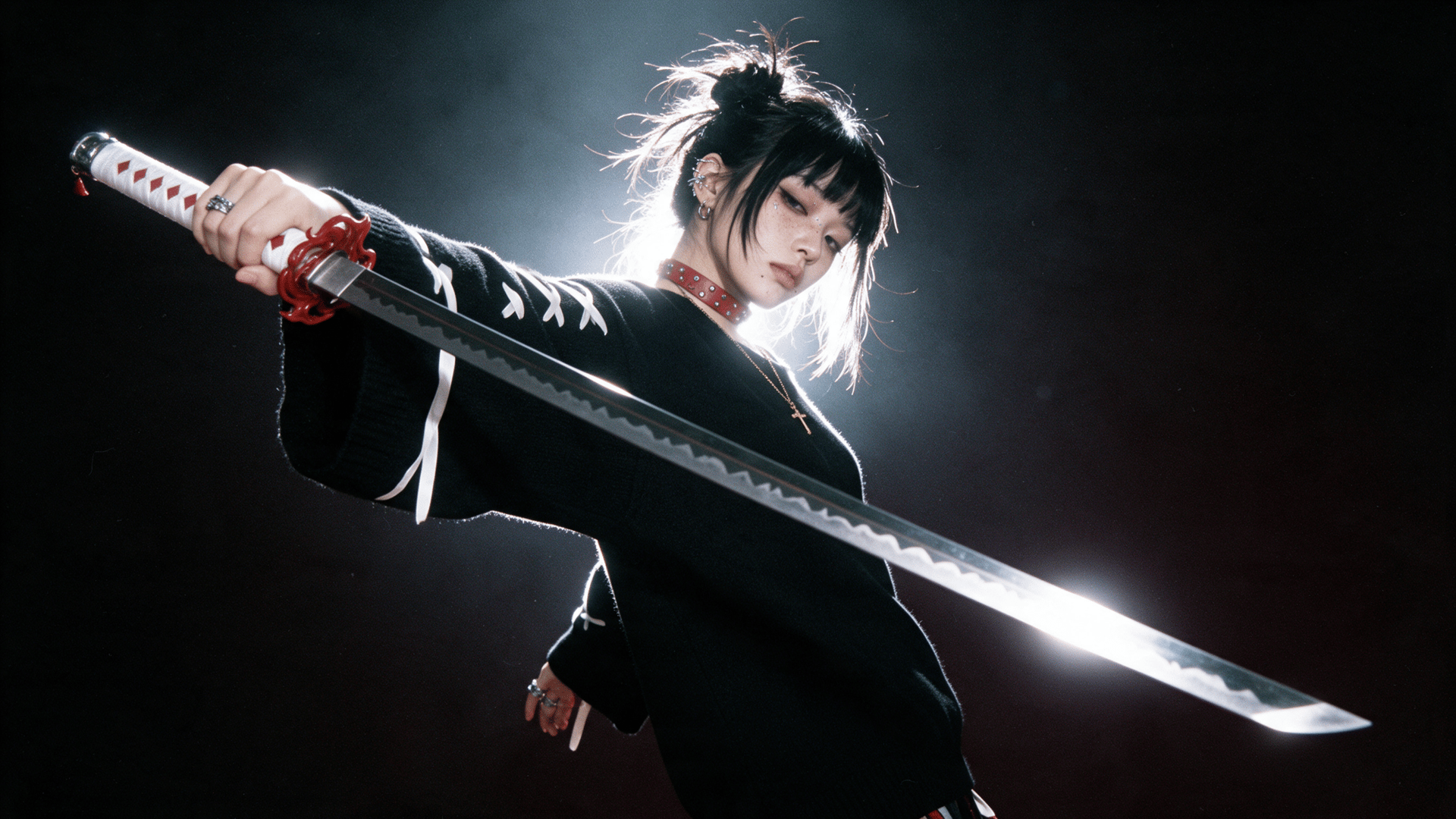
Realistic film with dramatic light and expressive composition

Coming of Age

Coming-of-age stories: natural light, everyday life, close emotions

K-Drama

Korean drama look: soft light, romance, emotional close-ups

Romantic comedy

A light romantic comedy with bright colors and an easy mood

90's

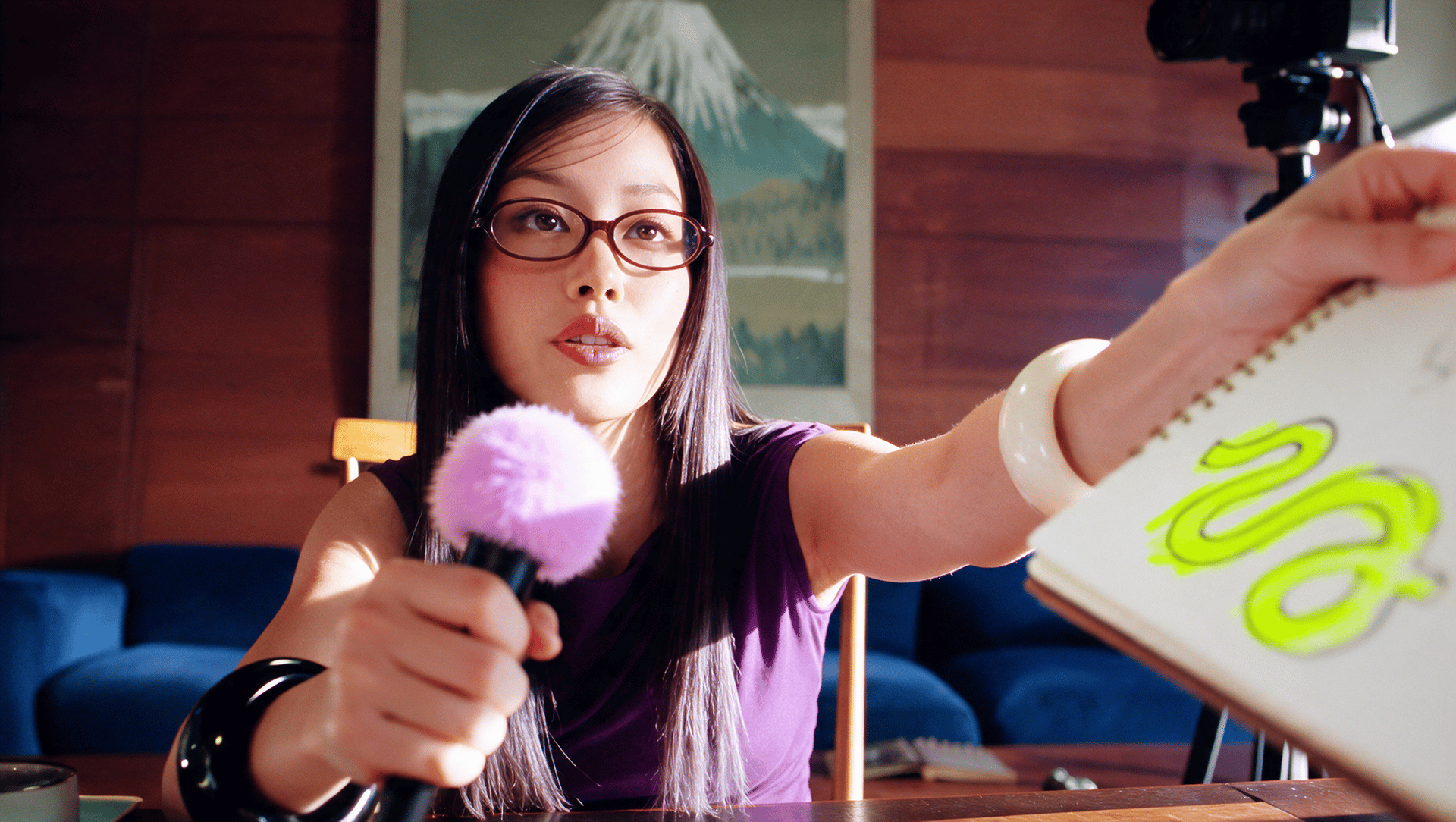
Nostalgic 1990s film look: soft image and retro details

Dark Academia

Dark academic mood: old interiors, cool tones, deep shadows

Anime

Japanese hand-drawn animation with expressive eyes and detailed backgrounds

2.5D

A drawn style with a sense of volume and depth from light and shadow

Furry

Animal characters with human emotions, clothes, and gestures

Classic 3D

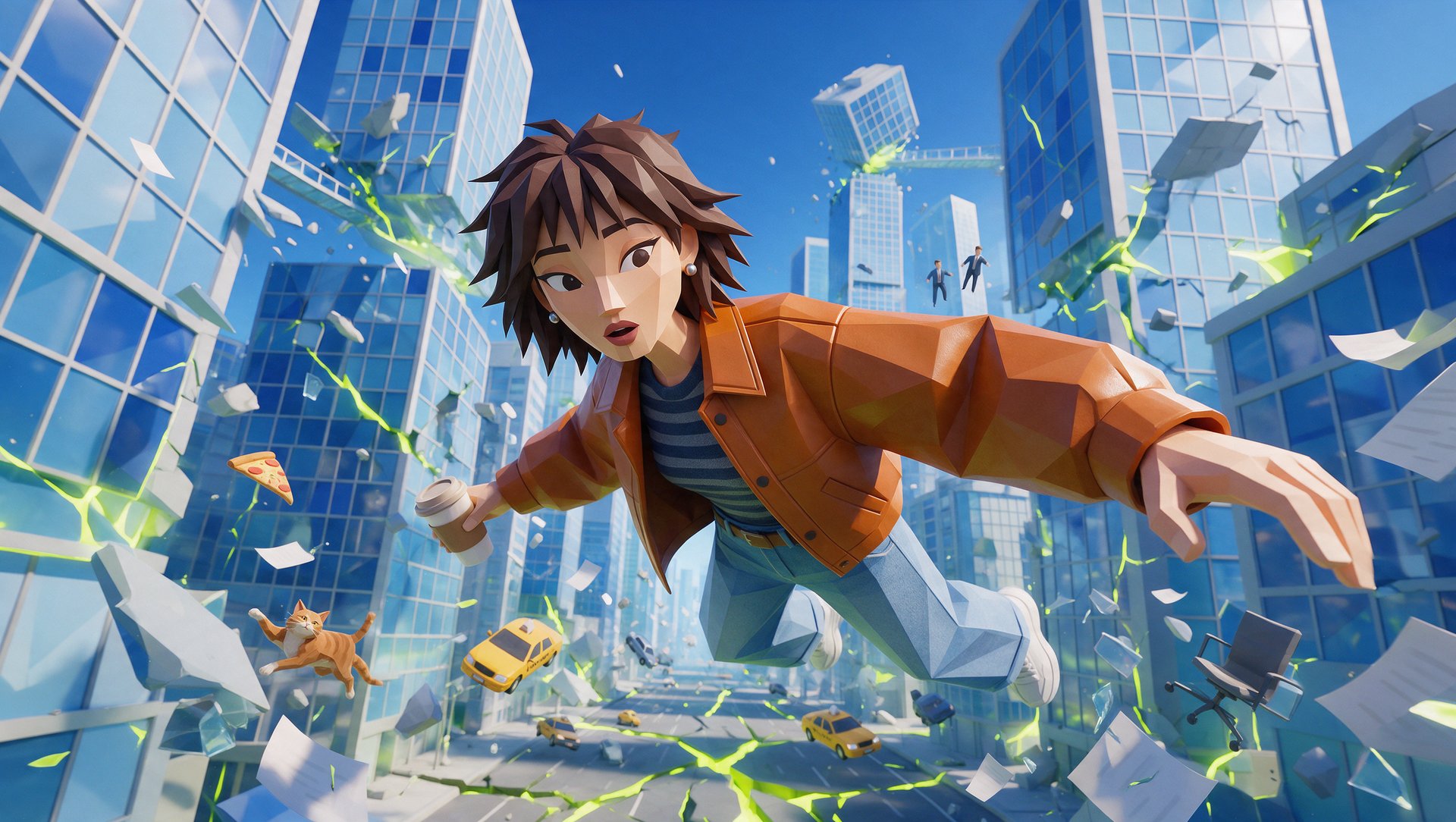
Cartoon 3D animation with rounded forms and expressive faces

Painterly 3D

3D characters with painted textures and a brush-stroke effect

CGI

Detailed computer graphics with realistic materials and lighting

Noir 3D

Dark 3D animation with contrasting light, deep shadows, and a noir mood

Classic 2D

Classic hand-drawn animation with clean outlines and flat fills

Painterly 2D

A drawn illustration with watercolor textures and visible brush strokes

How Do You Create Your First Short Drama?

This walkthrough follows the manual route, which gives the most control.

Step 1: Open Short Drama Studio. Go to higgsfield.ai/short-drama on desktop and start a new project, or open one from My projects.

Step 2: Upload the script. Add a PDF, DOCX, FDX, TXT, or MD file of up to 10 MB. The studio processes the file first, displaying “Connecting to script…” and “Loading your script.” The buttons remain inactive until the file is ready. The file saves automatically and can be replaced.

Step 3: Choose the format and the style. On the right, pick a frame format (9:16 is the default) and one of the 15 styles.

Step 4: Analyze the script. Click Analyze script. The studio reads the whole script, splits it into episodes, and lists the characters, locations, and props. A progress bar shows the percentage and the time left. Analysis takes a few minutes. Use Notify when done to receive a notification when it's complete, or Pause analysis to stop the process.

Step 5: Review Cast & World. The studio shows everything it found in the Characters, Locations, and Props tabs, with descriptions taken from the script: age, appearance, clothing, and details of a place. Less important items are placed in Hidden cast.

Click Generate faces to create four free face options for each character. Pick a face, or use Upload to add a personal photo. The studio then builds a character sheet from that face, and the sheet helps maintain the character's appearance across scenes. Locations and props generate directly as images and get the status Ready.

Step 6: Plan the episodes. In Episodes, click Plan episode for each episode. The studio breaks the episode into scenes and clips, and video can't be generated until an episode is planned.

Step 7: Generate a draft. The quality at the top is 480p draft by default. Generate the episode, preview each clip, and check whether the results match the script.

Step 8: Raise the quality and export. Once the draft looks right, generate the final version at a higher quality, and use Export in the header to download the result.

How Do You Edit Characters, Locations, and Props?

If a character, location, or prop doesn't look right, you can edit it without starting the project over. The tools in Cast & World cover most fixes:

  • Change: swaps a character's face.
  • Add look: gives a character another outfit or appearance.
  • Add state: gives a location or a prop another state, such as the same street at night.
  • Regenerate: generates the item again, with the price shown on the button.
  • Upload: brings in a custom image.
  • Edit in chat: passes the change to the agent as a description.
  • History: goes back to an earlier version.

Uploaded photos are also subject to content checks.

What Does Auto-Generate All Do?

Auto-generate all handles the entire production process in a single run. Before it starts, a window opens with the settings: Quality (480p draft, 720p, or 1080p, with 720p as the default), Attraction (Basic, Medium, or High, with Medium as the default), and the rules for If a prompt gets blocked.

On the cast step, Generate all asks how to create the cast:

  • Generate the cast, then let me choose faces: the faces are picked manually, and the rest happens automatically. This costs less.
  • Create the sheets right away: the studio chooses the faces itself and finishes everything. This costs more.

How Much Does Short Drama Studio Cost?

Short Drama Studio runs on Higgsfield credits. The estimated credit cost appears on each action button before generation. For Auto-generate all, the displayed cost is an estimate. Actual credit usage may vary, and you can check the total spent under Usage.

How Much Does Short Drama Studio Cost?

Action

What to know about the cost

Generate faces

Free

Analyze script

Price shown on the button

Generate all (cast)

Costs less when the faces are chosen manually, and more when the studio creates the sheets right away

Plan episode

Price shown on the button

Generate the episode

Most of the credits go here

Regenerate

Price shown on the button

Auto-generate all

The button shows the minimum, and the final price appears in the settings window on Start auto-generate, depending on quality

Preparation, which means analysis and the cast, costs much less than the episodes. Usage in the header shows how much the project has already spent.

What Are 5 Tips for a Better First Series?

1. Draft at 480p first. The story and the cast can be checked in a draft, and the quality goes up for the final version.

2. Choose the faces manually. Picking faces from the free variants costs less than letting the studio create the sheets right away, and it keeps control over the look.

3. Review Cast & World before generating episodes. Finalizing the character references early helps maintain consistency across the series and reduces the need to regenerate scenes later.

4. Use Add look and Add state for changes. A new outfit or a night version of a location doesn't need a new character or a new place.

5. Upload only images with cleared rights. Content checks apply to every upload, and photos of real people need image rights.

Meet Higgsfield Short Drama Studio: From Script to a Full Microdrama Series

Try Short Drama Studio

Got any questions left?

by Higgsfield