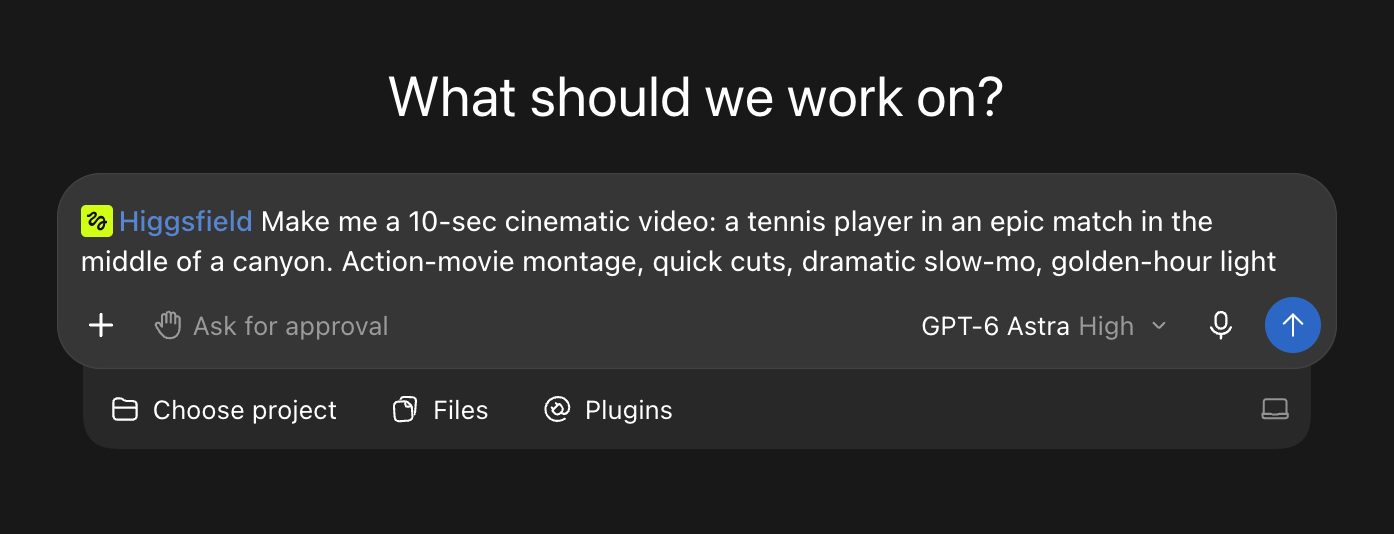
ChatGPT can't render video itself, so you connect it to a platform that can. Add that platform's plugin from the Plugins Directory, sign in, and describe the shot in chat. ChatGPT can pick a model, run the generation, and return the clip. Generations run through your connected video platform. With the Higgsfield plugin, each generation uses your Higgsfield credits at the standard rate.
What Do You Need to Generate AI Videos in ChatGPT?
ChatGPT does not currently include native video generation. OpenAI discontinued the Sora web and app experiences on April 26, 2026, followed by the Sora API on September 24, 2026. This guide uses the Higgsfield plugin to run video generation from a ChatGPT conversation.
You need three things:
- A ChatGPT account with access to the Plugins Directory and the Higgsfield plugin.
- An active Higgsfield subscription.
- The Higgsfield plugin installed and authorized.
How to Do It on Higgsfield
Higgsfield is an AI-native creative suite with 35+ models and tools, including Cinema Studio 4.0, Seedance 2.5, Kling 3.0, Nano Banana Pro, and Soul 2.0.
Connecting Higgsfield takes a few steps:
- Open the Plugins Directory in ChatGPT.
- Find Higgsfield.
- Click Add.
- Sign in with your Higgsfield account to authorize.
Once it's connected, just ask ChatGPT to generate. You can also start from higgsfield.ai/mcp and select Add Higgsfield plugin. If the connection drops or throws an authorization error, reconnect from Settings → Plugins → Higgsfield.
How to Generate Your First Video
Step 1: Connect Higgsfield to ChatGPT. Open Plugins in ChatGPT, find Higgsfield, and follow the installation prompts. Connect your Higgsfield account when asked.
Step 2: Describe the video in plain language. Open a new chat and either type Higgsfield into your request or pick it from the list of available tools. Then write the brief as if you were handing it to a production team, covering the subject, the setting, the mood, and how long the clip should run.
If you want to animate a photo, attach it with the paperclip beside the message box. You can also ask ChatGPT to show the credit cost and hold off until you approve it, which is handy when you're comparing models or running several steps in a row.