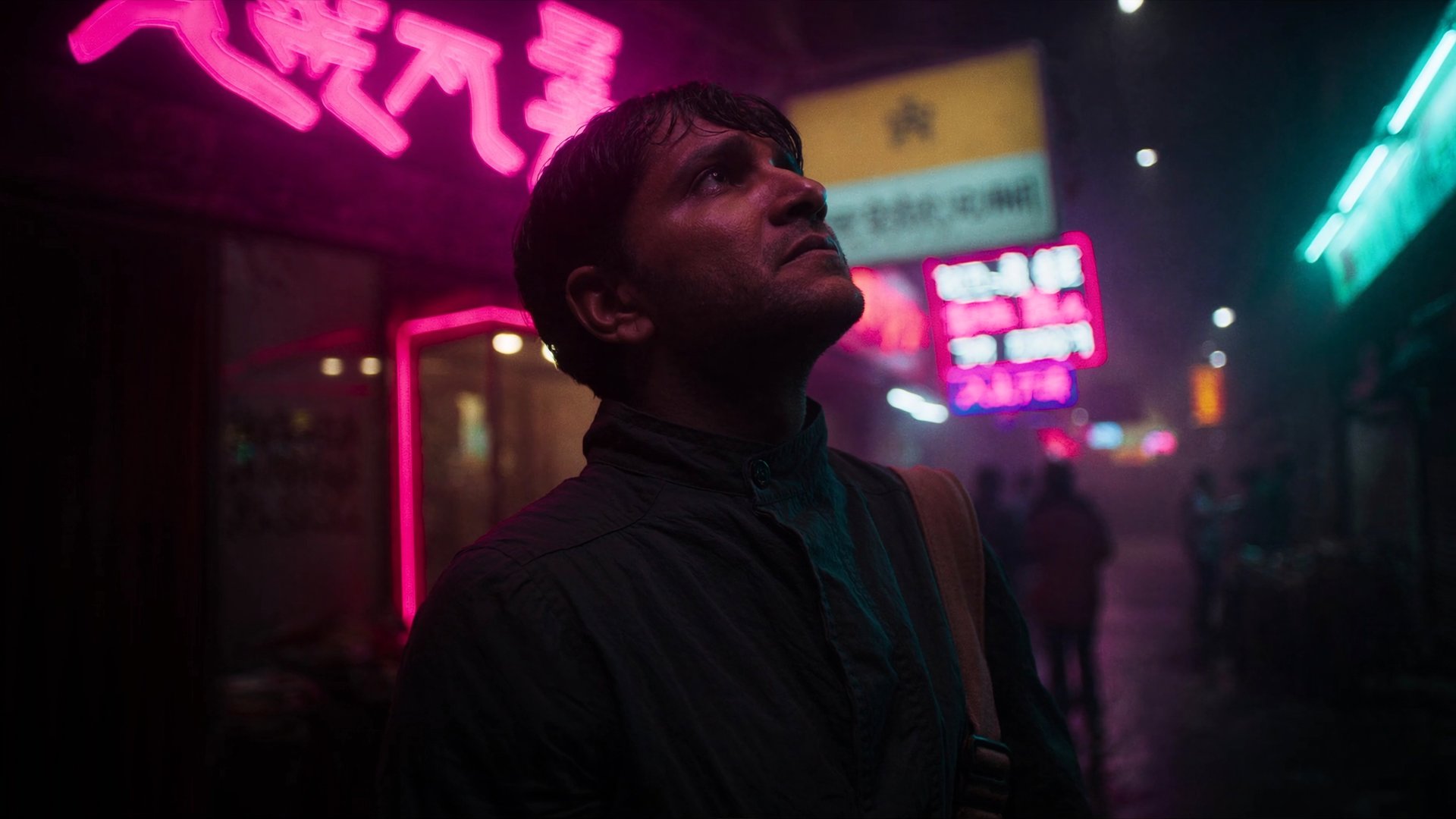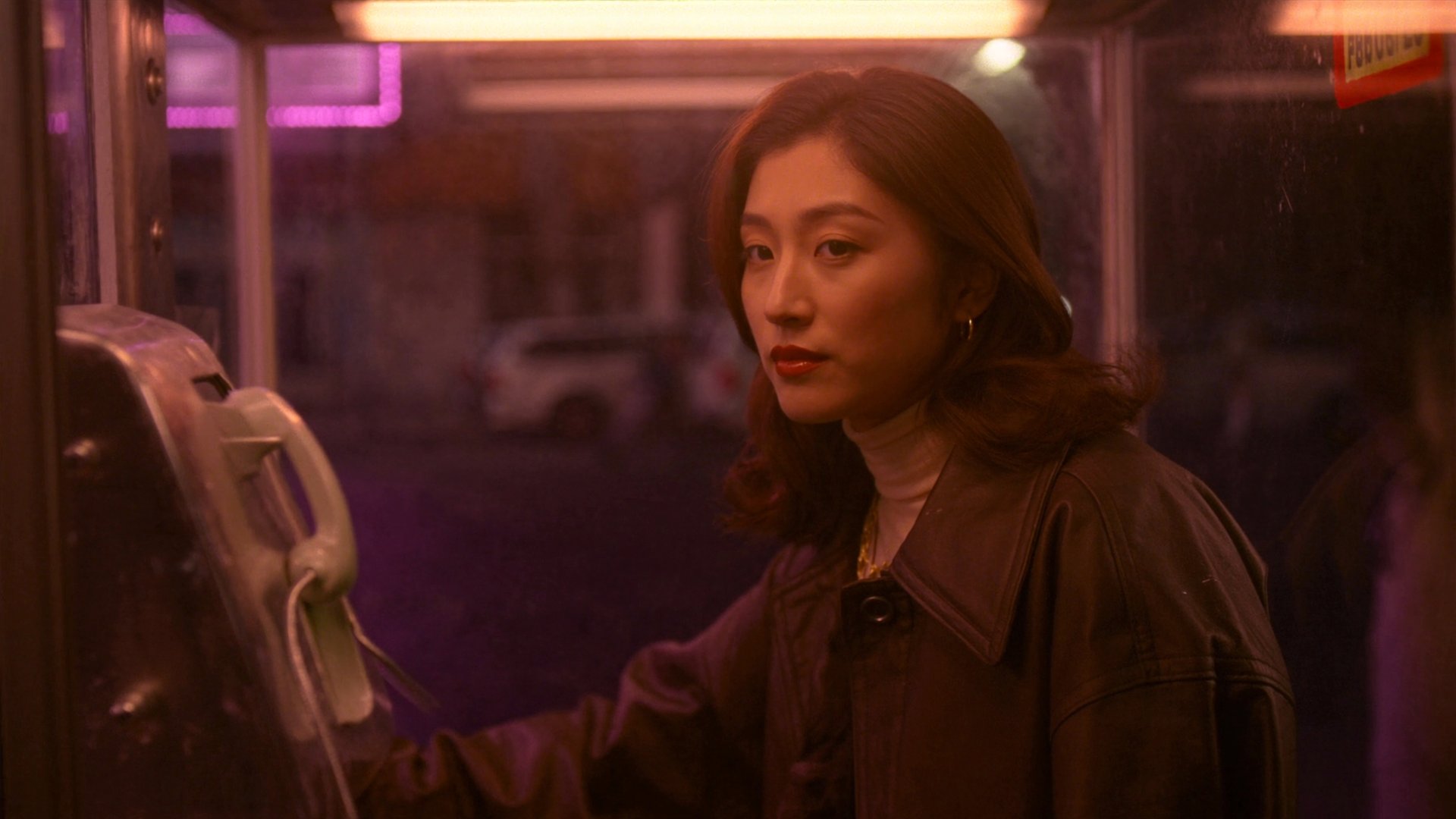
Higgsfield just launched Video Relight and Color Palette as standalone products for editing existing footage. Video Relight changes light direction, color, and intensity, while Color Palette applies a preset or reference-based color treatment. Both bring familiar Cinema Studio controls to clips that have already been generated or filmed. This guide covers what each tool does, how they work, a full step-by-step workflow for both, and what they cost.
What Is Video Relight
Video Relight changes the lighting on a video you already have, without regenerating the shot from scratch. Upload a clip, choose a lighting or color treatment, and generate a new version based on the existing footage while preserving the overall composition and motion.
Six presets cover most of what a shot needs, plus an Auto option that picks a direction automatically based on the footage:
- Practicals. Fits a shot lit by visible sources already in frame, a lamp, a screen, a window at the edge of the room
- Silhouette. Flattens a subject against a bright background, useful for a mood shot where detail matters less than shape
- Contre-jour. Puts the light source directly behind the subject, the classic backlit rim look
- Soft Cross. Builds two soft sources at an angle to each other, closer to a studio key-and-fill setup than a single directional light
- Window and Overhead Fall. Round out the set with two more common single-source directions
Beyond the presets, a custom light can be built by hand, setting color, brightness, diffuse, and angle directly, without being limited to what's on the fixed list. Up to two custom light sources can be built into a single pass, and either one can also be described through a prompt, useful when the light needs a specific quality that isn't one of the six presets and setting every slider by hand would take longer than just describing it.
How Color Palette Works
Color Palette applies color grading to an existing video, the same way Video Relight applies lighting, without touching the shot itself. Upload a clip, pick a grading preset, and the tool applies that color treatment across the footage.
More than 50 presets are available, running from subtle to stylized:
- Film Colors. Leans toward a traditional cinematic grade, warm shadows and gentle highlight roll-off
- Black Gloss. Lushes into deep, high-contrast blacks with a polished sheen
- Candy Pink and Lime Jam. Sit at the more saturated, stylized end, built for content that wants a distinct, immediately recognizable color identity over a naturalistic look
- Nostalgic Blue, Soft Palette, Overtime, Crimson Vigi, and dozens more round out the library
Upload a reference image with the color treatment you want. Color Palette uses that reference to recolor the uploaded video.
When These Tools Get Used
A shot that's already been generated or filmed sometimes just needs one thing fixed, the lighting reads flat, or the color grade doesn't match the rest of a project. Regenerating the whole scene in Cinema Studio to fix one variable is slower than it needs to be when the composition, the motion, and the performance are already right.
- Video Relight fits a shot where the light source in frame doesn't match the mood a scene is going for. A daytime shot that has to read as dusk, a flat interior missing a single practical source to carve out some shape. It also fits matching footage from different sources, blending a generated clip with something filmed separately, where the light direction has to agree across both before they sit in the same edit.
- Color Palette fits the moment a whole project needs one consistent look applied across clips that were generated or shot at different times, keeping a series visually unified without regrading every clip by hand in a separate editor. It's also useful for testing a stylistic direction quickly, running the same clip through five or six presets.
Running a clip through both tools in sequence covers a case that comes up often: footage that's structurally finished but still needs both its lighting and its color treatment adjusted before it's ready to publish.
Pricing
Tool | Cost |
|---|---|
Video Relight 15-second clip | 135 credits ($6.75) |
Color Palette 15-second clip | 135 credits ($6.75) |
Full Workflow: Step by Step
Workflow A: Video Relight
Step 1: Open Video Relight and upload a clip.
Step 2: Pick a lighting preset, Silhouette, Practicals, Window, Overhead Fall, Contre-jour, Soft Cross, or Auto, or build a custom light directly.
Step 3: If building a custom light, set color, brightness, diffuse, and angle directly, or describe it through a prompt. Something simple works fine, "Window left, cool blue, medium brightness, soft diffused. Fill: camera right, neutral white, low" is enough to get a usable result.
Step 4: Generate.