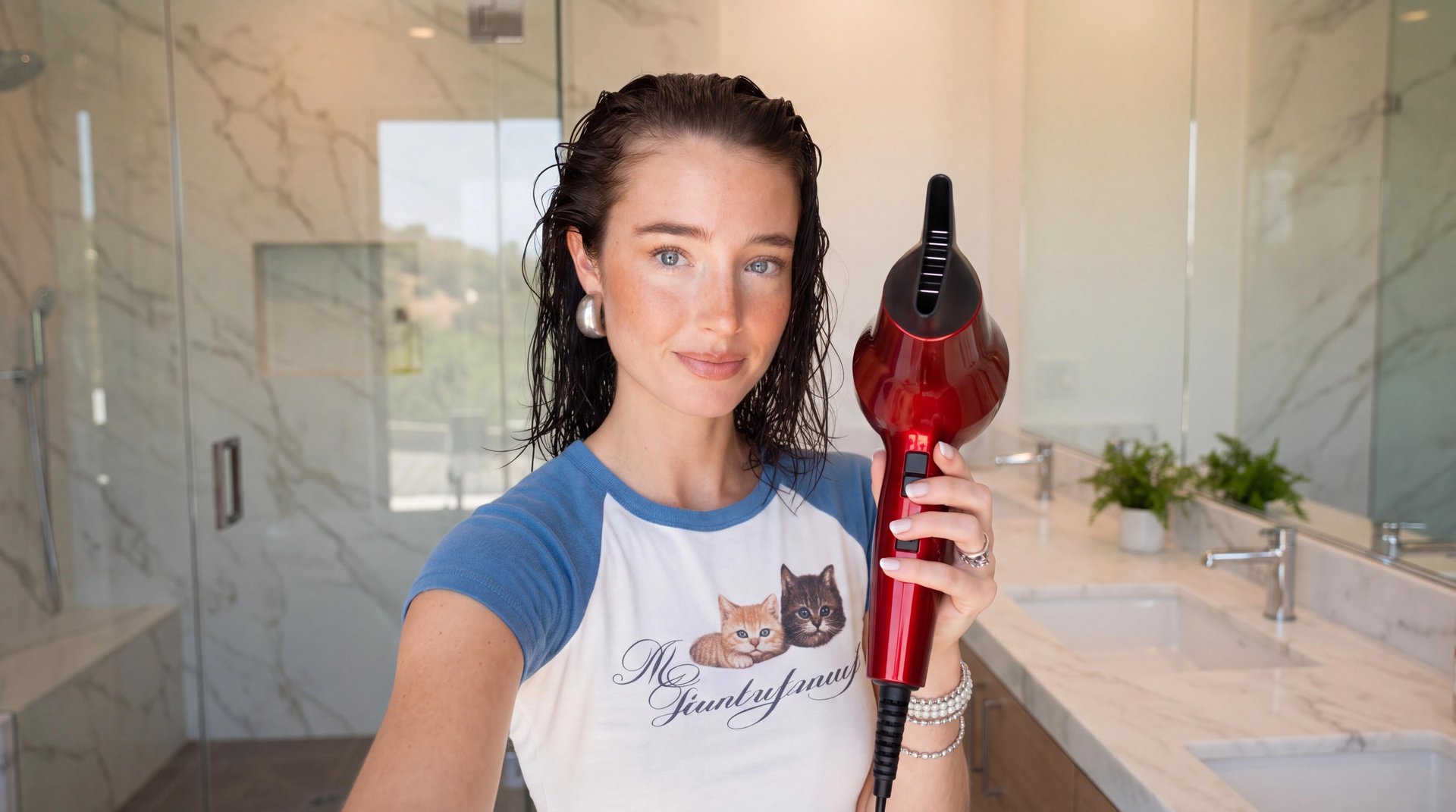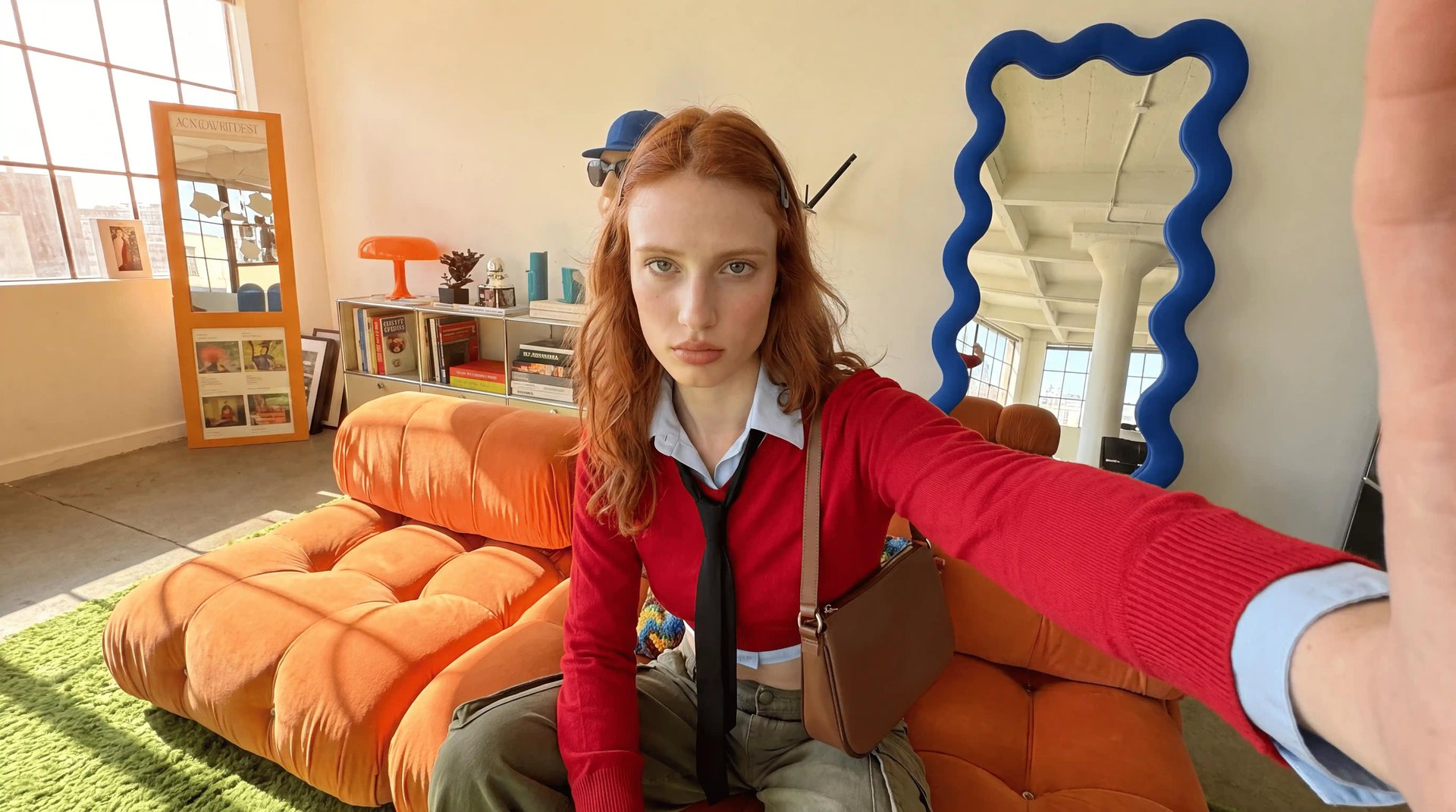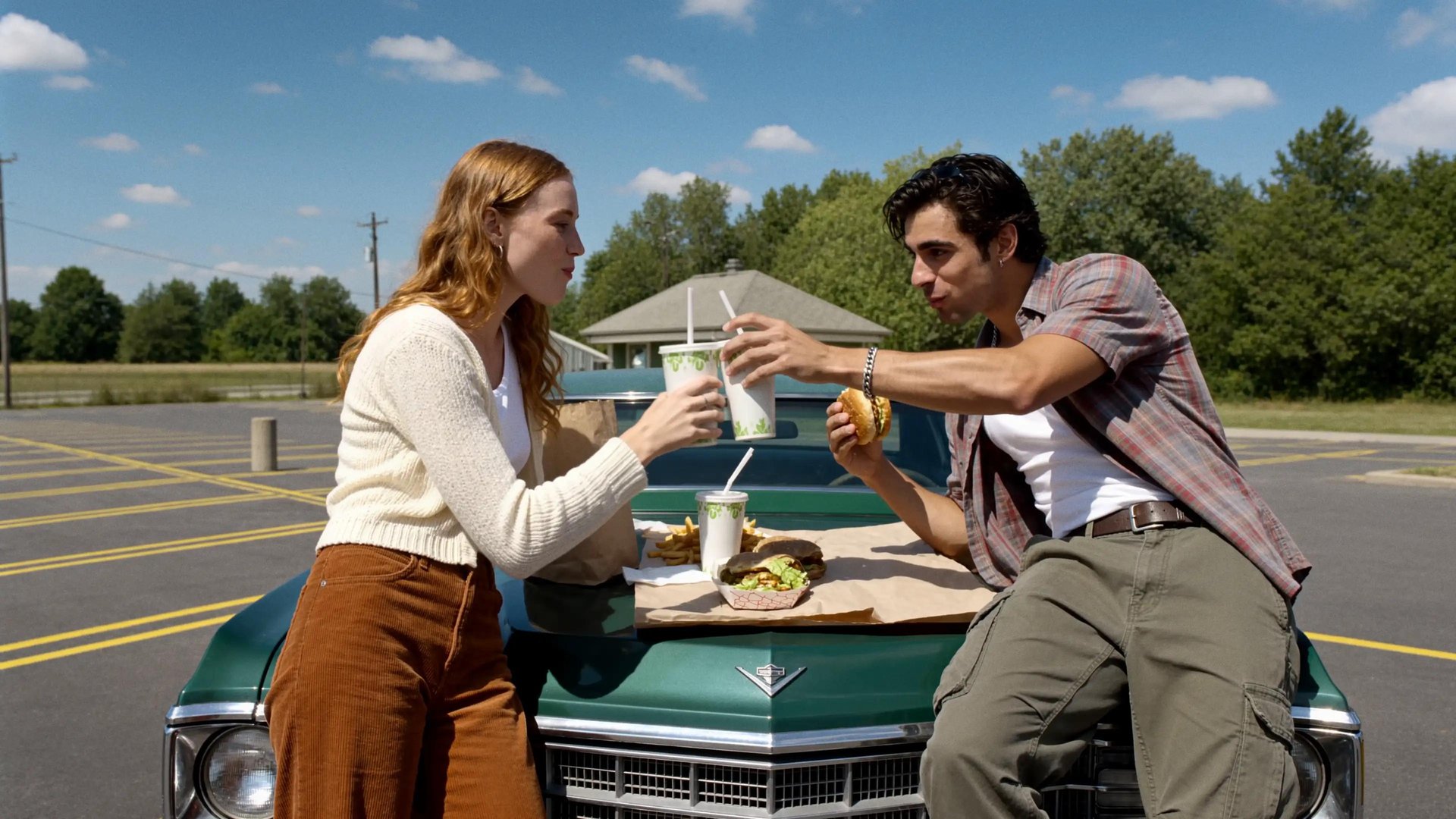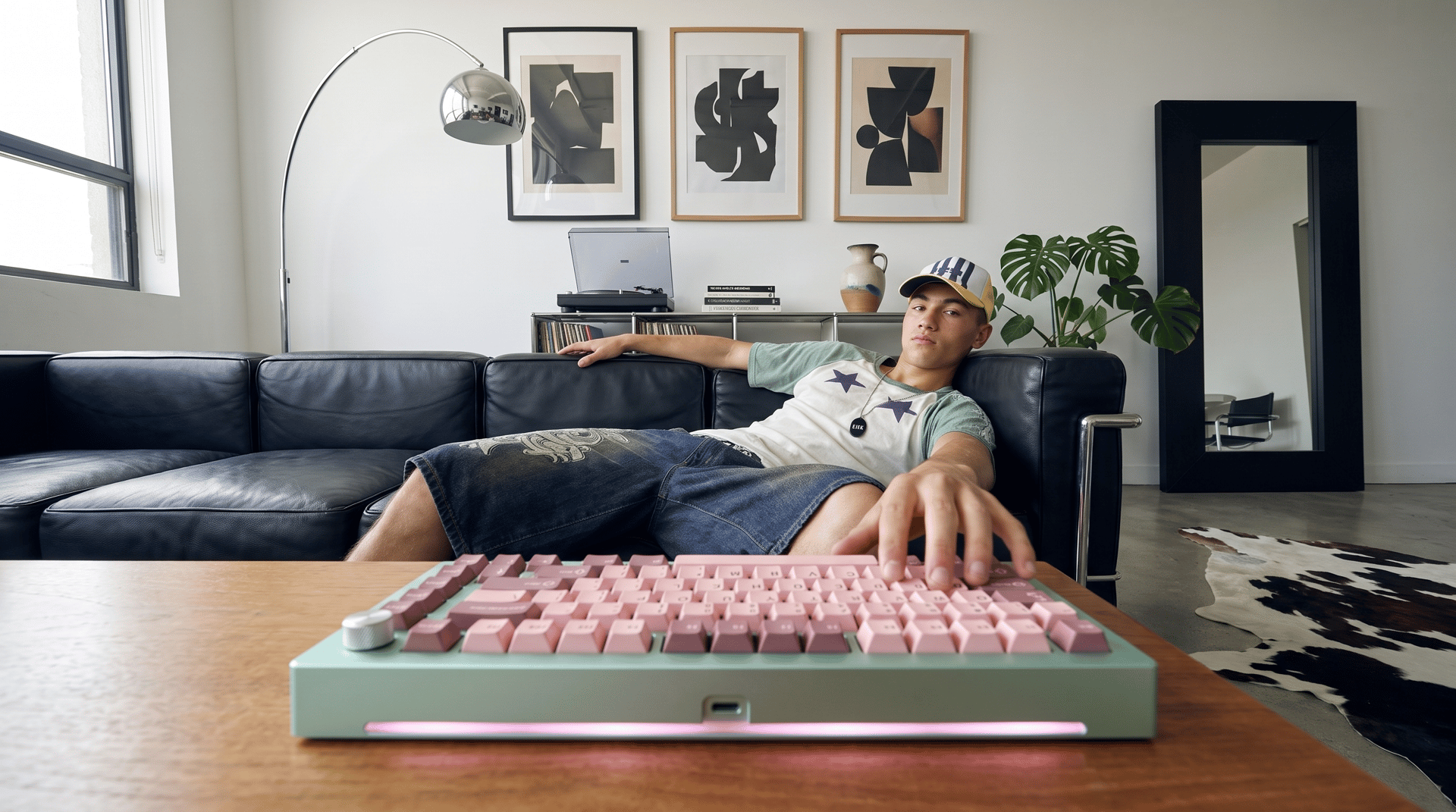
To make an AI UGC video, you define the product and the hook, write a short creator-style script, pick an AI creator, show the product on camera, and export in vertical format. AI UGC is advertising that looks like organic creator content but is generated end to end with AI. No filming, casting, or editing is involved. The full workflow takes minutes per variant.
What Are AI UGC Videos?
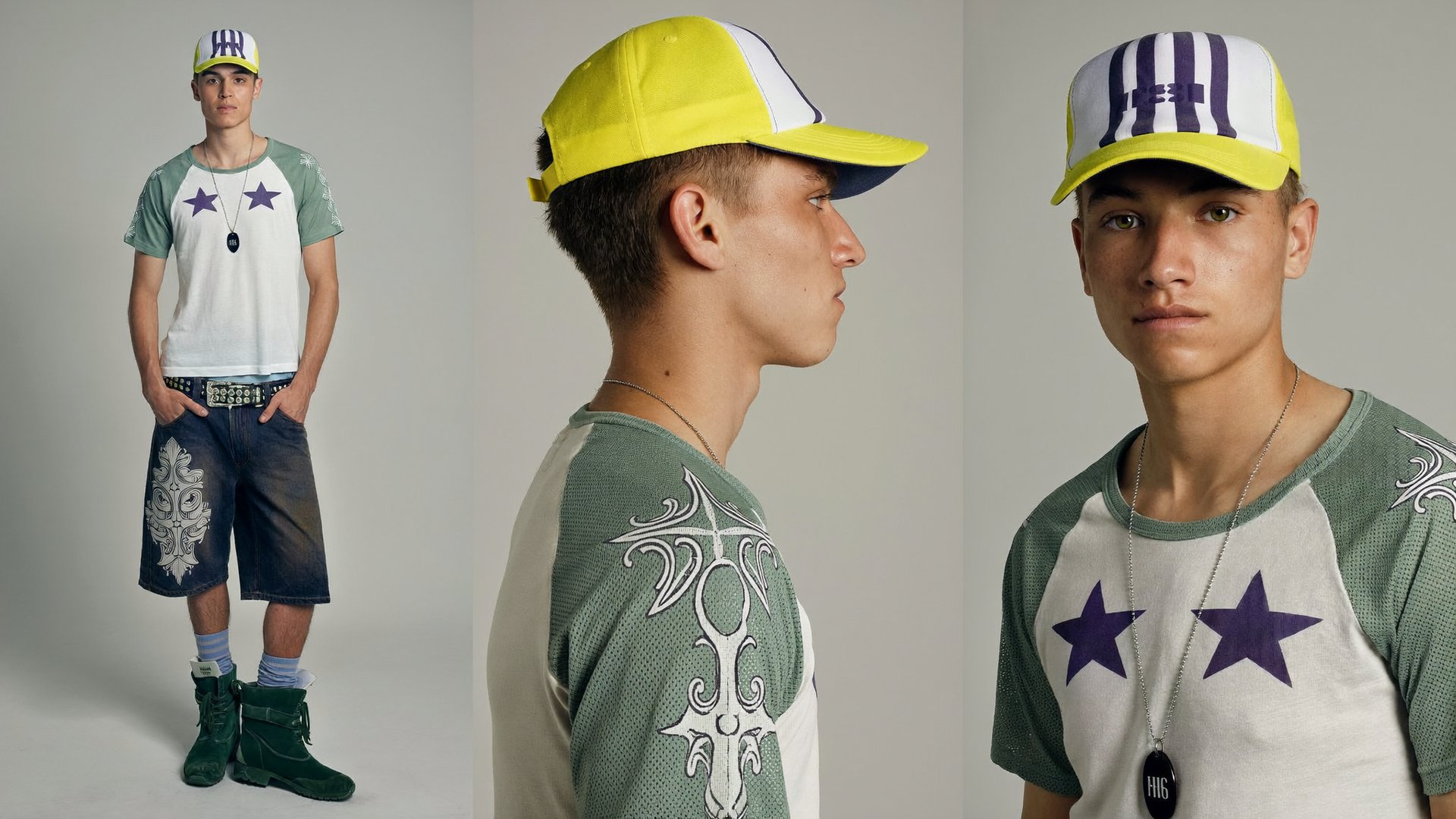
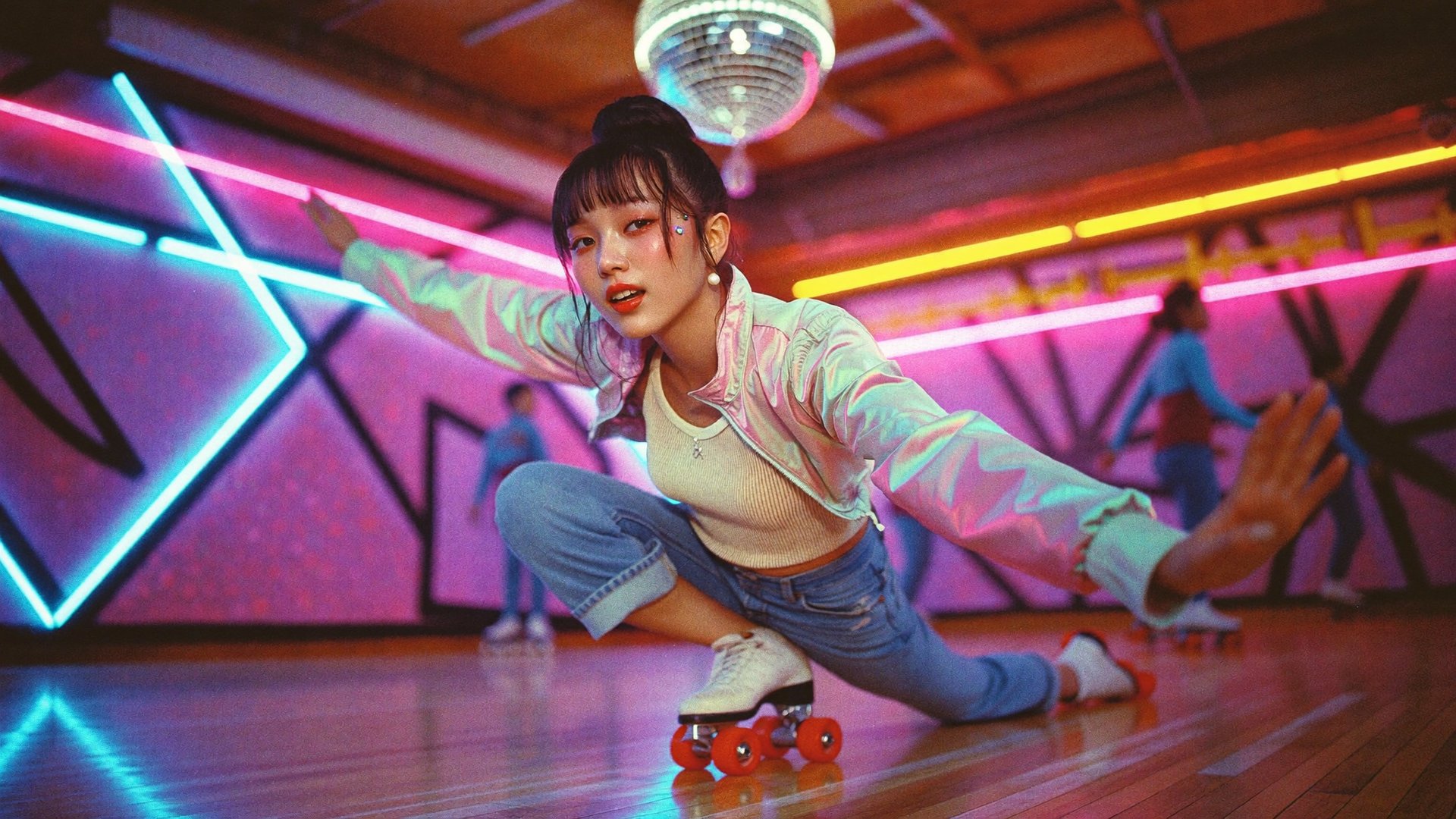
AI UGC videos are ads generated by AI in the style of user-generated content: a person talking to a phone camera, showing a product, sharing an opinion or a routine. The format borrows the visual language of organic creator posts on TikTok, Instagram Reels, and YouTube Shorts, which is why it holds attention inside a paid feed. Viewers process it as content first and advertising second.
The production logic differs from classic UGC in one place only: the creator, the location, and the footage are generated. Everything else stays the same. You still need a product, a hook, a script, and a platform-appropriate export. A typical pipeline looks like this: product → hook and script → creator → product in frame → vertical export.
How Do Marketers Use UGC Content?
Marketers use UGC-style ads to test messaging at low cost and to keep ad feeds looking native. Two principles define the format in 2026.
The first is the hook. UGC creators typically use an attention-grabbing opening in the first two seconds: an unexpected object in frame, a bold claim, a question, a before state. Everything after the hook exists to hold the attention the hook earned.
The second is the micro-creator look. Polished studio ads signal "advertising" immediately. UGC-style ads work because they feel filmed on a phone by a real person: imperfect framing, natural light, conversational delivery.
Different UGC genres fit different platforms and inputs:
Genre | Best platform | What you need | Hook example |
|---|---|---|---|
GRWM (get ready with me) | TikTok, Reels | Creator + product in a routine | "I replaced my entire morning routine with one product" |
Tutorial | TikTok, YouTube Shorts | Product + 3-4 usage steps | "You always used it wrong" |
Before / after | Reels, TikTok | Two states of the same subject | "Day 1 vs day 30" |
Testimonial | Meta feed, Reels | Creator + a specific claim | "I was skeptical until week two" |
Unboxing | TikTok, YouTube Shorts | Product packaging | "The packaging alone sold me" |
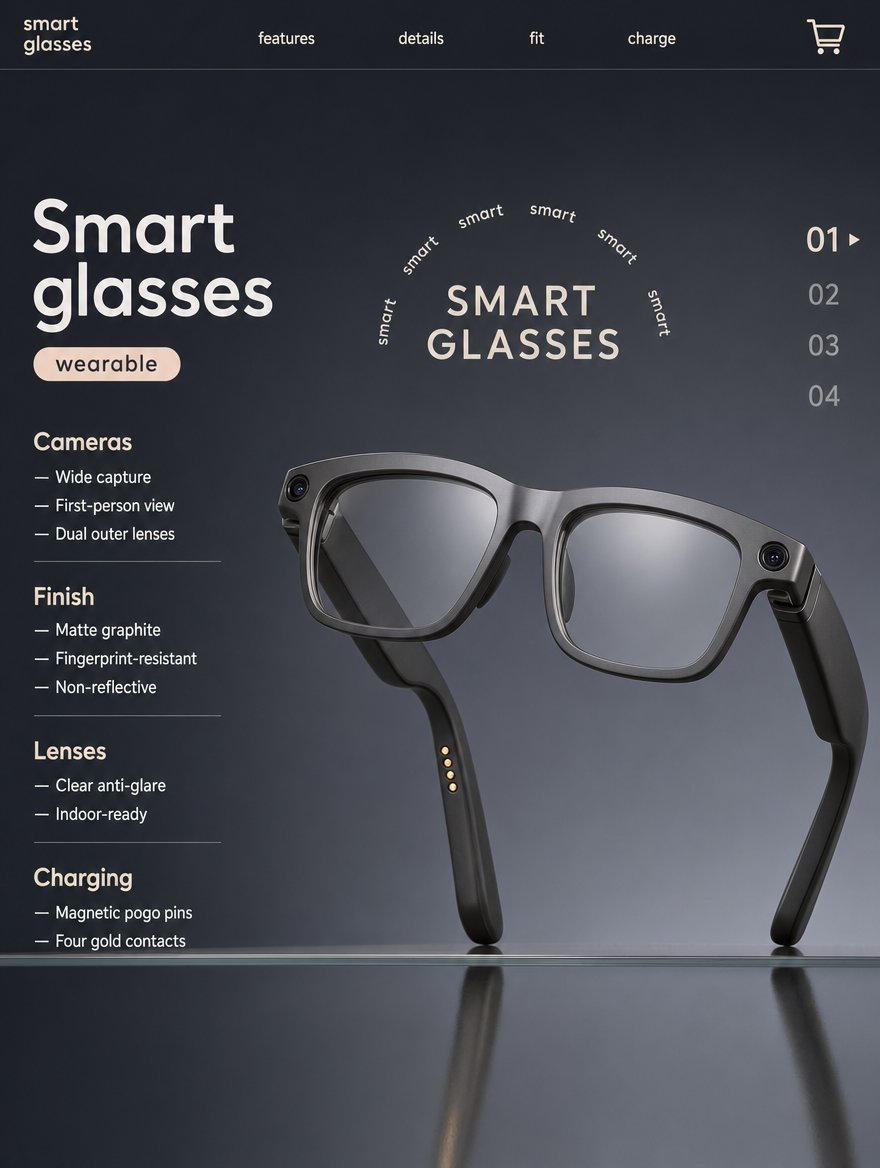
POV demo | TikTok | First-person product use | "POV: your desk setup finally makes sense" |
Every genre in this table can be produced with AI. The difference is in the input: some need only a product URL, others need a trained creator identity.
How Do You Create an AI UGC Video in Higgsfield?
The practical problem for a marketing team is volume. One UGC ad is easy to commission. Twenty variants of the same ad, with different hooks, creators, and settings, delivered this week, is where traditional production breaks: briefing creators, waiting for footage, requesting reshoots. And a single video generator does not solve it either, because you also need a consistent creator face across variants, product imagery, and a way to judge which variant to scale.
Higgsfield approaches this as an AI-native creative suite, where ad generation is one stage of a connected pipeline. Marketing Studio is how Higgsfield handles performance marketing content: add your product, pick a style or a preset, and it generates a finished ad with native audio and lip sync in one pass. Creator consistency is handled by Soul ID, and pre-launch evaluation by Virality Predictor, all inside the same workspace.
This turns AI into a hook-testing layer. You generate a batch of variants, compare them, and scale what wins.
For a first UGC ad you need four decisions: the product, the creator, the preset, and the aspect ratio. Marketing Studio takes the product from a link or from uploaded images, the creator from the avatar library or from an avatar you create yourself, and the creative direction from the UGC preset category or the UGC style under Product shot. Set 9:16 for TikTok, Reels, and Shorts. The full set of styles and controls is covered further down.
What Is the Step-by-Step Workflow?
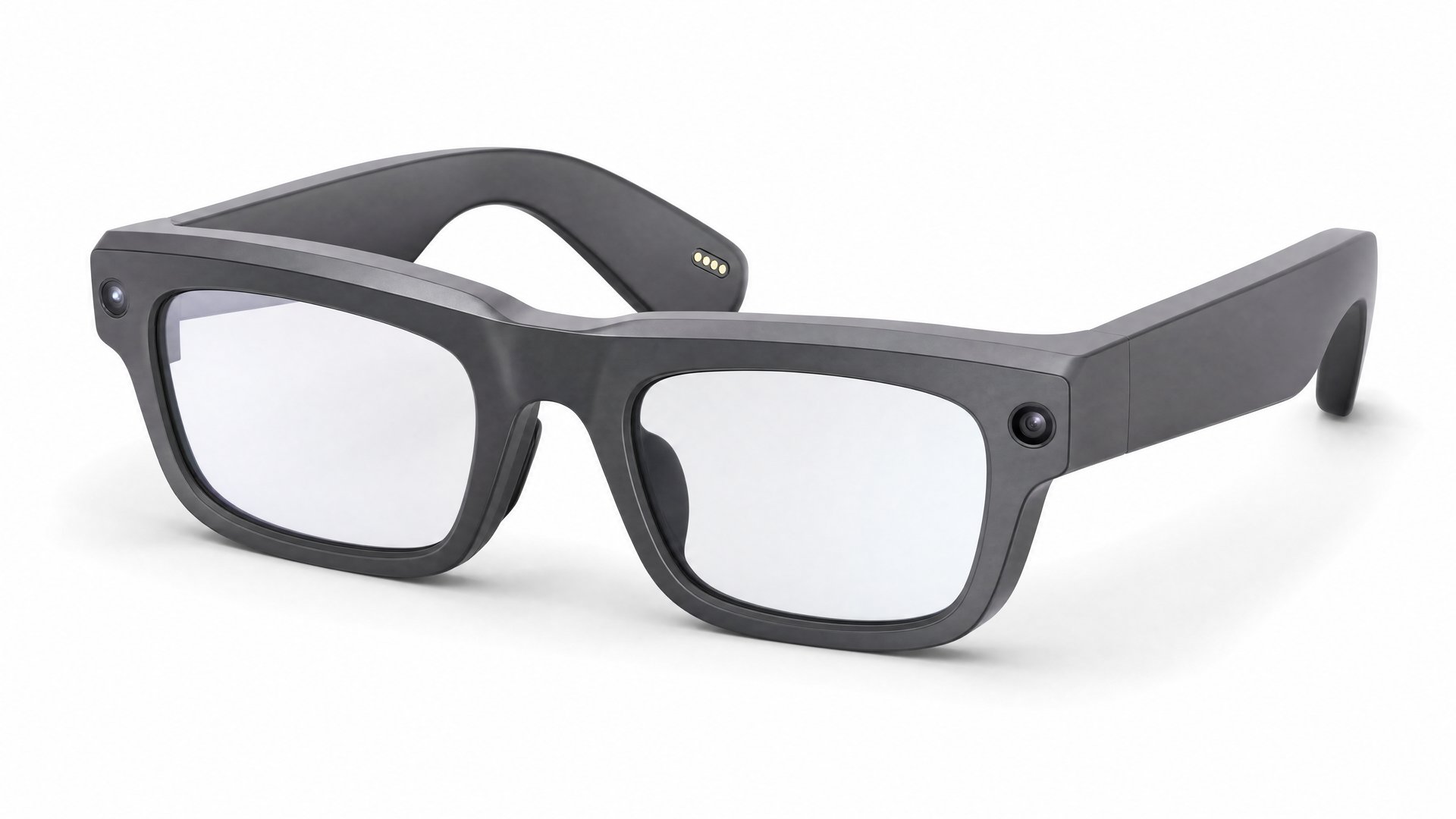
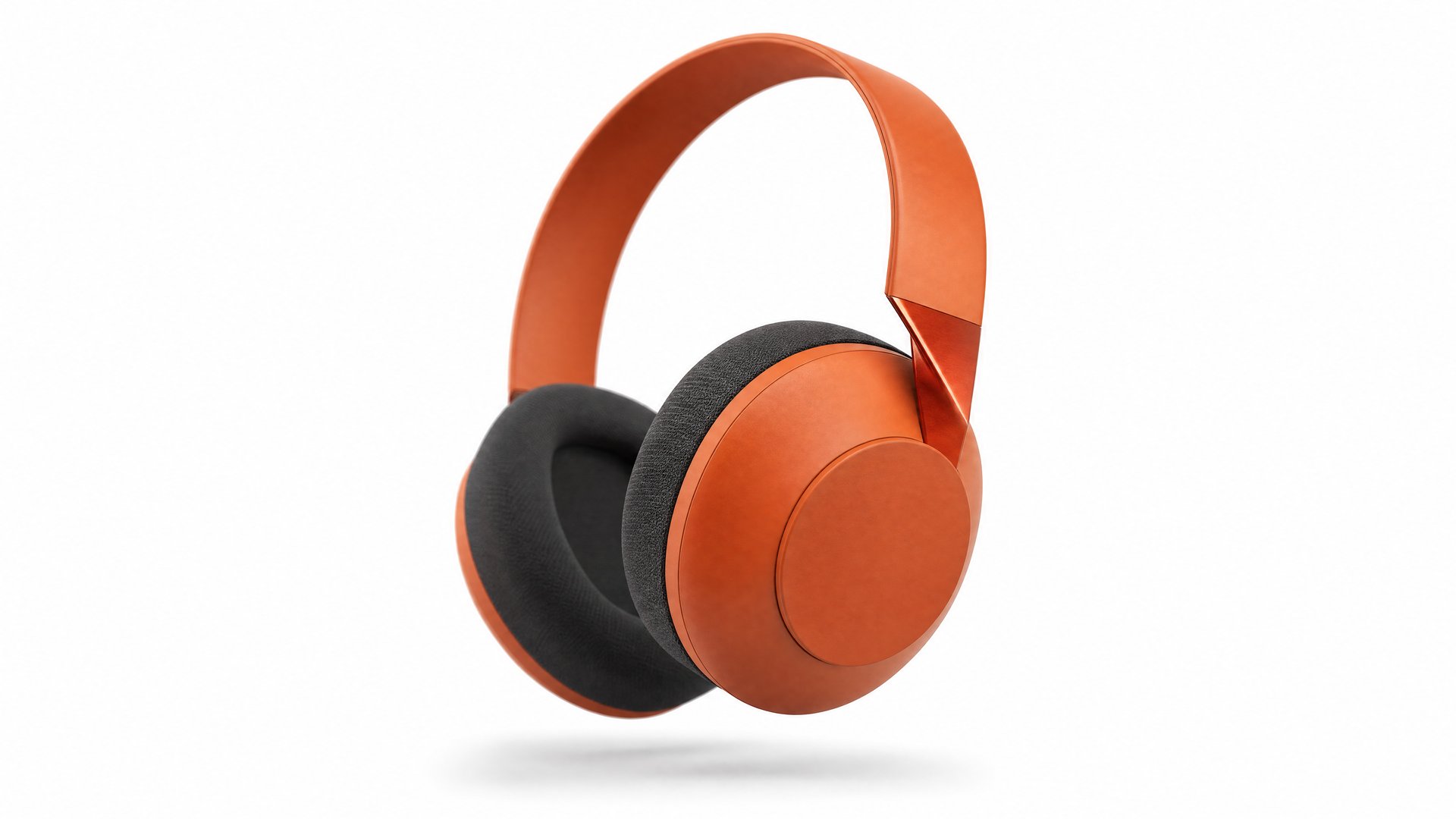
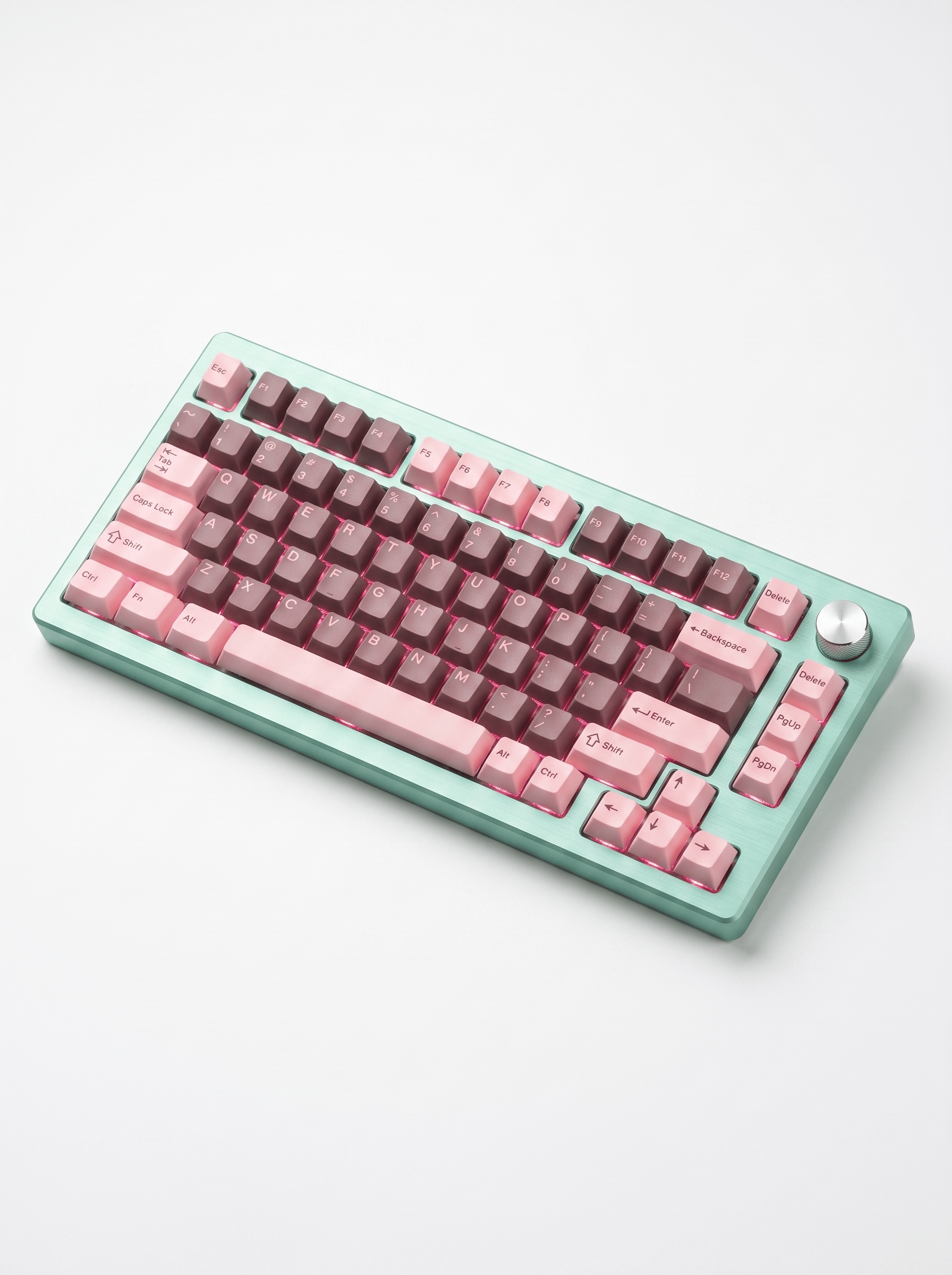
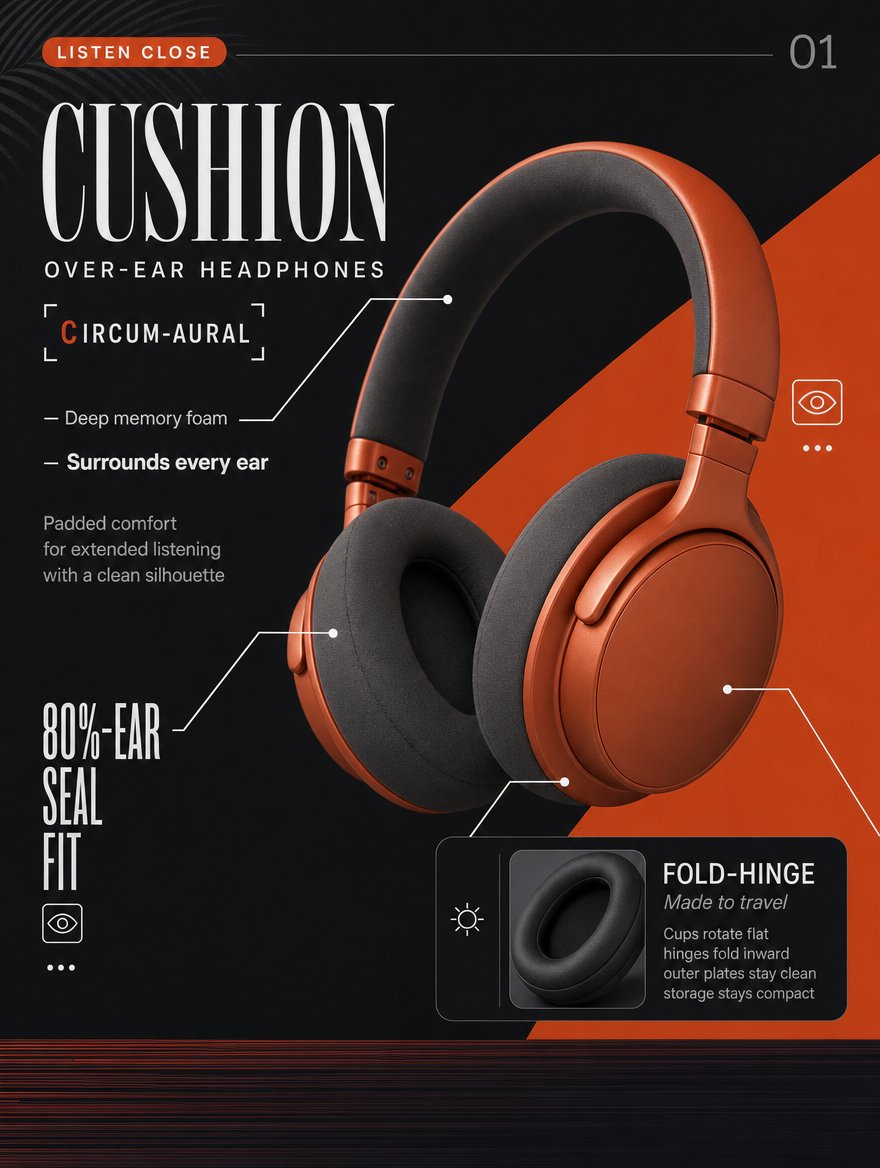
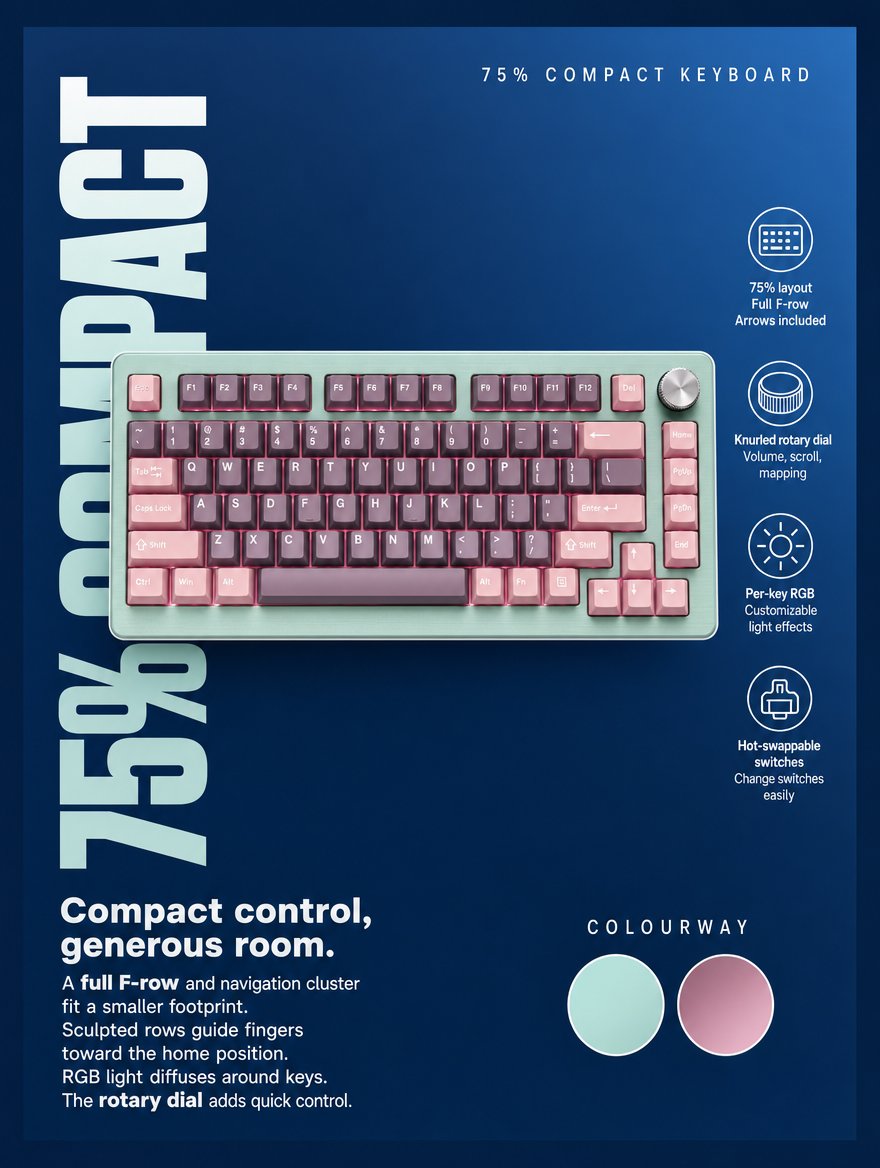
Step 1. Generate your product shots. Paste the product link and Marketing Studio pulls the product in, or add it manually. If you need clean imagery first, generate it with a Product shot style: Studio white for a neutral pack shot, Usage for the product in context. Do this once per product and reuse the output across every ad in the campaign.