Creator Hub
Back

Seedream 5.5 on Higgsfield AI: Features, Settings, and Pricing

Higgsfield
6 min

Seedream 5.5, ByteDance’s new image generation and editing model, is now available on Higgsfield. Seedream 5.5 generates images with a transparent background in one step. According to ByteDance, Seedream 5.5 writes small, dense text accurately. It also keeps unedited areas unchanged across 100 rounds of edits. On Higgsfield, Seedream 5.5 generates 1 to 4 images per run at up to 2K. This guide covers settings, steps, and pricing.

Key Takeaways

  • Seedream 5.5 has a Background setting with Auto, Opaque, and Transparent; Transparent returns a PNG with an alpha channel, so no separate background removal is needed.
  • ByteDance reports that Seedream 5.5 supports 100 rounds of editing on the same image while preserving unedited regions at the pixel level.
  • In ByteDance’s evaluation, Seedream 5.5 had a severe text corruption rate of 0.4% and a minor text corruption rate of 1.7%.
  • On Higgsfield, Seedream 5.5 costs 2.5 credits per image at 1K and 1.5K (≈ $0.12) and 3.5 credits at 2K (≈ $0.17).

What Is Seedream 5.5?

Seedream 5.5 is an image generation and editing model from ByteDance’s Seed team, announced on November 9, 2026. It follows the Seedream 5.0 family (Lite, Flash, and Pro). On Higgsfield, it is in Image → model selection → Seedream 5.5.

Seedream 5.5 has four main capabilities:

  • Transparent background at generation. The model creates images with an alpha channel (RGBA), so backgrounds can be fully or partly transparent.
  • Multi-round editing. You can edit one image step by step. ByteDance reports that areas you did not ask to change stay the same.
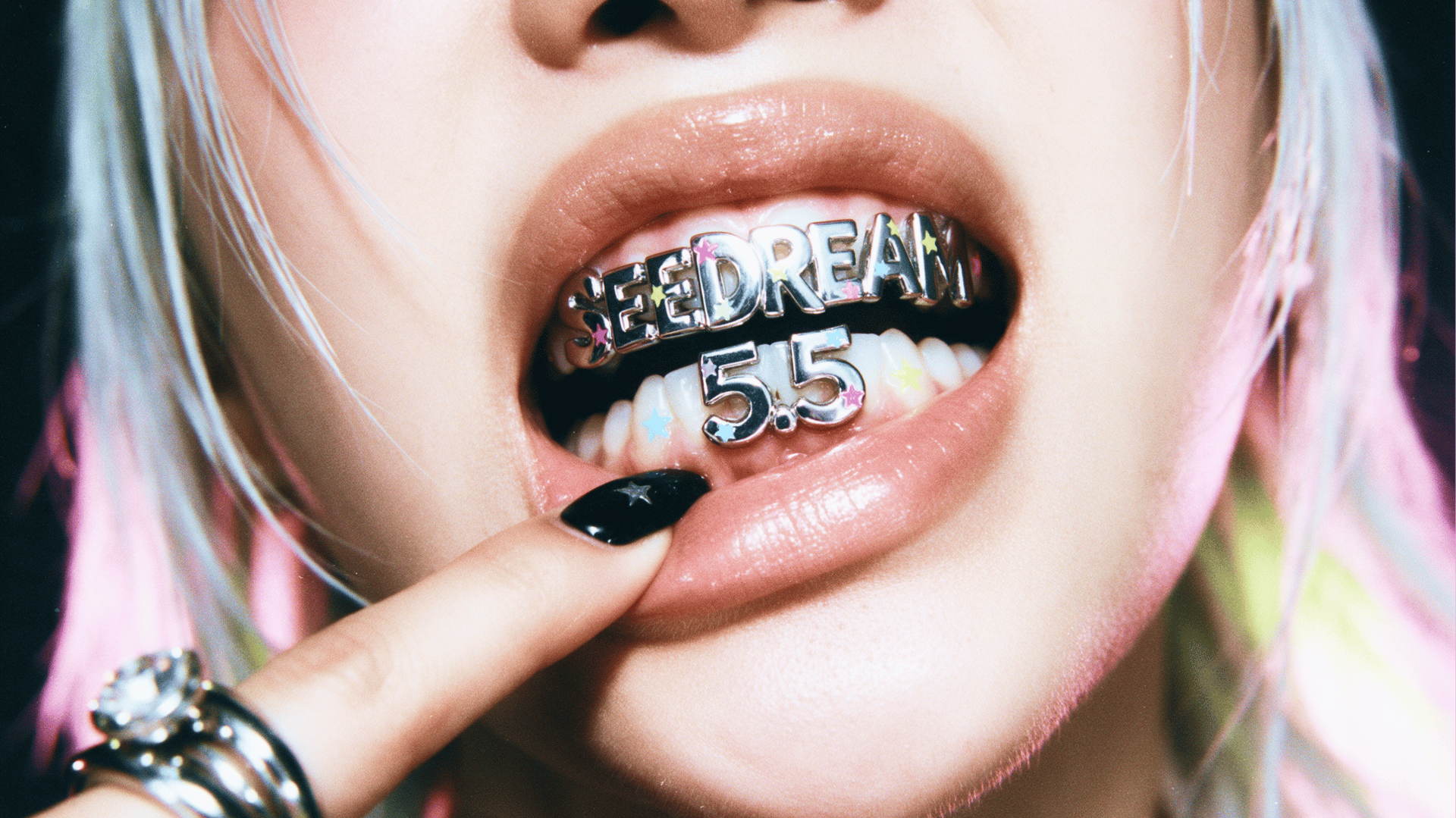
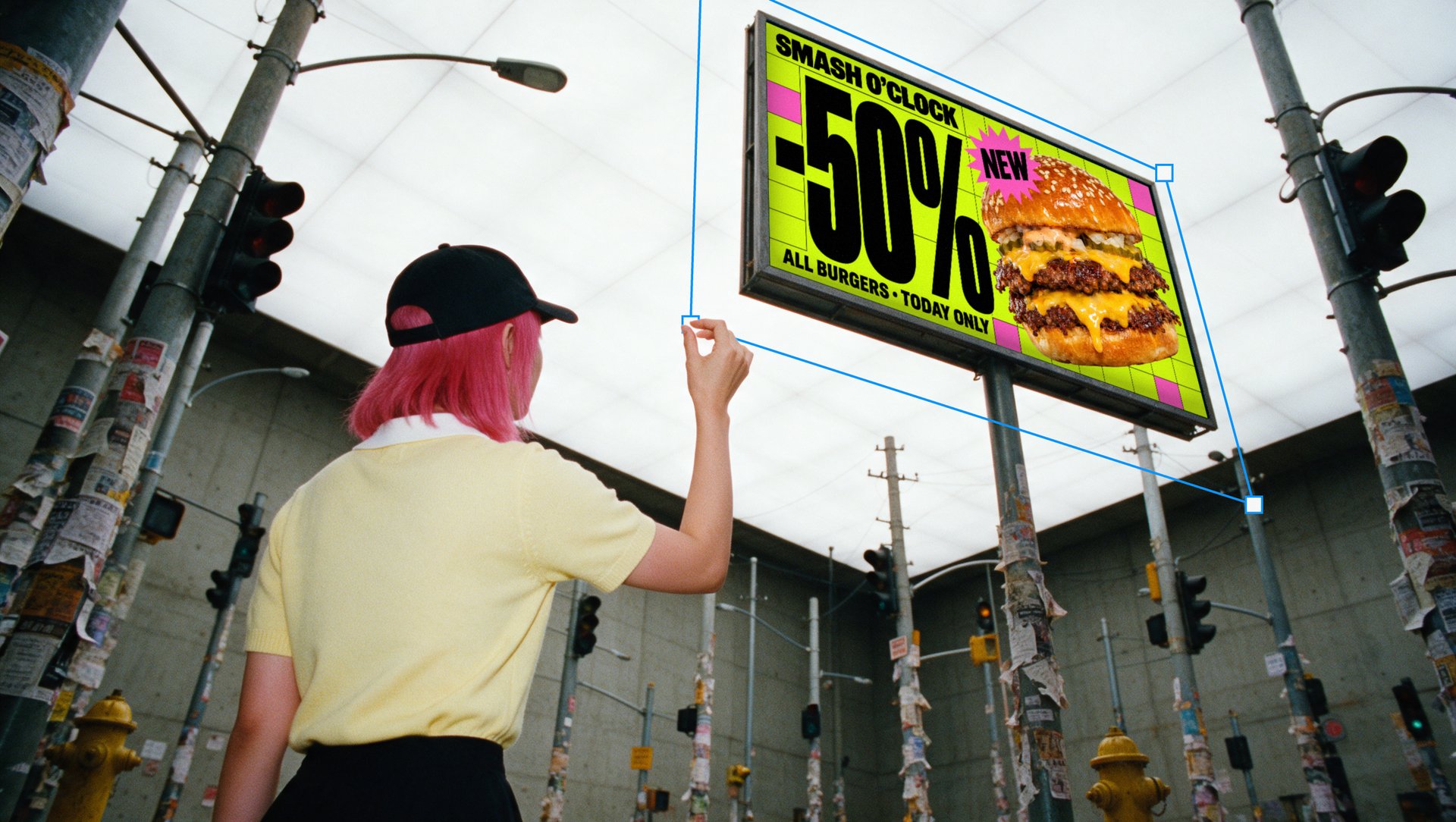
  • Accurate text. Small, dense text on labels, packaging, signs, and posters; ByteDance tested text rendering in Chinese and English.
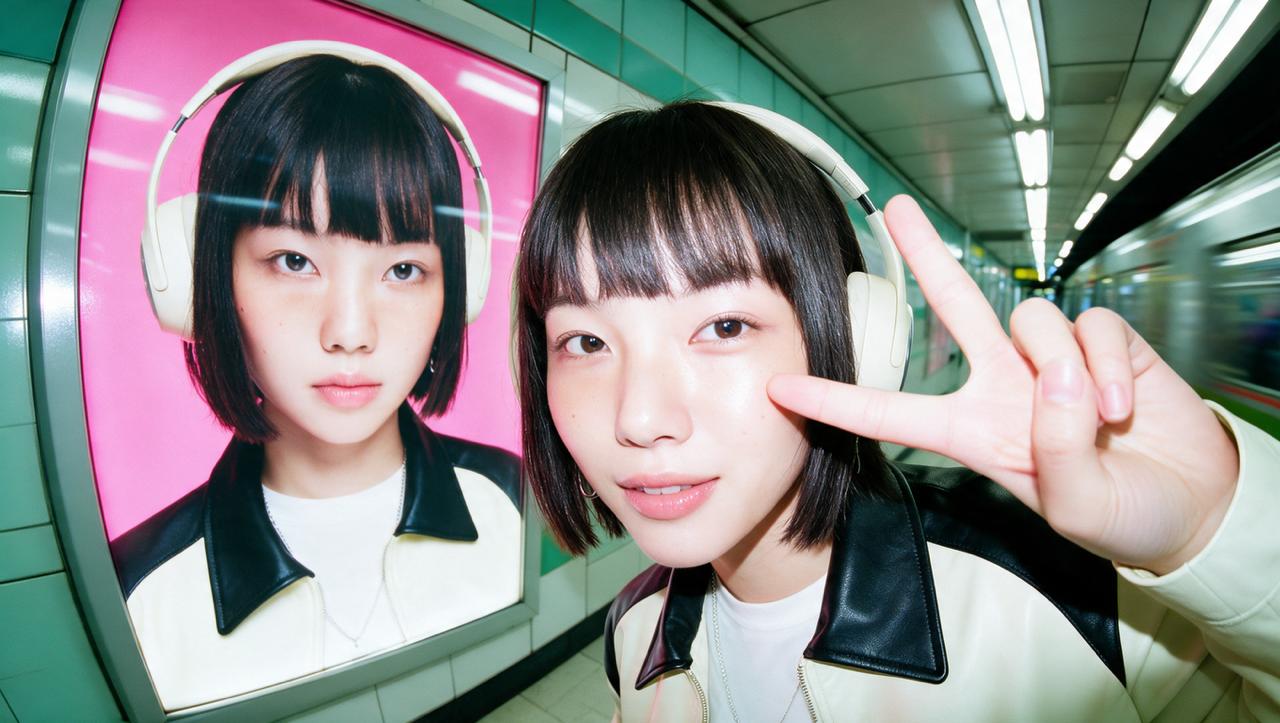
  • Photorealism. ByteDance reports higher quality scores and usability rates than Seedream 5.0 Pro in all six use cases it tested. Seedream 5.5 generates photoreal faces, skin, materials, and light.
Seedream 5.5 vs Seedream 5.0 Pro: What Changed?

Seedream 5.5 adds a transparent background option and longer, more stable editing compared with Seedream 5.0 Pro, the version ByteDance compares it with. Resolution, aspect ratio options, and the number of images per run stay the same.

Seedream 5.5 vs Seedream 5.0 Pro: What Changed?

Capability

Seedream 5.0 Pro

Seedream 5.5

Transparent background

No Background setting in Image

Background → Transparent (native alpha channel)

Editing

Edits from reference images

100 rounds on the same image, unedited areas preserved at the pixel level

Text

Text on images

Dense small text; severe text corruption rate of 0.4% in ByteDance’s evaluation

Resolution

1K, 1.5K, 2K

1K, 1.5K, 2K

Aspect ratios

Auto plus 8 ratios (Auto by default)

Auto plus the same 8 ratios (4:3 by default)

Images per run

1 to 4

1 to 4

Credits per image (1K / 1.5K / 2K)

1.5 / 1.5 / 3

2.5 / 2.5 / 3.5

Editing and text figures for Seedream 5.5 come from ByteDance’s announcement. Settings and prices checked on Higgsfield on November 10, 2026.

What Settings Does Seedream 5.5 Have?

Seedream 5.5 has four settings on Higgsfield: resolution, aspect ratio, background, and the number of images. Every image is saved as a PNG file.

What Settings Does Seedream 5.5 Have?

Setting

Options

Resolution

1K, 1.5K, 2K

Aspect ratio

Auto, 1:1, 4:3 (default), 3:4, 16:9, 9:16, 3:2, 2:3, 21:9

Background

Auto (the model decides), Opaque (regular background), Transparent (PNG with transparency)

Number of images

1 to 4 per run

How to Create an Image With a Transparent Background

To get a transparent PNG from Seedream 5.5, set Background to Transparent before you generate. The model then renders the subject and its edges without a background, so the file is ready to place in a design.

Step 1: Open Image on Higgsfield.

Step 2: Open the model list and select Seedream 5.5.

Step 3: Open the Background setting next to the aspect ratio and choose Transparent.

Step 4: Choose the resolution, the aspect ratio, and the number of images.

Step 5: Describe the subject in the prompt, for example a product, an icon, or a character.

Step 6: Click Generate.

Step 7: When the image is ready, hover over it and click Download.

How to Get Accurate Text in Seedream 5.5 Images

For accurate text in Seedream 5.5 images, give the exact words in the prompt and say where they go. ByteDance reports that Seedream 5.5 renders complex character shapes and densely arranged small text more accurately than earlier versions.

  • Put the exact text in quotation marks, for example “Cold Brew Coffee”.
  • Say where the text goes: “on the label”, “top left title”, “on the shop sign”.
  • Name each text element separately when a design has several (a headline, a price, an ingredient list).

How to Edit an Image in Several Steps

Seedream 5.5 edits an image you add as a reference. ByteDance reports that unedited areas are preserved at the pixel level across 100 successive edits of the same image, with no color shift. On Higgsfield, one reference image does not change the price: a 2K edit costs 3.5 credits, the same as a text-only image. Only add photos of real people if you have the right to use them.

  1. Click + in the prompt panel and choose an image from Uploads or Generations, or add a new one with Upload media.
  2. Describe one change, for example “make his hair straight”.
  3. Click Generate.
  4. For the next change, click + again, open Generations, and choose the result.

How Much Does Seedream 5.5 Cost?

Seedream 5.5 costs 2.5 to 3.5 credits per image on Higgsfield, depending on resolution.

How Much Does Seedream 5.5 Cost?

Resolution

Credits per image

Approx. cost

1K

2.5

$0.12

1.5K

2.5

$0.12

2K

3.5

$0.17

Approx. cost is based on $49 for 1,000 credits. Prices checked on November 10, 2026. Prices and plan details may change. The exact cost shows on the Generate button, and your account may show a lower price.

Who Is Seedream 5.5 For?

Seedream 5.5 suits tasks that need accurate text, subjects on a transparent background, or several edits of one image. ByteDance evaluated it across e-commerce, marketing, film and television, gaming, office productivity, and fashion design.

  • An e-commerce team generating product shots on a transparent background for marketplace listings.
  • A packaging designer testing labels with small ingredient text and brand names.
  • A marketer building posters and banners with a headline and a price on the image.
  • A game artist creating item and character assets with transparent edges for a game interface.
  • A fashion brand adjusting one look step by step: color, fabric, then accessories.

For images above 2K, Seedream 4.5 on Higgsfield renders up to 4K.

Seedream 5.5 on Higgsfield AI: Features, Settings, and Pricing

Try Seedream 5.5

Got any questions left?

by Higgsfield