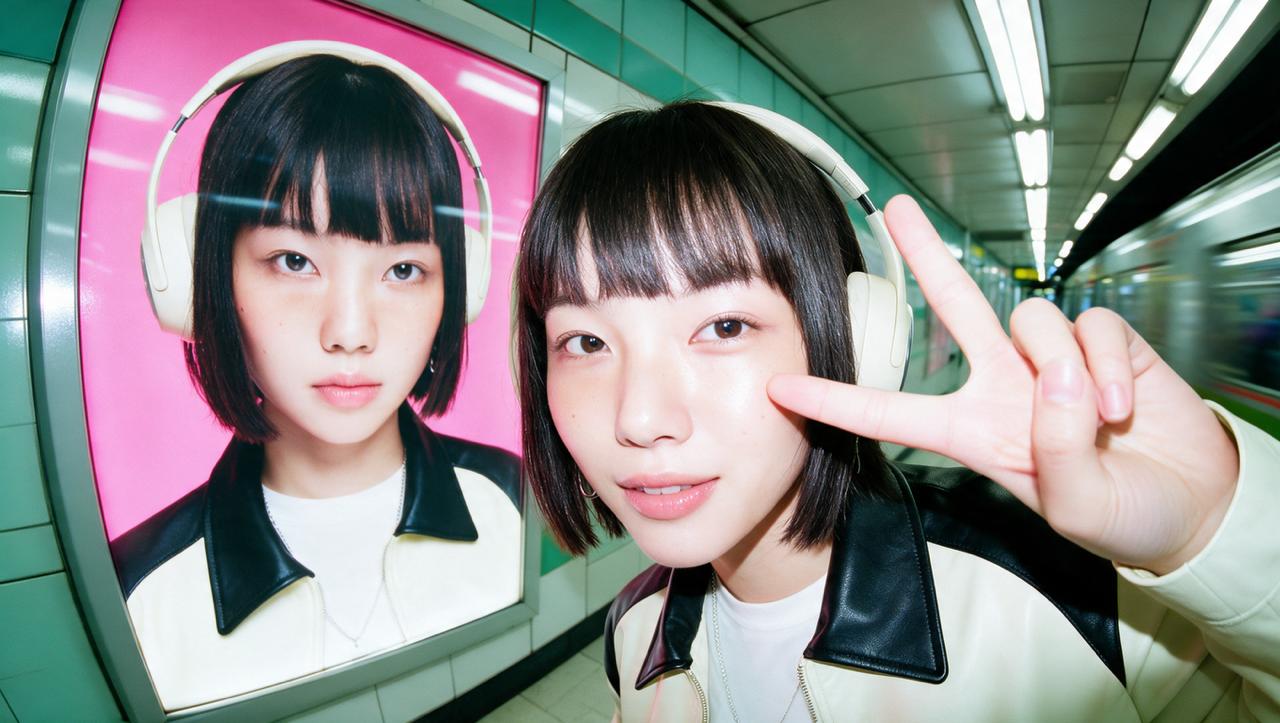
To turn a still character into a talking video in Higgsfield, start with a clear image and a short script or audio clip. Lipsync Studio animates the character to match the speech, while Soul ID can help keep the same identity across multiple images and videos.
What Makes a Talking Character Stay Recognizable?
Keeping a character recognizable means preserving more than the face. The eyes, jawline, hairstyle, proportions, signature details, and visual style should stay consistent as the character moves and speaks.
Feature | What to Check While the Character Speaks |
|---|---|
Eyes | Shape, spacing, and size stay consistent through blinks and expression changes |
Jaw and chin | The jawline keeps its shape as the mouth opens and closes |
Hairstyle | Parting, length, and volume stay the same through head movement |
Proportions | Head size, face width, and the distance between features match the source image |
Signature details | Glasses, freckles, earrings, scars, or other marks stay in place |
Image style | An illustrated or 3D character keeps its original style and doesn't drift toward photorealism |
The examples in this guide follow one made-up character, Nova: a presenter with short silver hair, round glasses, and a small freckle under her left eye.
Prepare Your Character Image and Script
Gather these five things before you generate anything.
- A clear image of the face. Use a front-facing image, or one with a slight angle, where the eyes, nose, and mouth are all visible. Choose a relaxed expression with clearly visible facial features and an unobstructed mouth.
- A short line of dialogue. Write one or two sentences that fit the length of the clip you plan to generate. A 15-second clip fits roughly 35 words at a natural pace.
- Audio that fits the character. If you use Audio text in Lipsync Studio, prepare the script before generating. If you plan to upload audio, generate or record the voice track first so you can check its pacing, tone, and duration before animating the character.
- A simple scene. Keep the shot simple. Covered mouths, extreme angles, and fast head movement can make lip sync less accurate.
- Permission for real people. If the character uses a real person's face or voice, you need that person's permission to use their likeness and voice. Clone only your own voice or one you have permission to use.
How It Works on Higgsfield
Higgsfield is an AI-native creative suite with 35+ models and tools. Two of them do the work in this guide, and each has a separate job.
Tool | What It's For | What You Provide |
|---|---|---|
Soul ID | Creates a character identity once and reuses it | 20+ clear reference images of the character |
Lipsync Studio | Makes a character talk, with lip sync | A character image, plus audio or Audio text |
Soul ID trains a reusable identity from 20+ reference photos and helps maintain the character’s facial identity across later generations.
Lipsync Studio turns a character image into a talking video or adds lip sync to existing footage. The model selector offers eight options, with supported inputs, resolutions, and durations varying by model. It supports 18+ languages.
If you already have video footage instead of a still image, Lipsync Studio also includes video-to-video options.
How to Create a Talking Character Video: Step by Step
Use the same character, Nova, at every step.
Step 1: Prepare your character. Choose the approved still of Nova: front-facing, glasses and freckle visible, mouth uncovered. If Nova will appear in more clips, train Soul ID on 20+ images first and generate this still from it.
Step 2: Choose the mode in Lipsync Studio. Go to Video, then Lipsync Studio. Because you're starting from a still image, pick an image-to-video model. Choose a video-to-video model only if you already have footage.
Step 3: Add the image and the audio. Upload Nova's image. Then type the line in Audio text, generate the audio, or upload your recording. For example: "Hi, I'm Nova. Here are three quick ways to make better coffee: fresh beans, a fresh grind, and water just below boiling.” Listen to the generated audio and check its actual duration before creating the video.
Step 4: Set the available options. Choose from the presets, resolutions, and duration options available for your selected model. For the Wan 2.5 Speak example, start with General and select 1080p and 10 seconds.
Step 5: Generate. Check the credit cost shown for your settings, then start the generation.
Step 6: Review and download. Play the clip with the sound on, check that the face, mouth, teeth, and lip sync hold up from the first word to the last, then download the version you want to use.
How Much Does It Cost?
This example prices a 10-second, 1080p talking video of one character.
Tool | Setting | Credits | Approx. Cost |
|---|---|---|---|
Soul ID | 1 character, one-time setup | 25 | $1.25 |
Audio (optional) | 10-second line with Seed Audio 1.0 | 1.2 | $0.06 |
Lipsync Studio | 10-second, 1080p with (Wan 2.5 Speak) | 40 | $2.00 |
First video | - | 66.2 | $3.31 |
Each later video with the same character | - | 41.2 | $2.06 |
Dollar estimates use an illustrative rate of $0.05 per credit; your effective rate depends on your plan or credit pack. Totals include the optional audio generation shown above and exclude reference-image creation, still-image generation, and retries. Check the displayed credit cost before generating.
Check Before You Download
Run through this list before you use the clip:
- Face: Eyes, jaw, hairstyle, and signature details match the source image.
- Mouth and teeth: Movement looks natural, with no warping or flickering.
- Lip sync: The mouth matches the audio from the first word to the last.
- Head and expression: Movements are smooth, and the expression fits the line.
- Style: The image keeps its original look, whether illustrated, 3D, or photo.
- Audio: The voice is clear and suits the character.
- Rights: You have permission for any real person's likeness and voice.