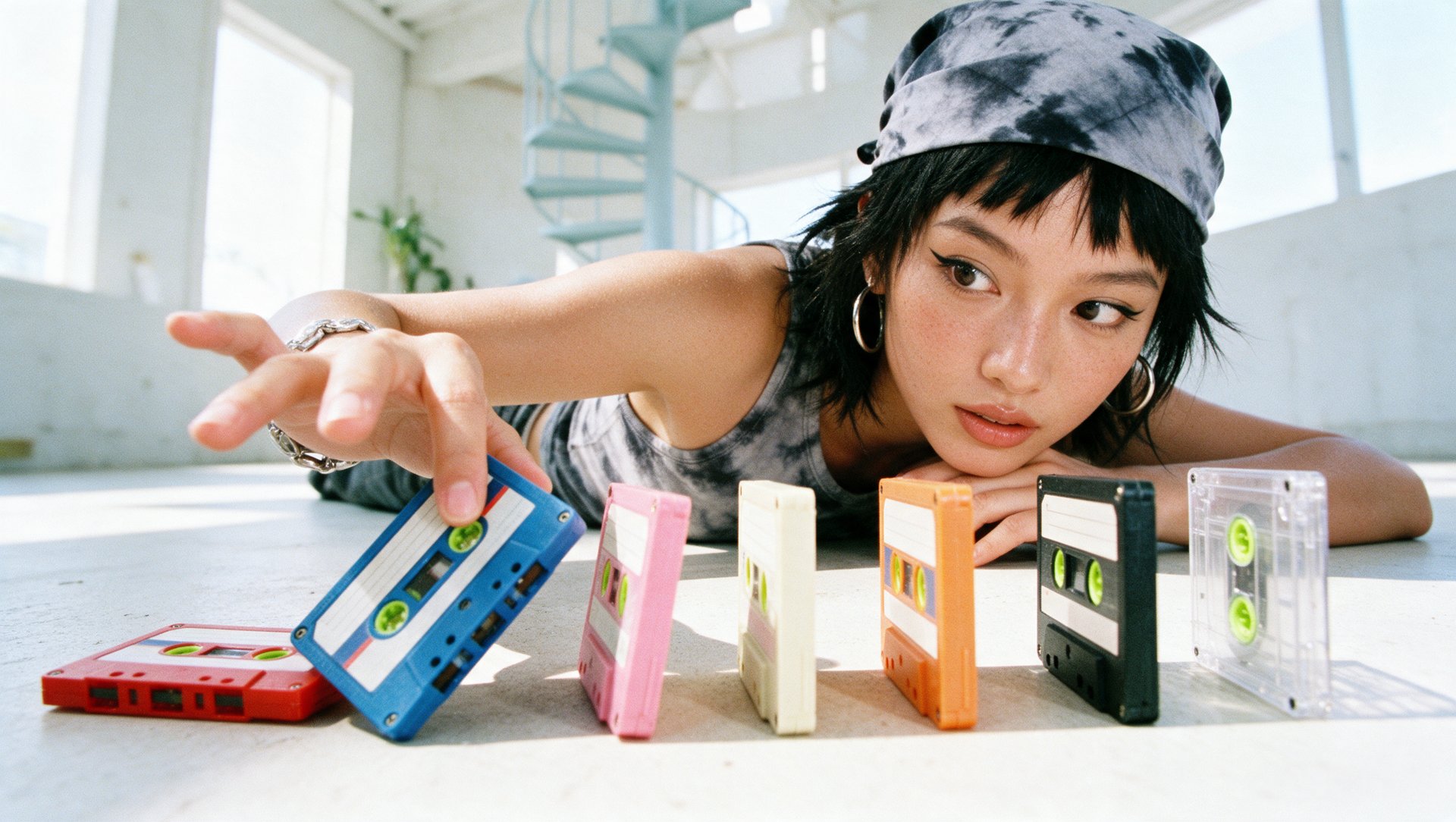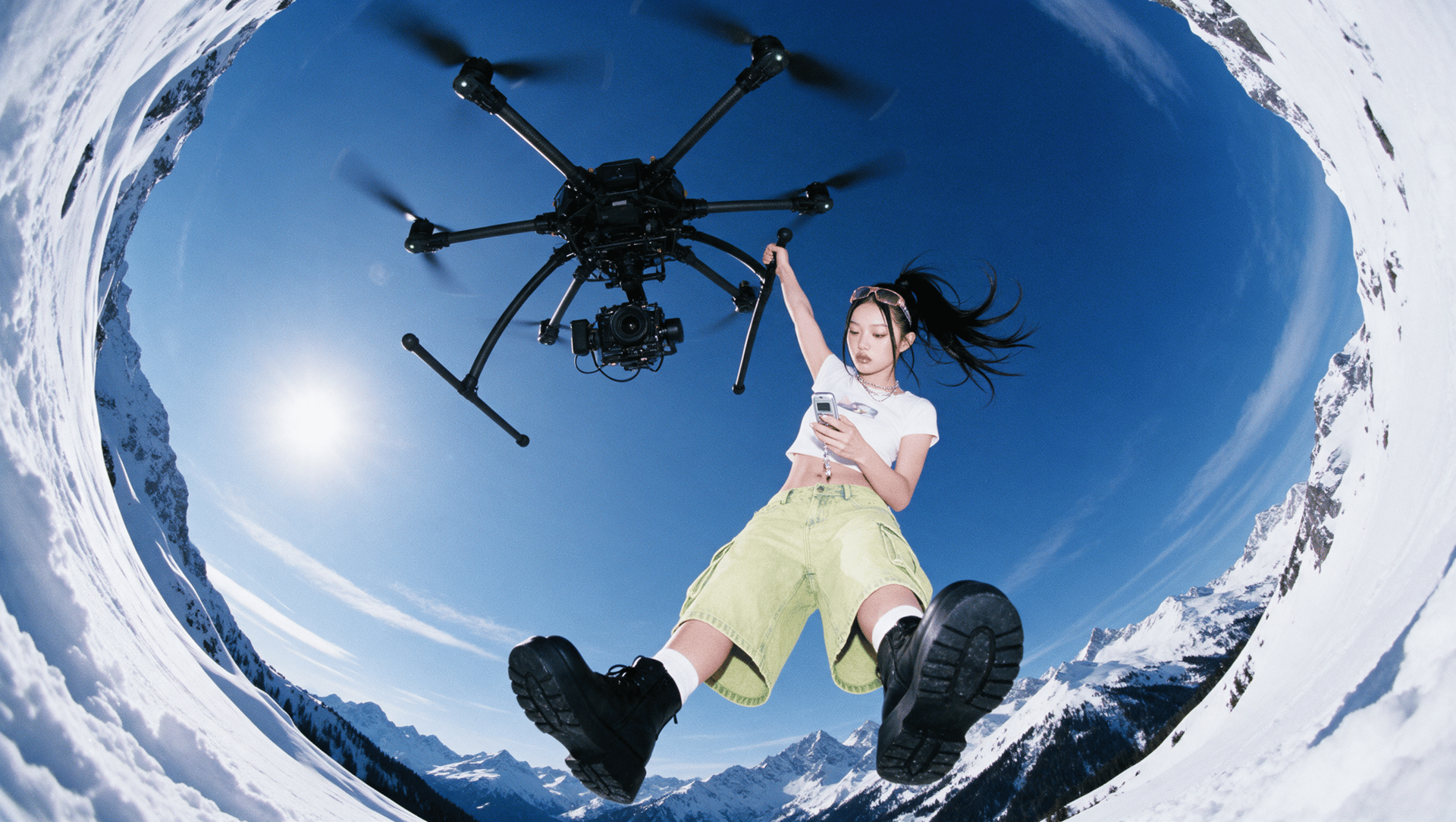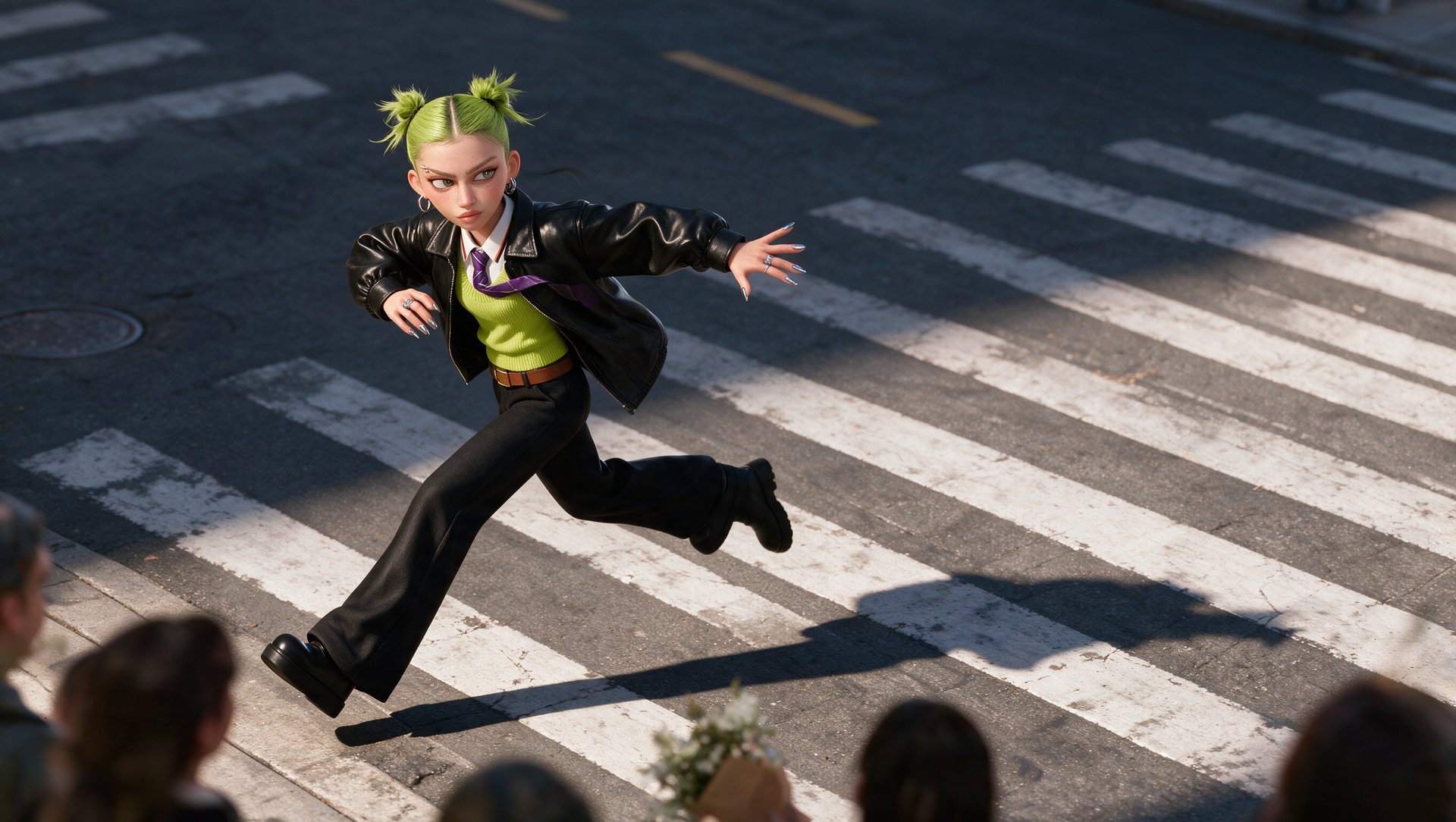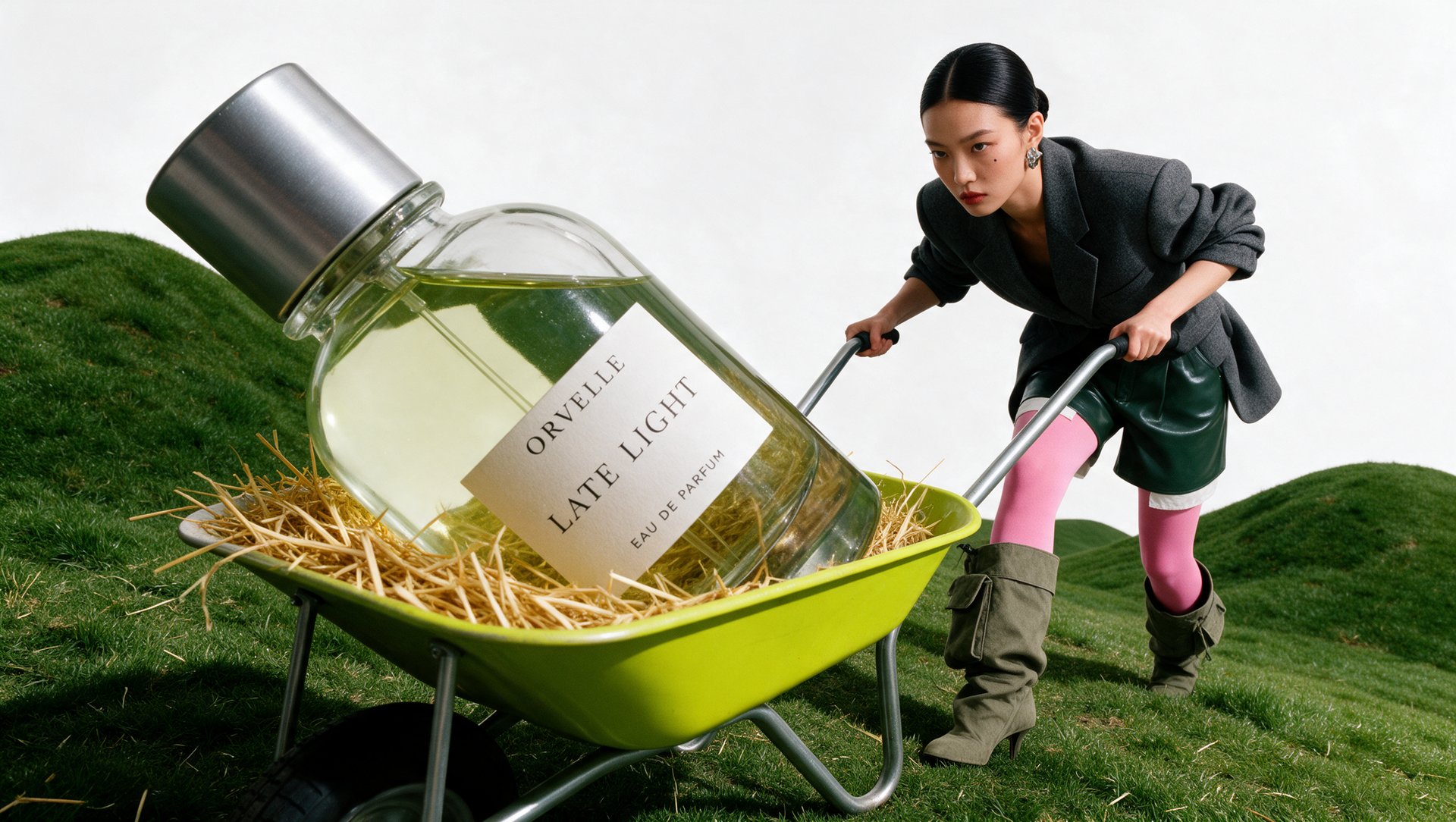
To make AI video look filmed, plan the light, choose one camera move per shot, set the focus depth and check every detail before you publish. In Higgsfield, an AI-native creative suite, you do this in Cinema Studio 4.0: set the camera, lens, light and color before you generate, then fix the finished clip with Relight, Edit Color Palette or Edit video. Below is the full process on one product ad.
What Do You Need Before You Start?
You need three things: a starting image, a plan for the light and a plan for the camera move.
A starting image: a photo of the product or a generated frame. Cinema Studio 4.0 accepts up to 50 references: images, videos and audio.
A light plan: where the light comes from (a window, a lamp, the sun) and how soft it is.
A camera plan: one move for the shot, decided before you write the prompt.
How Do You Frame and Light a Product Shot?
Frame one subject and use light with a clear source, the way you would on a real set. Decide both before you change any settings in the tool.
Composition:
- Keep the whole product in the frame, label to the camera.
- Show one main subject.
- Leave space in the direction of movement.
- Use one framing per shot: close-up, medium or wide.
Light:
Preset | Light | Best for |
|---|---|---|
Window | Soft side light | A product on a table in daylight |
Practicals | Lamps in the frame | Night interiors |
Silhouette | Dark subject, bright background | A product outline |
Contre jour | Light from behind | Glass, liquid, hair |
Overhead fall | Light from above | Counters, ceiling lamps |
Soft cross | Soft light from two sides | Even light on the whole product |
If no preset fits, build your own: set the color, brightness, diffusion and direction of each light.
How Do You Set Up the Shot in Cinema Studio 4.0?
Set the light, camera, lens and color in the Cinema Studio 4.0 panel before you write the prompt, instead of leaving them on Auto.
- Add references. Open Cinema Studio, choose Cinema Studio 4.0 and add the product image in References. Use @ in the prompt to add characters and locations.
- Set the film setup. Choose a Genre (General, Action, Epic, Drama, Comedy, Horror, Noir), an Era (1960s, 1980s, 1990s, 2000s or 2020s) and a Tempo (Chaotic, Dynamic, Calm, Single shot).
- Set the light. Pick a preset in Lighting or build your own.
- Set the camera, lens and aperture. Choose a Camera (Modern, 35mm Film, 8mm Film, DV Camcorder), a Lens(Clean Sharp, Anamorphic, Vintage Anamorphic, Warm Vintage, Halation Vintage) and an Aperture: a lower number means a wider opening, so f/1.4 Wide Open gives a shallow depth of field, f/4 keeps more of the scene in focus, and f/11 Deep Focus keeps everything sharp.
- Choose a camera move. Pick it in Movement, or type # in the prompt. You can add several moves to one shot, and the order matters.
- Choose a color palette. Pick one of 50+ palettes, or make your own from an image or a color wheel.
- Write the prompt and generate. Describe the action and the sound, turn sound On, and set the length (up to 30 seconds) and resolution (up to 1080p). You can generate up to 4 versions at once and compare them.
Movement has many camera move presets. Here are some that work well for product shots:
Camera move | What the camera does | Use it for |
|---|---|---|
Tilt up / Tilt down | Tilts vertically | Revealing a product from top to bottom |
Pan left | Turns horizontally | Following movement or showing the setting |
Crane up | Rises above the scene | Opening a scene |
Rack focus | Shifts focus from one subject to another | Moving attention to the product |
POV | Shows a first-person view | Showing the product from the user’s view |
Robot arm | Makes a fast, precise move around the subject | Fast moves around the subject |
Helicopter shot | Flies over the scene from above | Showing a large setting or location |
Snorricam | Stays fixed on a person’s body as they move | Following a person using the product |
What Does This Look Like on a Real Product Ad?
Here is one 6-second product shot made in Cinema Studio 4.0, from the starting image to the final clip.
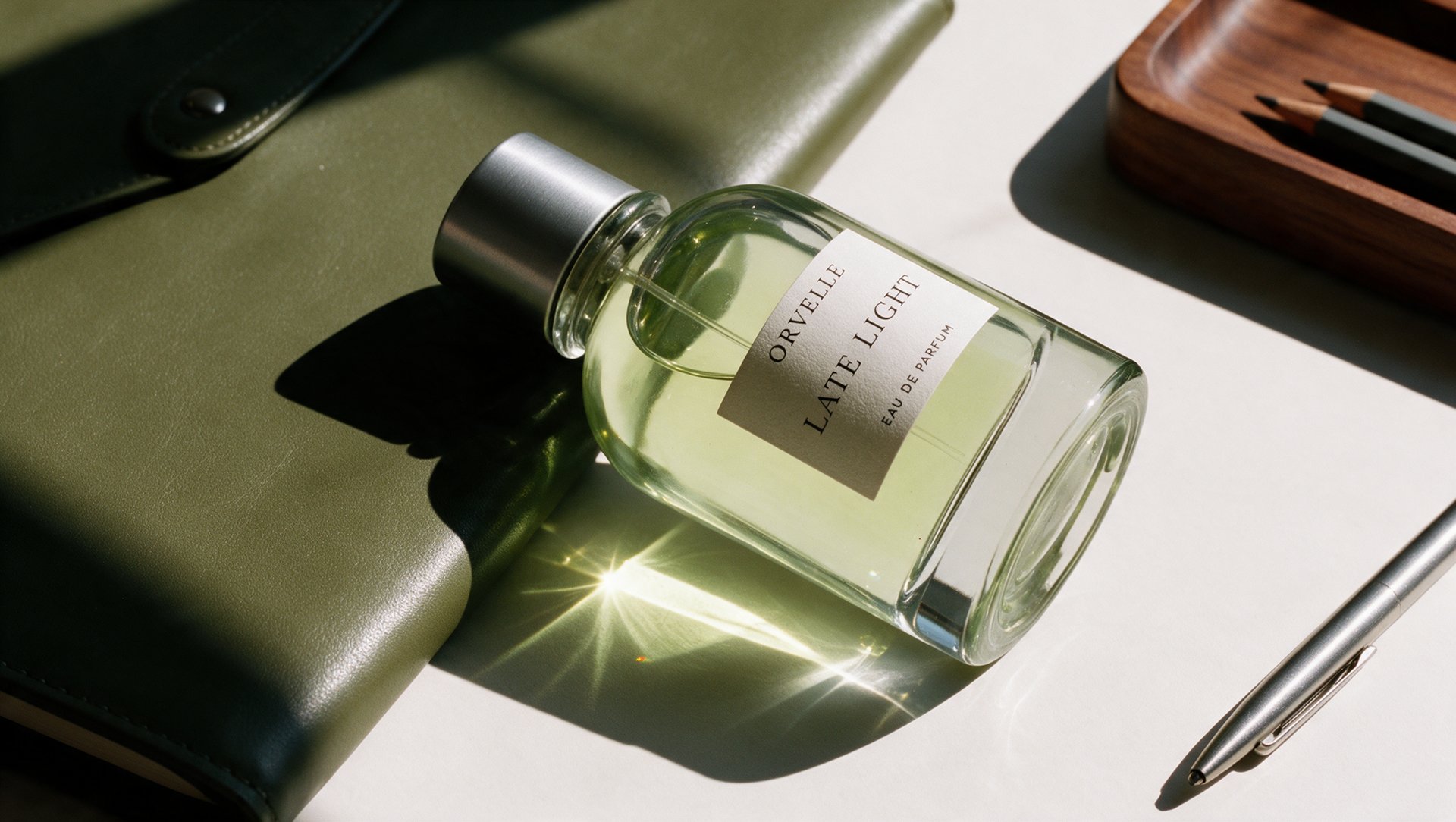
Step 1: Prepare the starting image. The starting image gives the model the composition, the colors, the light and the look of the product. Use a clean image with the product fully visible and the label readable, because the model takes its shape and text from this reference. Add it in References.