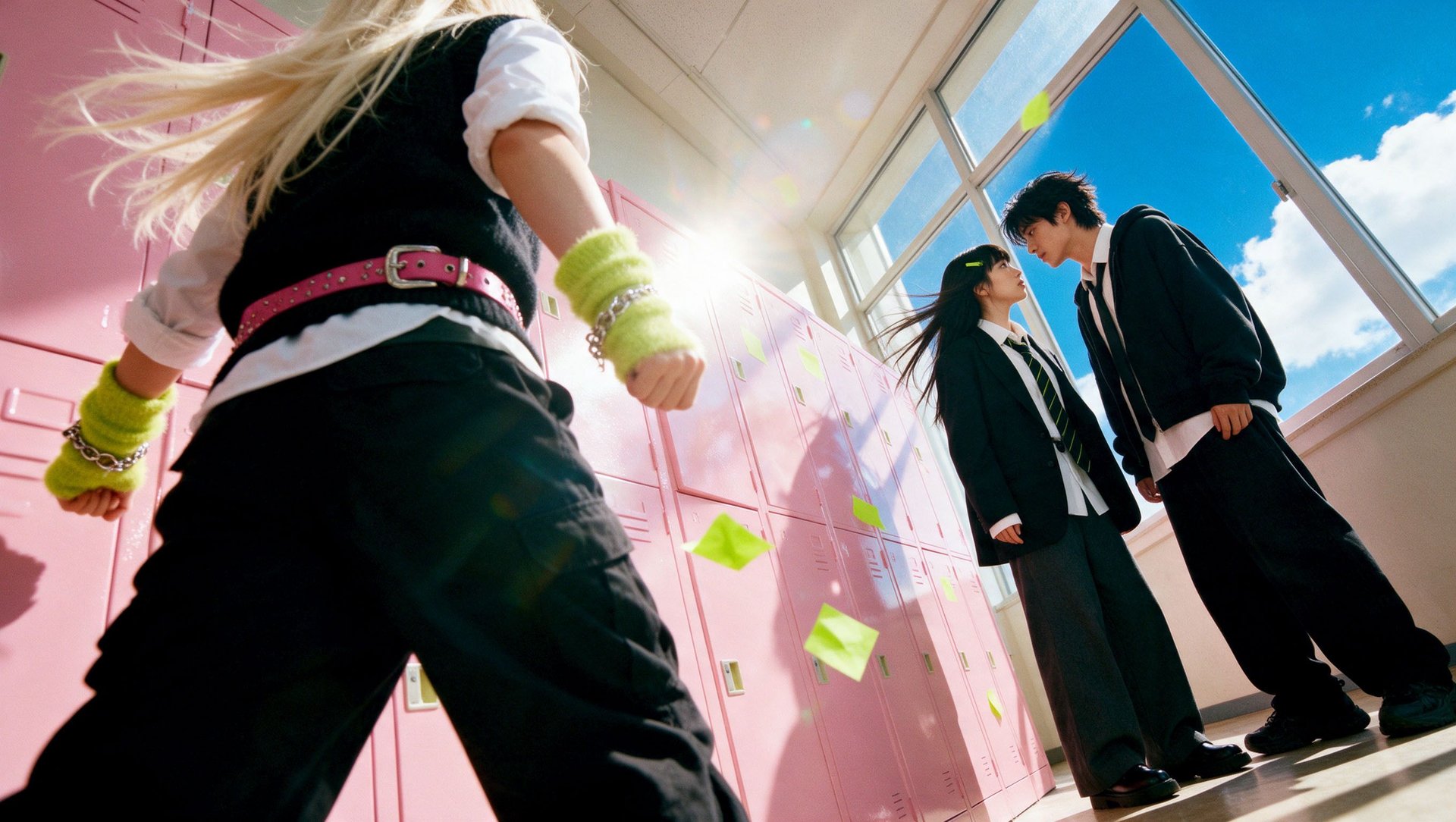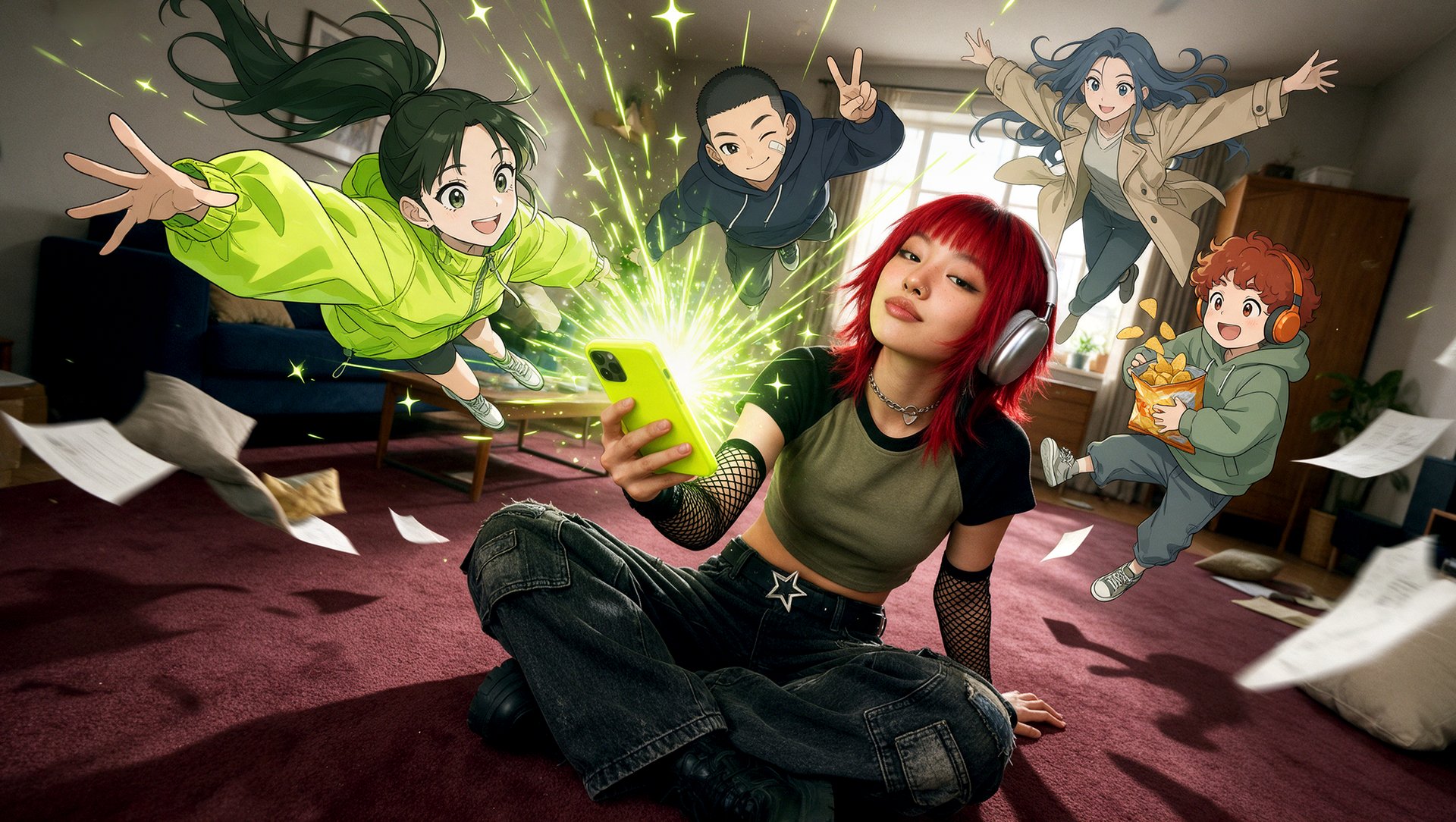
To make an AI short drama series, upload an episodic script, choose a visual style, prepare recurring characters and locations, and generate the clips for each episode. Higgsfield Short Drama Studio organizes the process into Script, Cast & World, and Episodes, with an agent that can make changes and help create episodes, and export options for videos and assets.
Key Takeaways
- Higgsfield Short Drama Studio prepares characters, locations, and important props from a script before episode generation.
- The web interface offers 480p draft, 720p, and 1080p video quality options.
- Episode planning and video generation are separate actions: review the planned clips before generating them.
- Check that every clip is ready before export: a downloadable episode includes only the clips that have finished generating.
- Short Drama Studio is also available through Higgsfield MCP using
/short-drama, with episodes produced one at a time.
What Is Higgsfield Short Drama Studio?
Higgsfield Short Drama Studio is a script-to-series tool that organizes production around a story’s episodes, cast, and world. Its workspace has three stages: Script, Cast & World, and Episodes. You can work through the controls yourself or use the agent panel to request changes and help with episode creation.
The workflow keeps the story’s production materials together:
Stage | What You Work With |
|---|---|
Script | Uploaded screenplay, visual style, analysis, and story breakdown |
Cast & World | Character appearances, locations, props, and their visual references |
Episodes | Planned clips, generation settings, previews, and clip history |
An episode can contain several generated clips. Treat the episode as the complete dramatic sequence and each clip as one part of that sequence.
What Should You Prepare Before Starting?
Before starting an AI short drama series, prepare a script with clear episode boundaries, consistent character names, and actions that can be shown on screen. Decide which people, places, and objects need to remain recognizable. Keep those details in a short reference document so you can check the generated material.
Continuity covers three things: a character should remain recognizable, an important prop should appear at the right moment, and dialogue should reflect what each person already knows.
Prepare these five items:
- Premise: Who wants something, and what stands in the way?
- Episode outline: What changes in each installment, what draws viewers into the opening, and what makes them want the next episode?
- Cast list: Names, relationships, and appearance details the plot depends on.
- Location list: Recurring settings and important features.
- Prop notes: Objects that carry clues, change hands, or return later.
Write visible actions where possible. For example, replace an abstract note such as “she becomes suspicious” with the action that communicates it: she notices a photograph, looks toward the door, and hides the phone.
How Do You Make an AI Short Drama Series?
Making an AI short drama series in Higgsfield involves seven steps, from uploading the screenplay to checking the downloaded result. The manual path below follows the web interface. Use it to review the script breakdown, create the visual references, and check each episode before export.
Step 1: Upload Your Script
Open Short Drama Studio and select Upload under Upload your script.
The upload screen accepts:
File Type | Extension |
|---|---|
Word document | .docx |
Final Draft screenplay | .fdx |
Plain text | .txt |
Markdown | .md |
The displayed file-size limit is 10 MB.
Before uploading, check your source document for recognizable episode headings, scene locations, speaker names, and dialogue. Use one consistent name for each character, and make any aliases explicit.
For a series, mark the boundaries between episodes clearly. Those boundaries give you something concrete to compare with the resulting breakdown.
Step 2: Choose Your Visual Style
Select the visual style in the Script workspace before starting analysis. Choose a direction that fits the story’s emotional tone and the kind of characters you want to depict.
Short Drama Studio’s style selection includes these 15 options:
Style | Visual Direction |
|---|---|
Higgsfield Cinematic | Realistic cinema with dramatic lighting and expressive composition |
Coming of Age | Natural light, everyday settings, and intimate emotions |
K-Drama | Soft lighting, romantic atmosphere, and emotional close-ups |
Romantic comedy | Bright colors and a light romantic tone |
90’s | Soft imagery and nostalgic film styling |
Dark Academia | Historic interiors, cool tones, and deep shadows |
Anime | Japanese animation styling with expressive characters and detailed backgrounds |
2.5D | Illustrated imagery with depth created through light and shading |
Furry | Anthropomorphic animal characters with human expressions, clothing, and gestures |
Classic 3D | Rounded animated characters and expressive faces |
Painterly 3D | Dimensional characters with painted textures and visible brushwork |
CGI | Detailed computer-generated imagery with realistic materials and lighting |
Noir 3D | Dark 3D imagery with strong contrast and a noir atmosphere |
Classic 2D | Drawn animation with clear outlines and flat colors |
Painterly 2D | Illustrated imagery with watercolor textures and visible brushstrokes |
Use the chosen style as a reference when reviewing the cast and settings. Check whether the characters, clothing, lighting, and locations match the same style.
Choose the aspect ratio when you set up the project, next to the style; 9:16 is the vertical format. You can also change the aspect ratio in Episodes before generating.
Step 3: Analyze the Script
Select Analyze script to begin the breakdown.
During analysis, the interface shows progress through tasks including finding scenes, polishing the script, adding details, and identifying characters, places, and props. As analysis runs, the Script workspace shows a series summary under Series global context, story tags such as Family drama and Secret family, and lists of episodes, characters, props, and locations. A Knowledge graph tab is also available.
Review the breakdown against your source:
- Are the intended episodes represented?
- Are the characters identified correctly?
- Are recurring locations recognizable?
- Are important story objects included?
- Does the Series global context summary preserve the central conflict?
- Were any scenes, dialogue, or plot details added or changed during analysis?
The Script screen also offers Auto-generate all. For a first project, use the manual path so you can check the characters, locations, and props before you generate video.
Check the credit cost on the button before you start (on the Script screen, it is an estimate). Script analysis, reference preparation, and clip generation appear as distinct actions in the workflow.
Step 4: Build Your Cast and World
Open Cast & World to prepare the visual references for Characters, Locations, and Props.
Generate faces creates four face options to choose from, or you can upload a photo. Only upload images you own or have permission to use, and get consent before using a real person’s likeness. After selecting a face, use Generate main sheet to create the character reference.
The interface also provides Upload, Regenerate, and Edit in chat controls. Character references can include additional appearances through Add look.
Review more than the face. Check clothing, silhouette, and any detail the plot requires the audience to recognize.
Next, prepare the locations and props. Their cards support generation or upload, and Add state provides a way to represent another condition of the same setting or object. For example, a phone can have a separate state showing a photograph that a character needs to see.
Use the episode filter to see the materials for each episode. When preparation is complete, select Continue to episodes.
Step 5: Plan the Episode
In Episodes, select Plan episode.
Planning prepares the clip breakdown before the videos are generated. Plan episode can split an episode into more clips than the analysis screen shows. Review the clip count in Episodes before generating.
The episode card displays the planned clips, and individual clip sections show information such as:
- Clip number and title.
- Cast in this clip.
- Character appearance references.
- Props used in the clip.
- The clip’s Prompt.
Compare the plan with the screenplay. Check whether the opening, reveal, reaction, and ending are represented in the intended order.
Check when each character learns something. A photograph that reveals a secret should appear when the story calls for it. A character should react only after learning the information.
The agent panel provides a place to request changes. Make requests specific by naming the episode, clip, character, or action you want addressed.
Step 6: Generate and Review the Clips
Choose the video quality from the menu:
- 480p draft
- 720p
- 1080p
Check the aspect ratio and the credit cost on the button, then select Generate all for the episode’s clips.
For an initial review, start with 480p draft. Check the action and framing before you generate at a higher quality.
Individual clip cards include History and Regenerate controls. A completed draft also shows Upscale to 1080p.
Review each completed clip for:
- Action: Does the intended event happen?
- Identity: Are the characters recognizable?
- Continuity: Do clothing, props, and locations fit the scene?
- Dialogue: Are the words and speaker assignments correct?
- Sequence: Does the clip connect logically with its neighbors?
The right-hand agent panel also includes Auto-run. If the agent generates the clips, check them the same way.
Check the credit cost on the button before you regenerate or upscale.
Step 7: Review and Export the Episode
Play the episode and confirm that all planned clips are ready before downloading.
Open Export. The export window includes Everything, Videos, and Assets tabs, with categories for:
Export Category | Material Shown |
|---|---|
Episodes | Episode videos and their displayed duration |
Clips | Individual clips and how many are ready |
Cast & world | Generated reference sheets |
Download ZIP saves an archive with the assembled episode video, an Episode clips folder, and a Cast & World folder with the reference sheets.
Before exporting, check that every planned clip is marked ready. If you export before all clips finish, the downloaded episode may be incomplete. When clips are missing, the button at the top of Episodes offers to generate the remaining ones.
Play the downloaded file once more to check its picture, sound, sequence, and ending.
The series stays in My projects on the Short Drama Studio page as a card with a poster, the series title, and an episode count. Short Drama Studio creates the poster automatically.
For a multi-episode script, Episodes lists each episode as a numbered card. Plan, generate, and review each one the same way, and check it against the earlier episodes before exporting.
How Much Does an AI Short Drama Cost on Higgsfield?
Short Drama Studio uses Higgsfield credits, and each paid action shows its cost on the button. Script analysis, reference sheets for characters, locations, and props, episode planning, and video generation are charged separately; generating face options is free. The total depends on the number of episodes and clips and the selected quality, and regenerations and upscaling add to it. The Usage counter in the project header shows how many credits the project has used.
Can You Make a Short Drama Through MCP?
Higgsfield also provides Short Drama Studio through MCP using /short-drama. You can start from the Short Drama Studio page with Try in Claude or Try in ChatGPT. The published workflow accepts a script or an idea and describes planning, reference creation, clip generation, and assembly. You can choose a step-by-step mode or full auto, along with 480p draft, 720p, or 1080p quality.
To start:
- Follow the connection instructions on the Higgsfield MCP page.
- Select
/short-dramain your connected assistant. - Provide the script or idea, choose the quality and working mode, and review the plan and quoted cost.
The current MCP workflow produces one episode at a time, with a maximum assembled duration of 180 seconds. Additional episodes are handled sequentially, reusing returning character references.
How Do You Keep an AI Drama Series Consistent?
Keeping an AI drama series consistent requires checking recurring visual references and what changes in the story together. Use a short series document to track character appearances, locations, possessions, and discoveries. Review each new episode against that document, paying attention to intentional changes introduced by earlier events.
A practical continuity record can use four columns:
Episode | What Changes | Who Knows | What Must Carry Forward |
|---|---|---|---|
Episode entry | Discovery, decision, or consequence | Characters who receive the information | Appearance, prop, or relationship detail |
Fill the record from your own screenplay.
Give important objects consistent descriptions. Record when a character acquires, loses, hides, or reveals one.
Review episodes in sequence as well as individually. A face can remain recognizable while the story contradicts itself, and a technically complete clip can still omit the action that explains the next scene.
What Does an AI Short Drama Series Need?
An AI short drama series needs a clear episodic script, reusable visual references, and a review process that checks the whole story. Higgsfield Short Drama Studio splits this work into three stages: Script, Cast & World, and Episodes. Start with one episode, inspect its clip plan, and confirm completion before exporting.