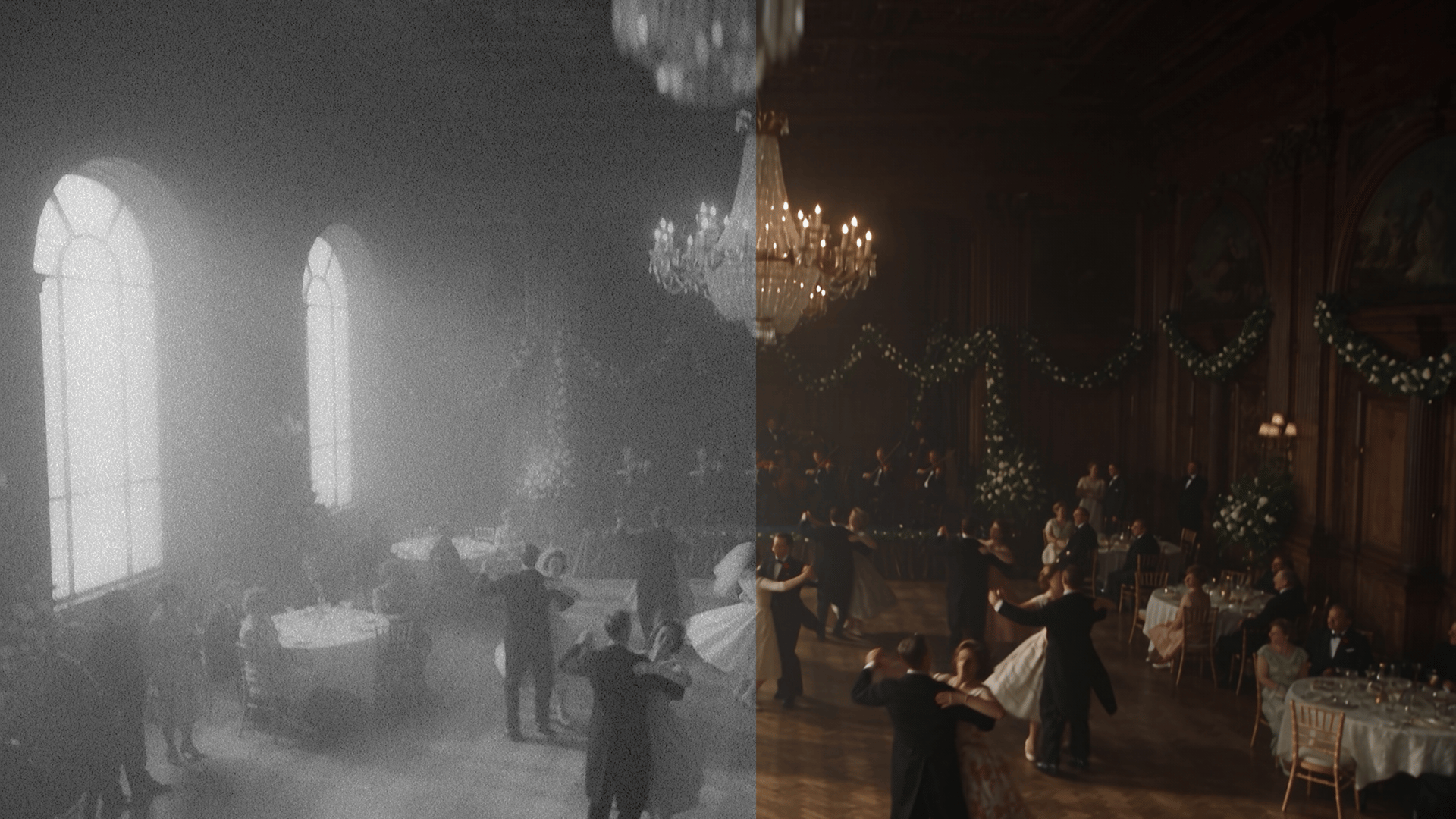
To enhance and restore old video with AI, you need a tool built for the job. It removes noise and artifacts, rebuilds lost detail, and upscales resolution without flattening what made the original footage feel truly real. On Higgsfield, use Video Upscale for resolution or image quality. Use Seedance 2.5 Edit for targeted cleanup, recoloring, or relighting, running both together when a clip needs it.
What AI Video Restoration Can Fix
Old footage breaks down in predictable ways. Resolution goes soft, compression adds artifacts from repeated re-encoding, color fades or shifts, and analog sources pick up flicker and grain. Faces and textures lose detail the more a file gets copied. AI restoration targets each of these separately, not with one blanket filter across the whole clip.
Damage Type | What Restoration Does |
|---|---|
Low resolution | Enhances visible detail while upscaling |
Compression artifacts | Removes blocking and noise introduced by repeated encoding |
Flicker and grain | Stabilizes and denoises frame by frame |
Faded or shifted color | Corrects faded or shifted color while aiming to stay close to the original look. |
Interlacing | Deinterlaces older video into clean progressive frames |
Soft faces and textures | Rebuilds fine detail in faces, clothing, and landscapes |
How It Works on Higgsfield
Higgsfield has several models and tools that let you make targeted, local changes to a video, but two of them cover restoration specifically: Video Upscale and Seedance 2.5 Edit.
- Video Upscale: use it for resolution, sharpness, detail enhancement, and overall image quality.
- Seedance 2.5 Edit: use it for targeted changes such as cleanup, recoloring, relighting, or correcting specific parts of the clip.
The two aren't mutually exclusive, so a clip needing both quality enhancement and targeted correction can run through both tools.
What's Inside Each Tool
Video Upscale covers this through three models, each built around a different tradeoff between fidelity and creative enhancement.
Model | What It Does | Problem It Solves | Key Settings |
|---|---|---|---|
ByteDance Upscale | High-fidelity upscaling up to 8K, with presets built to control detail directly | Low resolution, interlacing | Model version (Standard/Pro)Resolution (Up to 8K) Frame rate (30/60fps), Preset (e.g. Common) |
FLUX.3 Upscale | Works either way, staying close to the original or actively improving detail beyond the source | Low resolution, compression artifacts | Up to 13.75 MP/frame Creativity (Precise or Creative) Optional prompt |
Topaz Video | Diffusion-based enhancement that can add new detail, not just recover what's already there | Flicker and grain, soft faces and textures | Scale factor, Enhancement toggle, preset (e.g. Starlight Precise), Auto/Manual parameters, frame interpolation |
Seedance 2.5 Edit is a broader editing model, several of its six core capabilities cover the job directly. It edits an existing clip, up to 30 seconds, through a text prompt, up to 50 image and audio references, or by drawing directly on a frame to mark the area that needs to change.
For restoration specifically:
Capability | What It Does | Problem It Solves |
|---|---|---|
Recolor & Restyle | Handles color grading and faded or shifted color | Faded or shifted color |
Smart Clean Up | Removes unwanted elements, dust, wires, artifacts, from a scene without manual tracking | Compression artifacts, unwanted visual noise |
Relight & Atmosphere | Adjusts lighting and shadow behavior, accounting for the scene's 3D geometry, not a flat filter across the frame | Flat or inconsistent lighting |
Output settings cover resolution (480p, 720p, or 1080p) with native audio.
What to Do Before You Restore Old Footage
- Track down the best available source file before restoring anything. A copy that's already been re-compressed several times carries artifacts that restoration has to fight against. The original file, or the closest thing to it, gives noticeably better results.
- Keep the original frame rate and aspect ratio intact going in. Changing either before restoration adds an extra layer of interpretation for the model to work through, on top of the actual damage already in the footage.
- Watch for footage that's been heavily filtered or stylized already. A clip with a strong color grade or an intentional grain effect applied on top of the original damage can confuse what restoration is supposed to fix versus what's a deliberate creative choice.
Full Workflow: Step-by-Step Guide
Workflow A: Video Upscale
Step 1: Upload the footage. Open the Video Upscale tool and upload the clip that needs restoring.