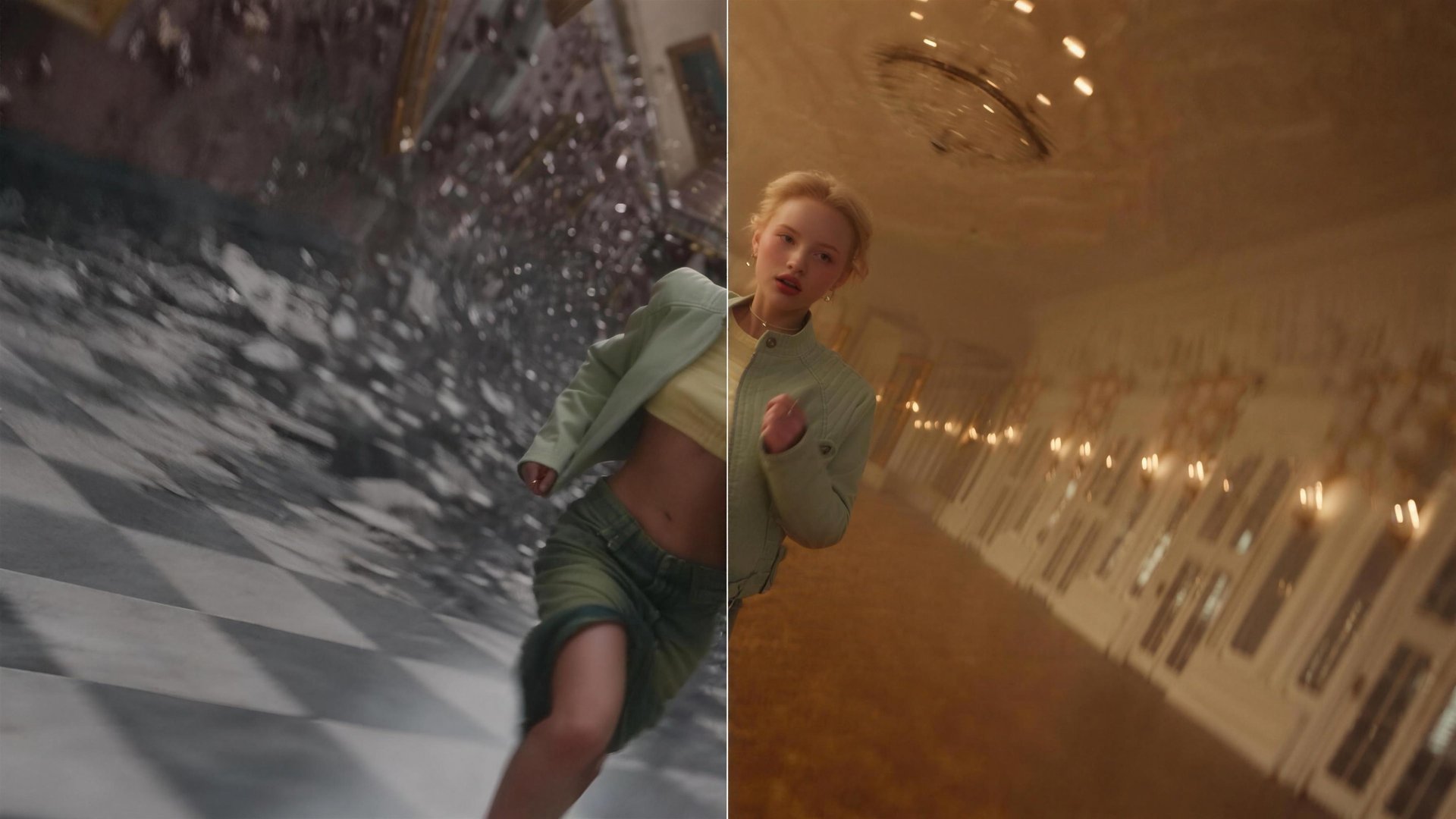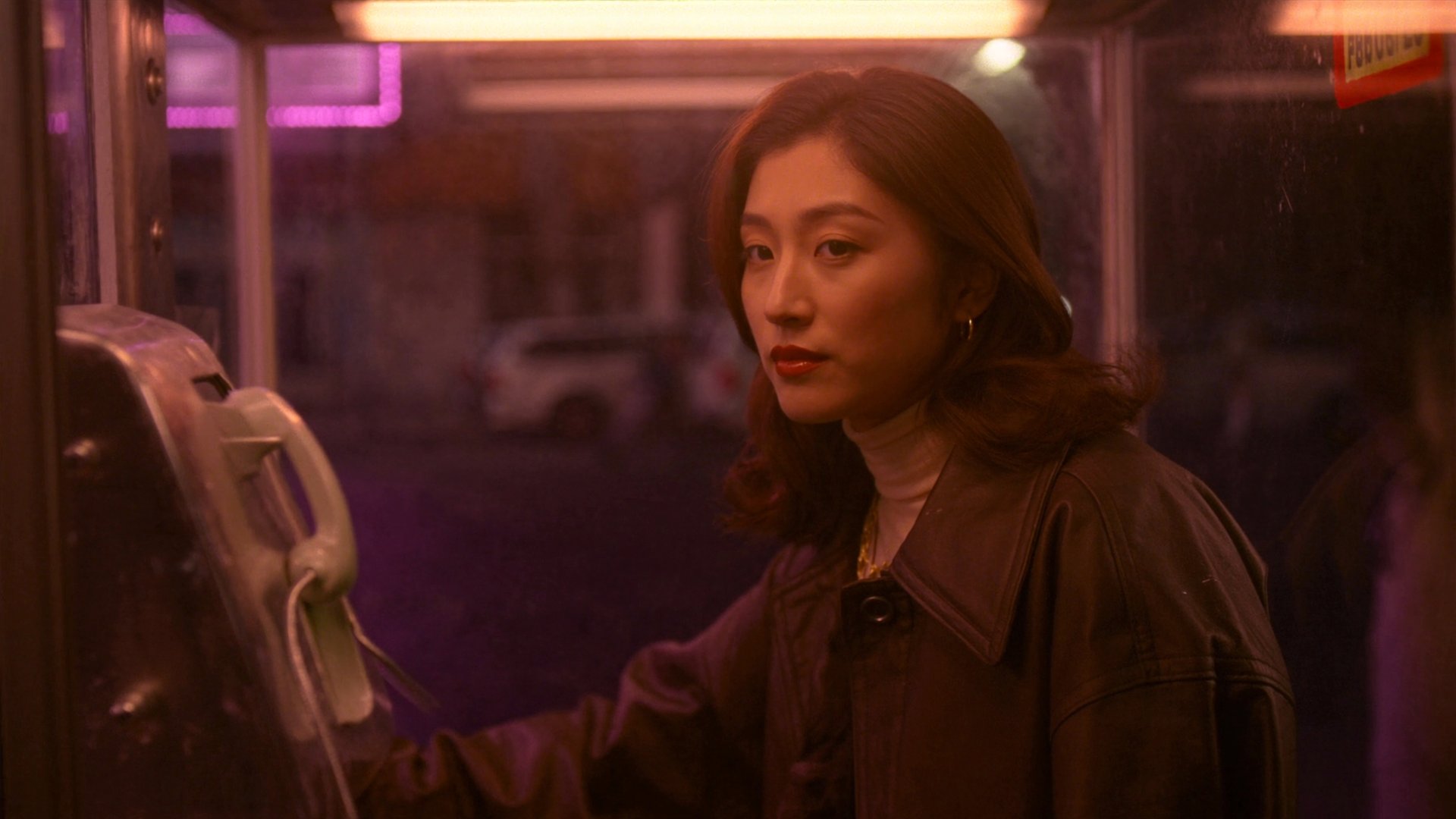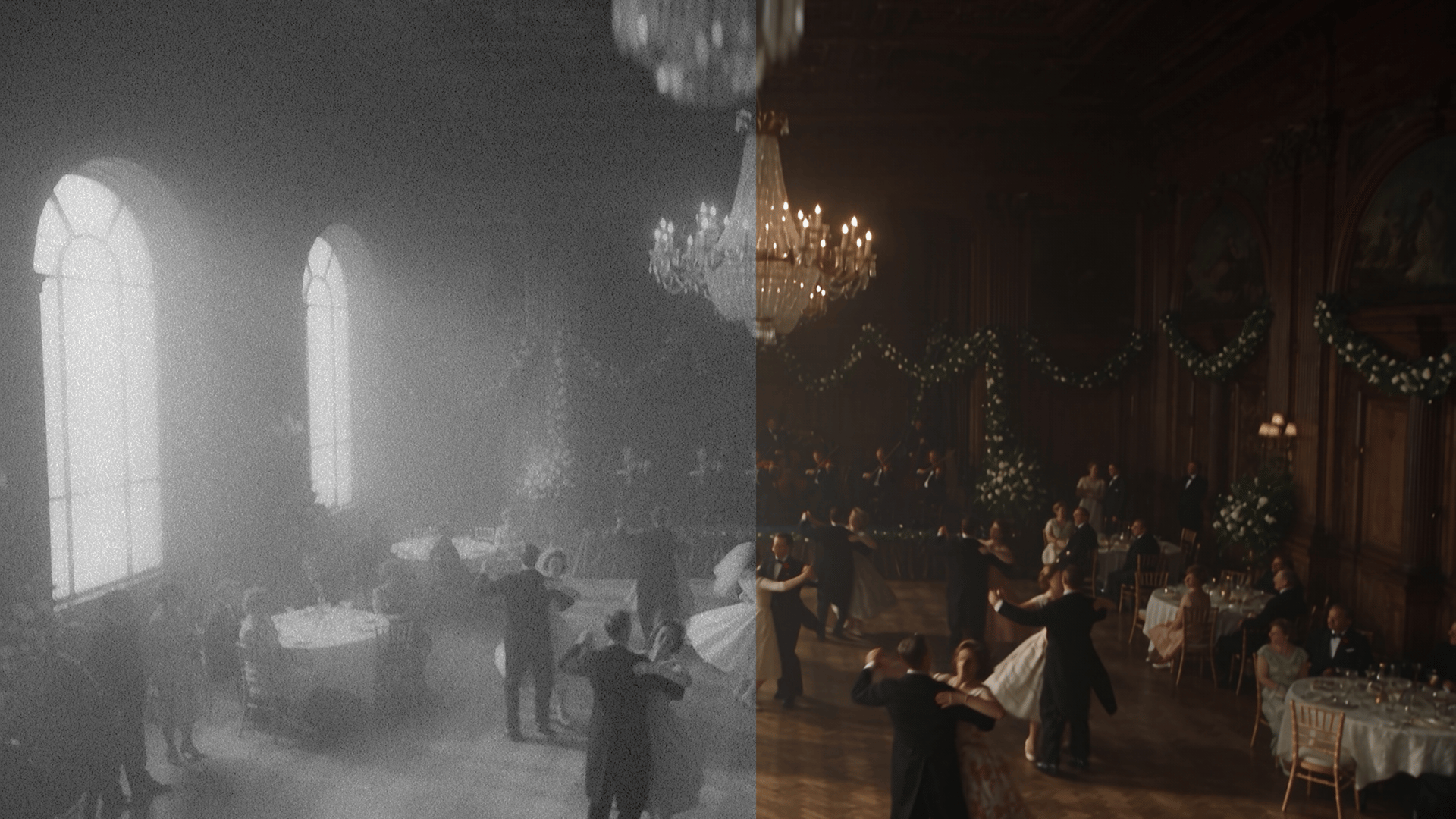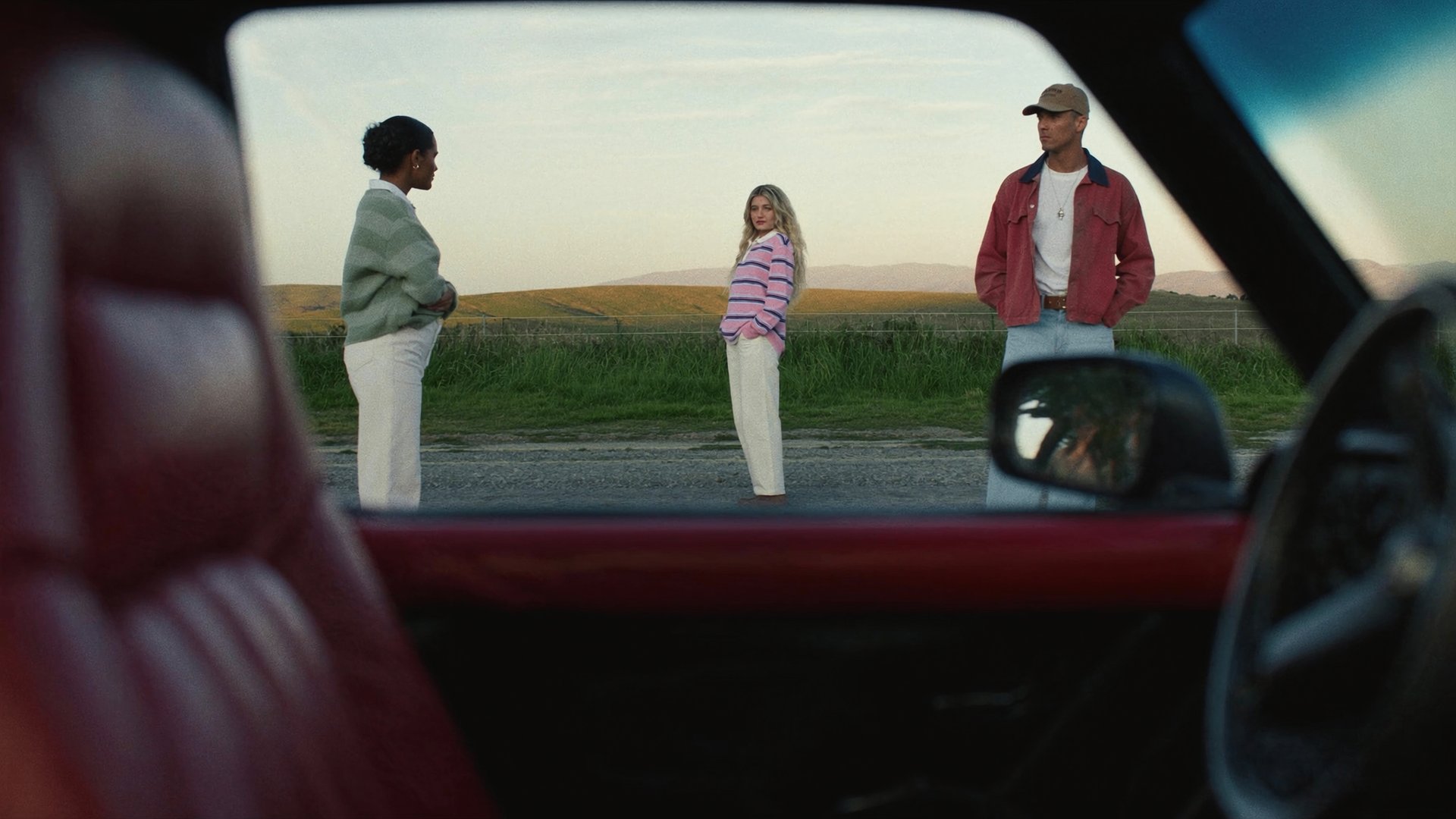
To change one element in a finished AI video without losing everything else, point directly at what needs to change. That could be an object, a region, or a movement or performance. Describe the replacement, and the rest of the frame stays exactly as rendered, camera, lighting, timing. That's the difference between editing a clip and regenerating it from scratch.
Why Full Regeneration Can Create New Problems
Run the same model with the same prompt twice, and you rarely get the same clip back. The character might look slightly different, the camera might frame the shot from another angle entirely. Nothing about the prompt locks in an exact repeat. That's fine when you're still exploring ideas. It's a different story once a clip is finished and approved, and only one small thing needs fixing. At that point, regeneration is the only option, and it can come back with a different camera drift, an expression that's off, or the opening moment changes.
What Gets Regenerated | What's at Risk |
|---|---|
Camera movement | A different drift, angle, or push-in than the approved take |
Pacing and tempo | Timing shifts that throw off the edit around it |
The actor's expression | A smile, a glance, a reaction that doesn't match the original |
The hook | The exact opening moment that made the ad work in the first place |
Full regeneration can also cost more because every retry rebuilds the entire clip.
How to Edit Elements in a Video on Higgsfield
Higgsfield Genjutsu covers this through two features:
- Object Swap replaces a specific object, a character, an outfit, a product, while everything else in the shot, the camera, the lighting, the motion, stays exactly as filmed.
- Motion Transfer takes the motion, camera work, and timing from an existing video and applies it to an entirely new scene built around a different subject or setting. Up to 30 reference images can guide either generation, alongside one source video up to 30 seconds. A prompt can be written directly to describe the change, or a preset can drive it without any text at all. Output goes up to 1080p.
Seedance 2.5 Edit is better when you want to mark a region or describe a local change.
- The first is writing a prompt that describes the change directly, letting the model interpret where in the frame that change applies.
- The second is Draw to Edit, marking the exact region on the frame that needs to change first, then describing what happens inside that marked area, useful when the edit doesn't map cleanly to one named object.
Up to 50 references can guide a generation, alongside video up to 30 seconds. Output goes up to 1080p.
Full Workflow: Step-By-Step Guide
Workflow A: Higgsfield Genjutsu
Step 1: Upload the source video and pick a feature, Object Swap for changing one thing in the shot, Motion Transfer for carrying the motion onto a new scene.