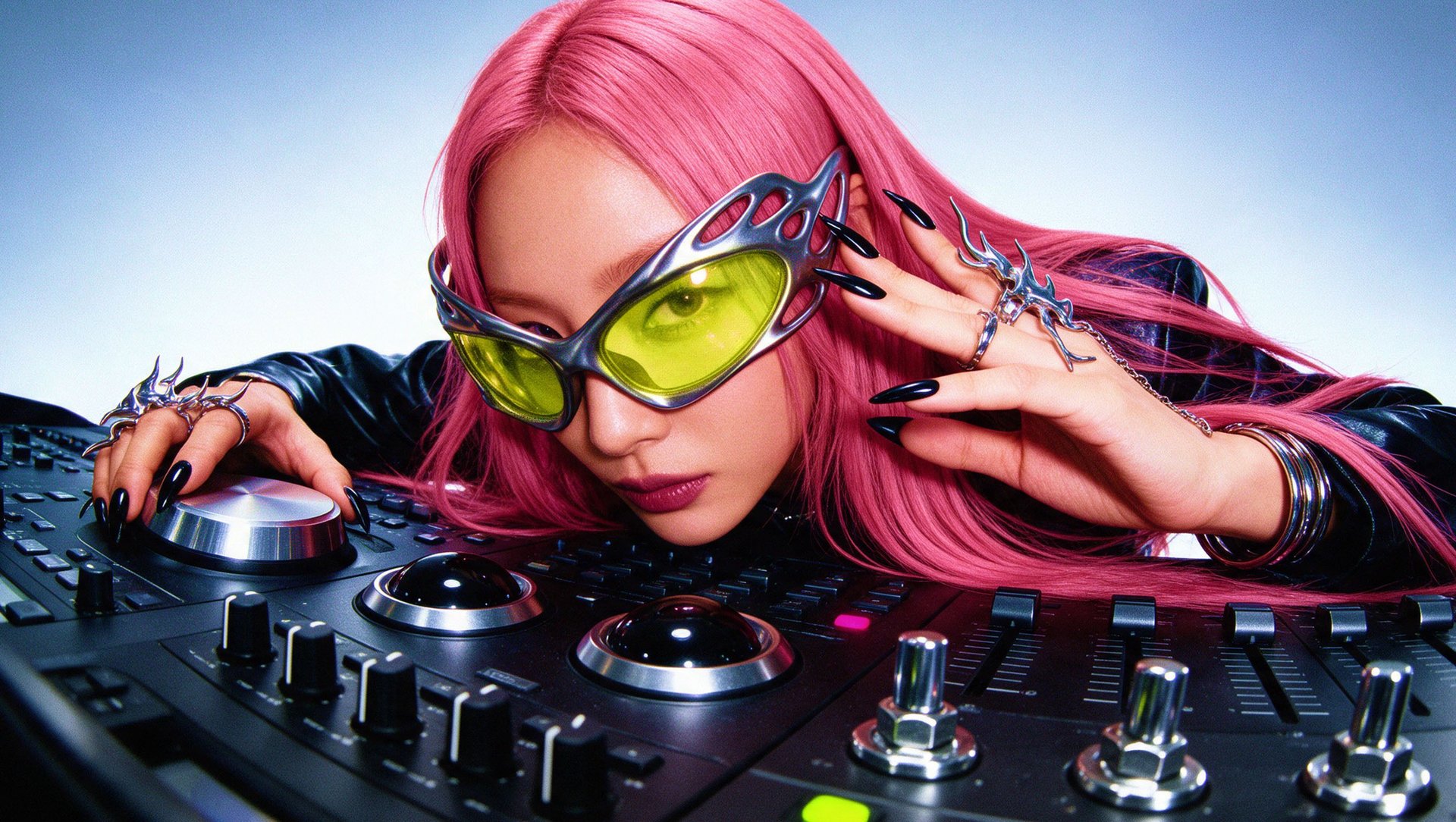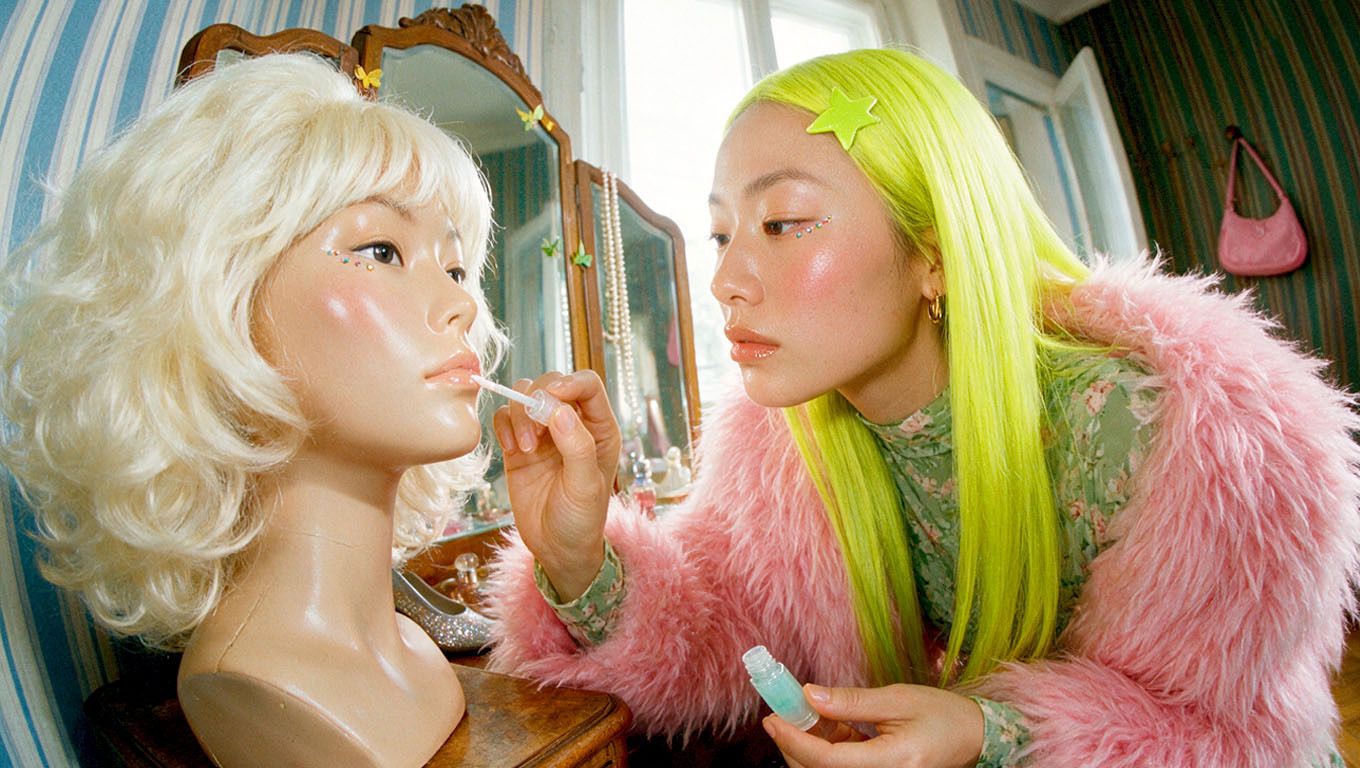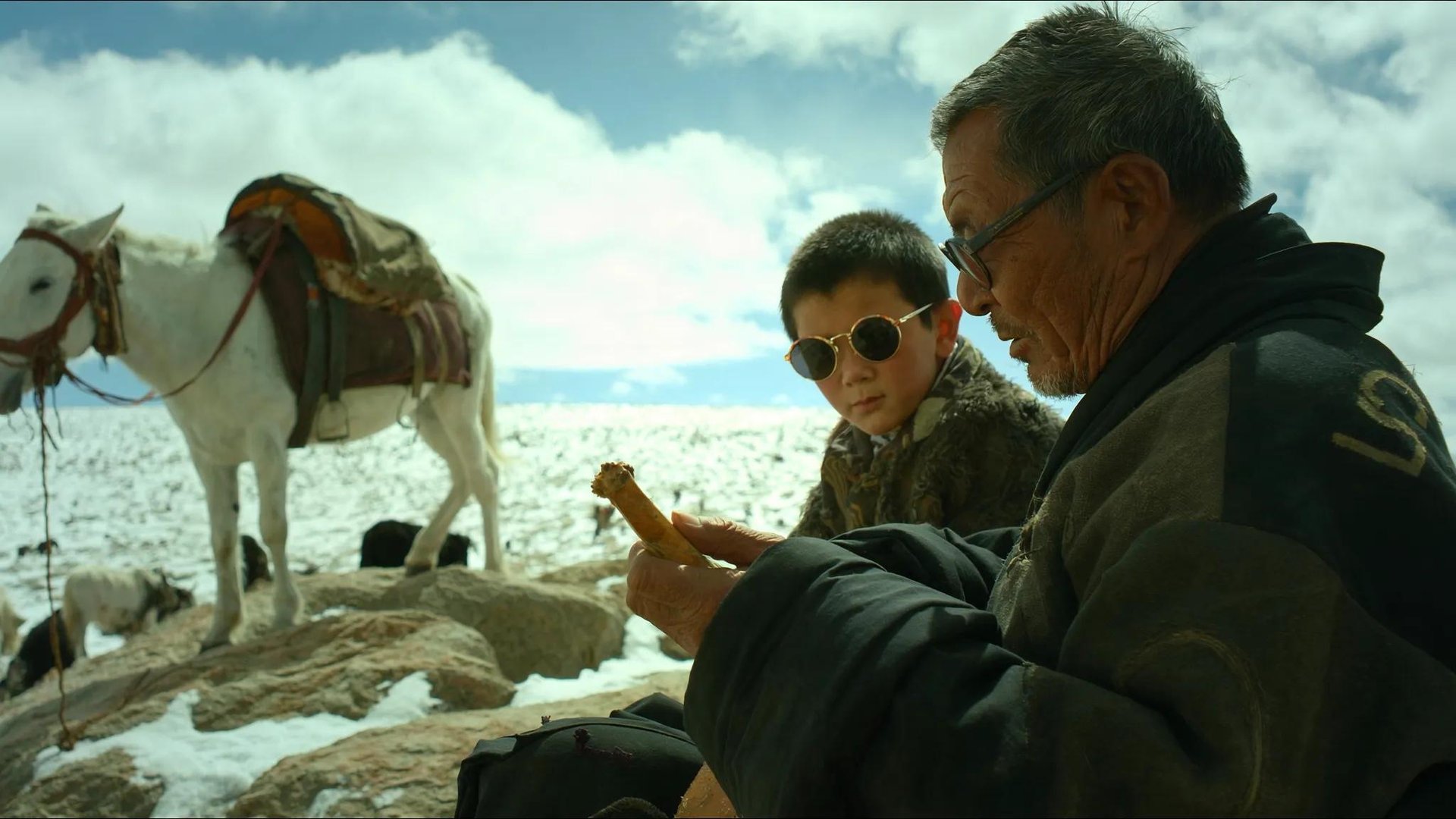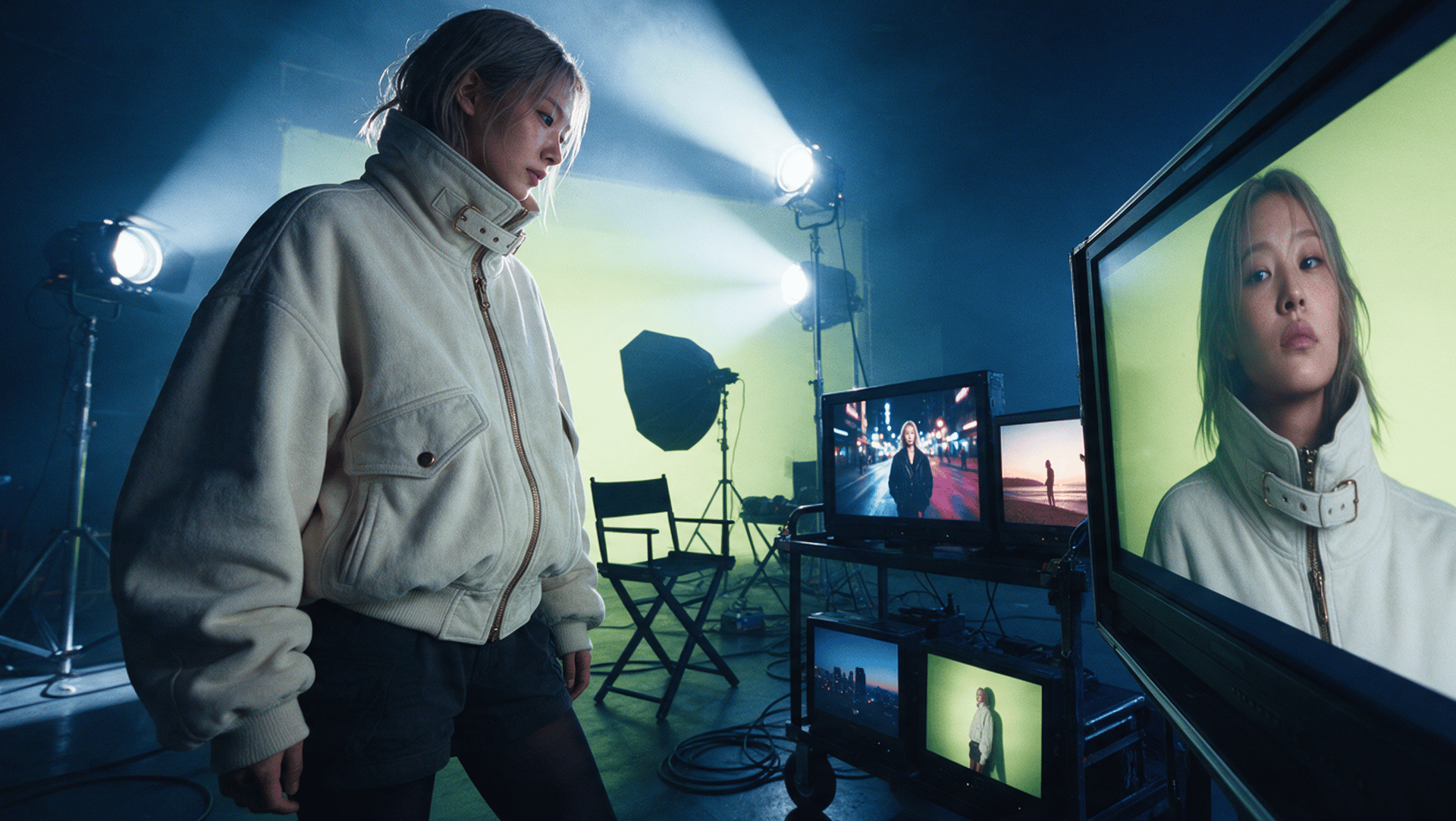
Higgsfield Editing Room is a video-to-video editor with six tools for changing selected moments in existing footage. It supports uploads up to ten minutes long and automatically splits videos into shots. Tools cover person replacement, locations, angles, camera movement, lighting, and edits to selected areas. Edits can be combined, compared with the original, and exported together as an MP4 video.
What Is Higgsfield Editing Room?
Higgsfield is the generative platform for creative production, with 35+ models and tools. Editing Room brings six editing tools into one project:
- One workspace. Apply different tools without uploading the same video again.
- Selected edits. Change a specific moment without editing the whole video.
- Optional stacking. Apply several edits to the same moment, such as changing the angle and then adjusting the lighting.
Which Tools Does Editing Room Include?
Tool | What it does | Shot coverage | Segment length |
|---|---|---|---|
Swap person | Replaces a person in the selected segment, using Genjutsu | Across multiple shots | 2 to 30 seconds |
Change angle | Shows the same moment from another angle, as if another camera filmed the scene | Within one shot | 2 to 15 seconds |
Change location | Moves the scene to another location | Across multiple shots | 2 to 30 seconds |
Move camera | Adds camera movement to a static shot: a push-in, a pan, or an orbit | Within one shot | 2 to 15 seconds |
Relight | Changes the lighting and mood: the time of day, the color, and the direction of the light | Within one shot | 2 to 15 seconds |
Edit with prompt | Changes a painted area based on a text description | Within one shot | 2 to 30 seconds |
Shot coverage shows whether an edit can span several shots or must stay within one. Segment length is the duration of the selected edit, not the uploaded video.
How Does Editing Room Work?
The workflow has six steps, from upload to export.
Step 1: Upload the video. Select Upload video to edit and choose a video up to 10 minutes long. Editing Room automatically splits it into shots. The video appears on the left as a card with its title and length. Select × to remove it or Create new project below the card to start another project.
Step 2: Select the moment. Click the lane above the video to add an edit. Drag either edge to adjust where the edit starts or ends. Use Cut here to split a shot if needed. Keep the selection within the chosen tool’s duration and shot coverage limits, listed in the table above.
Step 3: Choose a tool and set it up. Choose a tool from the left panel and adjust its settings (see the next section). For a change to a specific area, select Edit with prompt, paint over the area to change, and describe the result. Its settings panel is called Brush. Select Change to return to the tool list.
Step 4: Generate. The edit appears on a track above the video with its name and length. Several edits can run in parallel. The Generating (N) button shows how many are in progress, with the tool and the version of each, such as Angles V2 or Genjutsu V1. Finished results have a download icon in that list.
Step 5: Compare the versions. Select an edit and open History to review its earlier versions. Use the eye icon to hide the selected edit from the preview. Remove edit removes the entire edit, not an individual version.
Choose how to preview the edit:
- Split: the final video and the input stacked, with Final on top and Input below.
- Compare: the original and the result in one preview with a vertical slider that moves left and right.
- Final: only the finished video with all edits applied.
Step 6: Save and export. The project saves automatically, with the status Saved. The edit counter opens the history of the project’s edits. Export downloads the finished video, and saved projects live in the My videos tab.
What Settings Does Each Tool Offer?
Choose an output resolution under Quality: 480p, 720p, or 1080p. Use Batch size to set how many versions to generate. The generation button shows the credit cost for the selection.
Tool | Settings |
|---|---|
Swap person (Genjutsu) | Add reference images with +. Use the Prompt field to describe the change, or turn it off with the toggle. |
Change angle | Choose a camera angle, such as front, profile, or top-down. Then choose a wide, default, or close-up shot. |
Change location | Add a reference image for the new setting. Turn on Prompt to describe the change. |
Move camera | Start with a static shot and choose a movement, such as a dolly, pan, or orbit. |
Relight | Check the selected moment’s Start and End. Set the lighting with Presets, Custom, or Prompt. |
Edit with prompt | In the Brush panel, paint over the area to change. Adjust Brush size and describe the result in the text field. |
How Does Relight Work?
Relight offers three ways to set the lighting:
Presets: Choose a ready-made lighting scheme, such as Hard neutral split, Golden hard Rembrandt, White overhead spot, White grazing side, or a colored scheme.
Custom:
- Choose the light direction with Quick select: Top, Front, Right, Left, Back, or Bottom. Alternatively, drag the light source around the sphere.
- Adjust Color, Brightness, and Diffuse, which controls the softness of each light.
- Select Add light if another source is needed.
Prompt: Describe the lighting in words.
Edit With Prompt: Paint, Then Describe
Select Edit with prompt to open the Brush panel. Paint over the area to change and use Brush size to adjust the brush. In the text field below, describe what should appear in the selected area. Open History to review earlier versions of the edit.
When Does Editing Room Fit the Job?
Use Editing Room when you want to keep most of a take and change a specific detail. For example:
- Replace a person across several shots.
- Adjust the lighting in one shot.
You can apply several edits to the same moment, such as changing the angle and then adjusting the lighting.
Planning an Edit
First, check whether the change spans more than one shot. Swap person and Change location can work across multiple shots. The other tools work within one shot, including Edit with prompt, which supports edits of up to 30 seconds.
Select the moment, choose the tool, and adjust its settings. For a first test, set Batch size to one version and check the credit cost before generating.