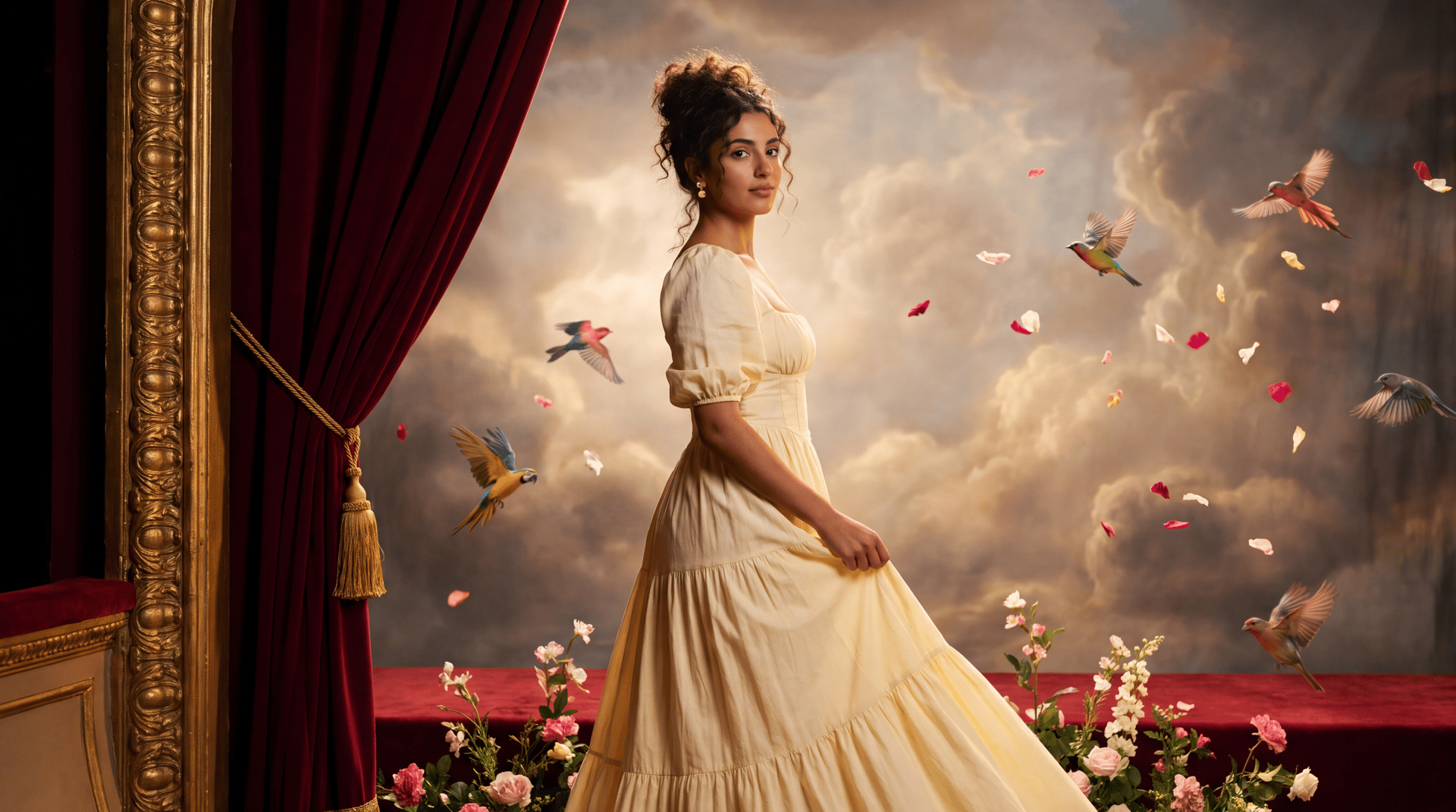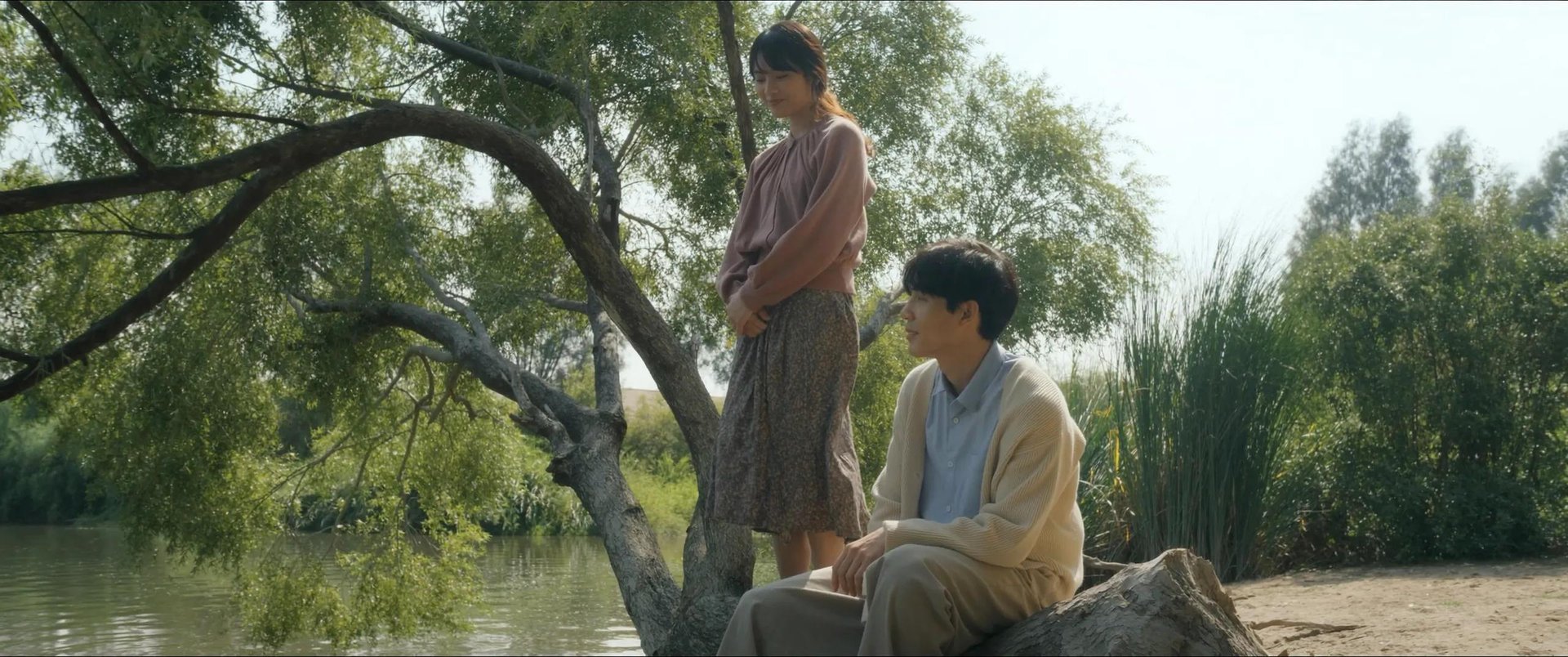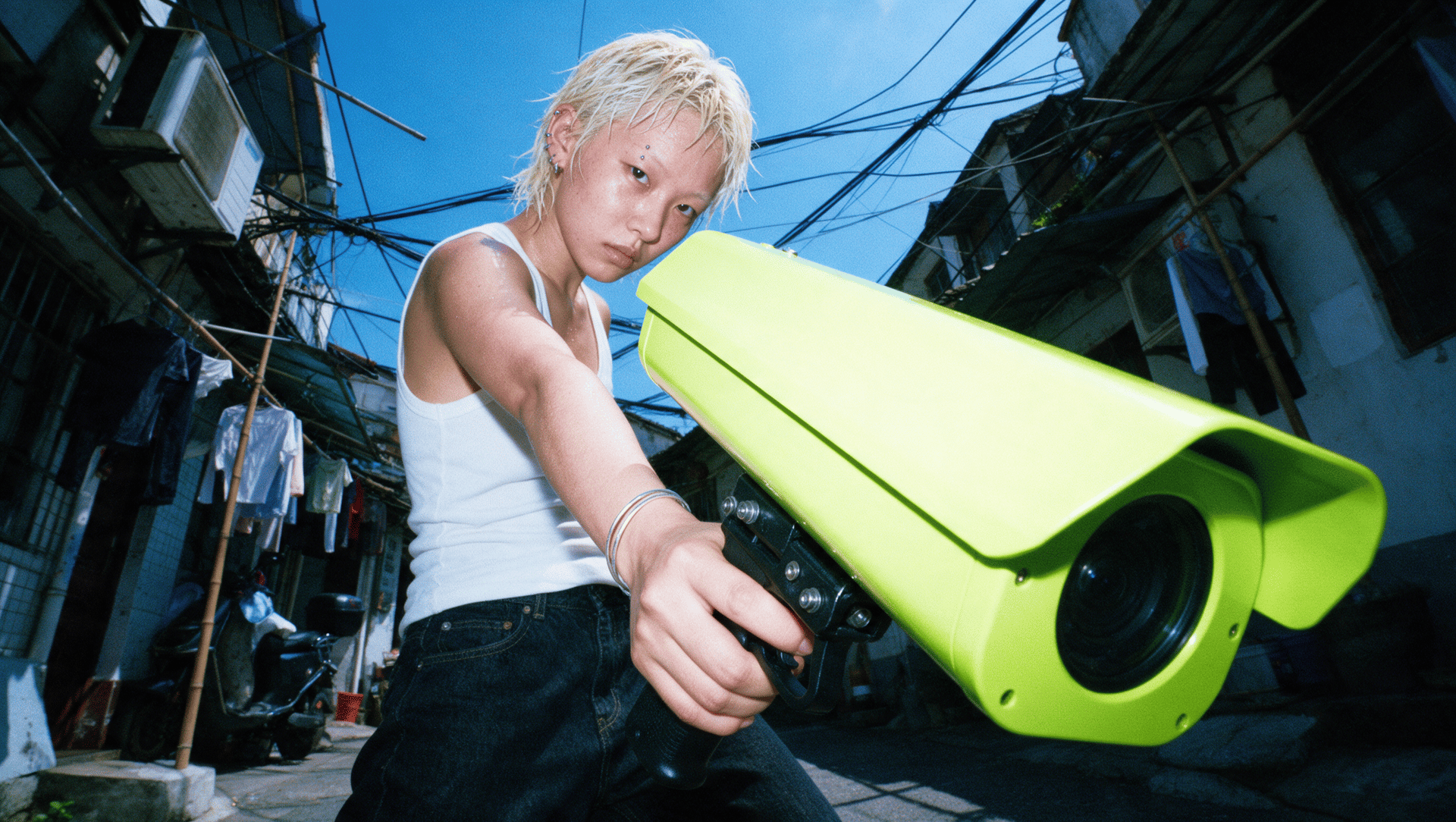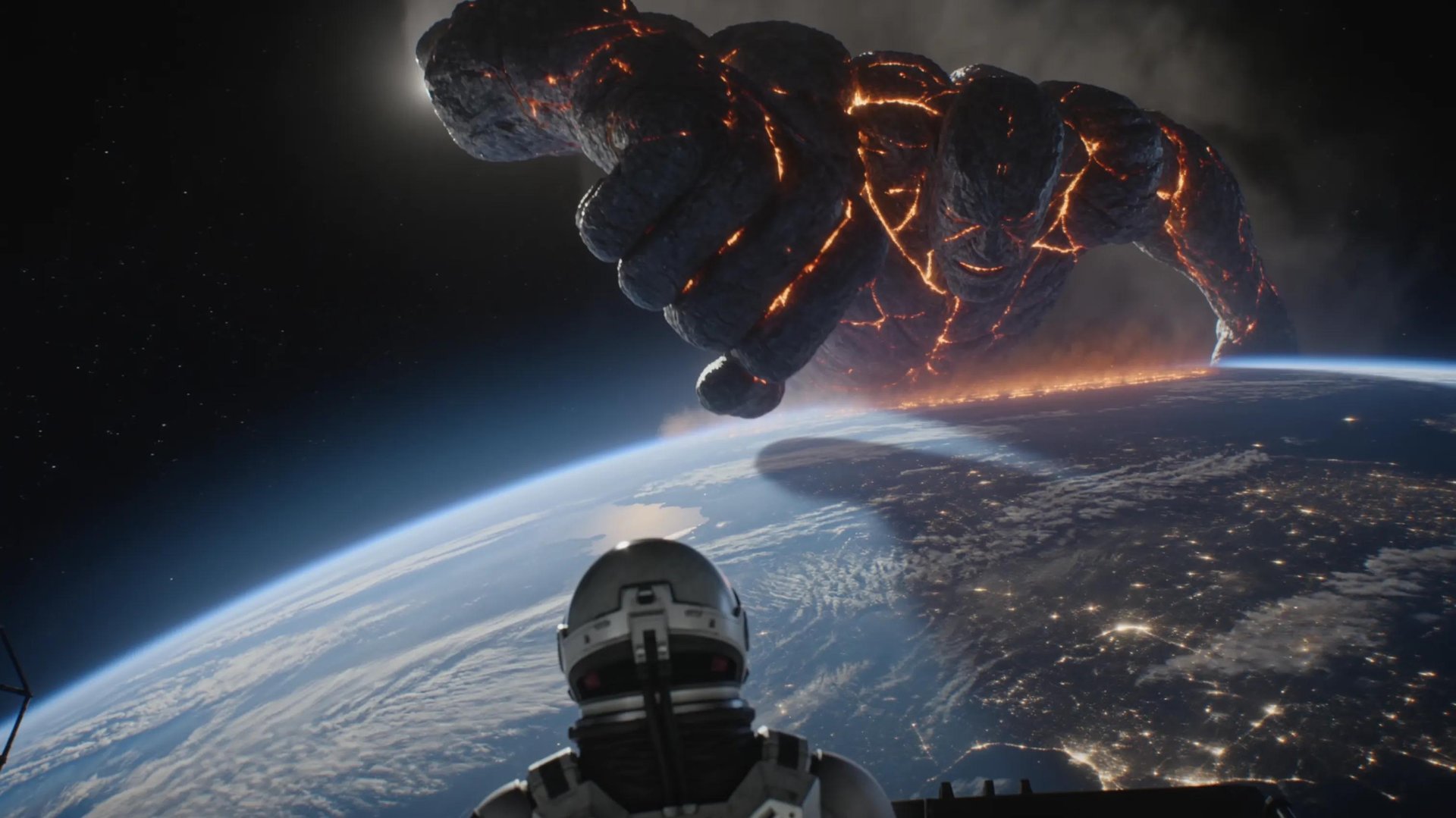
Generating a full video and editing it in one place starts with picking the right tools for the project, then building everything up from there step by step. Reference images come first, followed by the audio track that sets the pacing. From there, a prompt pulls both together to generate the video, with editing handled right afterward, all inside Higgsfield.
How Many Tools Do I Need to Make an AI Video?
A single finished video usually passes through four or five separate tools: one for reference images, one for audio, one for the video generation itself, and one more to fix whatever comes out wrong. Sometimes a final tool gets added just to stitch everything back together.
It gets trickier when those four or five tools live on different platforms. Every export between them costs a little consistency, a voice that stops matching the character, a color grade that shifts, a reference that reads slightly differently once it lands in the next app. What should be one continuous process turns into a chain of handoffs, each one a chance for something to drift.
Which Tools Are Available on Higgsfield?
Higgsfield is a creative suite built around 30+ models, spanning image, video, and audio generation in one account. For a connected workflow like this one, four tools cover the whole path:
- Image: Recraft or Soul, for design work or character consistency.
- Voice: Seed Audio, for dialogue, narration, or music.
- Video: Cinema Studio or Seedance, depending on how much direct camera control the shot needs.
- Edit: Genjutsu, for changing a specific detail in a generated clip without a reshoot.
To choose the right model or tool, read our articles: Which AI model should I use? and Which Higgsfield tool should I use?
Full Workflow: Generating in One Place
Step 1: Open Higgsfield AI and pick the tools for the workflow. Which audio, video, and editing models fit the project.
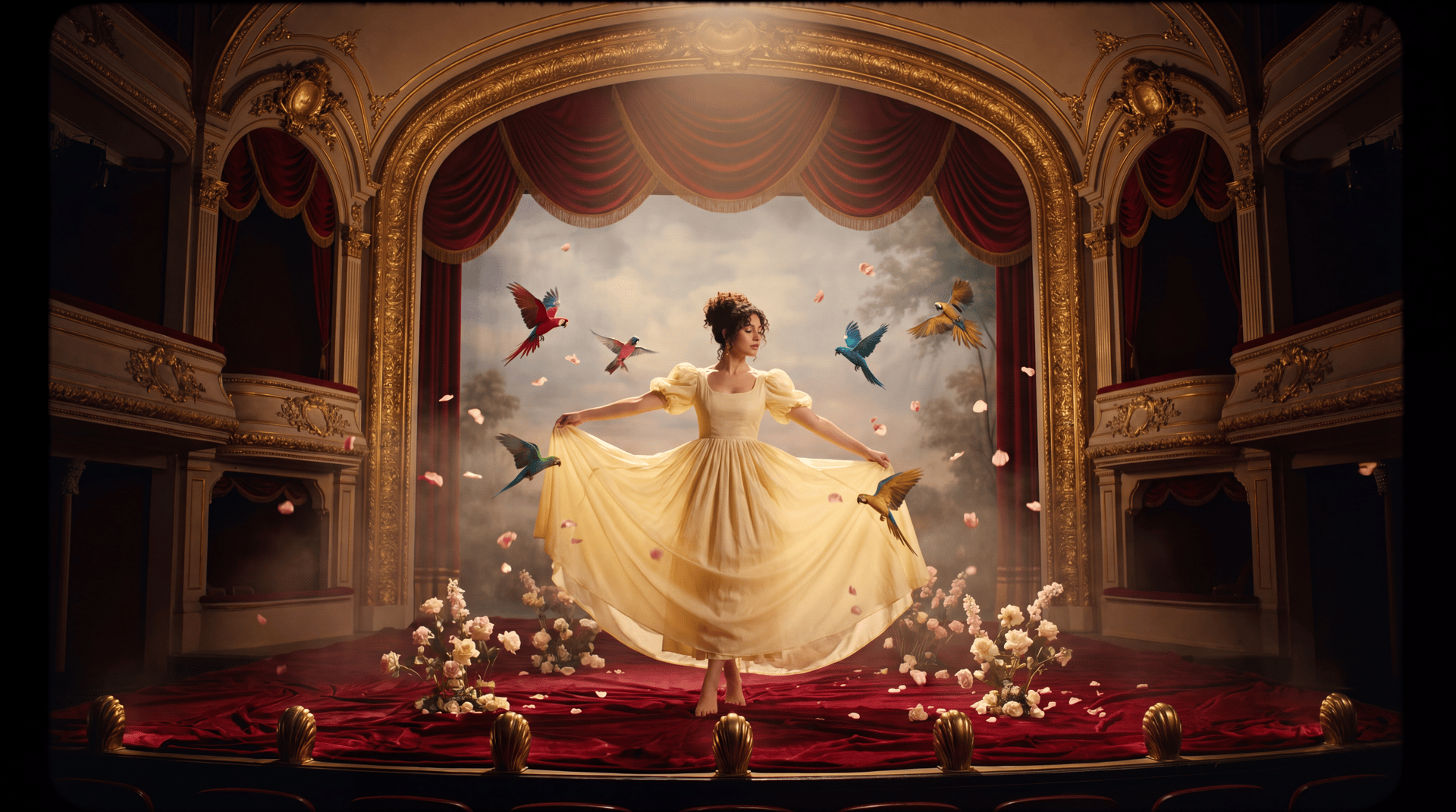
Step 2: Generate the reference image. A character, product, or location shot to guide the rest of the generation.