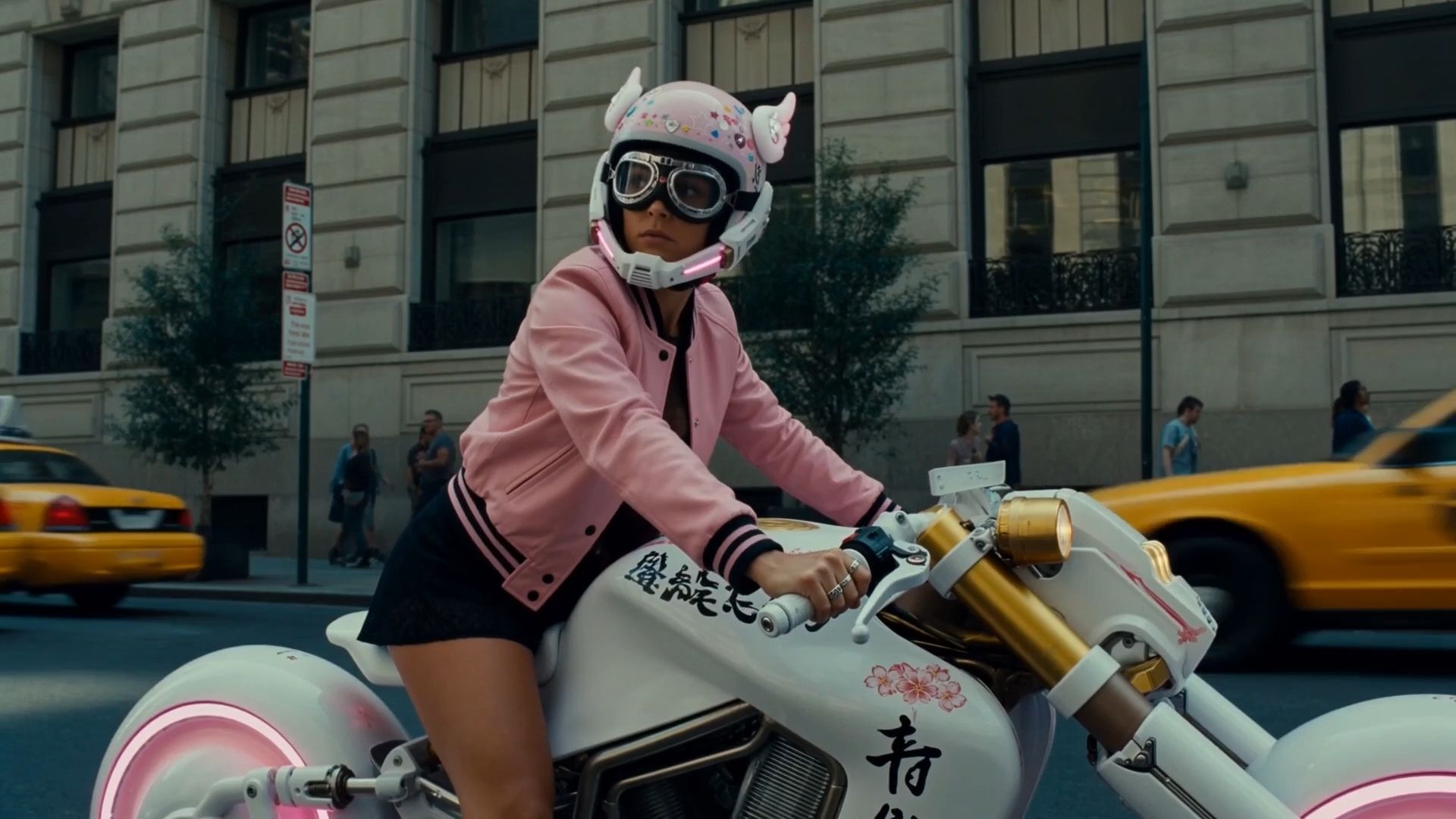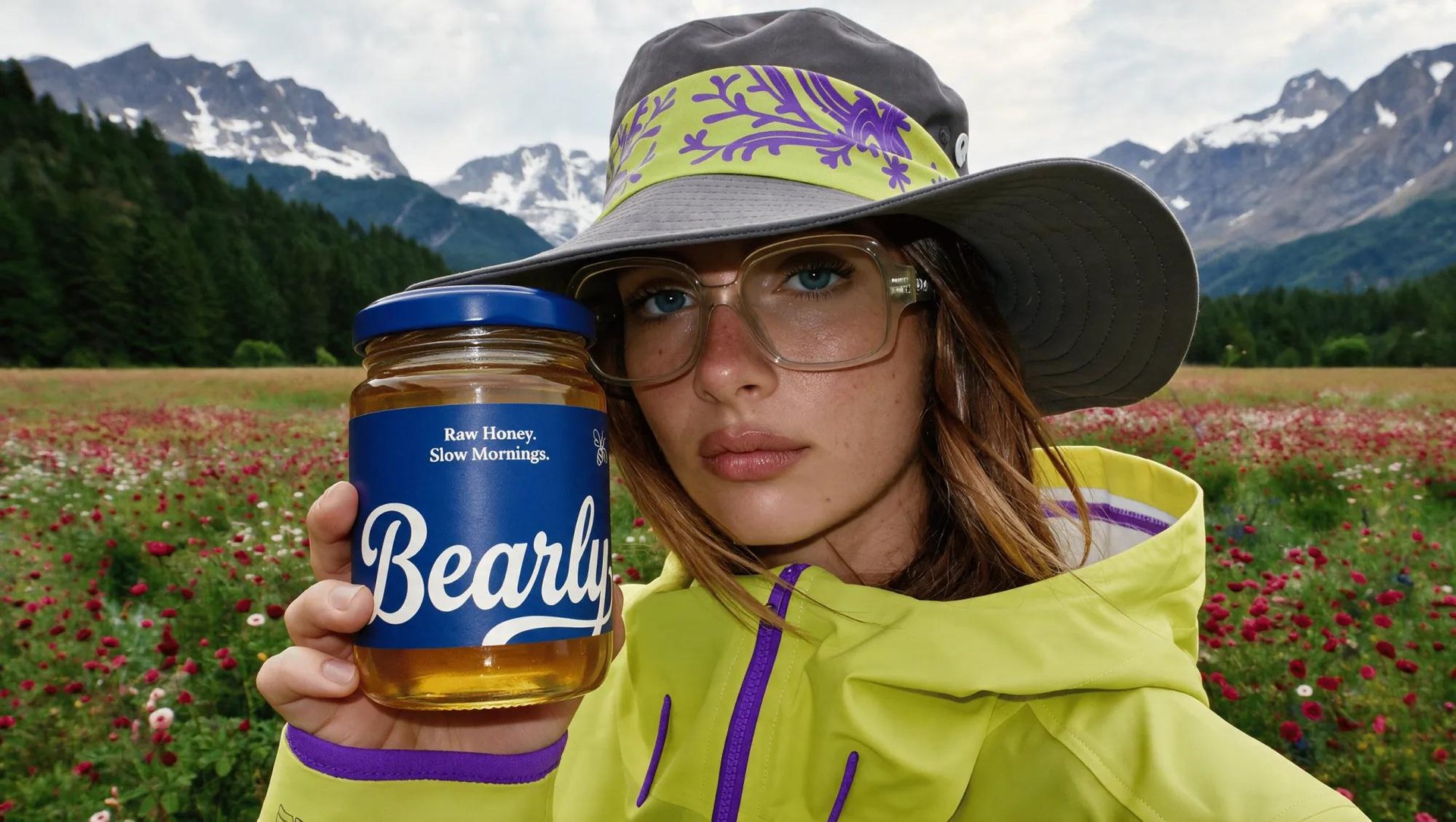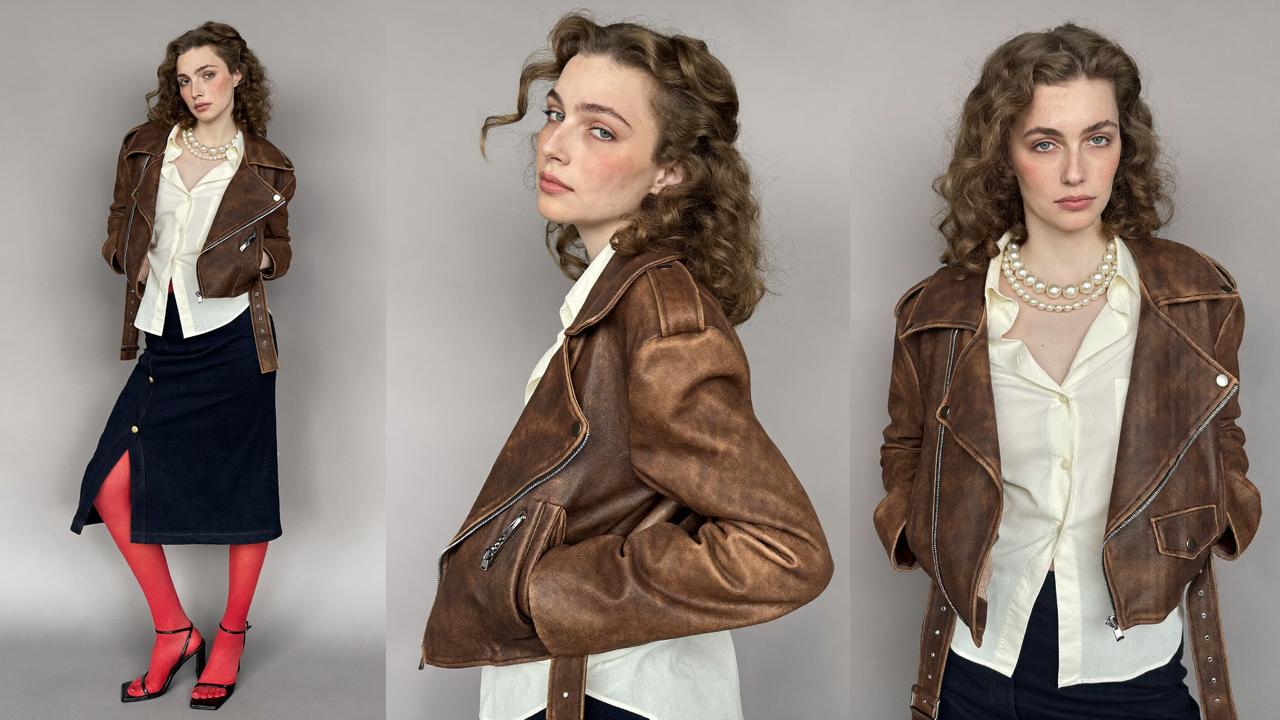
One MCP connection gives Claude access to Higgsfield's full creative pipeline. Video, images, audio, and Cinema Studio are all part of it. From the same Claude conversation, you can create images, videos, and audio, reuse past assets, run creative workflows, and use supported Higgsfield editing tools without switching between apps. This guide covers turning it on, what's available, and a full workflow.
What Is Higgsfield MCP for Claude, and How Do I Connect It?
Higgsfield MCP connects Higgsfield’s creative tools to Claude, letting Claude generate and work with Higgsfield assets directly from the conversation. Generations use credits from your existing Higgsfield account, so there is no separate MCP balance or API key to manage.
Setting it up is a one-time process that takes a few minutes.
- Сopy the connector URL : https://mcp.higgsfield.ai/mcp.
- In Claude Desktop or on claude.ai, go to Customize → Connectors, add a new connector, name it Higgsfield, and paste the URL into the field provided.
- Click Connect, and sign in with an existing Higgsfield account when prompted, no separate account or sign-up needed.
Once authorized, Higgsfield remains connected to your Claude account. Depending on the Claude interface, you may still need to make sure the connector is enabled in the current conversation.
What Tools Are Available Through Claude MCP?
Higgsfield gives your agent access to 30+ models, including Soul, Cinema Studio, Seedance 2.5, Kling, and more. If you don’t name a model, the agent can select one based on the task. You can also specify the exact model when you want more control.
Generation covers a wide range across image, video, and audio:
- Images: up to 4K resolution, generated from a text prompt, a reference image, or a combination of both.
- Videos: generate clips through Higgsfield's video models, use reference assets where supported, and refine outputs with operations such as upscaling, reframing, background removal, and motion controls.
- Audio: generate voiceovers and use voice cloning, voice change, and video dubbing through the same connection.
- Full production skills: beyond single generations, Claude can run entire skill-based workflows through MCP, a complete ad from a product photo and a creator reference, a faceless explainer video with voiceover and subtitles, or a multi-variation ad campaign built off one existing ad.
Claude can also browse your Higgsfield generation history, so previous images and videos can be found and reused as references in later steps instead of being generated again from scratch.
Full Workflow: Generating a Project Through Claude
Step 1: Start with the connector enabled. Open a Claude conversation and make sure Higgsfield is available. If you want to verify the connection before generating, ask Claude to show your Higgsfield credit balance or recent generations.
Step 2: Generate or attach a reference image. If the project needs a consistent character, product, location, or visual direction, establish that reference before generating the video. This gives later steps a concrete visual source instead of requiring the subject to be described again from scratch.