PROMPT
Upscale this low-resolution clip to crisp 4K with the ByteDance pro version and preserve the original look frame by frame.
Improve video quality with a finish tailored to your footage. Upload a video, then choose whether to stay close to the source, add creative detail, or smooth motion.
Partnering with global industry leaders to power your creativity output







Upload a video from your device, then choose an engine and settings to prepare it for your next edit or delivery.
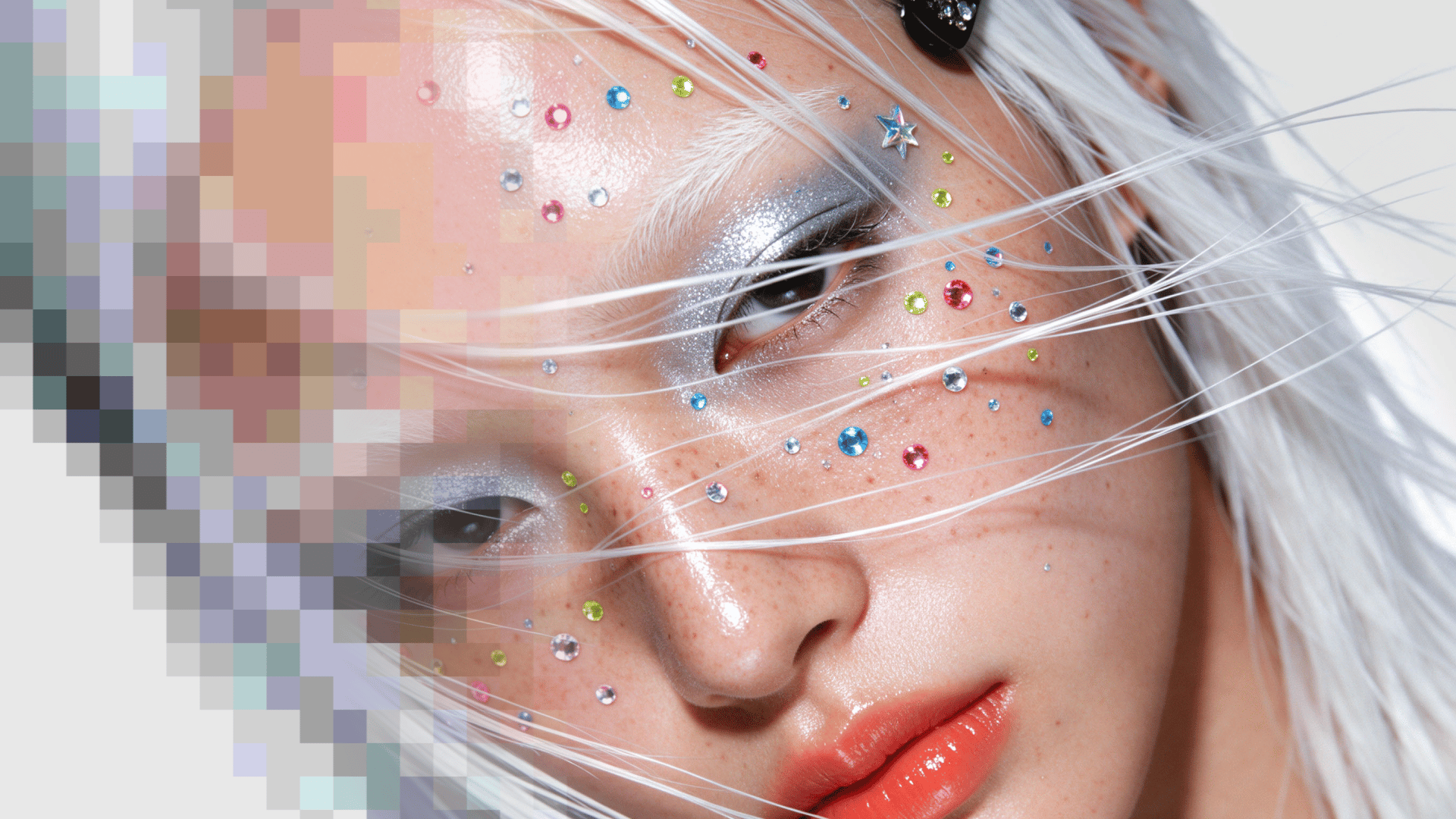
Bring low-resolution footage closer to the resolution your next project needs. AI upscaling can add detail as it enlarges frames, helping edges and textures look more defined than a basic resize. Choose an output that fits how you plan to use the video.
Upscale Your VideoBring low-resolution footage closer to the resolution your next project needs. AI upscaling can add detail as it enlarges frames, helping edges and textures look more defined than a basic resize. Choose an output that fits how you plan to use the video.
Upscale Your VideoGive old family videos, camcorder recordings, and archival clips a clearer look for sharing, editing, or preserving. The result depends on the source, so fine-tune the cleanup to suit the footage. Enhance video quality while keeping the details you want to preserve.
Restore Your FootageGive old family videos, camcorder recordings, and archival clips a clearer look for sharing, editing, or preserving. The result depends on the source, so fine-tune the cleanup to suit the footage. Enhance video quality while keeping the details you want to preserve.
Restore Your FootageSmooth choppy clips or create a slow-motion effect to draw out a moment. Choose settings based on the clip and the pace you want.
Enhance Your VideoSmooth choppy clips or create a slow-motion effect to draw out a moment. Choose settings based on the clip and the pace you want.
Enhance Your VideoDifferent clips need different finishing passes. Choose an approach that fits the footage, whether you’re preparing an old recording or changing how motion plays.
Reduce visible noise in grainy, low-light, or older footage. Adjust denoise to suit the source.
Upload a video file from your device, whether it was filmed or created with AI. ByteDance Upscale supports both types of footage.
Topaz Video generates in-between frames for smoother playback at 24, 30, 60, or 120 fps. ByteDance can raise the frame rate to 30 or 60 fps.
ByteDance presets include Common, AI-generated, Short Series, UGC, and Old Film. Choose a starting point that fits the footage.
Use the sharpness control to bring out edges and textures. Adjust it to suit the clip.
Use the face enhancement setting when people are central to the shot. Fine-tune it alongside the other image controls.
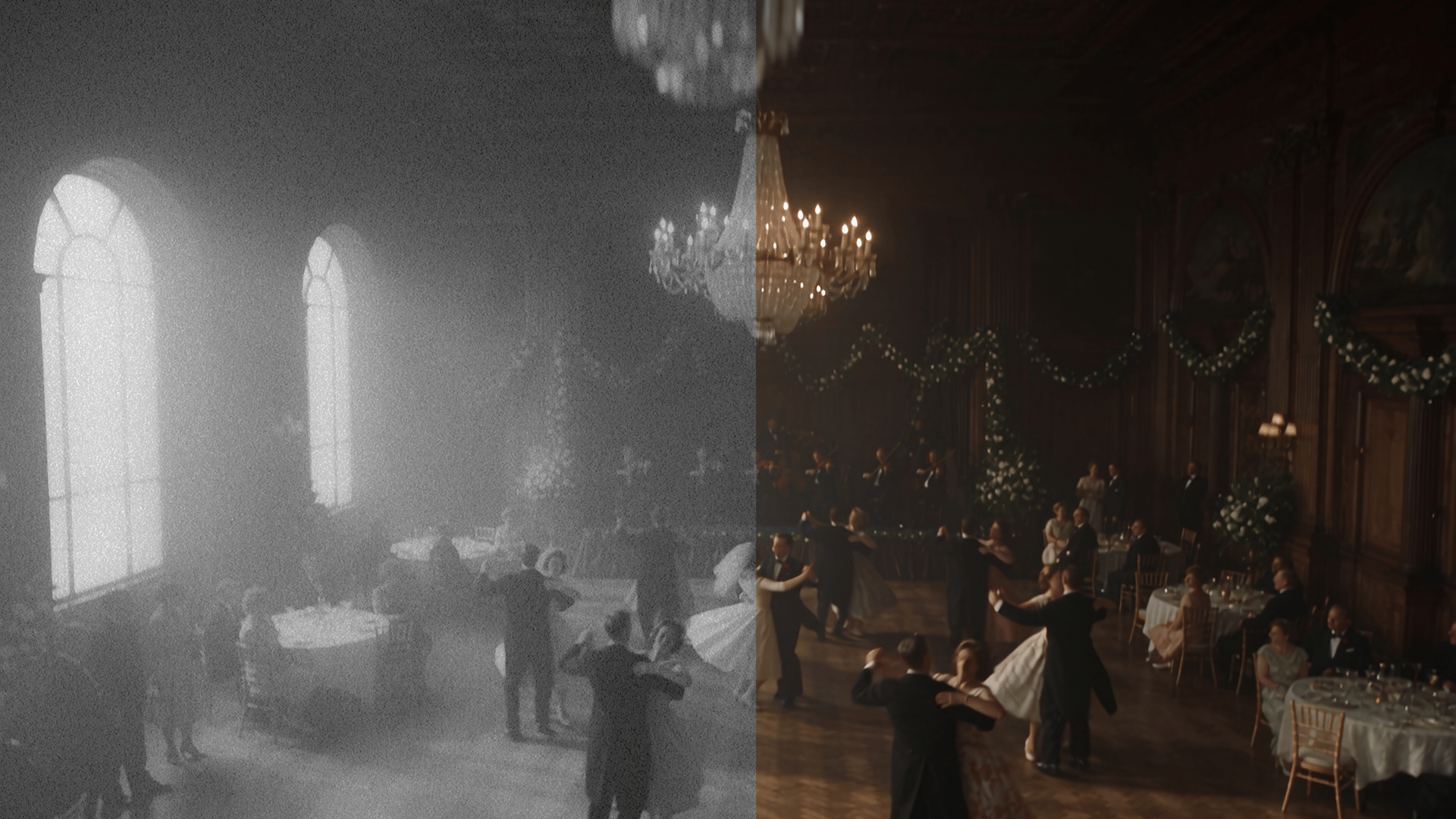
Give VHS transfers, camcorder recordings, and archival clips a clearer finish with ByteDance’s Old Film preset. Adjust sharpness, denoise, and grain to suit the footage.
Use Precise mode to stay close to the source. Explore its Creative mode, which can add detail. An optional prompt works in both modes and is most useful in Creative.
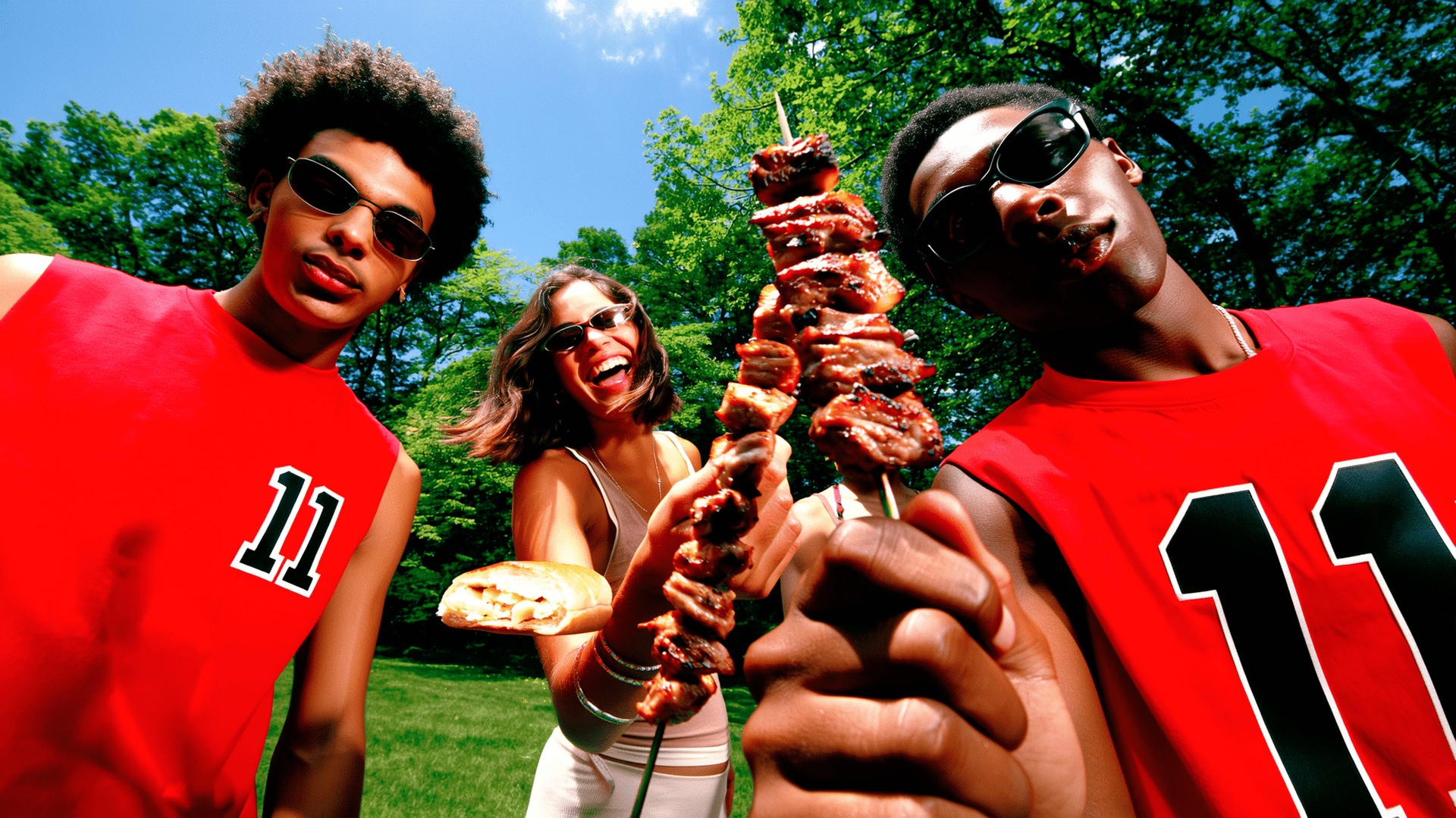
Choose ByteDance’s Short Series preset for episodic clips. It provides a starting treatment tuned for short series.
Choose a Topaz model to shape how the clip is enhanced. The available settings depend on the model you select.
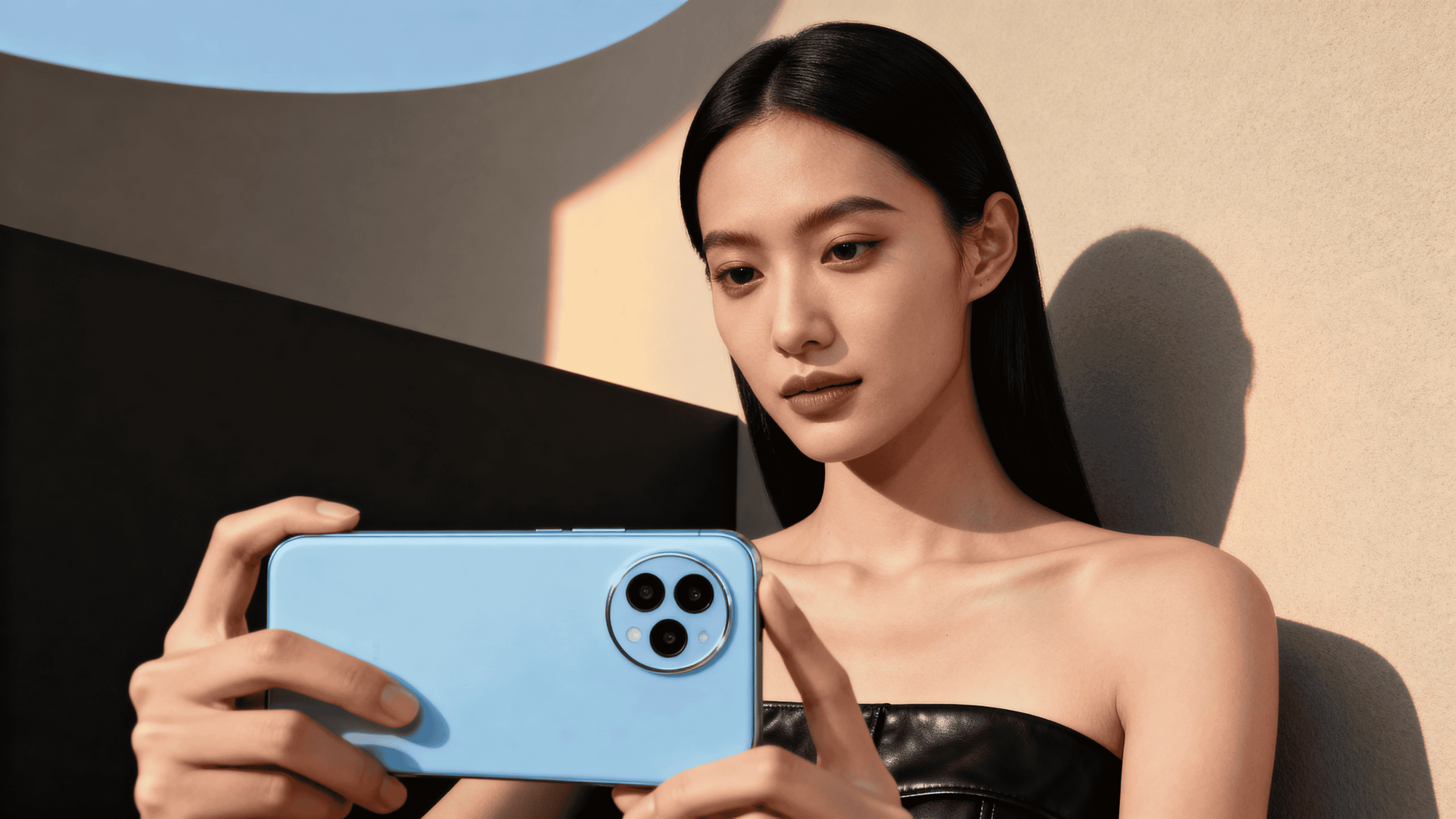
ByteDance’s UGC preset is tuned for creator videos and phone footage. Use it as a starting point for social clips.
ByteDance supports up to 8K output, Topaz Video offers up to 4K, and FLUX.3 Upscale outputs up to 4K.
Turn existing footage into a sharper, higher-resolution version for your next edit, post, or screen.
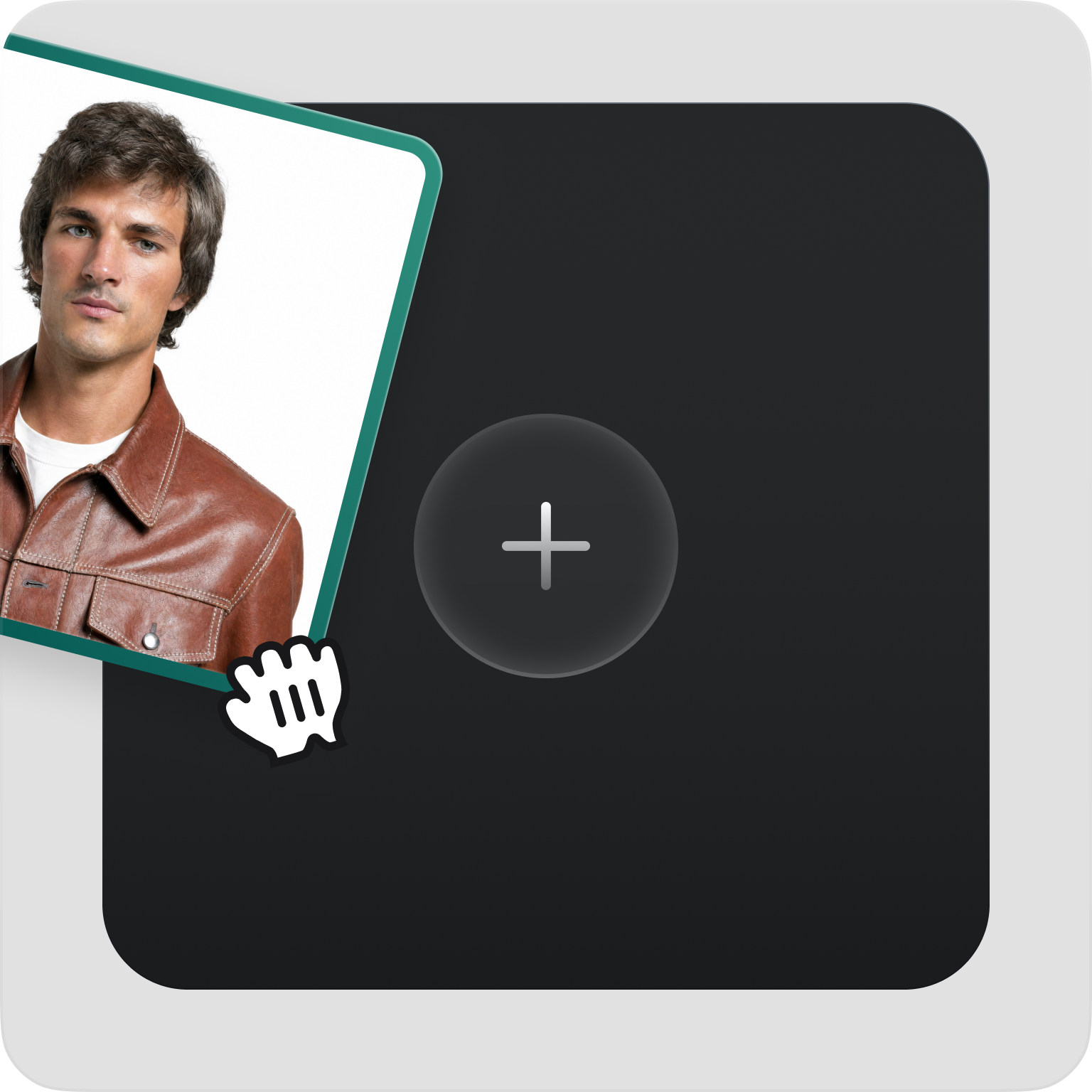
Open Upscale. Upload a video clip you’d like to enhance.
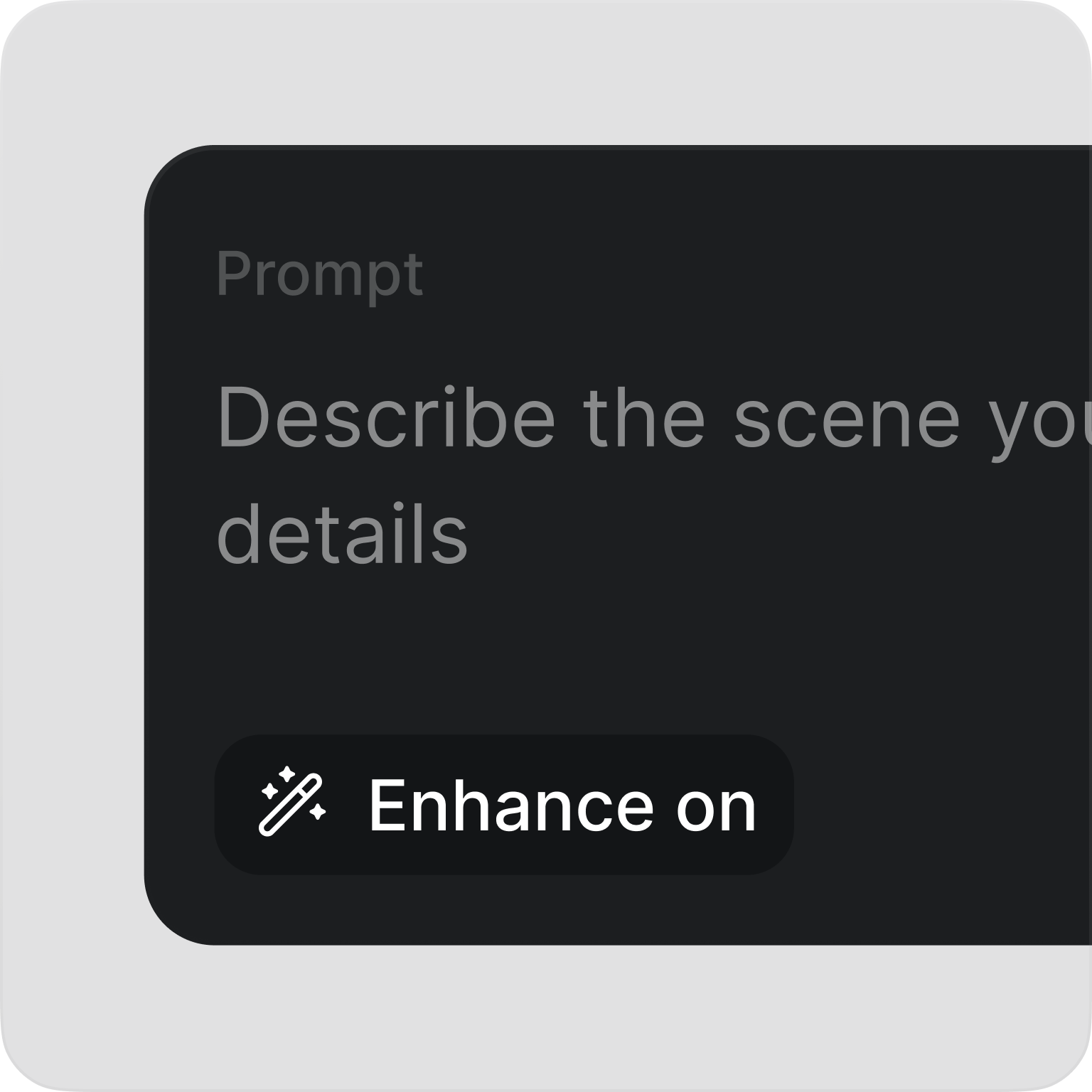
Select one of the three engines for the result you want. Set the resolution and available options, then check the displayed cost before starting.
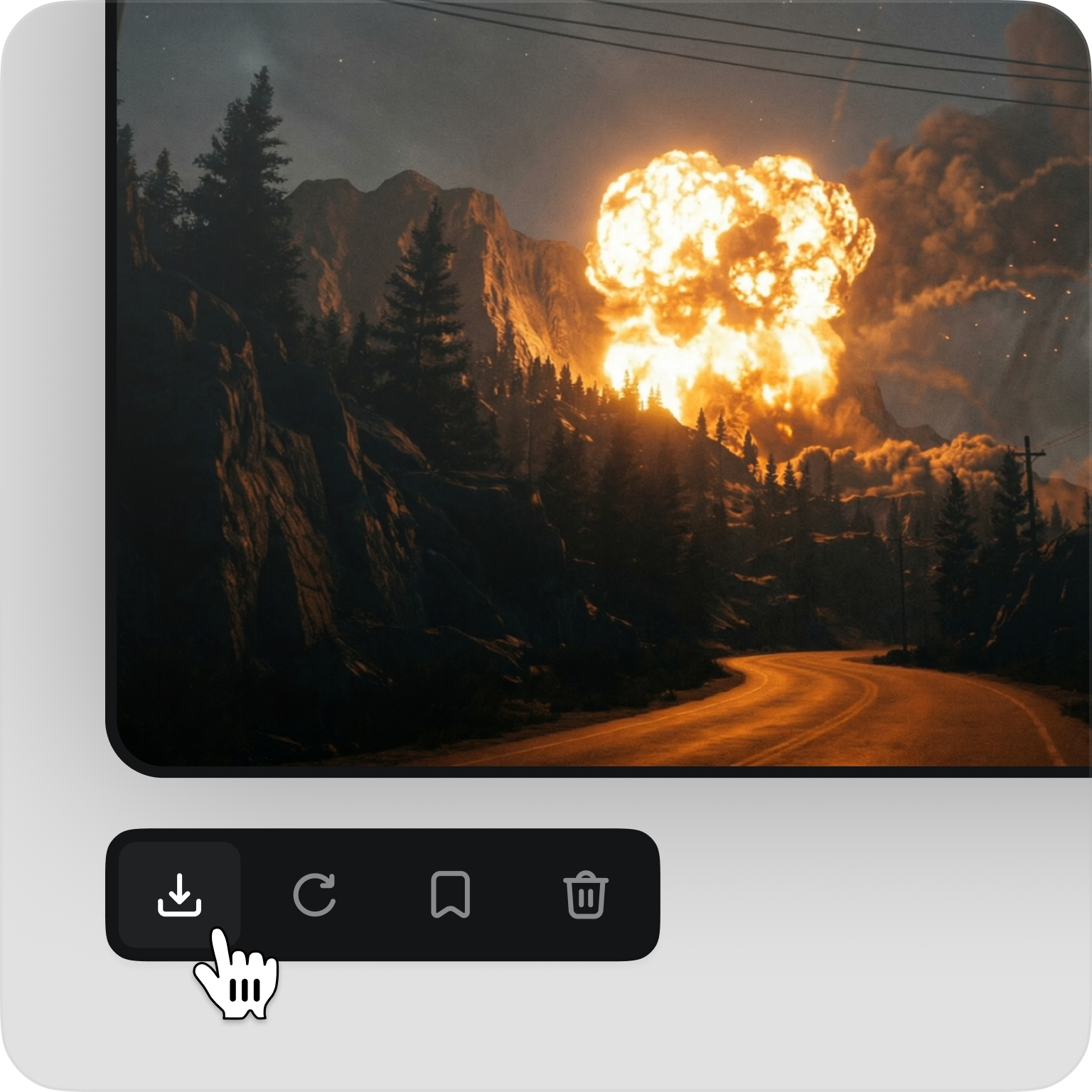
Start the upscale and download the finished video.
Enhance any video with purpose-built AI modes in one place. Pick an engine, a preset, and a frame rate per job, and export at the resolution you need, all under one subscription.

Push SD and HD footage to crisp, detail-rich 4K with true super-resolution.
Upscale
Upscale to 1080p or 2160p with the Topaz Video engine, a second option to compare.
Upscale
A preset tuned for short series and episodic clips, for a consistent look as you upscale.
Upscale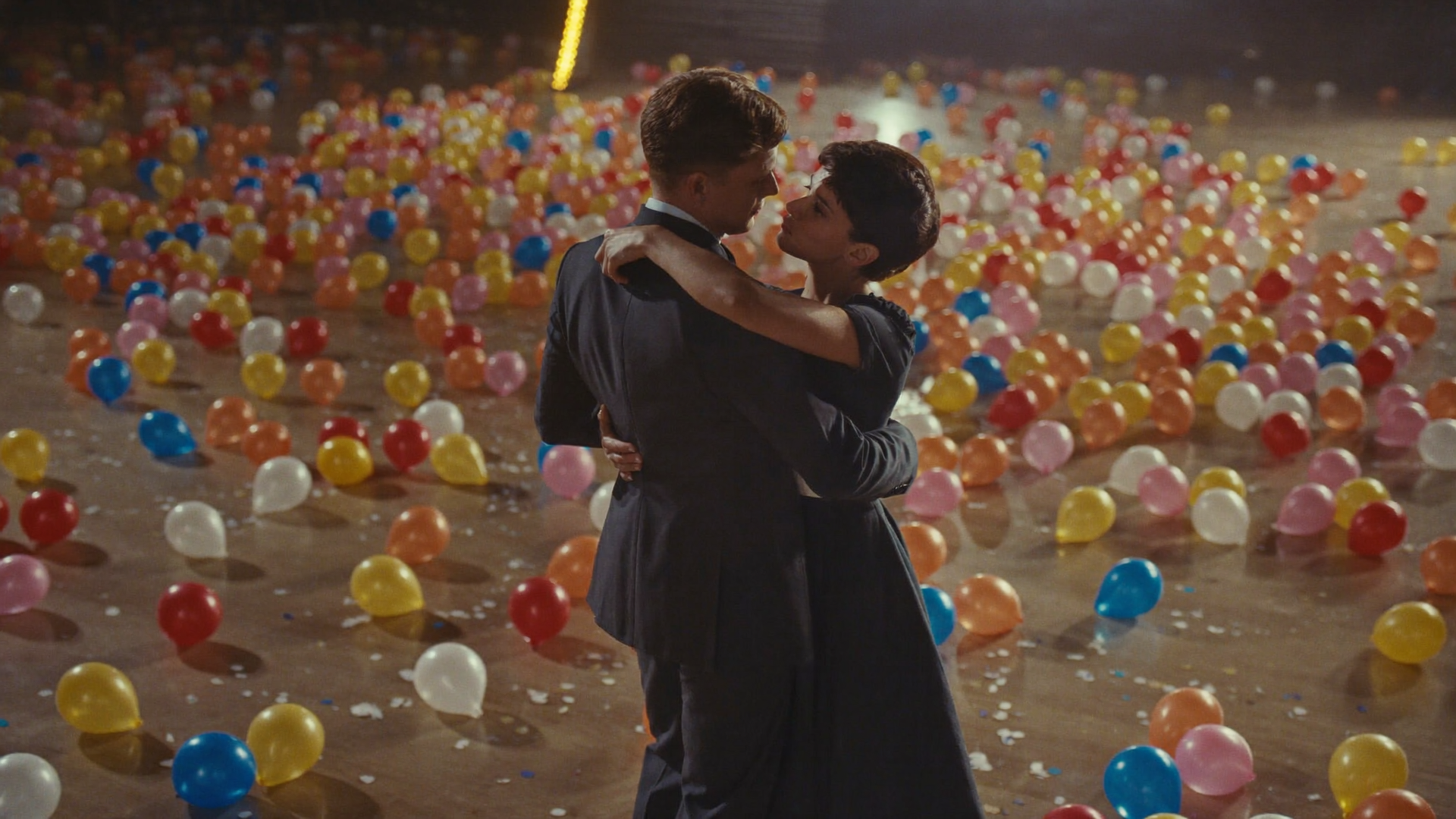
Generate in-between frames with FPS Boost or Topaz for smoother playback, up to 60 fps. It does not create slow motion.
Enhance
A preset tuned for AI-generated clips, for cleaner, sharper detail as you upscale.
Upscale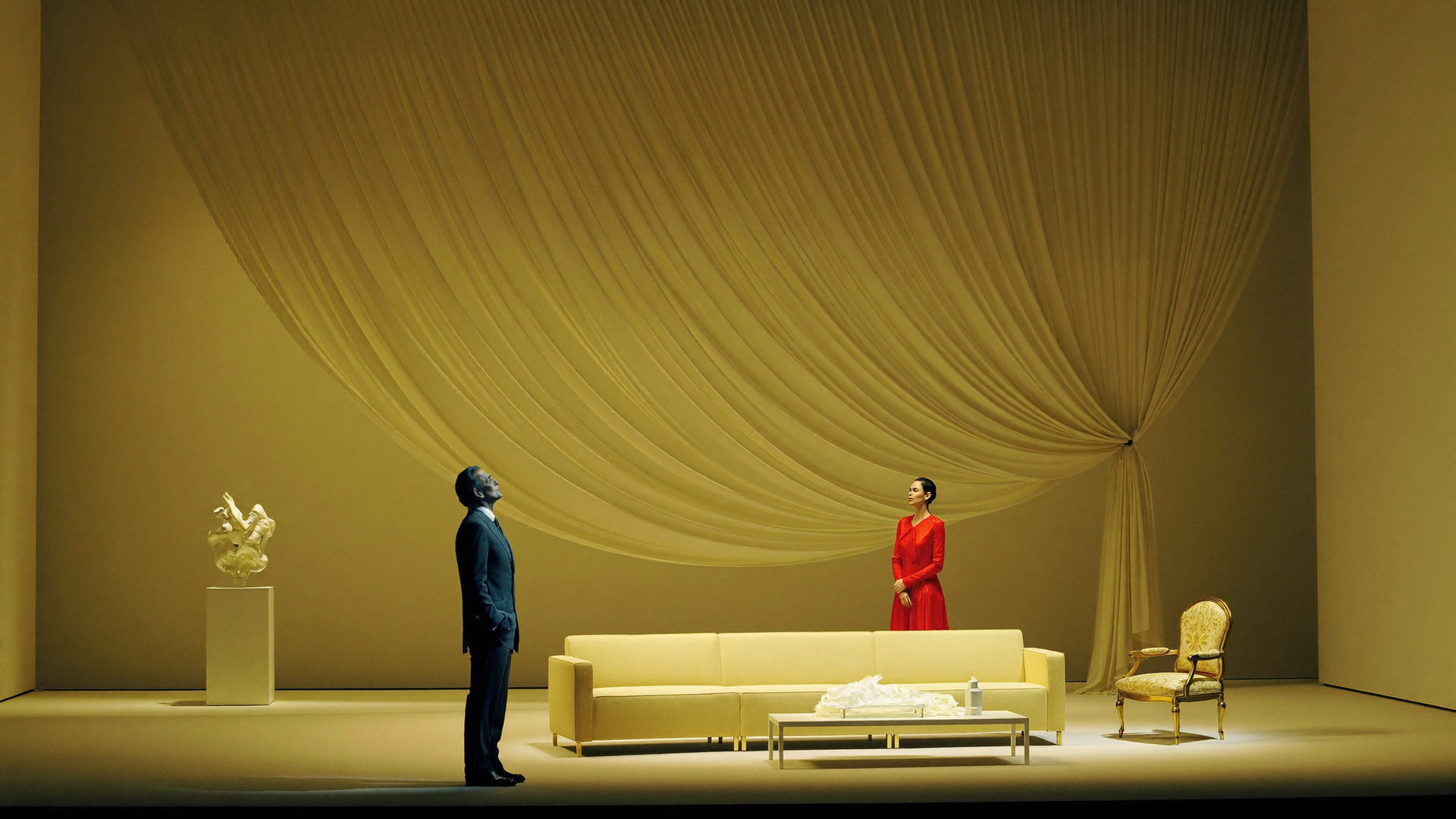
A preset tuned for archival and old film footage, picked before you upscale.
Restore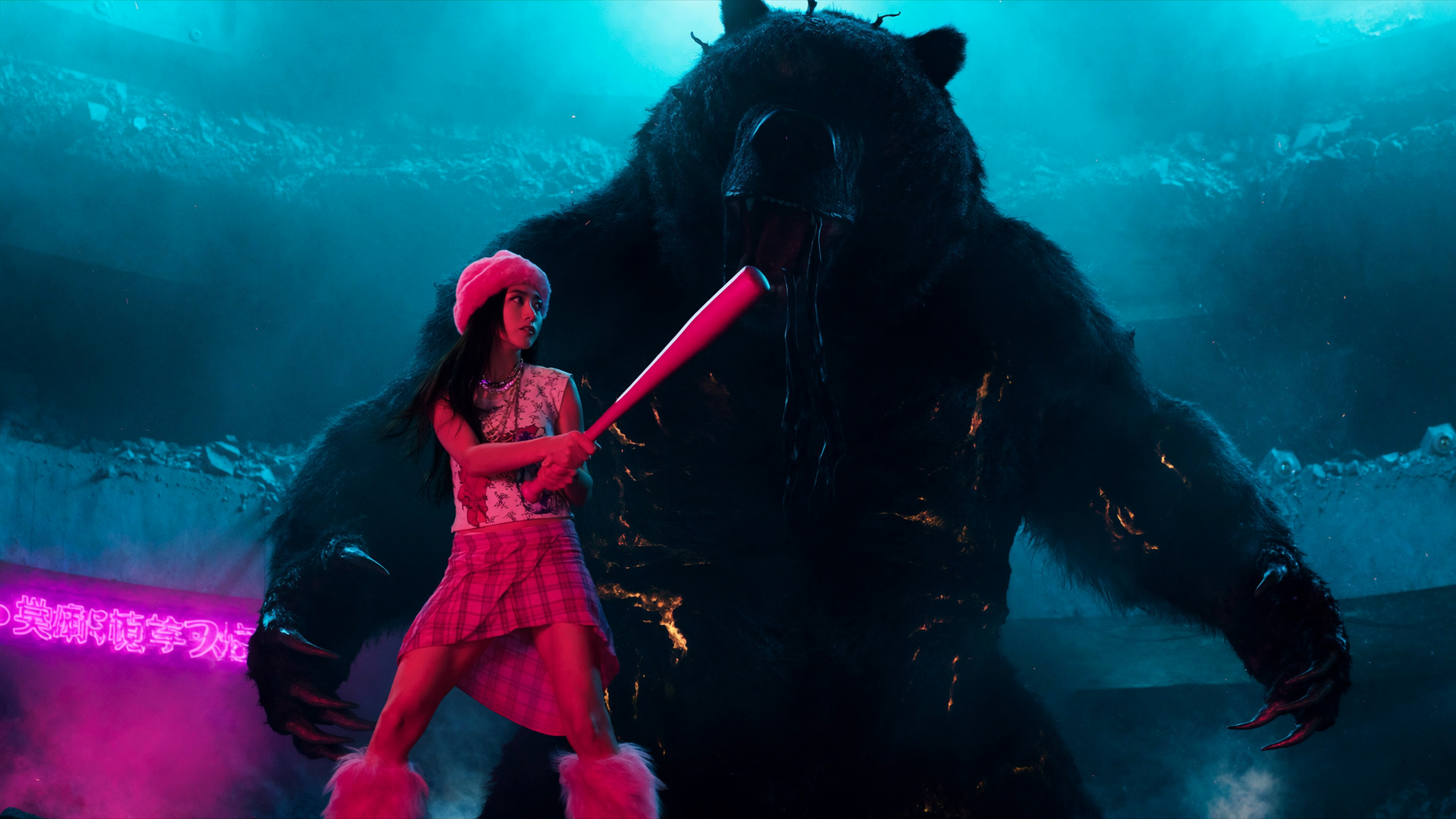
A preset tuned for UGC and phone footage, for crisp detail in any feed.
UpscaleUse Higgsfield to upscale old recordings, social content, or client footage.
Give VHS transfers, camcorder recordings, and old phone clips a clearer finish for new edits or modern screens. Choose an output resolution that suits the footage and how you plan to use it.
Get Reels, Shorts, TikToks, course videos, and stream uploads ready for their next edit or post. Choose an output resolution that suits where you plan to use the clip. Upscaling can help you reuse existing footage instead of starting over.
Bring product demos, campaign clips, and brand films closer to a finished deliverable. Use FLUX.3 Upscale Precise mode to stay close to the source, or Topaz Video when you want to add creative detail. Upscale video to 4K for a client review or a larger display.
Prepare AI-generated clips, gameplay captures, and screen recordings for a final edit. ByteDance offers a preset for AI-generated video. For smoother playback, Topaz Video supports interpolation up to 120 fps.
Join a global creative network where people generate AI images, share insights, and inspire each other every day.
We've answered the most frequently asked questions