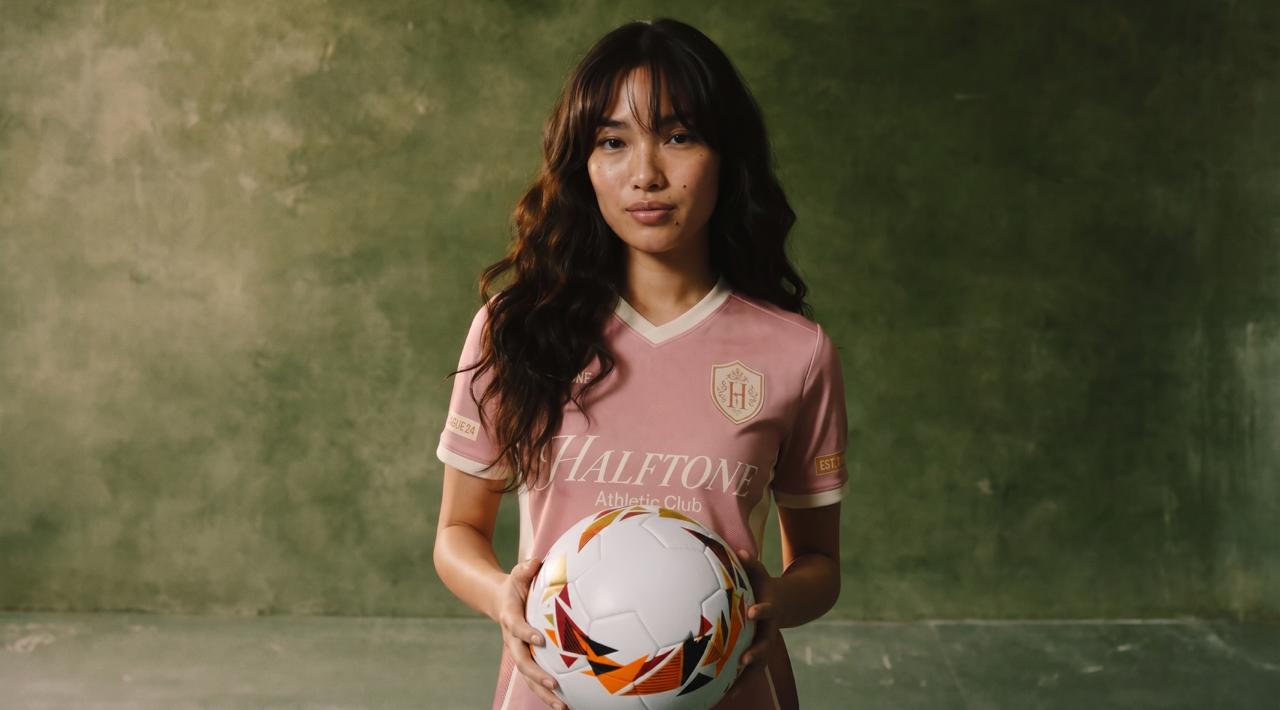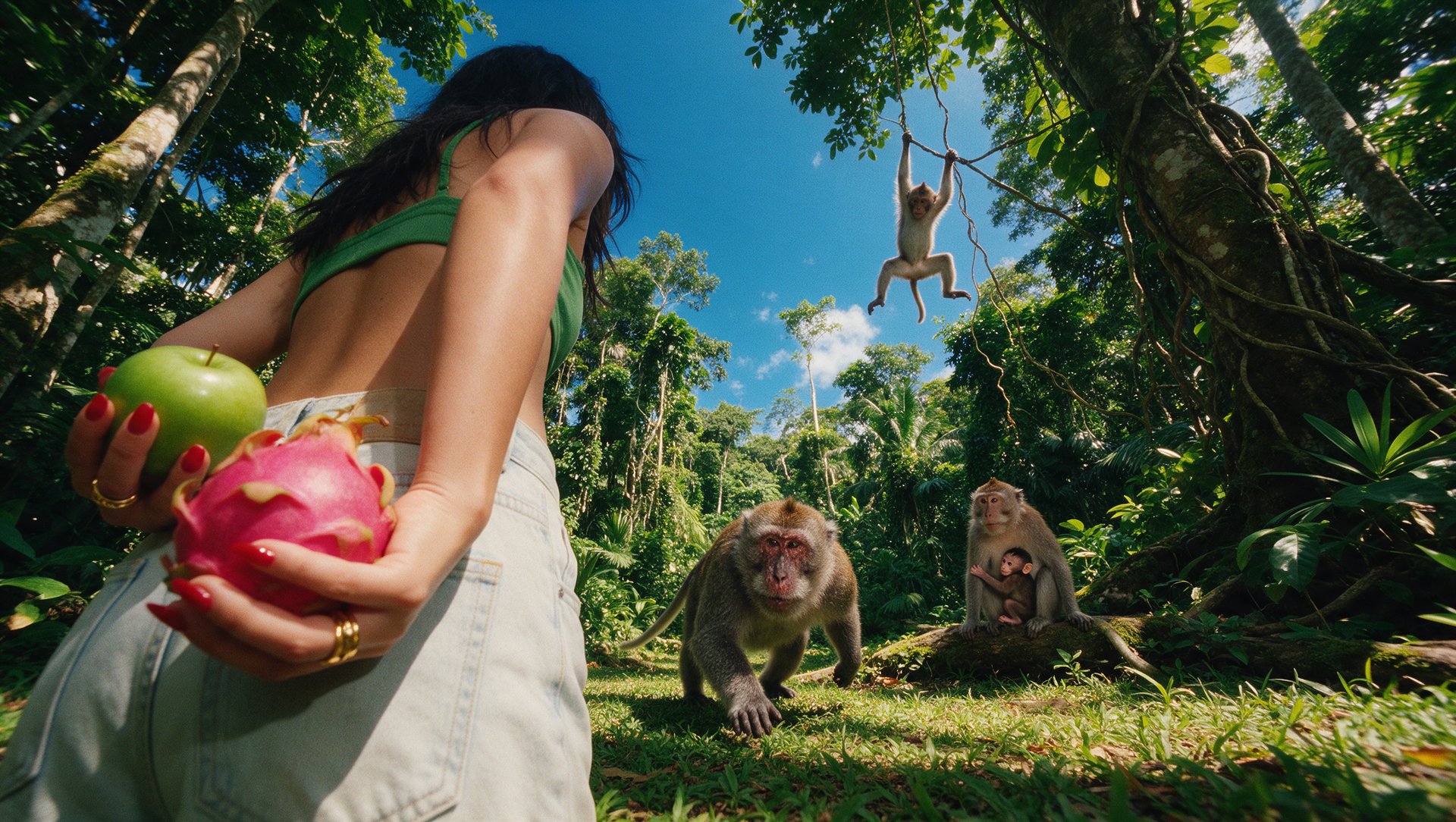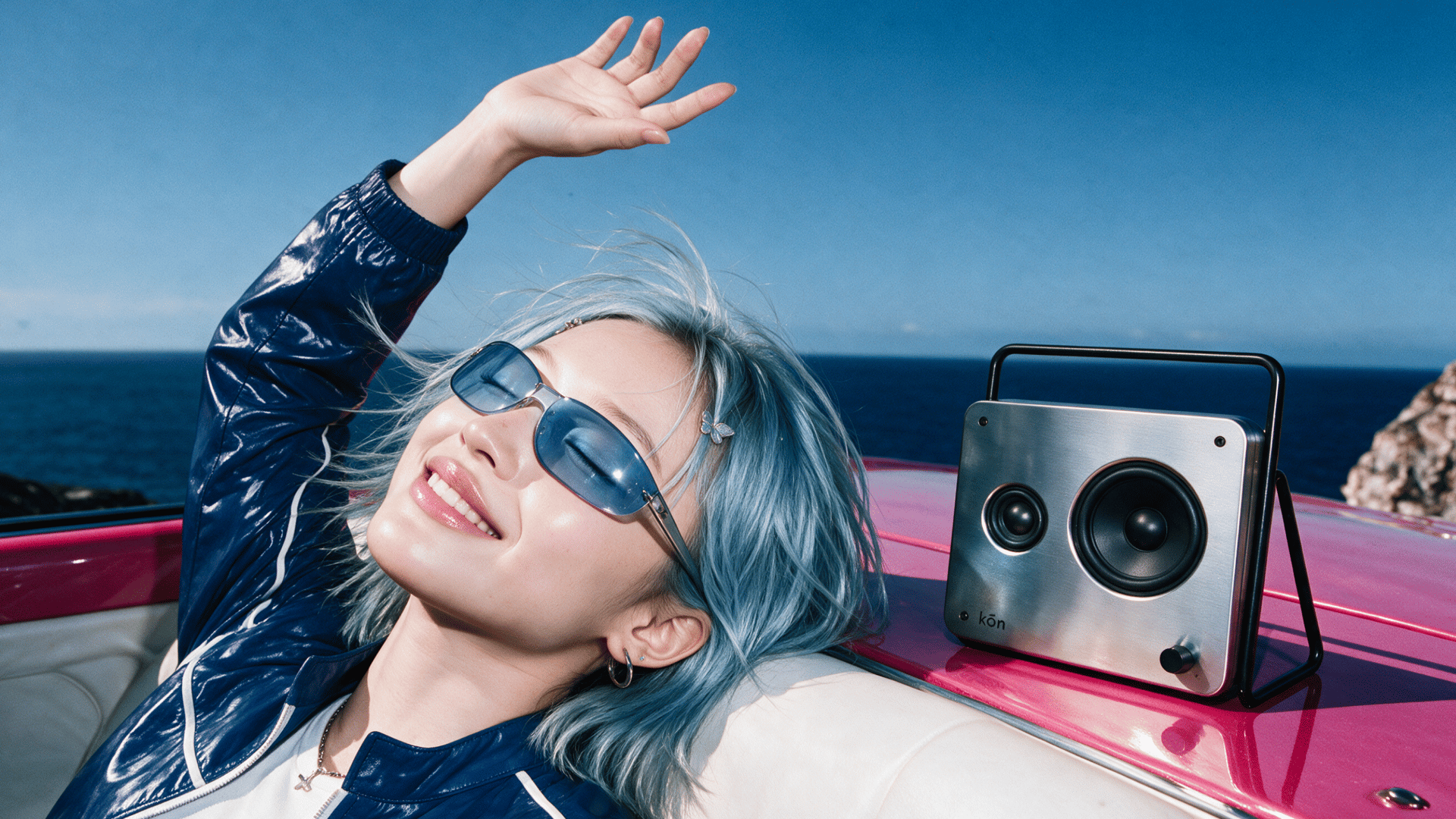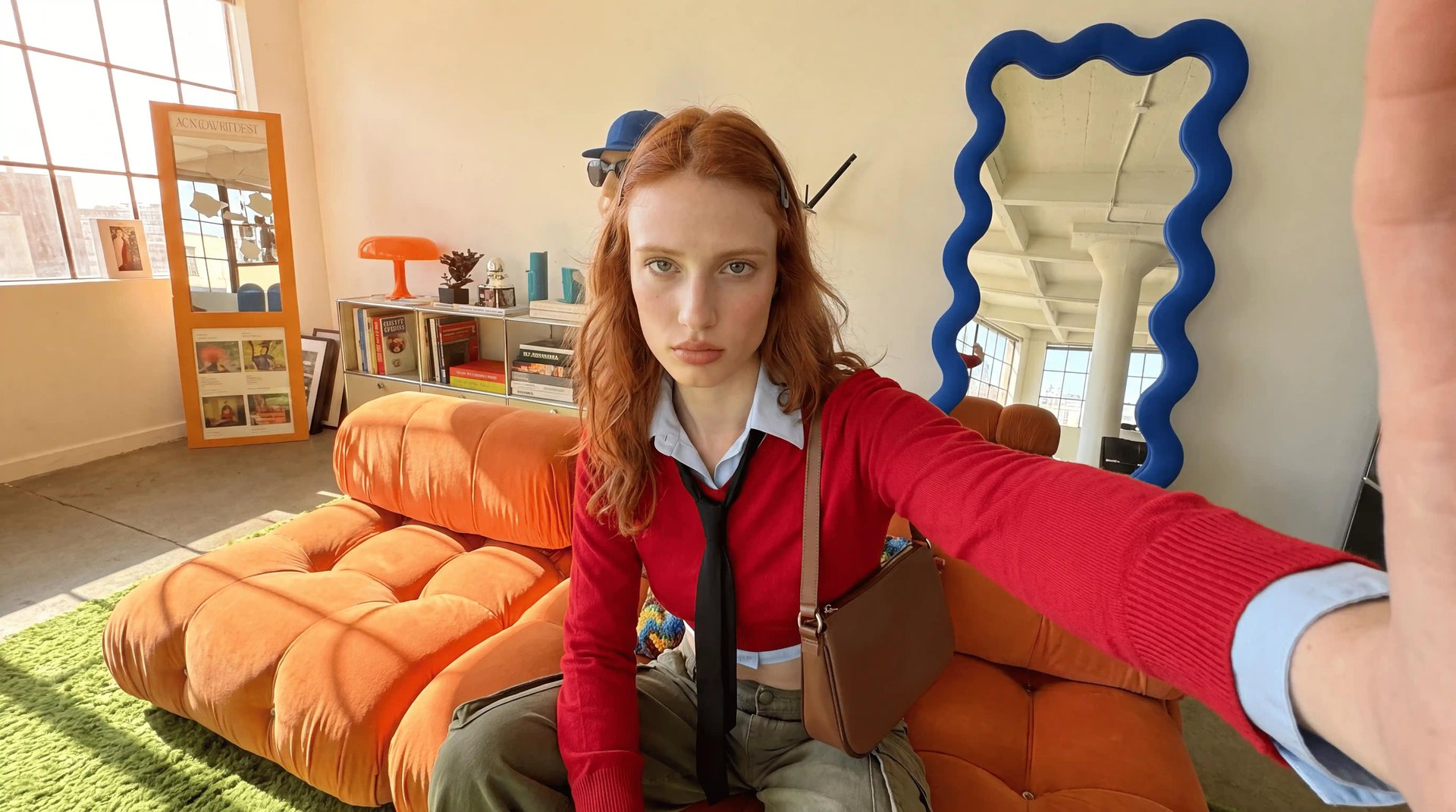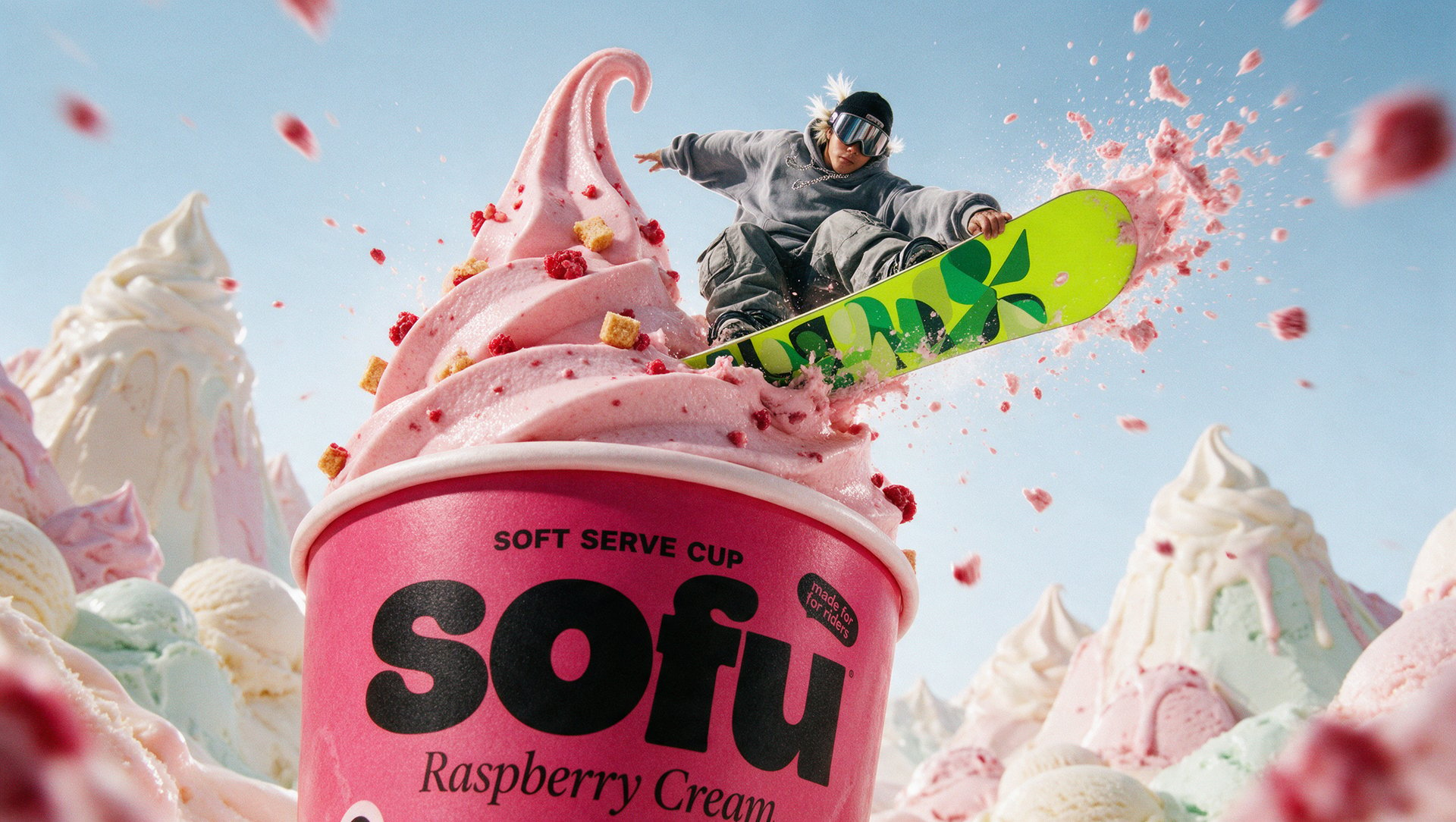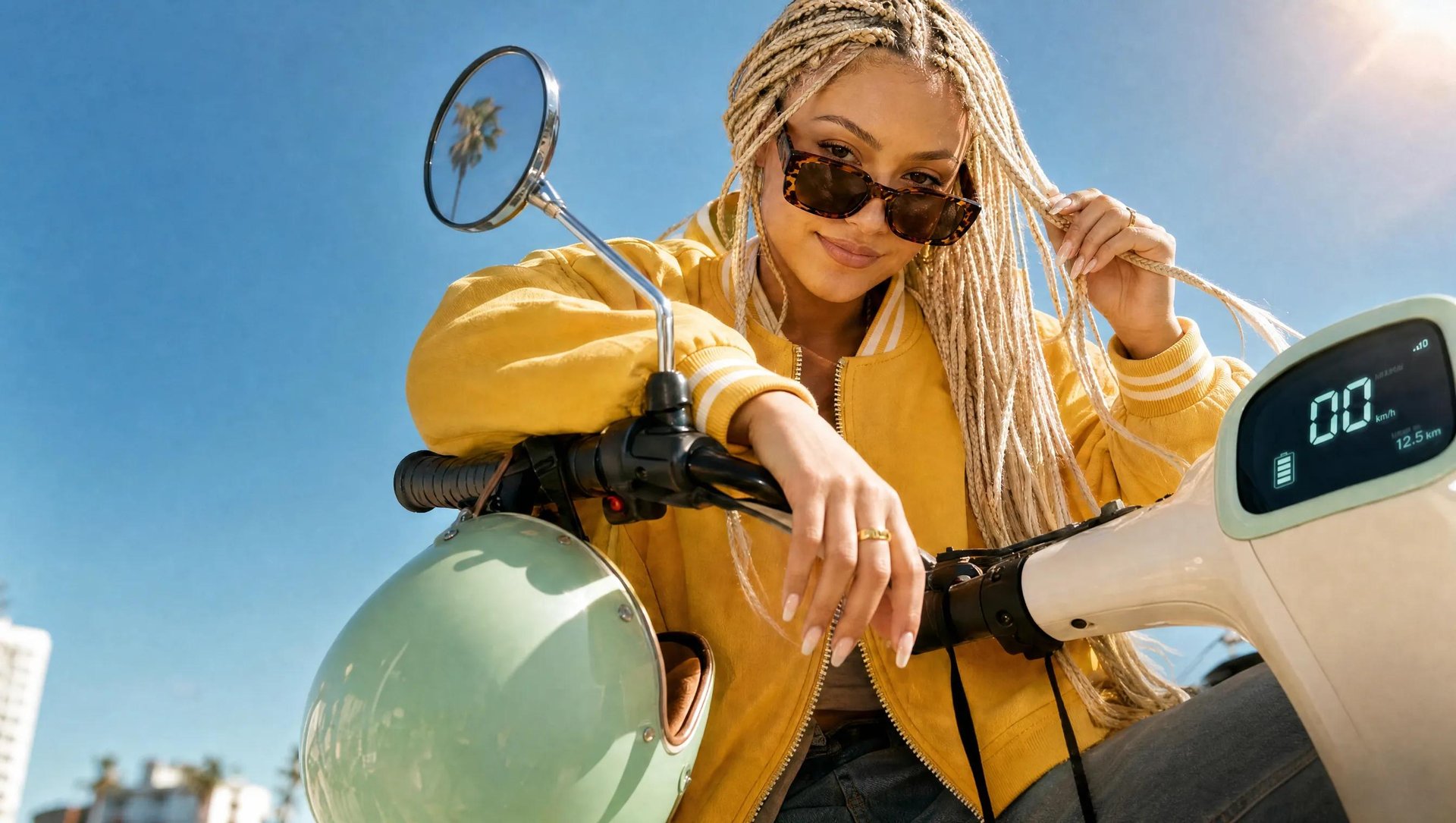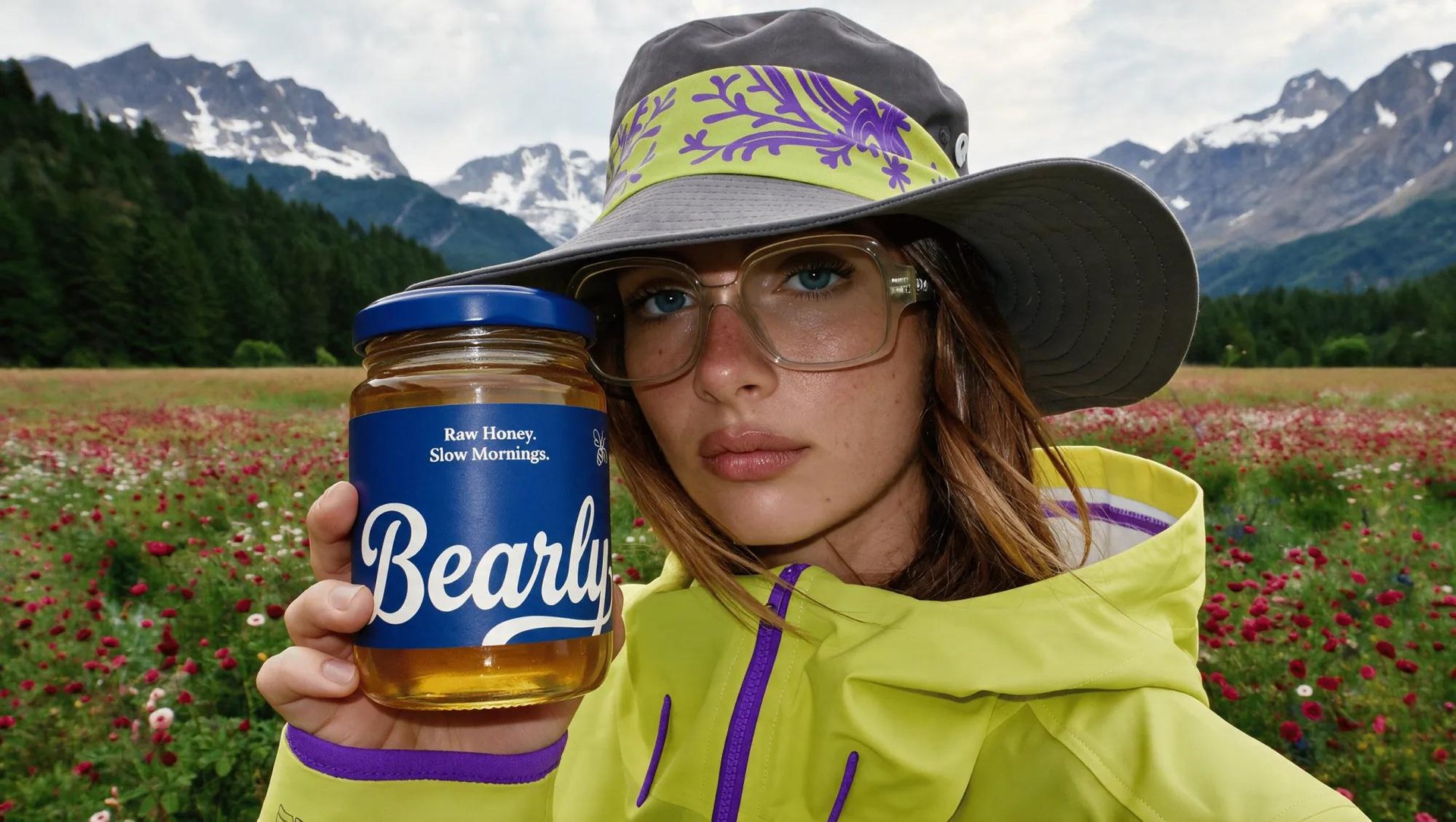
To make a full ad campaign with Claude, three things need to be in place: a product reference, the right format for where the ad runs, and a way to batch-test variants before shipping. Here's what that looks like end to end: one product turned into four ad formats, generated inside a single Claude conversation through Higgsfield MCP.
What Kind of Ads AI Can Make
There are many kinds of ads AI can generate today, and picking the right one matters more than picking the flashiest one. This breakdown looks at four that cover most of what a campaign needs: UGC video, product video, social media ads, and explainer videos.
A UGC-style video earns trust on a feed because it looks like something a real person posted, not a brand: a single performer, native captions, a hook in the first two seconds.
A cinematic product video does the opposite job just as well: it sells the object itself rather than a person's opinion of it, the way a product detail page or the opening beat of a TV-style spot needs.
Social media ads cover the shorter, punchier format built for algorithmic feeds, carousel-ready stills with motion layered on, quick cuts, and copy that reads at a glance.
Explainer videos take a product or a concept and walk through it clearly, turning a script, a URL, or a feature list into a narrated video.
Running all of these from one product reference instead of a separate shoot for each is what changes the economics. This breakdown walks through all four, start to finish.
Format | Best for | Typical length | What it needs from you |
|---|---|---|---|
UGC video | Feed ads, Meta/TikTok, trust-first placements | 15-30 sec | Product reference, benefit angle, tone |
Product video | PDP hero, TV-style spot opens | 8-15 sec | Product reference, camera/mood direction |
Social media ad | Carousels, Stories, quick-cut feed placements | 8-15 sec | Product reference, hook copy, platform size |
Explainer video | Landing pages, feature walkthroughs, onboarding | 15-30 sec | Script, URL, or feature list |
Higgsfield MCP × Claude: How the Ads Get Made
Higgsfield MCP connects Higgsfield's generation tools, image, video, and the ad-specific workflows, to a Claude conversation directly. Once it's connected, picking a format, writing the brief, and running the generation all happen in the same chat, without opening a separate app. Setting it up takes three steps, done once.
- Copy the Higgsfield connector URL. You'll paste this into Claude in the next step:
- https://mcp.higgsfield.ai/mcp.
- Go to Claude, then Customize. In Claude desktop or claude.ai, go to Customize → Connectors, name it Higgsfield, and paste the URL you copied.
- Connect, sign in, and start. Sign in, then ask Claude to generate an image or video, no separate app to open, no separate login to manage after this.
Once connected, Claude reaches Marketing Studio, Higgsfield Explainer, and 30+ other models on the platform directly from chat, so choosing a format, writing the brief, and firing the generation all happen in the same thread.
For a campaign specifically, Marketing Studio is the tool doing the work. It accepts up to 9 reference inputs in one call, product images, a spokesperson's face, a voiceover clip, and a camera style reference all feed in simultaneously.
Regardless of which tool ends up handling a given format, the pattern stays the same: attach a reference image, describe what you need in a sentence or two, and approve each stage as it comes back. A product video, for instance, might come back as a still frame first, approve that, then the motion gets generated against it, so a wrong direction gets caught before it's baked into a full clip.
Full Workflow: Step-by-Step Guide
The same underlying pattern runs across all four formats: attach the reference, describe what you need, and approve each stage as it comes back before moving to the next.
Step 1: Attach the product reference. Drop a product photo, or paste the live product URL, right into the Claude conversation, along with the campaign goal in a sentence: the benefit to lead with, the platform, the deadline. This is the one reference Marketing Studio carries forward for everything that follows, no re-uploading it for each format.
Step 2: Write the description you need, short or fully detailed. A quick description covers the angle, the benefit, the tone, whatever the shot needs to show, and Claude fills in the rest. Or write the full shot-by-shot brief yourself, camera moves, cast, location, material realism, audio, consistency rules, all specified up front. Here's what a fully detailed prompt looks like for all four ad formats, UGC video, product video, social media ad, and explainer video:
UGC video
Prompt used: