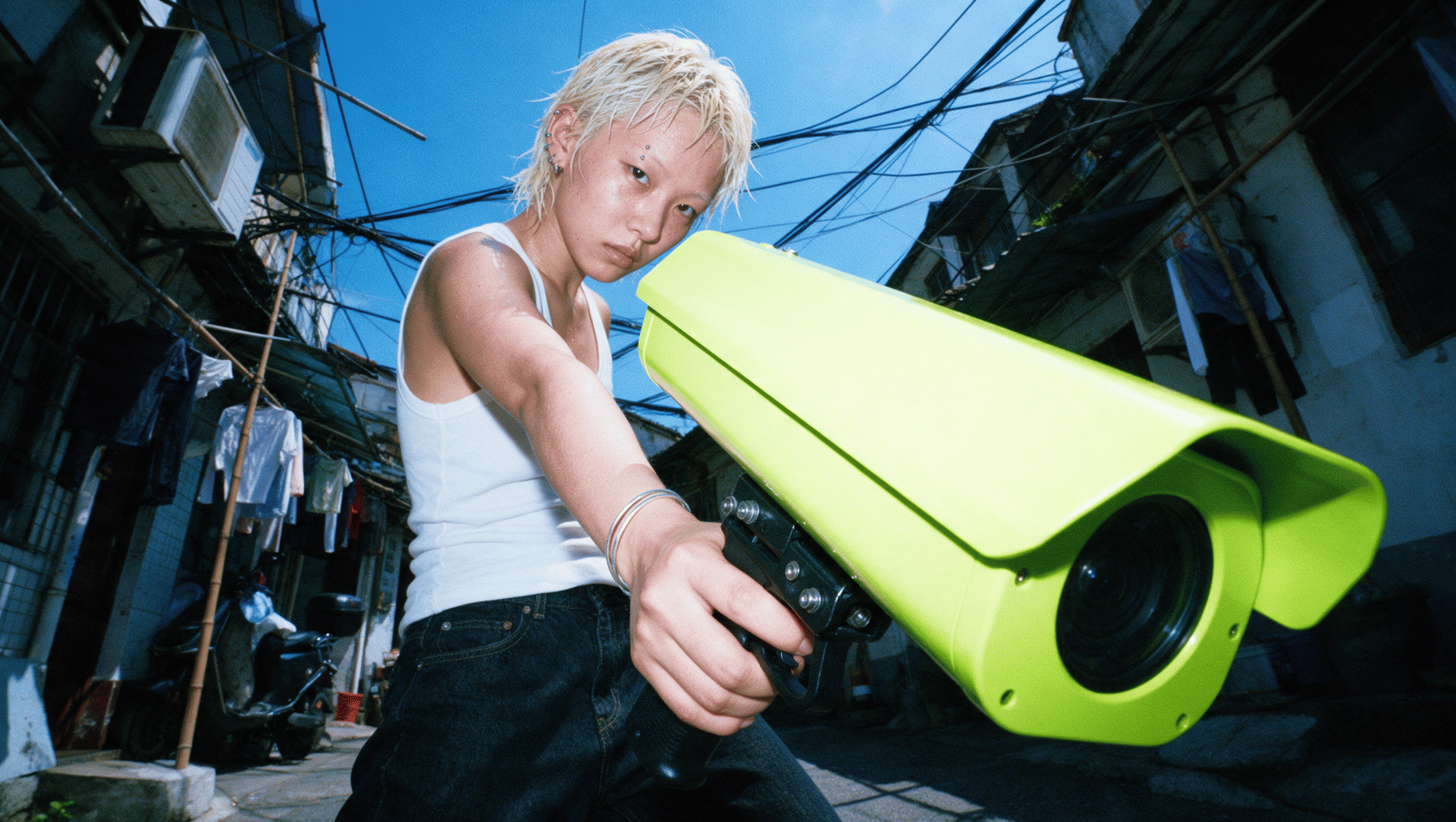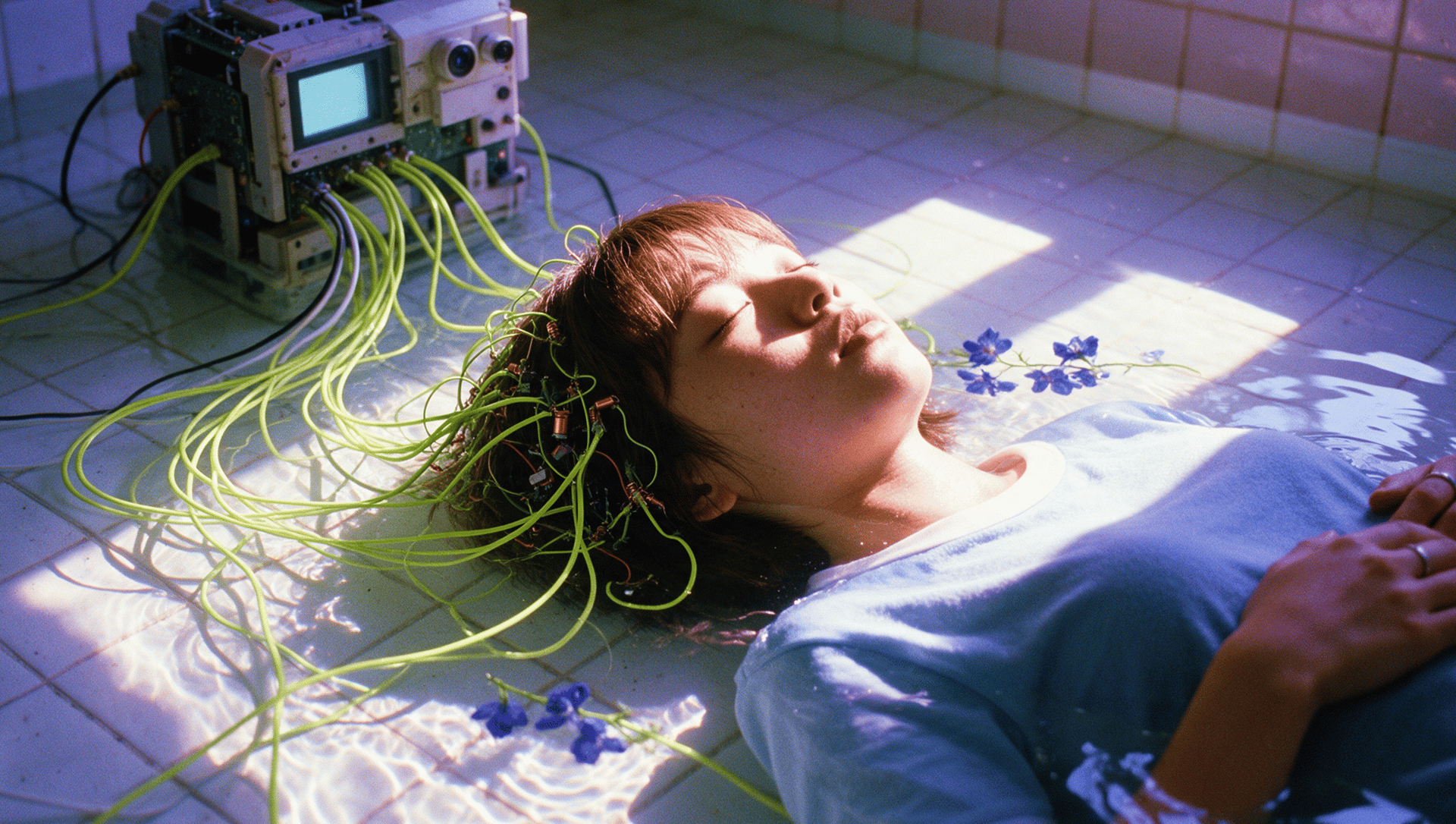
The MAGI-2 prompts that work read like a director’s note: they mention who is on screen, where, what happens, the light, one camera move, and a sound line last. If you leave sound out, the model chooses it for you. For clips over 15 seconds, write a timed shot list. Below are 10 prompts with their settings, 5 of which are shown with the Higgsfield video they made.
Key Takeaways:
- Write MAGI-2 prompts in six parts, in order: subject, scene, action, light, camera, sound. Add more detail as the shot gets more complex.
- In a MAGI-2 prompt, quote dialogue word for word, name each sound, and write “no music” or turn sound off you don’t want a score.
- Use MAGI-2 references to keep faces and products consistent, and timed shot lists for clips over 15 seconds.
- Test ideas at 4-6 seconds first, since every MAGI-2 take renders at 1080p and costs 2.5 credits per second on Higgsfield.
What Can MAGI-2 Do on Higgsfield?
MAGI-2 is Sand.ai's audio-video model, released on November 24, 2026. It generates picture and sound in a single pass, starting from text, from a start frame, or from your own images, video and audio. MAGI-2 is available only on Higgsfield, in the web app and through the Higgsfield API.
Setting | What you get |
|---|---|
Length | 4 to 30 seconds |
Aspect ratios | 16:9, 21:9, 4:3, 1:1, 3:4, 9:16 |
Quality | 1080p at 25fps |
Ways to start | Text, a start frame (end frame optional), or references |
References | Up to 10 images, 5 videos and 5 audio files |
Sound | Dialogue with lip-sync, sound effects, ambient sound and music, generated with the picture |
Price | 2.5 credits per second of video |
There's no draft quality setting. Every take renders at 1080p and costs the full rate, so test a new idea with a 4-6 second clip (10-15 credits) before committing to 30 seconds (75 credits).
How Do You Make Your First MAGI-2 Video?
To make your first MAGI-2 video on Higgsfield, follow six steps: open the model, choose how to start, add your references, write the prompt, set the Duration and Aspect Ratio, and generate. Start short, check the result, then build up.
- Open MAGI-2 on Higgsfield. Go to Video, then Create Video. Open Model and select MAGI-2.
- Choose how to start. Use text only, open Frames to add a Start frame (the End frame is optional), or open References to add your files.
- Upload and name your references. Type @ in the prompt to insert a reference, then refer to it by its label: Image 1, Video 1 or Audio 1. That's how MAGI-2 knows which file you mean.
- Write the prompt. Describe the video in the six-part order covered in the next section, ending with a line for sound.
- Set the Duration, Aspect Ratio and Audio. Open Duration and move the slider to any length from 4 to 30 seconds. Open Aspect Ratio and pick one of six ratios. Quality is always 1080p.
- Generate and review. Watch with the sound on. If something's off, change one part of the prompt and run it again, so you know what fixed it.
How Do You Structure a MAGI-2 Prompt?
Write a MAGI-2 prompt in six parts, in this order: subject, scene, action, light, camera, sound. Fixed details come first and movement second. This order helps keep faces, clothes and backgrounds steady as the shot plays.
Part | What to write | Example |
|---|---|---|
Subject | One main subject with 2-3 fixed details | An older fisherman in a yellow raincoat |
Scene | A specific place, with something in front and behind | On a wet harbor wall, boats moored behind him |
Action | One continuous movement that fits the clip length | He coils a rope, then looks up |
Light | The light source, its direction and color | Low gray daylight from the left |
Camera | One framing and one camera move | Medium close-up, slow push-in |
Sound | Quoted dialogue, named sounds, and music or “no music” | “Storm’s coming.” Gulls, waves on stone, no music |
Spell it out. A simple shot can work in 60–120 words, but a scene with dialogue and precise timing can require several hundred. A one-line idea leaves the model to guess the rest.
Lock what can’t change. End the prompt with a short list of things that must stay fixed for the whole shot, such as which side of the frame a person sits on, or that they never look into the lens.
Prompt 1: A Character Speaks a Line in a Real Location
Use this when a character needs to speak on camera. It’s the base pattern every other prompt in this guide builds on. This prompt is long, but it follows the same six parts: the character description is the subject, the location map and blocking are the scene, the action timing is the action, followed by lighting, camera and audio.
Settings: Text to video · 16:9 · 10 seconds · No references