Blog

How to Make AI Product Photos Without a Studio

HiggsfieldAug 23, 20268 min

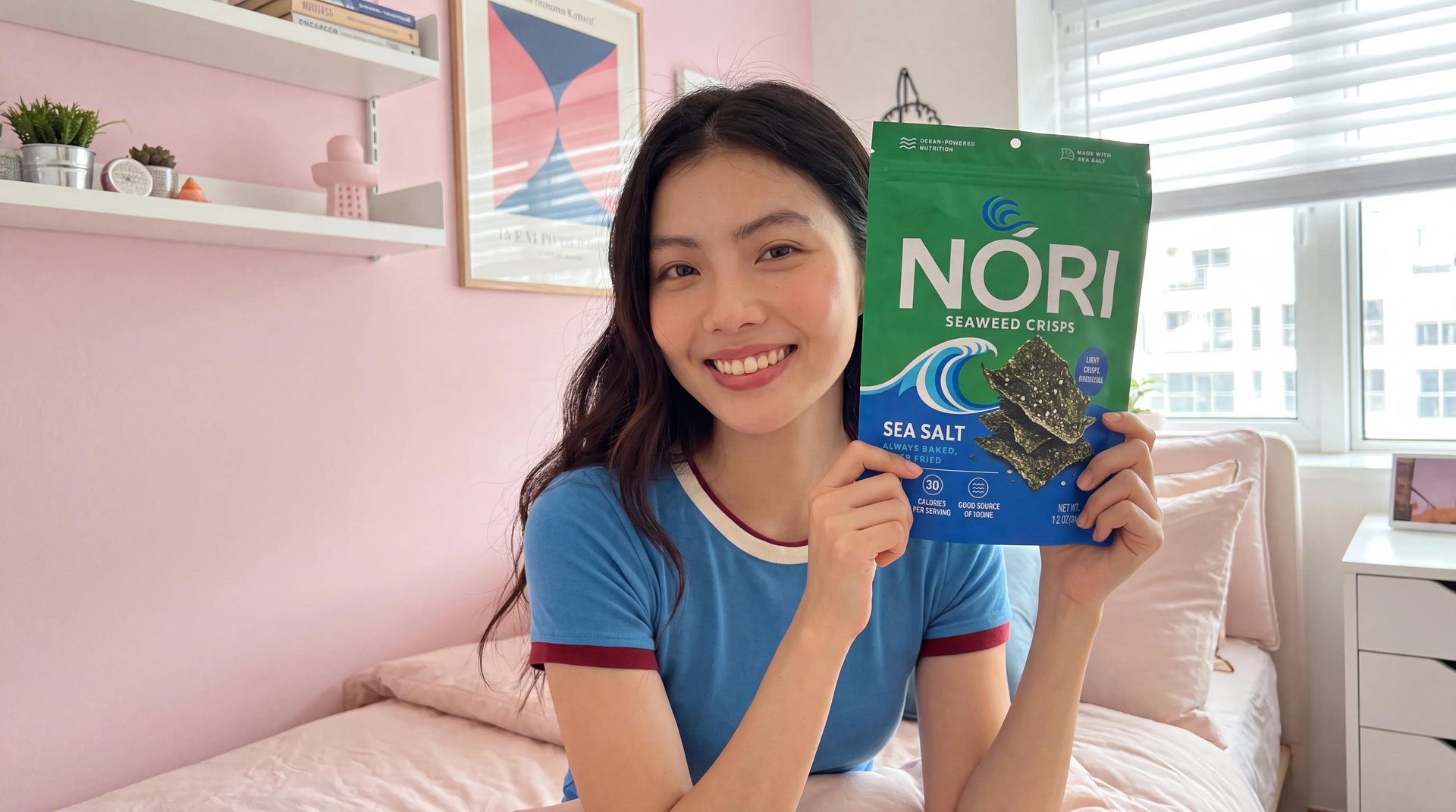
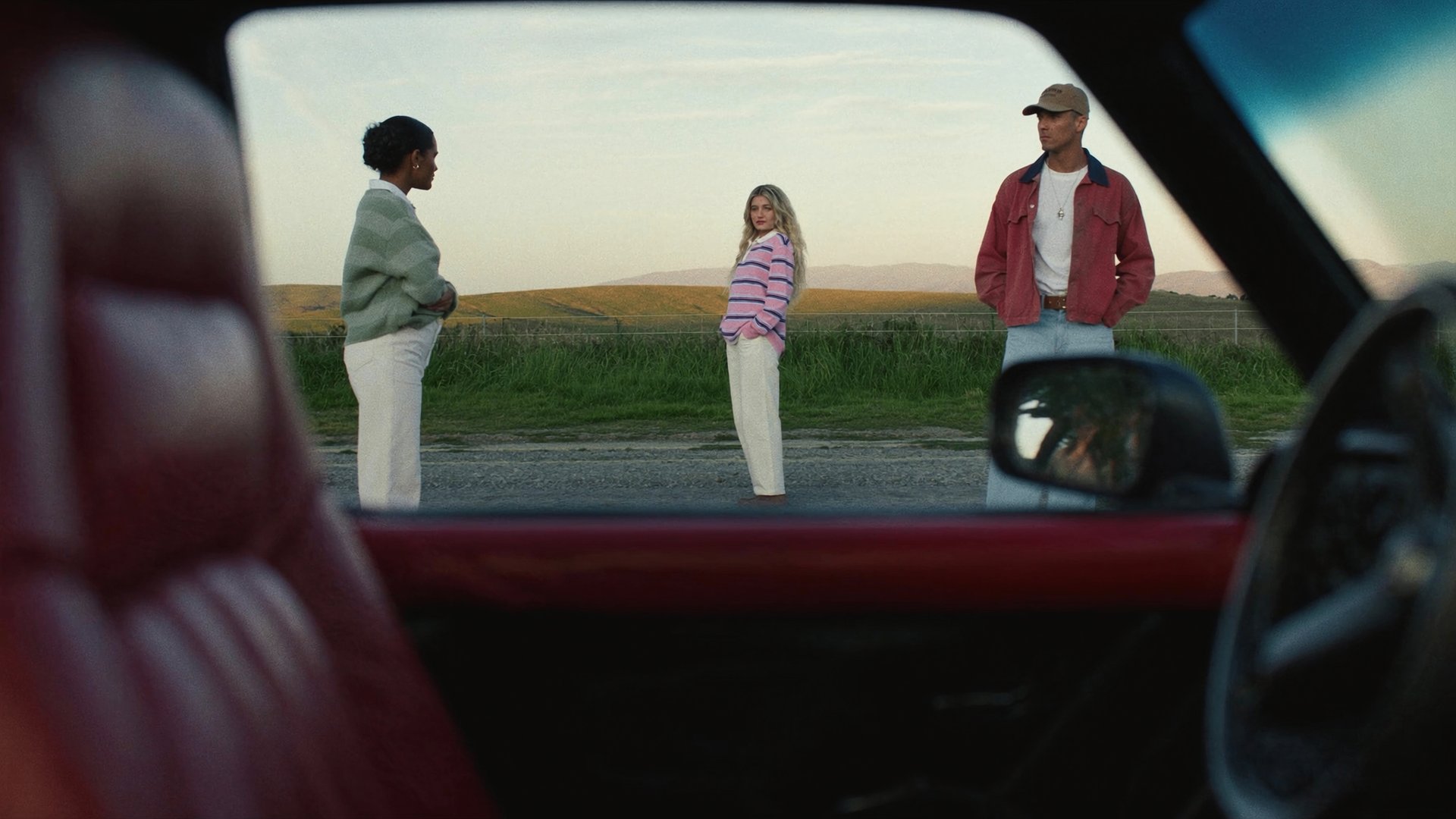
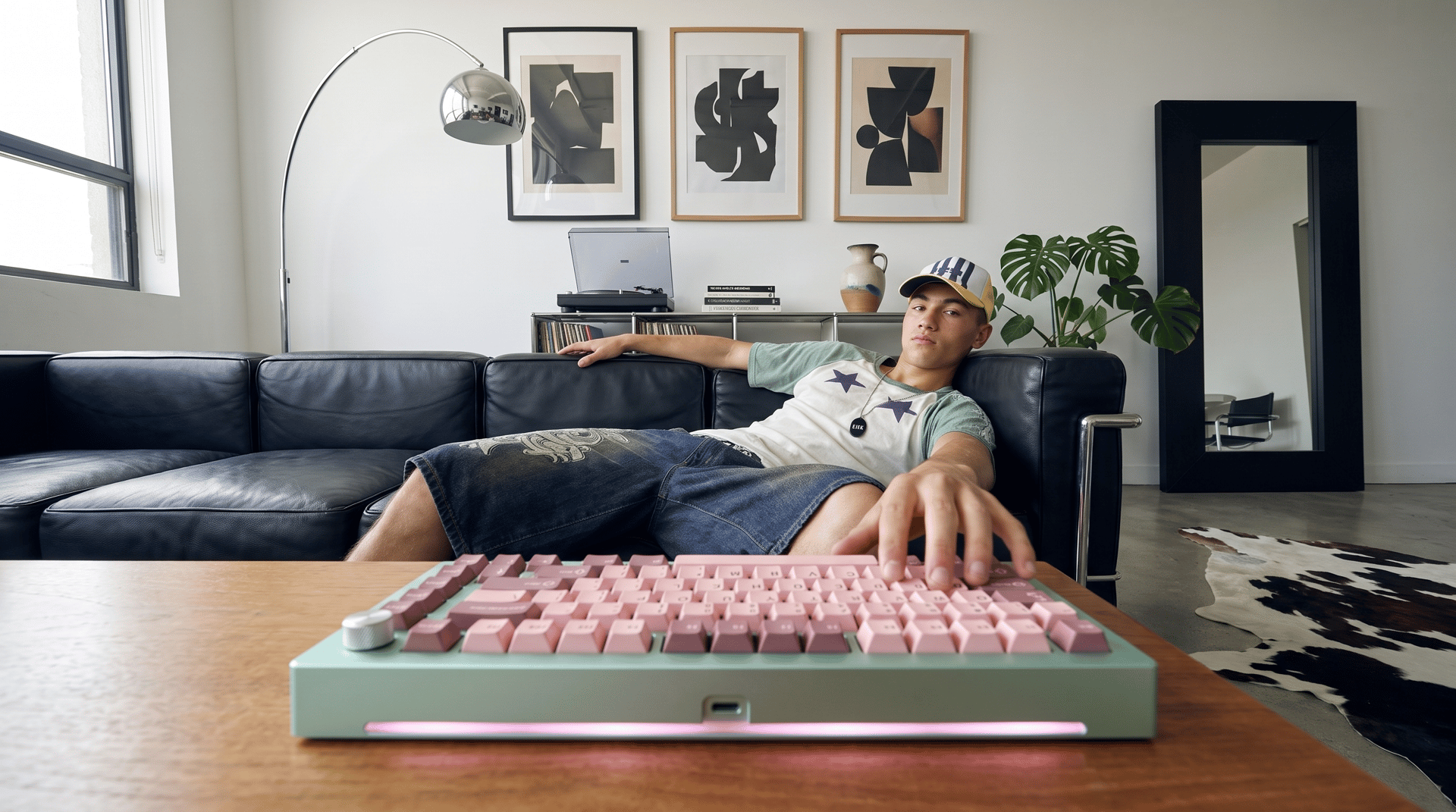
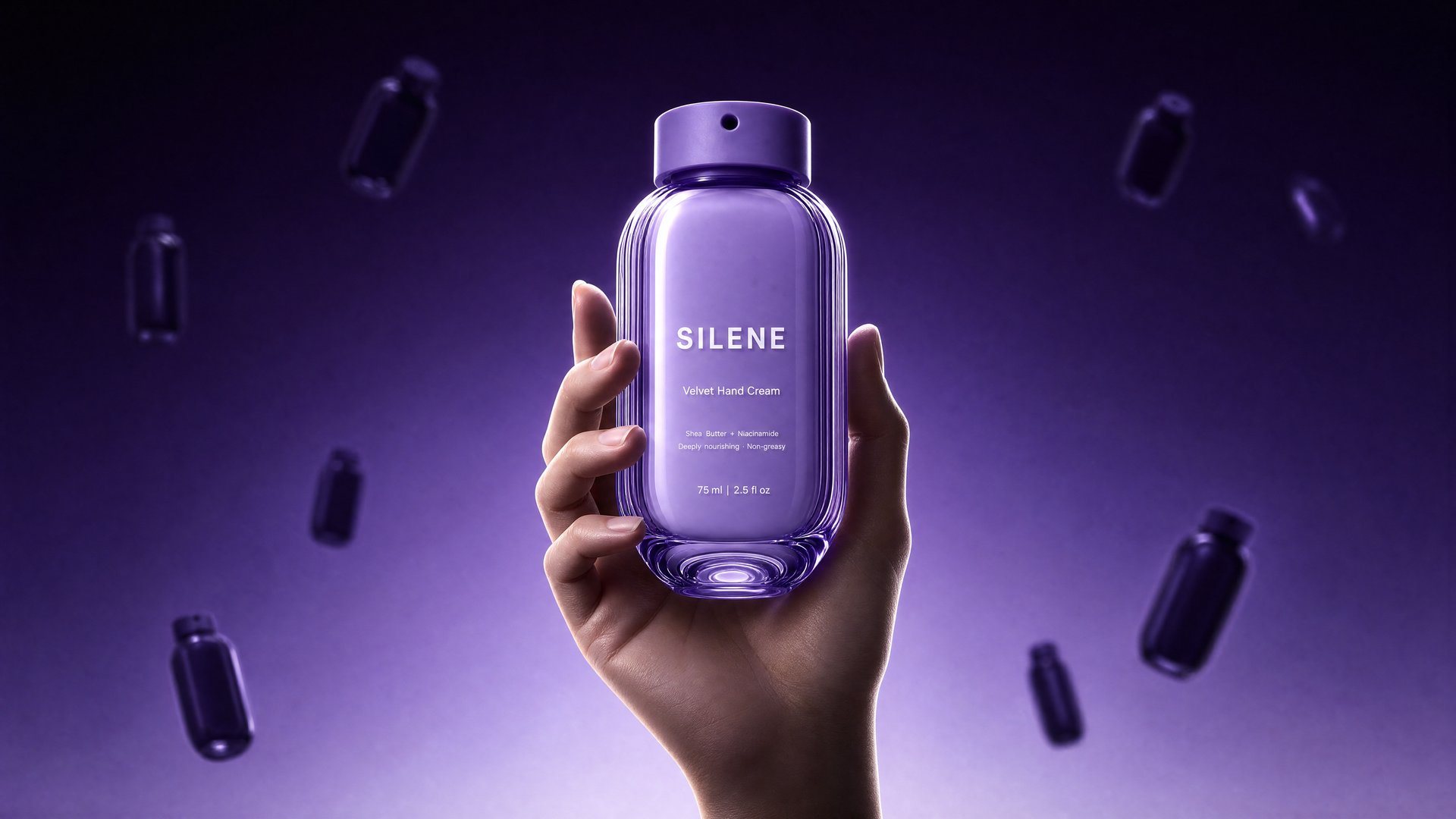
AI product photos are product images generated from real photos of your product, no studio, photographer, or model involved. Upload a clean photo, pick a shot style from the Marketing Studio library, and Recreate places your product into that style. Marketing Studio is how Higgsfield handles commercial content inside its AI-native creative suite. The output is a full set: hero, lifestyle, model shots, and marketplace covers.

What Are AI Product Photos and What They're Used For

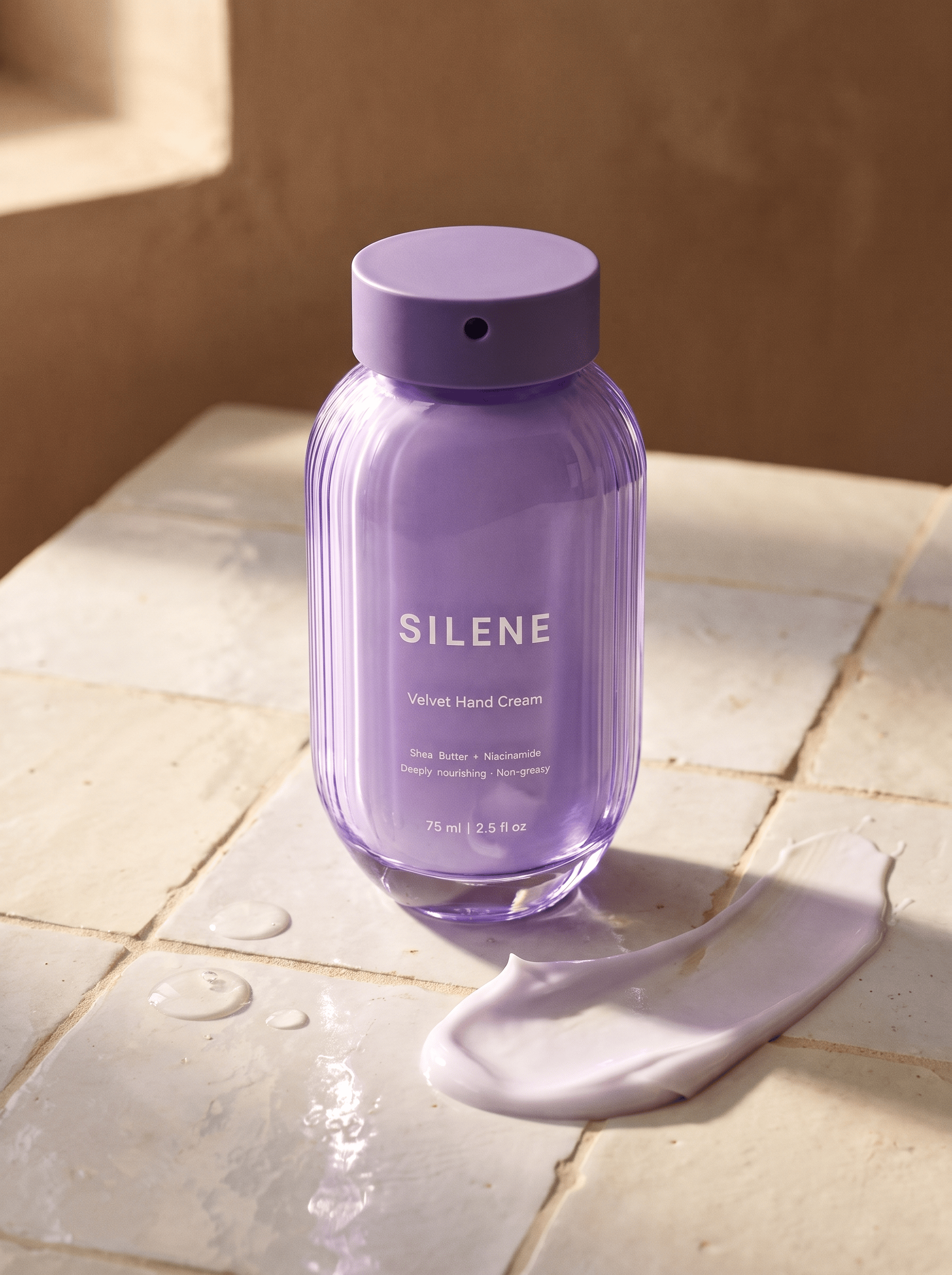
AI product photos are commercial images of a real product placed into generated scenes, lighting, and compositions. Businesses use them everywhere a product needs to be seen: website pages, product cards, paid ads, organic social posts, and marketplace listings.

A traditional shoot covers this with a studio rental, a photographer, a model, and days of turnaround. Every new format means another session, and the budget scales with each one. The practical unit a store actually needs is not one photo but a set: a clean hero image, several lifestyle scenes, a shot with a person, and covers sized for each platform, all recognizably in the same style. That set is what this guide builds, step by step, starting from at least one clean product photo.

Which Format Fits Which Platform

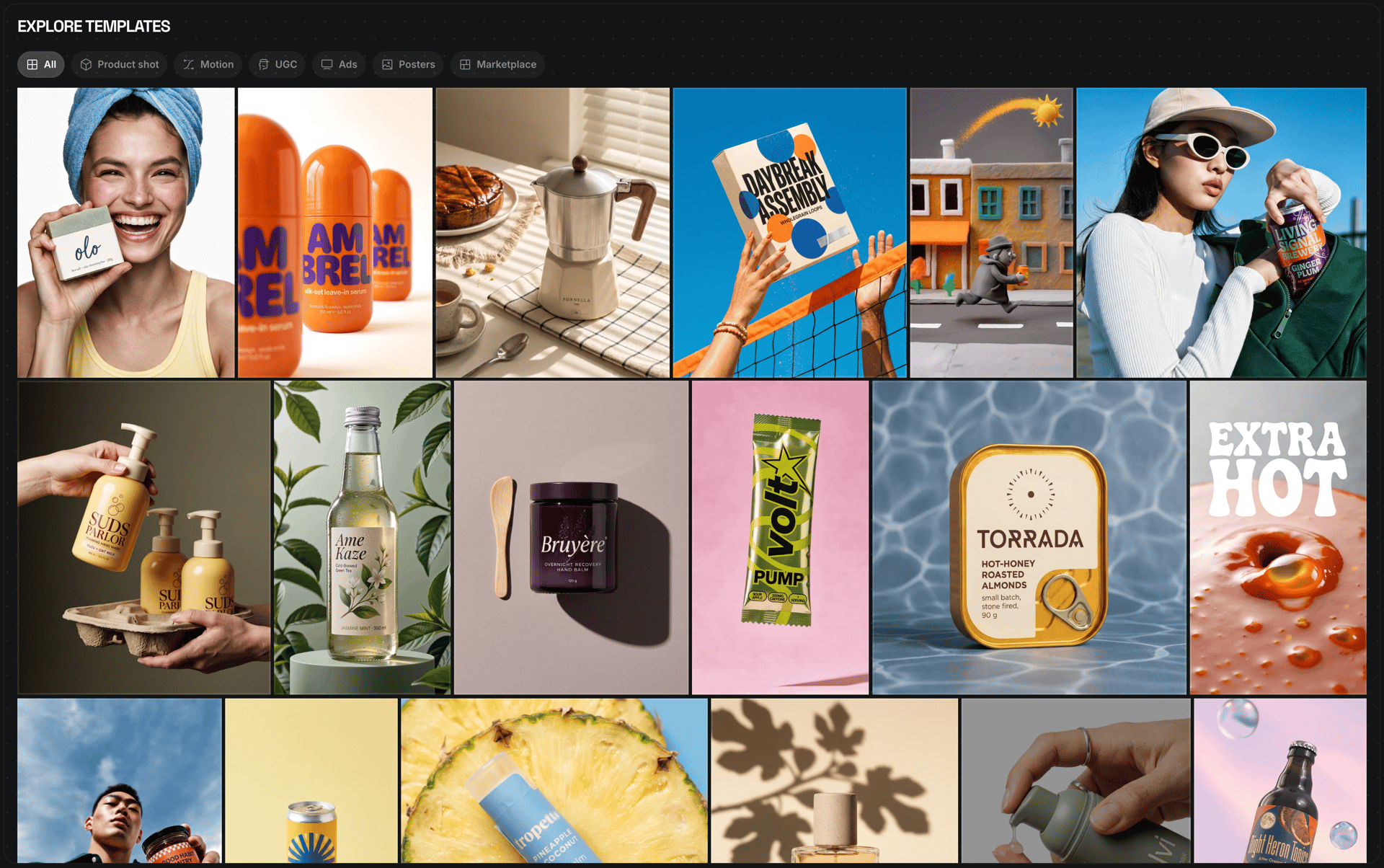
Marketing Studio organizes its template library into six categories. Each one maps to a specific place where product imagery works.

Which Format Fits Which Platform

Template category

What it makes

Where it fits

Product shot

Product photography in 9 formats, from clean catalog shots to editorial scenes

Website pages, landing pages, product cards

Motion

Animated banners and product videos

Ecommerce video ads, screen-style advertising

UGC

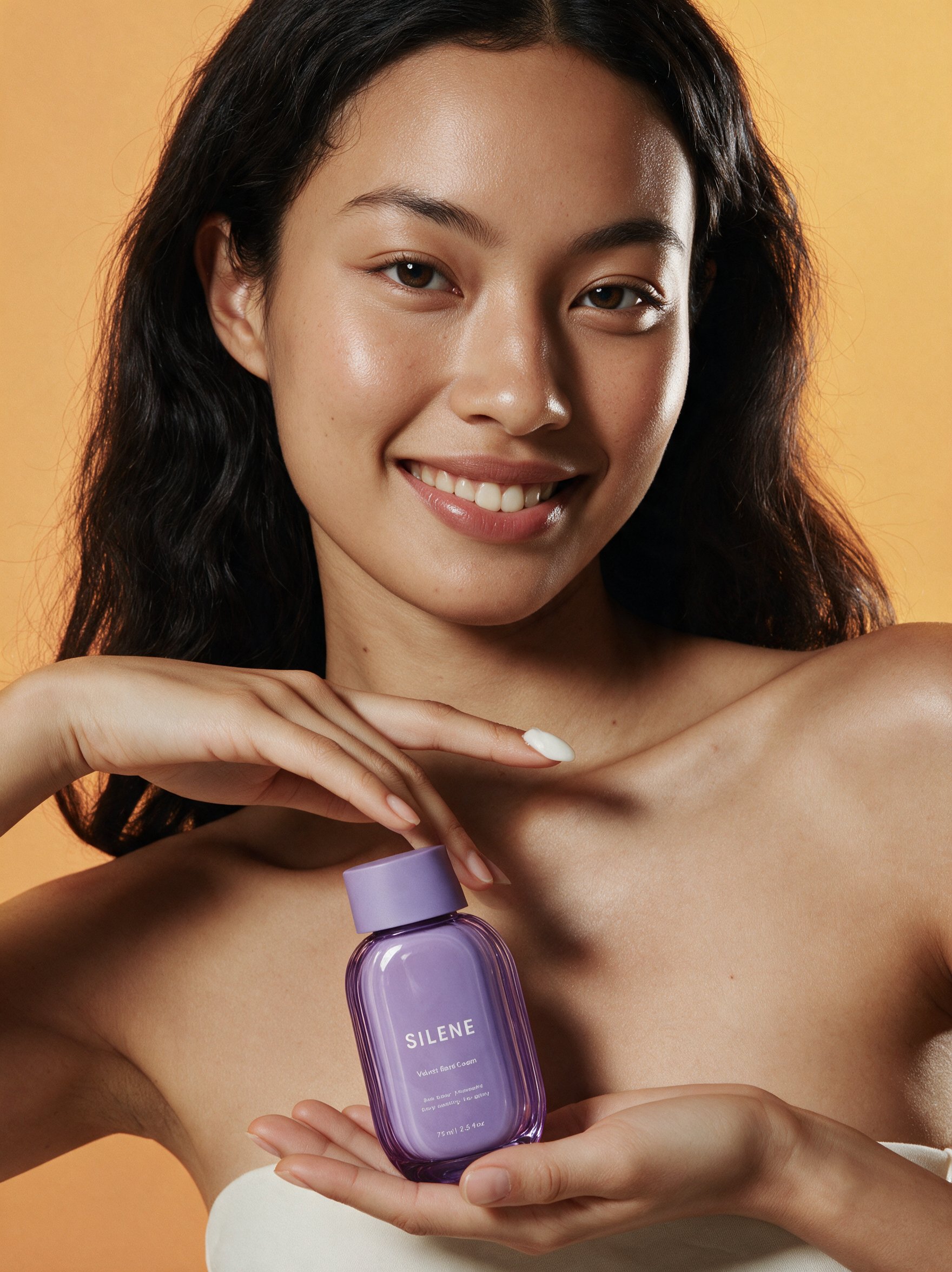
Photos of a person interacting with the product

Instagram feed, organic social content

Ads

Image banners built to the specs of Meta and Google placements

Paid campaigns, A/B testing in volume

Posters

Stylized posters in illustrated or edited looks

Brand content, visual variety in the feed

Marketplace

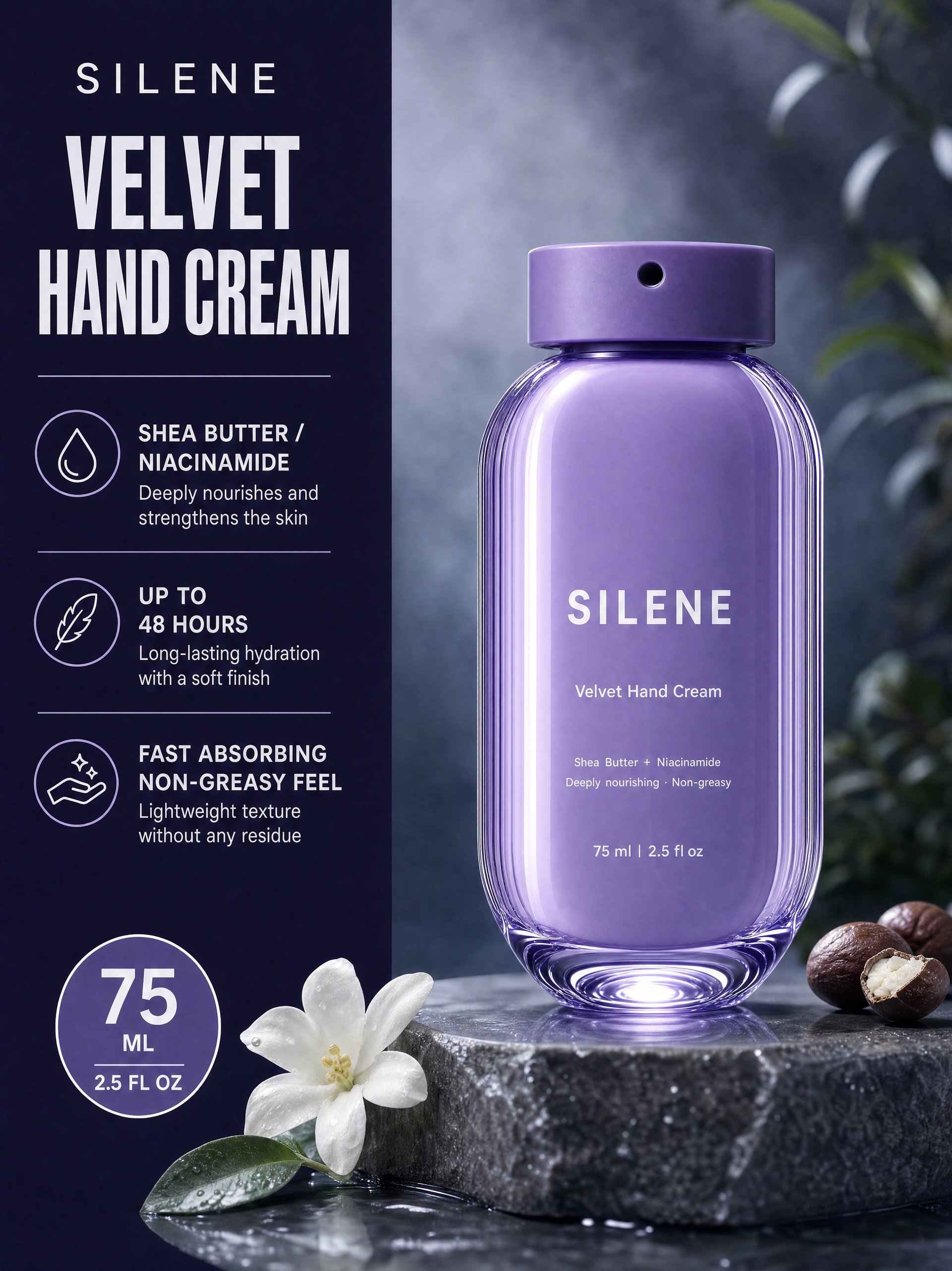
Listing covers formatted for marketplace use

Product listings and category pages

This article focuses on the photo formats and closes with how the same product moves into Motion.

How Higgsfield Builds the Full Set

Marketing Studio is a template library for commercial creative, with 1,500+ options organized by use case. The mechanic that turns it into a photo set factory is Recreate: open any template, upload your product in the Replace product field, optionally describe an edit, and the template's style regenerates around your item. The template's layout, lighting, and style carry over to the result, with your product in place of the original one. Recreate works in every preset in the library.

Using the same source photo and the same saved product helps keep the set visually consistent across generations. Photos and video also live in one workspace, so the workflow does not change when the set expands from images to animated formats.
Step 1: Prepare a Clean Base Photo

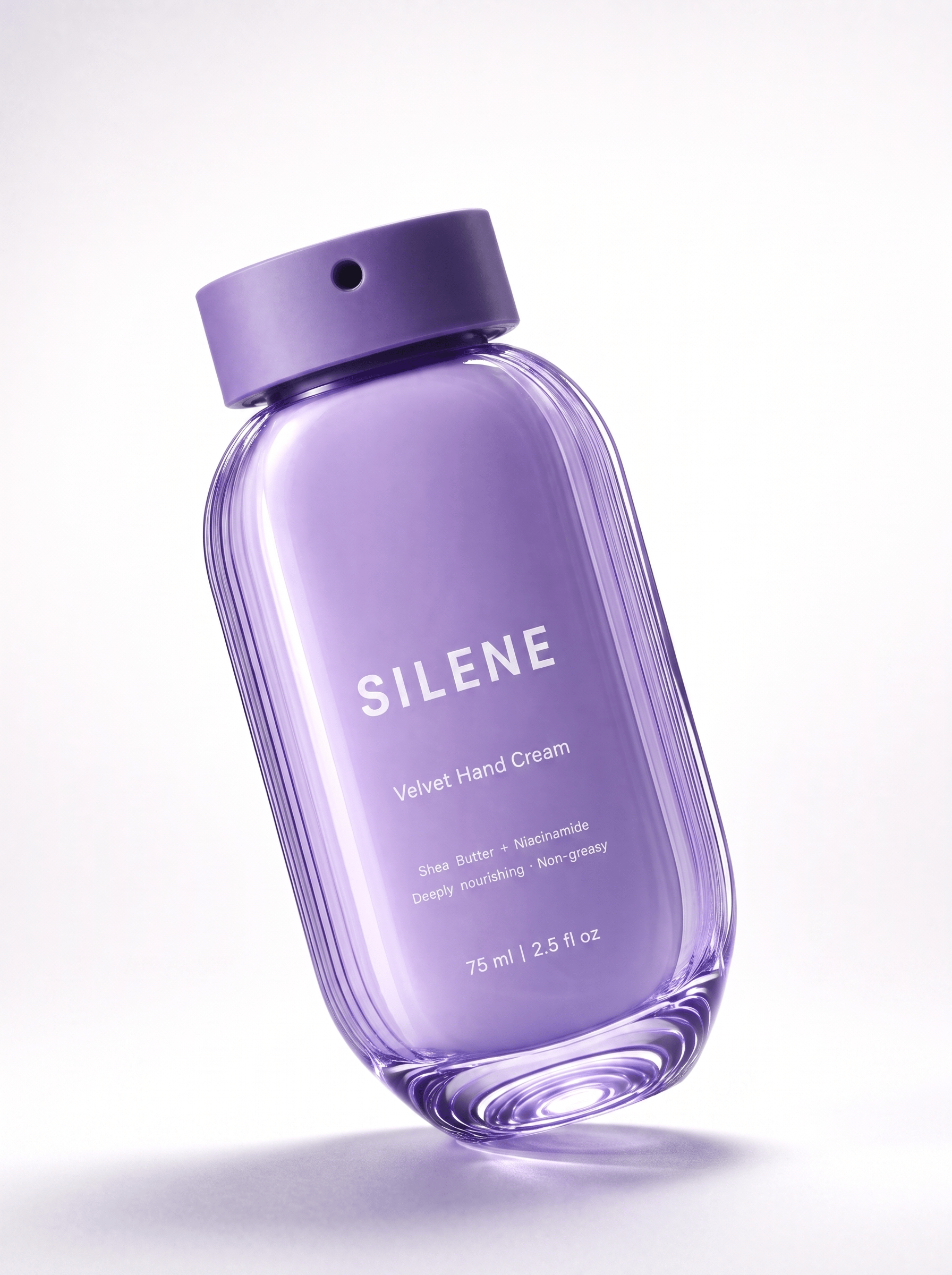
The quality of the source photo decides how accurately the product comes through in every generation. Start with at least one clean product photo: an uncluttered background, even light without harsh shadows, the product filling most of the frame, and any packaging text readable.

A phone photo works if it meets those conditions. If the background is busy, clean it on Higgsfield with Remove Background in Higgsfield Layers before you start; the full editing workflow is covered in How to Edit Photos with AI.

Step 2: Add Your Product for Consistency

In the Marketing Studio generation panel, use the Product slot to add your item once. One clean photo is enough to start; for better product consistency, add multiple angles and packaging references, then give the product a name and a short description. Every generation after that pulls the same saved product, which helps keep the item consistent across the whole set, from the hero shot to the last marketplace cover.

Step 3: Pick or Create an Avatar (Optional)

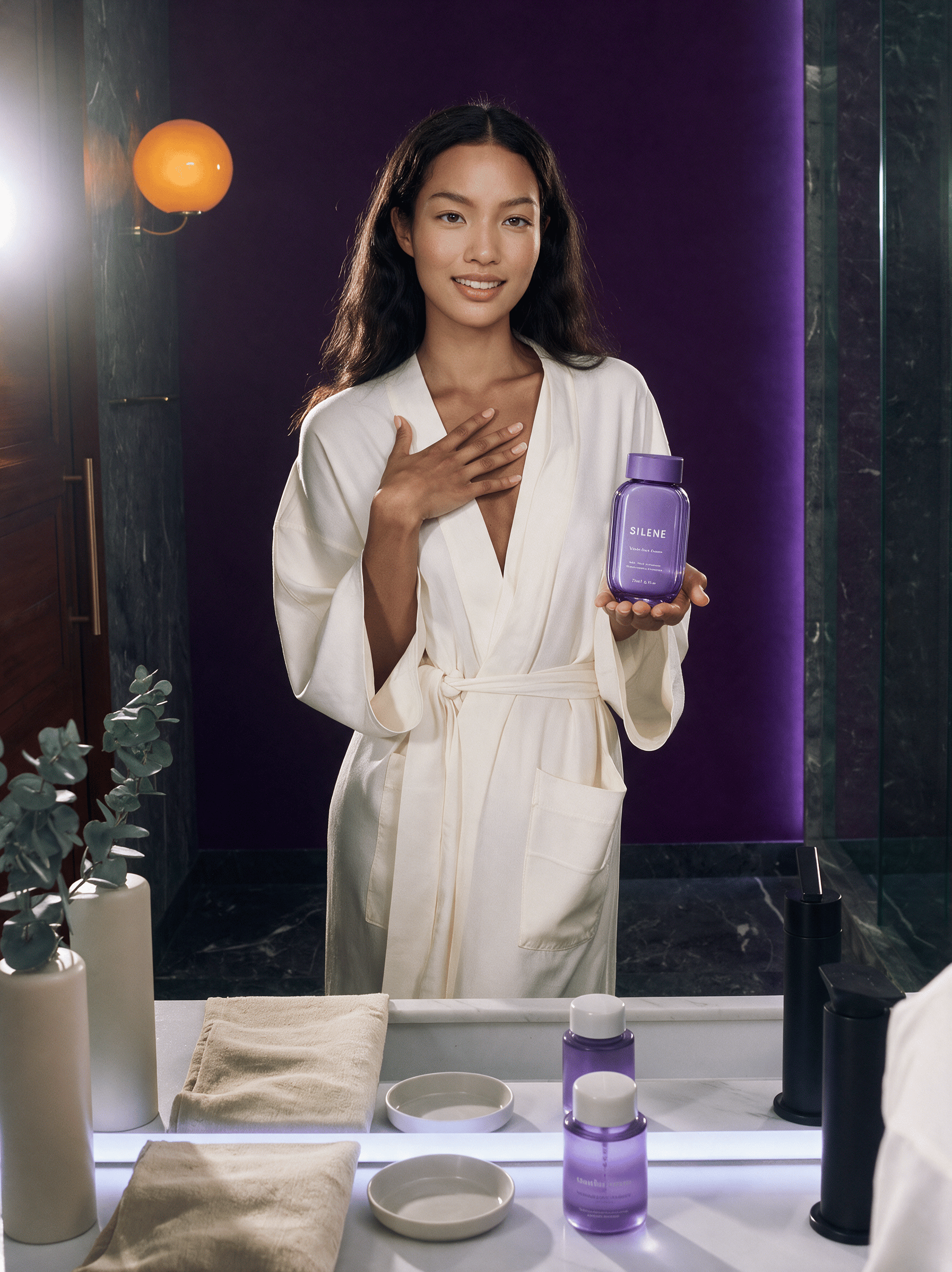
If the set needs a person in the frame, Marketing Studio covers that without hiring a model. Avatar selection is available in the people formats of Product shot: Closeup, Full body, Editorial, and UGC. The avatar can come from three places, and all three sit in the same Avatars window. Pick a ready avatar from the library. Create your own through Create avatar by attaching one or several photos of a person whose face you have permission to use. Or generate a character with Soul 2.0 and upload its photo as your avatar, for a person that does not exist at all. If you need to reuse the same identity across other workflows, Soul ID helps maintain that character. Whichever path you take, one saved avatar helps keep the same face across the set.

This step is optional. A set built entirely from faceless formats is still a complete set; a person in the frame adds scale, context, and a human touch where the platform calls for it.

Step 4: Generate the Core Set in Product Shot

The Product shot category holds 9 formats: Closeup, Faceless, Full body, Editorial, UGC, Studio white, Color pop, Natural, and Usage. A working set does not need all nine. For this guide we picked four and built the set from them:

  • Studio white for the hero: a clean catalog shot on a seamless background.

  • Closeup with our avatar for the detail shots.

  • Usage and Faceless for the product in context without a face in every frame.

  • Full body for one wider scene that carries the brand mood.

To place the product in a specific setting, add reference images for the scene alongside the product, for example a location shot for sneakers photographed outdoors. Before moving on, compare each result against the real product: shape, colors, and packaging text must match what a customer receives.

Step 5: Move to Marketplace Covers

With the core set done, switch to the Marketplace category for listing covers. The standard order holds on most platforms: the white-background hero goes first, lifestyle and detail shots follow as secondary images. Marketplace templates format imagery for listing use; they do not claim compliance with any specific platform's requirements, so check the rules of your marketplace before publishing.

From Photos to Motion Banners

The same product, saved once in Step 2, moves into video without leaving Marketing Studio. The Motion category turns product imagery into animated banners and posters, the format familiar from ecommerce ads and screen advertising, up to 15 seconds per generation. A store that finished its photo set is two clicks away from a matching animated cover for the same campaign.

The full video workflow, from product shots to finished video ads, is covered in How to Make AI Product Videos Without a Studio.

How Much a Product Photo Set Costs

Generations in Marketing Studio draw credits, and the exact cost is shown on the Generate button before you confirm. Prices differ by style and preset.

How Much a Product Photo Set Costs

Generation

Credits

Approx. cost

Product shot image

2 to 4

$0.10 to $0.20

Static poster or marketplace banner

8

$0.40

Animated banner (Motion)

30 to 31

$1.50 to $1.55

At the standard rate of 20 credits per dollar, a full photo set of 8 to 10 images costs between $1.60 and $2.40, a fraction of a single studio session. Adding one animated Motion banner to the set brings the total to about $4. Current plan details are on the pricing page.

How to Make AI Product Photos Without a Studio

Try Marketing Studio

Got any questions left?

Yes. Content generated in Marketing Studio is yours to publish across organic and paid channels under Higgsfield's Terms of Use.

Yes. The people formats in Product shot, Closeup, Full body, Editorial, and UGC, place the product with an avatar. There are 40 avatars at the time of writing, plus custom ones.

Yes, but the final images still need to meet Amazon's current listing requirements and accurately represent the product. Use the Marketplace templates as a starting point, then check the platform requirements before publishing.

A clean reference photo helps preserve the product more accurately, but every generated image should still be checked against the real item. Pay attention to shape, color, logos, packaging text, and proportions.

by Higgsfield

Share article