Higgsfield Meets DaVinci Resolve: Generate B-Roll Right in Your Edit

Higgsfield

·

Jul 28, 2026

·

10 min

Higgsfield Meets DaVinci Resolve: Generate B-Roll Right in Your Edit

Higgsfield's plugin for DaVinci Resolve puts seven AI tools, an AI LUT creator, and Cinema Studio and Marketing Studio into one panel inside Resolve: generating B-roll from a text prompt, matching color to a reference frame, and reframing, removing backgrounds, or upscaling clips, all without leaving the app. This article covers what's in the panel, how the B-roll and color-matching workflows work, installation and requirements, cost, and what the plugin doesn't do.


What's Included in the DaVinci Resolve Panel?

One installer adds a single panel to Resolve with seven core tools, plus an AI LUT creator for color, and two utilities for moving generations into a project.

What's Included in the DaVinci Resolve Panel?

Tool

What it does

Generate Video

Video from a text prompt, with references supported: scenes, characters, B-roll, camera moves

Generate Image

A visual from a prompt: backgrounds, overlays, title cards, scene elements

Edit Video

AI editing of the active clip from a text prompt

Draw to Edit

Sketch on the frame to remove an object, add an element, or replace an area with a brush stroke

Reframe

Change a clip's aspect ratio (9:16, 16:9, 4:3, 3:4, 21:9, or 1:1) without manual cropping; subject tracking keeps the focal point centered

Remove Background

A clean key from footage without a green screen

Upscale

Higher resolution, up to 4K or 8K, with detail recovery rather than pixel stretching

AI LUT Creator

Matches a clip's color to a reference frame, photo, or palette; exports as a .cube LUT or applies as color nodes

Last Generations gives quick access to recent Higgsfield output, and Import to Resolve places any result into the Media Pool or directly onto the Timeline.
How Do You Generate B-Roll Without Leaving Resolve?

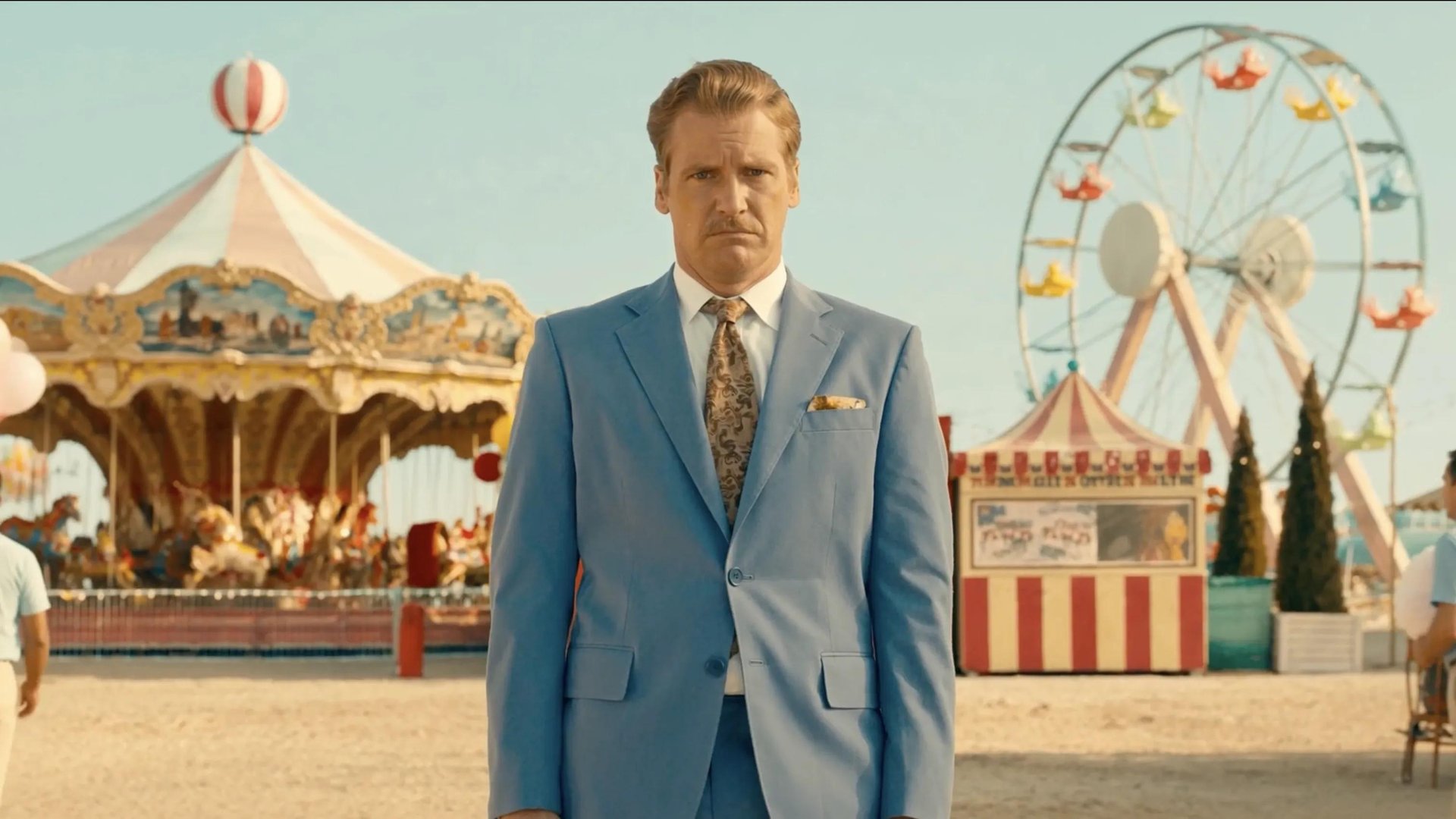
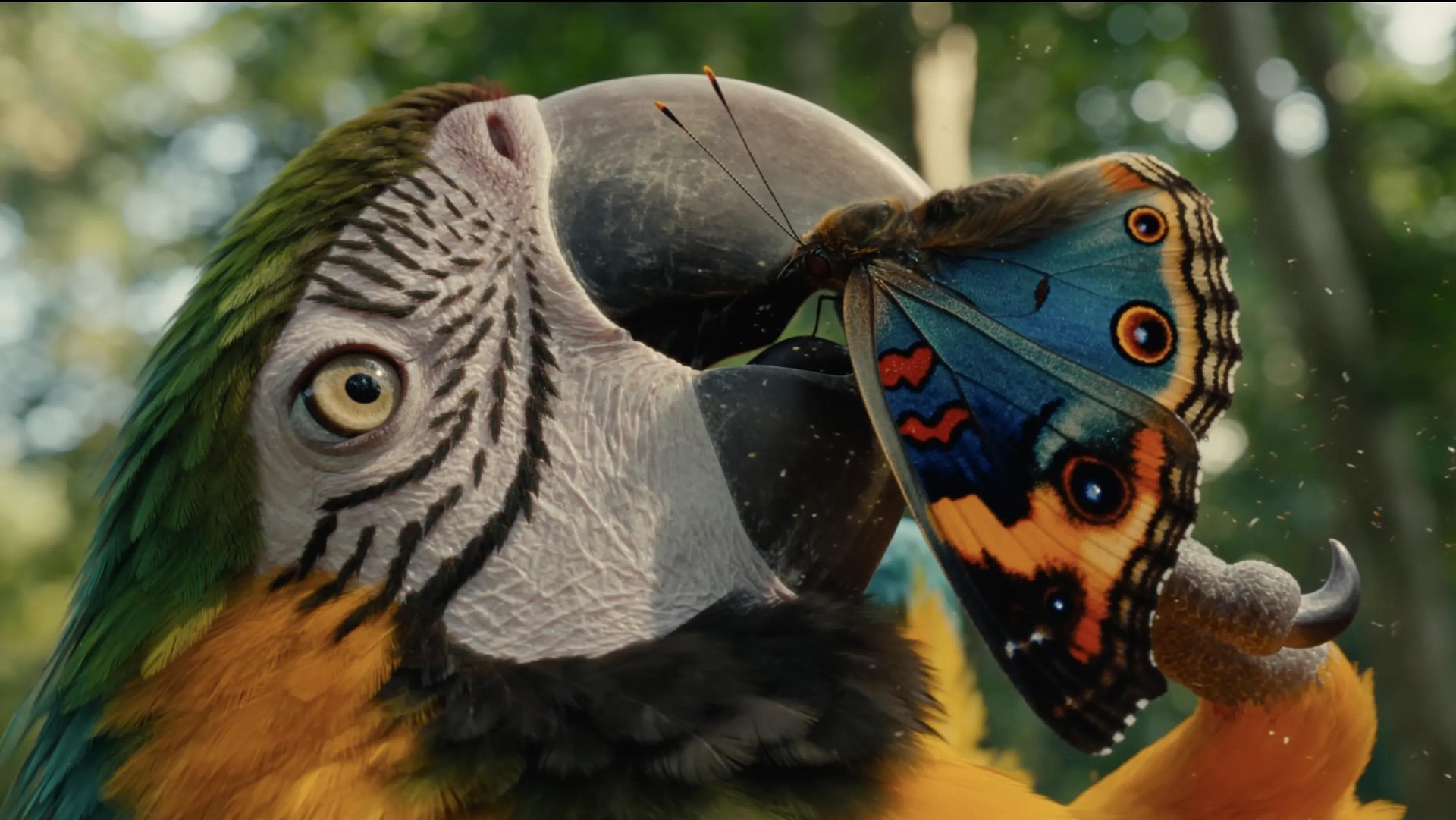
Take the active clip or preview in Resolve, add a reference if you have one, and describe the shot. Once the job finishes, the result goes into the Media Pool or onto the Timeline through Import to Resolve. Nano Banana 2 is the default model for images and Seedance 2.0 the default for video, with a wider set of image and video models available under the hood.

If the clip doesn't fit the sequence, regenerate it from the same panel. If it fits but the color is off against surrounding footage, that's a separate step, covered by the AI LUT creator.


How Does the AI LUT Creator Match Color to a Reference?

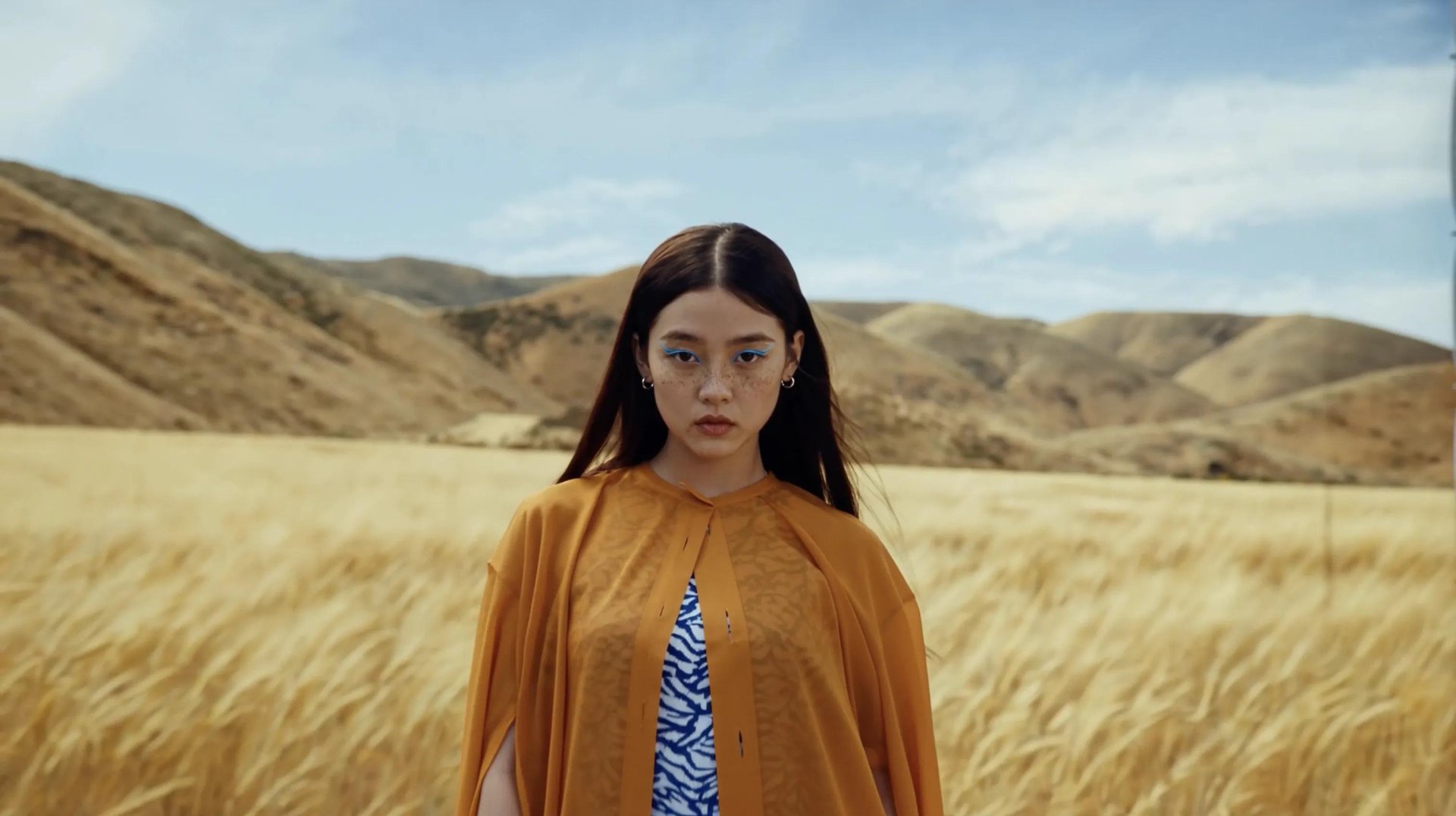
The tool takes a source frame from your footage and a reference frame, a still, a graded shot, a photo, and builds the look from that pairing. The output comes back two ways: as a LUT in .cube format, or as color nodes applied directly to the current clip.

This addresses a specific and common problem with generated B-roll: a clip that looks fine on its own but doesn't sit right in color next to camera originals. Matching it to one reference frame from the sequence is meant to close that gap inside the same panel, without a separate grading pass.


Does the Plugin Include Cinema Studio and Marketing Studio?

Cinema Studio, Higgsfield's camera-controlled video tool, and Marketing Studio are both accessible directly from the Resolve panel, alongside the seven core tools. That reflects where Higgsfield sits as a product: not a single generator but an AI-native creative suite, where character consistency (Soul ID), cinematic generation (Cinema Studio), ad creative (Marketing Studio), and editing tools all run on one account and one credit balance. A character built with Soul ID on the platform, for instance, can be pulled into a Resolve project through Last Generations rather than regenerated from scratch. Higgsfield also ships separate plugins for Premiere Pro, After Effects, Photoshop, and Figma, all sharing that same account.


How Do You Install the Plugin, and What Do You Need?

Step 1. Download the installer from higgsfield.ai/plugins/davinci: a native installer for macOS (Apple Silicon and Intel, no helper app) or an .exe for Windows.

Step 2. Run the installer. It detects DaVinci Resolve automatically.

Step 3. Open Resolve and find Higgsfield under Workspace → Workflow Integrations, or under Workspace → Scripts on some setups. The panel can be docked anywhere in the workspace.

Requirements: DaVinci Resolve 19 or newer, on macOS or Windows. The App Store build of Resolve is not supported; use the version from blackmagicdesign.com instead. An internet connection is required for every generation, since inference runs on Higgsfield's servers and results are sent back into Resolve automatically.


What Does It Cost to Generate Through the Plugin?

Every generation through the plugin spends credits from your Higgsfield plan balance, the same balance shared across the web app, MCP, CLI, Supercomputer, and every other Higgsfield plugin. There's no separate account to set up for Resolve specifically. Any generation made through Resolve, or through any other third-party integration, draws from your credit balance regardless of a model's Unlimited status on the web platform.


What Are the Plugin's Limitations?

  • No offline mode: Every generation requires an internet connection.

  • Resolve version requirements: The plugin requires DaVinci Resolve 19 or newer, and the App Store build isn't supported.

  • Credits apply to every generation: This includes models that are Unlimited on the Higgsfield web platform.

  • Short-form video only: Higgsfield's video models generate clips in the 4 to 15 second range, which works well for B-roll, cutaways, and inserts, but not for long master shots.


Who Will Find This Plugin Useful?

  • Editors working in DaVinci Resolve

    who want to generate missing shots without switching to a browser or exporting files manually.

  • Colorists

    who need to match generated footage to the look of existing clips using a reference frame.

  • Teams that regularly need B-roll, cutaways, or inserts

    that were not captured during production.

  • Creators who already use Higgsfield for generation

    and want to bring their existing outputs directly into a Resolve project through the same account.

Higgsfield Meets DaVinci Resolve: Generate B-Roll Right in Your Edit

Get the Plugin

Got any questions left?

The generation, editing, and color-matching tools run inside a Resolve panel, and results go directly into the Media Pool or onto the Timeline, without a manual export and import step.

Generate Video, Generate Image, Edit Video, Draw to Edit, Reframe, Remove Background, Upscale, and the AI LUT creator, all in one panel with one-click switching. Cinema Studio and Marketing Studio are also accessible from the same panel.

DaVinci Resolve 19 and newer, on macOS and Windows. The App Store build isn't compatible; use the version from blackmagicdesign.com.

Nano Banana 2 by default for images and Seedance 2.0 for video, with a wider set of models available under the hood.

Into the Media Pool or directly onto the Timeline, through Import to Resolve.

Yes. AI inference runs on Higgsfield's servers, and results are sent back into the Resolve media pool automatically.

No. Unlimited access only applies on higgsfield.ai. Every generation made through the DaVinci plugin, or any other integration, spends plan credits.

Yes, under the same terms as the web platform, per Higgsfield's Terms of Use.

by Higgsfield

Share article