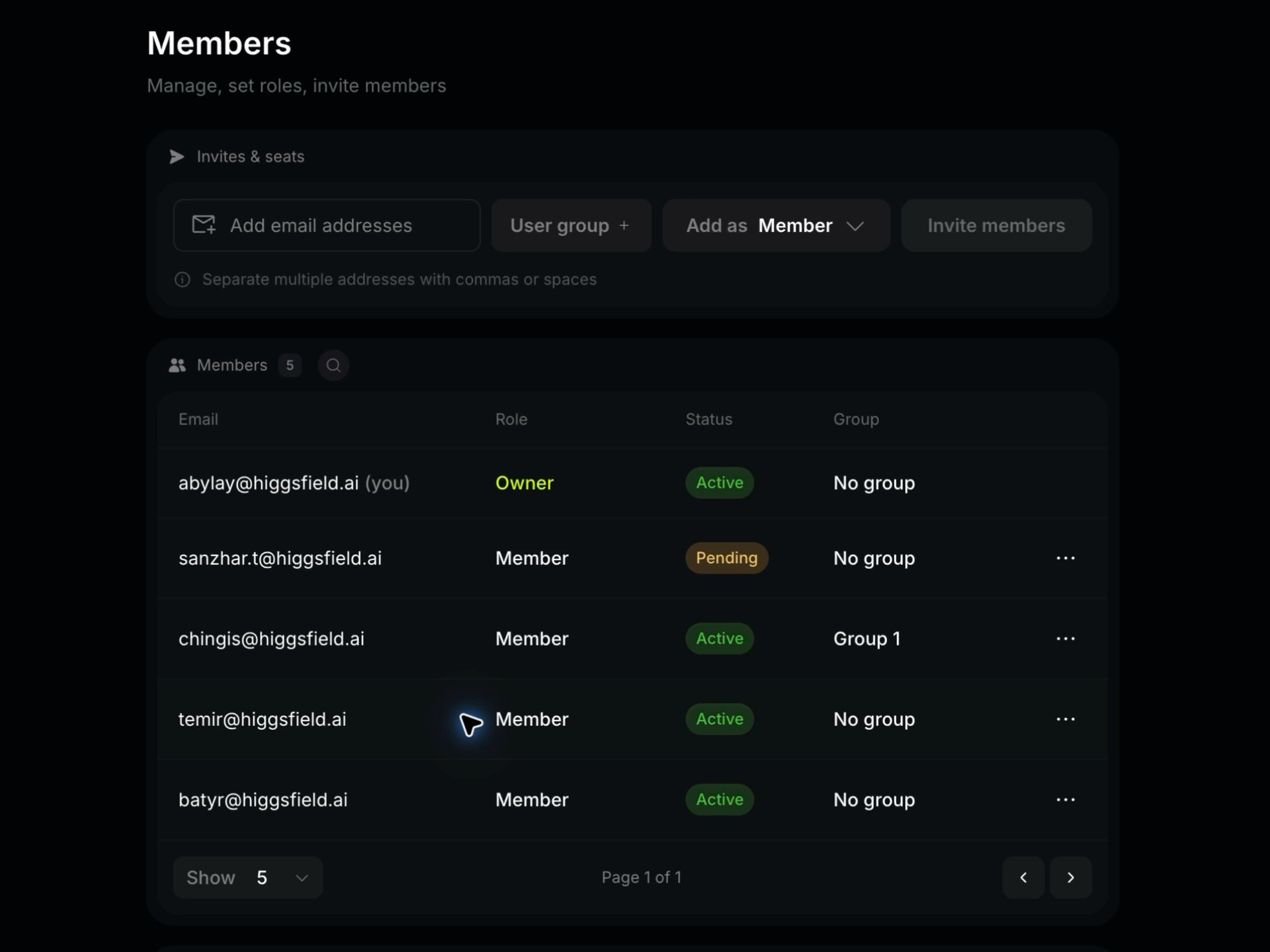
Three levels of control: a budget for a sub-workspace, limits and model restrictions for a user group, and an instant pause for one member. Groups do not create a separate workspace or asset library - not sure which you need?See User Groups & Sub-Workspaces if you are deciding between the two.
Create a group
- Open Manage Account → Members → Add Group.
- Name the New group.
- Turn on Limit credits and choose Per member or Entire group.
- Set the amount and Reset frequency: Daily, Weekly or Monthly (monthly also needs a Limit reset date).
- Add model restrictions if needed (next section).
- Click Create group.
Restrict models or resolutions
- Restrict models → Add → select a model. Selected models are blocked for the group.
- Res. next to a model blocks a specific resolution only.
- LLM restricts language models where shown.
Assign people
- While inviting → the User group field in the invite dialog.
- Existing member → ⋯ → Add to user group → pick one or more groups → Done.
- Pending invitation → its ⋯ → Add to user group.
Choose when the limit resets
- Daily, Weekly or Monthly.
- Monthly: set Limit reset date - Start of month (the 1st at 00:00 UTC) or another day to match your billing cycle.
- Unused allowance does not roll over. Entire group is a shared cap, not a budget. This does not change subscription renewal or sub-workspace schedules.
What members see
Avatar menu → Credits shows the group allowance and what is left
Choose when the limit resets
- Daily, Weekly or Monthly.
- Monthly: set Limit reset date — Start of month (the 1st at 00:00 UTC) or another day to match your billing cycle.
- Unused allowance does not roll over. Entire group is a shared cap, not a budget. This does not change subscription renewal or sub-workspace schedules.
What members see
Avatar menu → Credits shows the group allowance and what is left.
Instant pause
Manage Account → Members → the member's ⋯ → Pause usage. Running jobs finish; new ones do not start. Workspace access stays. Unpause the same way. Any Admin with the Pause member's credit usage permission can do this.
Watching the spend
Manage Account → Organization → Top credit spenders shows credits spent, generations, share of total and average per generation for every member. Review it before each billing period and set limits from real numbers.
For control beyond credits, use Organization → Manage access (Supercomputer tools) and Manage guardrails. See SSO, Guardrails & Security.