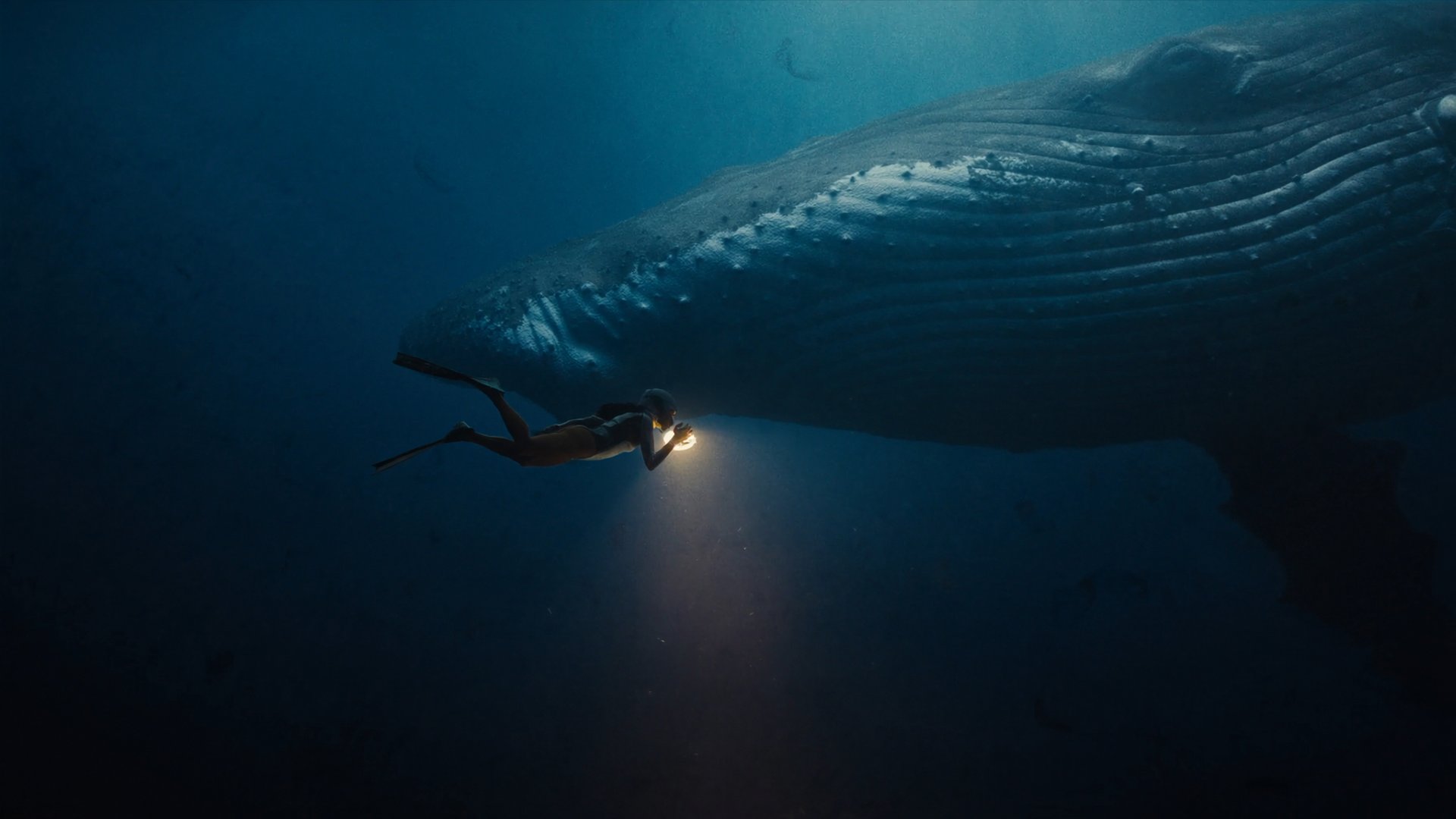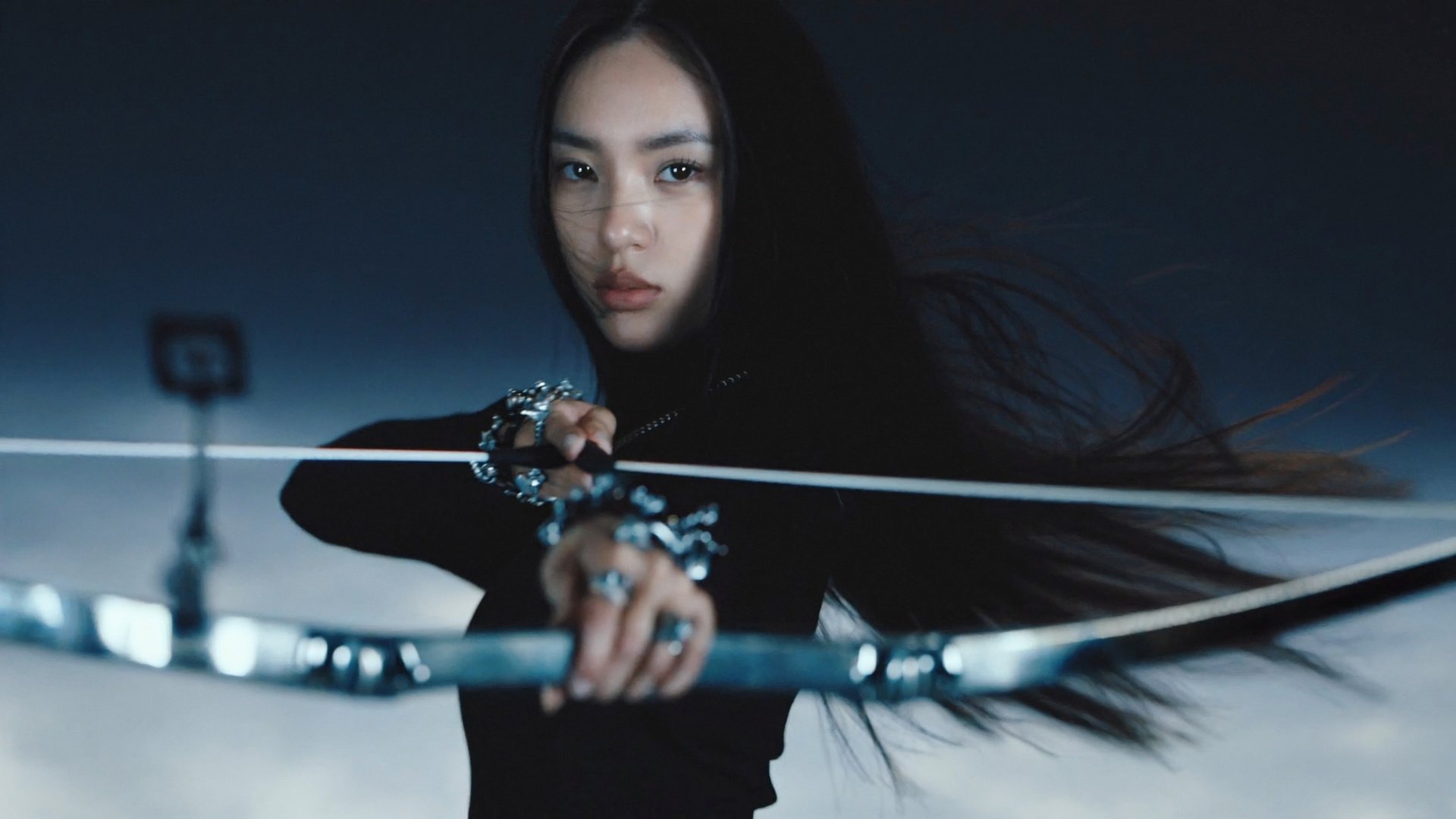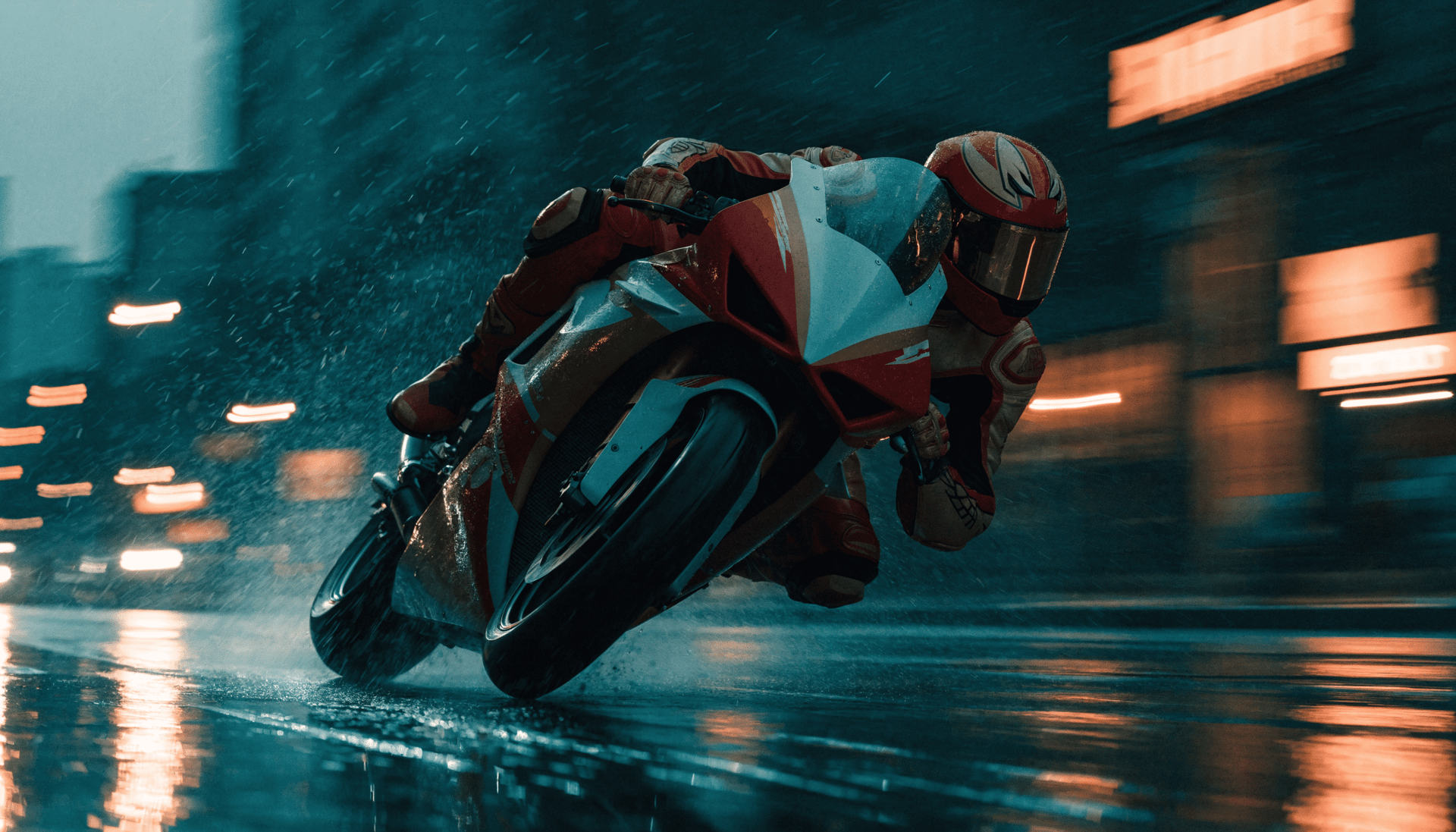
Seedance 2.0 takes text, images, video clips, and audio as inputs all at once. This tutorial covers credit-based generation and Enhanced Fast, from your first clip to getting the most out of the reference system.
Seedance 2.0 takes text, images, video clips, and audio as inputs all at once, generates cinematic output with native sound, and holds character consistency across cuts in a single pass. In 2026 it runs on a growing number of platforms including Dreamina CapCut, Higgsfield AI, Runway, Magnific, and fal.ai. This is a step-by-step guide to generating with Seedance 2.0, from your first clip to the reference system and Seedance Unlimited.
What Makes Seedance 2.0 Different From Every Other AI Video Model?
Most AI video models take a text prompt and approximate the rest. Seedance 2.0 works differently. It accepts up to 9 reference inputs in one generation call. Instead of describing what you want and hoping the model interprets it correctly, you show it. A face reference, a camera move from an existing clip, a voice track. The model uses all of that together in one pass.
Native audio is generated alongside the visual, not added afterward. Lip sync works in 8+ languages. Camera control runs through prompt direction: describe a dolly, a tilt, a tracking shot, and the model executes it rather than approximating. Character consistency across cuts is handled through the reference system. Define a face or visual style once and it holds through every scene.
How Can I Make My Seedance 2.0 Clips Look More Cinematic?
The single biggest lever is prompt specificity. Seedance 2.0 understands cinematic camera language directly. Vague prompts produce generic motion. Specific prompts produce intentional shots.
A prompt that works covers four things in order: what the subject is doing, where it is happening, what the camera is doing, and what the mood or atmosphere is.
Weak: "A battle inside a blood vessel between immune cells and viruses. Red blood cells are moving around. The camera shows the fight from different angles. It looks intense and dramatic.”
Stronger: "Sweeping wide shot of two colossal armies clashing inside a vast blood vessel, the curving translucent vessel wall arching across the frame like a ringed planet of living tissue. The combatants are organic and asymmetrical - immense amoeboid macrophages with rippling membranes and reaching pseudopod limbs, their cytoplasm threaded with bioluminescent seams that pulse as they engulf and strike, set against bristling viral swarms of spiky icosahedral capsids and crowned spike-proteins, all uneven spires and barbed fibers. Smaller craft are biconcave red blood cells - flattened ring-shaped discs that spin and bank, leaving spiral trails through a drifting debris field of cell fragments and fibrin strands. Handheld camera drifts and shakes amid the chaos, snapping from a giant infected cell's membrane cracking open under a concentrated viral assault to a swarm of red cells corkscrewing past a lysed husk. Plasma currents lash the frame, cells burst silently and collapse inward, fresh virions scatter like spores from a dying host cell. Deep crimson and slate-blue plasma, burning white antibody flares, vast cinematic scale and relentless motion."
Here is what the stronger prompt produces on Seedance 2.0.
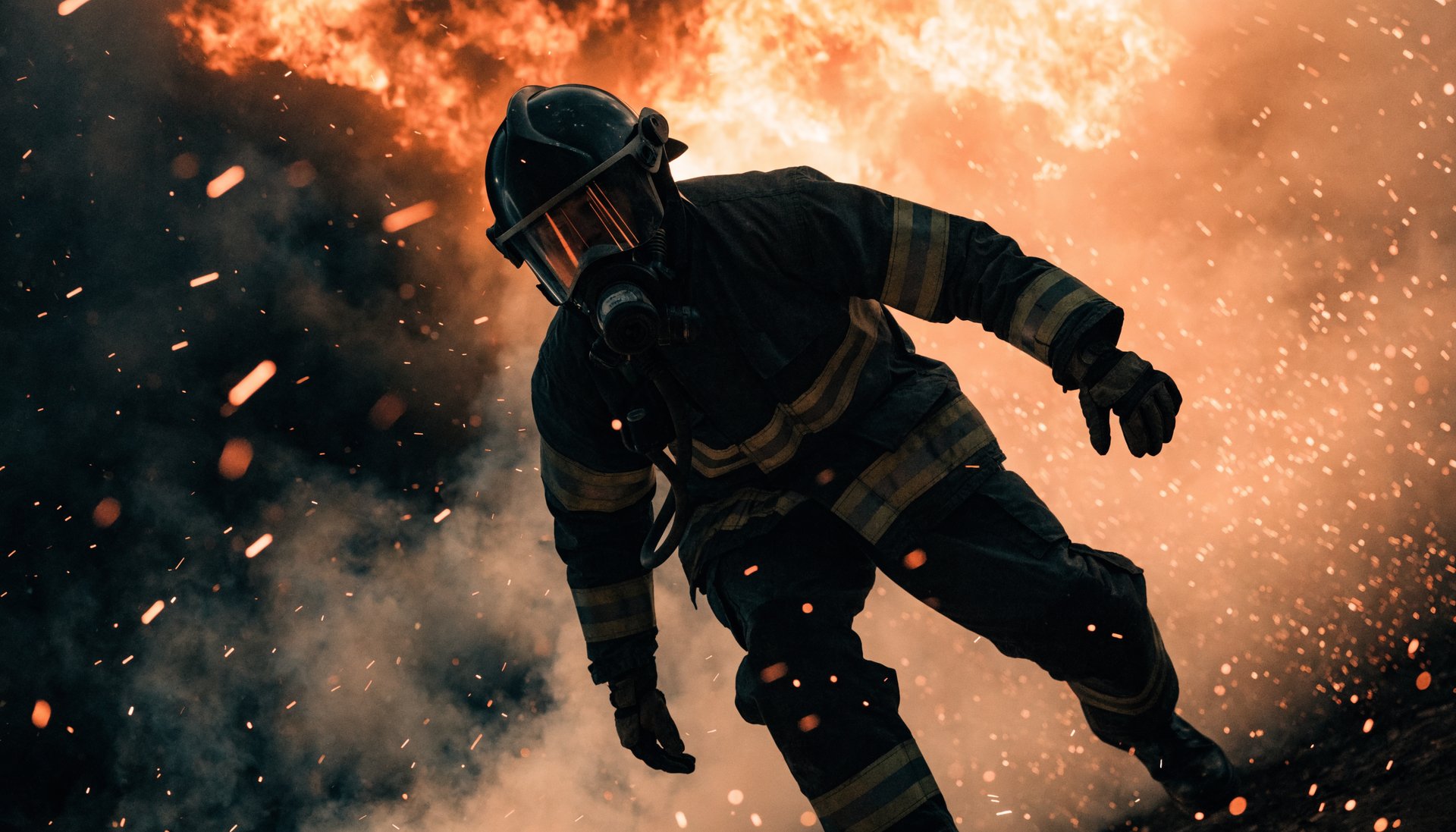
Camera terms that Seedance 2.0 reads directly: dolly in, truck left, arc shot, push in, pull back wide, handheld follow, crane up, orbital move. Use them exactly as you would in a shot list. The more specific the instruction, the more reliably it executes.
What Is the @ Reference System and How Does It Work?
The @ reference system is the part of Seedance 2.0 that most creators underuse. Each tag points to a file you have uploaded, and the model treats it as a generation constraint rather than a suggestion. You can combine multiple references in one generation call.
@character: Upload a photo of a person, an AI-generated portrait, or a character design. The model extracts face geometry, skin tone, and visual style and holds it consistent across the clip. Pair it with Soul ID on Higgsfield for consistent identity across multiple separate generations, not just within one clip.
@style: Upload an image, a film still, or a color reference. The model reads the lighting, color palette, and visual mood and applies it to your generation. Useful for matching an aesthetic across a series of clips without describing it in text every time.
@motion: Upload a short video clip. The model reads the camera behavior and motion pattern and replicates it. Use this when you have a specific camera move in mind and text description alone is not precise enough.
@audio: Upload a voice clip or music track. The model syncs the visual output to the audio rhythm, generates lip sync if a character is speaking, and matches ambient sound to the visual content.
How Do I Generate My First Seedance 2.0 Clip on Higgsfield?
Step 1. Open Seedance 2.0
Go to higgsfield.ai and navigate to the AI Video section. Select Seedance 2.0 from the model list. You will see the input panel on the left: text prompt, reference upload slots, resolution selector, and output settings.
Step 2. Start at 720p
Before committing credits to a full 1080p generation, validate your prompt at 720p. The motion logic, camera behavior, and composition all render at 720p, everything you need to evaluate before scaling up. Going from 720p to 1080p roughly doubles the credit cost, so catching a weak prompt early saves real money.
Step 3. Write your prompt
Use the structure above. Subject and action first. Setting and lighting second. Camera move third. Mood or style last. Add @ references for any face, style, motion, or audio you want the model to hold consistent.
Step 4. Review the full clip
Watch the entire output before calling it done. Most quality problems appear at the 5 to 8 second mark, not in the first frame. Check whether the motion holds throughout, whether expressions shift naturally with emotion cues, and whether the camera move you described actually executed.
Step 5. Change one thing per iteration
If something is off, change the prompt or the reference, not both at once. That is the fastest way to diagnose what is driving the output.
Step 6. Scale to 1080p
Once your prompt produces the right composition at 720p, run it at 1080p. Keep the prompt identical. If you are adding native audio, do it at this step so you run the full generation once rather than paying the audio cost twice.
What Are the Most Common Seedance 2.0 Mistakes and How Do I Fix Them?
The output ignores my camera instruction. Replace vague terms with specific ones: dolly in, pull back wide, arc right, truck left, crane up. The more specific the camera instruction, the more reliably it executes.
The character looks different halfway through. Add more specific visual anchors in your prompt: hair color, clothing details, distinguishing features. If the character needs to hold across multiple separate generations rather than just within one clip, use Soul ID to build a persistent identity model.
The motion looks jerky at the cut. Generate the final frame of one clip and the opening frame of the next as reference images, then use Seedance 2.0's first-and-last-frame capability to generate the transition shot between them.
Credits are running out faster than expected. Two things drive credit consumption faster than most people expect: audio and 1080p resolution. Prototype without audio at 720p. Lock your prompt first, then run the final version at 1080p with audio. That workflow cuts iteration costs significantly.
What Prompt Templates Actually Work for Seedance 2.0?
Cinematic character scene
"@character walks through [setting], [action], camera [move], [lighting], [mood]. SFX: [ambient sound description]."
Example: "@character walks through a crowded train station at rush hour, checking a phone, camera tracking close at shoulder height, warm overhead fluorescent light, tense and rushed. SFX: station ambient noise, announcements in the background."
Product visualization
"@product sits on [surface] in [setting], [lighting], camera [move], [atmosphere]. No people, no text, no logos."
Example: "@product sits on a dark stone surface in a minimal kitchen, warm side lighting from a single window, camera pushing in slowly from medium to close, clean and premium. No people, no text, no logos."
Multi-shot sequence opener
"Wide establishing shot of [location], [time of day], [weather], camera [move], [atmosphere]. [Character] enters frame from [direction] and [action]."
What Should I Generate First If I Am New to Seedance 2.0?
Start with image-to-video before text-to-video. Upload a sharp, front-facing, well-lit reference image. Add a short prompt describing the action and camera move. Keep the first generation under 8 seconds.
Image-to-video gives the model a visual anchor to work from. The output is more predictable than text-only generation, which means you spend fewer credits learning how the model interprets your prompts. Once you understand how Seedance 2.0 responds to camera language and reference inputs, move to text-to-video for scenes where you do not have a specific visual starting point.
What Is Seedance 2.0 Enhanced Fast and When Should I Use It?
Seedance 2.0 Enhanced Fast is a separate model tier available on Higgsfield through the official partnership with ByteDance. It runs faster than the standard model while maintaining full Seedance 2.0 output quality at 480/720p.
Enhanced Fast is built for workflows that need volume: social content where you are testing multiple angles, ad creative iteration where 10 to 20 variations need to move fast, and multi-shot storytelling where speed compounds across a session. At 480/720p it is optimized for social media, rapid concepting, and first-pass client reviews. For 1080p cinematic output, use the standard Seedance 2.0 model.
Enhanced Fast is a paid add-on, not included automatically in any Higgsfield plan. Once activated, it appears as a model option in the generation panel alongside the standard model.
Duration: Up to 30 days; access ends July 17. The last day of Unlimited sales on the pricing page is July 12. Users purchasing closer to July 12 receive fewer days since the end date is fixed, not rolling from purchase.
How to Generate with Enhanced Fast: Step by Step
Step 1. Activate the Enhanced Fast add-on from your account settings or the model selection panel.
Step 2. Select Seedance 2.0 Enhanced Fast from the model list in the generation panel.
Step 3. Write your prompt using the same structure: subject, action, setting, camera, mood. Enhanced Fast responds to the same prompt language and reference system as the standard model.
Step 4. Set resolution to 480p or 720p. Enhanced Fast is optimized for these output sizes.
Step 5. Generate and iterate fast. Use the speed advantage to test more prompt variations, not fewer.
Platform Comparison: Seedance 2.0 Standard
Platform
Cost per 720p 8s clip
Resolution range
Subscription range
Dreamina CapCut
$1.29 (136cr)
720p to 4K
$18–$82/mo
Higgsfield AI
$1.55 (36 cr)
480p to 4K
$9–$129/mo
Runway
$2.88 (288cr)
480p to 1080p
$15–$95/mo
Magnific
$1.86 (2,240 cr)
480p to 4K
$7–$249/mo
fal.ai
$2.43 at $0.3034/sec
480p to 4K
Pay-per-use
Seedance Unlimited on Higgsfield is a separate 30-day paid add-on, not included automatically in any plan. It gives you unlimited generations on Enhanced Seedance 2.0 Fast with no credits deducted per generation. Generations run through the standard shared queue with one concurrent job at a time, so turnaround can vary during peak load. You can switch to credit-based generation at any point when speed matters more than conserving your balance.
A standard Seedance 2.0 clip at 1080p costs approximately $2.00 on the Plus plan. Prototyping at 720p before committing to a full 1080p run is the most effective way to stretch your credit budget.
Prices verified June 2026. Check higgsfield.ai for current rates.
Generating with Seedance 2.0: Full Tutorial
Seedance 2.0 takes text, images, video clips, and audio as inputs all at once. This tutorial covers credit-based generation and Enhanced Fast, from your first clip to getting the most out of the reference system.
Start at 720p for every new prompt. Validate motion and composition before committing to 1080p. On Higgsfield, switching from 720p to 1080p on a validated prompt takes one click.
How many reference inputs can I use at once?
Up to 9 in one generation call on Higgsfield: 9 images, 3 video clips, and 3 audio files. Start with one or two references and add more as you understand how each one affects the output.
Does native audio increase my credit cost?
Yes. Adding audio increases the credit cost by approximately 50 to 100 percent depending on clip length and settings. Generate without audio for prototyping and add it only on your final pass.
What is the difference between Soul ID and character references?
Character references hold a face consistent within a single generation. Soul ID trains a persistent identity model that applies automatically across every generation on Higgsfield, including Seedance 2.0, without re-uploading per clip.
Can I use Enhanced Fast for final production output?
Yes, at 480/720p. For 1080p final output, use the standard Seedance 2.0 model. Enhanced Fast is optimized for speed and volume at lower resolutions.
How do I get access to Seedance 2.0 Enhanced Fast?
Enhanced Fast is a paid add-on available on Higgsfield through the official partnership with ByteDance. It is not included in any base plan. Activate it from your account settings or the model selection panel.
What is the fastest way to improve output quality?
More specific prompts, not more iterations. Add the exact camera move you want, specific lighting conditions, and concrete visual details about the subject. One well-written prompt at 720p beats five vague prompts at 1080p every time.