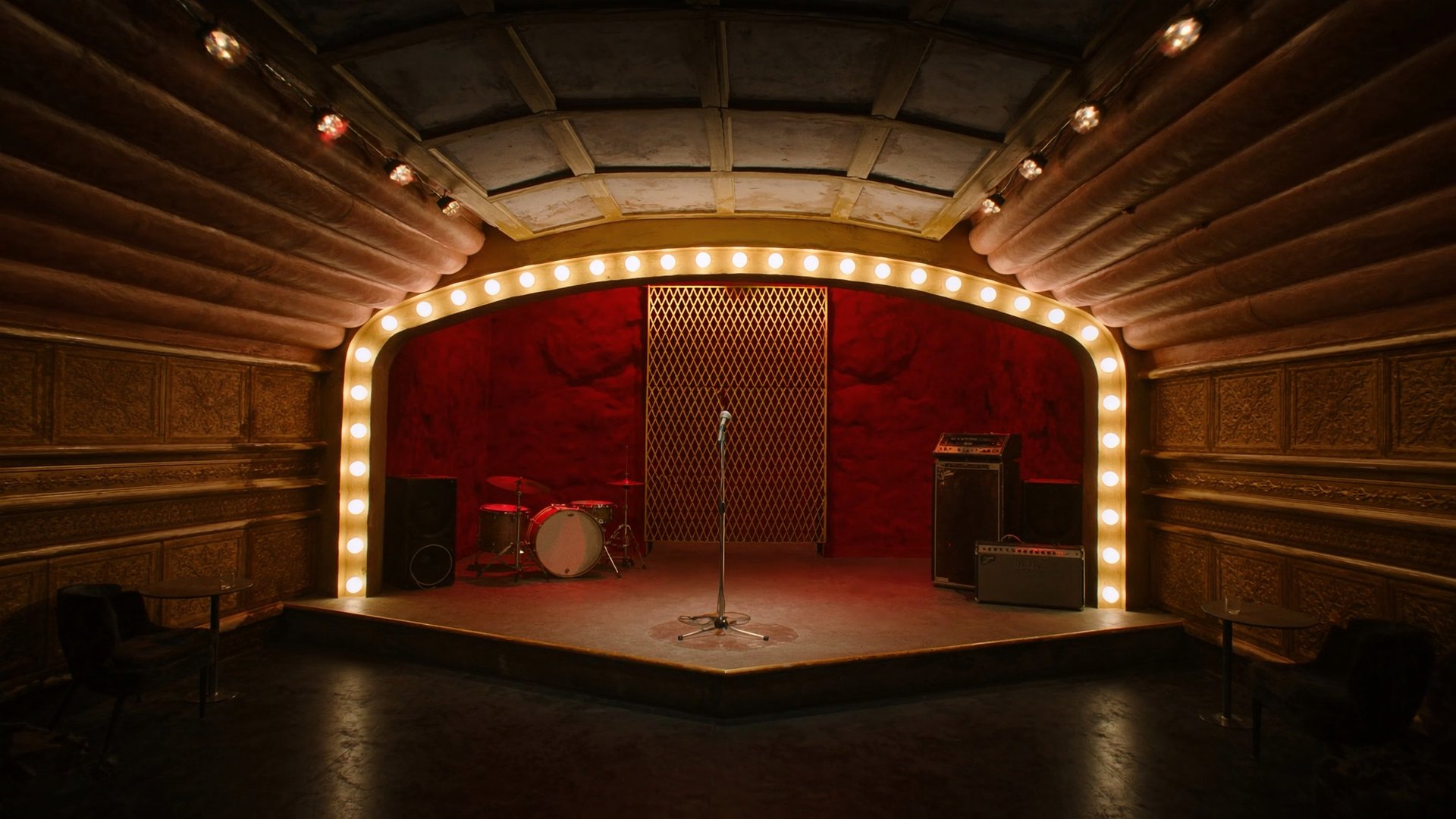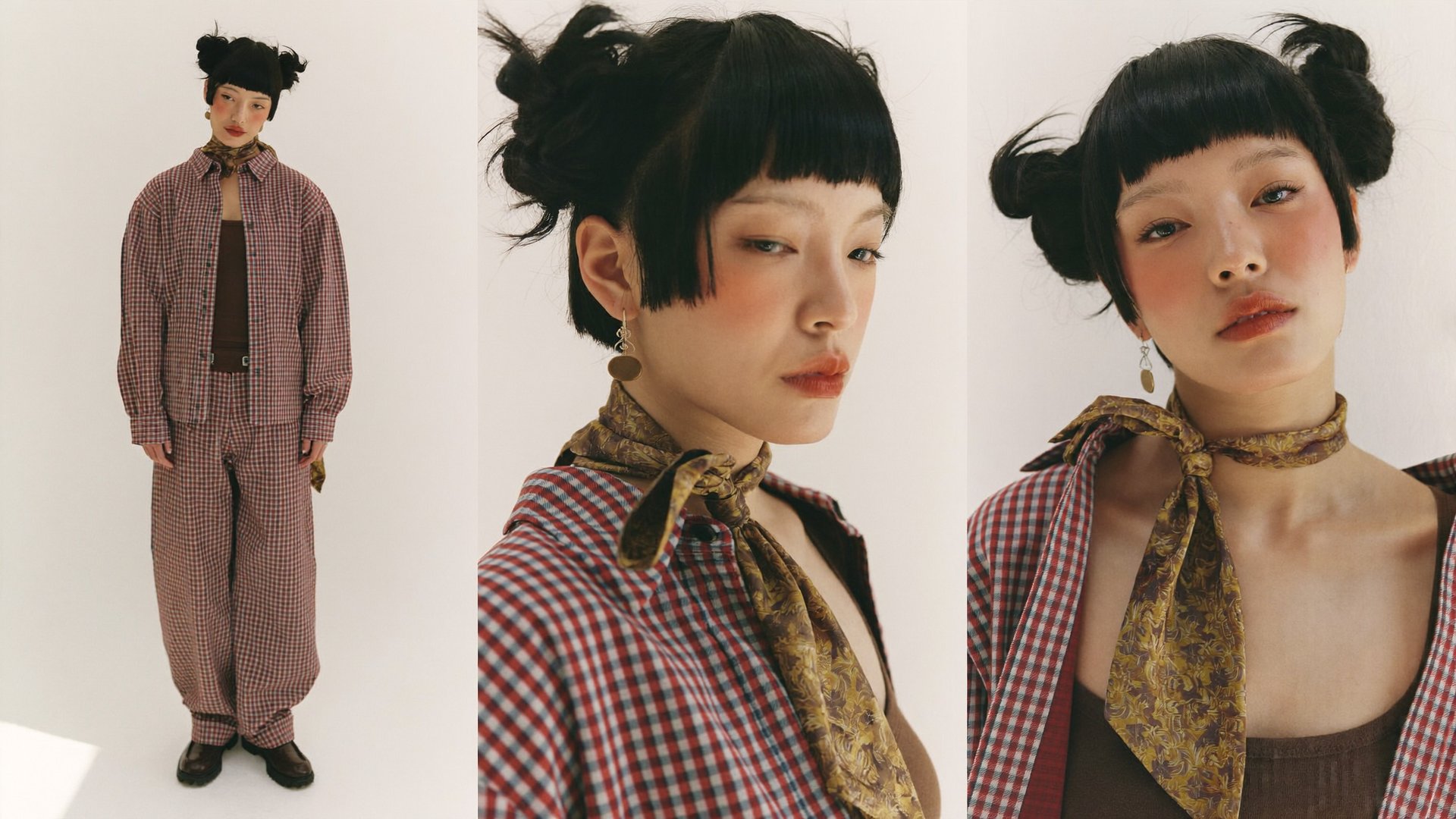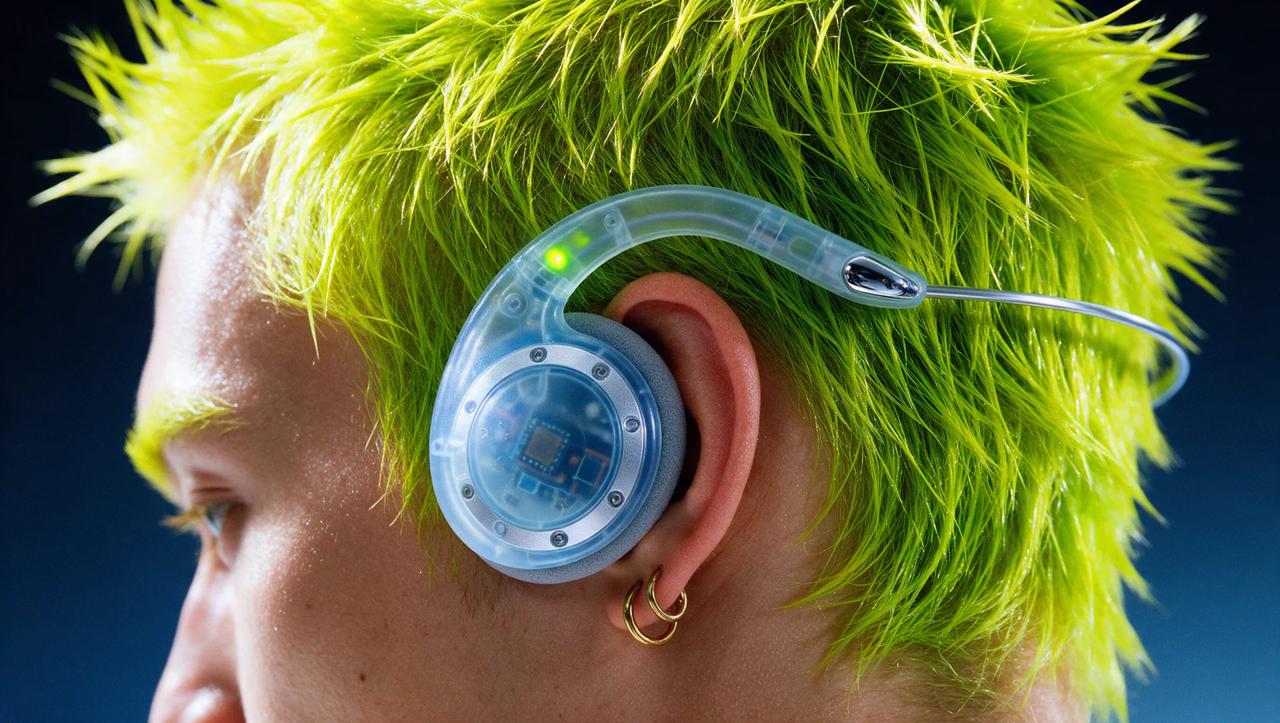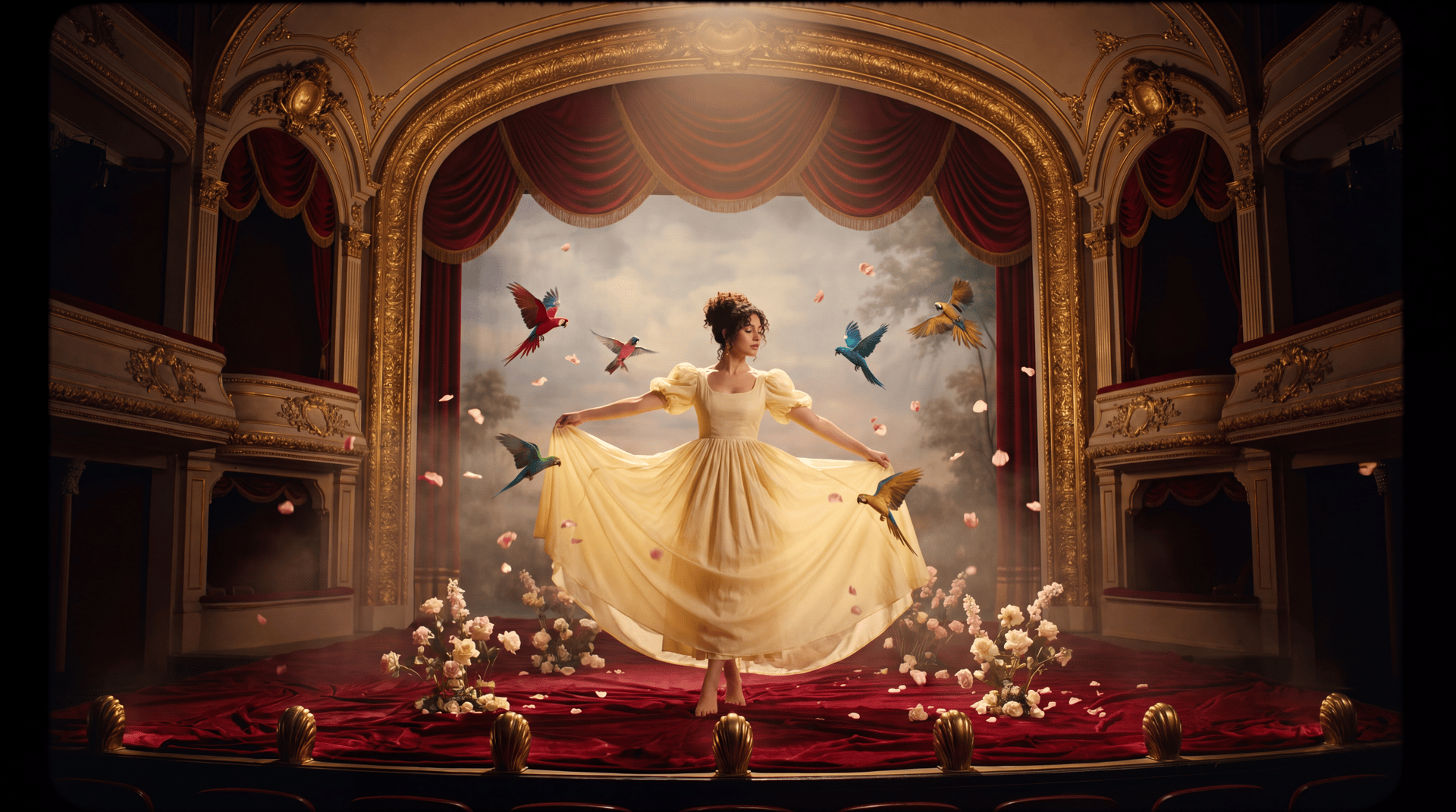
To make an AI music video for a real artist, start with the finished track, approved references of the artist, and a visual concept built around the song. Soul ID helps maintain the artist’s identity, Soul Cinema creates visual references, Cinema Studio generates the shots, and Lipsync Studio syncs performance footage to the vocals. This guide covers the workflow from references to final edit.
What Is an AI Music Video?
An AI music video generates its shots directly from a real artist's likeness and a finished song, no traditional shoot with a crew, a location, and a camera involved. The artist's face and performance carry through every scene, cut on time with the track, while the visual world around them, locations, lighting, transitions, gets built from references and prompts, no capturing it on set.
Before starting, you need:
- A finished track. The song the whole video gets built and timed around.
- Photos or video of the artist. Enough clear references to train a consistent likeness across every shot.
- Visual references for the style and world of the video. Locations, color, mood, whatever the video's look is meant to draw from.
- Permission to use the music, likeness, and voice. Make sure the artist has approved the song, reference material, AI-generated likeness, and any synthetic or cloned voice used in the project.
How Do You Build a Concept Around the Song?
Break the track down into its sections before generating a single shot, each one plays a different role, and treating them all the same way produces something flat. Decide early where the artist performs directly to camera, where a story unfolds around them, and where a pure atmospheric insert, a location, a detail, a transition, carries the moment instead.
Song Section | Typical Visual Role |
|---|---|
Intro | Establish the world or visual motif |
Verse | Narrative, atmosphere, or character moments |
Chorus | Strongest artist-performance shots |
Bridge | Visual change or contrast |
Outro | Resolve the story or return to the main motif |
Which Higgsfield Tools You'll Need
Tool | Role in the Music Video |
|---|---|
Soul ID | Maintain the artist's identity |
Soul Cinema | Create style, location, and reference frames |
Cinema Studio 4.0 | Generate performance, narrative, and atmospheric shots |
Lipsync Studio | Match performance shots to vocals |
Seed Audio 1.0 (optional) | Generate the track or audio if one doesn't already exist |
Soul ID trains a reusable identity from 20+ reference photos and helps maintain the artist’s facial identity across later generations.
Soul Cinema creates the still images that establish a video's locations, lighting, and visual style before generating any moving footage. Choose from four camera looks and five lens styles, including Modern and DV Camcorder cameras, and Clean Sharp and Halation Vintage lenses, at 1.5K or 2K image quality. Describe the setting, composition, and mood in the prompt, and once generated, those images serve as visual references or starting frames for the video that follows.
Cinema Studio 4.0 generates the shots, running on Seedance 2.5 with generation up to 30 seconds per clip and up to 50 references per generation.
Control | What It Changes | Options |
|---|---|---|
Genre | Overall visual language | Drama, Action, Horror, and others |
Camera / Lens | Image and optical character | Modern, 35mm Film, 8mm Film, DV Camcorder / Clean Sharp to Vintage Anamorphic |
Tempo | Cut rhythm and pacing | Chaotic, Dynamic, Calm, Single Shot |
Emotion | Artist performance | Tags expression and body language directly |
Colour Palette | Overall tonal direction | 50+ named templates |
Era | Period-specific look | Adjusts grain and grading to match a decade automatically |
Lipsync Studio syncs the artist's mouth movement to the vocal track across 18 languages and seven models, the step that makes a generated performance shot match the song being sung.
Seed Audio 1.0 (optional) generates the track itself if one doesn't already exist, producing voice, music, and effects together from a single prompt. Voice can be chosen from 50+ presets, with sample rate adjustable from 8,000 to 48,000 Hz, speed and volume set numerically, and output delivered as MP3, WAV, or Opus.
Full Workflow: Step by Step Guide
Step 1 (optional): Generate the track if you don't already have one. Use Seed Audio 1.0, give it the lyrics, and pick a voice.