Security controls live in Manage Account → Organization: Set-up SSO, Manage guardrails and Manage access.
Profile and sign-in changes apply to your account; workspace changes apply to the workspace you select.
Single Sign-On
Single Sign-On (SSO) lets your team sign in to Higgsfield with their company accounts.
Set up SSO
Your workspace Owner coordinates setup with your IT team. To get started, the Owner opens Manage Account → Organization → Set-up SSO. Your IT team handles your company's sign-in settings.
For help with setup or changes to an existing connection, contact your IT team and your Higgsfield account manager, or email enterprise@higgsfield.ai.
Sign in with SSO
After SSO is enabled for your company:
- Open SSO sign-in.
- Enter your work email and complete your company's sign-in process.
- Select your Enterprise workspace.
SSO does not replace a workspace invitation. If you can sign in but cannot see the workspace, ask your workspace Owner to invite the same work email.
Need help signing in?
Check that you are using the work email connected to your company account. If you still cannot sign in, contact your IT team or enterprise@higgsfield.ai with the error message and the approximate time of your attempt.
Sign in and recover access
Sign in with Google, Apple, Microsoft, or email and password. If your company uses SSO, follow the steps in Sign in with SSO above.
For email-and-password access, choose Forgot password on the sign-in page and follow the recovery instructions. If your company uses SSO, your IT team manages how you sign in; ask your IT admin or workspace Owner for help.
If sign-in opens your personal workspace, select the Enterprise workspace in the profile menu and check that you used the invited email address in Manage Account → Personal profile.
Sign out and review sessions
For this device, open the profile menu → Sign Out. Use All sessions to review and revoke access on other devices.
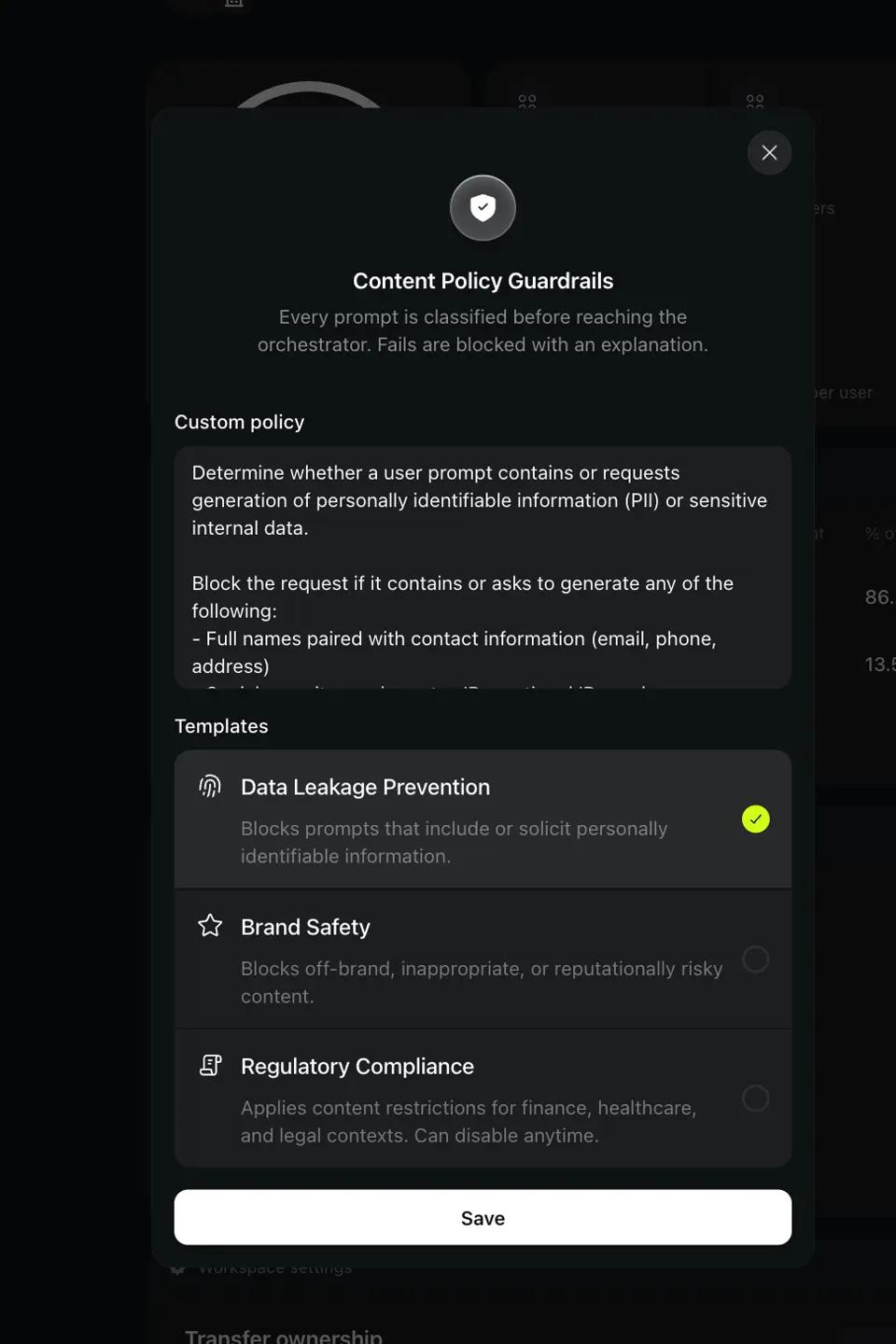
Content Policy Guardrails
- Open Manage Account → Organization → Manage guardrails.
- Write a Custom policy in plain language (for example, block anything containing PII), or enable the templates Data Leakage Prevention, Brand Safety and Regulatory Compliance.
- Click Save.
The policy applies to every member's Supercomputer prompts. A blocked prompt shows the user an explanation. Admins with Manage Supercomputer safety can change or disable it.
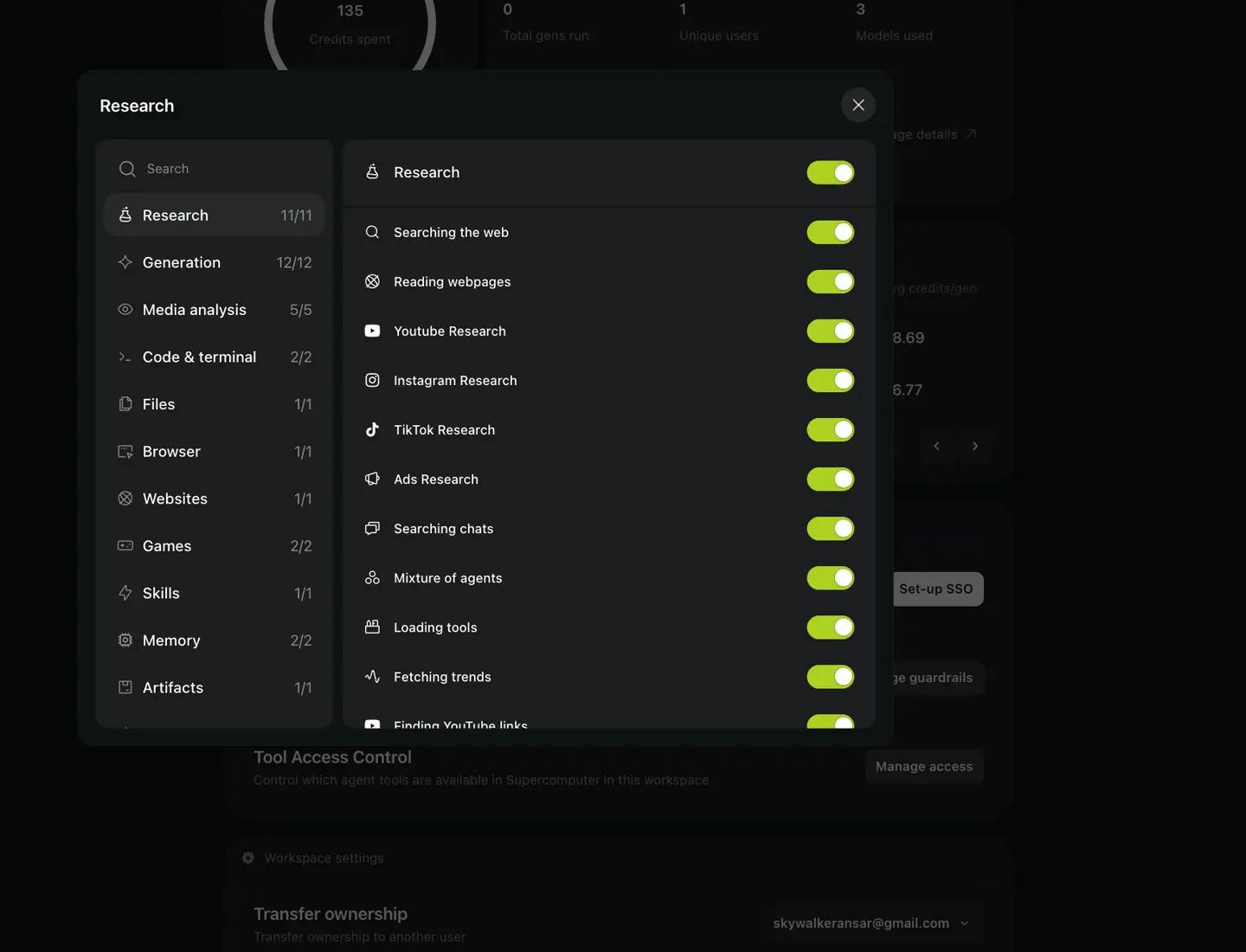
These controls determine which agent tools are available in Supercomputer in this workspace.
- Open Manage Account → Organization → Manage access.
- Select a category (Research, Generation, Code & terminal, Browser, Connectors, Agents and others).
- Toggle a single tool or the category master toggle. Counters show enabled tools, not quotas.
Edit your profile
- Open Manage Account → Personal profile → Edit.
- Update the fields you need: avatar, Name, @Username, Headline, Bio, Location, or social links.
- Turn off Show publicly beside Name if you want visitors to see your @username instead of your name.
- Click Save.
Control automatic publishing
In Manage Account → Personal profile, turn off Auto-publish new generations to keep new generations private by default. When it is enabled, new generations are automatically visible in Explore.
Change the interface language
Open Personal profile → Application language and select your language. Available interface languages are English, Spanish, Japanese, Korean, and German.
Change your workspace details
- Open the profile menu in the top-right corner and select the workspace. Sub marks a sub-workspace.
- Open Manage Account → Organization → Edit.
- Change the logo, name, or description, then click Save.
If you can’t open Edit, ask the workspace Owner to check your access.
Your Enterprise data rights
Your organization owns its prompts, uploads, and outputs. Higgsfield doesn’t use your Enterprise data to train models.
Your data is Confidential Information under the Enterprise Use Agreement. That agreement takes precedence over the standard Terms of Use.
Use your outputs commercially
You can use your outputs commercially. Higgsfield doesn’t claim ownership of your inputs or outputs, require attribution, or require a separate license.
Who can see private work
The workspace Owner can view all workspace content, including private projects. The main workspace Owner can also view content in sub-workspaces. Members of a shared project can see everything inside it.
Follow Projects to set project access, or Assets Page to find and restore content.