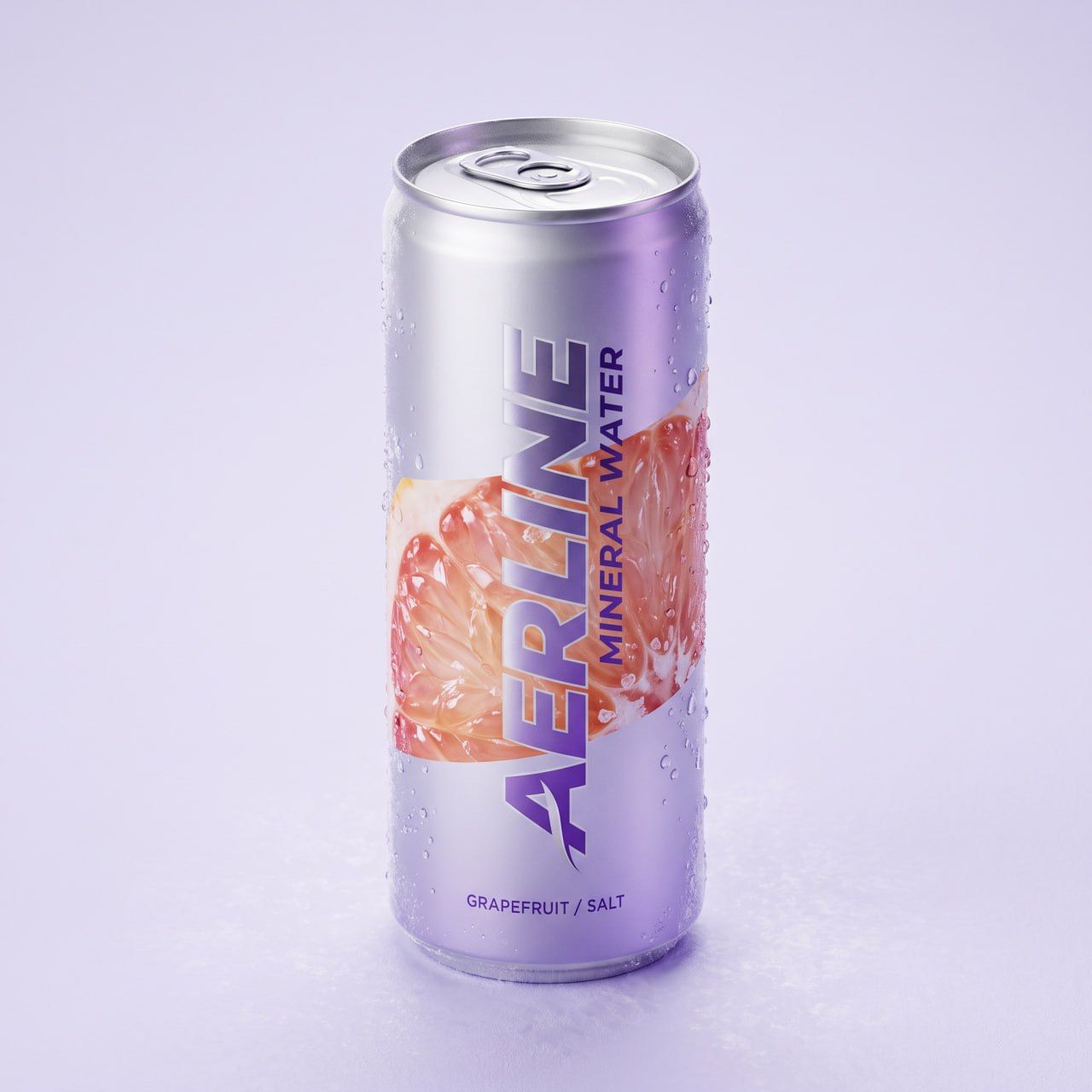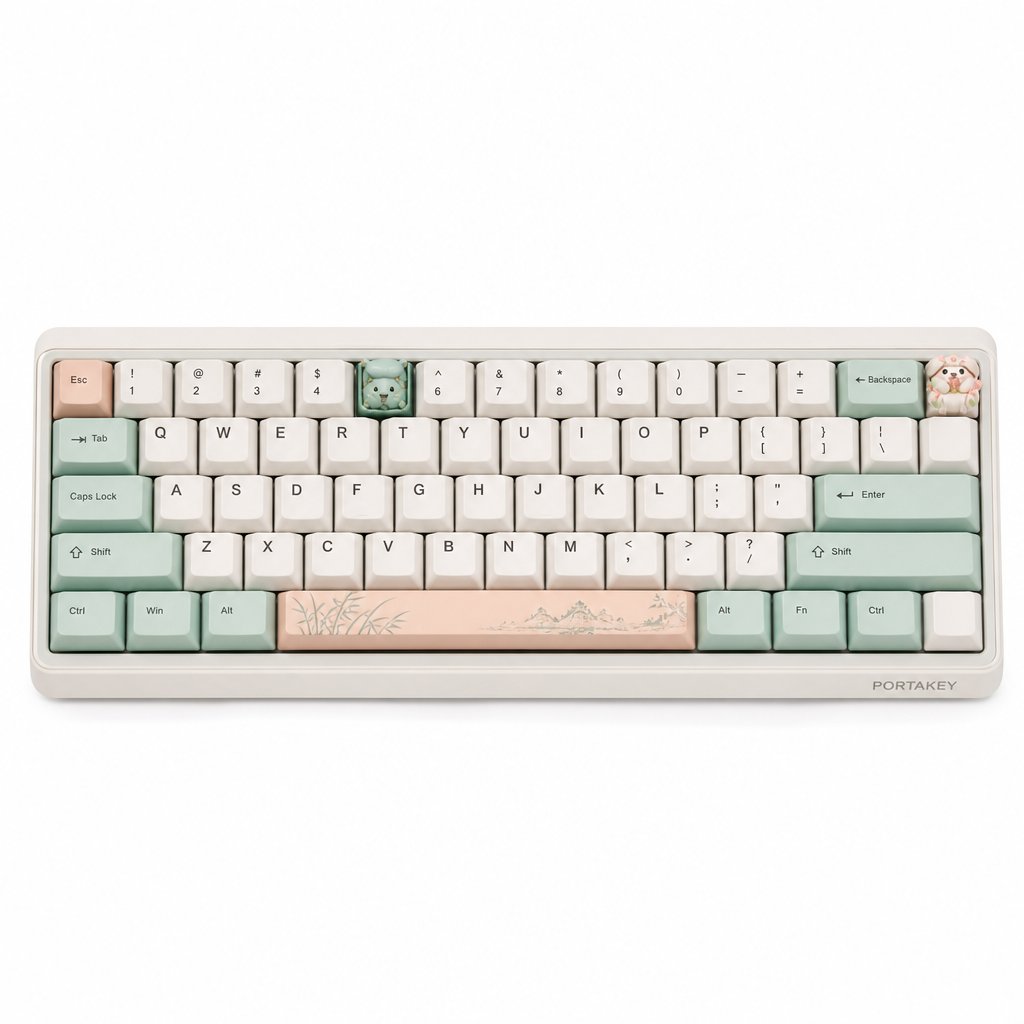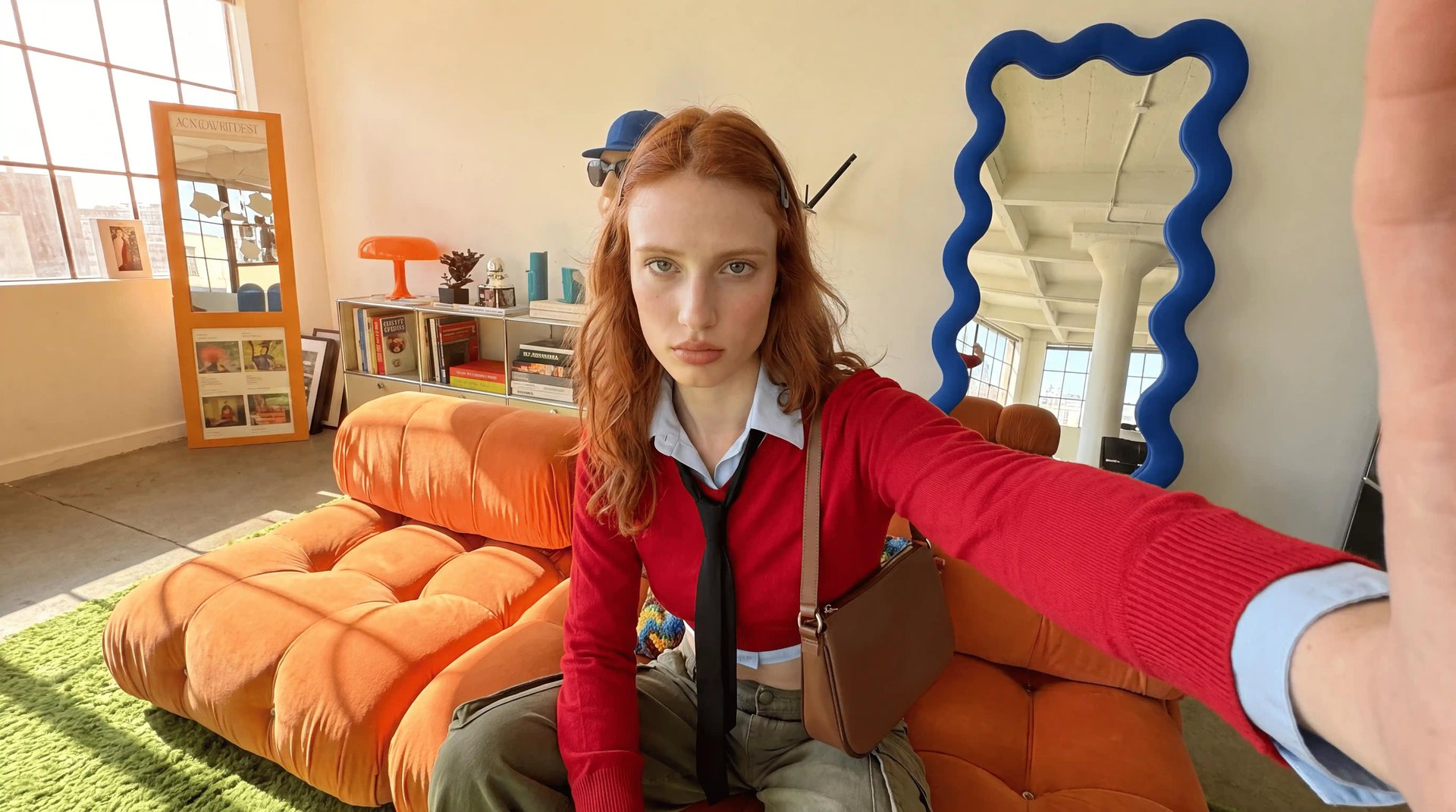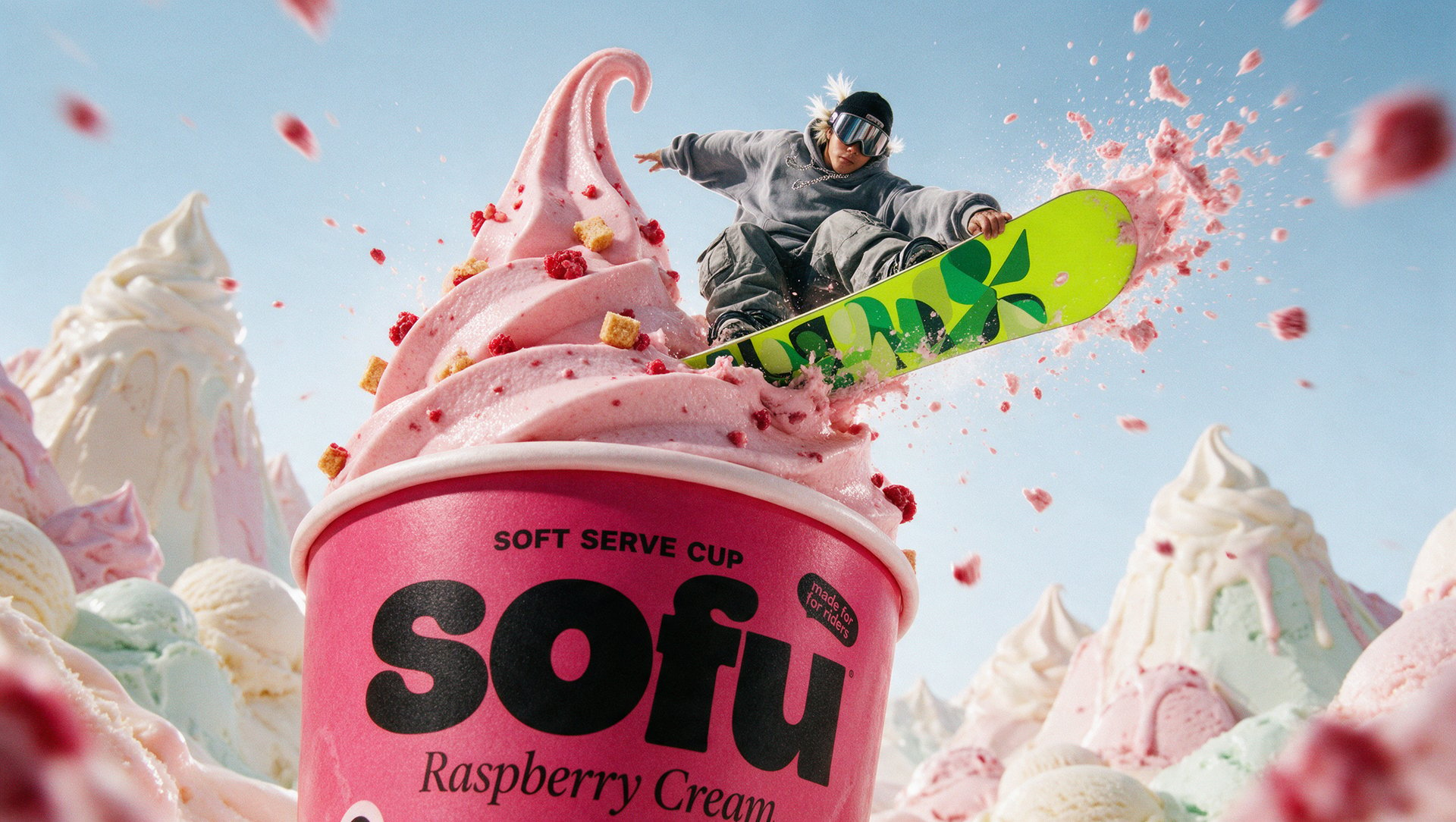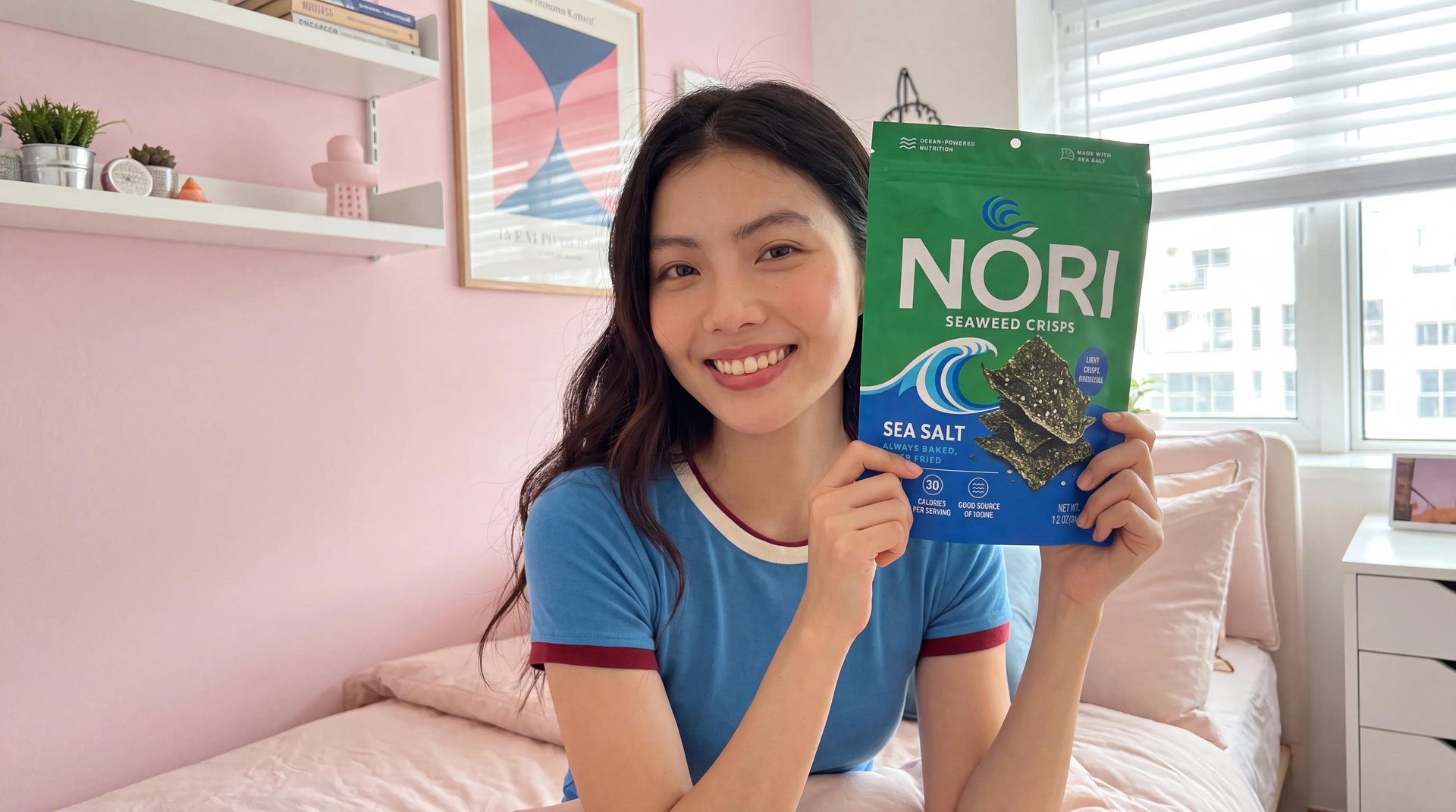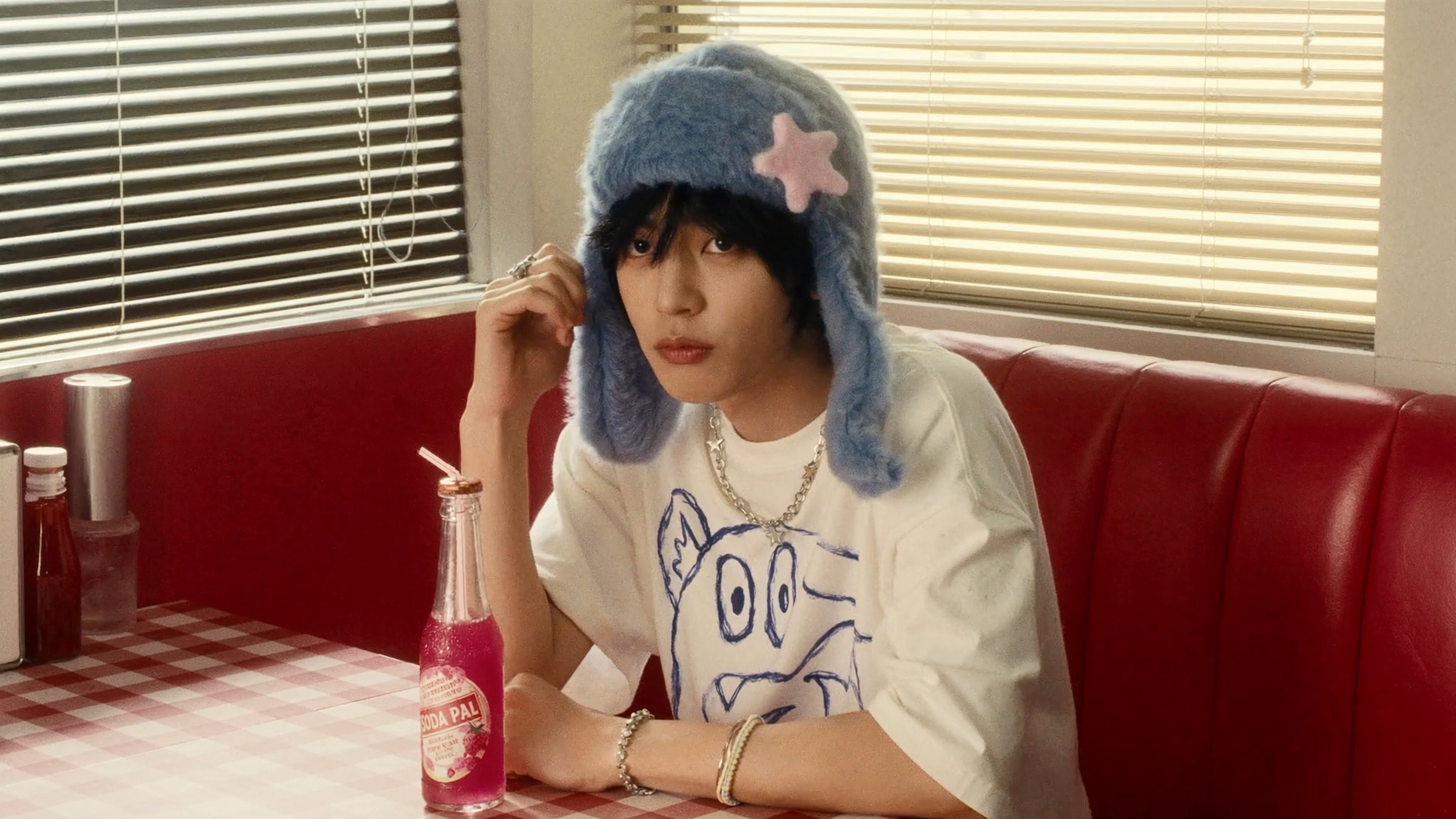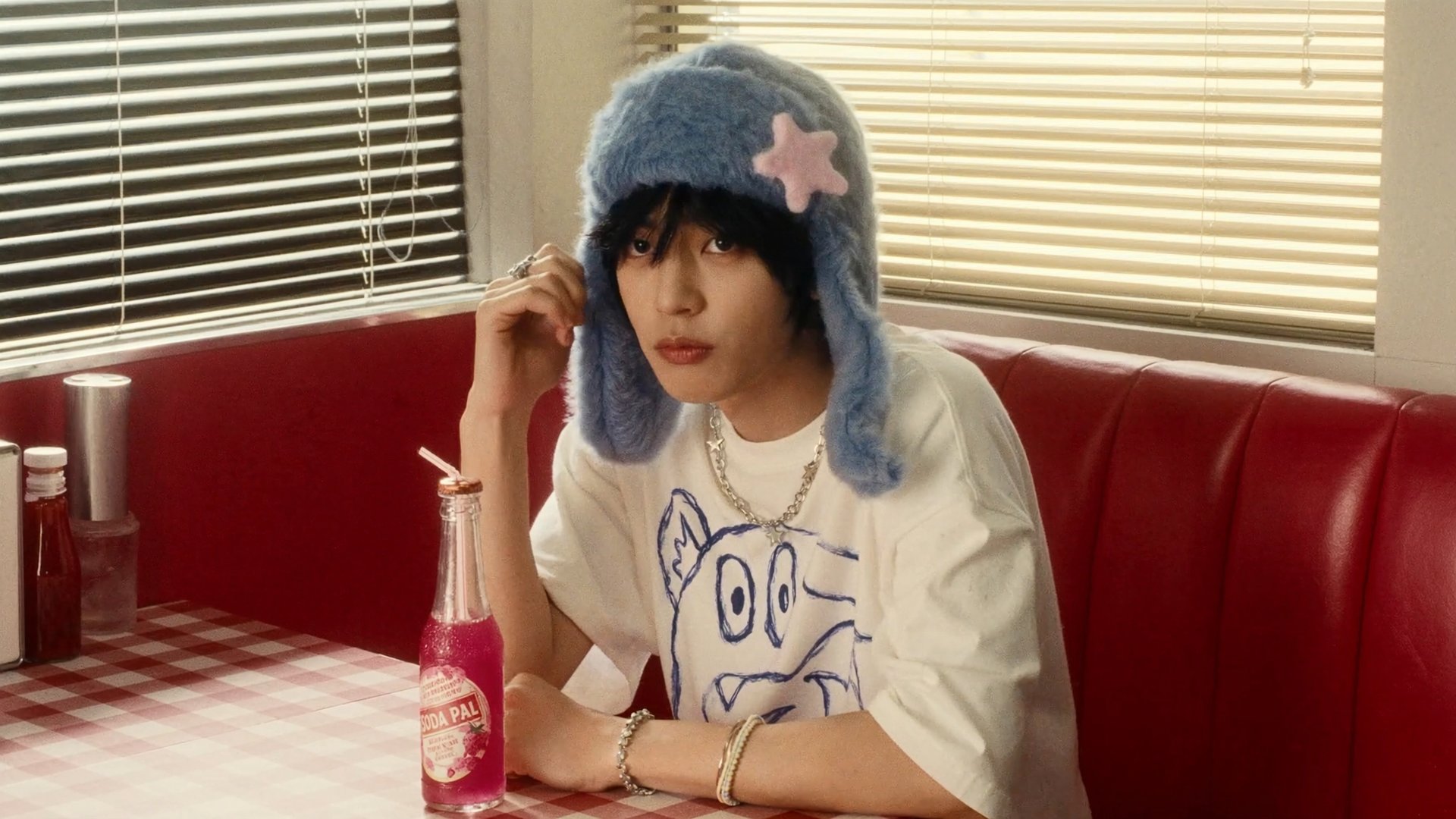
Marketing Studio on Higgsfield just updated its template library, now with 1,500+ options organized by use case. Pick one, connect a brand by uploading a product image or pasting a website link, and get a finished, on-brand ad back in one click. This guide covers the six template categories, how the two creation paths work, and where this fits for different kinds of teams.
What Is Higgsfield Marketing Studio?
Marketing Studio is the marketing creation workspace inside Higgsfield’s AI-native creative suite, built for ads, product creative, UGC, and other commercial content. It used to work off a prompt: you picked from 9 formats, then wrote a description to build the ad, optionally pointing it at a URL instead of starting from scratch. Now there's a library of over 1,500+ templates to choose from, and the process is much simpler than it used to be. Pick a template, and the finished result comes back in one click.
Feeding a product into a template works a few different ways, depending on what you have to start with.
Input | When | What Happens |
|---|---|---|
Product image upload | User has a physical product | The product is inserted into the template, becoming the subject of the shot or video |
Website or product page link | User has a site, store listing, or app page | The page is fetched and brand signals, product imagery, logo, colors, copy, are pulled to fill the template |
Reference ad (UGC only) | User wants to match an ad they've seen | The ad's structure and format are reproduced with the user's product in place of the original |
Text prompt | Prompt path | Direct generation, no template involved |
Writing a prompt is still an option if you want to describe something more specific or build your own version instead of using a template.
Full Workflow: Step by Step
The two workflows below map directly onto the two paths above. Workflow A is the template path: no prompt, pick a template, get a result. Workflow B is the prompt path: no template, describe the shot directly.
Open higgsfield.ai → Marketing Studio.
Workflow A: UGC Video from a Template
Step 1: Select UGC Videos.
Step 2: Pick a template. Choose Faceless, Talking Head, or Silent, depending on the tone the ad needs.
Step 3: Upload a product image. The product becomes the subject of the video.