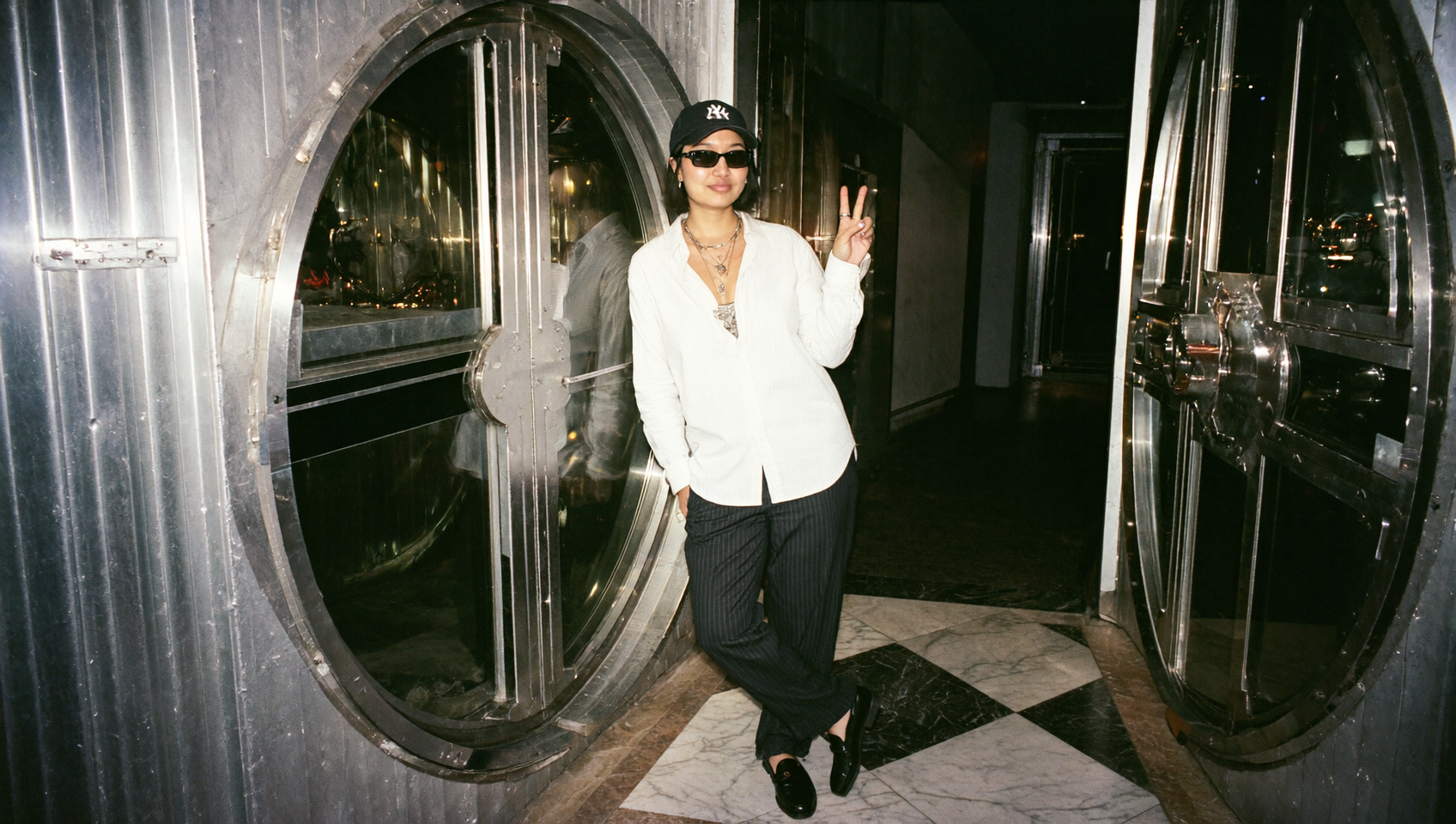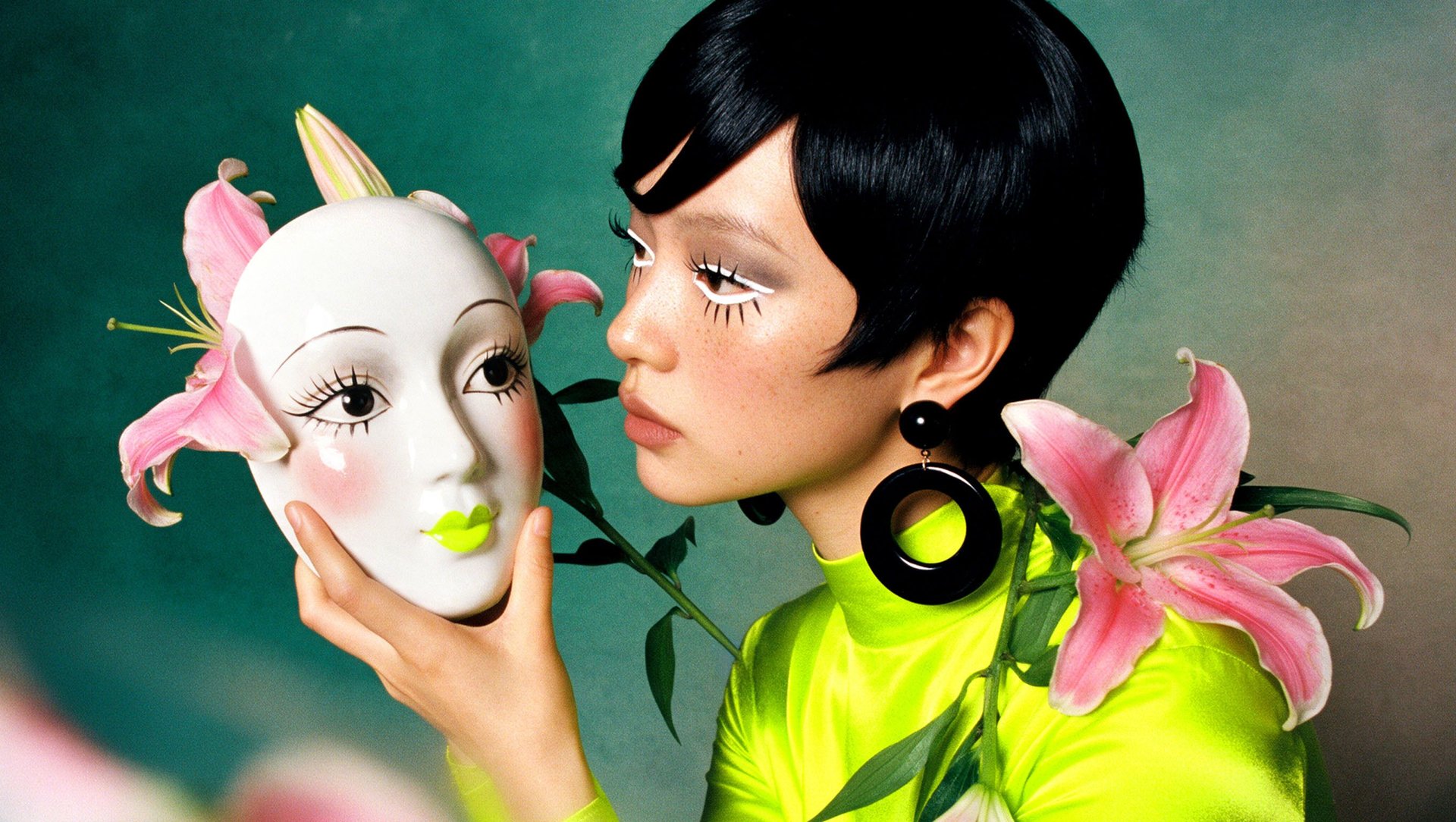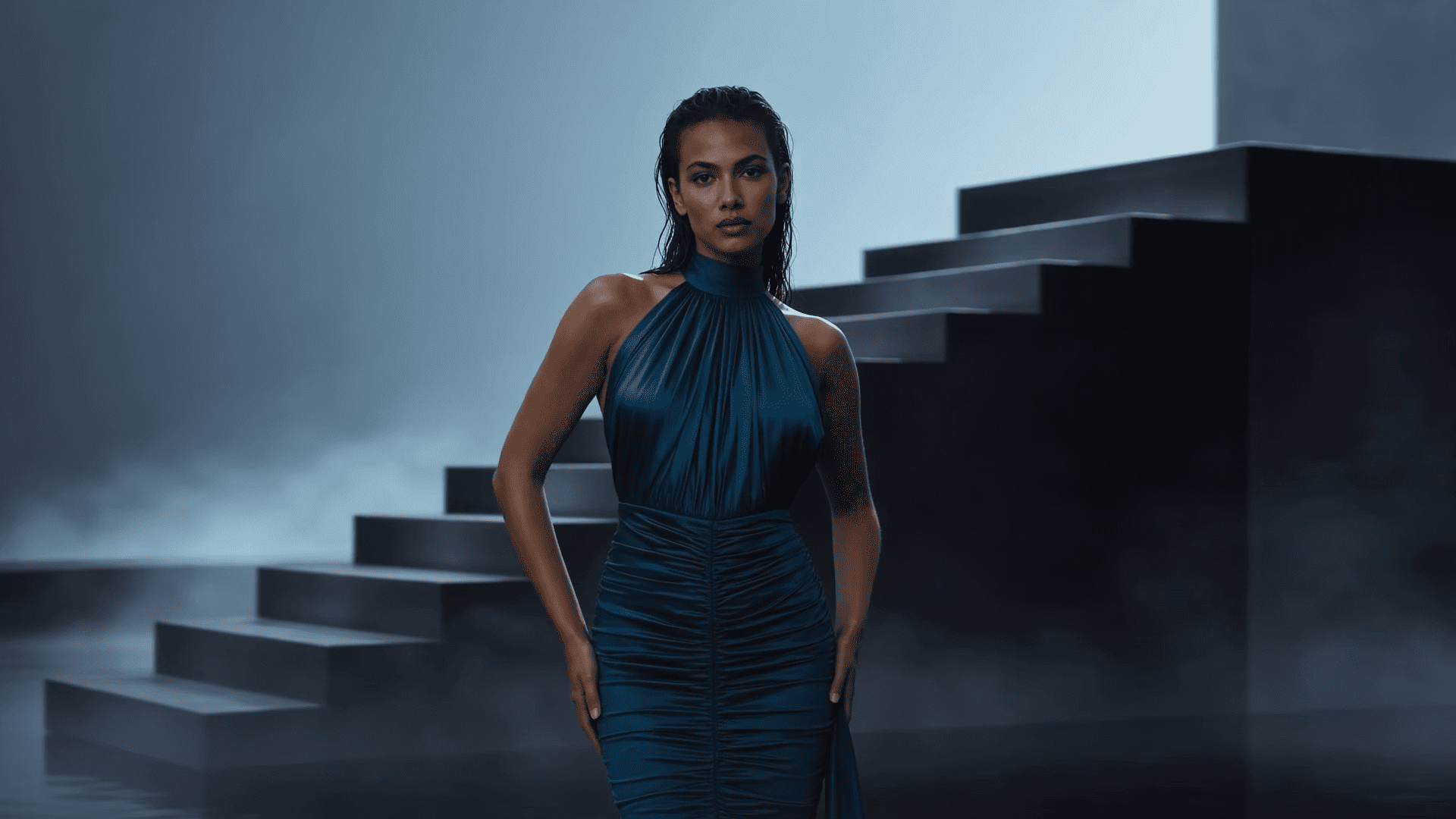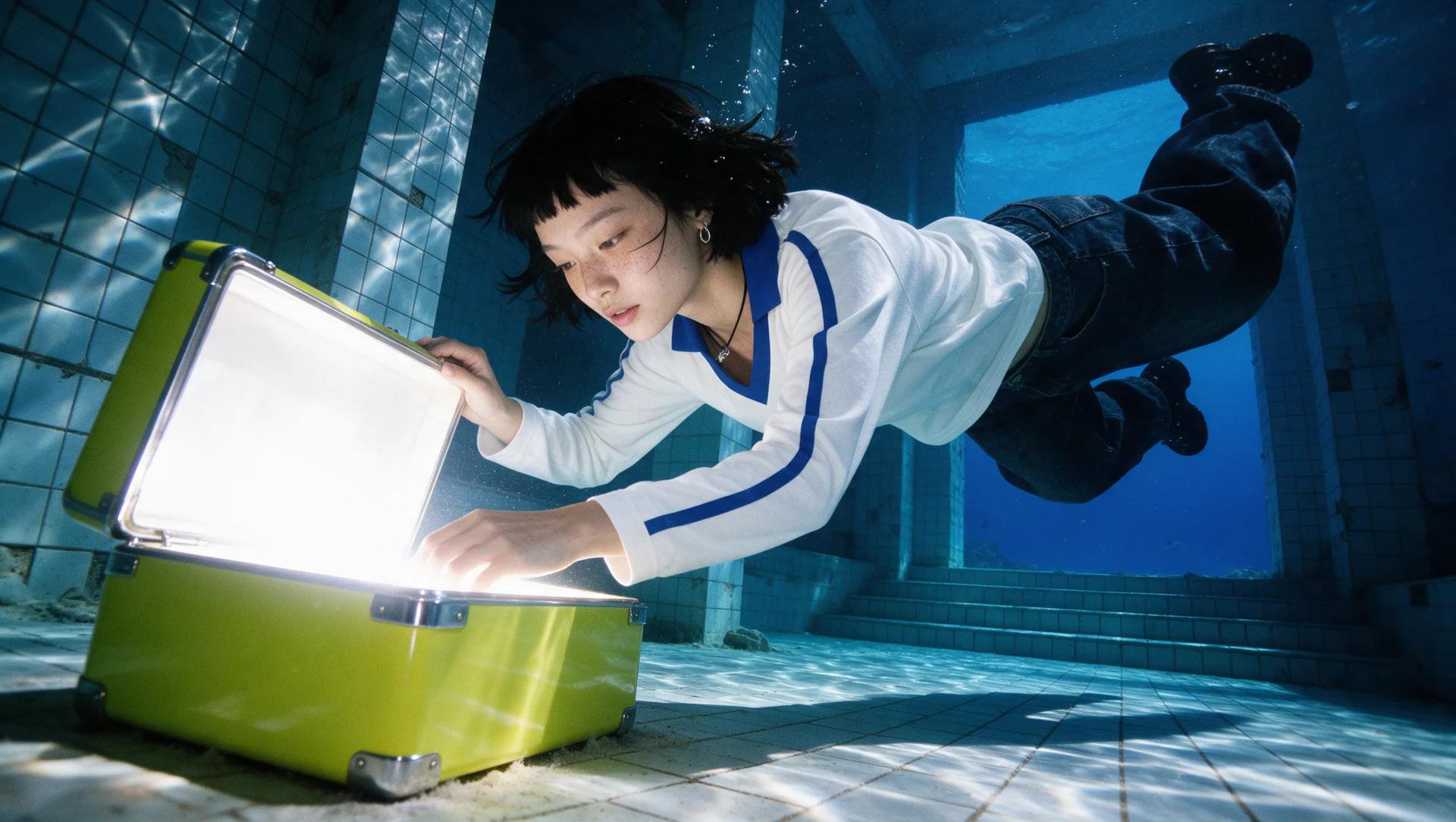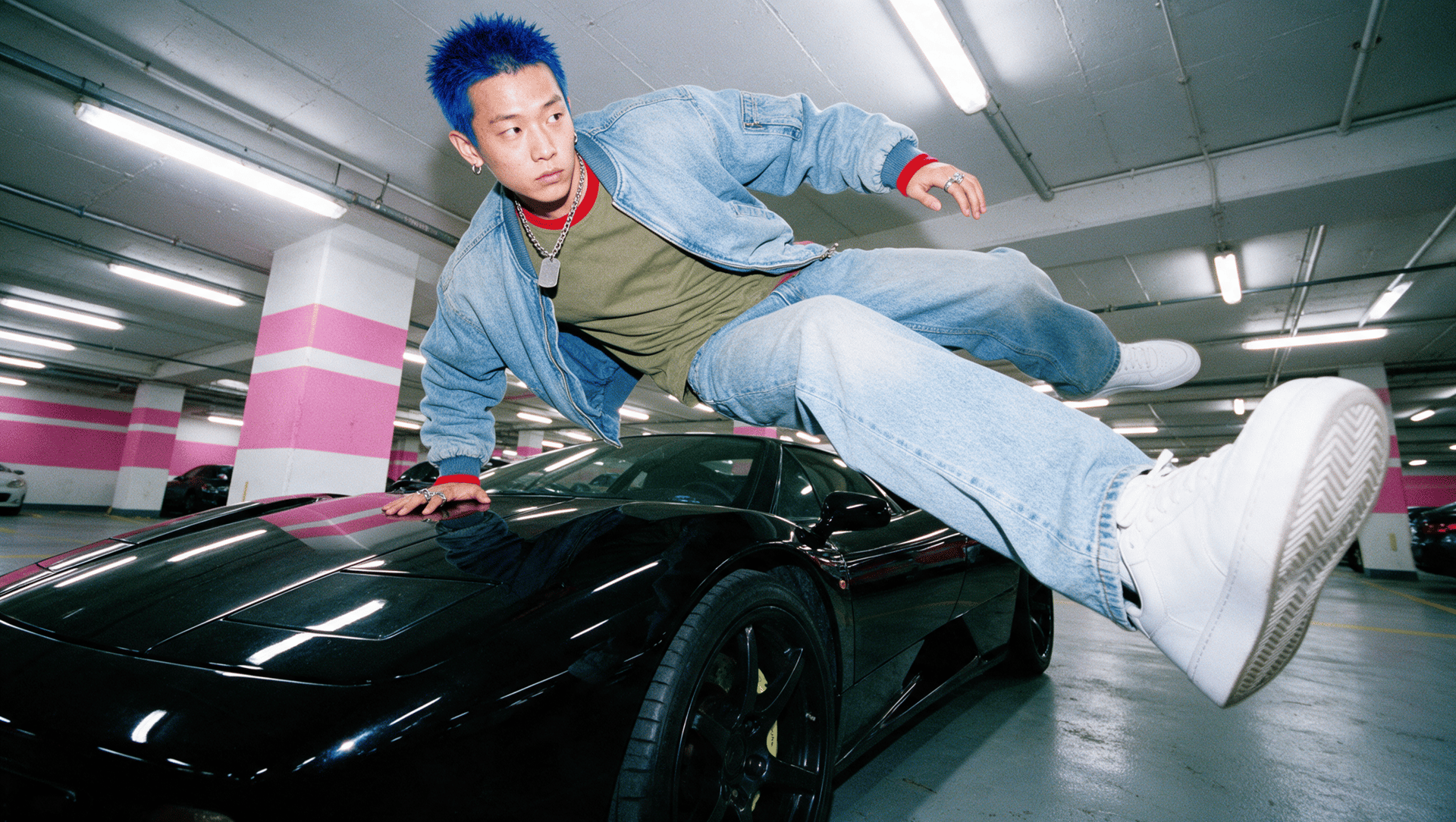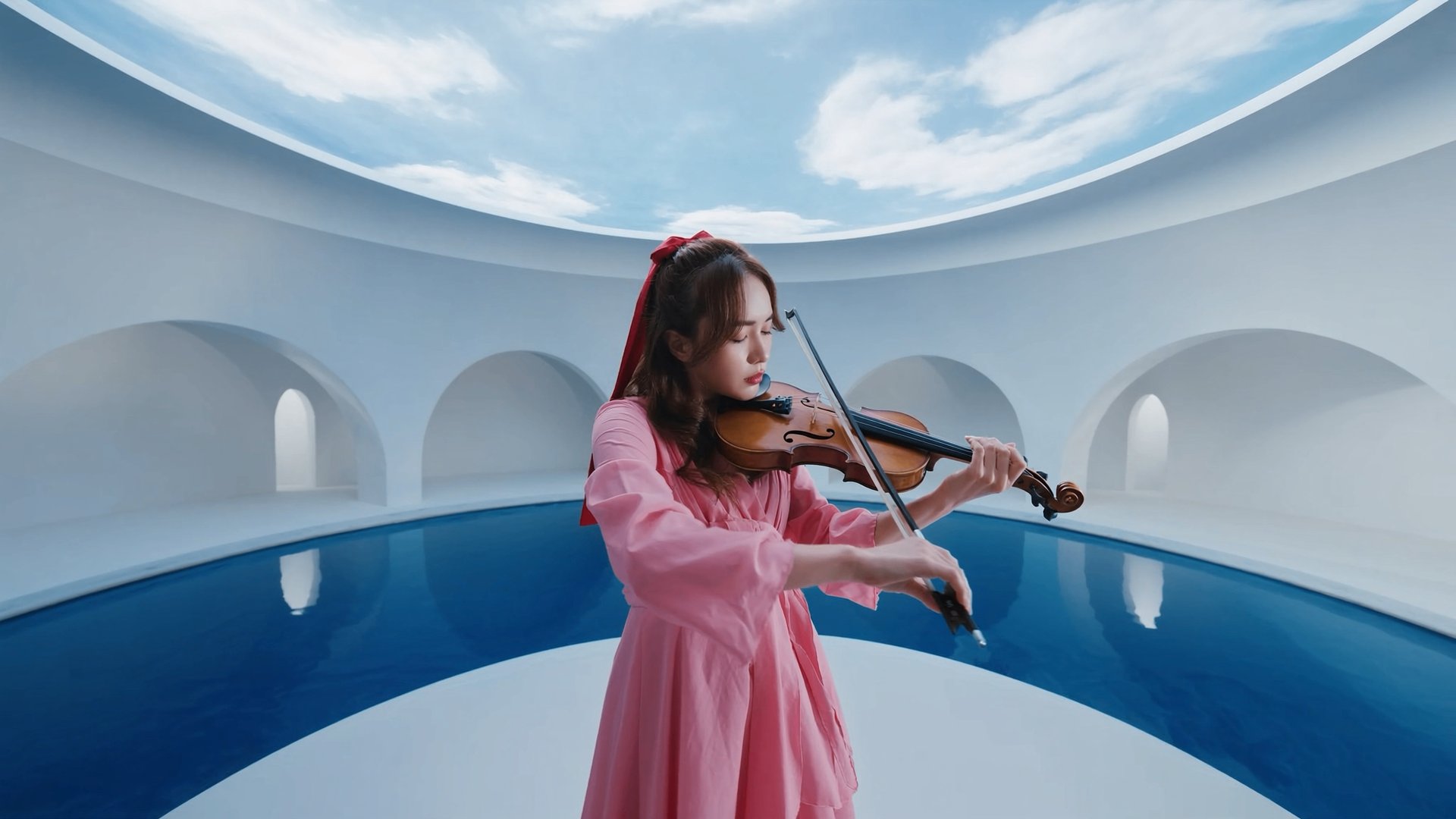
Flux 3, Black Forest Labs' first video model, is now available on Higgsfield. Announced July 23, 2026, and still in early access. It generates clips of 5 to 20 seconds with optional synchronized audio, from text, an image, or an existing clip. This guide covers what Flux 3 can do, what changed from Flux 2, and how to access it.
What Is Flux 3
Flux 3 is broader than a video model. It's Black Forest Labs' new multimodal foundation model, trained jointly across images, video, and audio. Flux 3 Video is the part currently available on Higgsfield, in early access since the July 23, 2026 announcement, while Image, Action, and Dev are part of the wider rollout.
On Higgsfield, Flux 3 Video generates video and synchronized audio together in the same pass, when audio is turned on. Flux 1 and Flux 2 were built for image generation only. Flux 3 Video is the first part of the line built for video.
The model covers three input modes: text-to-video, image-to-video for animating a still frame, and video continuation, which extends an existing clip forward from its final seconds of picture and sound, keeping motion, camera, and audio consistent across the seam. It also handles multilingual dialogue with lip sync, and holds up on typography specifically, text stays readable even while it's moving in the frame.
Style range runs wide too, camcorder-style footage, animation, and full cinematic looks are all covered by the same model, described directly in the prompt instead of chosen as a separate setting.
Flux 3 vs Flux 2
Flux 2 never generated video, so the comparison is less about incremental change and more about what's genuinely new in the line.
Setting | Flux 2 | Flux 3 |
|---|---|---|
Video generation | Not available | Up to 20 seconds |
Audio | Not available | Optional, synchronized speech, effects, and ambience in the same pass |
Input modes | Image generation only | Text-to-video, image-to-video, video continuation |
Dialogue | Not available | Multilingual, with lip sync |
Typography in motion | Not applicable | Text stays readable while moving |
Resolution | Not specified | 720p / 1080p |
How to Access Flux 3
Flux 3 Video runs on Higgsfield alongside the rest of the platform's model roster, no separate sign-up required. Select FLUX.3 Video directly from the model list to start a generation. Reference images, video, and audio all work with the model for consistency, up to 10 reference frames in a single generation, along with Start Frame and End Frame for locking where a shot begins or ends. Selecting Flux 3 for a generation is a model choice, not a different account or plan.
Full Workflow: Step by Step
Step 1: Open Higgsfield and select Flux 3 from the model list.
Step 2: Choose the input mode. Text-to-video for a scene built entirely from a written prompt, image-to-video to animate a still frame, or video continuation to extend an existing clip forward from its final seconds of picture and sound.
Step 3: Add references if the mode calls for them. A still frame for image-to-video, or a source clip for video continuation, up to 10 reference frames in a single generation. You can also set a Start Frame or End Frame when you need more control over where the shot begins or finishes.
Step 4: Write the prompt. Cover the scene, the dialogue if the clip includes speech, any on-screen text that needs to stay legible while it moves, and the style, camcorder-style footage, animation, or full cinematic. Flux 3 does not use Cinema Studio's genre, lens, or lighting controls, so creative direction such as camera style, lighting, and visual look should be described in the prompt.