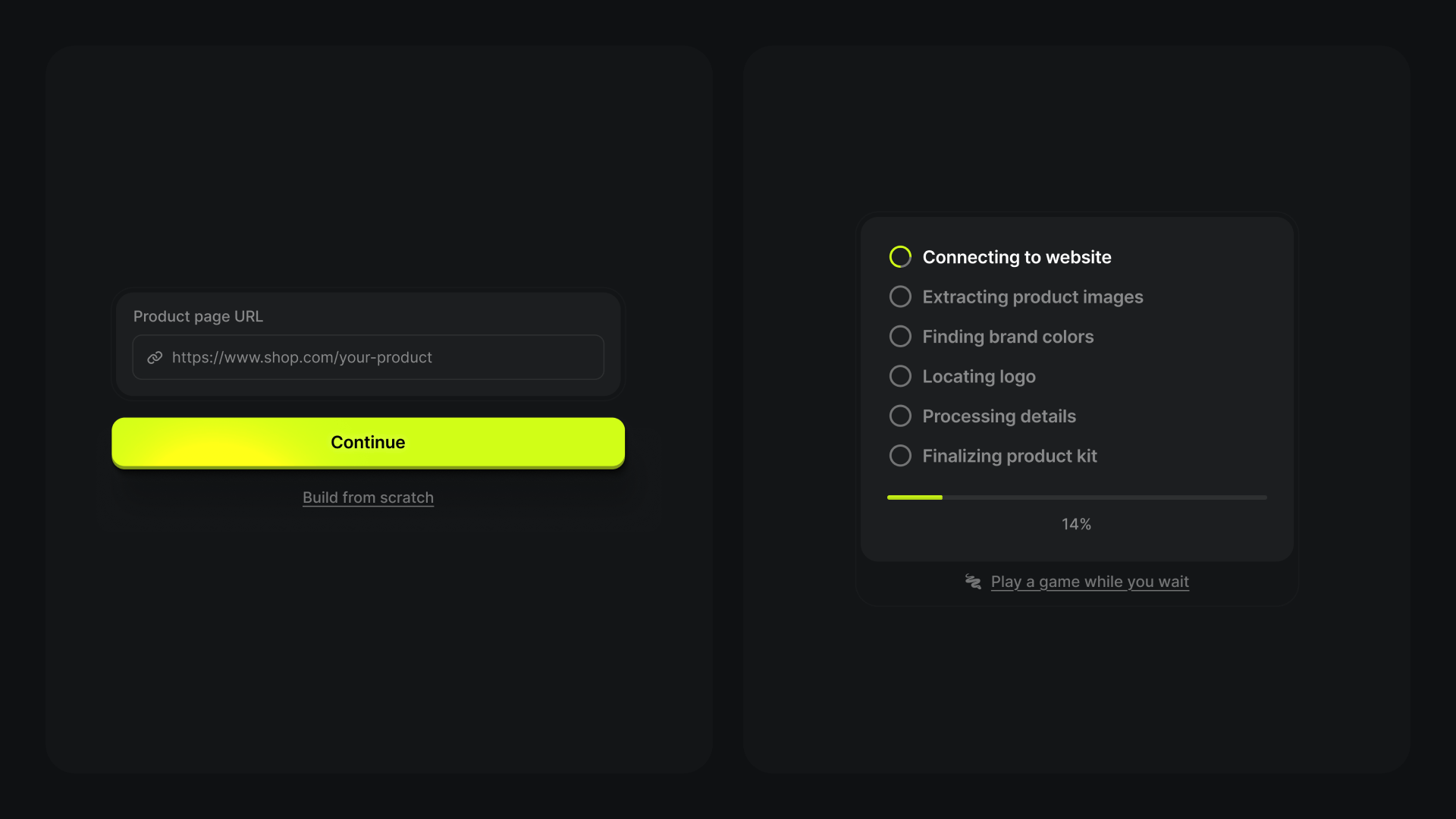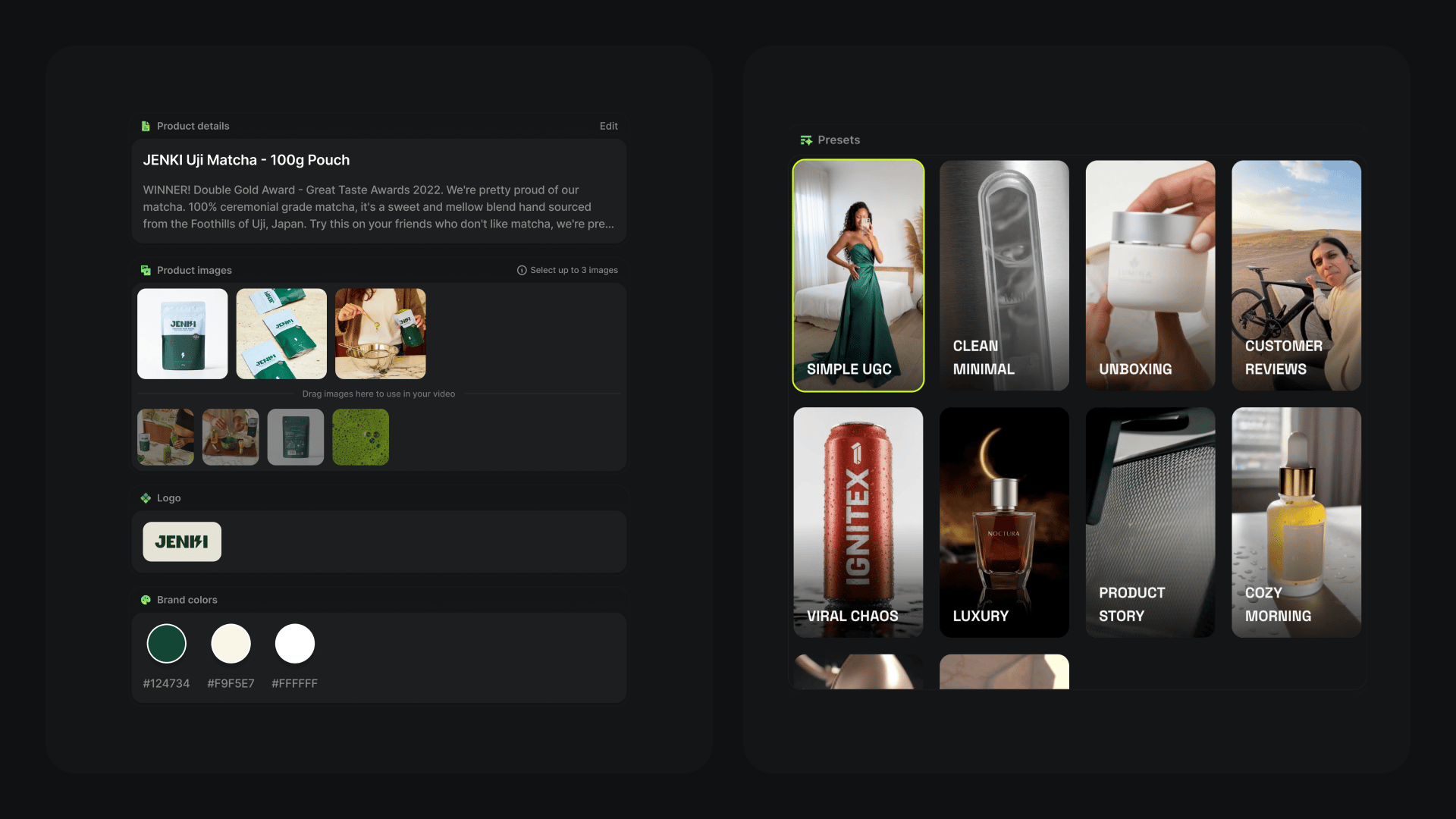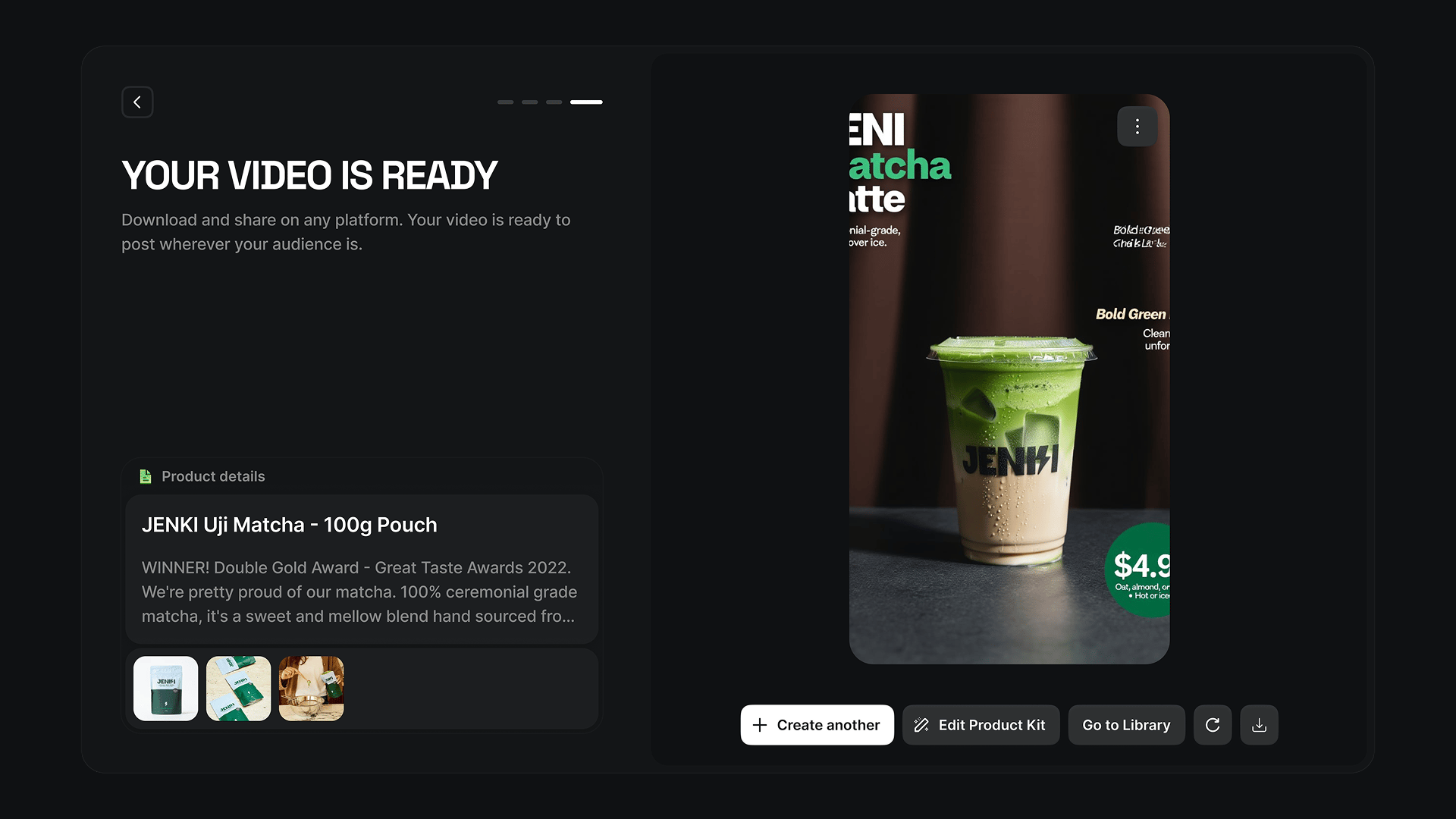
The fastest way to make a video ad in 2026 is to paste a product URL into a tool that builds the ad for you. Higgsfield's Click to Ad does this end to end: it scans the page, pulls the product photos, copy, brand colors, and logo, and assembles a finished video using preset templates. You review the extracted assets, swap anything that's off, pick a template, and generate. A few other tools (Creatify, Pippit by CapCut, AdCreative.ai) do versions of the same thing. This guide covers how the workflow works, the best tools for solo ad production, and where each one falls short.
Ad production usually takes time: gathering assets, writing copy, matching brand colors, editing. Most of that information already lives on the product page, which is exactly what these tools exploit. On Higgsfield, Click to Ad turns that page into a video ad in one step, inside the same subscription as Marketing Studio, Cinema Studio, and the full model lineup, so a draft can move straight into deeper editing without switching platforms.
What Is Click to Ad and How Does It Work?
Click to Ad is a feature inside Higgsfield (part of Marketing Studio) that turns a single product URL into a finished video ad. A product page already contains most of what an ad needs: images, a name, a description, brand colors, and a logo. Click to Ad scans the page, compiles those elements, and builds a video around them using pre-designed templates.
The result is a complete promotional clip you can generate, review, and re-run in minutes, rather than briefing a designer or editing footage by hand. You stay in control: every extracted element can be swapped before the final render.
What Does Click to Ad Pull from a Product Page?
Once you paste a link, Click to Ad collects the attributes most ads are built from:
Element | What it does in the ad |
|---|---|
Product name | Labels the item, usually as a headline frame |
Description | Feature lists and summaries become text frames |
Up to 8 photos | The clearest, most relevant product images are selected for the video |
Brand colors | Dominant colors from the page and photos style the frames |
Logo | If present on the page, it carries brand identity into the ad |
If any element is missing or wrong, you upload or edit it manually, so a product with a thin page can still be promoted.
How Do You Create an Ad Step by Step?
Step 1. Paste a product link.
Any single-product page works: an e-commerce product page, a catalog card, a landing page, or a brand page showcasing one item. Click to Ad reads the structured information from that link.
Step 2. Let it extract the assets.
The system pulls the name, description, up to 8 photos, brand colors, and logo automatically. This is where you see what it found.
Step 3. Fine-tune before generating.
Replace images, rewrite the description, adjust the color palette, upload a logo, or choose a different template. This is the step that turns a generic draft into something on-brand.
Step 4. Pick a template and generate.
Click to Ad offers 10 preset templates with different structures and pacing, from minimal and text-forward to dynamic and brand-focused. Generate, review the full clip, and re-run with a different preset if you want variations for different platforms.