The fastest way to make a video ad in 2026 is to paste a product URL into a tool that builds the ad for you. Higgsfield's Click to Ad does this end to end: it scans the page, pulls the product photos, copy, brand colors, and logo, and assembles a finished video using preset templates. You review the extracted assets, swap anything that's off, pick a template, and generate. A few other tools (Creatify, Pippit by CapCut, AdCreative.ai) do versions of the same thing. This guide covers how the workflow works, the best tools for solo ad production, and where each one falls short.
Ad production usually takes time: gathering assets, writing copy, matching brand colors, editing. Most of that information already lives on the product page, which is exactly what these tools exploit. On Higgsfield, Click to Ad turns that page into a video ad in one step, inside the same subscription as Marketing Studio, Cinema Studio, and the full model lineup, so a draft can move straight into deeper editing without switching platforms.
What Is Click to Ad and How Does It Work?
Click to Ad is a feature inside Higgsfield (part of Marketing Studio) that turns a single product URL into a finished video ad. A product page already contains most of what an ad needs: images, a name, a description, brand colors, and a logo. Click to Ad scans the page, compiles those elements, and builds a video around them using pre-designed templates.
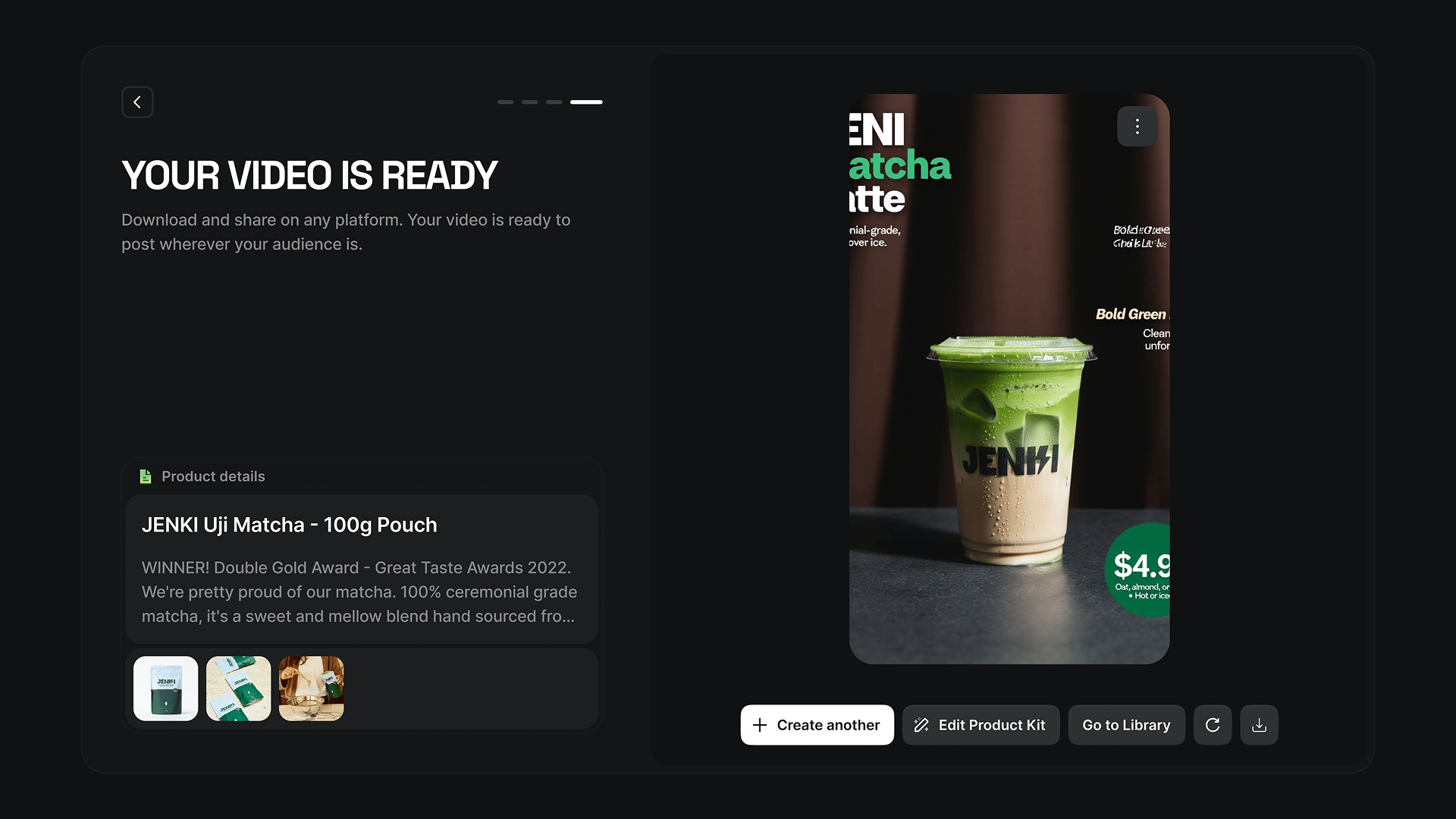
The result is a complete promotional clip you can generate, review, and re-run in minutes, rather than briefing a designer or editing footage by hand. You stay in control: every extracted element can be swapped before the final render.
What Does Click to Ad Pull from a Product Page?
Once you paste a link, Click to Ad collects the attributes most ads are built from:
What Does Click to Ad Pull from a Product Page?Element | What it does in the ad |
|---|
Product name | Labels the item, usually as a headline frame |
Description | Feature lists and summaries become text frames |
Up to 8 photos | The clearest, most relevant product images are selected for the video |
Brand colors | Dominant colors from the page and photos style the frames |
Logo | If present on the page, it carries brand identity into the ad |
If any element is missing or wrong, you upload or edit it manually, so a product with a thin page can still be promoted.
How Do You Create an Ad Step by Step?
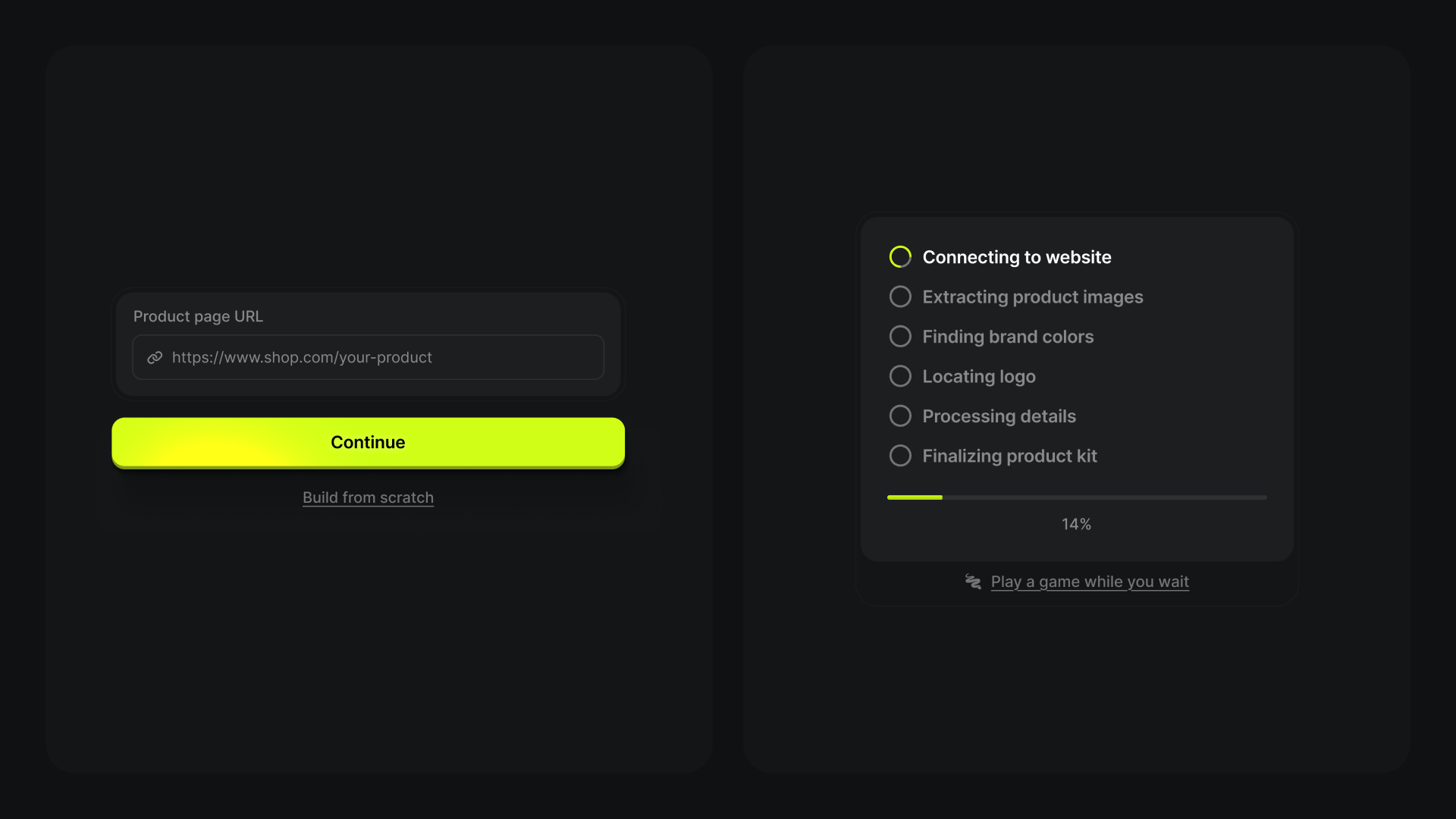
Step 1. Paste a product link.
Any single-product page works: an e-commerce product page, a catalog card, a landing page, or a brand page showcasing one item. Click to Ad reads the structured information from that link.
Step 2. Let it extract the assets.
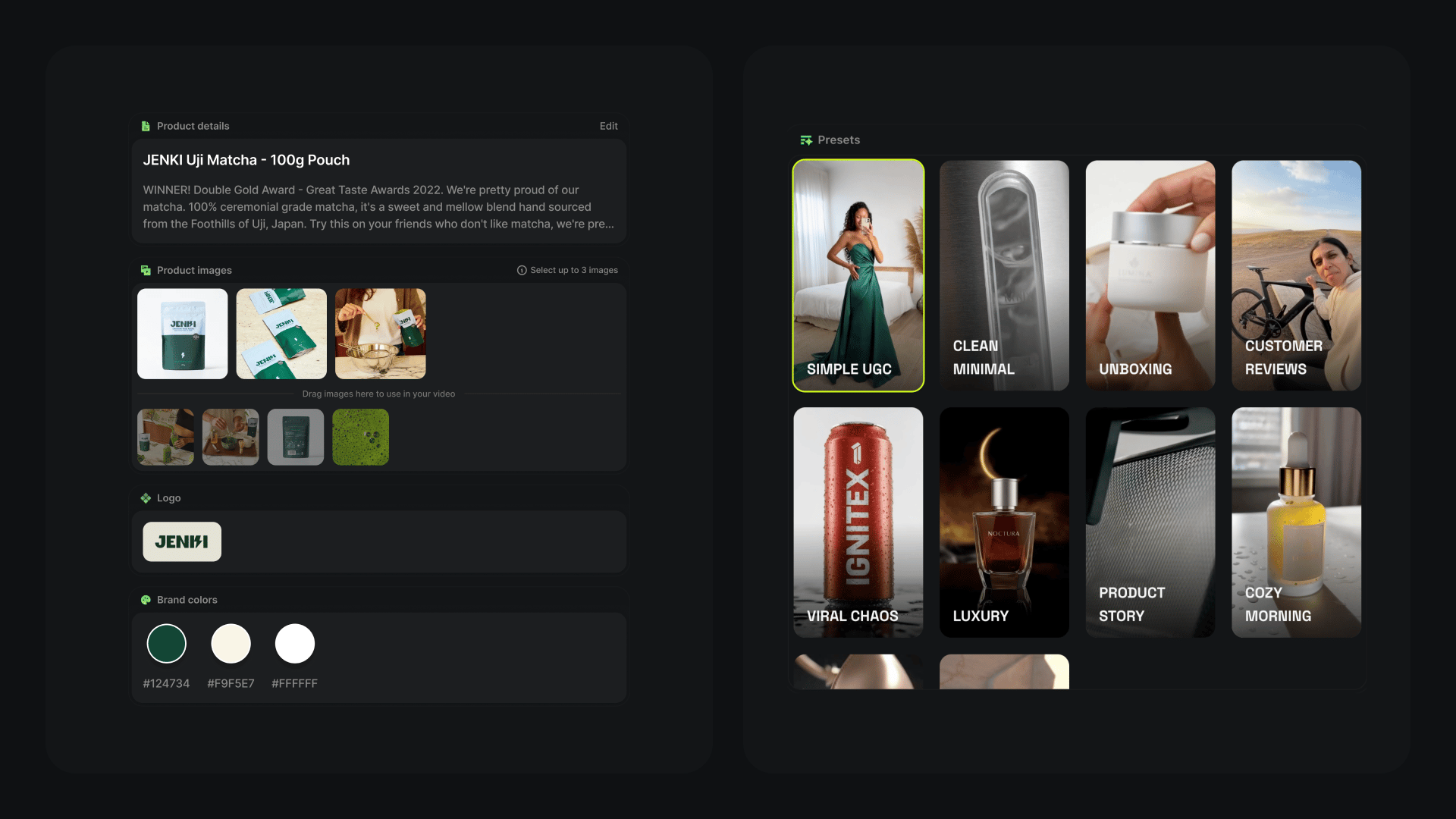
The system pulls the name, description, up to 8 photos, brand colors, and logo automatically. This is where you see what it found.
Step 3. Fine-tune before generating.
Replace images, rewrite the description, adjust the color palette, upload a logo, or choose a different template. This is the step that turns a generic draft into something on-brand.
Step 4. Pick a template and generate.
Click to Ad offers 10 preset templates with different structures and pacing, from minimal and text-forward to dynamic and brand-focused. Generate, review the full clip, and re-run with a different preset if you want variations for different platforms.
How Do You Get the Best Results?
A few inputs decide output quality:
The page needs at least one clear product photo. Click to Ad relies on visual data; with no usable image it cannot build a video.
Product-only photos beat photos with people. When a model appears in the shot, the system can weight the person over the product, which muddies some templates.
It works best for physical goods with clear shapes and angles: electronics, clothing, accessories, skincare, packaged food, home goods, lifestyle objects. Digital products work too, but the system is tuned for physical items.
Clean product galleries win. If the page is full of icons, thumbnails, or decorative images, Click to Ad may pull them in unless you replace them manually.
Clear titles and descriptions help. Pages buried in pop-ups, multiple text blocks, or non-product copy may need light manual cleanup after extraction.
Most of this is handled for you on Higgsfield: Click to Ad filters for the clearest product shots, extracts brand colors automatically, and lets you swap any asset before the render. The best-practice setup is mostly built into the flow, so the work that remains is reviewing and fine-tuning rather than preparing files from scratch.
Where Does Click to Ad Fall Short?
It speeds up the first 80% of ad production, but it is not a full creative replacement. The honest limits:
No product photo, no ad. Pages without a clear image can't be processed; you'll have to upload one.
People in source images reduce clarity. Lifestyle shots with models often need to be swapped for clean product shots.
Template-based, not bespoke. You're choosing from 10 presets, so a fully custom concept or narrative ad still needs a manual workflow.
Cluttered pages pull the wrong assets. Messy galleries and heavy pop-ups mean more manual correction after extraction.
Tuned for physical goods. Digital or service products with no clear object give the templates less to work with.
For the bespoke end of that range, the rest of Higgsfield picks up where Click to Ad stops: Marketing Studio and Cinema Studio handle custom concepts and narrative ads in the same subscription.
What Are the Best Tools for AI Ad Production?
Click to Ad is one of several URL-to-ad tools. Here is how the main options compare for solo and small-team production:
What Are the Best Tools for AI Ad Production?Tool | Time to first ad | Control | Best for |
|---|
Click to Ad on Higgsfield | Minutes | Template + manual edit, inside a full creative suite | Fast variants you can refine with Marketing Studio, Cinema Studio, and 15+ models |
Creatify | Minutes | Template-bound, AI avatars | Standalone UGC-style ad generation |
Pippit by CapCut | Minutes | Template + CapCut editing | Creators already inside the CapCut ecosystem |
AdCreative.ai | Minutes | Performance-focused static + video | Conversion-optimized ad creative at volume |
Manual production (editor + designer) | Days | Full | Hero campaigns, bespoke concepts |
The difference with Click to Ad is what surrounds it. Creatify, Pippit, and AdCreative each generate ads as standalone products. On Higgsfield, the same subscription that runs Click to Ad also includes Marketing Studio, Cinema Studio, and the full model lineup, so a first-draft ad can move into deeper editing, character work, or higher-fidelity video without exporting to another platform.
What Are the Best Use Cases?
E-commerce product launches.
Generate several promo videos from one link to test formats across social platforms.
Small businesses without a video team.
Turn an existing website into promotional assets with no editor or designer.
A/B testing.
Because presets differ in structure and pacing, producing several styles for comparison takes minutes.
Agencies with many clients.
Generate first-draft videos from client websites before refining.
Catalog updates and seasonal campaigns.
When product pages change, regenerate ads from the updated links instantly.
Click to Ad on Higgsfield covers all five end to end: one product link in, a finished, on-brand video out, with no separate production pipeline. And because it sits inside the broader suite, the same workflow scales from a single launch clip to a full set of A/B variants and then into custom edits, without leaving Higgsfield.
How Much Does Click to Ad Cost?
Click to Ad runs on the Higgsfield subscription, not as a separate purchase. Paid plans start at $15/mo (Starter, 200 credits); the $49/mo Plus tier (1,000 credits, or $39/mo billed annually) unlocks the full lineup. Because each generation is template-based and fast, the credit cost per ad is low, which is what makes high-volume A/B testing practical. Check the pricing page for current rates and which tier includes Click to Ad.