Make AI Videos From Text and URLs With Higgsfield Explainer
Higgsfield
·
Jul 14, 2026
·
10 min
Higgsfield AI Explainer turns any topic, URL, or file into a complete structured video up to 10 minutes long, with a visual style that holds across every scene and a voice that carries the story through the edit. Pick a preset, describe what the video should cover, set the duration and voice, and generate. Whether you're making a bedtime story for kids, a walkthrough for a product launch, or educational content that builds from concept to example, Explainer handles the structure so you don't have to.
What Explainer Is
Explainer is a dedicated tool inside Higgsfield, separate from Cinema Studio, Marketing Studio, and the general video generation interface. It lives in the navigation alongside those tools and has its own purpose-built interface: a preset library where you pick the visual style, a configuration panel where you set the inputs and format, and a Generate button that kicks off the build.
The tool is built around three decisions you make before anything generates. The first is the visual style, chosen from a library of 10+ presets covering different aesthetic categories: animated, illustrated, doodle, papercraft, and more. Each preset defines how the entire video looks and moves, not just a single scene. The second is the input: type a topic, attach a file, or paste a URL and the tool builds the narrative around it. The third is the format: aspect ratio, duration, and voice.
Duration runs from 20 seconds up to 10 minutes, or Manual if you want to set it yourself. That range covers everything from a short social clip to a full-length explainer with room for a concept to develop properly. Aspect ratio defaults to 16:9 for YouTube and presentations, with additional options for vertical and square formats.
Voice is where the narration character lives. Explainer includes 40+ voice presets covering a wide range of tones, accents, and delivery styles, so the narration can match the register of the video: warm and gentle for a bedtime story, direct and confident for a brand explainer, measured and clear for educational content. If none of the presets fit, you can create a custom voice instead.
Once all three decisions are made, you click Generate and the tool produces a complete video: scenes in the style of the selected preset, a narrative built from your input, and the voice synced to the visuals in the same pass.
The Preset Library
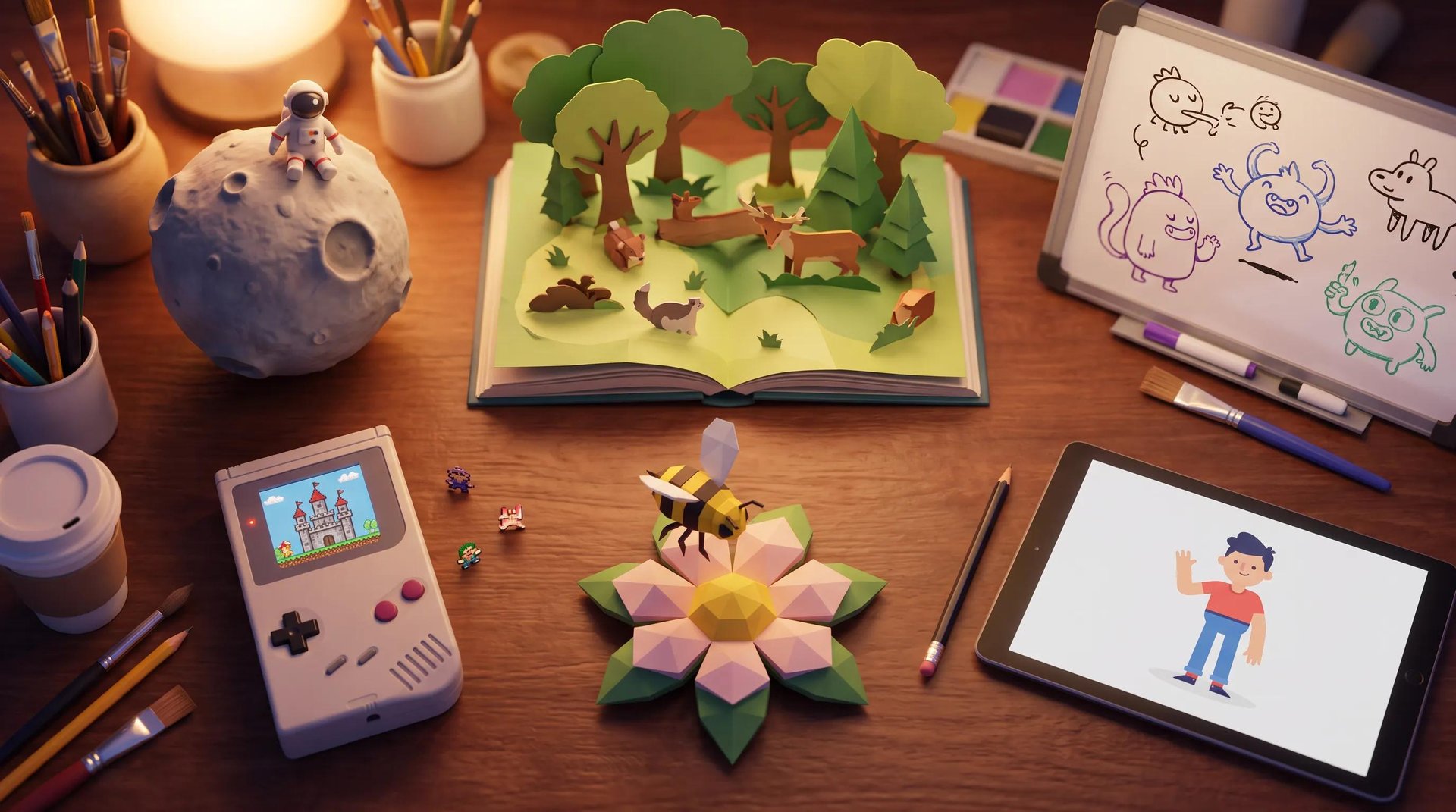
Each preset defines the aesthetic, the motion logic, and the visual character of the entire video. The presets available in Explainer include:
Pixel Art is a retro 8-bit game aesthetic with pixel characters and environments. The visual language reads as nostalgic and playful without being childish. It works well for gaming content, tech tutorials, historical storytelling, and any topic where the pixelated register adds charm rather than distraction. Characters are drawn in the 16-bit style of classic RPGs: articulated, expressive within the format, and consistent throughout.
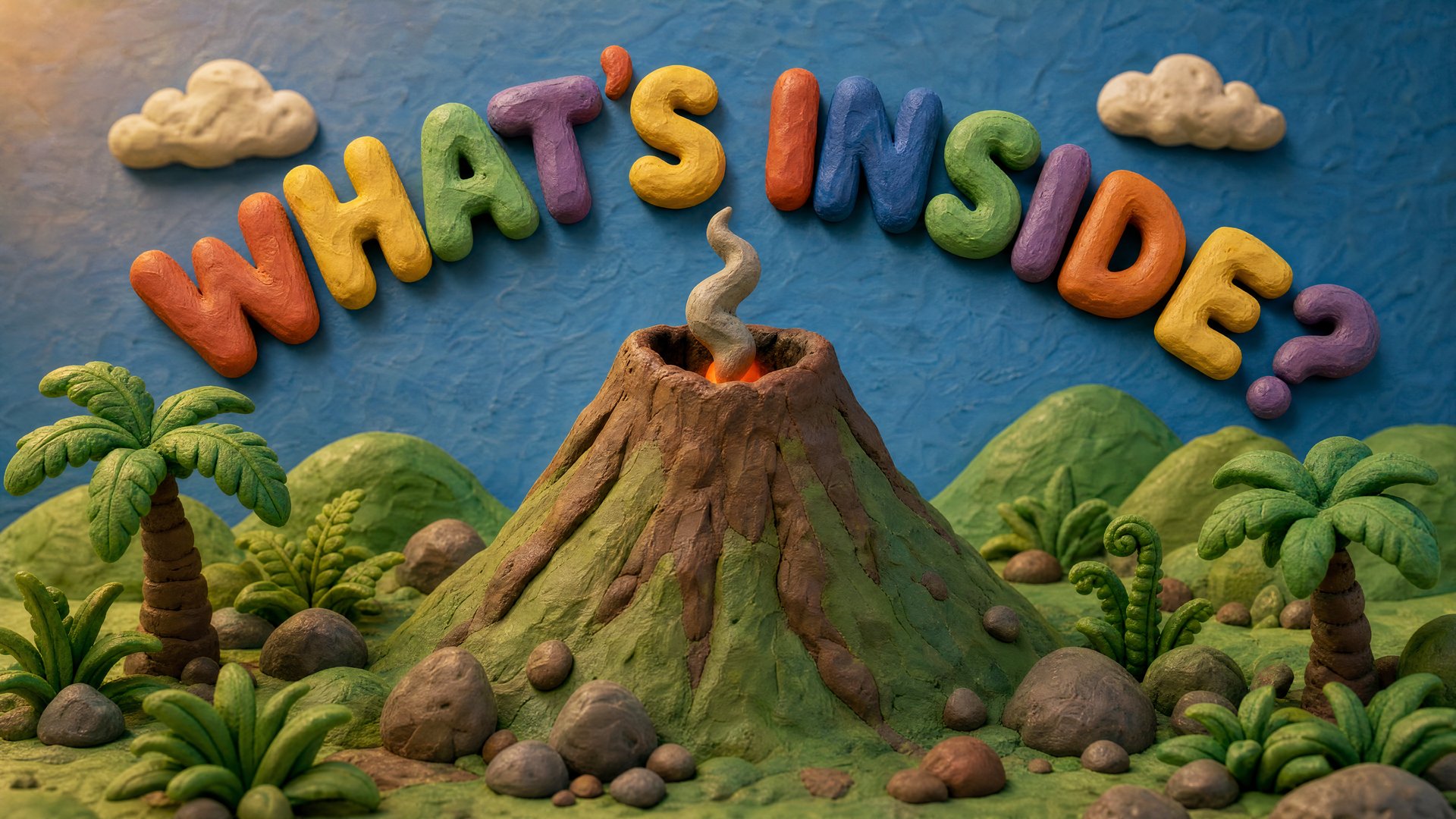
Claymotion is a stop-motion clay aesthetic where every element in the frame has the physical texture and tactile weight of handmade clay. Characters have the slightly lumpy, imperfect quality that makes claymation feel warm and handcrafted. It works especially well for educational content aimed at younger audiences, storytelling with characters, and anything where the handmade quality adds emotional warmth. The motion logic replicates the slight jerkiness of stop-motion, which reads as intentional craft rather than error.
Mixed Media combines illustrated and photographic elements in the same frame, producing a collage-like aesthetic that sits between graphic design and video. Product images, real photography, and illustrated characters or annotations can coexist in the same scene. It works well for brand explainers, editorial-style content, and product walkthroughs where photographic product assets need to appear alongside explanatory illustration.
3D Papercraft is a dimensional paper cutout aesthetic with clean shapes, visible fold lines and layered construction, and soft shadows that give each element depth without weight. The visual language reads as crafted and contemporary. It works well for educational content, financial or process explanations, and product content where the clean geometry supports clarity rather than competing with it.
2D Illustrator is a flat graphic illustration style with bold shapes, clean outlines, and dynamic motion. The aesthetic is closer to contemporary editorial illustration or motion graphics than to animation. Characters and environments are geometric and expressive. It works well for brand content, social video, and storytelling where the bold visual style needs to carry emotional register without photorealism.
Additional presets are available in the library beyond those shown here.
The Four-Step Flow
Step 1: Pick a preset. Open Higgsfield AI Explainer. The interface opens on the preset library. Click the preset that fits the visual style of the video you want to make. The selected preset populates the thumbnail in the configuration panel and you can change it at any point before generating.
Step 2: Add your topic, photo, or URL. The input field asks "What should the video explain?" Three input types are available. Type a topic directly: describe what you want the video to cover and the tool builds the narrative structure, script, and visual sequence around it. Attach files using the Attach files button: upload a photo, document, or other file to anchor the video to a specific visual reference or content source. Paste a URL using the Link button: add any web address and the tool reads the content at that URL, extracts the relevant information, and uses it as the foundation for the script and visuals. A product page, an article, a documentation URL, or any web content can serve as the starting point.
Step 3: Set Aspect Ratio, Duration, and Voice. Aspect Ratio defaults to 16:9, the standard for YouTube, presentations, and landscape display. Additional ratios are available for vertical and square formats. Duration has seven options: 20 seconds, 30 seconds, 1 minute, 3 minutes, 5 minutes, 10 minutes, and Manual. Manual lets you set the duration yourself.
Voice is where the narration character lives. Explainer comes with 40+ voice presets covering a range of tones, accents, and delivery styles, so the narration can match the register of the video, warm and gentle for a bedtime story, direct and confident for a brand explainer, measured and clear for educational content. If none of the presets fit, you can create a custom voice instead.
Step 4: Generate. Hit the Generate button. Each generation costs approximately 72 credits at standard settings. The tool builds the video: scenes in the visual style of the selected preset, a narrative built from your input, and the narration voice synced to the visuals in the same generation pass. The output arrives as a complete video, not individual clips for manual assembly.
Generation cost scales with duration. A 20-second video costs approximately 72 credits, around $3.60 at standard credit rates. A 1-minute video runs proportionally more, and longer formats from 3 minutes upward typically exceed $20 per generation. Set the duration to match what the narrative actually needs rather than defaulting to the longest option.
What You Can Make With Explainer
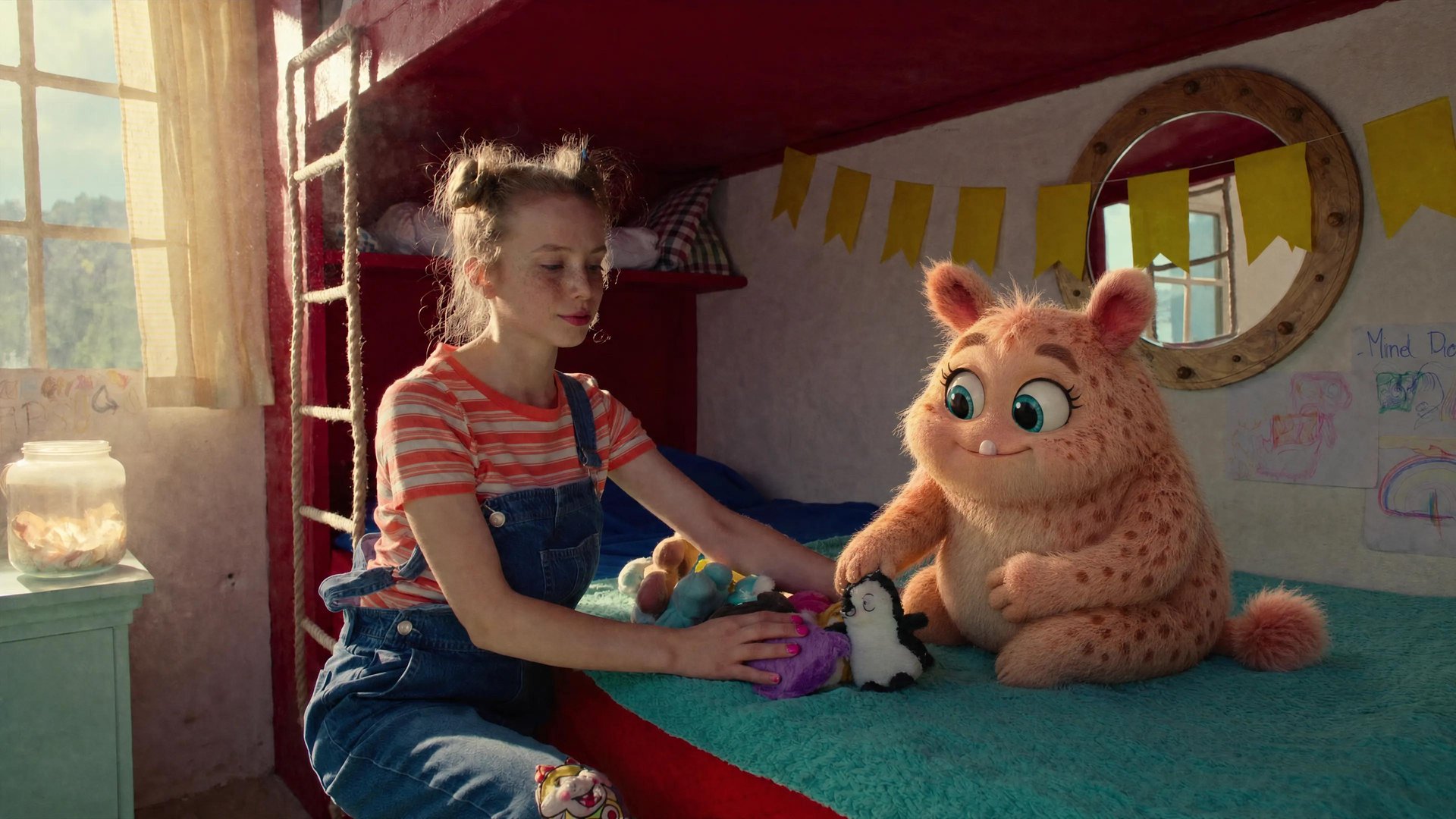
Bedtime stories. A topic and a character-forward visual style produce a complete illustrated narrative with narration. The Claymotion preset works especially well here: the tactile, handmade quality of the clay aesthetic gives characters emotional warmth, and the stop-motion rhythm reads as storybook pacing. A topic like "a rabbit who wants to reach the moon" becomes a complete multi-scene story with consistent characters and a narrative arc. Duration of 1 to 3 minutes covers a full bedtime story at a comfortable pace.
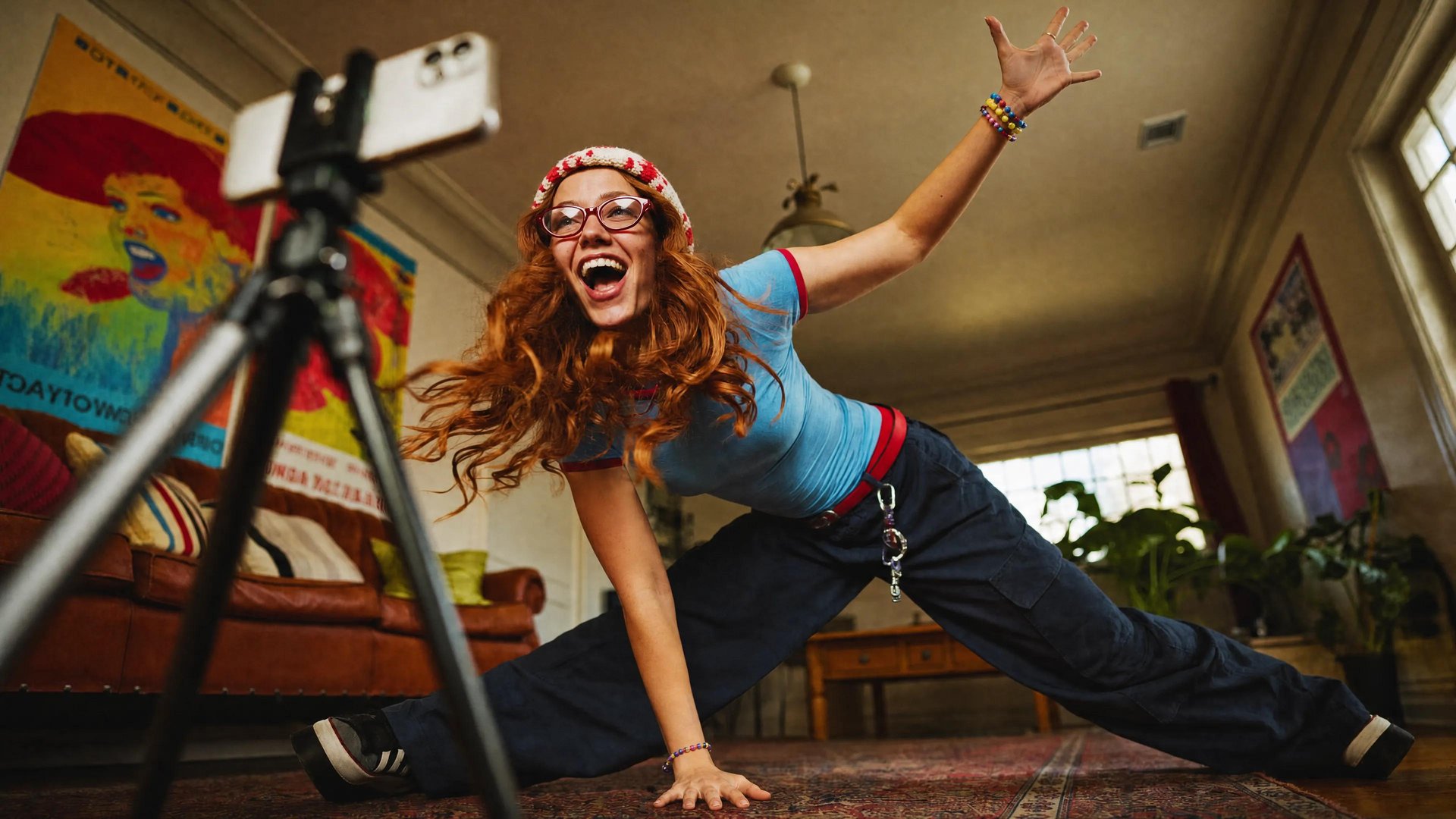
Brand explainers. A product URL or a brief description of what the product does, a clean visual style like 2D Illustrator or Mixed Media, and a structured voice produce a complete explainer that introduces the product, explains the use case, and closes with a call to action. The URL input is particularly useful here: paste the product page and the tool reads the existing marketing copy, features, and positioning, then structures a video around it rather than requiring you to re-describe what is already written. Duration of 1 to 3 minutes covers most brand explainer formats.
Educational content. A concept becomes a structured video: introduction, explanation, examples, summary. The Whiteboard Doodle preset is the natural choice for concept explanations where diagrams and annotations carry the meaning. The 3D Papercraft preset works well for process explanations and anything with a clean, step-by-step structure. Duration of 3 to 5 minutes covers most educational formats with enough room for the concept to develop.
Product walkthroughs. A product URL feeds the tool with the content it needs: the feature list, the use case, the positioning. The preset handles the visual logic. The voice carries the narrative through each feature. Mixed Media works well for product walkthroughs where photographic product assets need to appear alongside explanatory illustration.
Content repurposing. An article, a documentation page, or any long-form written content becomes a video by pasting the URL. The tool reads the content, extracts the structure, and produces a video that covers the same ground in a visual format. For content teams that produce a lot of written content and need video versions without manual production work, the URL input handles the conversion step.
Storytelling and narrative content. Any subject that benefits from a connected story rather than a list of clips: historical events, scientific concepts, creative fiction, brand origin stories. The Pixel Art preset works well for historical and gaming-adjacent content. The Claymotion preset works well for character-driven narrative.
What You Control Before Generation
Explainer is a visual studio. The settings you configure before generation determine the character of the entire video, not individual shots. This is different from Cinema Studio, where each shot is a separate creative decision with its own genre, lens, lighting, and camera movement settings. In Explainer, the decisions you make in Steps 1 through 3 apply consistently across every scene in the output.
The preset choice is the most consequential decision. It sets the visual aesthetic, the motion logic, and the overall register of the video. Choosing Whiteboard Doodle for a children's bedtime story or Pixel Art for a corporate financial explainer would both produce technically correct outputs that miss the intended audience entirely. The preset is not a stylistic preference. It is the creative context the model builds the entire video around.
The duration choice is the second most consequential. A 20-second output and a 5-minute output of the same topic will cover very different amounts of ground. The 20-second version will prioritize the core message and move directly to a close. The 5-minute version will develop the topic, use examples, and build the argument. Match the duration to how much the narrative actually needs to cover, not to a default setting.
The voice choice completes the picture. A warm voice on a Claymotion bedtime story and a confident voice on a 2D Illustrator brand explainer produce very different emotional registers from the same preset and duration. With 40+ voice presets and the option to build a custom voice, the narration can be tuned to match the audience and the format rather than defaulting to a generic delivery.
What Makes Explainer Different
Most AI video tools start from a creative brief: a visual concept, a shot description, a style reference. Explainer starts from knowledge. Paste a URL, attach a document, type a topic, and the tool converts what you know into a video that explains it, with a structure, a voice, and a visual style that hold from the first scene to the last.
That is a fundamentally different starting point than Cinema Studio, Marketing Studio, or any other video generation tool in the Higgsfield stack. Cinema Studio starts from a creative direction. Marketing Studio starts from a product. Explainer starts from information and turns it into a video that teaches, explains, or tells.
This is also what separates Explainer from most AI video tools outside Higgsfield. Tools like Runway, Kling, or Veo accept a prompt and generate a clip. Explainer accepts knowledge and generates a complete structured video around it. The output is not a collection of clips you assemble. It is a finished video with a through-line, a consistent character, a voice that carries the narration, and a visual style that holds across every scene.
The practical implication is that Explainer fits situations where the raw material is information rather than a creative concept. A product documentation page becomes a product walkthrough. A research paper becomes an educational explainer. A brand brief becomes a brand video. A bedtime story idea becomes an animated narrative. In every case, the starting point is something you know, and the output is a video that communicates it.
Make AI Videos From Text and URLs With Higgsfield Explainer
3 types. A text topic typed into the prompt field, files attached using the Attach files button, and URLs pasted using the Link button. For a URL, the tool reads the content at the link and uses it to build the script and visual foundation of the video.
The preset library includes Pixel Art, Claymotion, Mixed Media, 3D Papercraft, 2D Illustrator, Whiteboard Doodle, and additional presets. Each preset defines the visual style, motion logic, and aesthetic character of the entire video.
Duration options are 20 seconds, 30 seconds, 1 minute, 3 minutes, 5 minutes, 10 minutes, and Manual. Manual lets you set the duration yourself.
Yes. Explainer includes 40+ voice presets covering a range of tones, accents, and delivery styles. You can also create a custom voice if none of the presets fit your needs.
The general video tool generates individual clips. Explainer builds complete videos with a narrative structure: scenes connected by a through-line, consistent characters, and a narration voice that runs through the edit.
Yes. Paste the URL using the Link button and the tool reads the content at that address, extracts the relevant information, and uses it as the foundation for the script and visuals.