Most people think making a YouTube Short means setting up a camera, recording something decent, editing it down, adding captions, and then figuring out the vertical format. With Higgsfield Shorts Studio, you skip most of that. Upload your footage, pick a preset, and get a finished Short back. This guide walks through exactly how it works and how it stacks up against the alternatives.
What Higgsfield Shorts Studio Does
Shorts Studio is Higgsfield's dedicated tool for turning existing video into vertical short-form content. The workflow is straightforward: upload a video clip up to 2 minutes long, select from 40+ style presets, and generate a finished 9:16 Short with overlaid graphics, text, and visual treatments applied automatically.
This is different from text-to-video generation. Shorts Studio works with footage you already have. You bring the video, the preset applies a visual style, and the output is a formatted Short ready for upload. The aspect ratio, duration, and format are set for YouTube Shorts from the start. You're not adapting a landscape clip to vertical after the fact. You're generating in vertical from the first step.
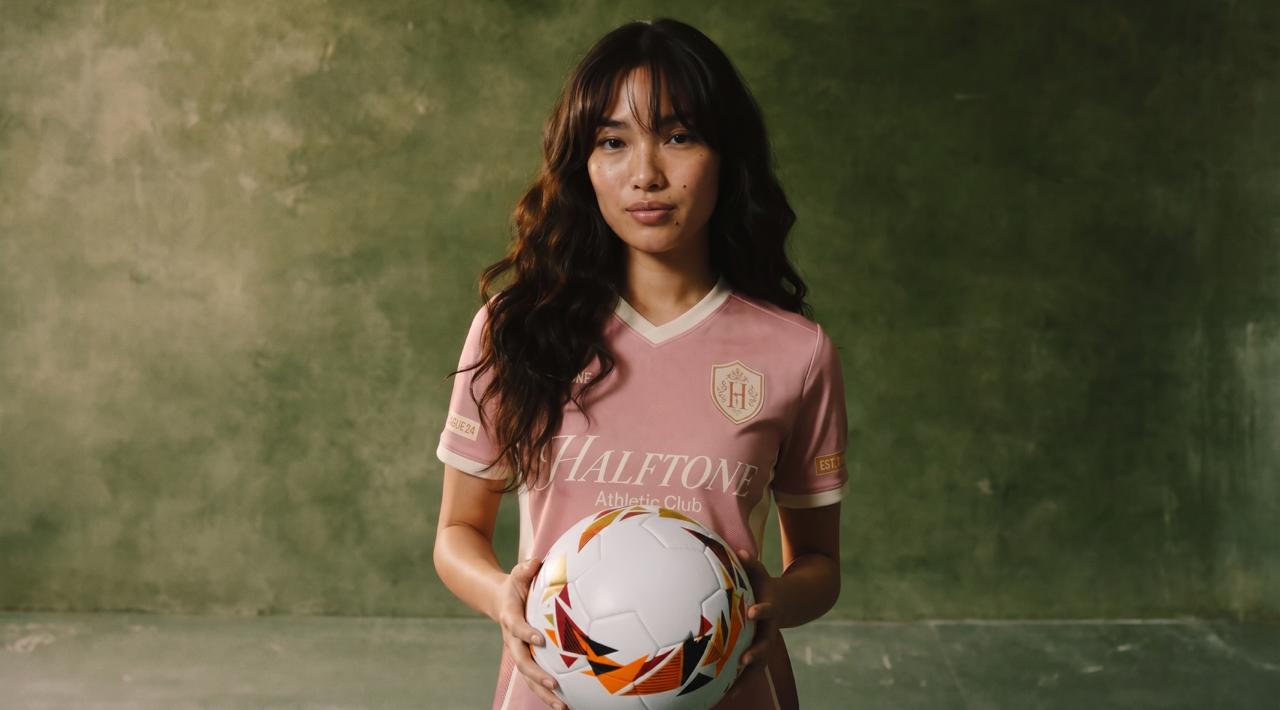
The preset library covers a wide range of visual styles: Bold Urban, Green Contrast, Urban Serenity, Warm Glow, and 35+ others. Each preset applies a distinct look, text treatment, and graphic overlay to the uploaded footage without you manually designing any of it. You can also create a custom preset from your own reference materials if none of the built-in styles match your brand.
Where Higgsfield Shorts Studio falls short: Works only with footage you upload, not text-to-video generation. Maximum input is 2 minutes per clip. Output resolution is 720p.
Shorts Studio at a Glance
Shorts Studio at a GlanceFeature | Detail |
Input | Upload existing video |
Max input duration | 2 minutes |
Output format | 9:16 vertical, 16:9 horizontal 720p |
Presets available | 40+ styles |
Cost per generation | ~$4 per 25-sec clip |
Starting plan | Basic from $9/mo |
Prices verified July 2026. Check higgsfield.ai for current rates.
The Full Workflow: From Footage to Finished Short
Step 1: Prepare Your Clip
Shorts Studio accepts video up to 2 minutes. Trim your source footage to the segment you want before uploading. The tool applies the preset to whatever you upload, so starting with the right clip saves credits and avoids regenerating because the wrong segment made it into the output.
Think about what should happen in the first two seconds before you start. Shorts that perform well open with action, not establishing context. The viewer should see something worth stopping for before the second mark. If that moment is buried in the middle of a longer clip, trim to it before uploading.
Step 2: Open Shorts Studio
Go to higgsfield.ai/shorts-studio. The interface shows your uploaded video on the left and the preset library on the right. Presets display as thumbnail previews so you can see what each style will look like before committing to a generation.
Step 3: Choose a Preset
Browse the 40+ presets or create a custom one from references. Each preset shows a preview of how it applies to footage. Select the style that fits your content and brand.
If none of the built-in presets match what you need, the "Create a Preset from References" option lets you define your own visual style. Upload your reference materials, and Shorts Studio builds a custom preset you can apply across every clip you generate.
For brands that need strict visual consistency across a series of Shorts, creating a custom preset once and applying it to every clip is the most efficient path to a uniform look at volume.
Step 4: Generate
Hit Generate. At 720p, a 25-second clip costs approximately $4 at the standard credit rate. Generation runs in the background. You can queue additional clips while the first one processes.
Step 5: Review and Export
The output is a 9:16 vertical MP4 formatted for YouTube Shorts upload. Watch the full clip before exporting. The hook quality shows in the first two seconds. Pacing issues and graphic placement usually appear in the middle third. If something is off, adjust the preset selection or trim the source clip and regenerate before exporting.
Once the clip is approved, export directly from Shorts Studio. No format conversion needed, no separate app, no aspect ratio adjustment.
Step 6: Upload to YouTube
Before uploading, confirm the clip is under 3 minutes. YouTube's Shorts threshold is 90 seconds, and clips over that limit are indexed as regular videos rather than Shorts.
What Makes a Short Actually Perform
The tool handles the format. The content strategy is still on you. A few things that separate Shorts that get replayed from Shorts that get skipped:
Hook in frame one. The action should begin immediately. An establishing shot that takes three seconds before anything interesting happens is three seconds the viewer is already gone. The most important edit decision is what appears in the first frame.
One clear point. Shorts under 90 seconds that try to cover more than one idea usually lose the thread before the end. The best Shorts expand on a single observation, show a single skill, or answer a single question. Everything else is padding.
Vertical from the start. Text, graphics, and subject placement all need to be designed for a 9:16 frame. When Shorts Studio applies a preset to your footage, the text treatment and overlay are already built for vertical viewing.
Readable captions. Most YouTube Shorts are watched without sound on first scroll. Captions that appear during playback keep the viewer oriented even without audio. Shorts Studio's presets include text overlays as part of the visual treatment. For spoken content with full caption sync, route through LipSync Studio from the same credit balance.
Producing Shorts at Volume
For creators or brands running daily posting schedules, the workflow above covers individual clips. At volume, the approach changes.
Batch by preset. Process multiple clips in the same session using one preset to maintain visual consistency across a series of Shorts. A series of five clips generated with the same preset looks like a produced show. Five clips generated with five different presets looks like five unrelated experiments.
Create a custom preset. If the 40+ built-in styles don't match your brand, the "Create a Preset from References" option lets you define your own visual style and apply it across every clip you generate. For brands with strict visual identity guidelines, this is worth setting up before the first batch.
Combine with Soul ID for consistent characters. If your Shorts feature a recurring spokesperson, Soul ID trains a persistent identity from reference photos that applies across all of Higgsfield's generation models. The same face holds across every clip and every session without re-uploading a reference. Generate clips with Kling 3.0 or Veo 3.1 for higher-quality footage, then bring them into Shorts Studio for the visual treatment.
How Shorts Studio Compares to the Alternatives
Three other platforms offer dedicated YouTube Shorts creation tools: InVideo, HeyGen, and Canva. Here's how they differ from Shorts Studio in approach, output, and what they're actually built for.
| Higgsfield Shorts Studio | InVideo AI | HeyGen | Canva |
Input type | Upload existing video | Text prompt, upload footage, or template | Script or long video | Template / text |
Output type | Styled version of your footage | Generated clip or edited version of your footage | Avatar-based talking-head | Template-based slideshow or clip |
Captions | Via preset | Auto-generated | Auto-generated | Template-based |
Format | 9:16 vertical 16:9 horizontal 720p | 9:16 portrait 16:9 landscape 1:1 square 720p | 9:16 vertical 16:9 horizontal 720p | 9:16 vertical Up to 4K |
Prices verified July 2026. Check each platform before committing.
InVideo AI: Script, Upload, or Template in One Editor
InVideo works three ways for Shorts: generate a clip from a text prompt, upload your own footage and edit it in the Studio, or start from one of 100+ templates in 9:16 Portrait format. The AI agent interface handles scripting, scene assembly, voiceover, captions, and music for generated content. The Studio editor gives you a full timeline with layers, text, music tracks, and animated elements for footage you've uploaded or generated. Upload limit is 200MB per file.
The template library is the fastest path for branded content: pick a template, switch it to Portrait (9:16), add your footage and text, and export. For generated content, Agent mode lets you guide the output step by step, or Autopilot runs the full generation from a single prompt.
Where it falls short for Shorts specifically: Generated clips using AI voiceover and stock footage can look generic. For creators with a distinctive visual identity who want a styled, branded look from their own footage, Shorts Studio applies more consistent visual treatment per preset. No character consistency for real faces across clips.
HeyGen: Avatar-Based Shorts at Scale
HeyGen's Shorts tool is built around one specific format: a consistent avatar delivering a script to camera. Input a topic or script, choose an avatar, and HeyGen generates a talking-head Short with auto-captions, AI visuals, and voice. Avatar IV produces photorealistic output with the same face across unlimited scripts.
The localization advantage is the strongest differentiator. The same Short, delivered by the same avatar face, with lip sync updated automatically per language. For brands running global campaigns, this removes the localization step entirely.
Where it falls short: HeyGen is format-locked to the avatar talking-head. The avatar cannot navigate a generated scene or appear in different environments. For Shorts that need cinematic visuals, product footage, or anything beyond a presenter speaking to camera, HeyGen covers only part of the production need.
Canva: Template-Based Shorts for Brand Content
Canva's AI Shorts maker is template-first. Select a template, add text and images, apply AI video generation for b-roll or transitions, and export in vertical format. For brands that already use Canva for graphics and want to extend into Shorts without a separate tool, this is the most convenient option.
Pro at $8/month includes the full template library alongside Canva's complete design suite. For Shorts that follow a standard branded format: product announcements, event promotions, or slideshow-style content, Canva covers the workflow without a learning curve.
Where it falls short: AI video generation in Canva is a feature within a design tool, not a dedicated Shorts production environment. Output quality is constrained by the template library. No character consistency, no real-face generation, and not the right tool for generative video at production scale.
Which Tool Fits Your Shorts Workflow?
You have existing footage and want to style it as a Short: Higgsfield Shorts Studio. Upload, pick a preset from 40+, generate. The output is a formatted vertical clip based on your footage.
You want to generate Shorts from a text prompt, upload your own footage, or start from a template: InVideo. Generates from a script, edits footage you upload, or starts from 100+ templates in 9:16. Agent mode and Autopilot handle different levels of automation.
You need the same avatar face across many Shorts: HeyGen. Absolute consistency within the talking-head format with automatic lip sync across unlimited scripts.
You produce branded template-based Shorts and already use Canva: Canva. The most convenient option for teams inside the Canva ecosystem who want Shorts without a new platform.
You need a full creative suite for Shorts production, not just a styling tool: Higgsfield. Shorts Studio applies 40+ presets to your footage or lets you build a custom preset from references. Soul ID keeps the same character across every clip and every session. Everything runs under one credit balance.