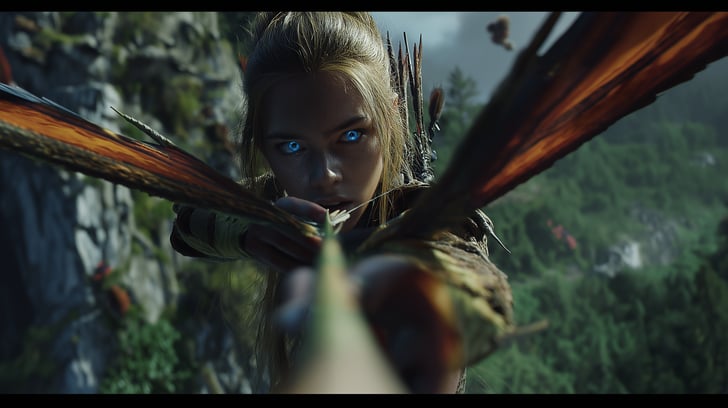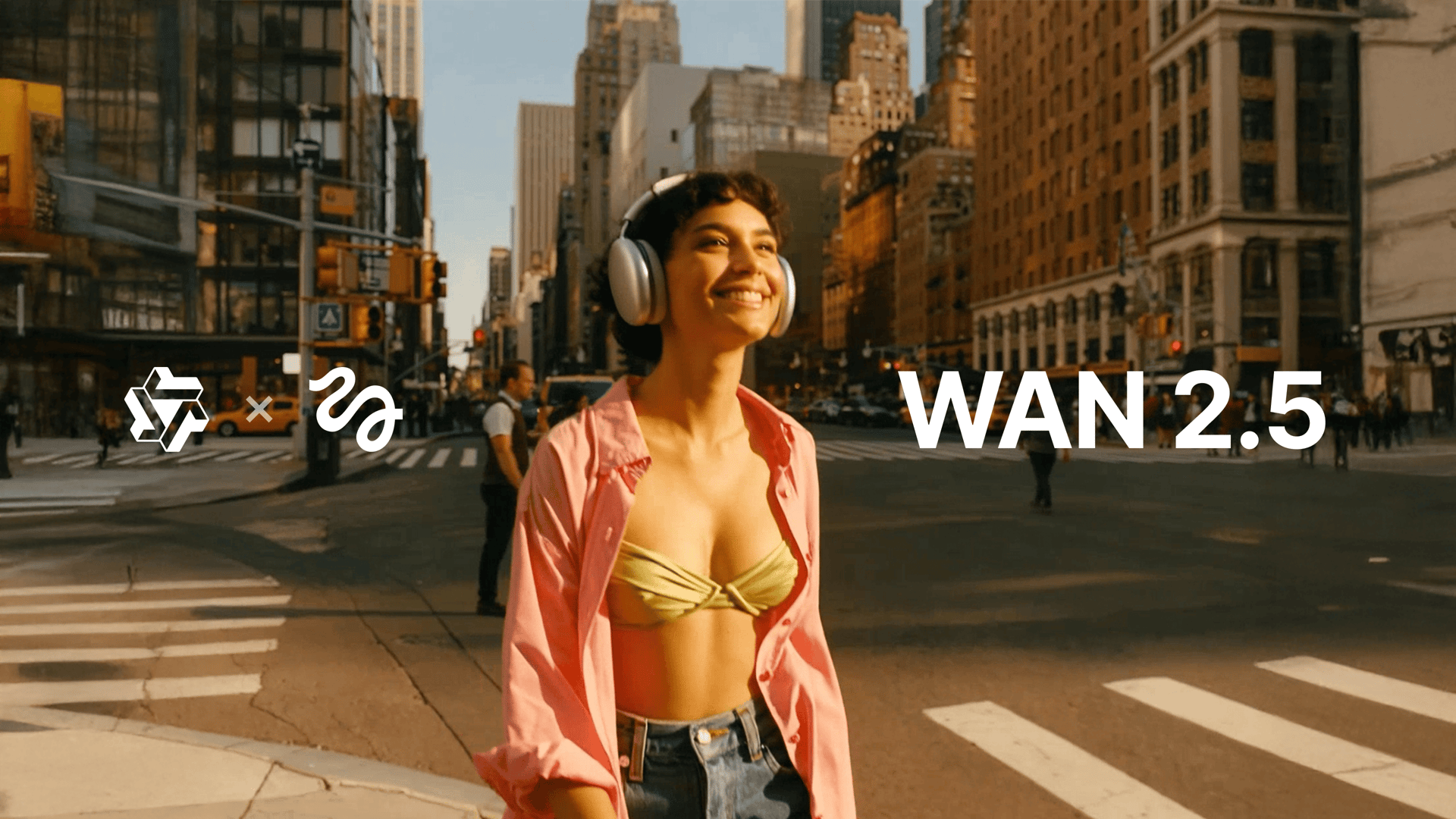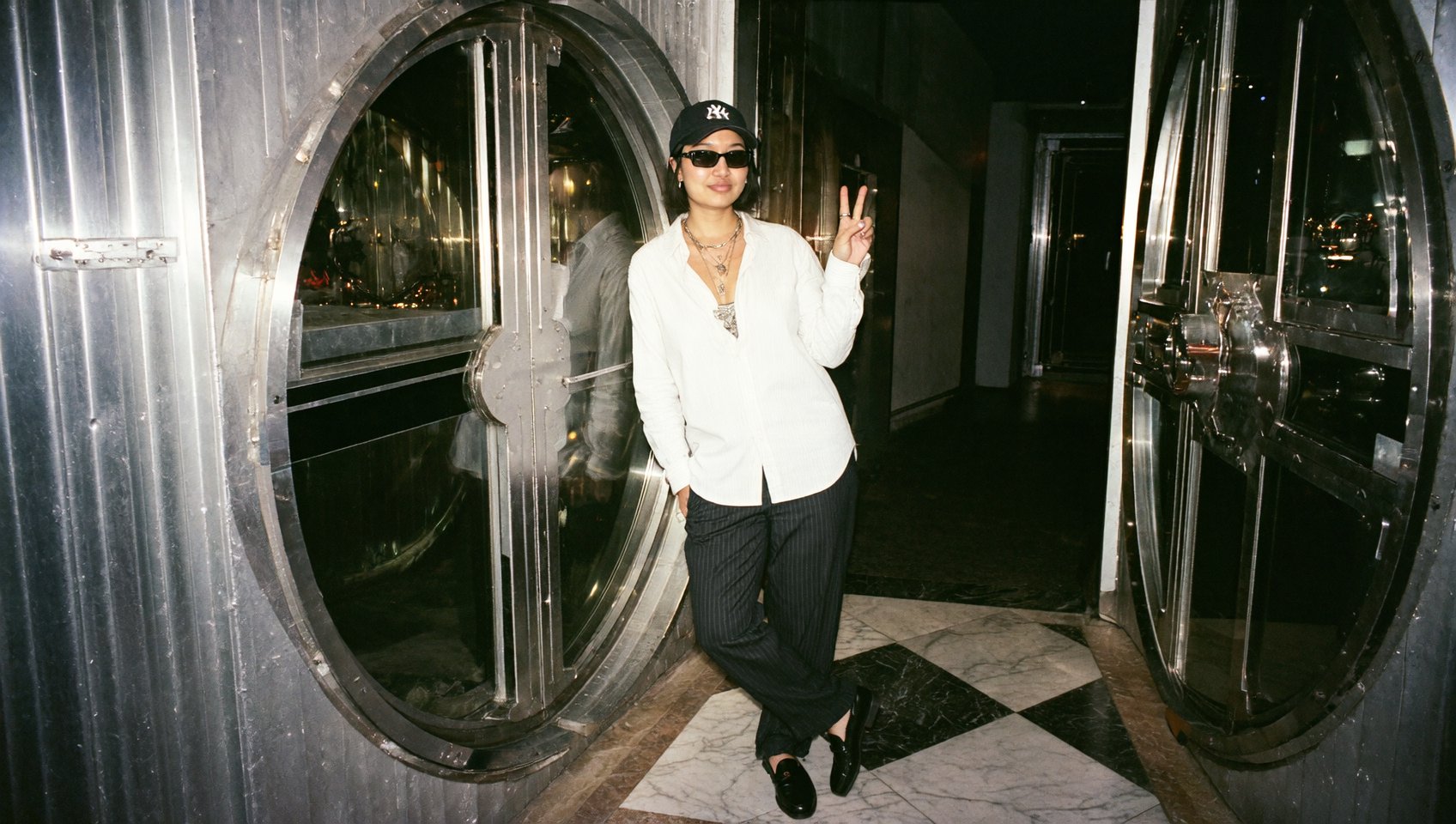
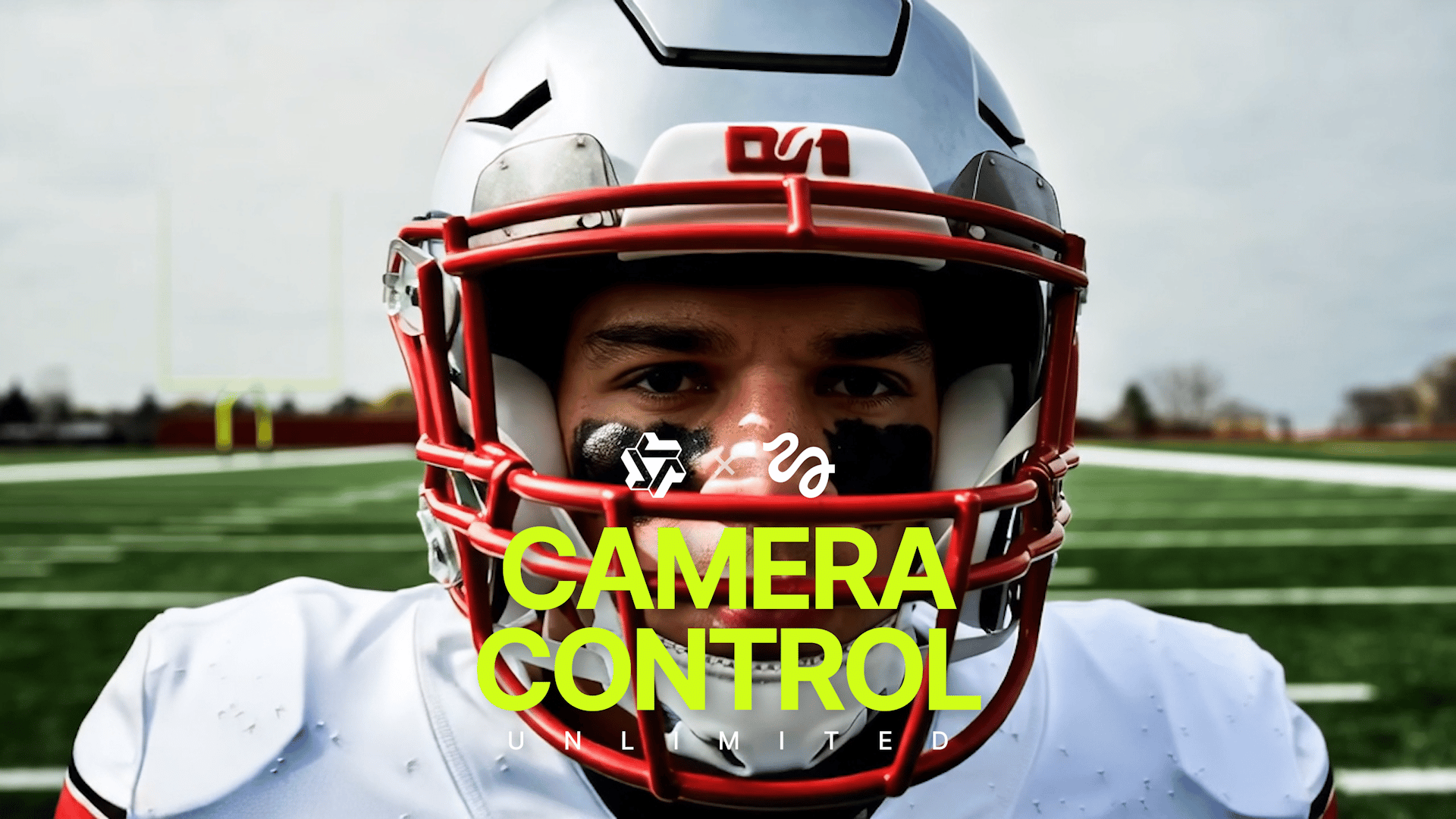
Camera Control is here in Higgsfield WAN 2.5 - the biggest leap yet in making AI videos feel like cinema. Forget static frames. Now your clips can move with bullet-time spins, dolly pushes, FPV sweeps, and handheld realism - all while keeping your characters perfectly sharp and consistent.
And for the first time: every movement comes with native sound sync, HD sharpness, and up to 10s runtime.
What’s New in Camera Control
Unlimited Generations → Ultimate + Creator plans, plus daily free runs for everyone.
HD 1080p Quality → True cinematic sharpness at full resolution.
Longer Clips → Generate videos up to 10 seconds.
Cinematic Formats → Choose vertical 9:16 or horizontal 16:9 for social + film workflows.
Audio-Synced Generation → Add dialogue or sound directly in your prompt.
Perfect Consistency → Characters, faces, and details stay stable across every frame.
Dynamic Camera Motion → Choose from 20+ presets, from dolly zooms to FPV drone sweeps.
How to Use WAN Camera Control
Step 1 – Go to Camera Control Open WAN 2.5 Video.
Step 2 – Upload an Input Image Pick a still image that fits the camera move:
For orbiting, dolly, and zooms → use a centered character or object.
For FPV drone or handheld → use a wide or scenic input so the move has space to travel.
For POV or Snorricam → use close-ups of a face or object.
Step 3 – Select a Camera Movement Choose from cinematic presets like bullet time, dolly in, crash zoom, or FPV drone.
Step 4 – Add Motion or Action in the Prompt Camera Control locks your subject — prompts define what happens during the move:
Example: “The actor raises their hand and points forward as the dolly zooms in.”
Example: “The singer performs a chorus while the FPV drone circles around.”
Step 5 – Add Sound (Optional) Type short dialogue, lyrics, or SFX into the prompt. WAN syncs the audio automatically as the camera moves.
Step 6 – Generate & Share Render in seconds, export in 1080p, and share instantly across TikTok, Reels, Shorts, or campaign assets.
Camera Movements Available
Classic Cinematic Moves
Dolly In → Camera pushes forward into the subject, dramatic emphasis.
Dolly Out → Camera pulls away, revealing more environment.
Static → A still, locked frame with no camera motion.
Immersive & Realistic
Handheld → Natural shake and movement, documentary feel.
Car Grip → Mounted-car perspective, ideal for driving scenes.
Specialty Shots
Through Object In → Camera moves into the scene through an object (keyhole, blinds, doorway).
Through Object Out → Camera pulls back through an object for a reveal.
Bullet Time → Iconic frozen spin around the subject.
Extreme POV
Eyes In → Camera moves inside through the subject’s eye for surreal POV.
Mouth In → Camera moves inside through the subject’s mouth for stylized POV.
Directional Moves
Pan Left → Camera sweeps left, keeping subject or environment in frame.
Pan Right → Camera sweeps right with cinematic smoothness.
Dolly Left → Lateral movement across the subject, cinematic tracking.
Dolly Right → Opposite lateral move, perfect for parallel tracking shots.
Prompting Tips for Camera Control
If the move keeps the subject centered: Add an action to the prompt. Example: “The presenter smiles and waves as the camera arcs left.”
If the move reveals more environment: Prompt what the camera will see. Example: “As the camera pans right, skyscrapers light up in the distance.”
For Through Object shots: Be specific about the object. Example: “The camera pulls back through a keyhole into a candlelit room.”
For dialogue or singing: Simply add the lines or lyrics. Example: “Character sings: ‘This is our moment.’”
Each movement is a preset - no complex setup needed. Just drop in an image, pick a motion, describe your scene, and hit Generate.
Perfect For
Creators → TikToks, Reels, Shorts with smooth cinematic motion + sound Brands → Consistent campaign visuals at scale AI Directors → Replace long shoots with instant presenter clips Storytellers → Narrative-driven content with dynamic movement & synced audio
Start today: Upload a still image, pick your camera move, and generate your first cinematic sequence with sound.