If you want the smoothest experience creating cinematic AI videos, the simplest way to get there is to work in one place that brings together all the tools and models you need - which is exactly how HiggsfieldAI was built.
Whether you’re a creator producing weekly content or a professional looking for expert-grade tools, this is where you can plan, generate, and polish videos end to end.
Below is a structured walkthrough of how AI video generation works inside Higgsfield, showing how the platform stays creator-friendly while still offering one of the widest selections of tools and models for cinematic video creation.
Range of professional-grade tools in a simple workflow
Higgsfield helps you move fast by organizing AI video generation into two clear layers:
- Features (the workflows)
- Models (the engines)
That way, you’re never locked into a single approach - you pick what you’re making first, then pick what powers it.
Features vs Models - what this means for creators
Features are the production tools, meaning the creative interfaces that help you generate specific types of AI video content quickly, especially when you want a guided workflow rather than building everything from scratch. Models are the engines behind your generation - the systems you select when you want a specific look, motion style, speed, or technical behavior.
This separation makes Higgsfield behave like a real production studio instead of a single generator. You can choose a workflow, pair it with the right model, and use presets for faster results, rather than forcing one tool to do everything.
Features - built for creators who want speed and experimentation
Features exist for creators who want to explore the newest AI video tools and ship content weekly without friction. They cover the full range of modern AI video formats, from cinematic motion generation to performance, ads, and transformation workflows.
Here are the Feature categories you will usually use for AI video creation:
Cinema Studio - professional AI video generation with directed camera language, where you can choose cinematic camera moves that match real production grammar, so your clips feel filmed rather than auto-animated.
Lipsync - when your video needs speaking performance, ideal for UGC-style ads, explainers, and character-led content where delivery matters.
Draw to Video and Sketch to Video - when you want to start from rough visuals and turn them into motion, useful for concepting, storyboarding, and stylized directions.
Sora 2 Trends - when you need a trend-driven or viral-style clip fast, using guided templates instead of writing advanced prompts from scratch.
Click to Ad - when you want the system to generate an ad from a product link, built for speed and scale when you are producing many variations.
NOTE: Every feature includes its own guide inside Higgsfield, so you can dive deeper into one workflow without losing the bigger picture of how the studio fits together.
Models - allow you to choose the best engine for your shot
Different AI video models are better at different things, and Higgsfield lets you select from top models depending on whether you need speed, fidelity, multi-shot continuity, or audio-video alignment.
A simple way to think about model choice:
If your goal is cinematic continuity and scene coverage, pick a model optimized for multi-shot generation, such as WAN 2.6.
If your goal is fast iteration, pick a faster model tier such as Minimax Hailuo 02.
If your goal is performance and dialogue, choose a model built for strong lip-sync and voice alignment, such as Kling 2.6.
Go to Higgsfield and enter the video generation workspace.
Step 2 - Choose Your Model
Select the model that matches your goal - whether you need cinematic motion, fast iteration, multi-shot continuity, or performance-focused output.
Step 3 - Upload your input and set controls
Upload an image, include a prompt, provide start and end frame references -depending on the tool you use.
Practical tips for best results
Use a clean image: sharp, well lit, clear subject, simple background, avoid cutting off hands, face, or product labels.
Prompt like a shot: Composition + Subject + Camera move + Mood.
Example: “Medium close-up, eye level. Subject turns slightly. Slow dolly-in. Soft cinematic lighting.”
Keep motion simple: one clear camera move usually looks more cinematic than stacked moves.
Use Start/End Frames when needed: Start locks the look, End locks a clean finish for a cut, thumbnail, or CTA.
Step 4 - Generate, review, and post
Click Generate, then review your result like an editor. If something feels off, adjust one variable at a time (image, camera move, prompt, model) and regenerate. Once the clip looks right, export it and publish, or bring it into your editing workflow for captions, music, cuts, and formatting.
Presets - fastest path to clean results
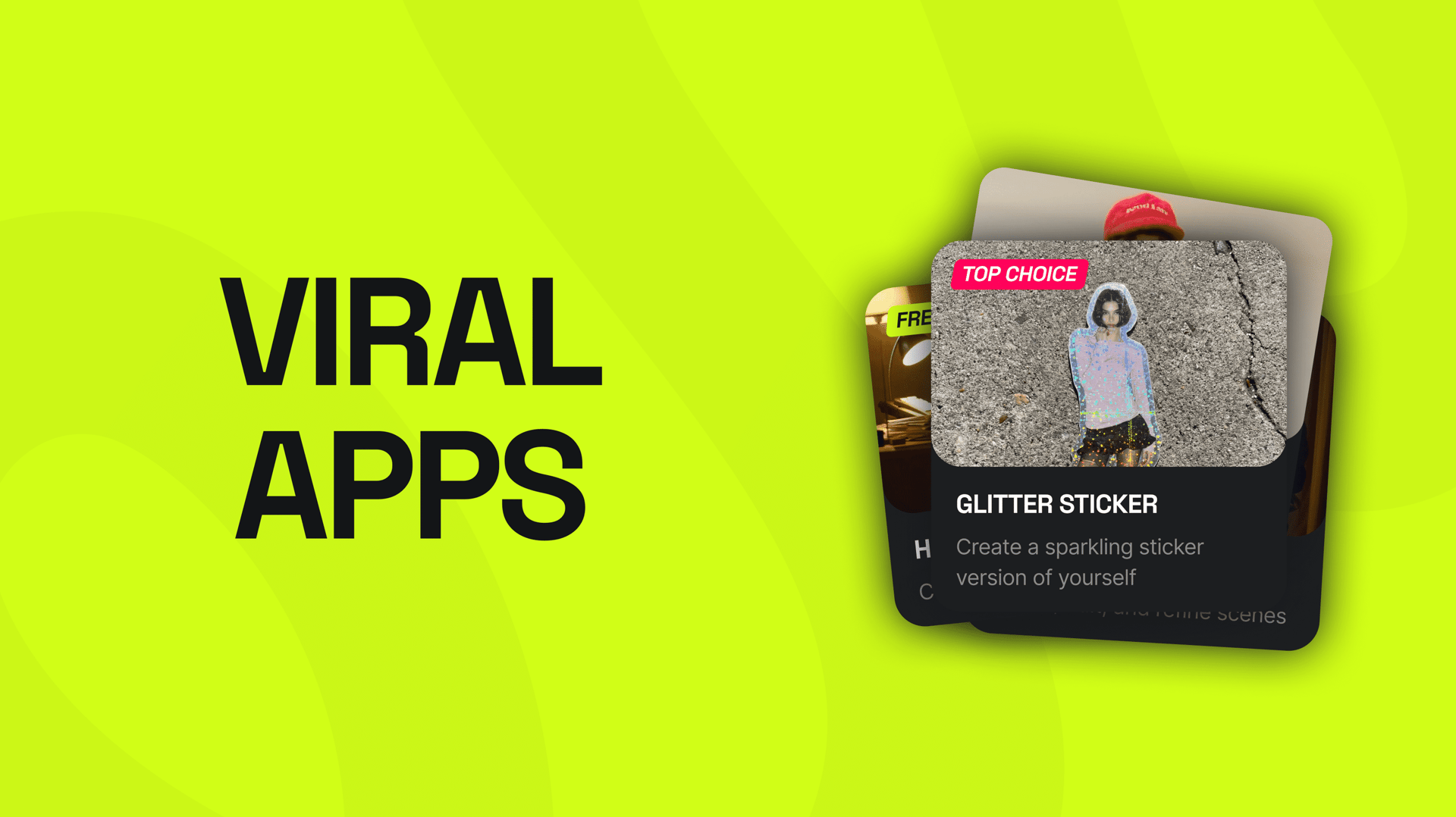
Presets are ready-made camera moves, styles, and templates inside Higgsfield that help you generate cinematic clips without building everything from scratch.
Why use presets: faster generations, more consistent output, and less prompt tweaking.
Conclusion
HiggsfieldAI is built for AI video generation that feels like filmmaking: you choose a workflow, pair it with the right model, and direct motion with camera moves, prompts, and optional Start/End Frames. With presets for speed and a wide set of tools for different formats, you can go from a single image to a publish-ready cinematic clip without jumping between platforms.
Start AI video generation on HiggsfieldAI.
Upload an image, choose your model, and generate a cinematic video with presets and simple controls.