The character's voice is locked before video generation and sounds the same in every clip.
Start
Voice first. Then the ad video
The character's voice is locked before video generation and sounds the same in every clip.
This workflow helps you keep the voice consistent and control what the character says before video generation even starts. The voice is approved separately, and the video model receives a finished voiceover you have already listened to.
What you get
1 · One voice identity
The character sounds the same in every clip instead of getting a new random timbre with each generation.
2 · Control over the script
You hear every line before the video and change it while it is still cheap.
3 · An accent that fits the brief
The regional sound is set and checked at the voice stage.
4 · Brand pronunciation
The product name and difficult words sound exactly as they should. Video models handle this poorly.
How the workflow is built
This is a step-by-step workflow. We walk you through every stage: from cloning a real influencer's voice, or creating a new voice for a specific brief, to a finished ad with that voice.
Voice → Clone → Voiceover in ElevenLabs → Character and product → Video in Seedance
Every step is shown on three real examples: Jelly in English, a man in German and a Frenchwoman in French.
Done when
You know which path to a voice is yours: cloning an existing one or creating a new one.
Voice
Option 1. Clone a voice
If the voice already exists: prepare a clean recording and save it as a custom voice.
There are two ways to get a consistent voice you can reuse. The first one fits when the voice already exists: an influencer, a host, a founder or a recurring brand character.
How to prepare the recording
Use material you have permission to use. One sample should contain one person only: no music, no other voices, no noticeable echo and no effects.
One speaker, no second voice and no music.
One emotion and an even timbre throughout the recording.
Minimal background noise, a steady microphone level.
A natural conversational pace.
The company name and frequent product words pronounced the way they should sound in the ad.
For your own recording, choose a comfortable conversational delivery. Below is the text from our example; you can use it as a starting point.
Sample text for your own recording · English
Read naturally, without reading out the stage directions.
Example · Jelly's source sample
00:00
JellycloneENG.MP3
Where to upload it
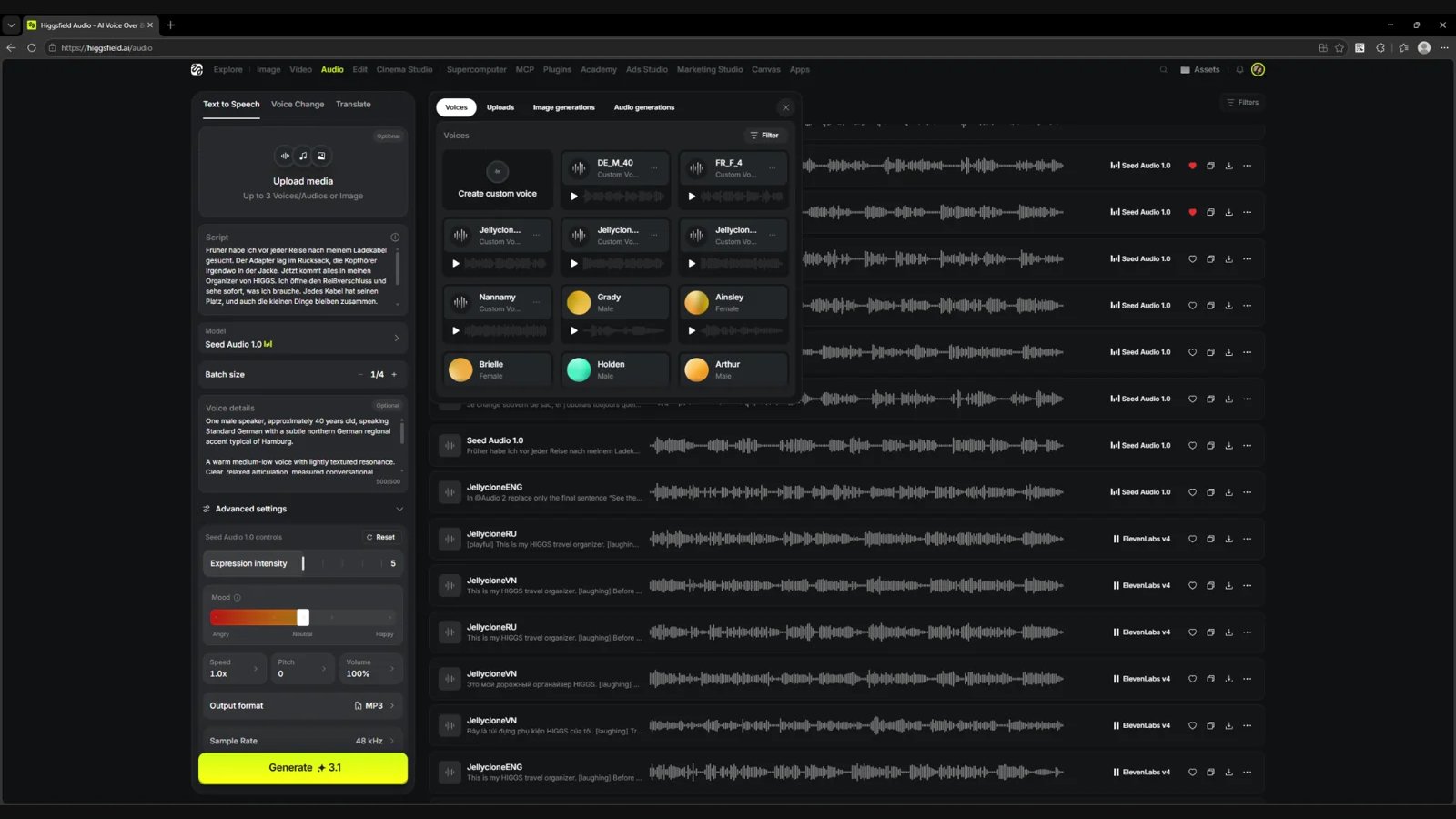
Audio → Text to Speech → Upload media → Voices → Create custom voice
Voices tab: the entry to Create custom voice and the list of saved voices.
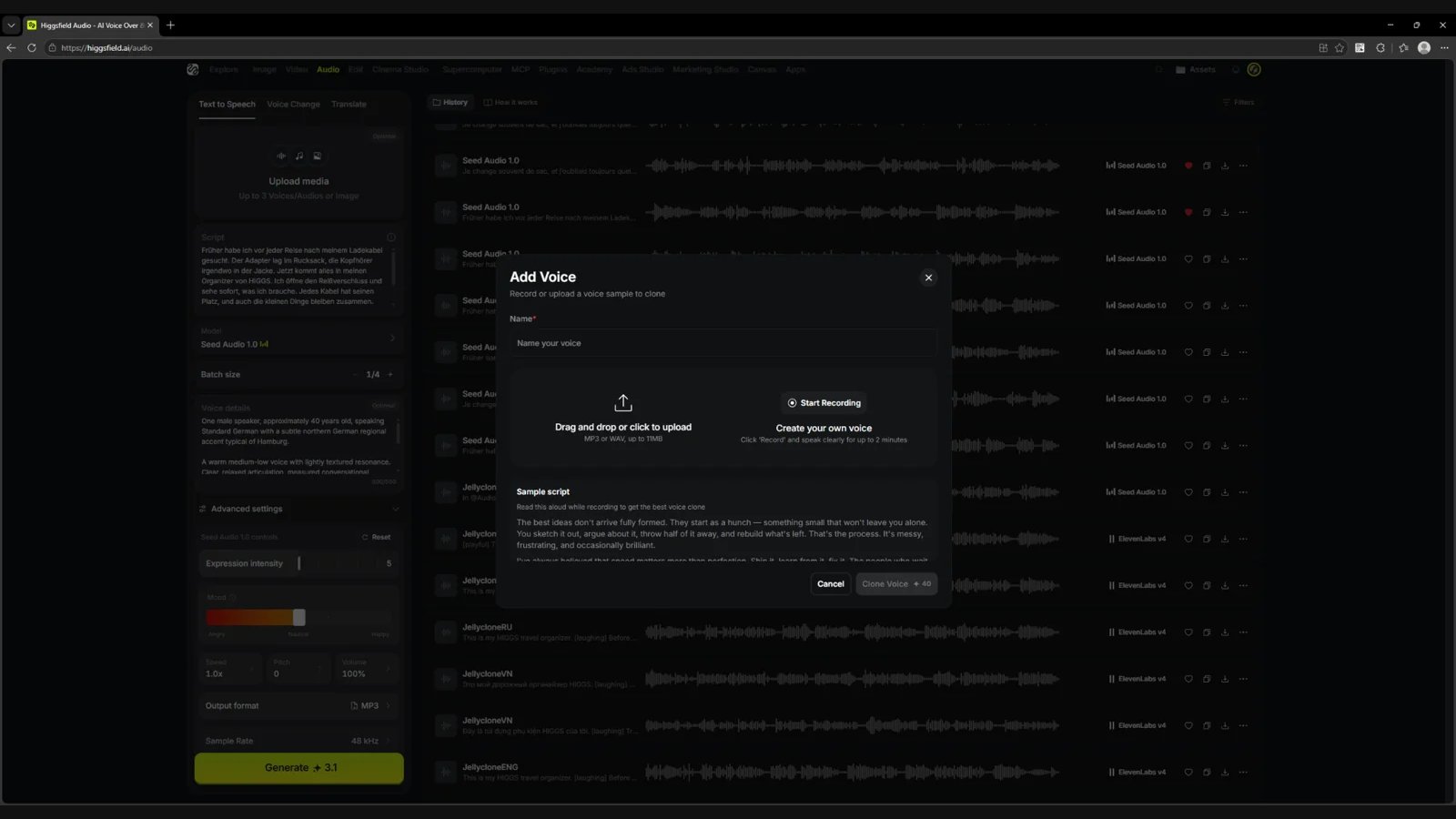
In the Add Voice window, fill in the Name field.
Attach the sample via Drag and drop or click to upload.
Click Clone Voice and wait until it finishes.
Add Voice: name, MP3/WAV upload, microphone recording and the Clone Voice button.
Where to upload it
On screen
Value
Accepted files
MP3 or WAV, up to 11 MB
Alternative route
Start Recording: record directly in the window, up to two minutes
Name
A clear name that makes the voice easy to find
Clone Voice
40 credits in the screenshot; check the cost before you run it
Done when
The voice is saved and visible in the Voices tab under a clear name.
Voice
Option 2. Create a voice in Seed Audio
If there is no voice yet: describe the sound in words and the model creates it with the accent you need.
The second option fits when the voice has to be invented. Seed Audio 1.0 works with 20+ languages, so if you need a specific accent or a particular quality of sound, this is the model that helps you create the voice you want.
Where to create the voice
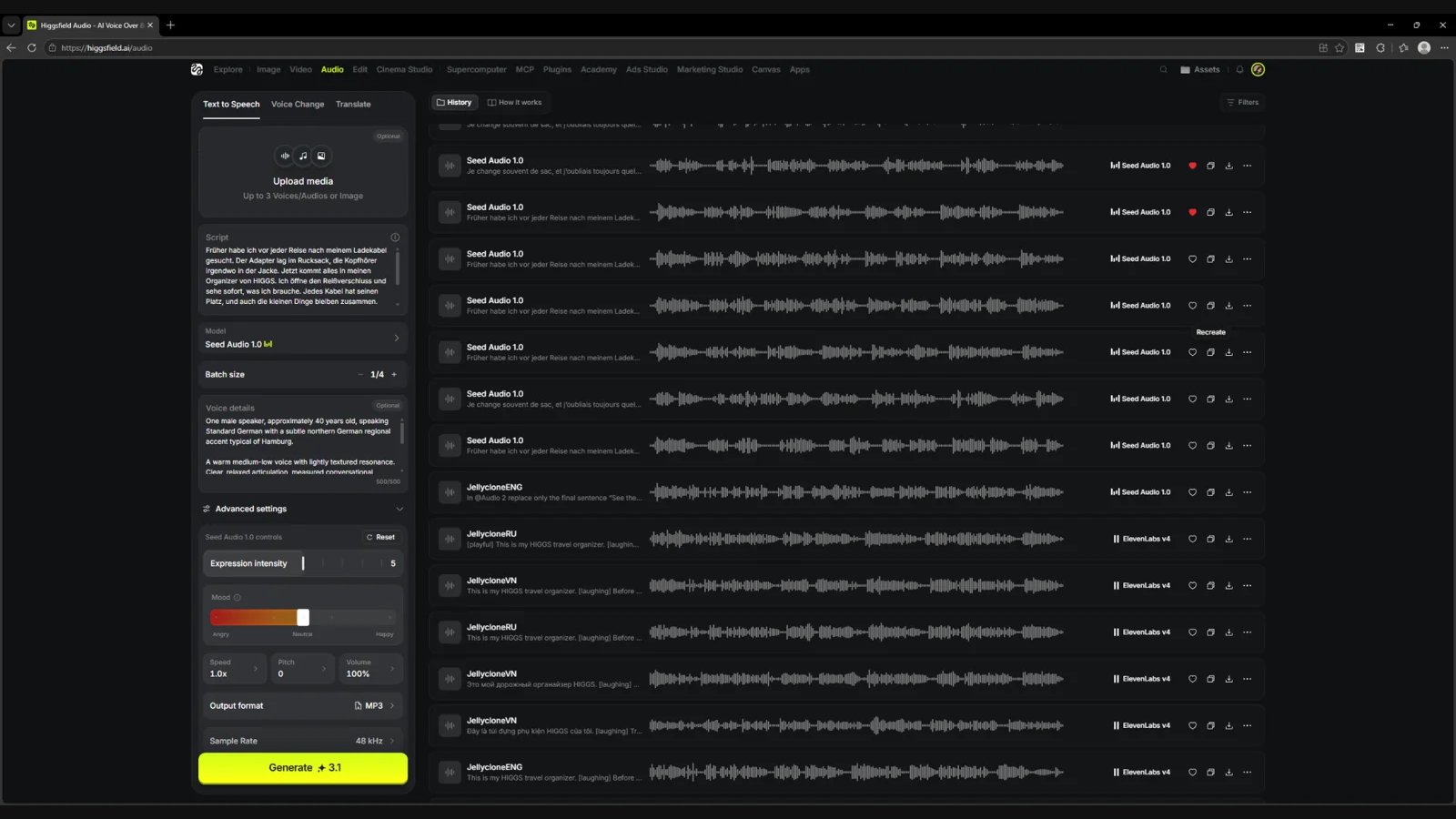
Open Higgsfield Audio, choose Text to Speech and the Seed Audio 1.0 model. Paste the spoken text into Script and describe the sound in Voice details.
Seed Audio 1.0: Script, Voice details and generation settings.
Where to create the voice
Setting
Value in the example
Model
Seed Audio 1.0
Upload media
No reference
Batch size
1
Expression intensity
5
Mood
Neutral
Speed
1.0×
Pitch
0
Volume
100%
Output format / Sample Rate
MP3 / 48 kHz
Limit
The Voice details field on the screen shown holds 500 characters. Write the description tightly, without repetition.
Describe the character first
Before generating, define the apparent age, register, texture, pace, language, accent and manner of speaking. Nationality alone does not define a voice: "a German speaking German" and "a German speaking English with a German accent" are two different briefs.
Describe the character first
Setting
German man
Frenchwoman
Apparent age
Around 40
Around 50
Timbre
Medium-low, warm, lightly textured
Mid register, mature, warm, lightly textured
Delivery
Practical, calm, confident
Practical, lively, friendly
Main language
German
French
Chosen accent request
Light Hamburg
Natural Parisian
Done when
You have a description of the future voice: age, timbre, delivery, language and accent.
Voice
Prompt architecture for iterations
One Script, one description structure, only the accent changes.
To compare voices fairly, keep the text and the description structure the same. Change one line, for example the accent, and listen to how the result changes.
What Voice details is made of
1 · Speaker
One speaker, gender and age: One male speaker, age 40.
2 · Language and accent
Language and region named explicitly: Standard German with a subtle Hamburg accent.
3 · Timbre
Register and texture of the voice: warm medium-low voice, lightly textured.
Character and situation: sharing a useful discovery with a friend.
6 · Guardrails
Standard vocabulary, a soft accent, no caricature.
7 · Recording conditions
Clean dry close-mic speech, voice only against silence: no music, no background, no effects.
Voice details template
Replace the values in square brackets. For a new iteration, change one line.
Test scripts
Use the same Script within each language. These are the texts we used to test the German and French voices.
Script · German sample
Script · French sample
Four variants per language
For each language we generated four regional variants. Listen to them and compare the Voice details: only the accent line and details of the manner differ.
🇩🇪 German
German
Berlin
Generated variant · Seed Audio
00:00
HIGGS_DE_Male_Berlin_SeedAudio_v01.mp3
Voice details · 482 characters
German
Saxony
Generated variant · Seed Audio
00:00
HIGGS_DE_Male_Saxony_SeedAudio_v01.mp3
Voice details · 481 characters
German
Swabia
Generated variant · Seed Audio
00:00
HIGGS_DE_Male_Swabia_SeedAudio_v01.mp3
Voice details · 483 characters
German
Hamburg, selected
Generated variant · Seed Audio
00:00
HIGGS_DE_Male_Hamburg_SeedAudio_v01.mp3
Voice details · 499 characters
🇫🇷 French
French
Paris, selected
Generated variant · Seed Audio
00:00
HIGGS_FR_Female_Paris_SeedAudio_v01.mp3
Voice details · 465 characters
French
Marseille
Generated variant · Seed Audio
00:00
HIGGS_FR_Female_Marseille_SeedAudio_v01.mp3
Voice details · 485 characters
French
Toulouse
Generated variant · Seed Audio
00:00
HIGGS_FR_Female_Toulouse_SeedAudio_v01.mp3
Voice details · 484 characters
French
Lyon
Generated variant · Seed Audio
00:00
HIGGS_FR_Female_Lyon_SeedAudio_v01.mp3
Voice details · 480 characters
How to choose the best variant
Listen to the whole file, including the start, the pauses and the ends of phrases. Check the timbre, how clearly HIGGS is pronounced, the accent, and that there is no wobble, bubbling, music or random effects. Ask a native speaker to judge the accent. If a take has defects, choose another one before cloning.
Done when
All variants in each language have been heard and one clean variant is selected.
Voice
The selected voices and how to upload them
The winning variant is saved as a clone the same way as a real voice.
For our example we chose Hamburg for the German man and Paris for the Frenchwoman. Now these voices need to be saved as custom voices so you can call them by name in any generation.
German · selected
Hamburg
Voice to clone
00:00
HIGGS_DE_Male_Hamburg_SeedAudio_v01.mp3
French · selected
Paris
Voice to clone
00:00
HIGGS_FR_Female_Paris_SeedAudio_v01.mp3
Upload it the same way as a real voice
Download the selected file and save it as a custom voice the same way as in option 1: Voices, Create custom voice, Add Voice, Clone Voice.
Audio → Text to Speech → Upload media → Voices → Create custom voice
Upload it the same way as a real voice
Our example
Source file
Name in the interface
Jelly
JellycloneENG.MP3
JellycloneENG, shown in the history
German man
HIGGS_DE_Male_Hamburg_SeedAudio_v01.mp3
DE_M_40
Frenchwoman
HIGGS_FR_Female_Paris_SeedAudio_v01.mp3
FR_F_4
Custom voice names do not have to match the file names. For your own project, choose explicit names such as HIGGS_DE_Male_Hamburg and HIGGS_FR_Female_Paris.
Done when
Both voices are saved and available in the Voices tab.
Voice
Voiceover in ElevenLabs
The clone voices the ad script, and tags make the speech alive instead of a flat read.
The saved voice reads new lines in ElevenLabs. Tags inside the text control emotion, pauses and manner, so the audio does not sound like a flat read.
Where to choose the voice
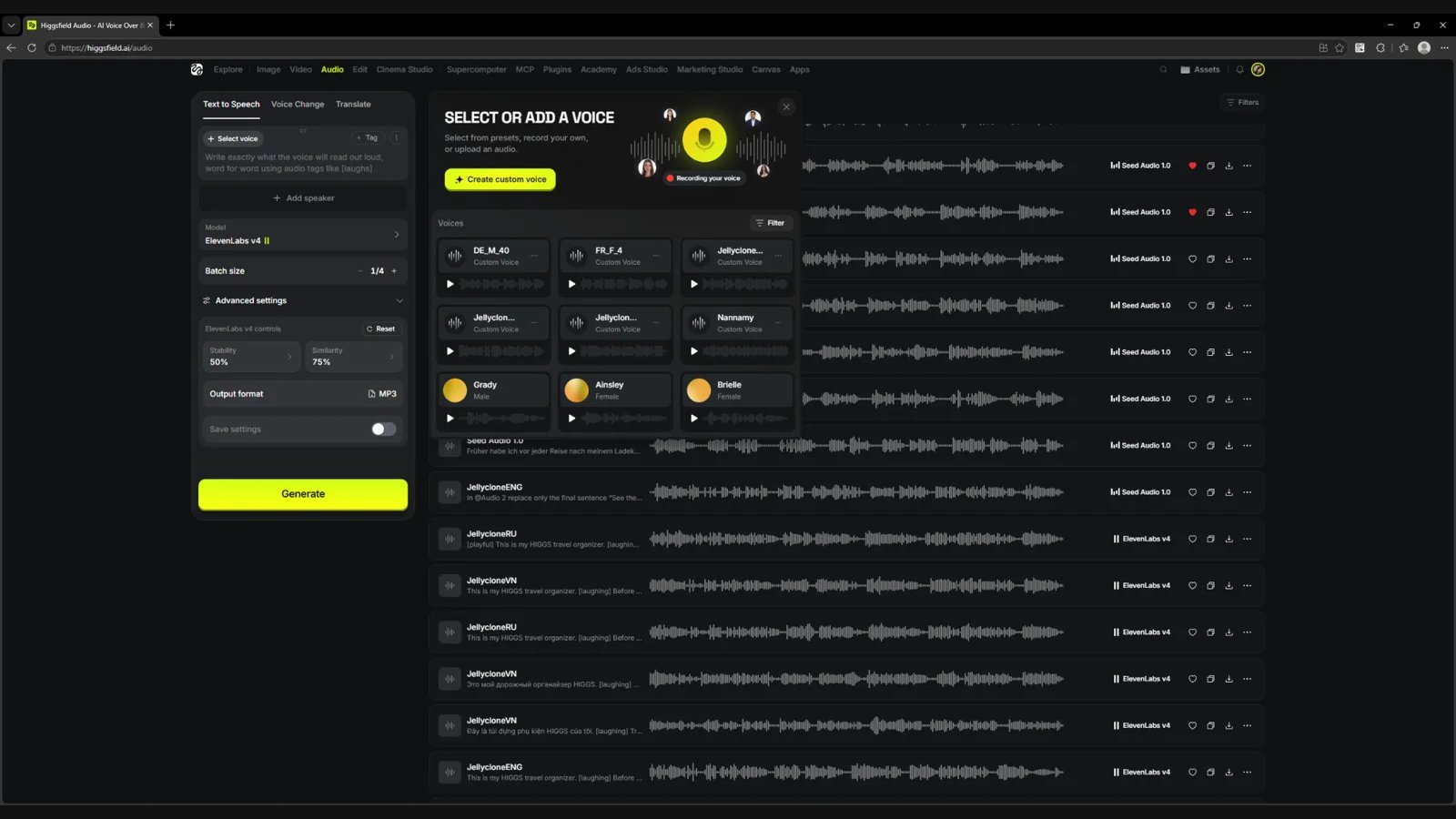
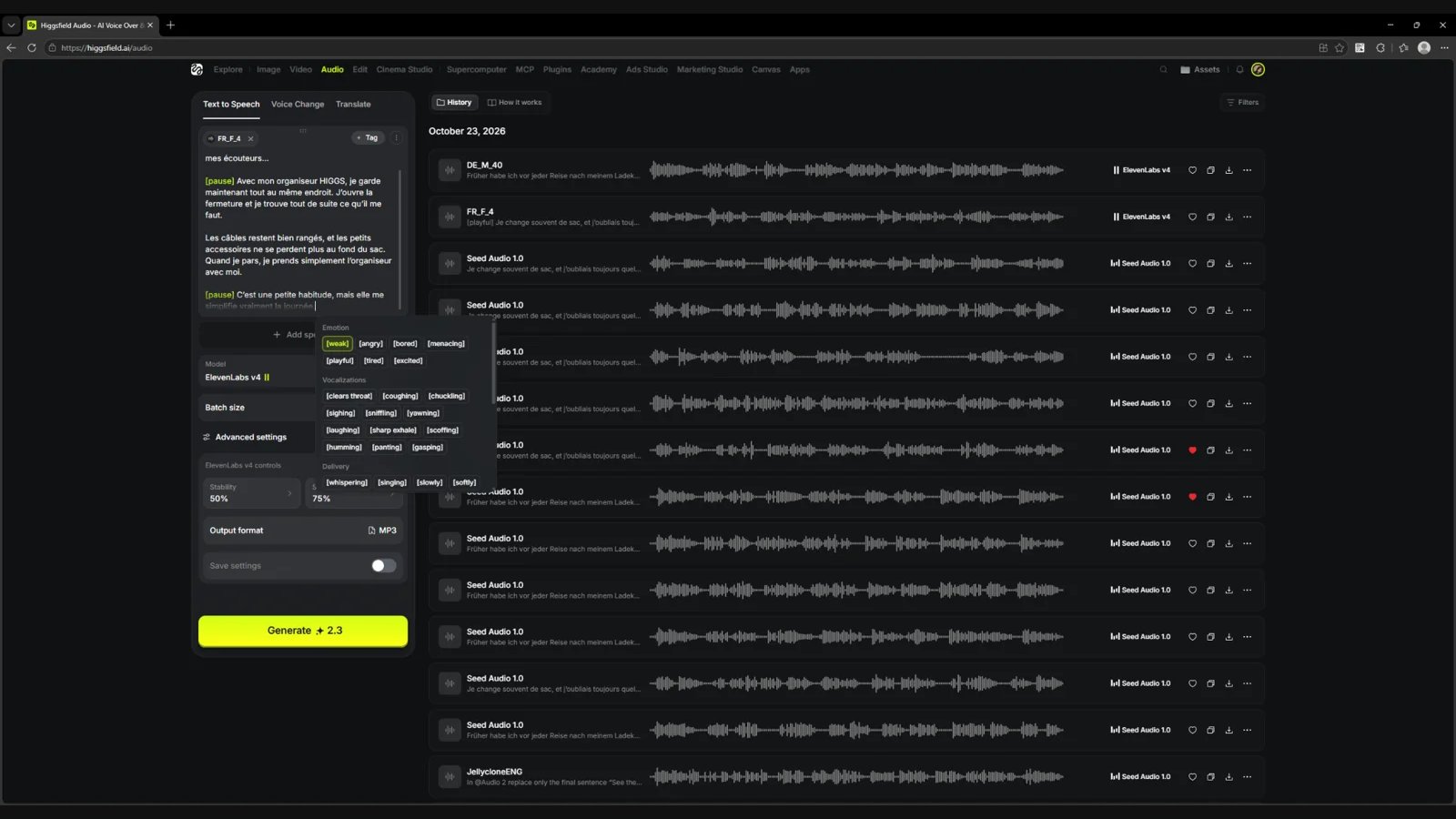
Switch Model to ElevenLabs v4, click Select voice and choose the saved voice.
ElevenLabs v4 → Select voice → choosing the custom voice DE_M_40 or FR_F_4.
Where to choose the voice
Setting in the example shown
Value
Model
ElevenLabs v4
Batch size
1
Stability
50%
Similarity
75%
Output format
MP3
How to add emotion
The + Tag button inserts an instruction in square brackets. Place it before the phrase where the delivery should change. The emotion can carry on further; a line break does not guarantee a reset. Use the tags in English as they appear in the menu, even if the line is in German or French.
French script, the selected voice FR_F_4 and the + Tag menu.
[playful] sets the manner. [laughing] can add real laughter, not just a smile in the voice.
[chuckling] works for a small chuckle, but judge whether it fits in the result.
[softly] is not a whisper: soft speech can still be resonant.
[pause] affects the rhythm but does not set an exact second of silence. Do not use SSML <break time="1s" /> in v4.
Start with plain speech, then add a few directions at meaningful points. Change one tag at a time and compare the result.
Do not set contradictory emotions on the same words. If a tag is read out loud, check the model and the square brackets; simplify or remove the instruction.
For a clean voiceover, leave Sound effects aside. Product and room sounds are easier to control after the speech is approved.
Fix brand and word pronunciation
This is the stage where you can precisely correct how your brand name and any specific words are pronounced. Video models handle brand names and difficult words poorly, so fix them here, in the audio, before the voiceover goes into the video.
Generate the line and listen closely to the brand name and every difficult word.
If a word sounds wrong, rewrite it in the script the way it should sound, for example split it into syllables or spell it phonetically.
Test the problem word in a short line first, then put it back into the full script.
Regenerate until the pronunciation is right, and approve the audio only then.
Why here
Once the voiceover is approved, Seedance uses it as is. The pronunciation you fix in ElevenLabs is the pronunciation the viewer hears in the final video.
Tag catalog
The + Tag menu groups the tags into five sections.
Play the source first, then the new voiceover. Compare how recognisable the voice is, the pronunciation, accent, pace and naturalness.
Source and new voiceover
Jelly · EN
Source sample
00:00
JellycloneENG.MP3
New voiceover · ElevenLabs
00:00
HIGGS_ENG_Female_Jelly_11labs_v01.mp3
Source and new voiceover
Man · DE
Source sample
00:00
HIGGS_DE_Male_Hamburg_SeedAudio_v01.mp3
New voiceover · ElevenLabs
00:00
HIGGS_DE_Male_Hamburg_11labs_v01.mp3
Source and new voiceover
Frenchwoman · FR
Source sample
00:00
HIGGS_FR_Female_Paris_SeedAudio_v01.mp3
New voiceover · ElevenLabs
00:00
HIGGS_FR_Female_Paris_11labs_v01.mp3
Done when
The line is voiced by the clone, the brand name and difficult words sound right, emotions are set with tags, and it has been heard side by side with the source.
Video
Characters for the voices and product templates
The voice is approved. Now we create a character that matches it, and the product.
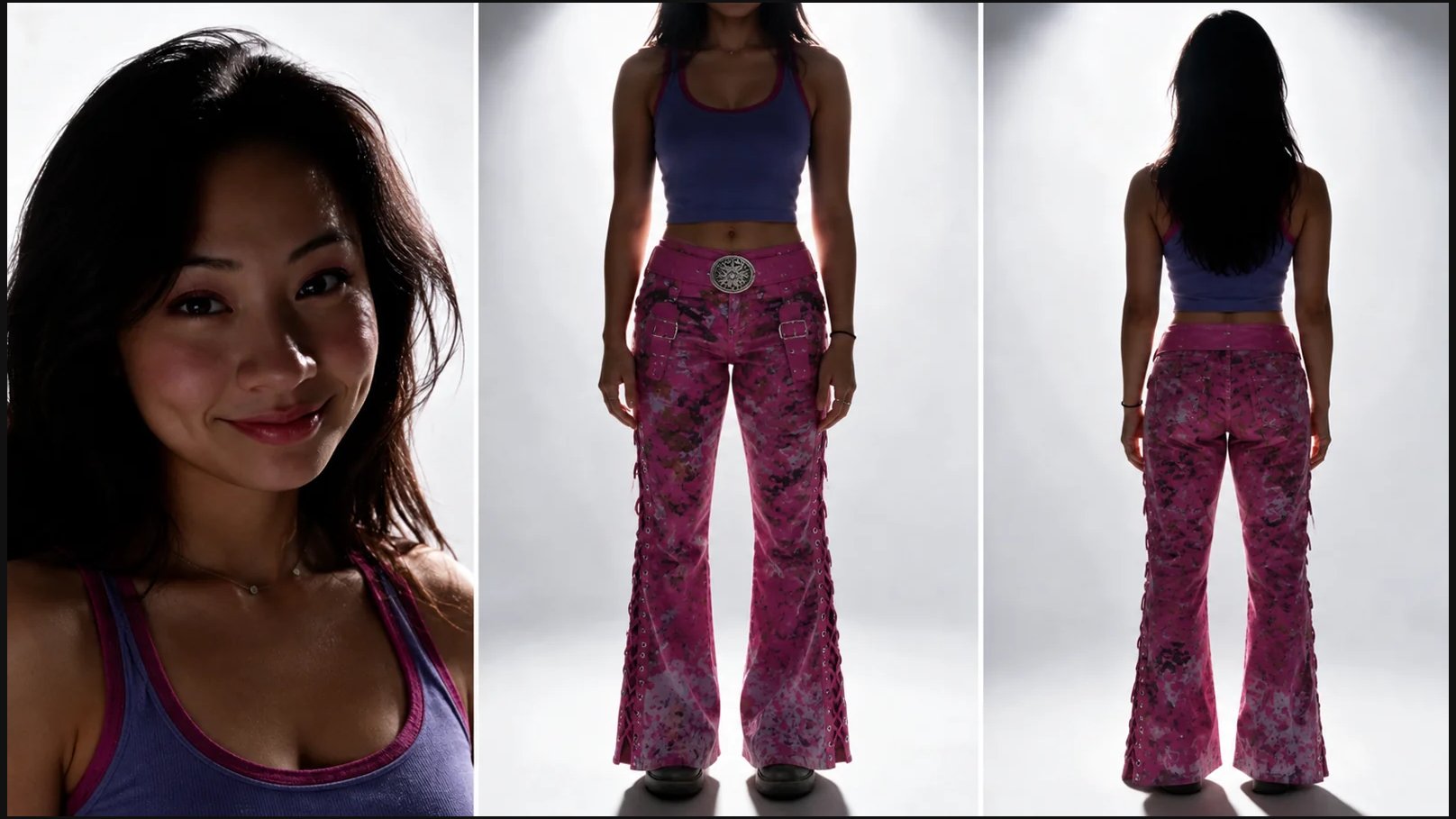
Once the voice is approved, we create a character for it with AI Influencer. Jelly already had a look; for the German man and the Frenchwoman we created new characters.
Jelly · existing look
Jelly: the approved character look.
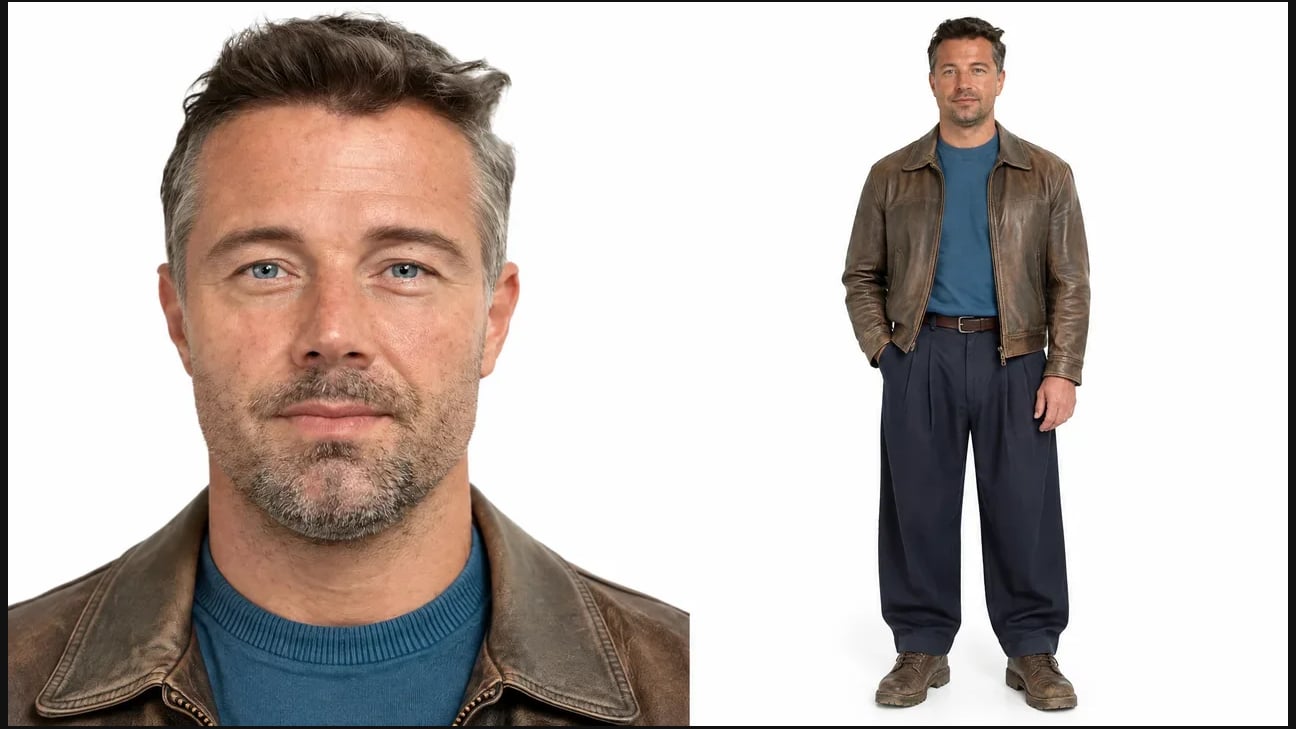
Man · German
AI Influencer brief · man
The brief the character was created from. The final look is fixed by the image below.
The resulting character template: a man in a leather jacket.
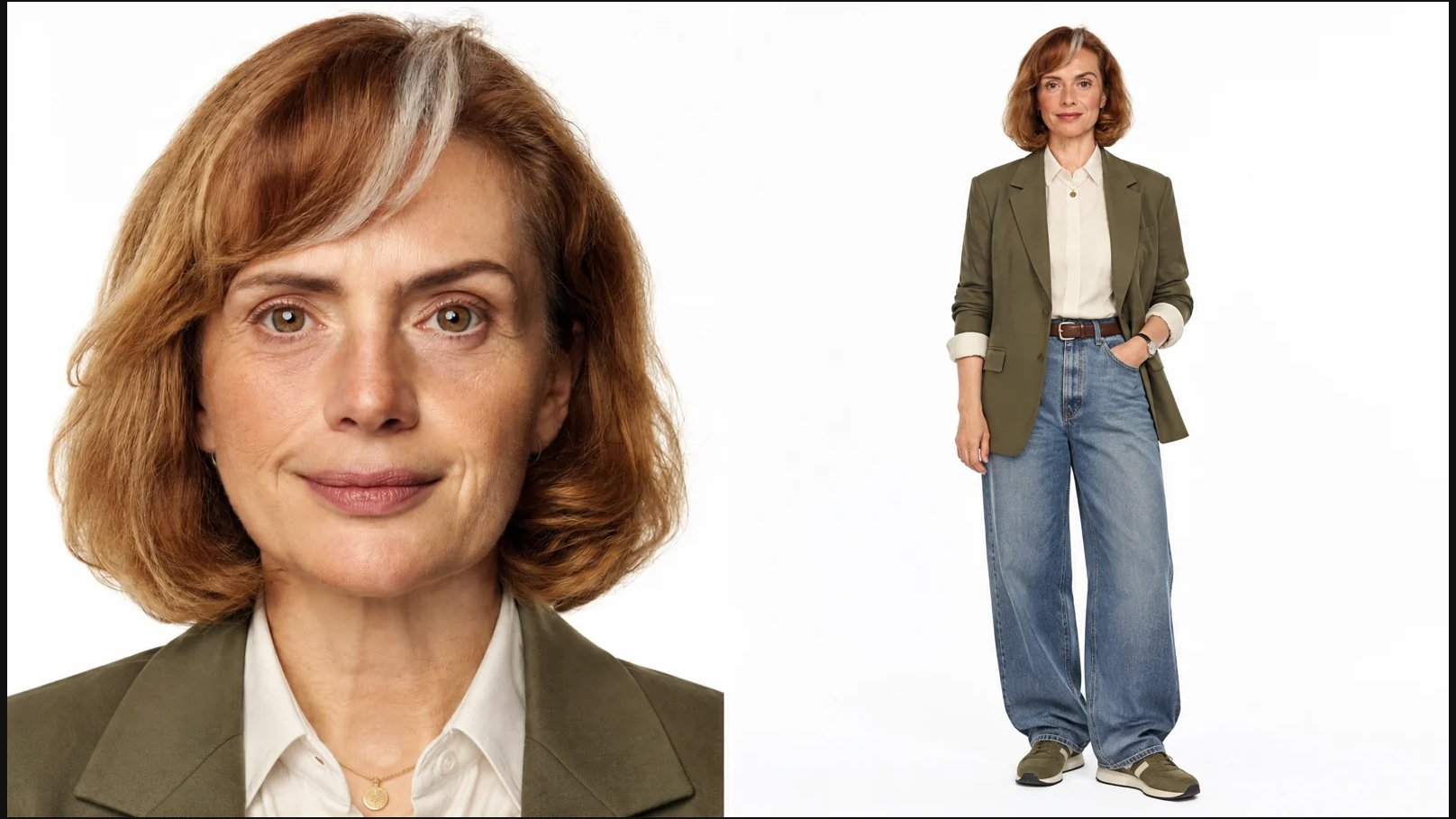
Frenchwoman · French
AI Influencer brief · woman
The brief the character was created from. The final look is fixed by the image below.
The resulting character template: the Frenchwoman.
Frenchwoman · French
AI Influencer · chosen settings
Man
Woman
Tier / Style
Normal / Casual
Normal / Casual
Gender / Age
Male / Mature; around 40 in the brief
Female / Mature; around 50 in the brief
Build / Height
Athletic / Tall
Curvy / Average
Hair / Color
Short / Dark brown
Short / Chestnut
Eyes / Facial hair
Grey / Stubble
Hazel / Clean
Extra
European, light skin
European, light skin, jewelry
A product template for each character
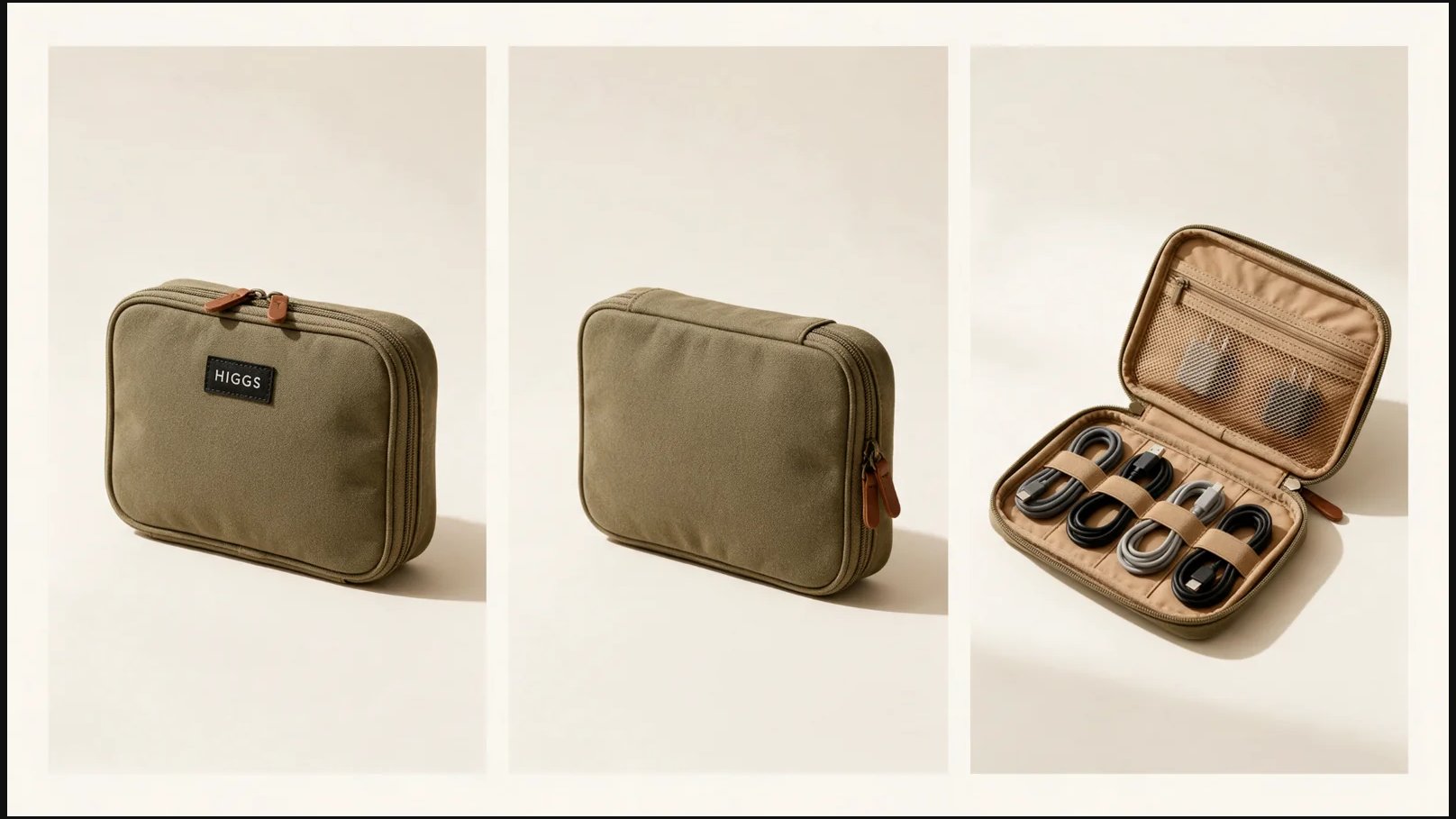
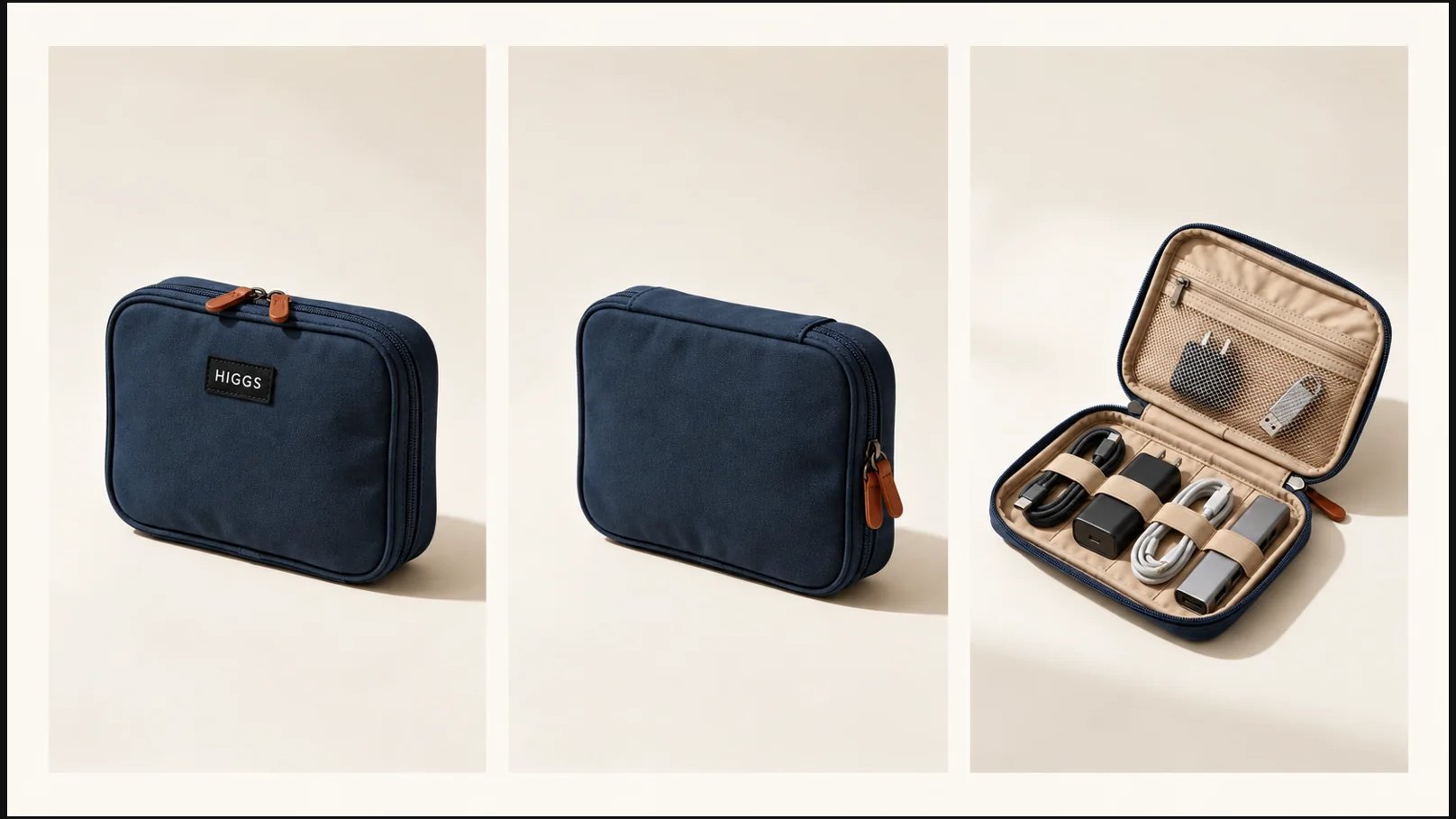
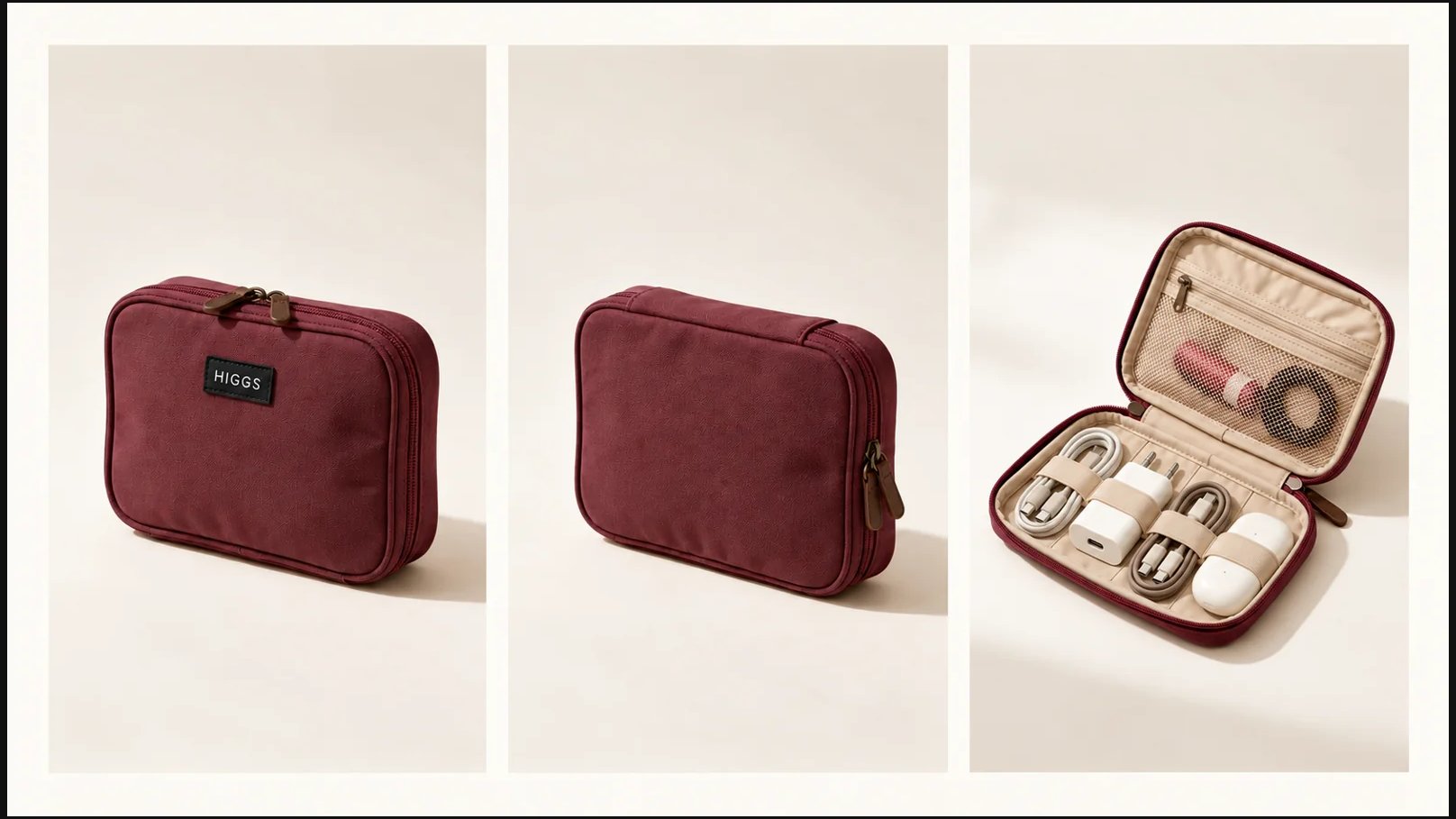
The HIGGS organizer stays the same: shape, seams, fabric hinge, double-slider zipper and label. Only the colour and contents change for each character, and the contents match what the voiceover talks about.
Jelly · olive, sand lining
Man · ink blue, sand lining
Frenchwoman · burgundy, cream lining
A product template for each character
Example
Shell / lining
Contents
Jelly
Olive / sand
Cables and small accessories, as on the original sheet
Man
Ink blue #293E50 / sand #D8CBB5
Cables, charger, adapter, USB hub, flash drive
Frenchwoman
Burgundy #743E49 / cream #E7DAC7
Cables, charger, headphones, lip balm, hair tie
Done when
Each voice has a character template and a product template in the right colour.
Video
Assemble the video
Seedance 2.5 receives the character, the product, the location and the approved voiceover.
Here we show what each video is built from and how the finished audio is embedded in the prompt. Watch the examples to see how it works in practice.
References and their tags
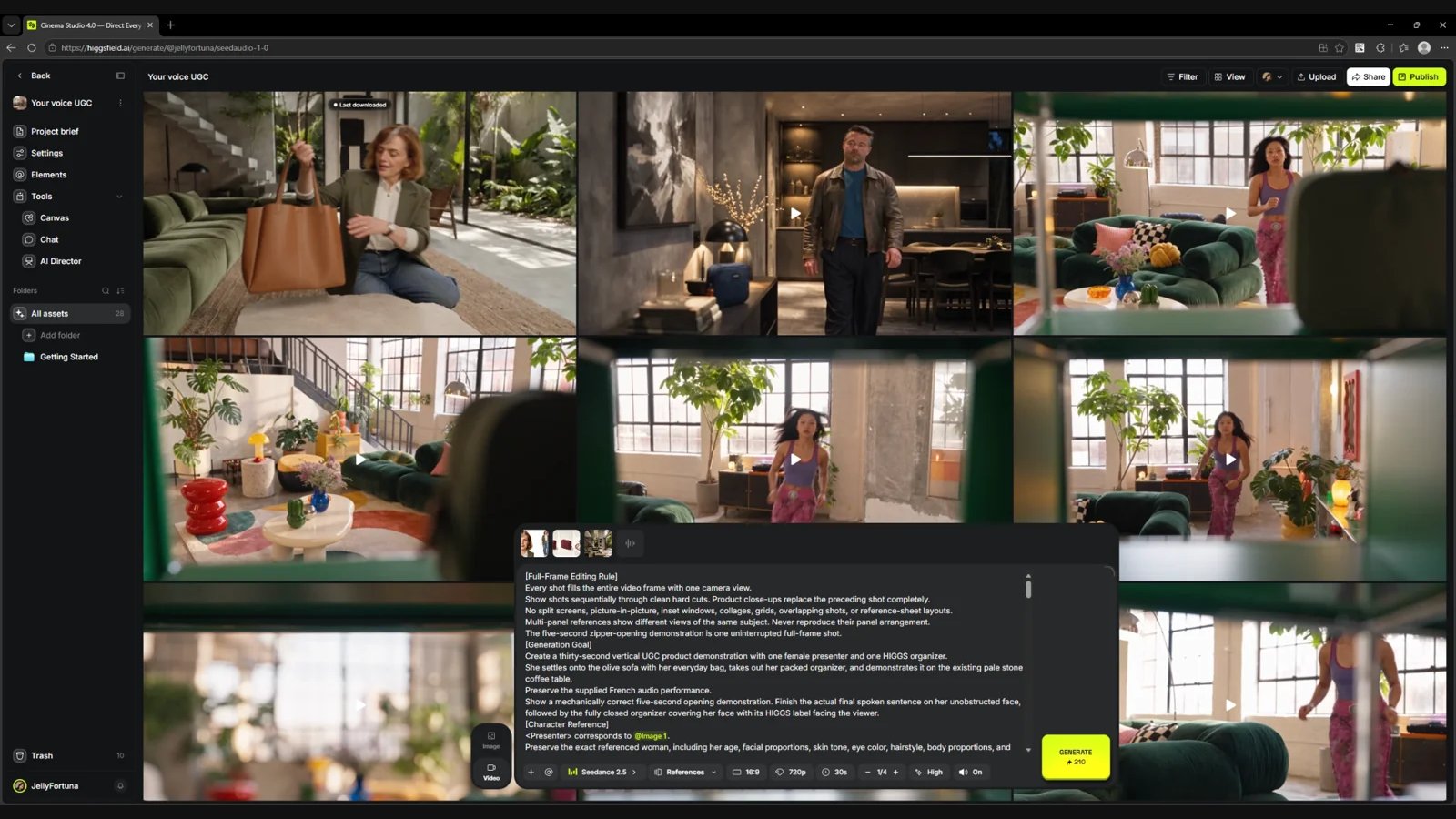
Open video generation and choose Seedance 2.5 → References. Attach three images and one finished voiceover. Each reference gets its own tag, and in the prompt you refer to it by that tag.
Seedance 2.5: character, product, location and voiceover attached.
References and their tags
Order
Role
What it carries over
@Image 1
Character
Face, body, hair, clothing and accessories
@Image 2
Organizer
Construction, colour, label and exact contents
@Image 3
Location
Architecture, furniture, surfaces and light
@Audio 1
Finished speech
Words, voice, pronunciation, pauses and performance
Voice first. Then the ad video.
Settings of the French example on screen
Value
Model / mode
Seedance 2.5 / References
Aspect ratio / resolution
16:9 / 720p
Duration
30 seconds
Count / quality / sound
1 / High / On
How the audio is embedded in the prompt
The @Audio 1 voiceover starts immediately and plays off-screen while the character searches for and opens the organizer. In the talking shots, the prompt asks for lip sync with the current part of that same recording. We do not ask for the script to be read again: the model does not invent the text, it uses the approved one.
0–3 s: an everyday situation and the search.
3–5 s: take out and place the closed organizer.
5–10 s: one continuous five-second shot of the full opening.
After 10 s: the talking character and product inserts that follow the meaning of the speech.
Before the last sentence: close the organizer.
Last sentence: close-up of the face, mouth fully visible.
After the speech: the closed organizer rises in front of the face, HIGGS facing the viewer.
Jelly · English
@Image 1 · character · Jelly
@Image 2 · product · olive HIGGS
@Image 3 · location · bright loft
@Audio 1 · approved ElevenLabs voiceover
00:00
HIGGS_ENG_Female_Jelly_11labs_v01.mp3
Final video · 27 s · 1280 × 720
Full video prompt · Jelly
Man · German
@Image 1 · character · man in a leather jacket
@Image 2 · product · ink blue HIGGS
@Image 3 · location · concrete interior in the evening
@Audio 1 · approved ElevenLabs voiceover
00:00
HIGGS_DE_Male_Hamburg_11labs_v01.mp3
Final video · 28.7 s · 1280 × 720
Full video prompt · German
Frenchwoman · French
@Image 1 · character · Frenchwoman
@Image 2 · product · burgundy HIGGS
@Image 3 · location · living room in daylight
@Audio 1 · approved ElevenLabs voiceover
00:00
HIGGS_FR_Female_Paris_11labs_v01.mp3
Final video · 30 s · 1280 × 720
Full video prompt · French
Finally
We wish you consistent voices and accurate generations. We hope this workflow helps you keep native pronunciation and tell the story of your product the right way.
Done when
Seedance has three images and the voiceover attached, and the prompt refers to each reference by its tag.
Video
Quick fixes
What to do if the audio speeds up, extra sounds appear or the voice drifts.
A short reference for the problems that come up most often in this workflow, and how to avoid them.
The audio in the video sounds fast-forwarded
It means the model cannot fit long audio into too short a stretch of video, so it speeds it up.
4 s
buffer at any length
15 s → 11 s
of voiceover
30 s → 26 s
of voiceover
Whatever the length of the clip, always leave a 4-second buffer: the voiceover should be 4 seconds shorter than the video.
For example, 15 seconds of video means up to 11 seconds of voiceover, and 30 seconds of video means up to 26 seconds.
This gap gives the model room to interpret the audio carefully without rushing, so it does not produce fast-forwarded tracks.
When you write the script, time it to the video length minus 4 seconds.
If there is more text than fits, split it into 3–4 blocks of information and generate the video in parts, each with its own 4-second buffer.
What breaks in Seed Audio and how to fix it
What breaks in Seed Audio and how to fix it
Problem
Why
What to do
Extra sounds, background or music
By default the model adds scene atmosphere to make the voice feel natural
End Voice details with the line Clean dry close-mic speech, voice only against silence. Do not describe a place or setting
Wobble, bubbling, rattling
A defect of that specific take
Do not try to clean it with commands like "remove the noise" or "keep only the voice": that gave no confirmed result. Generate a new take and choose a clean one
A caricatured or wrong accent
The accent is described too generally
Name both the language and the region: Standard German with a subtle Hamburg accent. Add understated regional pronunciation, no caricature. Check with a native speaker
Each generation sounds like a different person
The same prompt casts a slightly different voice each time
That is normal while searching. Choose the best take and save it as a clone: from then on the voice is stable
A weak, vague voice
The voice description comes after the text or is too general
Start with the voice description. Be specific: "late forties, husky and tired" beats "older woman"
Length drifts, the last sentence gets cut
Duration follows the amount of text
Put the important sentence earlier and split long text into parts
Generation error with no obvious reason
The content check sometimes gives a false positive
Retry without changes. If it keeps failing, replace dashes and ellipses with commas and periods
You want to adjust speed and pitch
The sliders conflict with the description
Leave Speed, Pitch and Volume at default first. Adjust them only once the description gives you the right voice
What breaks in ElevenLabs
A tag is read out loud: check the ElevenLabs v4 model and the square brackets, simplify or remove the instruction.
[pause] affects the rhythm but does not set an exact length of silence. Do not use the SSML <break> tag in v4.
Contradictory emotions on the same words give unpredictable results. Change one tag at a time.
Leave sound effects out of the voiceover: product and room sounds are easier to control in the video.