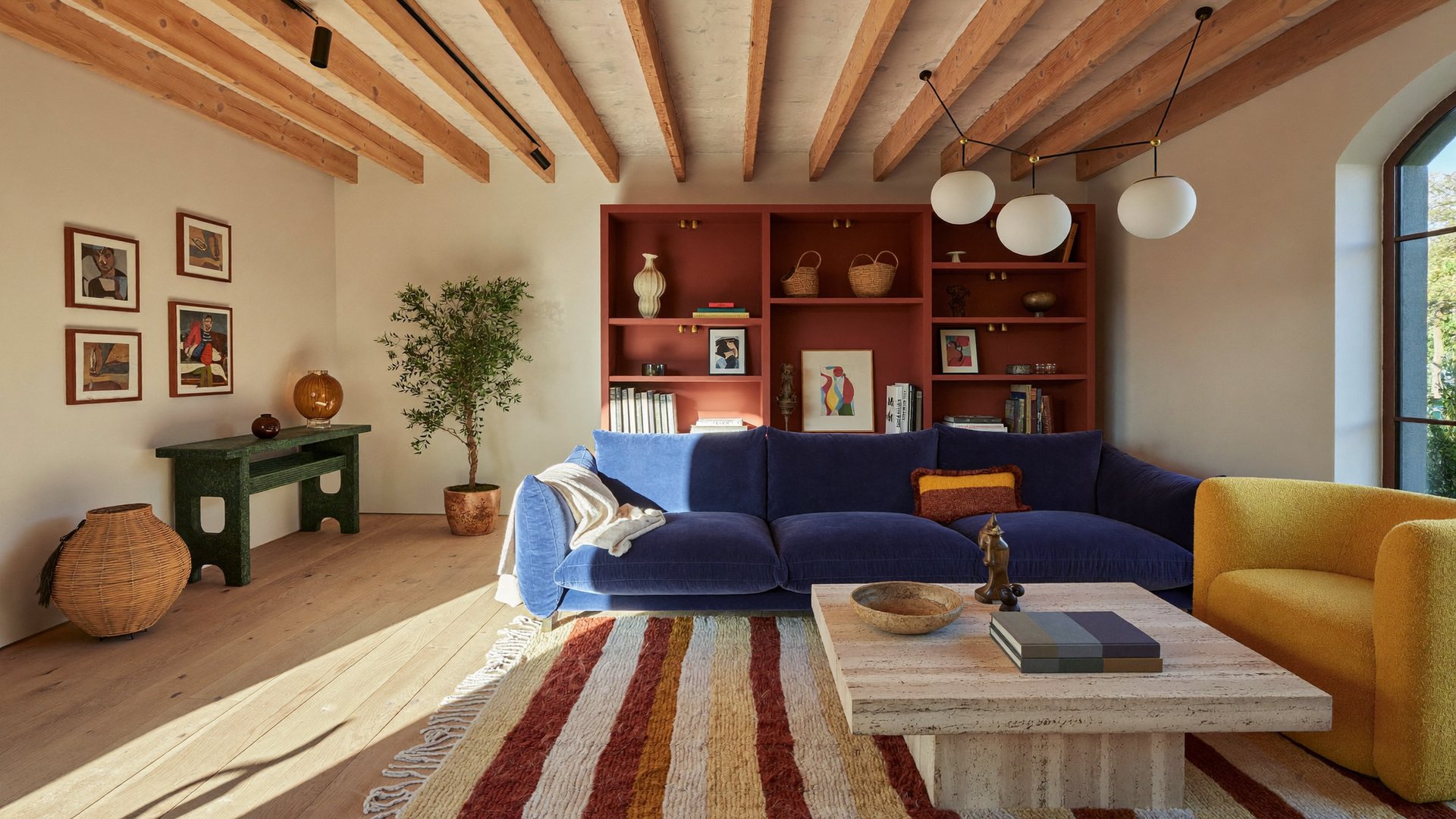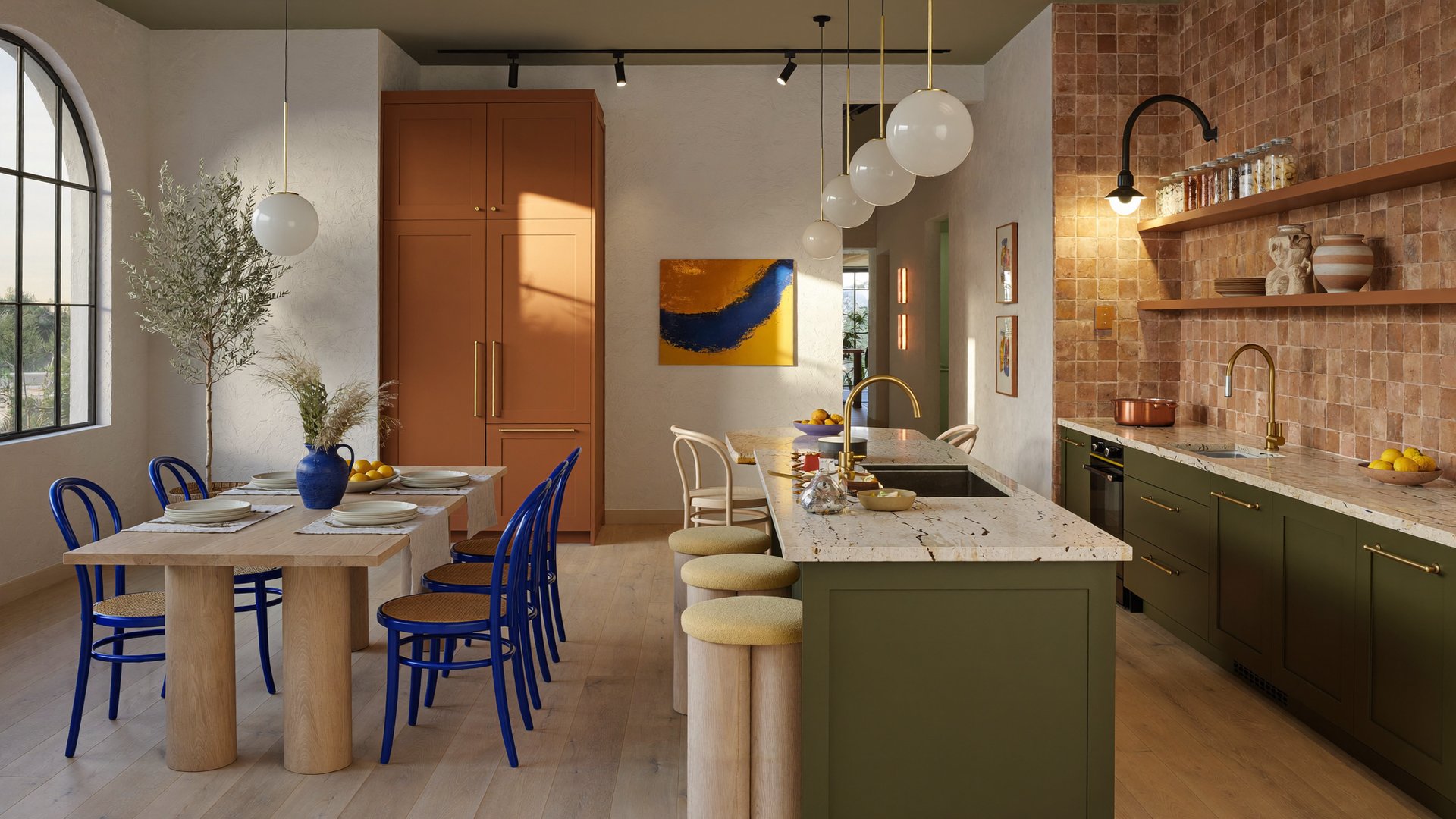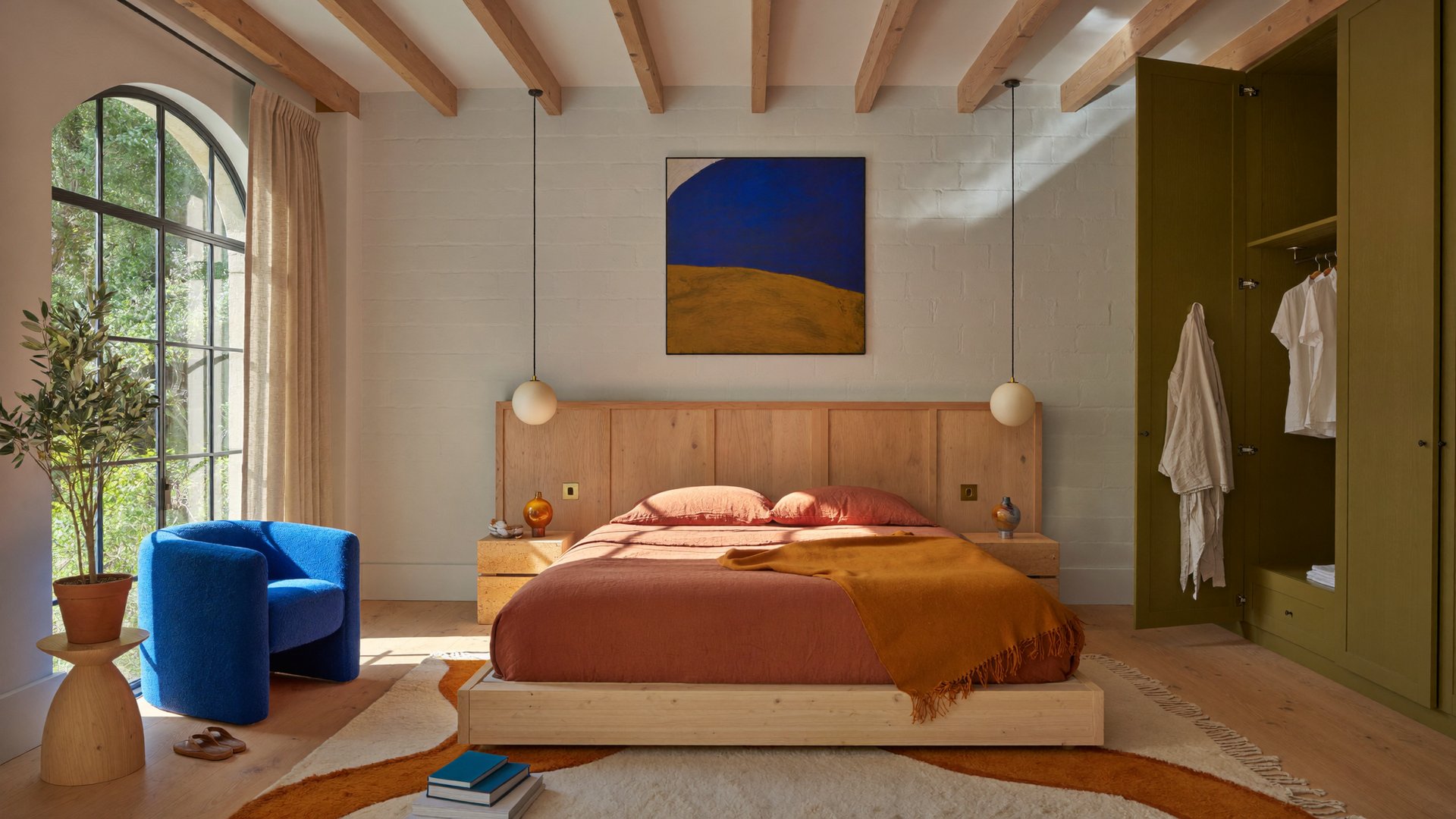
To create AI real estate videos from photos, upload clear property images to an image-to-video tool, describe the camera movement, and generate clips for each space. Then combine them into a property tour with listing details and music. This guide covers how to choose your photos, write prompts, and review the results so the finished video presents the property accurately.
What Makes a Good AI Real Estate Video?
A good AI real estate video gives potential buyers a clear sense of the property’s spaces, features, and overall character. Each shot should highlight something useful, such as the kitchen layout, living area, or outdoor space. Gentle camera movement and a logical sequence make the tour easy to follow, while consistent lighting and accurate details help viewers understand what the property actually offers.
Element | What to Aim For |
|---|---|
Accuracy | Rooms, windows, finishes, and views match the photos and the real property |
Order | Exterior, entrance, living areas, kitchen, bedrooms, bathrooms, then outdoor spaces |
Camera movement | Gentle push-ins or subtle pans, with one move per clip |
Light | Natural daylight, with the same time of day across clips |
Clip length | Short clips highlighting each space, assembled into a property tour |
Format | 16:9 for listing sites and YouTube, 9:16 for Reels, TikTok, and Shorts |
How to Choose the Right Property Photos
The quality of your source photos shapes the final result, so start with clear images that accurately show the property.
- Take sharp, high-resolution photos with straight vertical lines and no heavy filters. Choose framing that suits your intended video format and leaves important property details visible.
- Include at least one wide shot of every room you want in the video, and add a second angle for large spaces.
- Use daylight and keep the lighting consistent across rooms, so the clips don't jump between times of day.
- Clear the clutter before photographing: personal items, cables, and cleaning supplies distract from the space.
- Leave people out of the frame. Keep the focus on the property and make sure furniture, fixtures, and architectural details remain clearly visible.
- Choose one main photo for each room and keep additional angles available as supporting references. Avoid mixing photos of different rooms when generating a single shot.
How to Create AI Real Estate Videos on Higgsfield
On Higgsfield, you can use Cinema Studio 4.0 to turn property photos into individual clips for a complete property tour. The Director’s Panel provides controls for camera, lens, aperture, lighting, and pacing, while your prompt describes the space, the intended movement, and the details to preserve. Here’s how to build the tour step by step.
Treat the result as an AI-generated property tour rather than a documentary walkthrough. Keep camera movement close to what is visible in the source photos so the model has less unseen space to invent.
Step 1: Open Cinema Studio and start a project. For easier organization, create one project per property so its references, rooms and clips stay together.
Step 2: Upload your photos as references. Upload the best photo of the room you want to animate. If you need additional references, use other angles of the same room. Save recurring locations as Elements to help maintain consistency, and generate each room separately.